Destinations define how products are delivered to a customer. Common destination options include Delivery, Electronic Delivery, Installation, and Pickup.
This article provides an overview of how Destinations work in the system, including how to configure destination options and set defaults. It also explains how to apply Destinations to an Estimate or Order, including how to assign multiple Destinations to separate Line Items when products are delivered in different ways.
Table of Contents
- Destination Options in Settings
- Adding Destinations to an Order
- Allocating Quantities to Different Destinations
- Related Articles
Destination Options in Settings
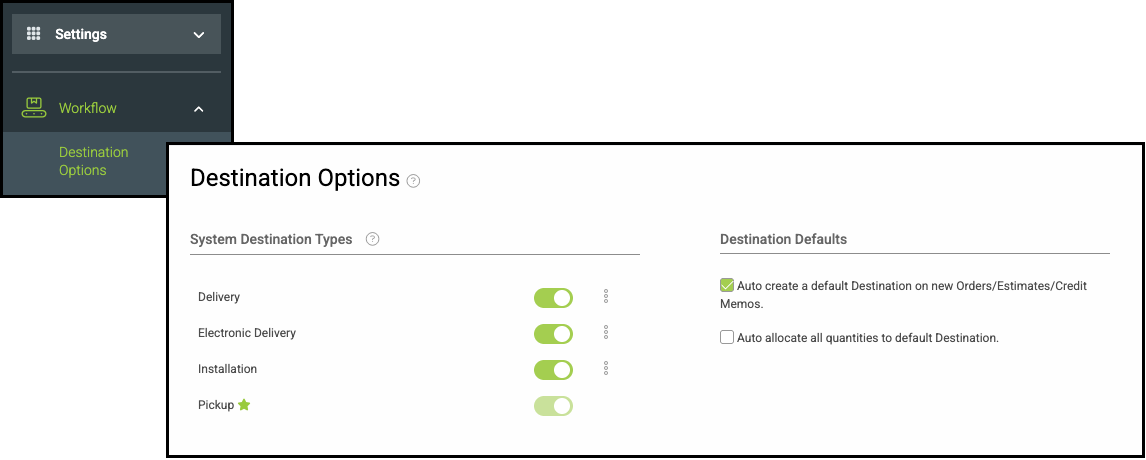
Navigate to Settings / Workflow / Destination Options.
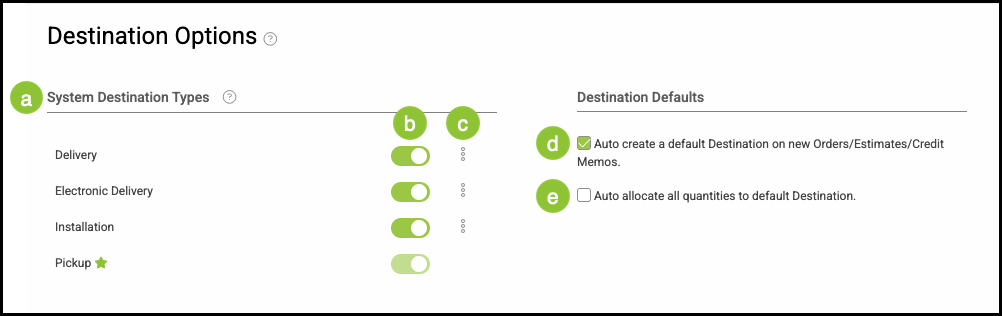
a. System Destination Types are preloaded into the system.
b. Each type can be toggled on or off in your system.
Note: The current default can not be toggled off.
c. Clicking the ellipsis allows you to change the default type.
d. Select this if you would like the system to automatically create a destination on new Estimates, Orders, or Credit Memos using your default destination type.
e. Select this if you would like the system to automatically set all quantities to your default Destination.
Adding Destinations to an Order
Destinations can be added directly to an Order, and each Order can include one or more destinations as needed. Destinations function the same way on Orders, Estimates, and Credit Memos; this article uses Orders as the example.
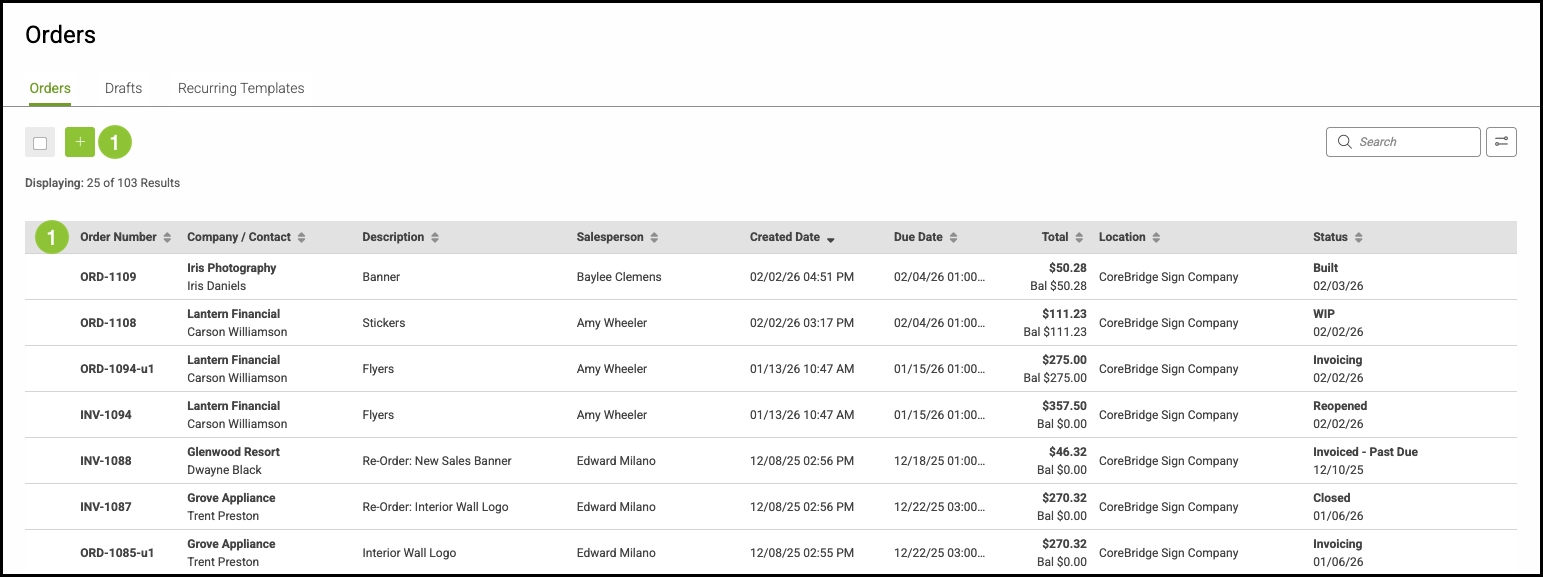
Navigate to Sales/ Orders.
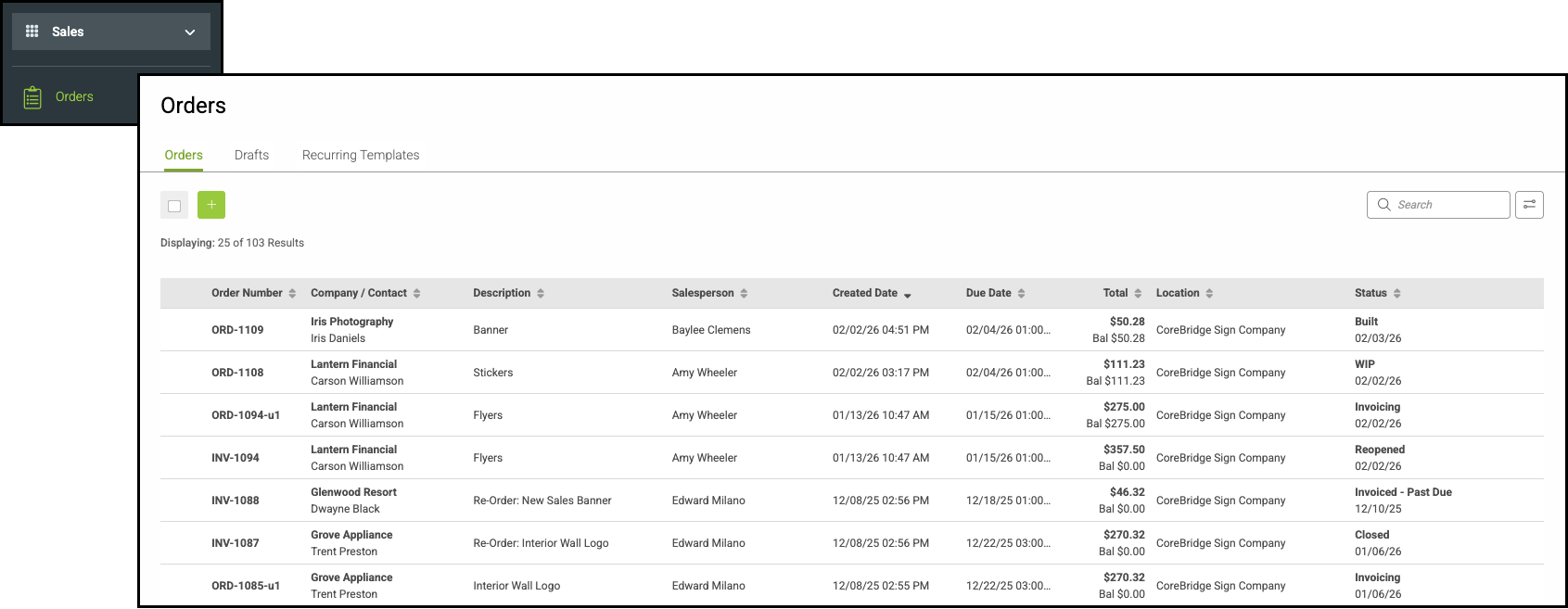
1. Select an Order, or create a new one. For more information on Order creation, please see Creating an Estimate/Order.
Note: Destinations can not be added to a Closed Order.
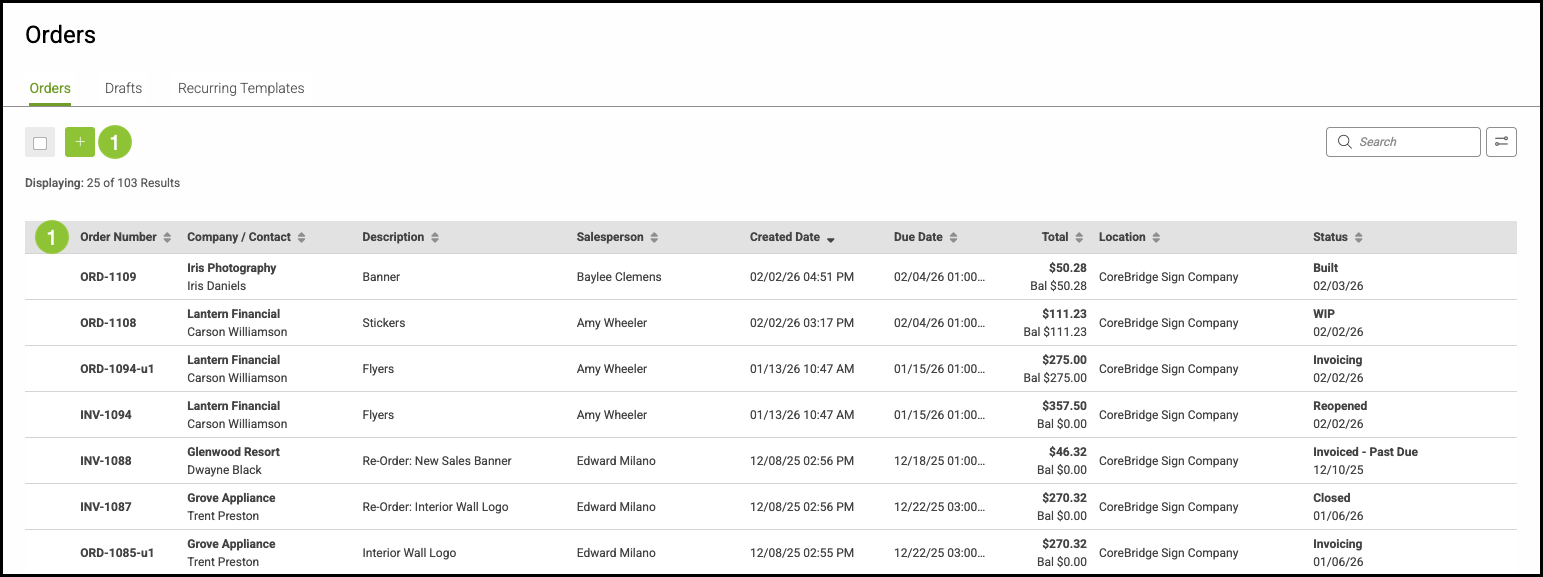
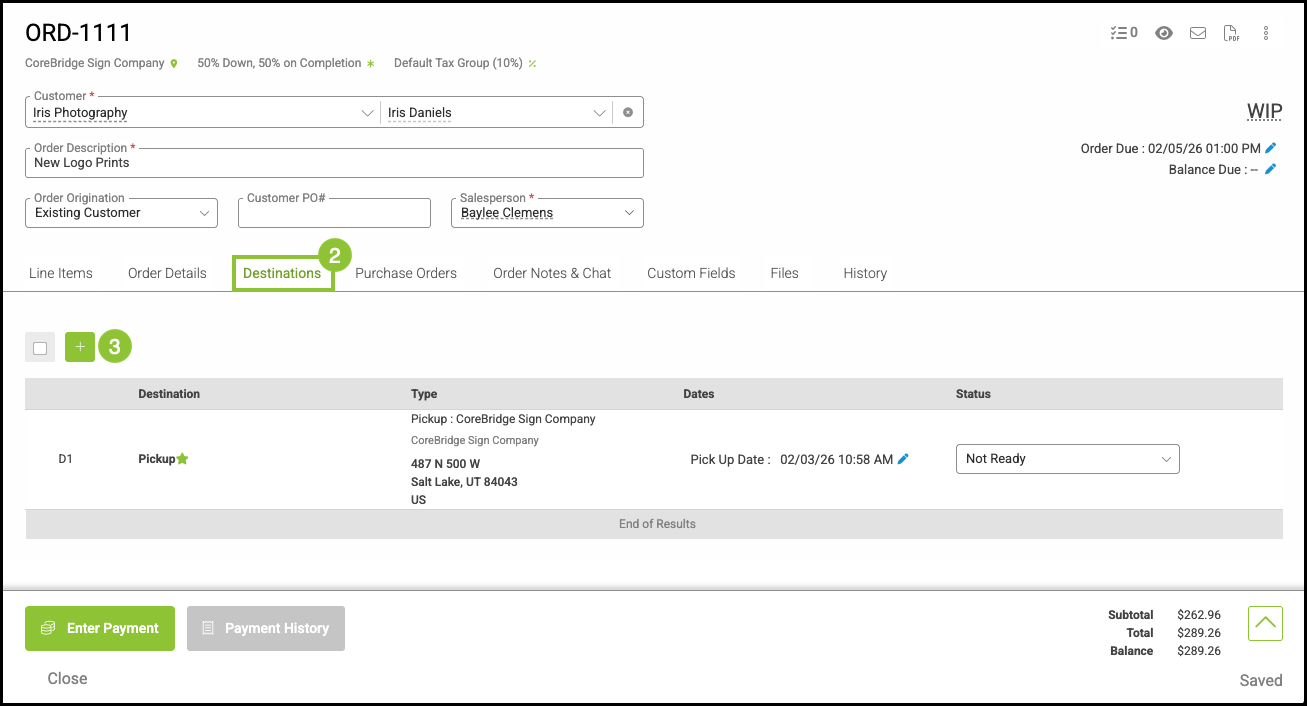
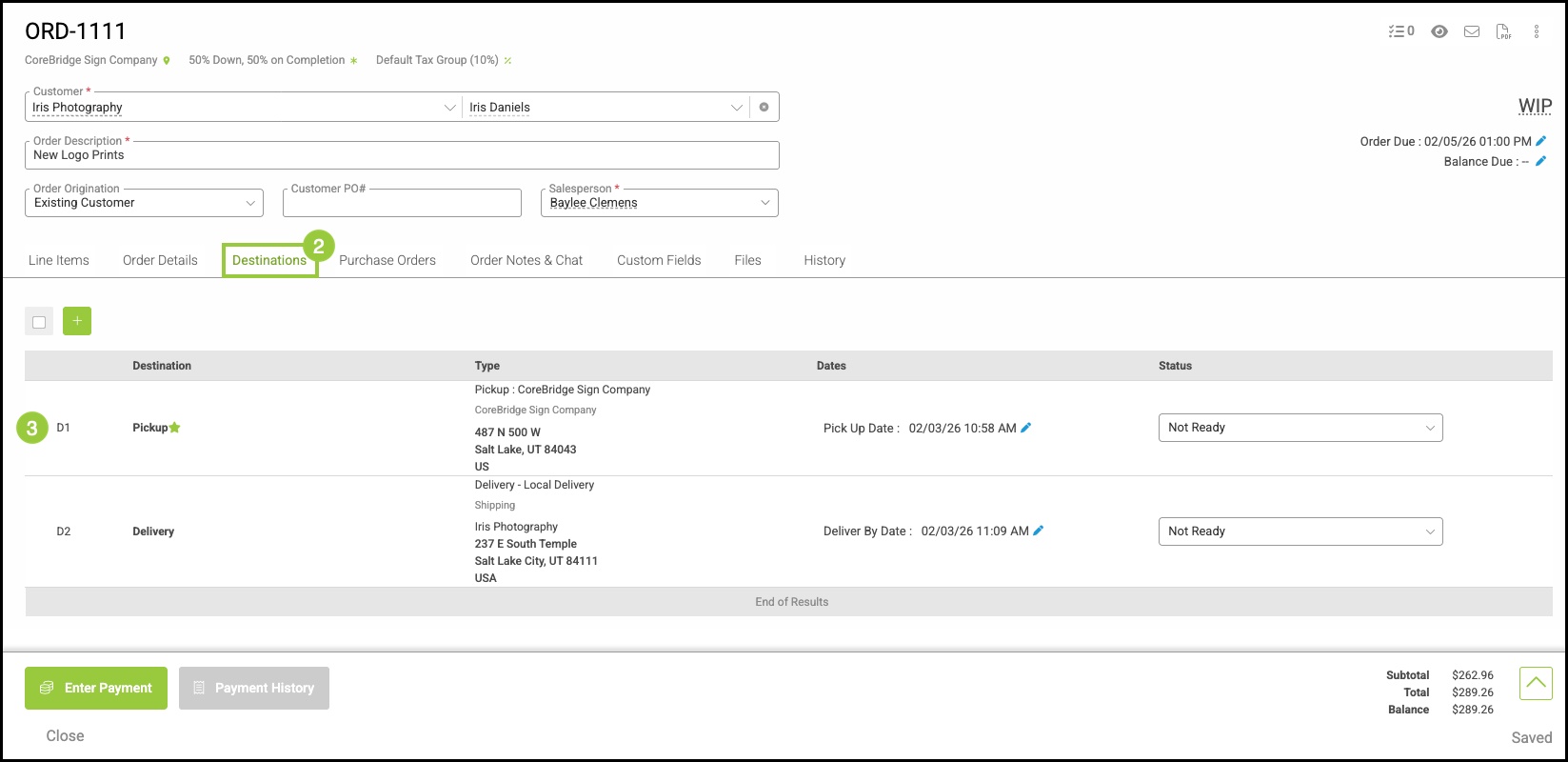
2. Navigate to the Destinations tab.
3. Click the Green Plus button.
Note: If you have checked the box listed as d above, a destination will automatically populate here.
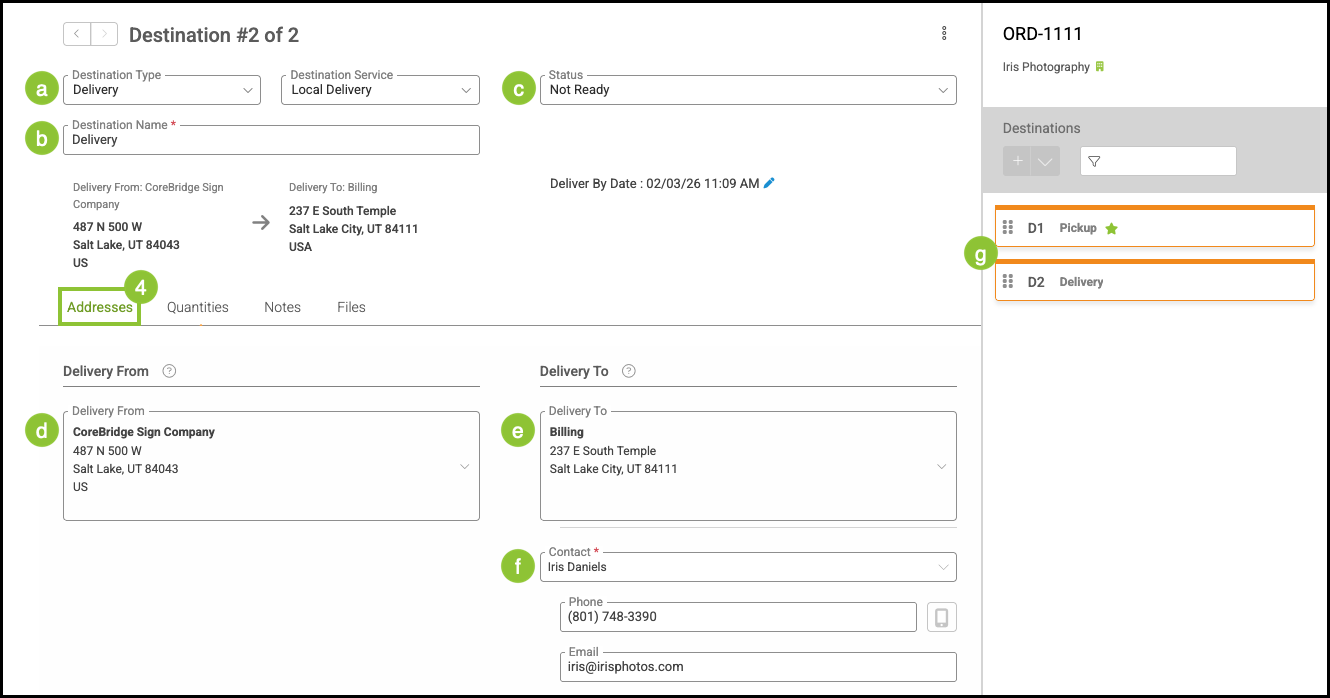
4. Select the Addresses tab.
a. Destination Type includes options like Pickup, Delivery, and specific delivery methods such as UPS or USPS.
b. Destination Service - The options in this dropdown are dependent upon the Destination Type chosen.
Note: This dropdown is not available when Installation, None, or Pickup are selected as the Destination Type.
c. The Status on Destinations will automatically update as the Status on the Line Item is updated.
Example: If the Destination is Delivery, the Status will automatically update to 'Ready' when the Line Item Status is 'Awaiting Delivery'.
d. Select an address from the dropdown or choose Custom to enter a new address.
Note: The name of this field will change depending on the Destination Type selected.
e. Select an address from the dropdown or choose Custom to enter a new address.
Note: The name of this field will change depending on the Destination Type selected.
f. The Contact information will auto populate based on the Contact information for this Customer.
Note: These fields are editable.
g. If there are multiple Destinations on this Order, you can toggle between them here.
Allocating Quantities to Different Destinations
Line Items can be split across multiple destinations within the same Order. This allows different products or services to be delivered, picked up, installed, or sent electronically based on how each item should be fulfilled.
Navigate to Sales/ Orders.
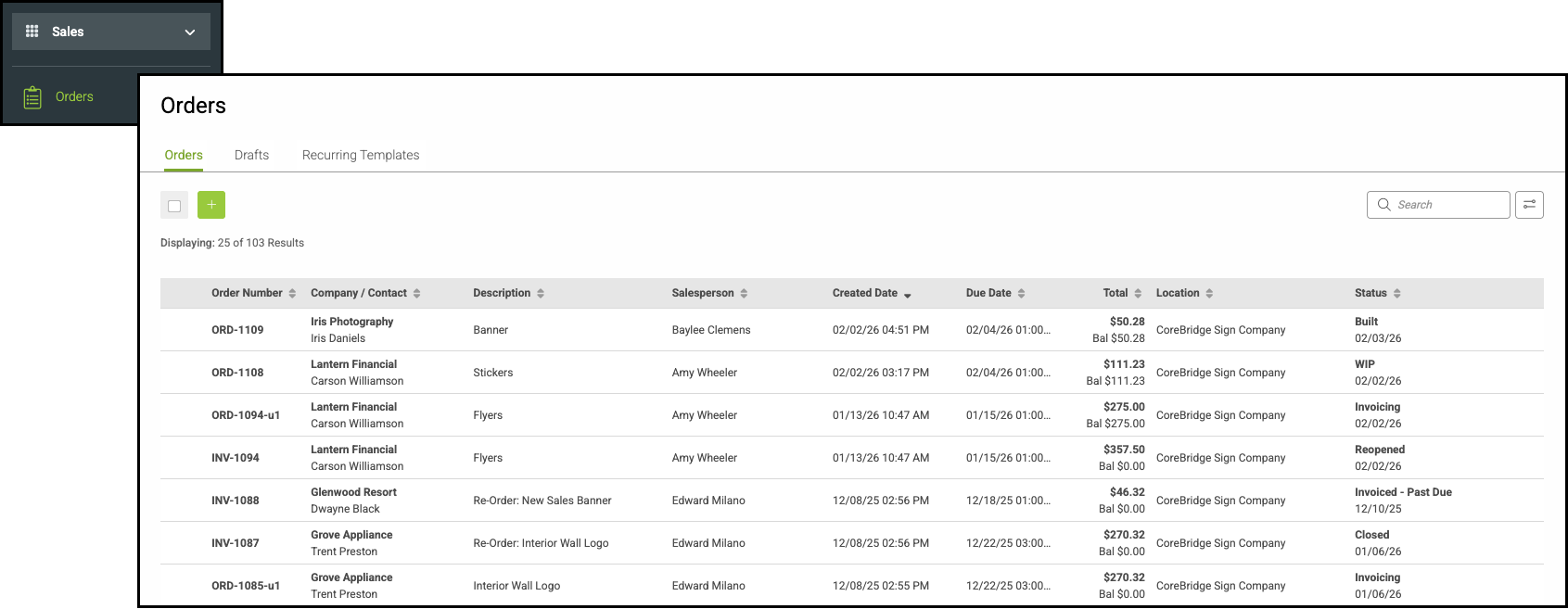
1. Select an Order, or create a new one. For more information on Order creation, please see Creating an Estimate/Order.
Note: The Order must have at least two Destinations.
2. Select the Destinations tab.
3. Select a Destination.
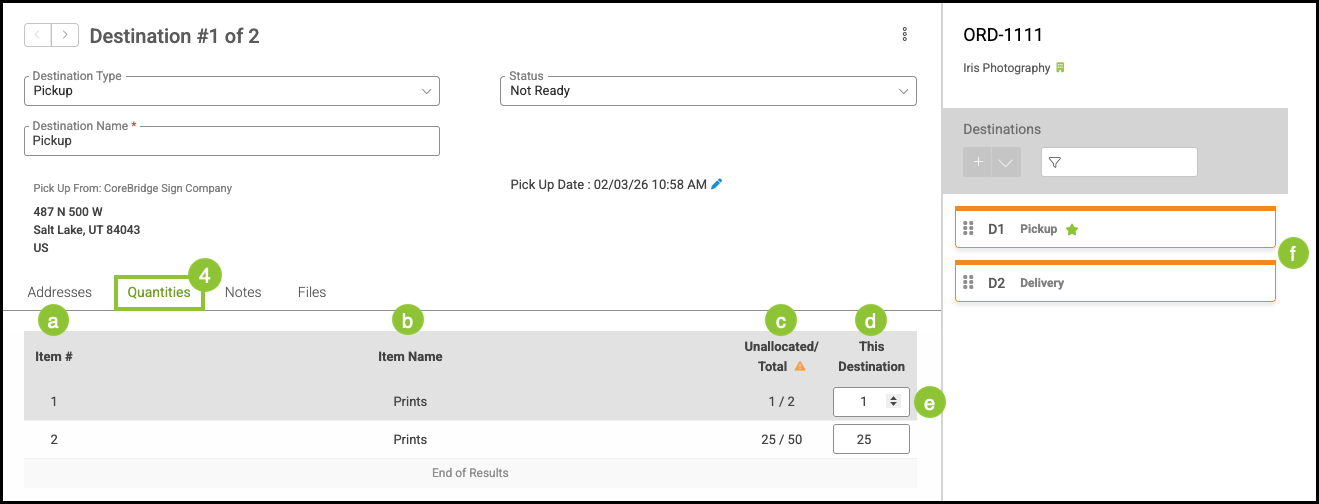
4. Select the Quantities tab.
a. This Item # corresponds with the Line Item number on the Order.
b. This Item Name corresponds with the Line Item name on the Order.
c. This display shows allocation status for the item. The top number indicates how many units are not yet assigned to a destination, and the bottom number shows the total quantity for the item.
Note: This number will automatically update as quantities are assigned to a Destination.
d. This number indicates how many have been assigned to this Destination.
Note: When lowering the total quantity, the allocated quantity and the Line Item quantity must remain in sync. Reduce the allocated quantity first, then update the Line Item quantity.
e. This value can be adjusted using the up and down arrows that appear when you hover over the field.
f. You can quickly toggle between Destinations here.