Credit Memos provide a way to issue refunds or partial refunds without canceling an Order. They are most commonly used in regions where traditional refunds are restricted - such as the U.K. - but any Customer may use them to track returned funds while maintaining accurate Order history.
Credit Memos apply a credit to one or more Line Items on an invoiced Order, or as stand alone credit records. This helps you record adjustments, quality issues, discounts, or good-will adjustments, and still maintain a complete audit trail.
Table of Contents
- When to Use a Credit Memo
- Important Details
- Enabling Credit Memos
- Creating a Credit Memo Within an Order
- Creating a Credit Memo from the Accounting Module
- Adjusting Line Item Price
- Viewing a Credit Memo
- Unlocking a Credit Memo
- Related Articles
When to Use a Credit Memo
Credit Memos are used when you need to adjust or reduce the amount collected on an Order without voiding the Order. They can also be used to document In-Store Credit. This is especially important when you must retain the full Order history for financial or regulatory reasons.
Common reasons to use a Credit Memo include:
- Product Quality Issues
The customer received the Order, but part of it was defective or not as expected. You can credit a portion of the Order while keeping the original Order intact. - Partial Refunds or Good-Will Adjustments
You may choose to return a portion of the amount as a courtesy while maintaining an accurate record of the original balance. - Pro Bono or Discounted Orders
If you decide to reduce the cost of an Order after it has been invoiced - for example, due to a community donation or customer satisfaction issue - a credit memo records the adjustment. - Regions That Restrict Refunds
In some areas, such as the U.K., businesses must avoid voiding completed orders. A Credit Memo allows you to return funds while keeping the Order history intact.
Examples
The examples below illustrate how Credit Memos may be used in typical situations.
Example 1: Customer Receives a Defective Item
A portion of the Order was damaged. You edit the related Line Item in the Credit Memo and reduce its value by the amount you need to return. Posting the memo lowers the Order’s balance accordingly.
Example 2: Good-Will Discount After Delivery
The Order was delivered successfully, but the Customer was not fully satisfied. You apply a 10% adjustment by manually calculating the amount and updating the Line Item in the Credit Memo.
Example 3: Customer Requests Store Credit Instead of a Refund
The Order is complete, but the Customer prefers to use the refund on a future Order. You assign the Credit Memo to store credit when posting.
Important Details
- Orders must be in Invoiced status to post a Credit Memo.
- The Credit Memo must be tied to at least one Line Item.
To provide a percentage or specific dollar amount, you must edit a Line Item’s value within the memo. - Credit Memos may be posted or voided.
Posting finalizes the Credit Memo and updates the Order balance. Voiding removes it if created in error. - Credit Memos may be applied as In-Store Credit.
If the Customer prefers to retain the funds for future use, you may assign the Credit Memo amount to In-Store Credit.
Enabling Credit Memos
Before creating a Credit Memo, the feature must be enabled in system settings.
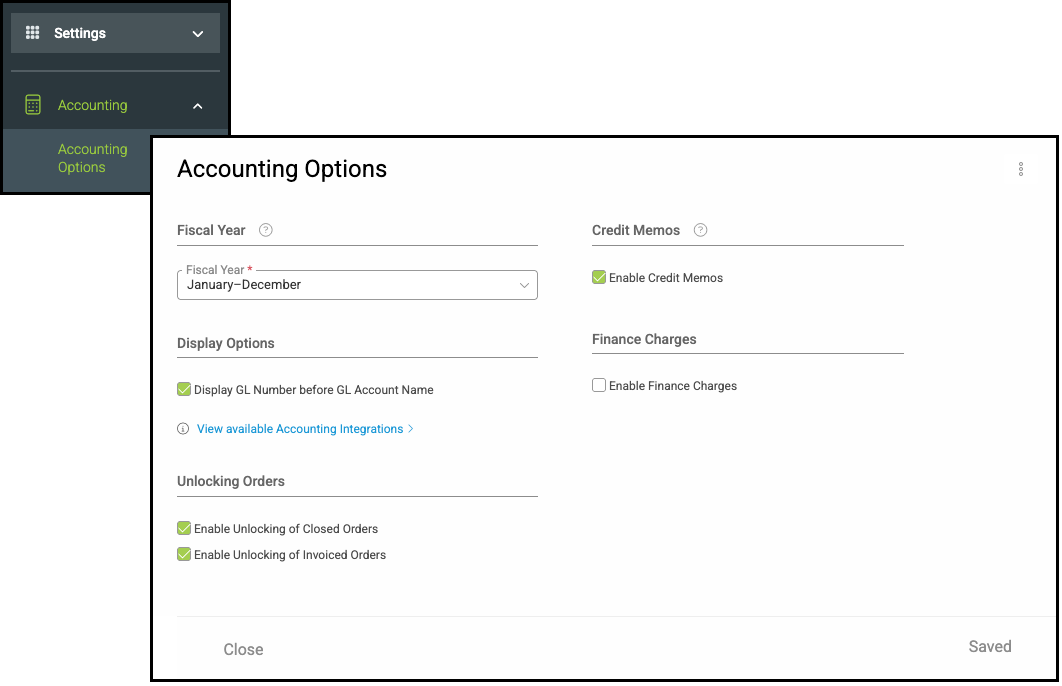
Navigate to Settings / Accounting / Accounting Options.
1. Check the option to Enable Credit Memos.
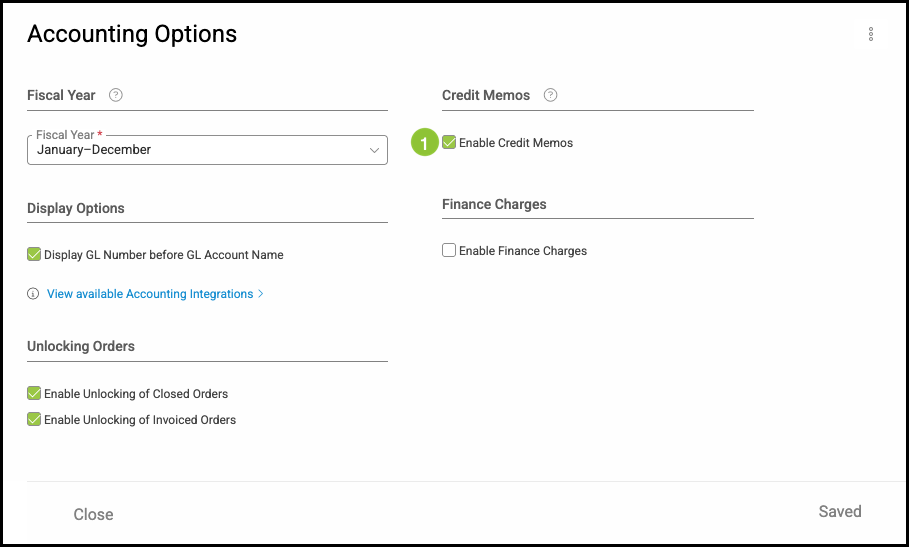
Once enabled, Credit Memos can be created directly from an eligible Order or through the Accounting Module.
Creating a Credit Memo Within an Order
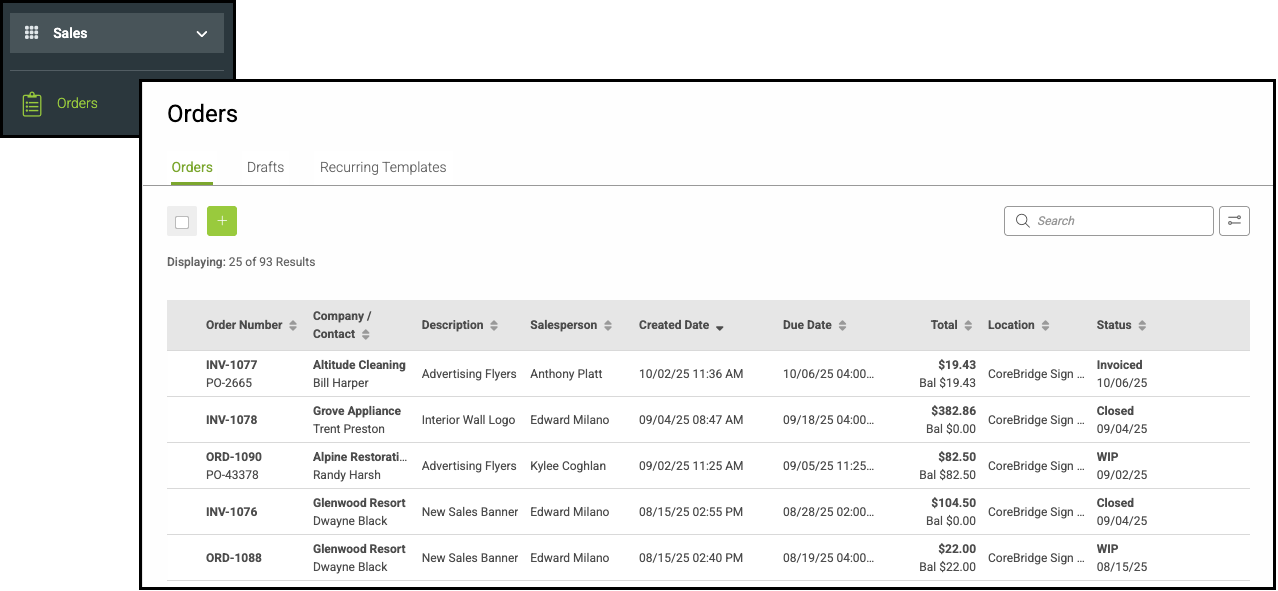
Navigate to Sales / Orders and select the appropriate Order.
Note: An Order must be in Invoiced status to post a Credit Memo.
1. Click the Ellipsis.
2. Select Create Credit Memo.
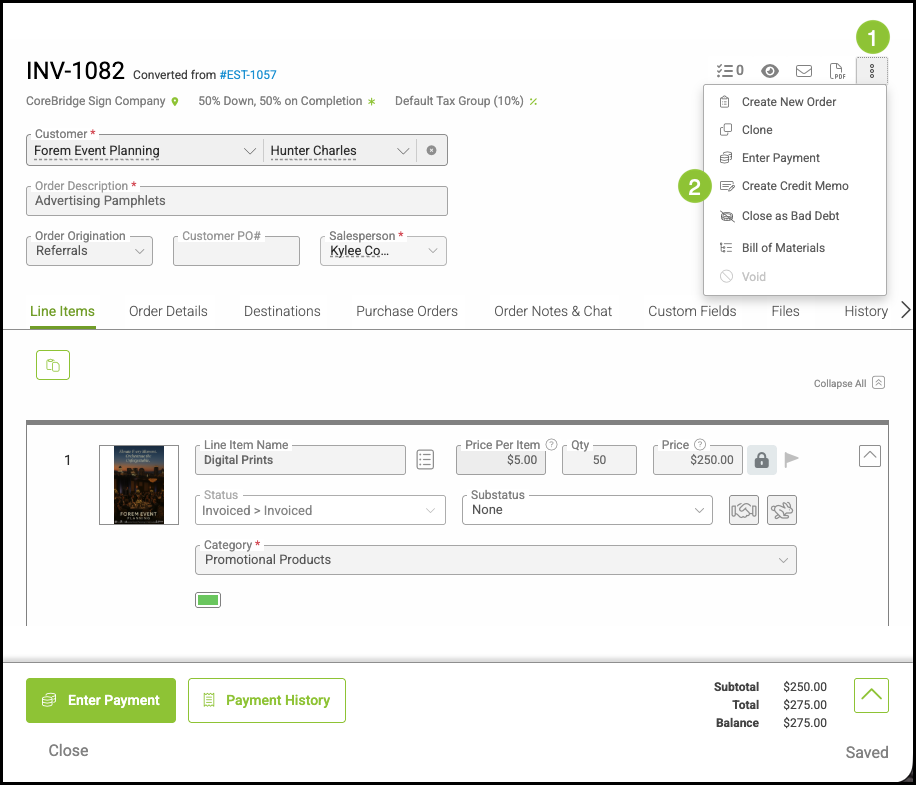
3. Include a Description or Reason for the Credit Memo, if desired.
4. Click Save.
Note: If an Order includes multiple Line Items, the Credit Memo can apply to all of them, or you can delete any Line Items that should not be included. This is done by clicking the ellipsis at the end of the Line Item and selecting Delete. For information on adjusting the Line Item amount, please see Adjusting Line Item Price below.
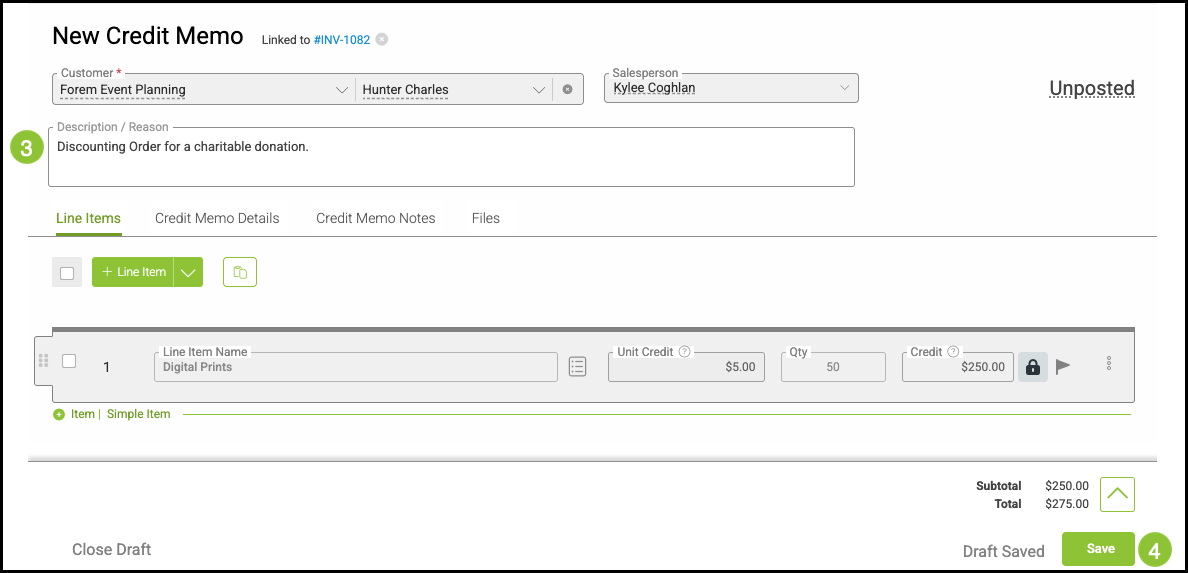
5. Click Post.
Note: The Credit Memo will not be applied until it is Posted.
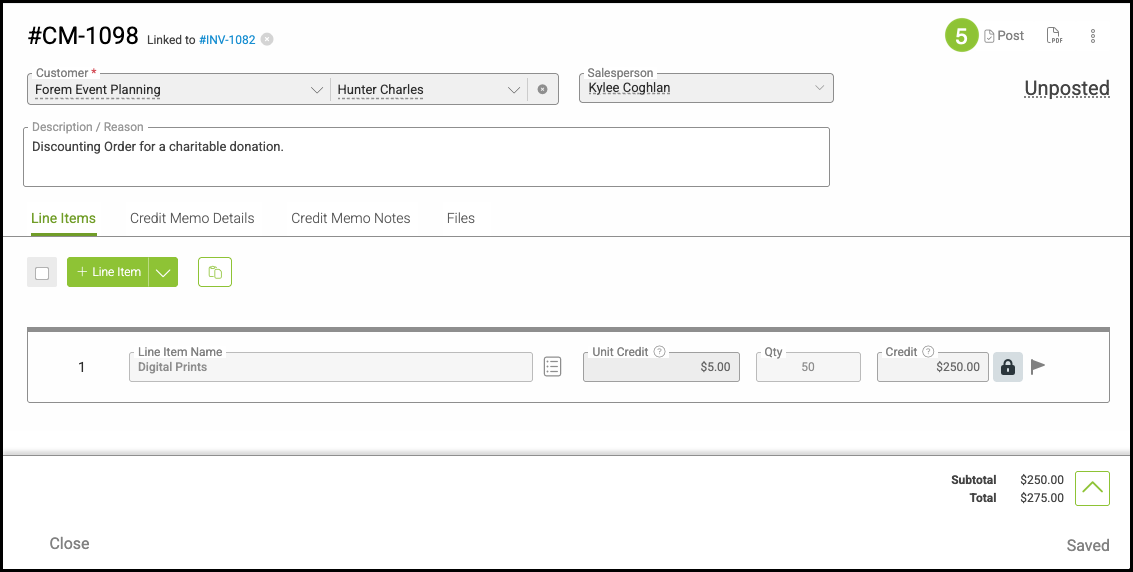
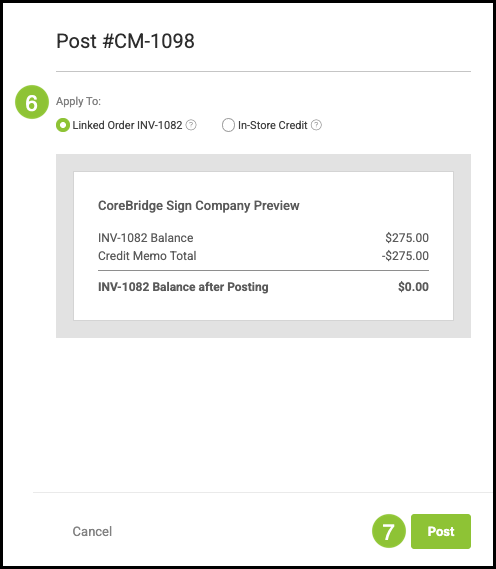
6. Select how you would like the Credit Memo applied.
7. Click Post.
Creating a Credit Memo from the Accounting Module
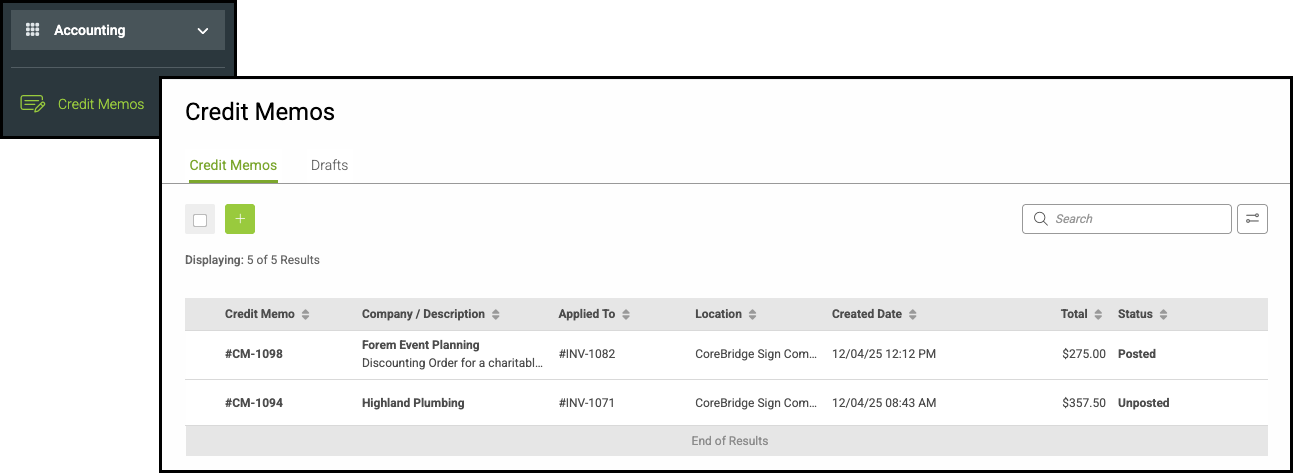
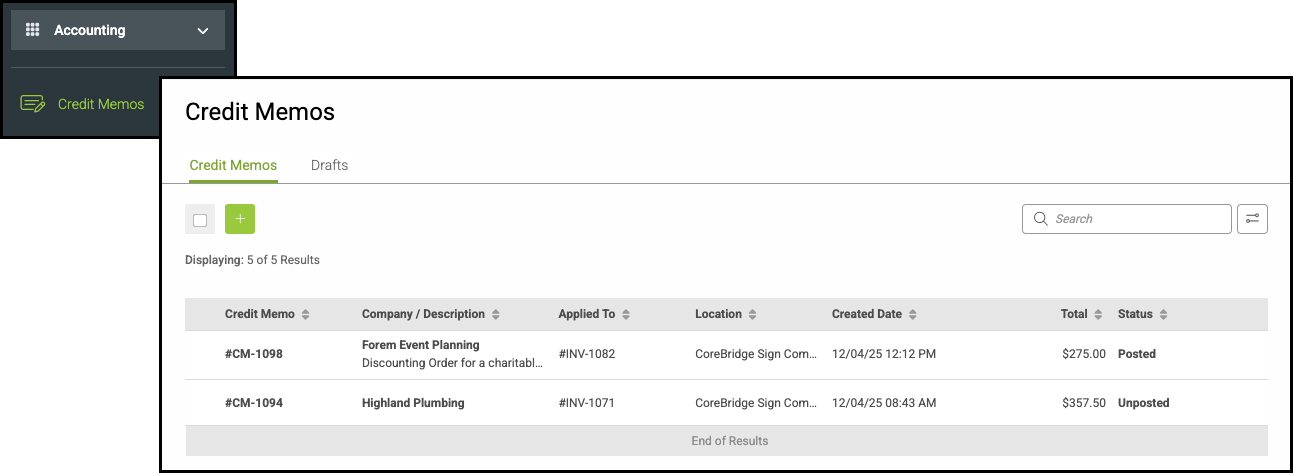
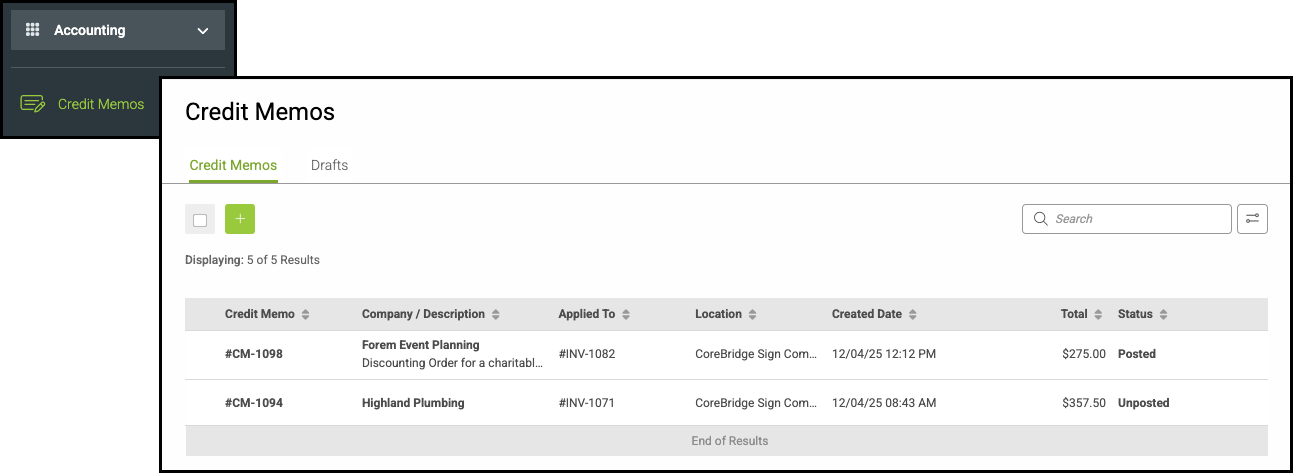
Navigate to Accounting / Credit Memos.
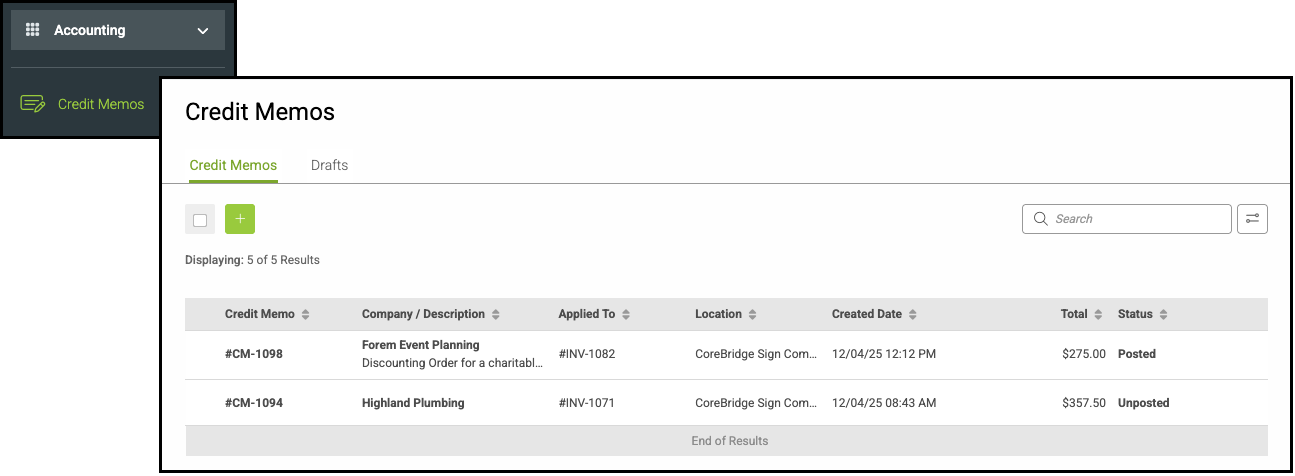
1. Click the Green Plus button.
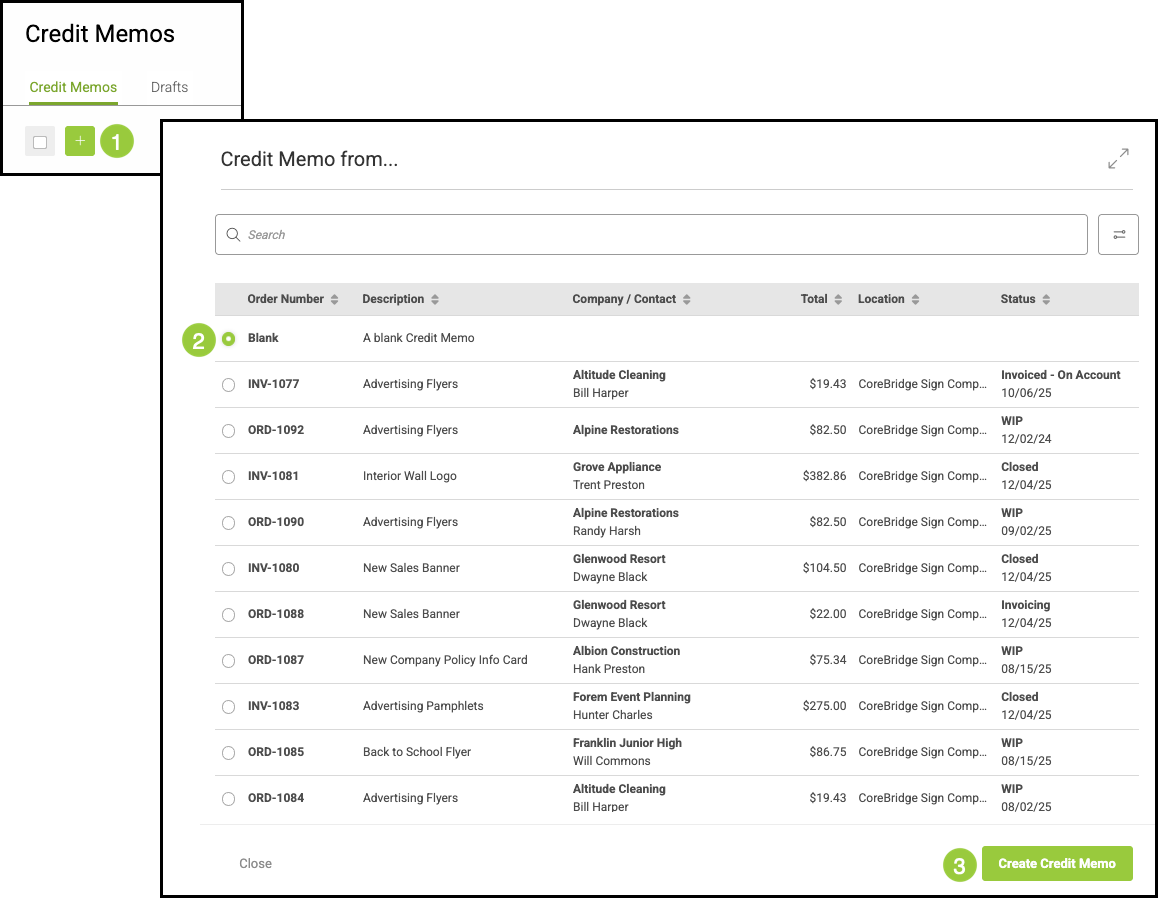
2. Select a Blank template or the Order.
Note: Orders must be in Invoiced status.
3. Click Create Credit Memo.
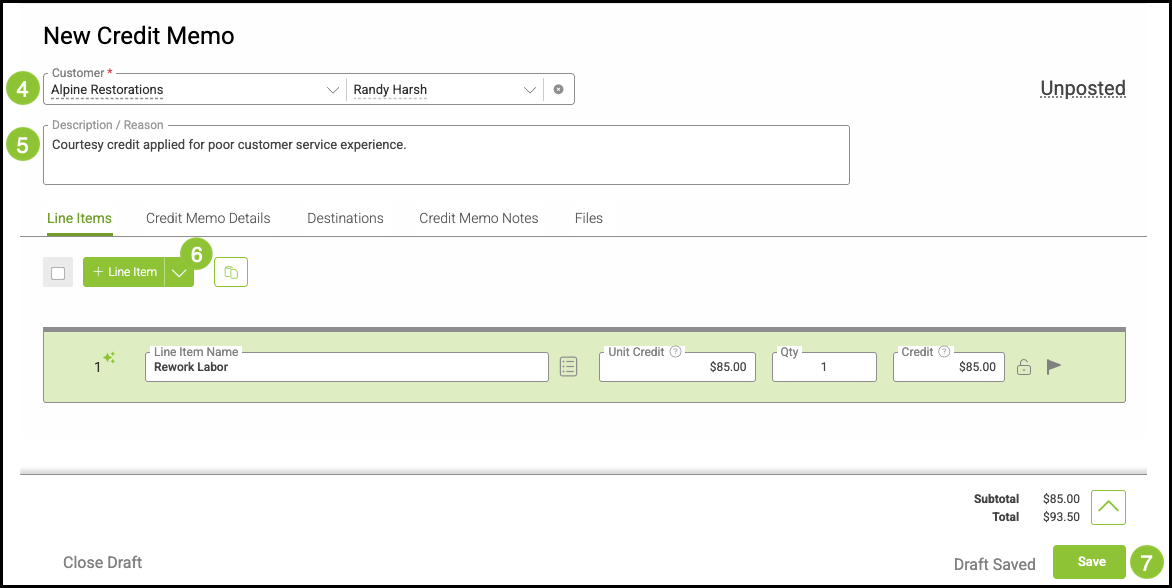
4. Enter a Customer.
5. Provide a Description or Reason for the credit, if desired.
6. Enter the necessary Line Items.
Note: For more information on entering Line Items, please see Line Items Overview.
7. Click Save.
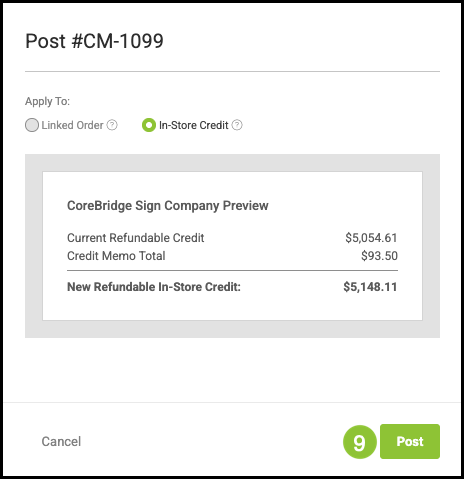
8. Click Post.
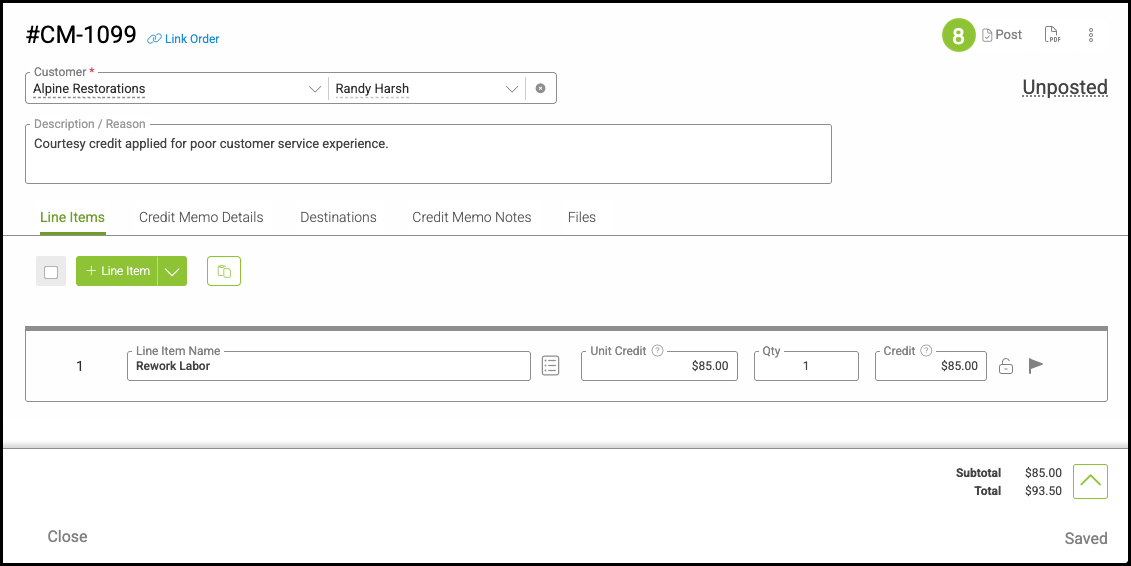
9. Click Post.
Note: Credit Memos not associated to an Order will automatically Post as In-Store Credit.
Adjusting Line Item Price
For more information on Line Items, please see Line Items Overview.
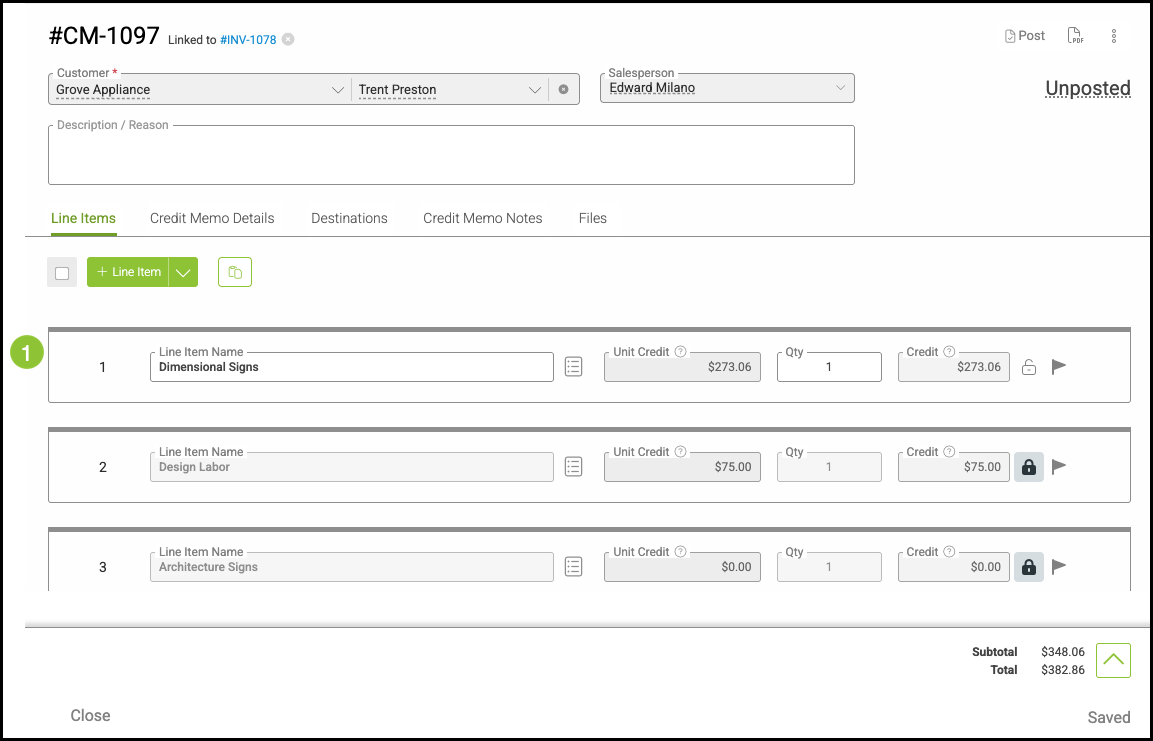
Navigate to Accounting / Credit Memos and select the appropriate Credit Memo.
1. Click on the Line Item you wish to adjust.
Note: Adjusting Line Item prices must be done before Posting the Credit Memo.
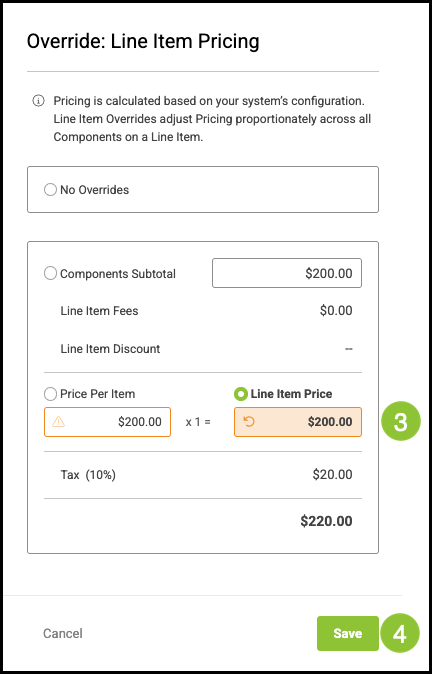
2. Click Override Line Item Pricing.
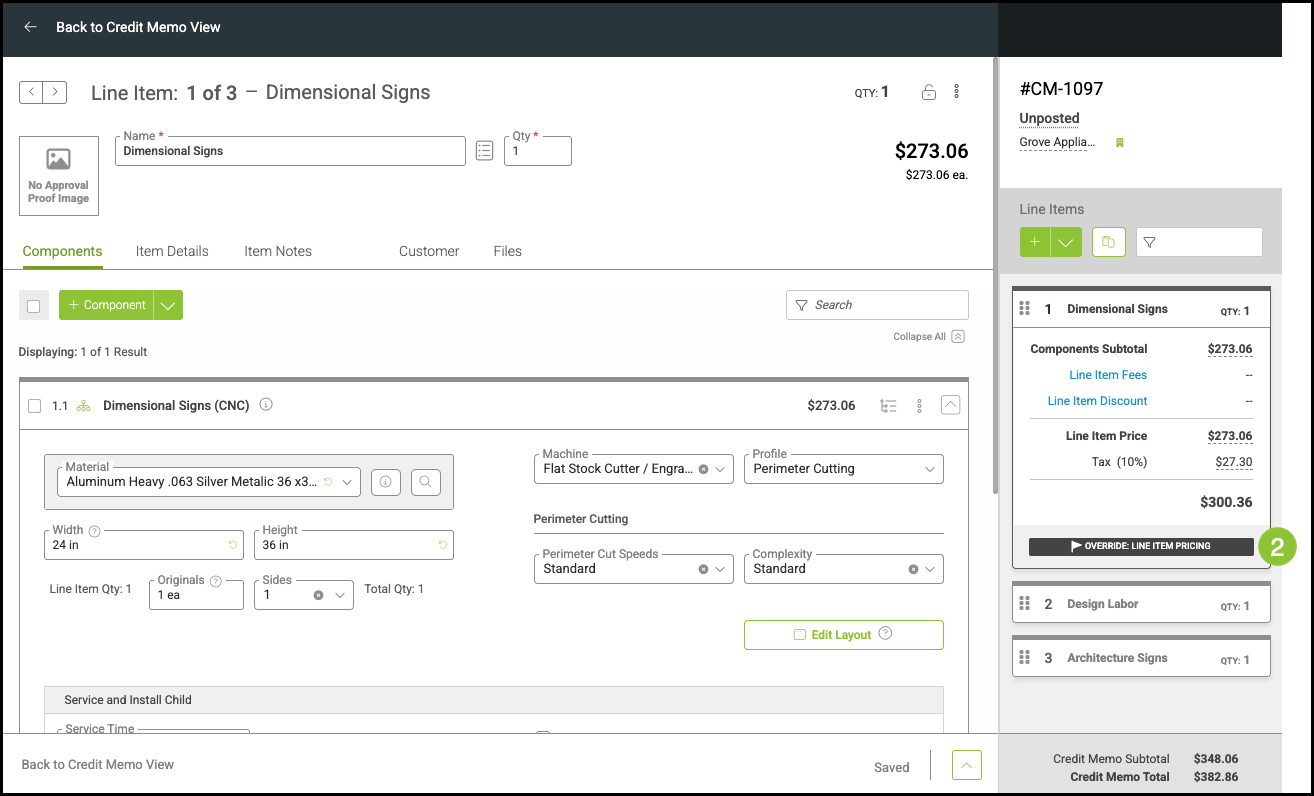
3. Enter the new amount.
Note: This can be adjusted on a Component Subtotal, Price Per Item, or Line Item Price level.
4. Click Save.
Viewing a Credit Memo
Navigate to Accounting / Credit Memos and select the appropriate Credit Memo.
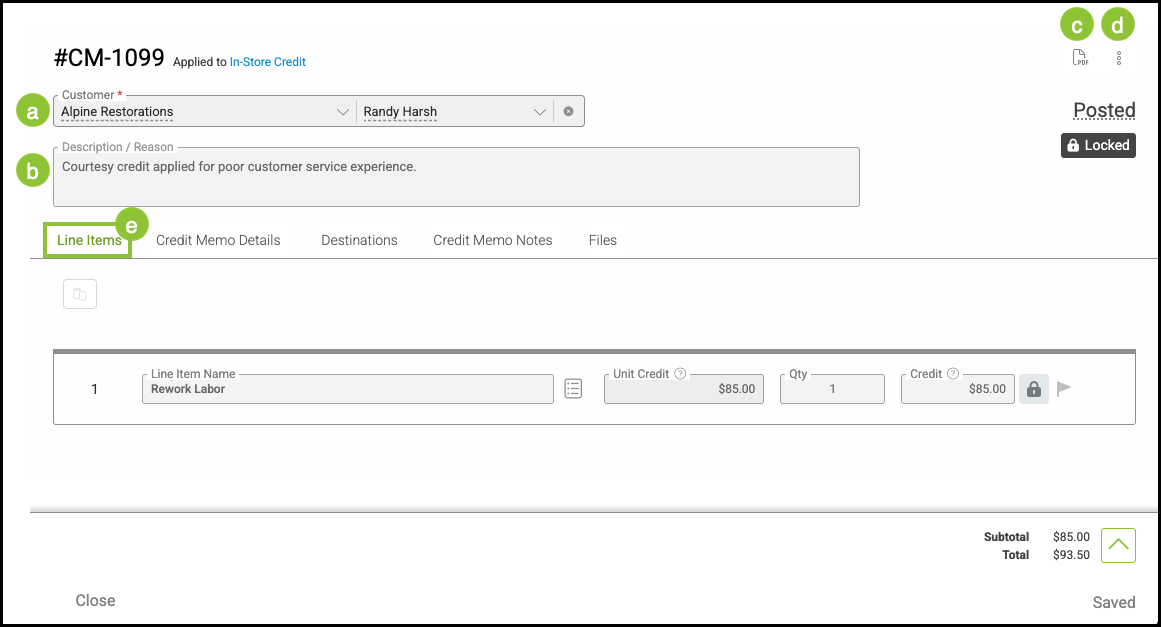
a. Customer Name.
b. Description or Reason for the Credit Memo.
c. This icon redirects you to a PDF version of this Credit Memo with options to download or print.
d. This ellipsis gives you the option to Unpost the Credit Memo.
Note: This will reverse all General Ledger entries and Payment Credit attached.
e. The Line Items tab shows all Line Items associated with this Credit Memo.
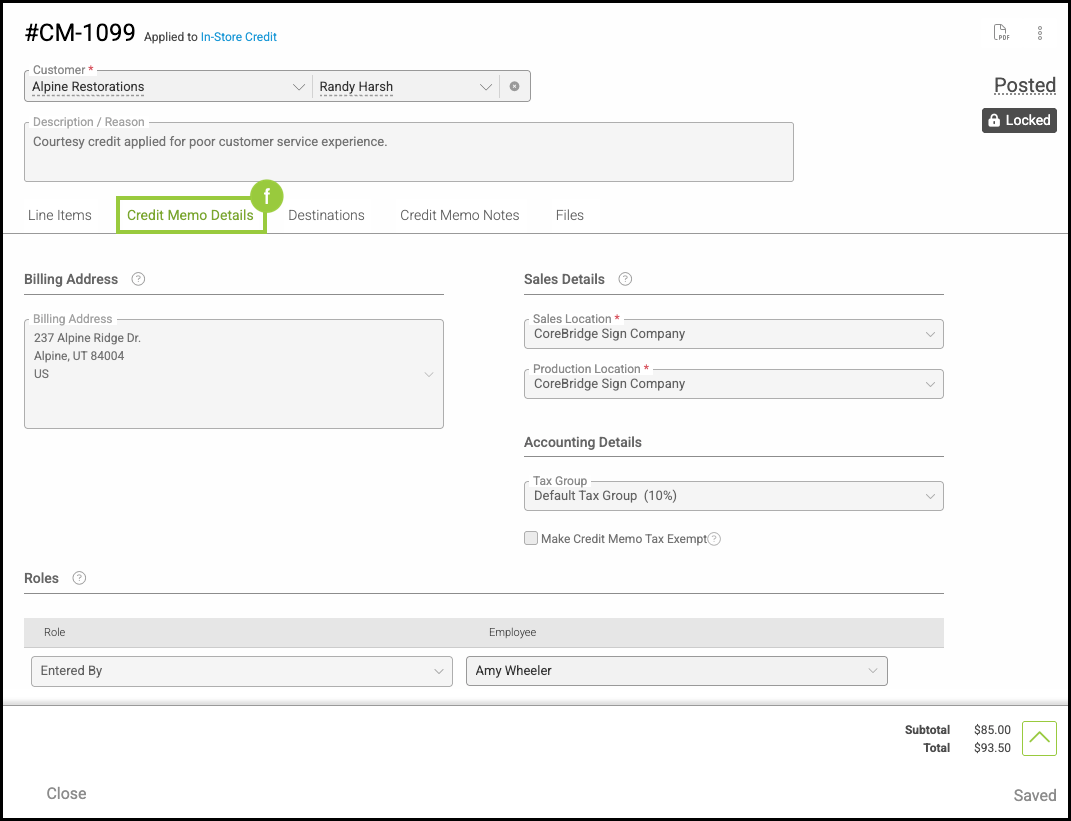
f. The Credit Memo Details tab shows pertinent information about the Customer.
Note: If you would like to edit these details, navigate to Sales / Customers and select the appropriate Customer. For more information, please see Creating Companies or Creating Contacts.
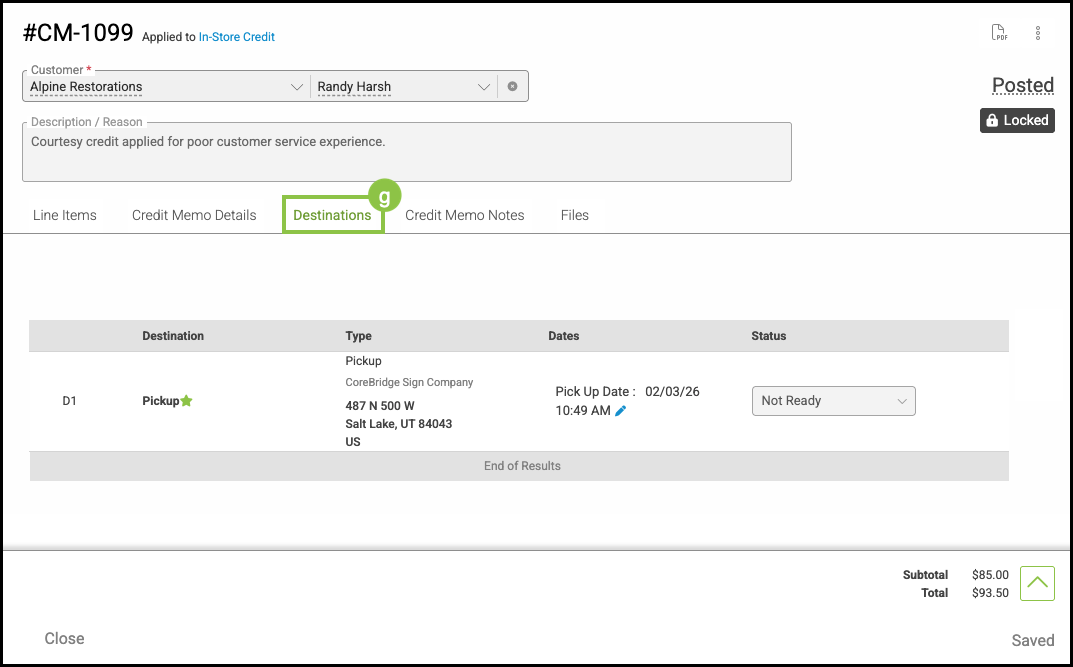
g. The Destinations tab contains the Destination details. For more information on Destinations, please see Destinations Overview.
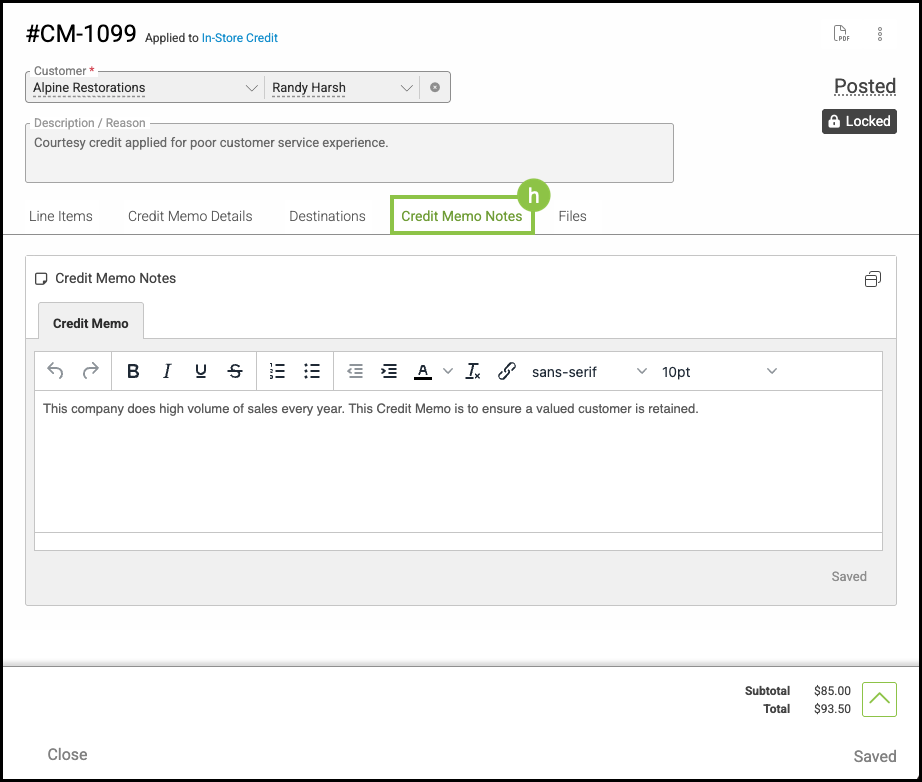
h. The Credit Memo Notes tab allows you to record more information about this Credit Memo.
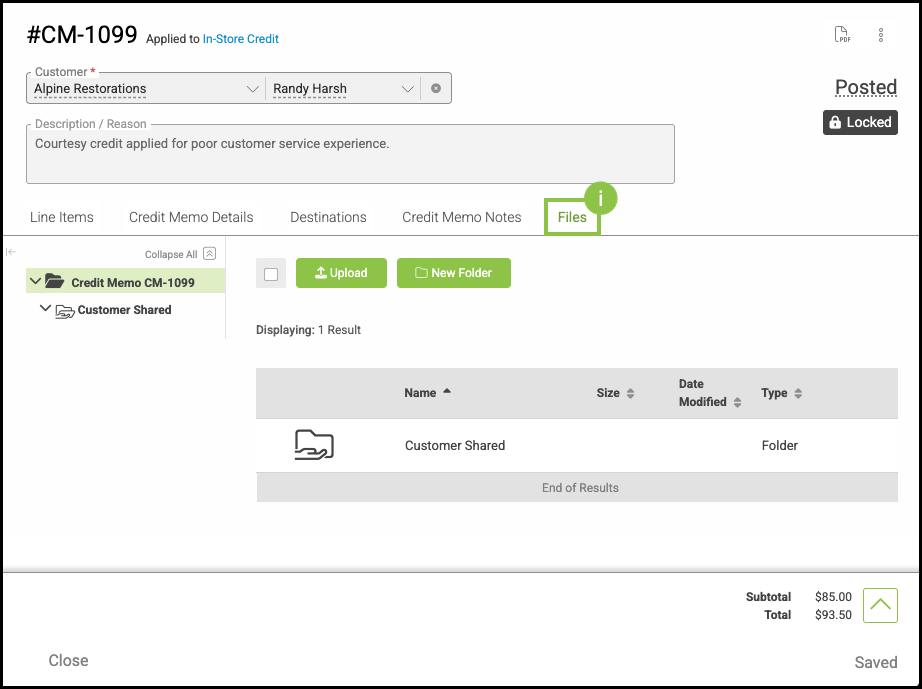
i. Any Files associated with this Credit Memo can be uploaded here.
Unlocking a Credit Memo
Navigate to Accounting / Credit Memos and select the appropriate Credit Memo.
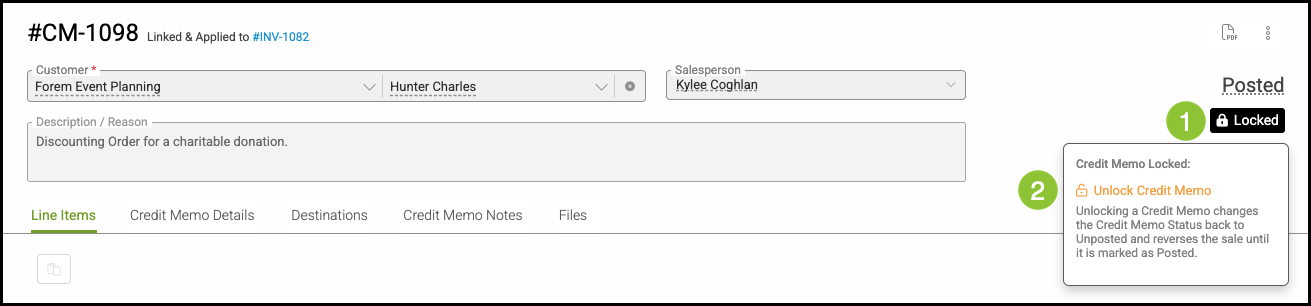
1. Hover over the Locked icon.
2. Click Unlock Credit Memo.
Note: This will change the status on the Credit Memo back to Unposted and reverse the sale.
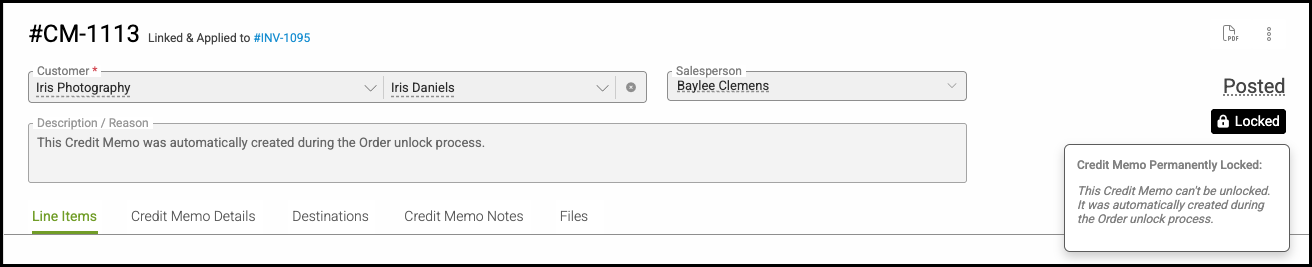
Note: Credit Memos created as part of the Full Unlock process on Orders cannot be unlocked. For more information, please see Full Unlock Feature.