Statuses define how work moves through your system. Setting them up correctly ensures your team has clear visibility into progress, responsibilities, and next steps at every stage.
CoreBridge allows you to configure custom Item Statuses and Item Substatuses to align with your operational workflow. This article explains how to create, organize, and manage these Status settings so they accurately reflect how your business tracks and completes work.
Important Details
- An Item Substatus must be linked to an Item Status before it can be used.
Table of Contents
- Setting Up Item Statuses
- Setting up Item Substatuses
- Linking an Item Substatus to an Item Status
- Related Articles
Setting Up Item Statuses
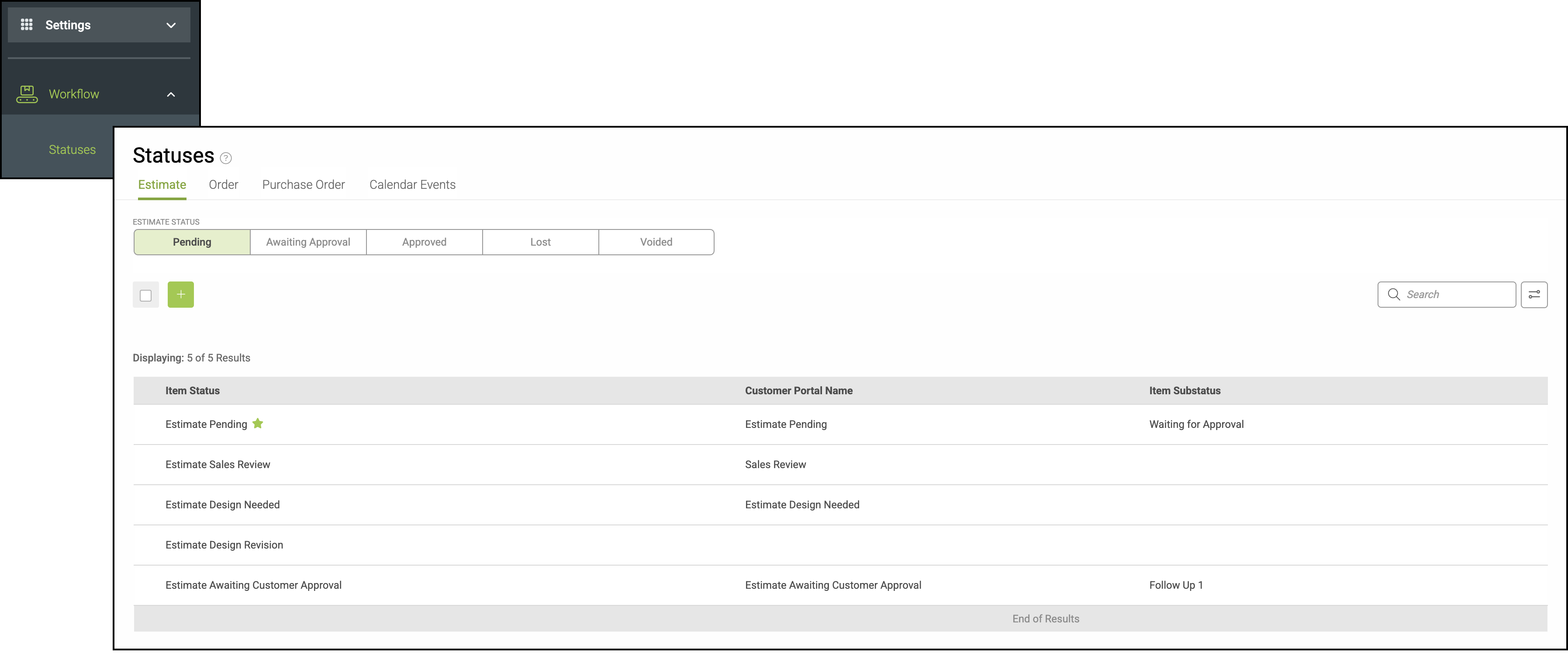
To create a new Item Status navigate to Settings / Workflow / Statuses.
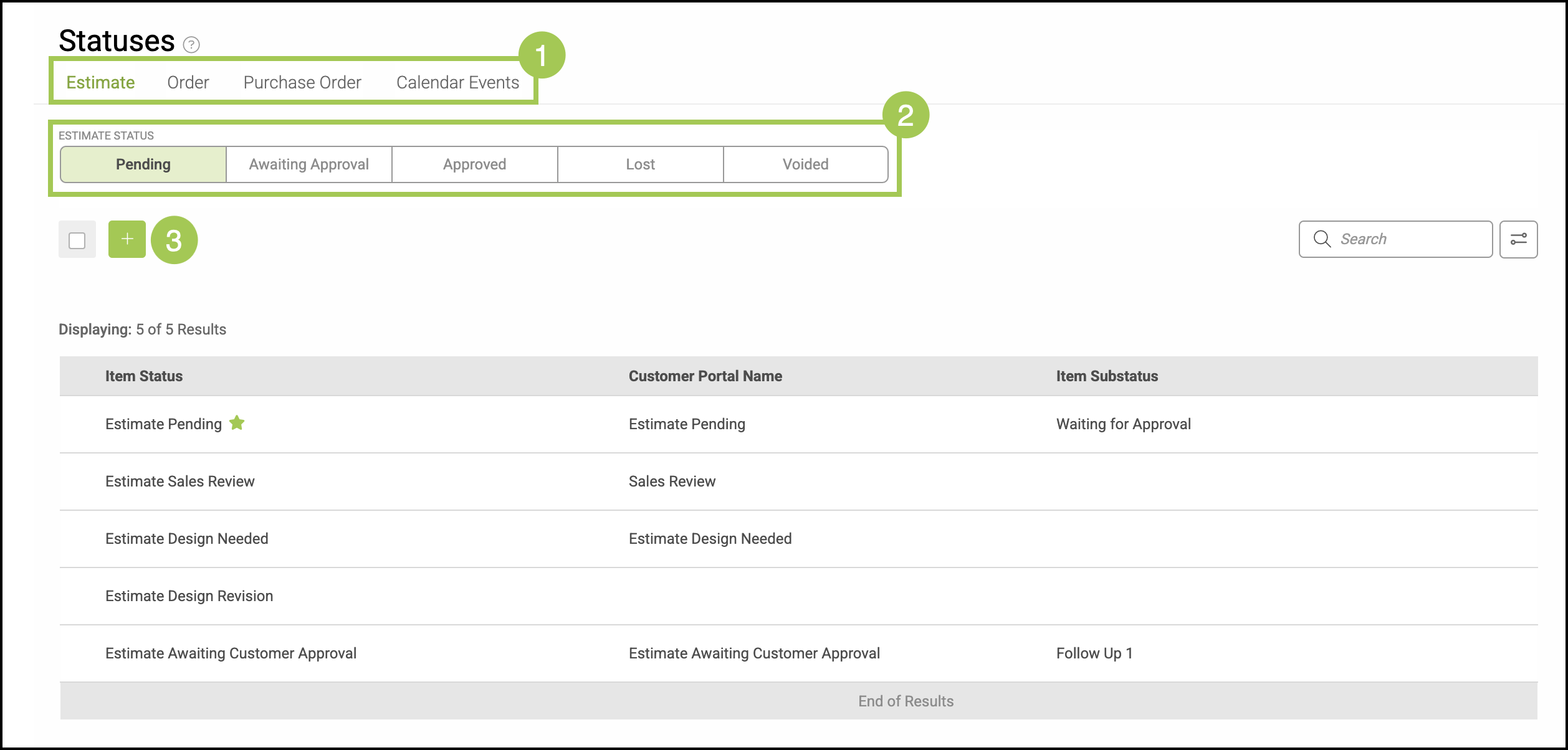
1. Select Estimate, Order, Purchase Order, or Calendar Event from the tabs along the top.
2. Select a Main Status from the green and white bar. These are automated by CoreBridge and cannot be deleted.This is where your new Item Status will be located.
3. Click the Green Plus icon.
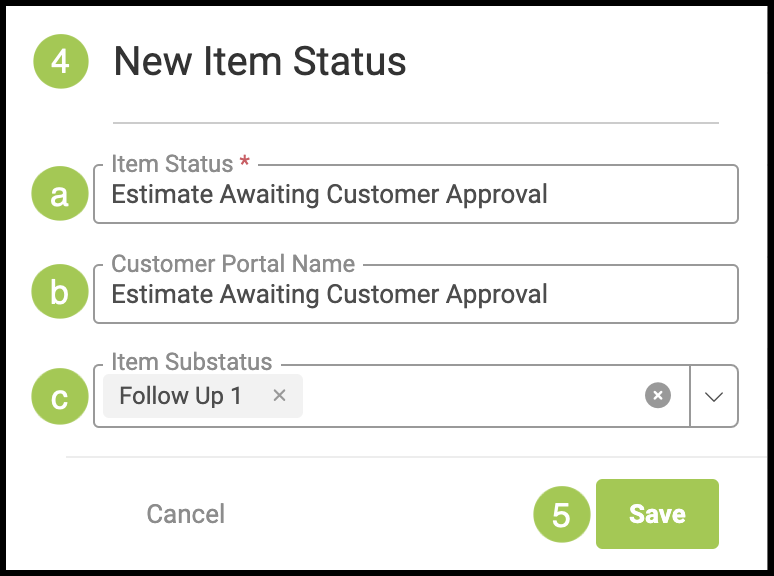
4. Enter the information for the New Item Status.
Note: Fields with a red asterisk are required.
a. Item Status - This is the name of the new Item Status as it will appear internally.
b. Customer Portal Name - This is the name that will be shown when viewed by your customer in their portal.
Note: This field will automatically populate with the same name chosen for the Item Status. However, this can be changed to a unique name.
c. Item Substatus - Select which Item Substatus or Substatuses you would like to associate with this New Item Status.
Note: Substatuses must be linked to an Item Status in order to be used.
Note: Click the X on the far right to clear this field.
5. Click Save.
Setting up Item Substatuses
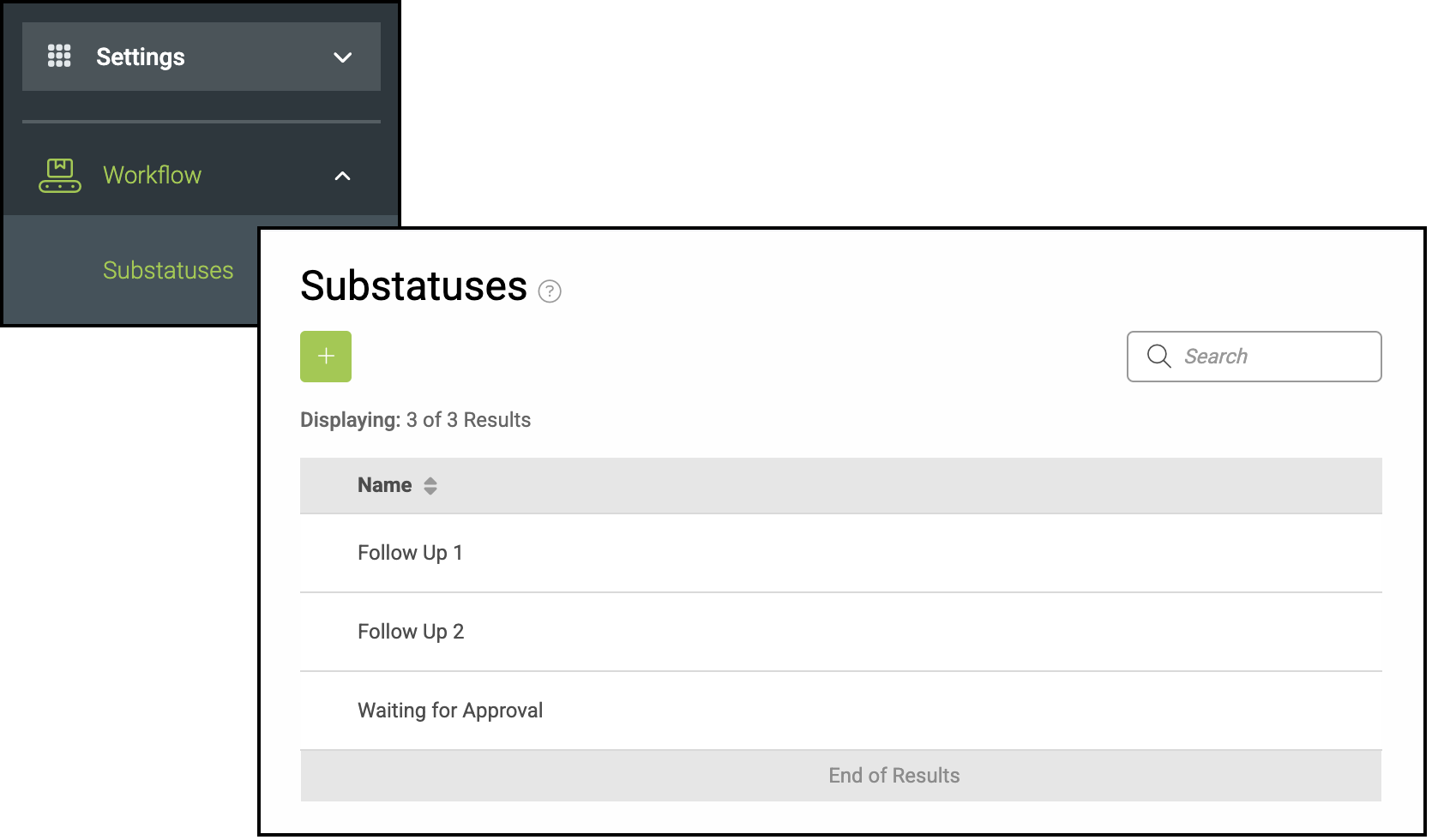
To create a custom Item Substatus navigate to Settings / Workflow / Substatuses.
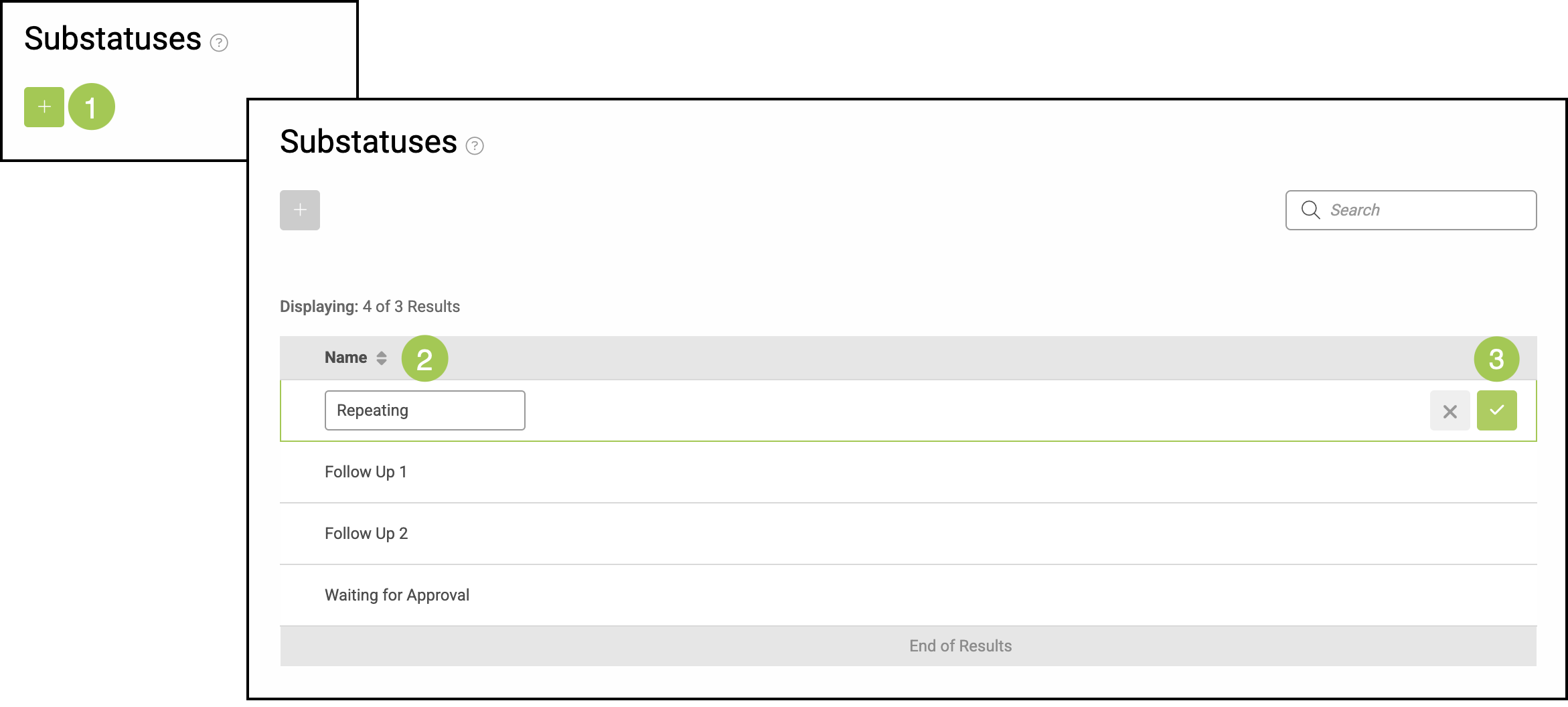
1. Select the Green Plus icon.
2. Enter a name.
3. Select the Green Check icon.
Note: Click the X if you do not wish to save the Substatus at this time.
Linking an Item Substatus to an Item Status
After creating an Item Substatus, it must be linked to an Item Status before it can be used.
Note: This process is the same regardless of the Main Status or Item Status.
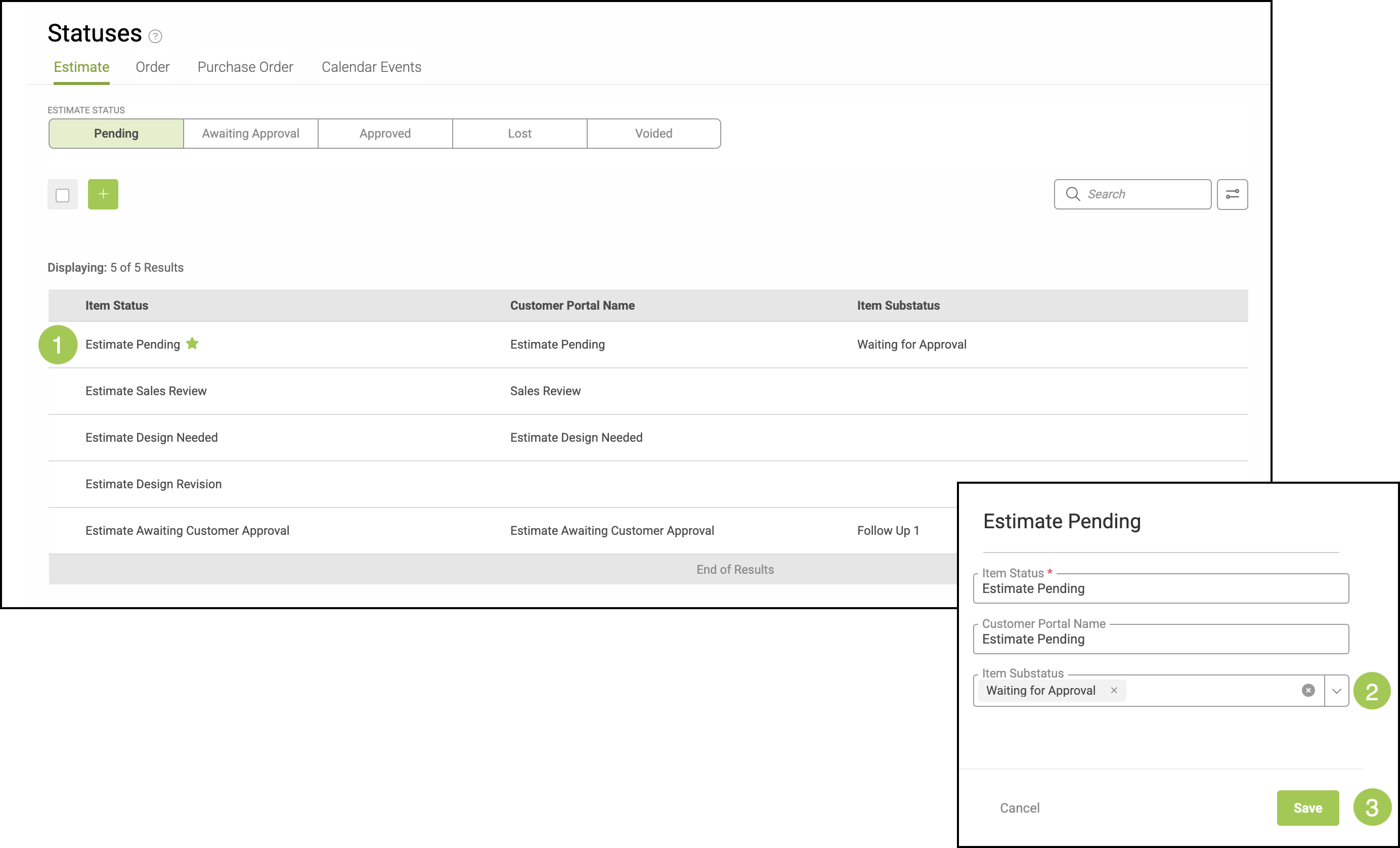
To begin linking your Item Substatus navigate to Settings / Workflow / Statuses.
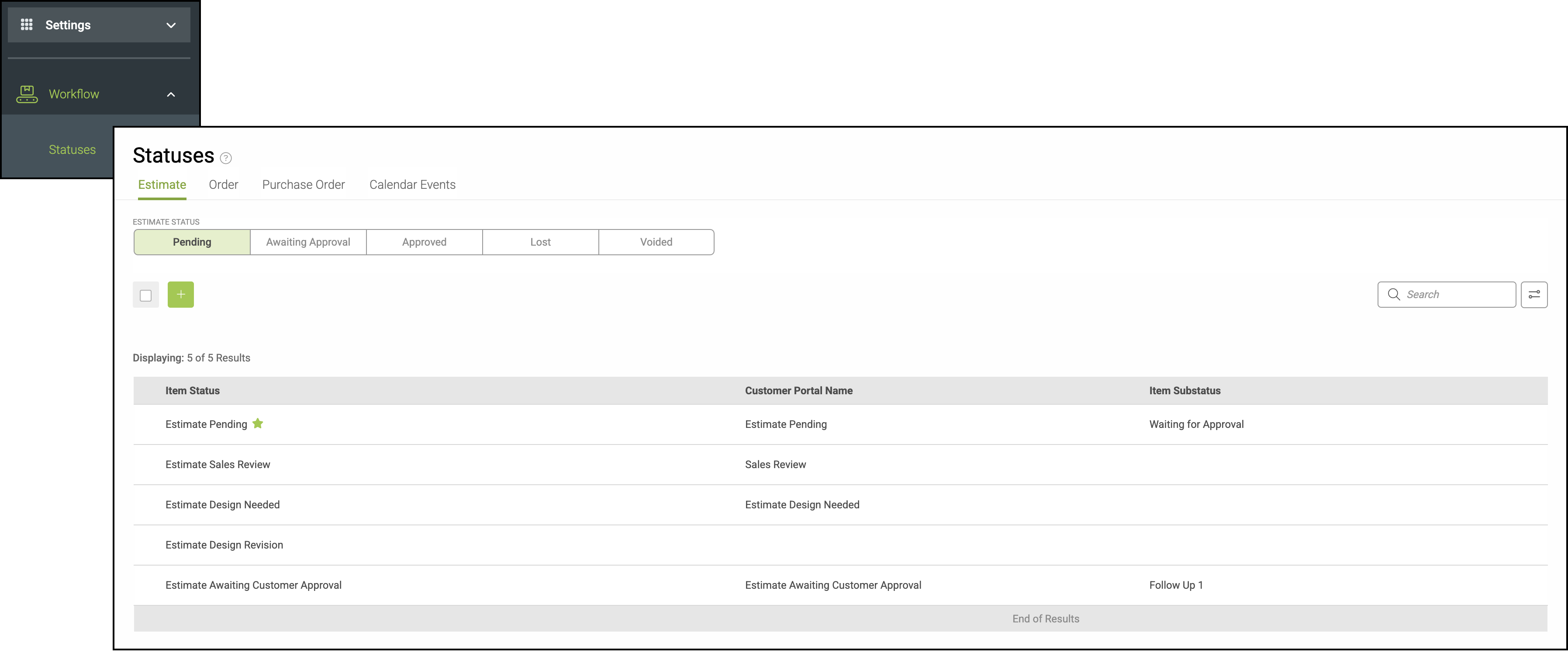
1. Select the desired Item Status.
2. Using the dropdown menu, choose the Item Substatus you would like to link to the Item Status.
Note: You can link multiple Item Substatuses to each Item Status.
3. Select Save.