Products are the foundation of your Estimates and Orders in CoreBridge. This article walks you through the key settings you will configure when setting up a new Product, including pricing, minimums, and Linked Components.
Table of Contents
Accessing Products
CoreBridge includes a pre-populated list of common Products that can be used as a starting point. Products are managed in System Settings alongside Modifiers.
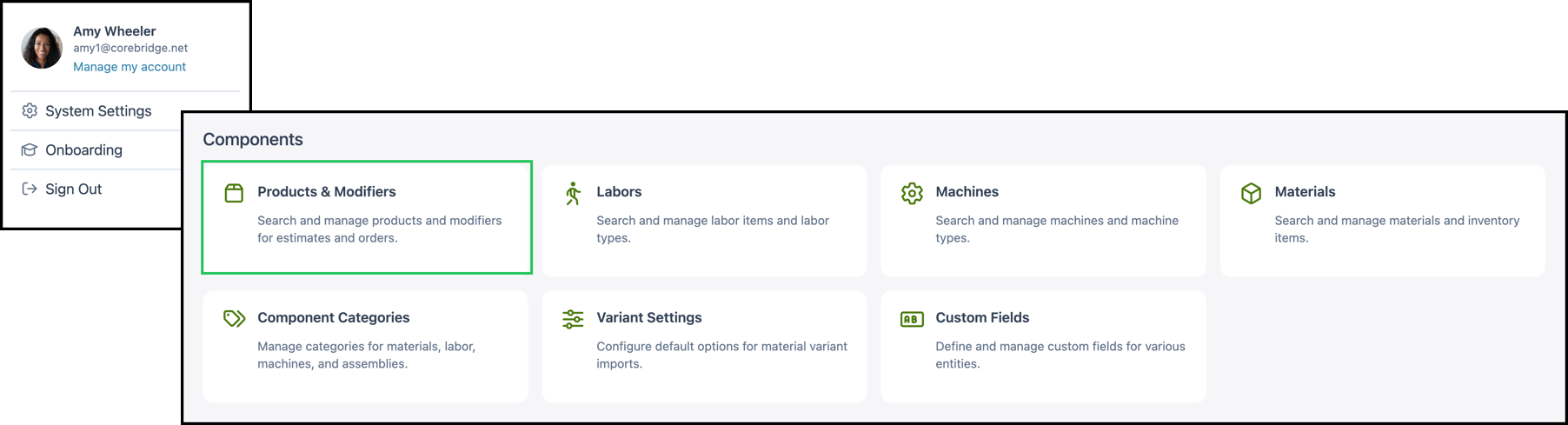
Navigate to System Settings / Components / Products & Modifiers.
1. Select the appropriate Product.
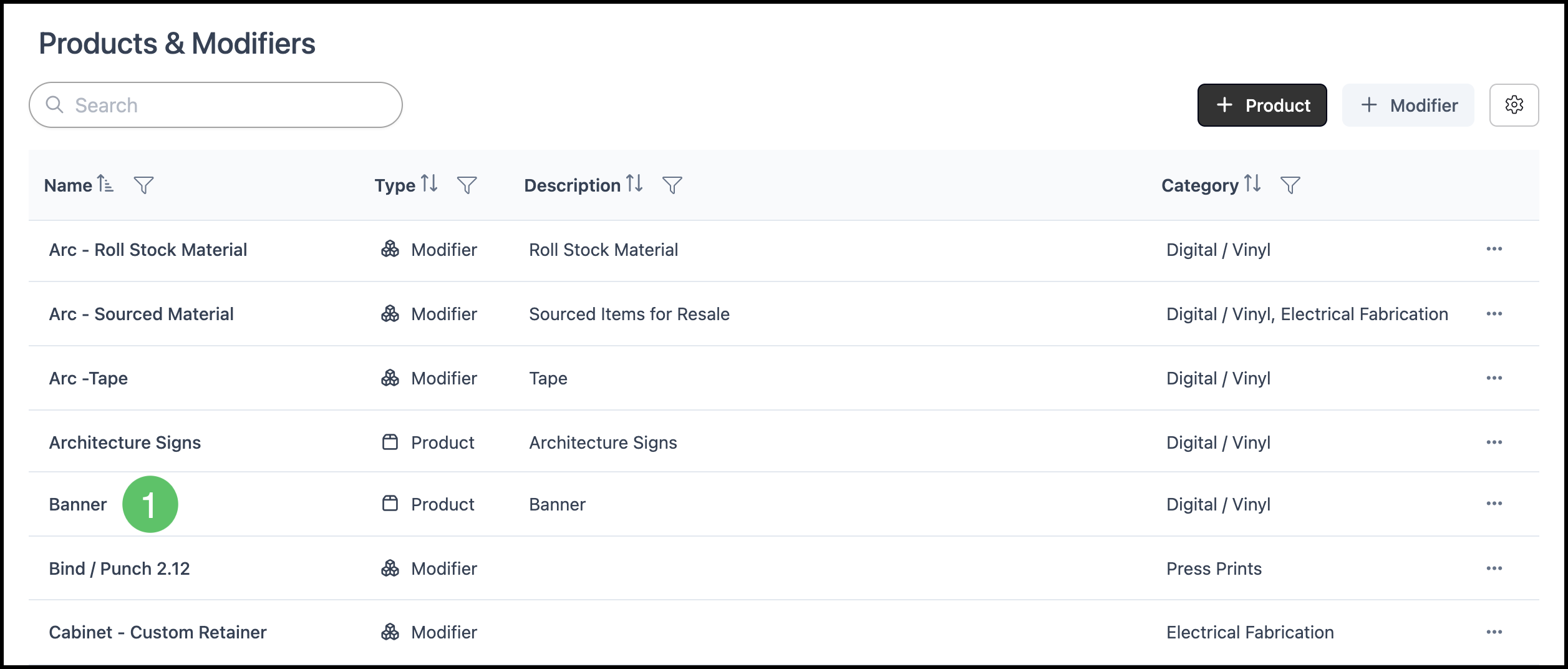
a. Each Product has four cards across the top of the screen allowing you to set up the details for Pricing, Accounting & Taxes, Linked Components, and Product Settings.

Pricing
Your pricing method determines how CoreBridge calculates the selling price for a Product. The default setting is Cost Plus at 100%, which is the recommended starting point for most setups. CoreBridge also offers Market and Custom pricing methods. For more information, please see Understanding Cost-Plus vs. Market Based Pricing.
Note: Any changes made to the Pricing card must be saved on the main Product screen by clicking Save.
1. Click the Pricing card on the Product screen.

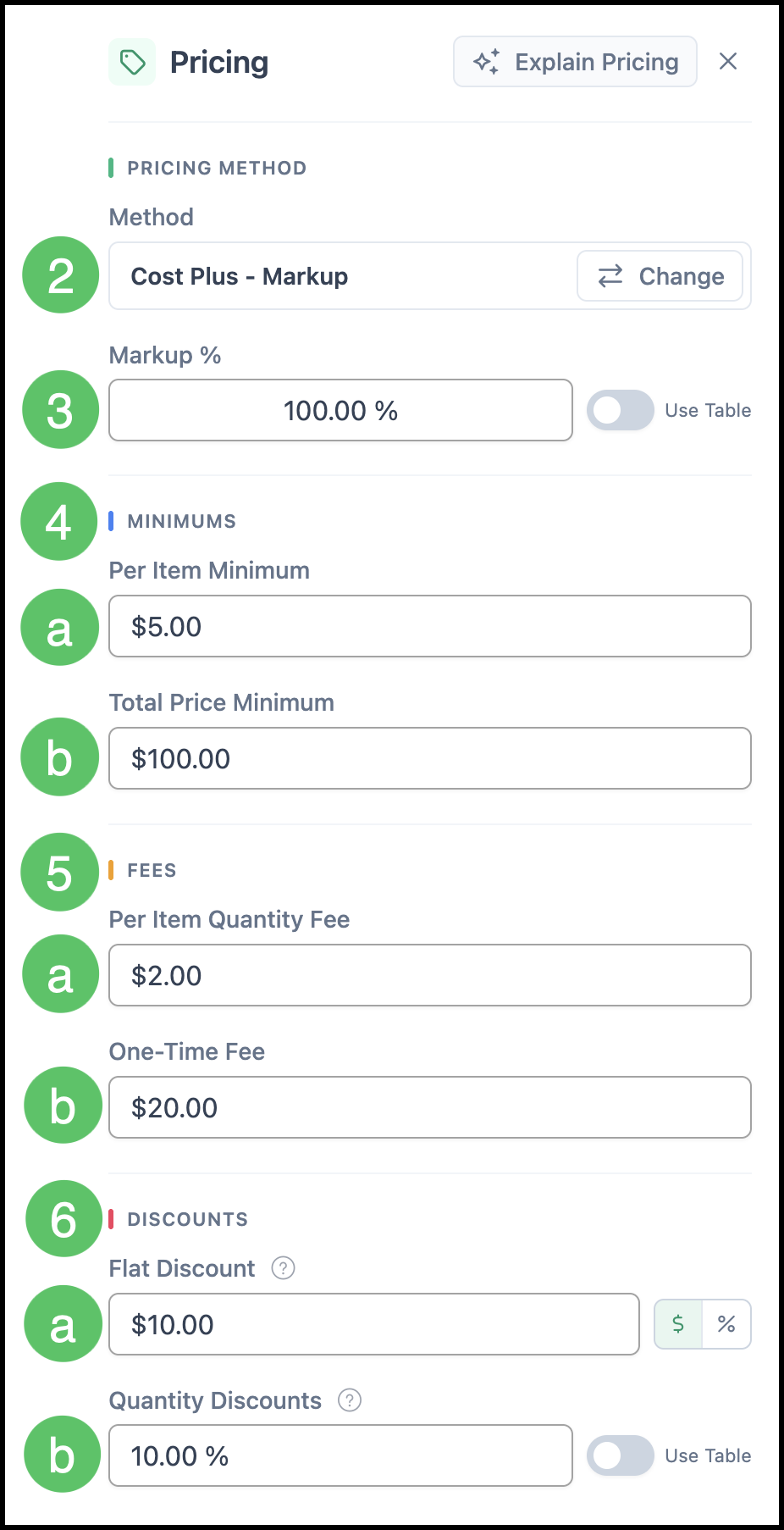
2. Select your Pricing Method from the dropdown.
3. Enter the desired Markup % or enable the Use Table feature. For more information for tables, please see Pricing Tables or contact your Customer Support Manager at supportdesk@corebridge.net.
Note: Cost Plus at 100% is set as the default and works well for most Products.
4. Under Minimums, enter values as needed. For more information, please see Product Minimums and Fees.
a. Per Item Minimum - Sets a minimum price per item. This charges a minimum regardless of quantity and/or total calculated price.
b. Total Price Minimum - Sets a minimum total price for the Order.
5. Under Fees, enter values as needed. For more information, please see Product Minimums and Fees.
a. Per Item Quantity Fee - Adds a fee per item quantity to the calculated price.
b. One-Time Fee - Adds a flat one-time fee to the calculated price.
6. Under Discounts, enter values as needed.
a. Flat Discount - A percentage or dollar amount discount that is applied to the Line Item and displayed to the Customer.
b. Quantity Discounts - A volume-based discount that increases as the ordered quantity grows. A single discount percentage can be used, or the Use Table option can define quantity-based discount tiers. For assistance creating custom tables, contact your Customer Support Manager at supportdesk@corebridge.net.
Accounting & Tax
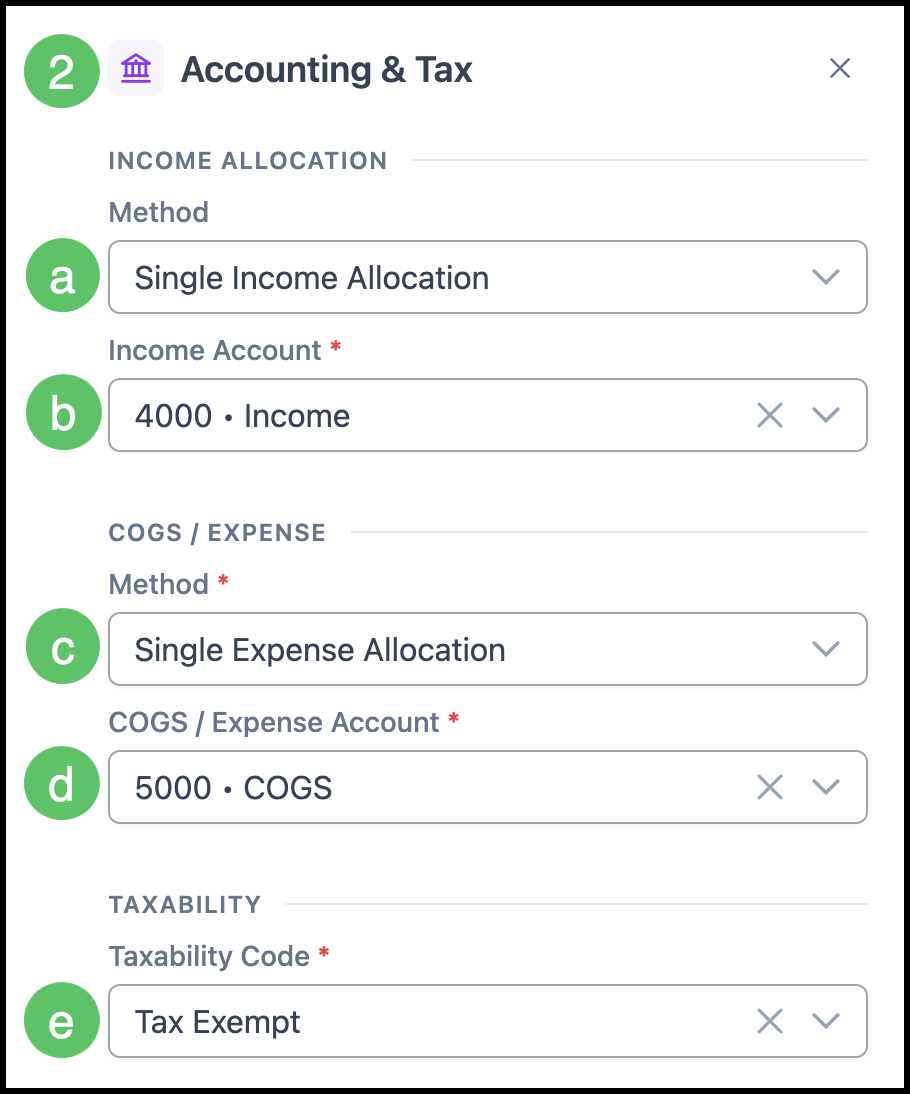
The Accounting and Tax card is where you connect this Product to your accounting setup. You can assign income and expense accounts, set a Taxability Code, and choose how income and costs are allocated across the Product's Components.
Note: Any changes made to the Accounting & Tax card must be saved on the main Product screen by clicking Save.
1. Click the Accounting & Tax card from the Product screen.

2. Set your Accounting & Tax information.
a. Income Allocation Method - Determines how revenue for the Product is allocated to the selected Income Account.
b. Income Account - Specifies the general ledger account used to record revenue generated when this Product is sold.
c. COGS/Expense Allocation Method - Determines how costs for the Product are allocated to the selected COGS/Expense Account.
d. COGS/Expense Account - Specifies the general ledger account used to record the cost associated with producing or purchasing the Product.
e. Taxability Code - Determines how taxes are applied to the Product. Available options are based on your tax configuration. For more information, see Taxability Codes.
Linking Components
Linked components connect your Product to the Labors, Machines, and Materials needed to produce it. Configuring these correctly ensures that pricing and workflow reflect your actual production setup.
Note: Any changes made to the Linking Components card must be saved on the main Product screen by clicking Save.
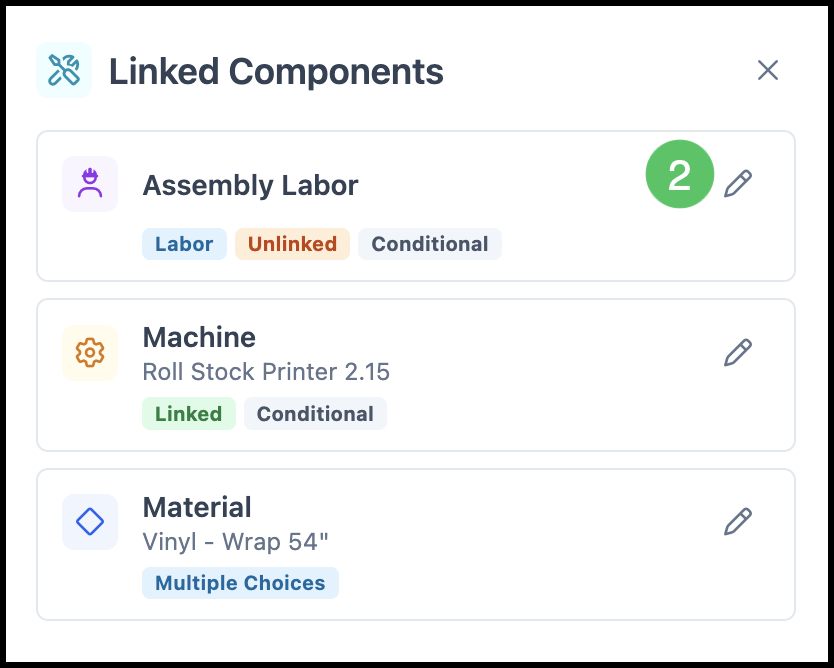
1. Click the Linked Components card.

2. Click the Edit icon on the Labor card.
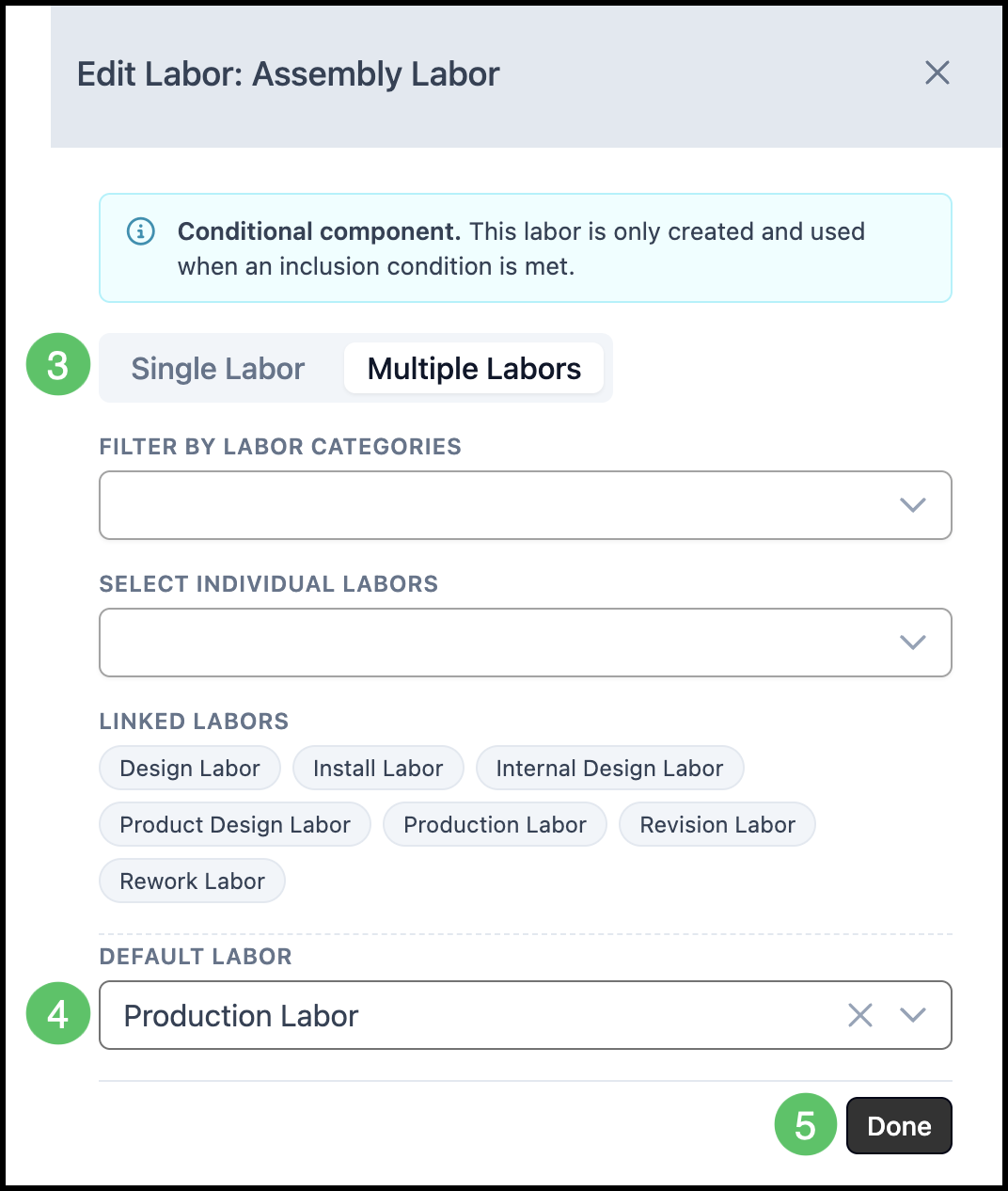
3. Select whether this is a Single or Multiple Labors.
4. Set a Default Labor.
Note: It is recommended to set a default labor on all of your Products. In many instances, Production Labor is used.
5. Click Done.
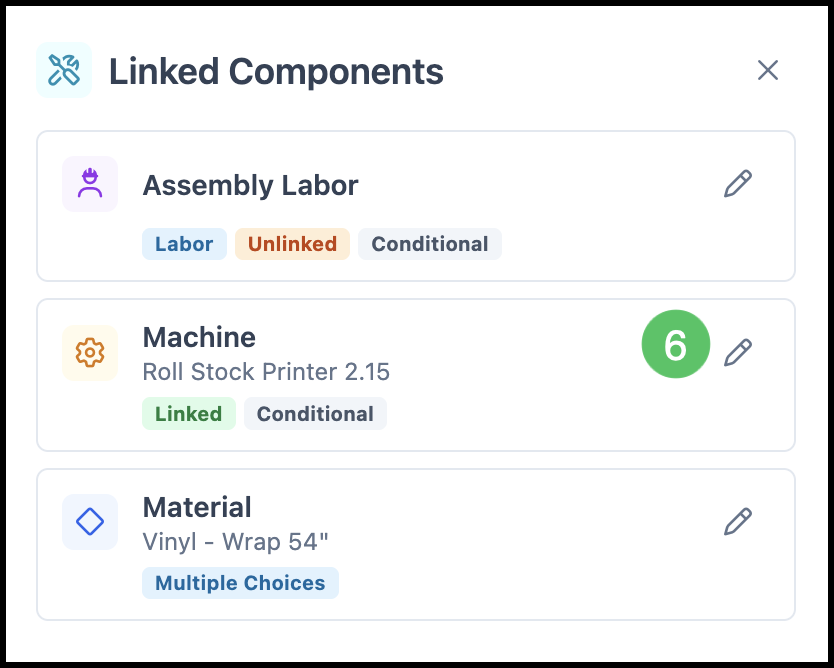
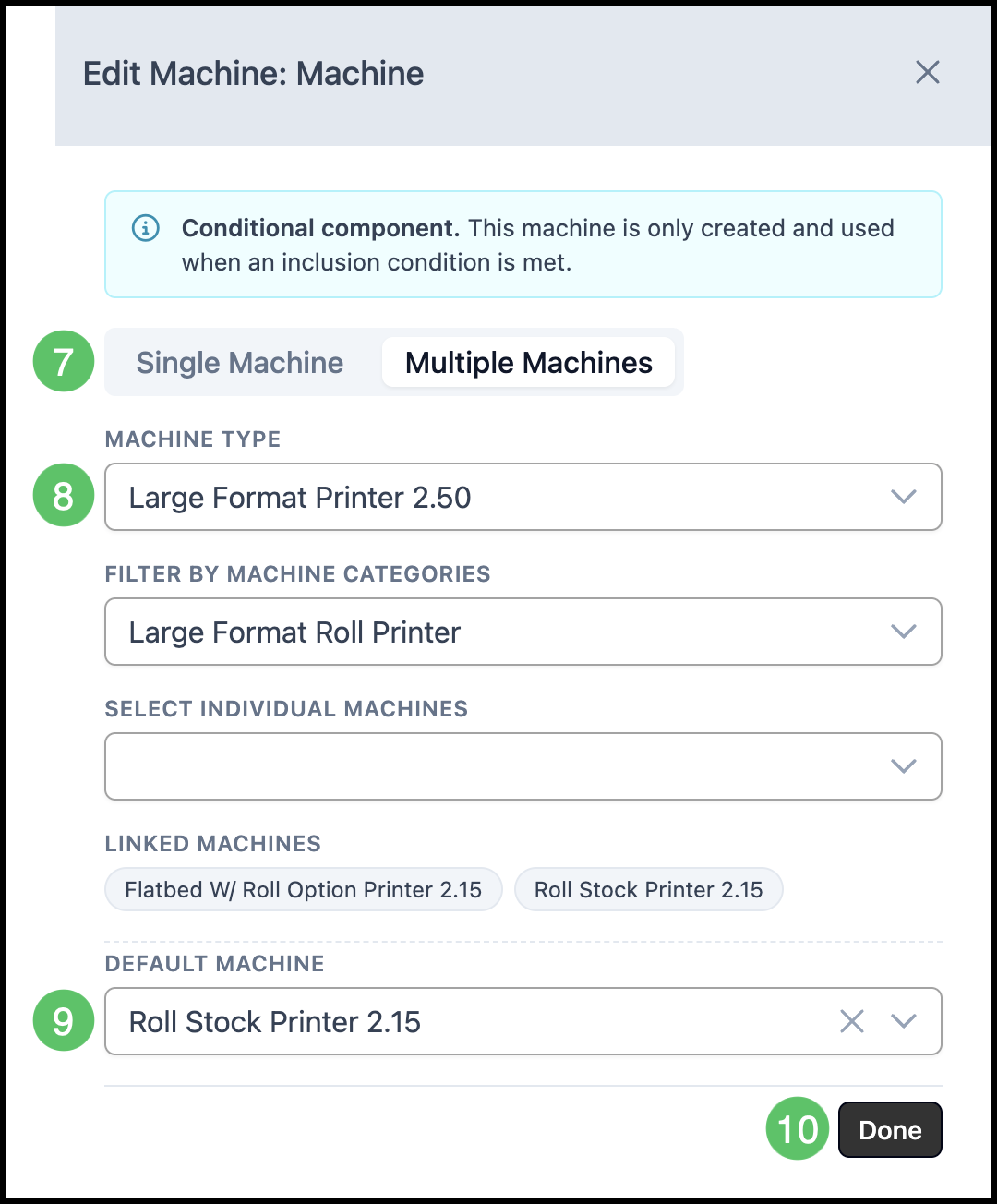
6. Click the Edit icon on the Machine card.
7. Select Single or Multiple Machines.
8. Confirm the Machine Type is correct.
9. Set a Default Machine.
Note: It is recommended to have a Default Machine set for each Product.
10. Click Done.
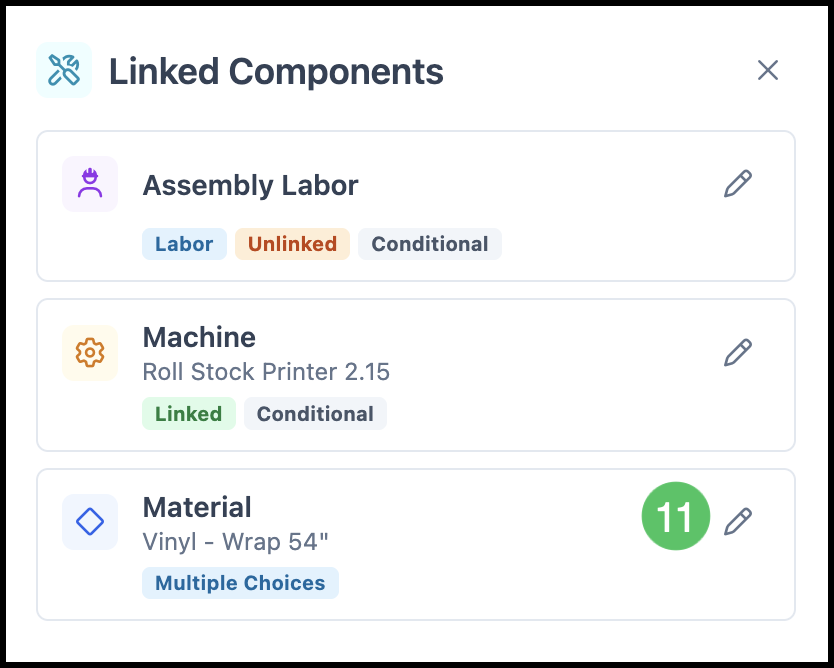
11. Click the Edit icon on the Materials card.
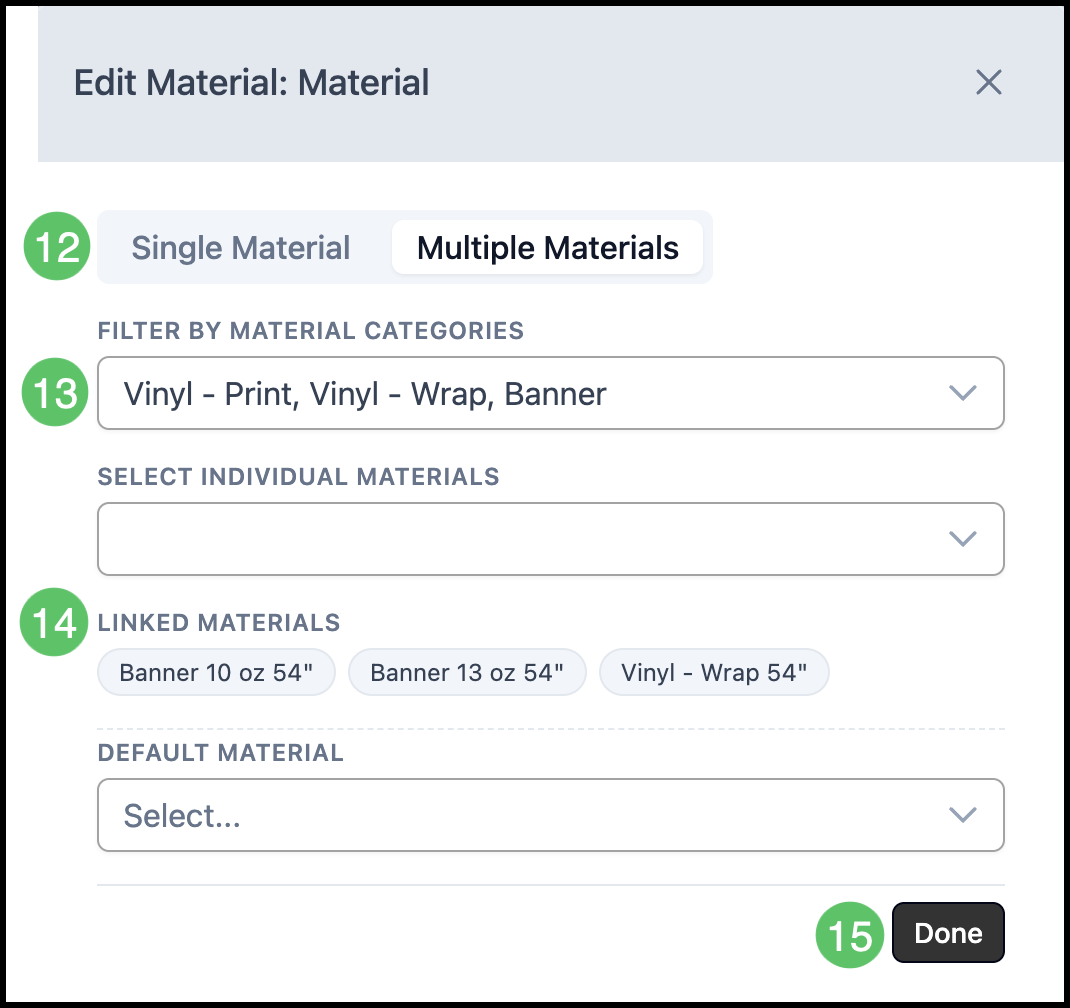
12. Select Single or Multiple Materials.
13. Select the Categories that apply to this Product.
Note: The Materials linked to those Categories will appear in the drop-down during Order entry, so keeping this list focused helps your team find the right options quickly.
14. After selecting your Categories, review the linked Materials list to confirm the correct Materials are showing. This list reflects exactly what will appear in the drop-down.
Note: If a Material is missing, go to the Materials page, open that Material, and confirm it is connected to one of the selected Categories. To keep the drop-down simple, remove any Categories that do not apply to this product. For more information, please see Using Component Categories.
15. Click Done.
Product Settings
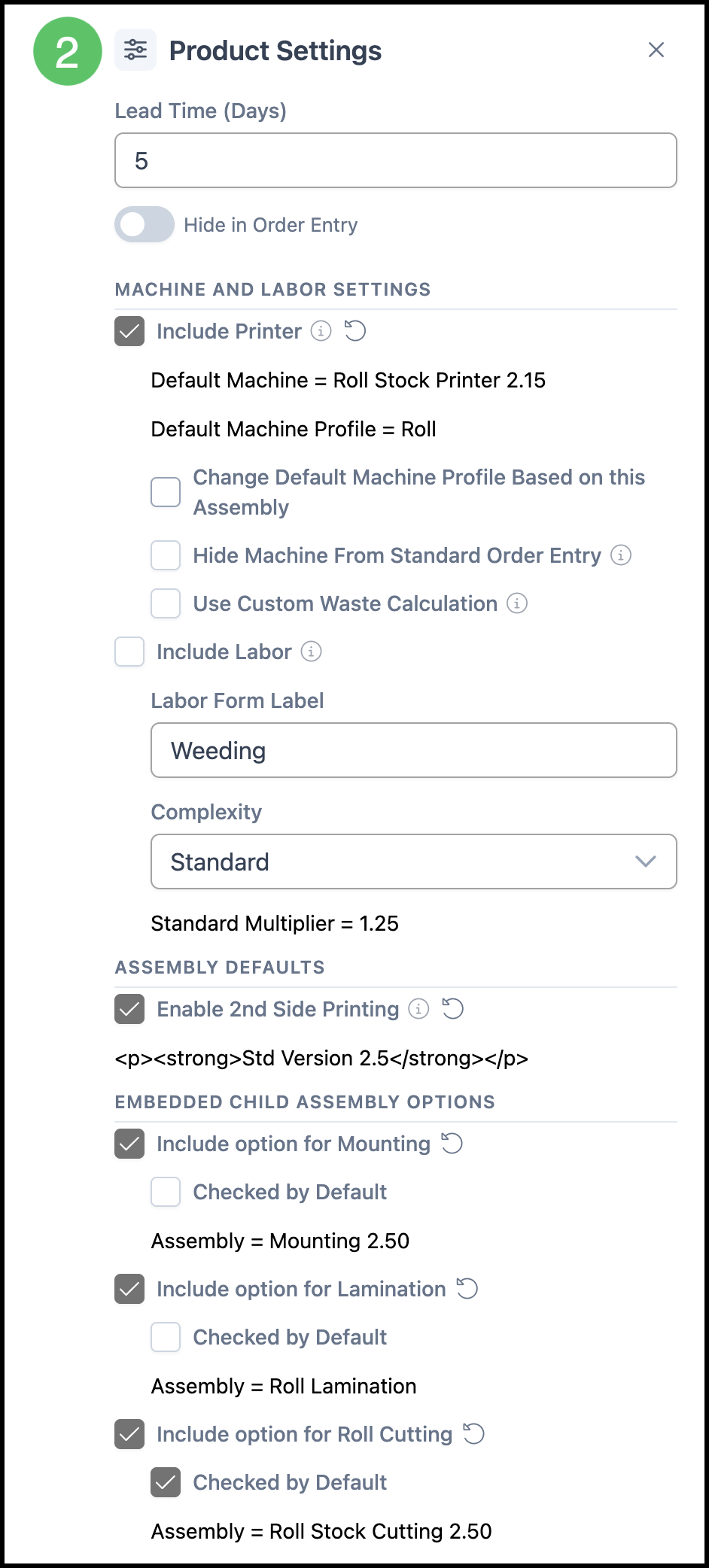
Product Settings card lets you configure things like lead time, whether the Product is hidden during Order entry, and default size details for Assemblies.
Note: Any changes made to the Product Settings card must be saved on the main Product screen by clicking Save.
1. Click the Product Settings card.

2. Select the appropriate settings for this Product.
Note: Options in the Product Settings will vary depending on the Product selected.