
Automations are event-based messages that are triggered by activity within your system. When a specific event occurs, you can configure an automation to send a message using your preferred delivery method. These messages help you stay informed about the progress of orders and estimates while also keeping customers updated on changes or actions that require their attention.
For more information on Automations and examples you can follow, please see Practical Automation Examples.
Table of Contents
Locating Automations
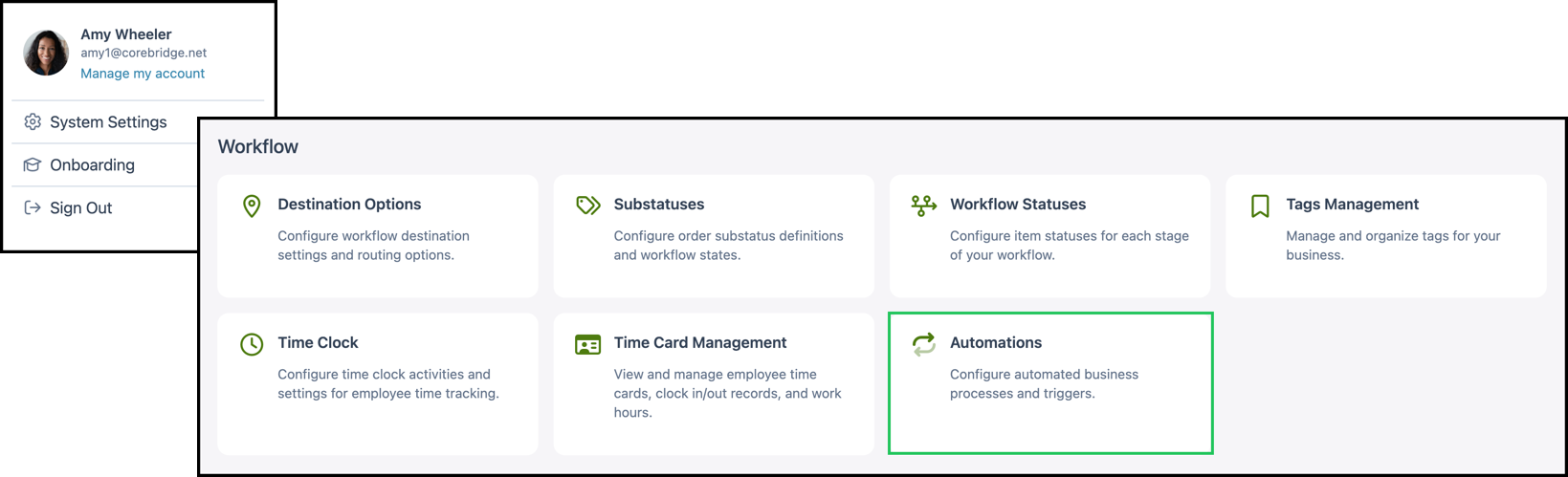
Navigate to System Settings / Workflow / Automations.
Card View
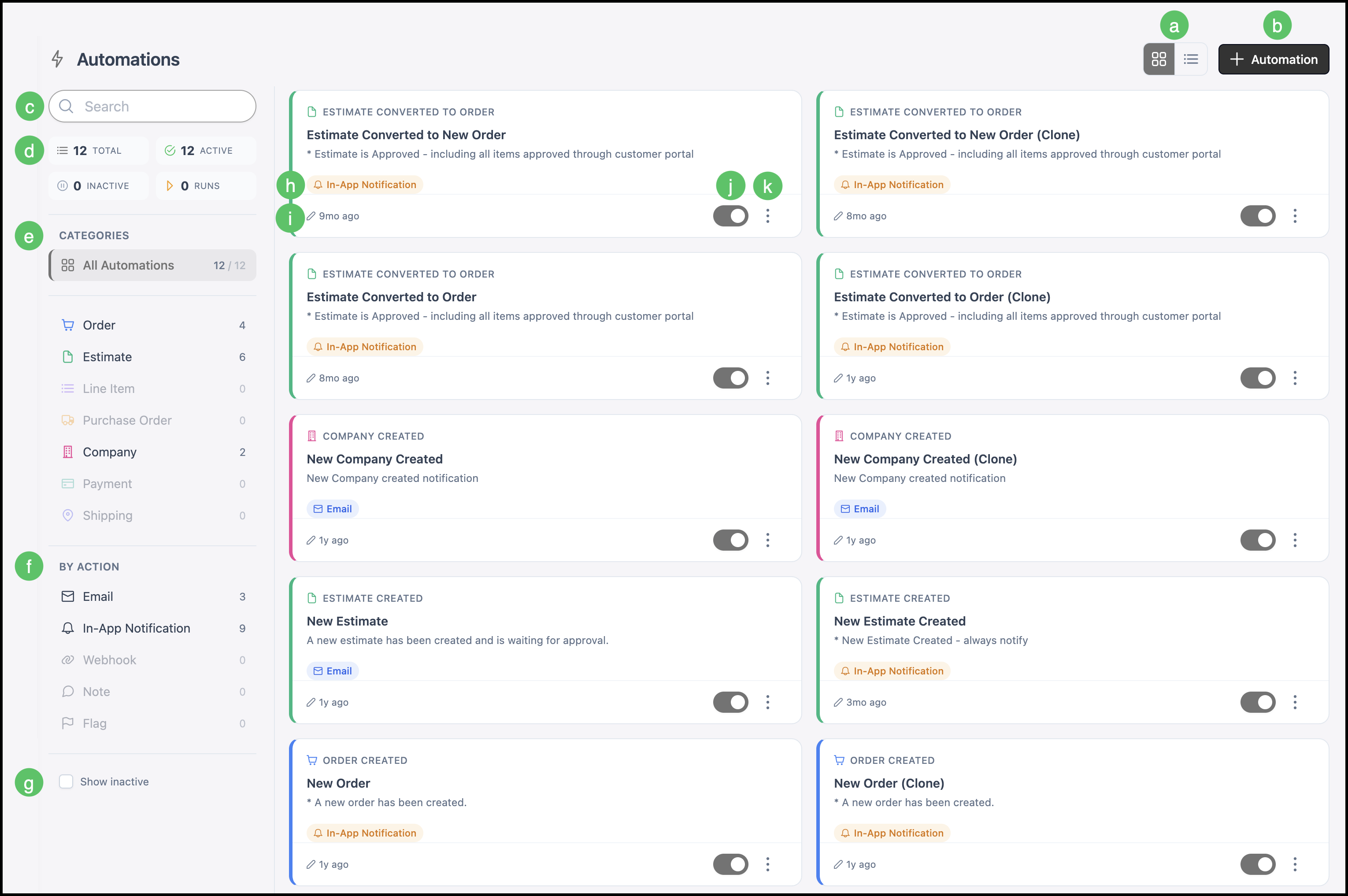
Card View provides a quick, organized way to review your existing Automations, with key details displayed at a glance. From this view, you can also select any card to open and make updates.
a. Dual Card View/List View icon provides an easy way to switch between display formats.
b. Add Automation opens the Automation creation workflow.
c. The Search bar provides a fast way to locate specific Automations.
d. Automation statistics display a summary of Total, Active, Inactive, and Runs.
e. Categories organize and filter Automations by topic.
f. By Action groups Automations based on their trigger method.
g. Show Inactive option displays Automations that are currently turned off when selected.
h. Delivery method indicates how each Automation message is sent.
i. Last edited shows when the Automation was last changed.
j. Status toggle sets the Automation as active or inactive.
k. The Actions menu includes options to Clone or Delete the Automation.
List View
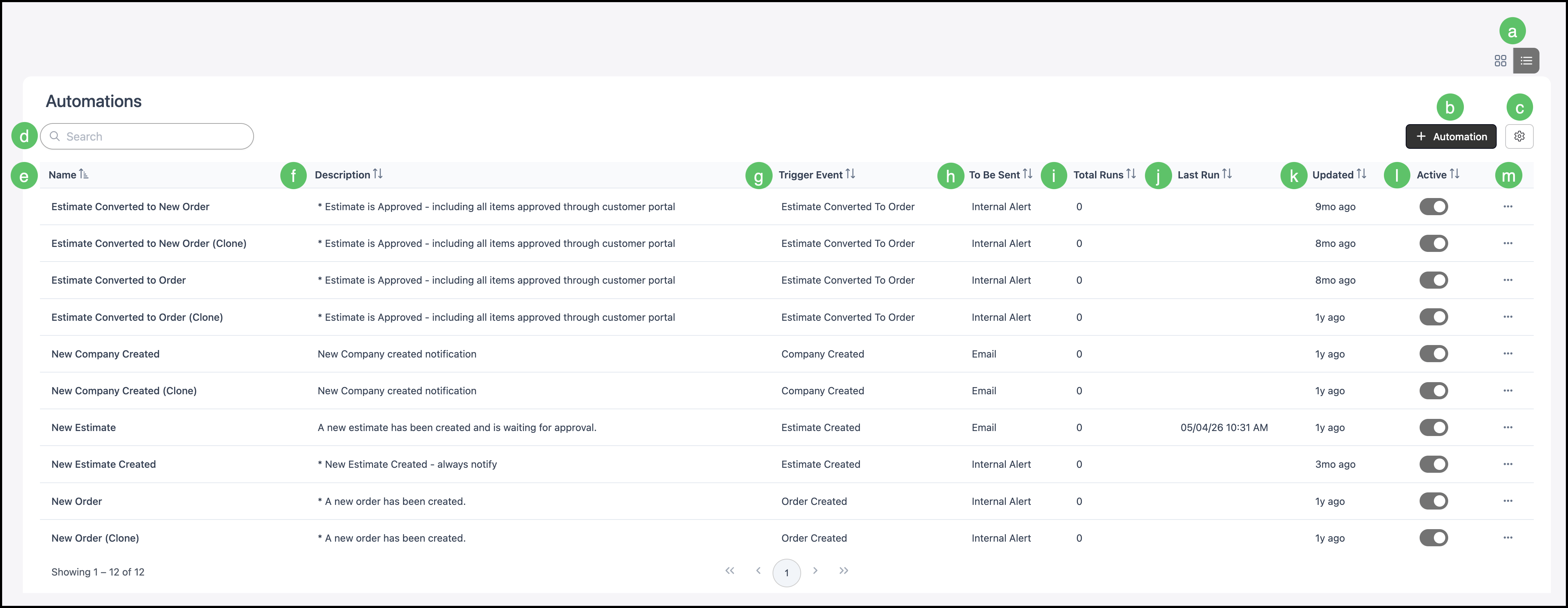
List View provides a structured, row-based way to review your existing Automations, making it easy to scan details across multiple entries. From this view, selecting a row opens the Automation, where you can review and make updates.
a. Dual Card View/List View icon provides an easy way to switch between display formats.
b. Add Automation opens the Automation creation workflow.
c. Search Settings allows you to view inactive Automations.
d. The Search bar provides a fast way to locate specific Automations.
e. The Name column displays the Automation name for easy identification.
f. Description provides a brief overview of the Automation.
g. Trigger Event identifies the event that initiates the Automation.
h. To Be Sent column indicates how messages are delivered.
i. Total Runs displays how many times the Automation has been executed.
j. Last Run shows the most recent date the Automation was triggered.
k. Updated reflects when the Automation was last modified.
l. The Active column provides a toggle to set the Automation as active or inactive.
m. The Actions menu provides options to Clone or Delete the Automation.
Creating a New Automation
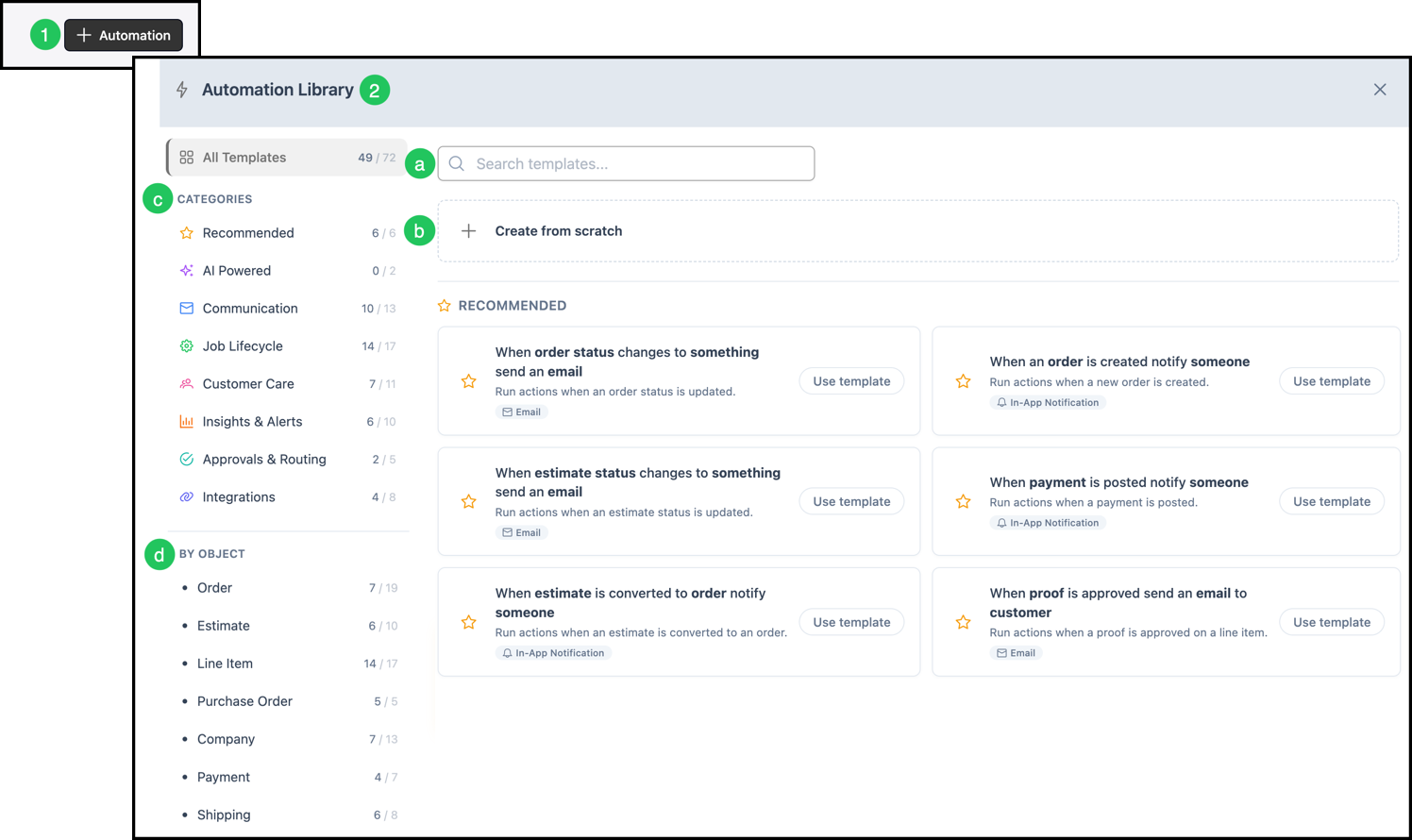
1. Click the Add Automation icon.
2. Select a Template or Create from scratch.
a. The Search bar provides a quick way to locate a specific template.
b. Create from scratch offers full control to build a custom Automation.
c. Categories organize Automations by purpose, including Recommended, AI Powered, Communication, and Job Lifecycle.
d. Object grouping categorizes Automations based on items like Order, Estimate, Line Item, and Purchase Order.
3. Set the Trigger by selecting an event from the dropdown.
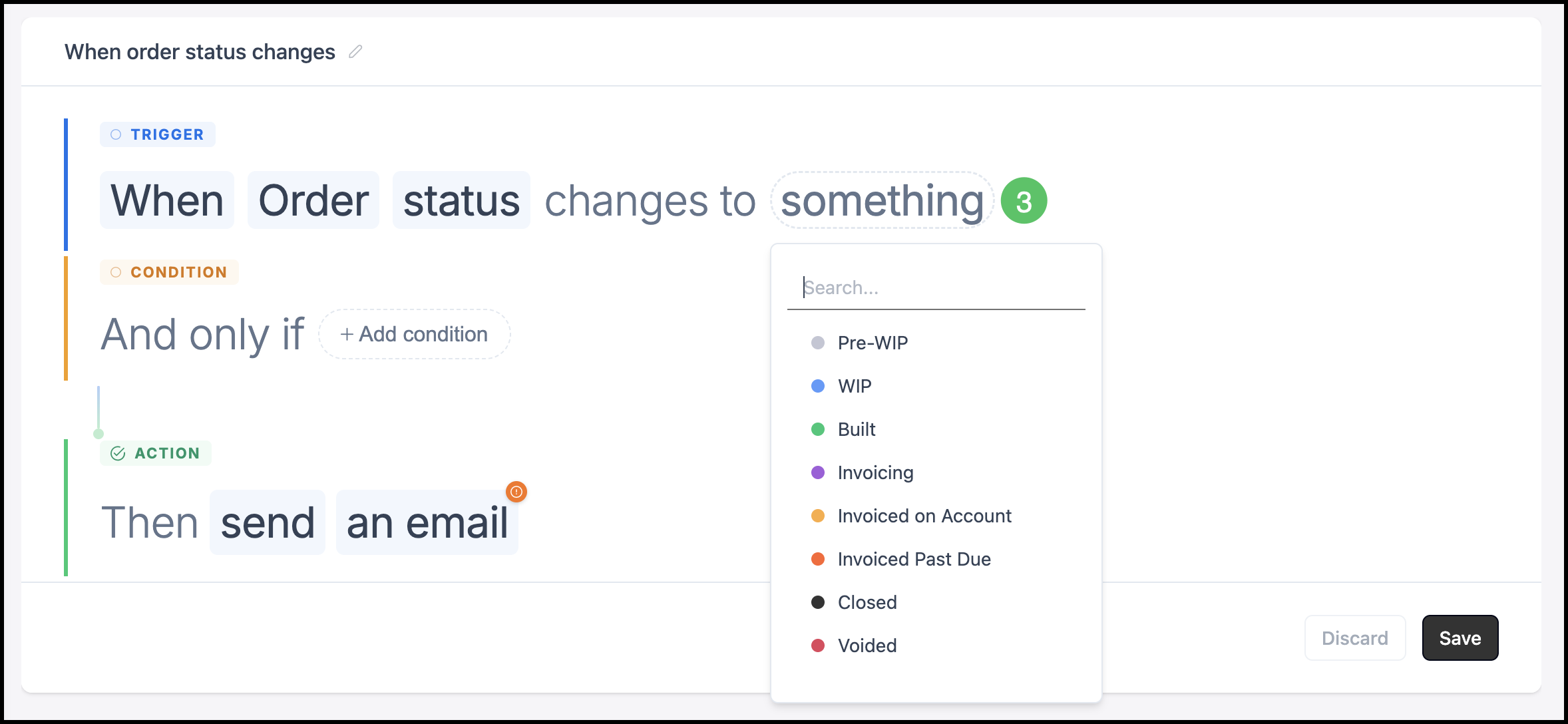
4. Click Add condition.
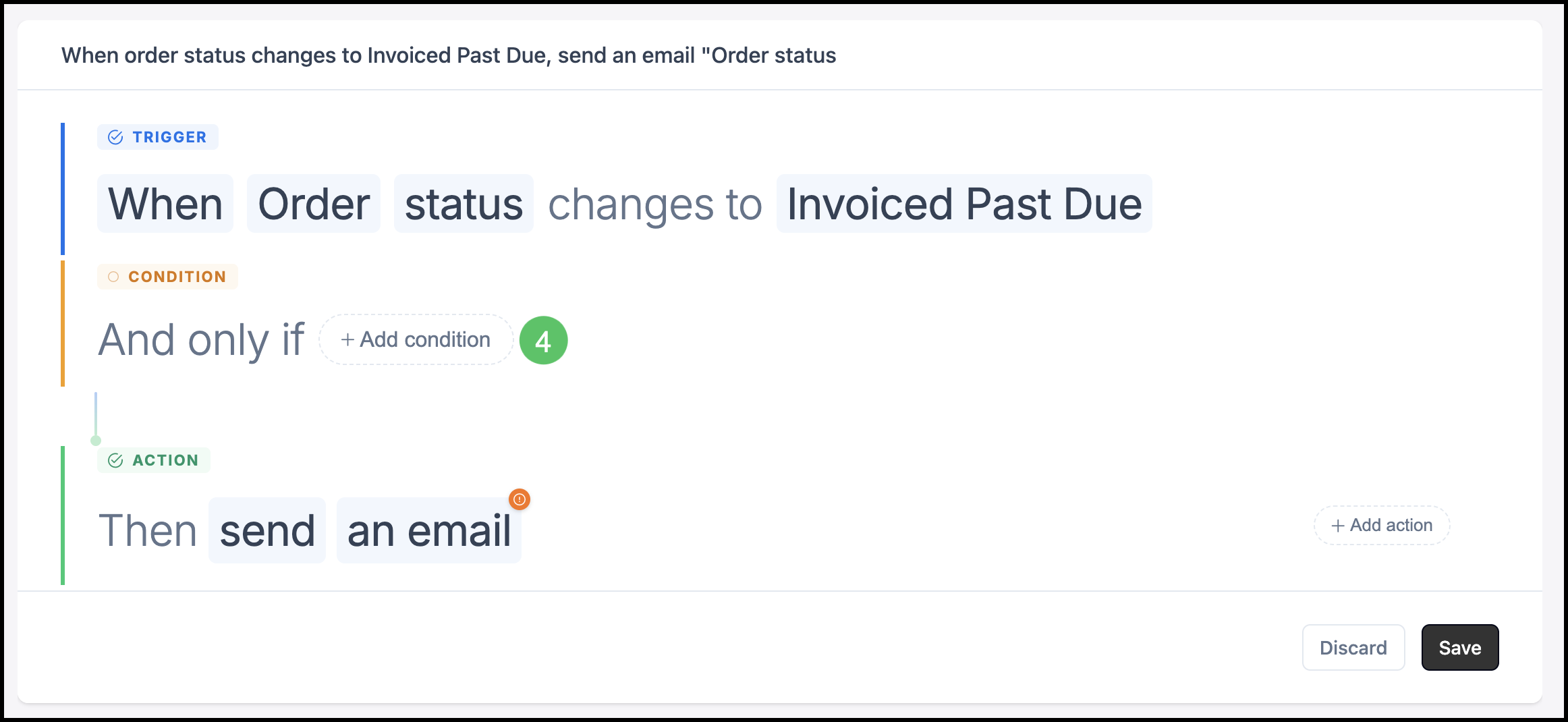
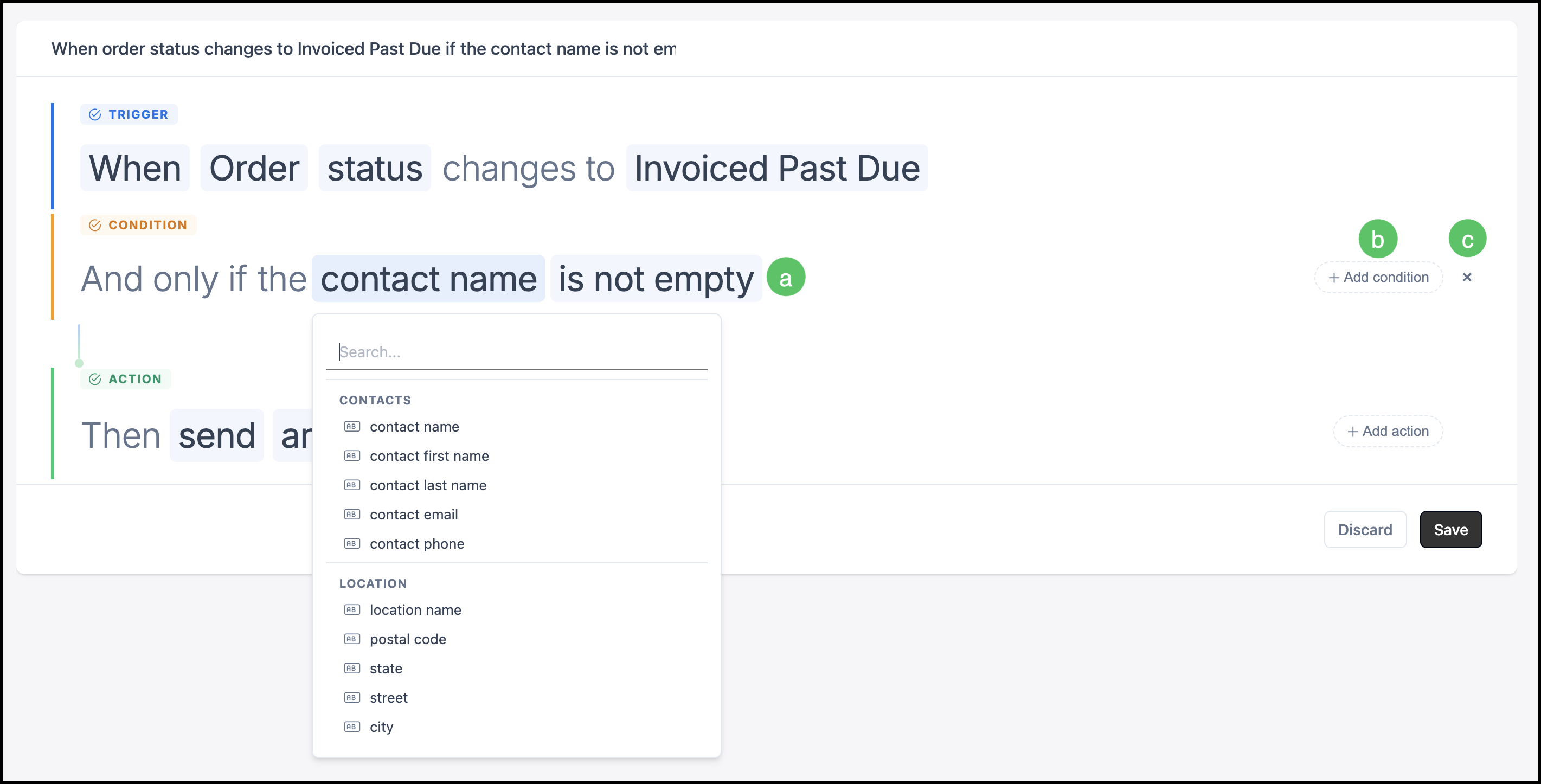
a. Dropdowns will appear for each highlighted area when clicked on.
b. Additional conditions can be added.
c. Conditions can be removed.
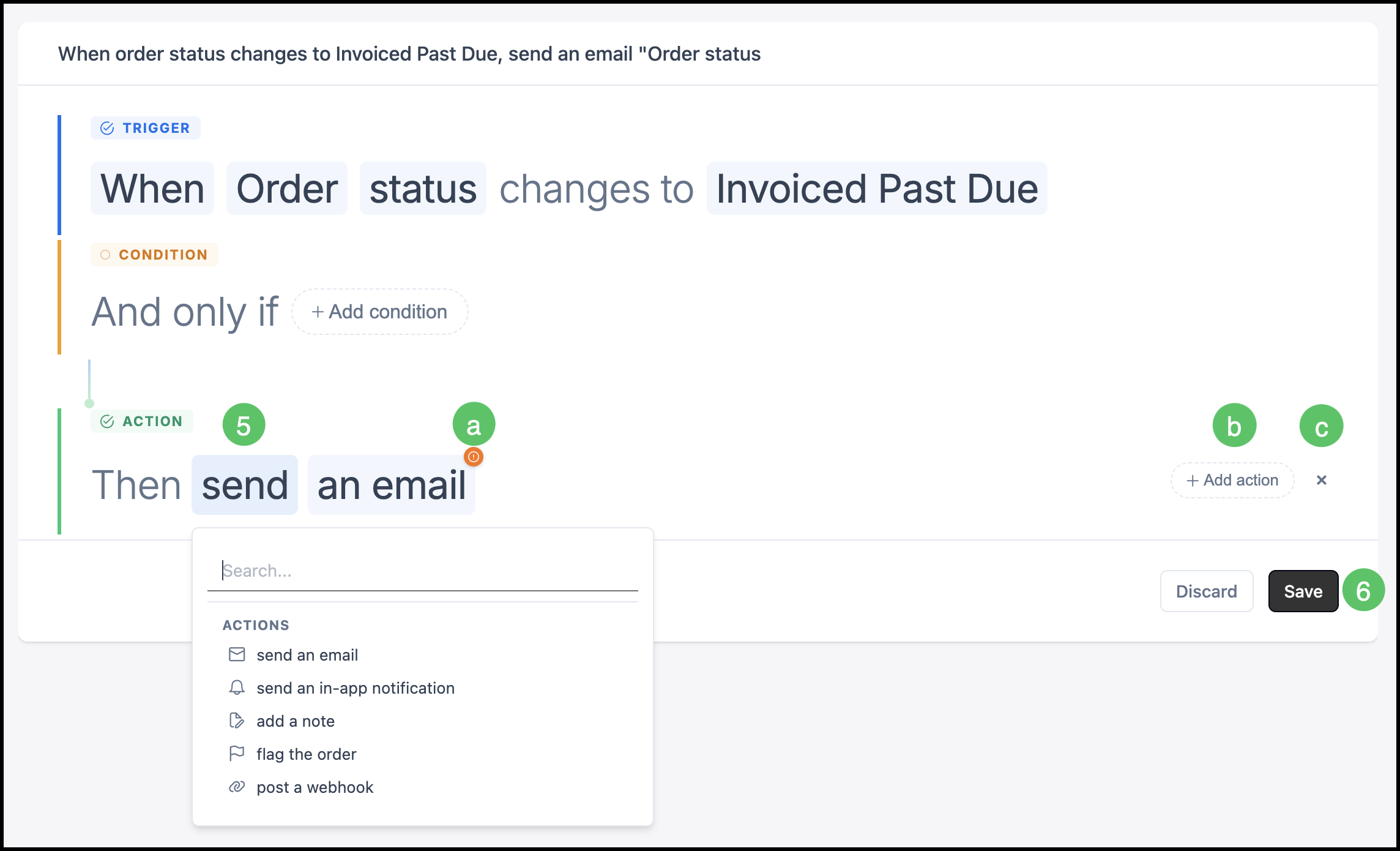
5. Set the Action using the dropdown.
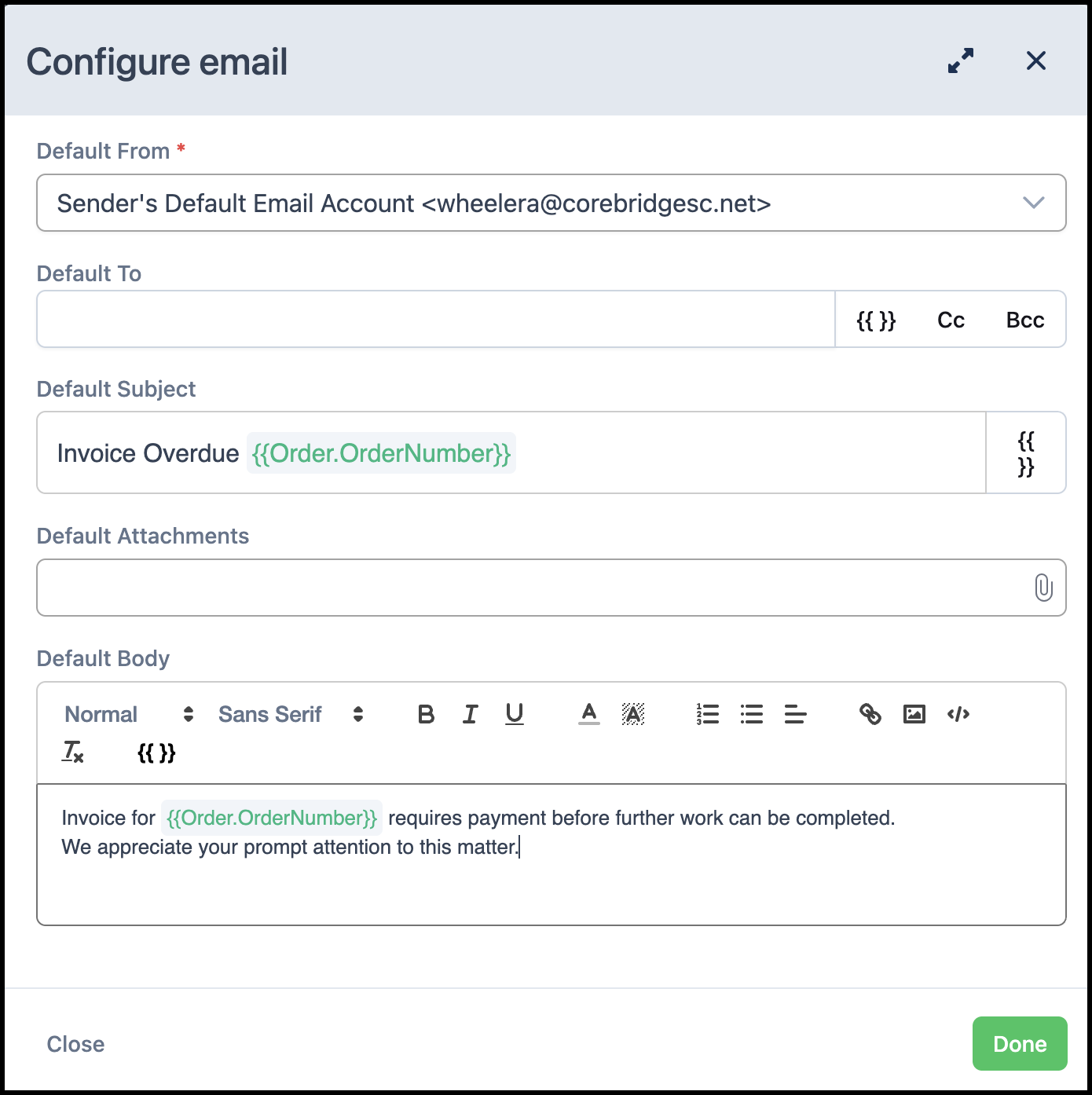
a. This icon indicates that the action needs to be configured. When the highlighted item is clicked on, a dialog will open allowing you to configure the item. See example below.
b. Additional actions can be added.
c. Actions can be removed.
6. Click Save.
Example:
Note: Be sure to save those items configured.