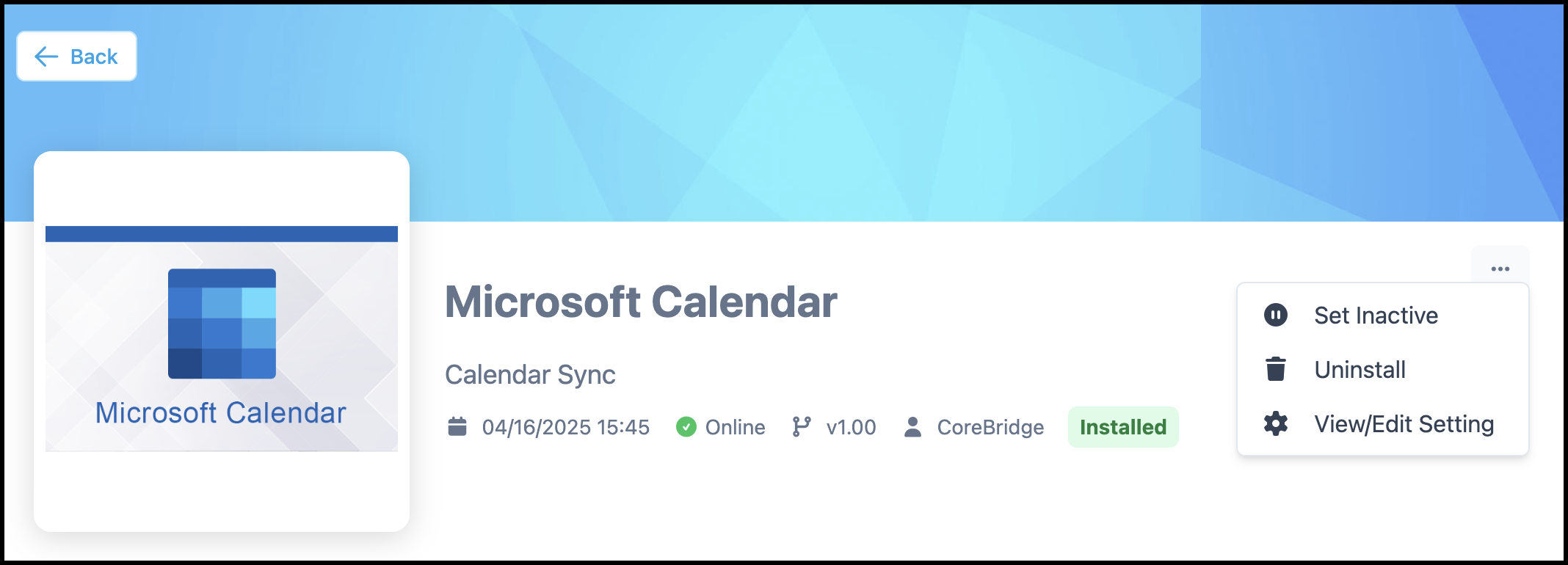
The Integrations Marketplace is the central hub where you can connect your system with a variety of supported applications. This area is organized into categories such as Calendars, Finance, and Payment, making it easy to explore options that fit your workflow. By enabling integrations, you can streamline day-to-day tasks, reduce manual work, and automate key processes across your business.
Note: CoreBridge can help with integration setup and how the integration works within the system. Questions related to the third-party service itself should be directed to that provider.
Table of Contents
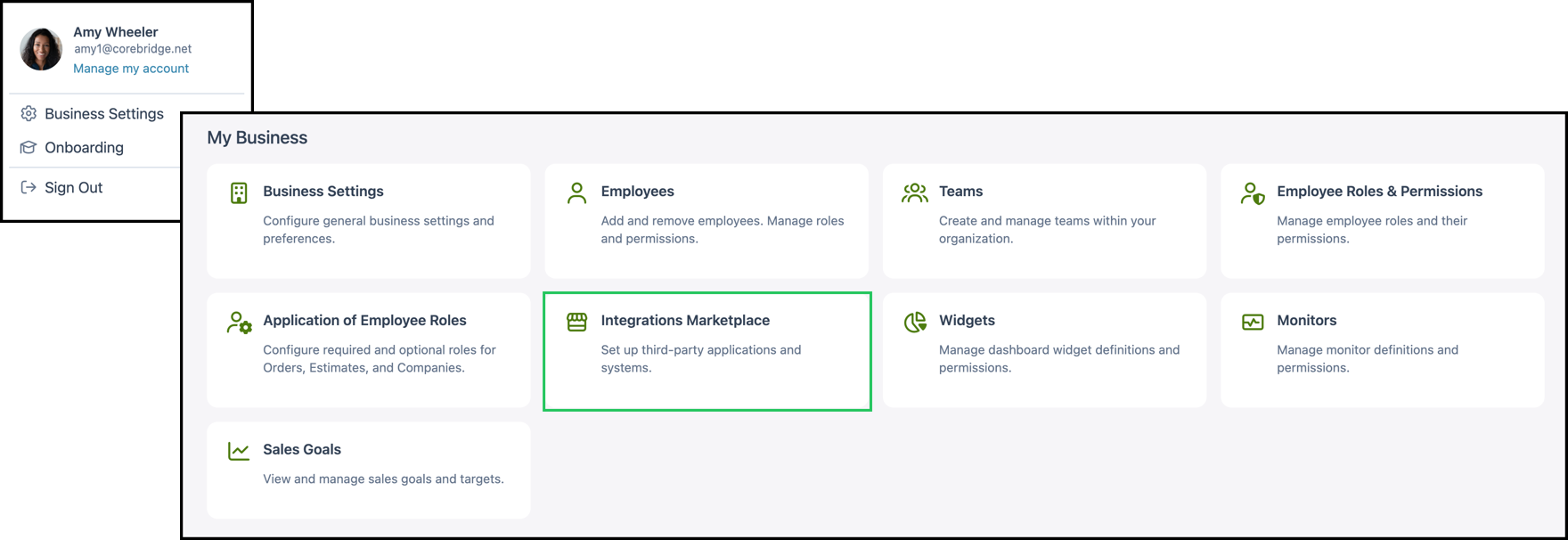
Navigate to Settings / My Business / Integrations Marketplace.
Marketplace Overview
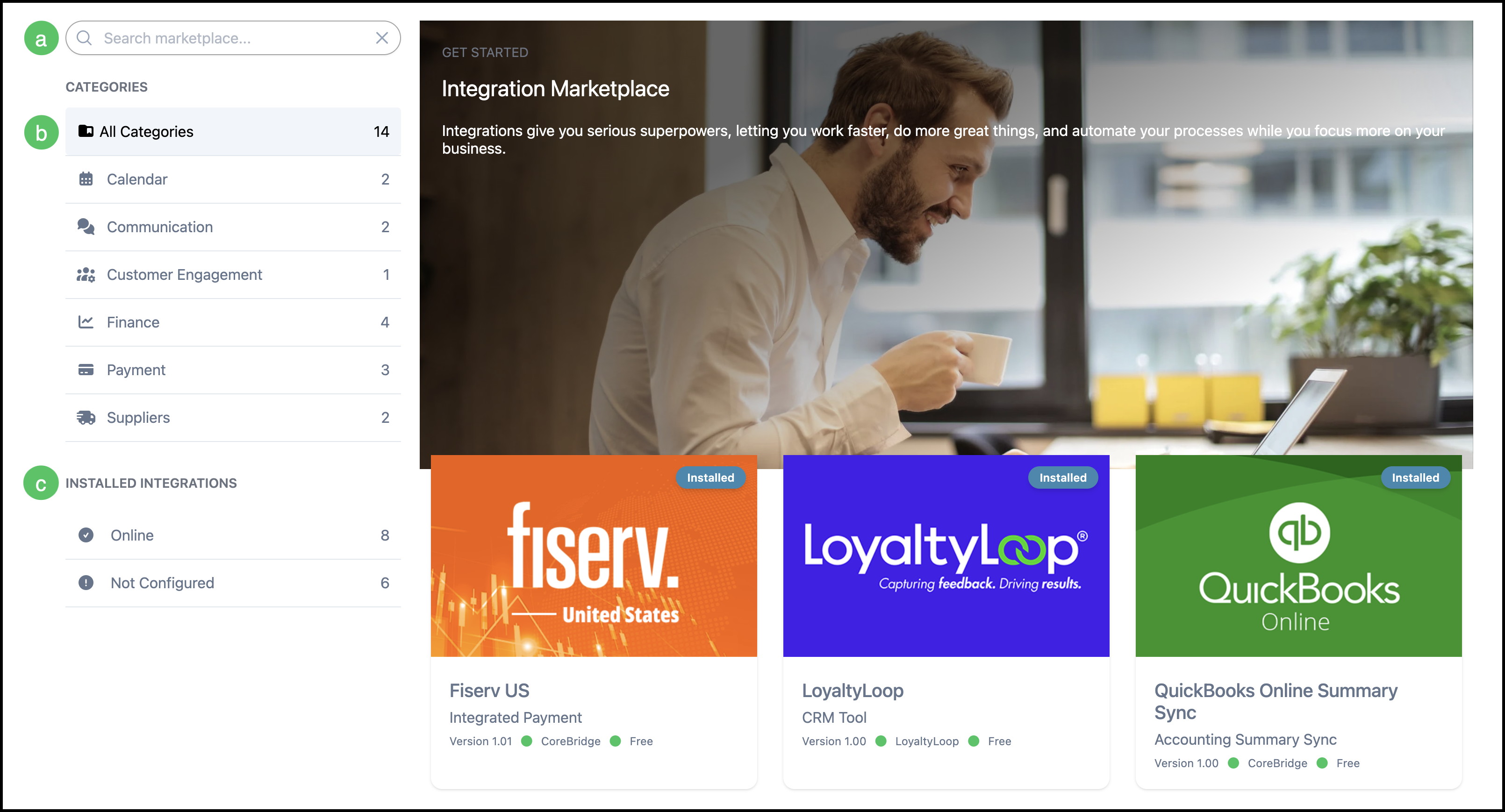
The following elements are available on the Integrations Marketplace page.
a. Search marketplace - A search box at the top that lets you search for a specific integration by name.
b. Categories - A list of categories such as All Categories, Calendar, Communication, Customer Engagement, Finance, Payment, Shipping, and Suppliers. Each category shows how many integrations it contains. Clicking a category filters or displays the integrations in that category.
c. Installed Integrations - Summarizes installed integrations by status: Online, Not Enabled, and Not Configured. Provides a quick view of which integrations are active and which may need attention.
d. Learn More / Integration Icon — Clicking either opens a new page with additional details about that integration.
Note: Each integration will share a similar layout but have unique information. This article will use Microsoft Calendar as the example.
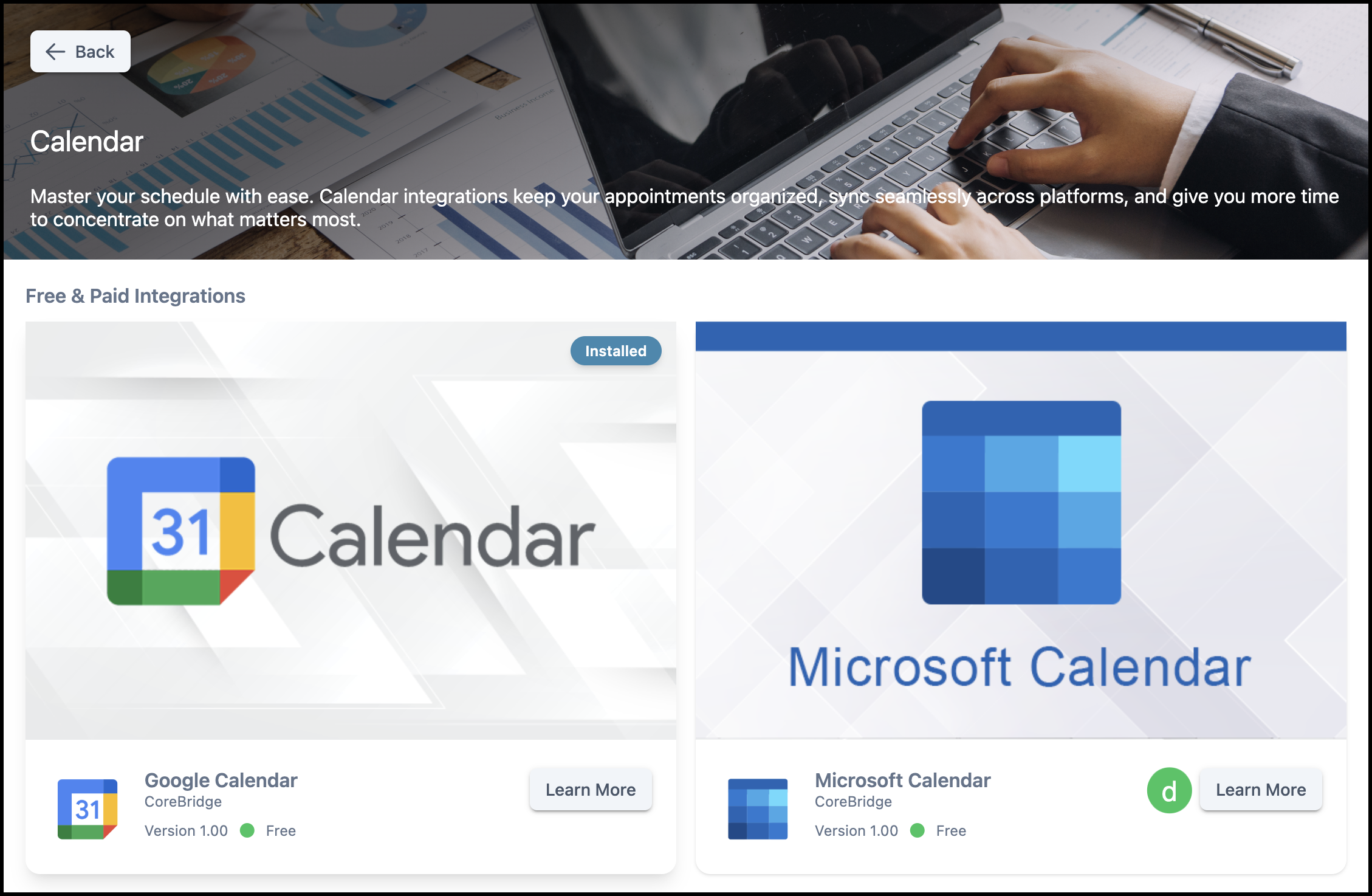
Integration Icons
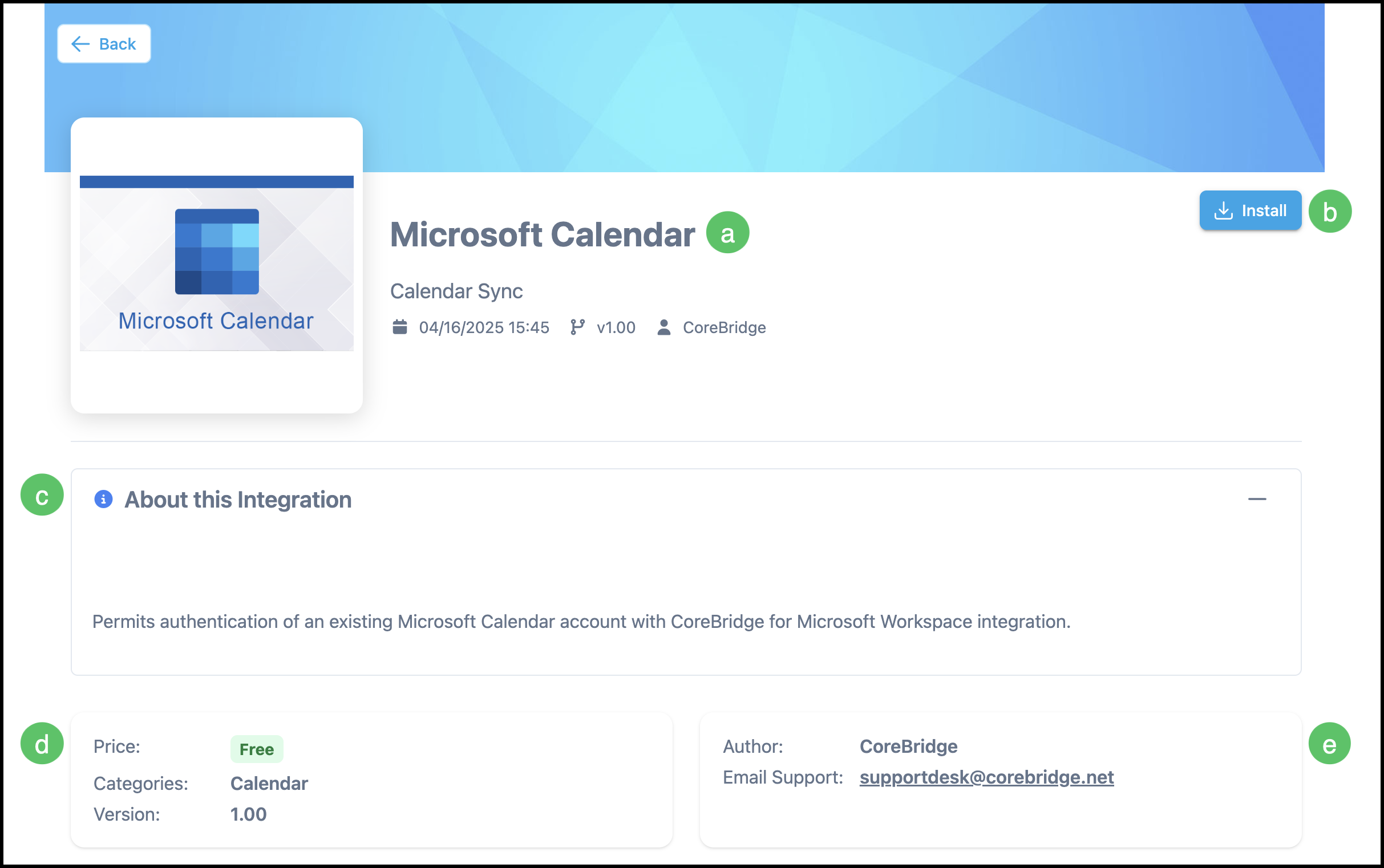
Each integration is displayed on a card that includes the integration name, a brief description, type, status, version, author, and price. Clicking an integration card opens a detail page where you can install the integration or view and edit its settings if it is already installed.
a. Name of the integration.
b. Clicking Install will begin the integration process.
Note: After the integration is installed, this button is replaced by a more actions menu with additional options. To complete setup, select the more actions menu, then click View/Edit Settings for that integration's specific instructions.
d. Displays the price (Free or Paid), category, and version of the integration.
e. Lists the integration's author and support contact information.
Example: