
If your business is transferring data from another system, the import questionnaire begins the process of moving data seamlessly and minimize potential errors.
The import questionnaire can be accessed by visiting Customer Import Questionnaire.
Table of Contents
Completing the Questionnaire
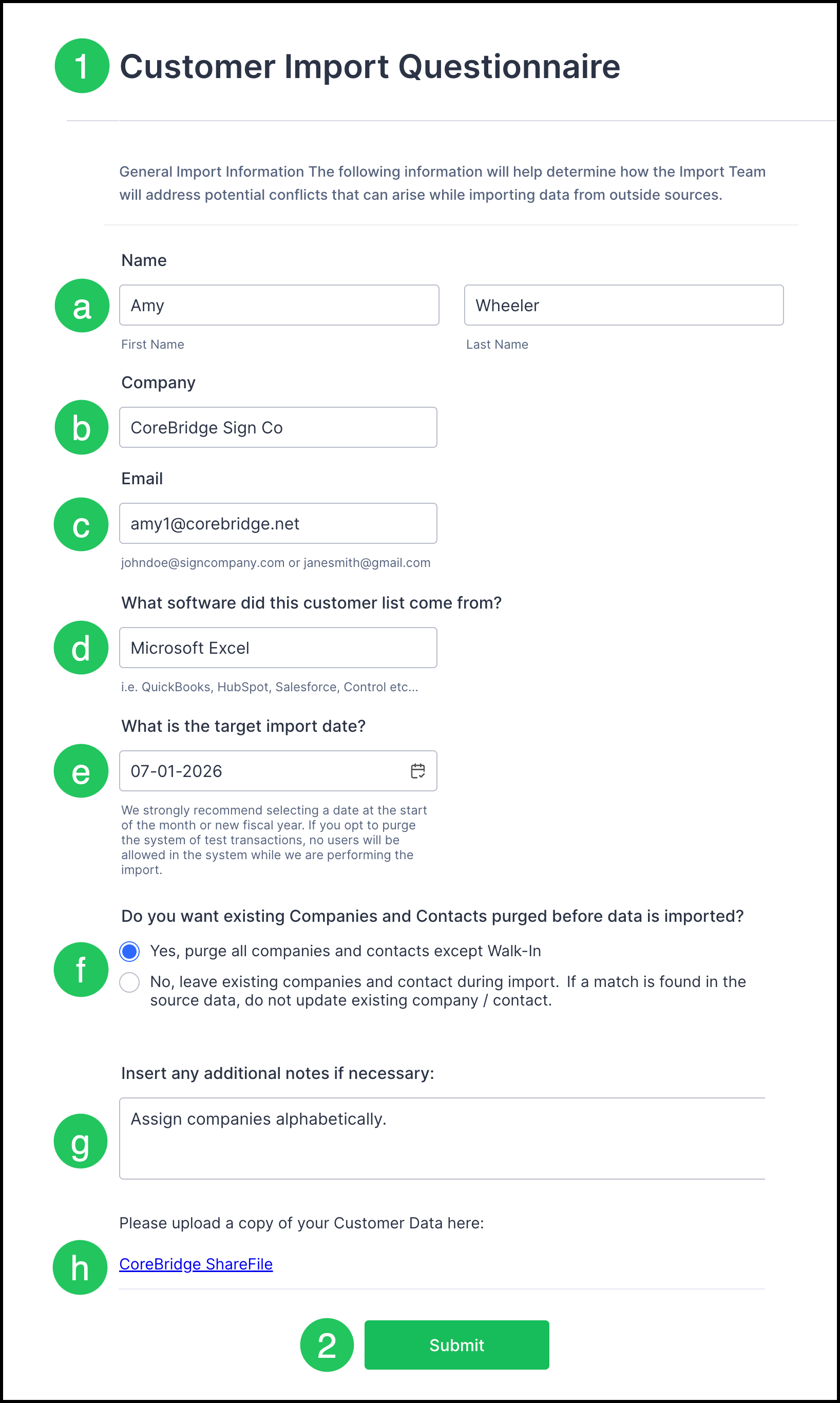
1. Complete the Customer Import Questionnaire by inputting:
a. First and Last Name.
b. Company.
c. Email.
d. Name of the initial source of data - what was the original file or system called.
e. Target Go Live date - when you would like to have your system up and running.
Note: Go-live dates can be scheduled up to 30 days in advance.
f. Purge existing Companies and Contacts - select if you would like all contacts and companies wiped before the import.
g. Additional Comments.
h. Customer Data.
2. Submit.
A confirmation message displays after submission to indicate the request was successfully received.

Next Steps
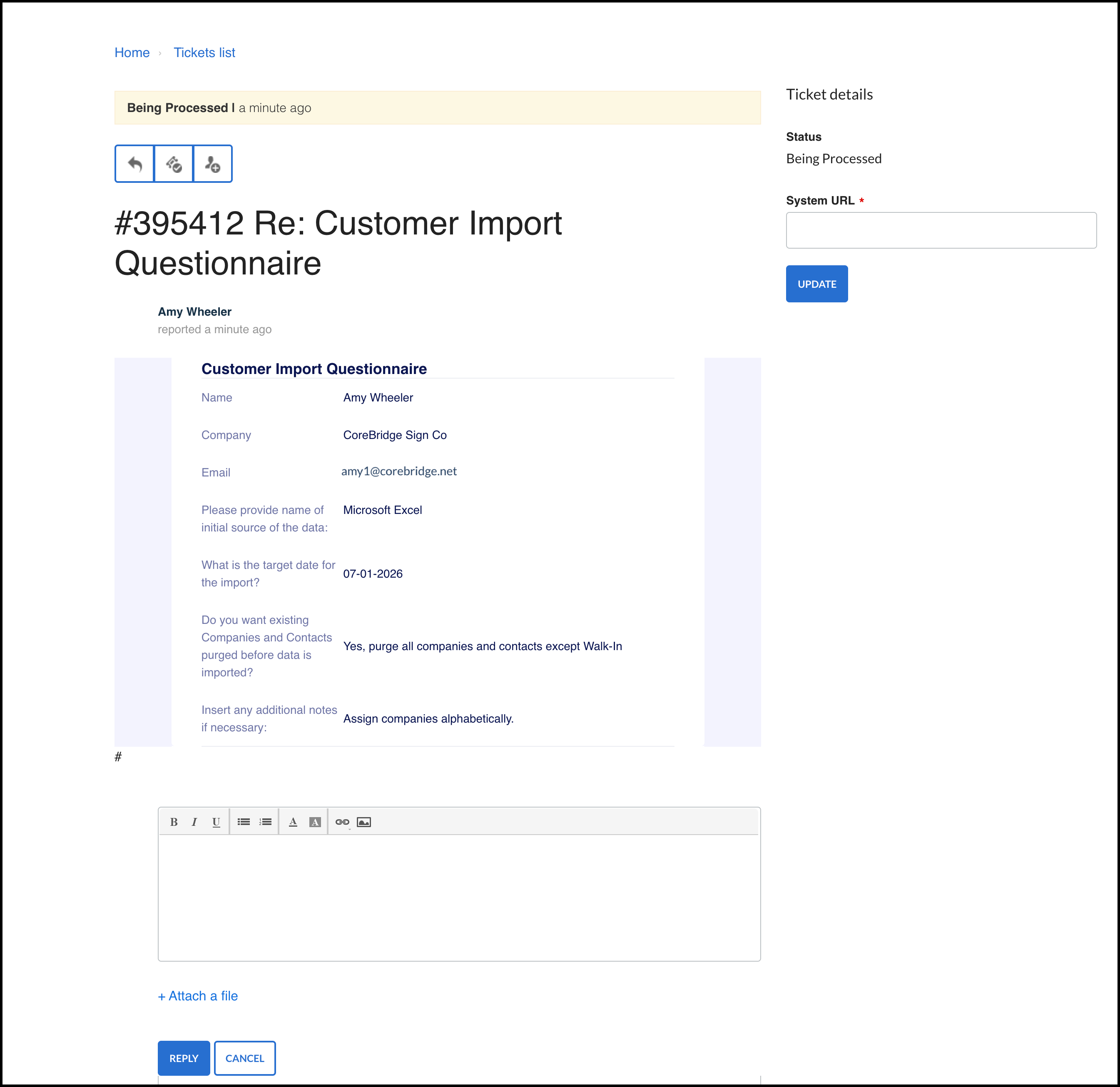
After submission, a ticket will be created for the CoreBridge team to perform the import.
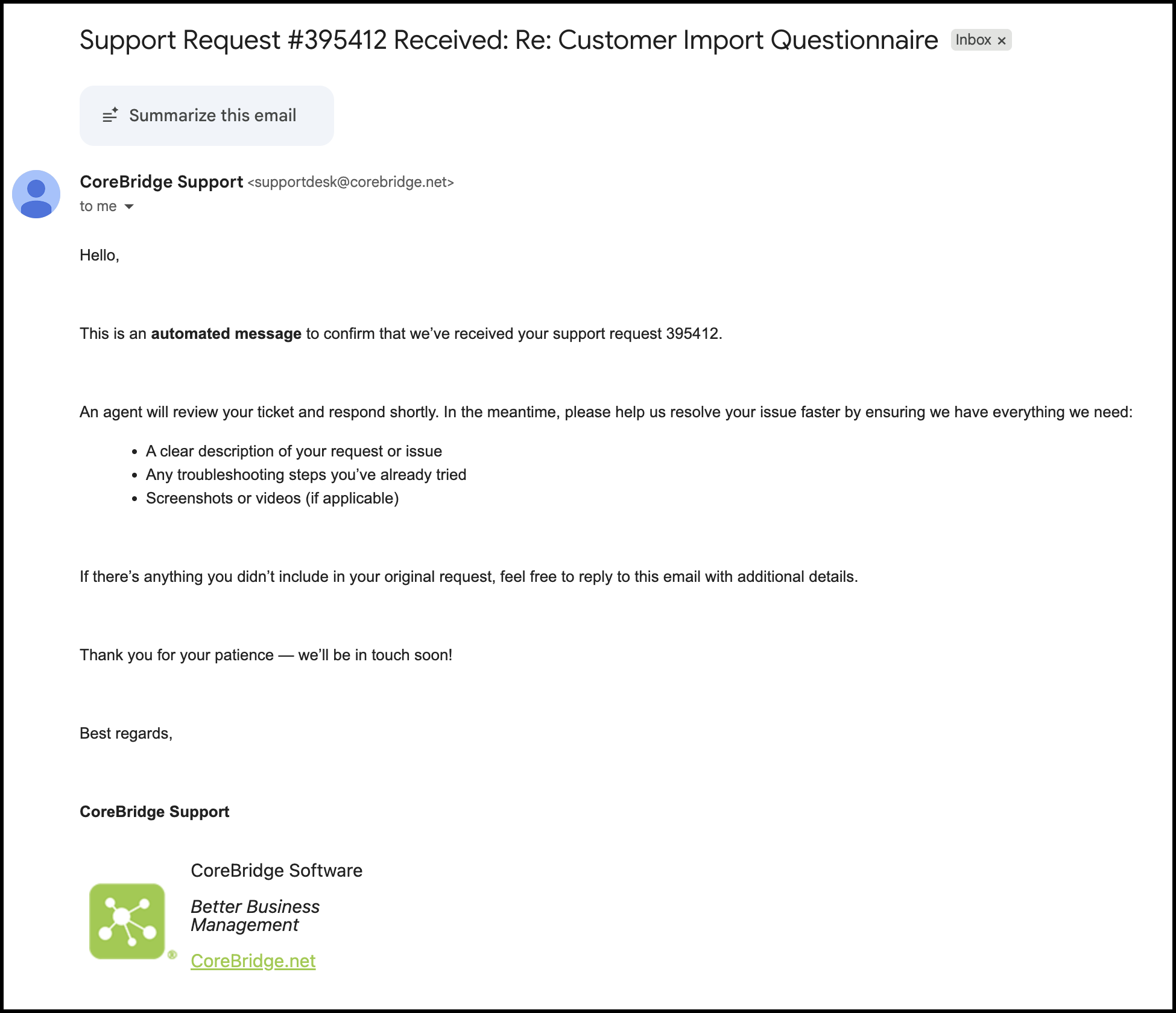
You will receive a confirmation of this in your email.
You can also find this ticket by logging into the support portal and navigating to the Tickets list.
A member of the support team will reach out to you with any questions prior to the import and will send a confirmation once the import has been completed.