
A Billing Address is the address used when billing a Company. It is stored in Addresses on the Company, where one address can be marked Billing. On an Estimate or Order, Billing Address shows that address, and you can select another saved address or enter a custom address for that document.
Table of Contents
- Important Information
- Billing Address on a Company
- Add a Billing Address
- Set the Billing Default
- Billing Address on an Estimate or Order
- Enter a Custom Address
- Frequently Asked Questions
- Related Articles
Important Information
- When Billing Address is selected under Required Fields in Company Options, a Company cannot be saved without a Billing Address, including a walk-in Customer. For more information, see Company Options in Settings.
- On the Orders tab of Estimate and Order Options, Require Billing Address prior to Invoicing an Order means the Order needs a Billing Address before it can be invoiced. For more information, see Estimate and Order Options.
Billing Address on a Company
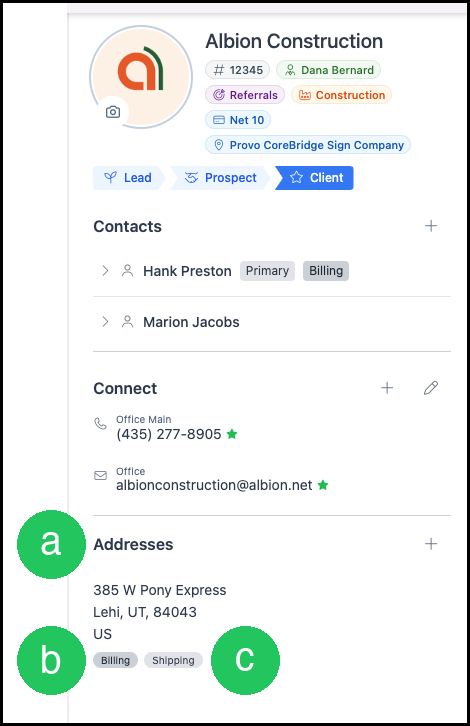
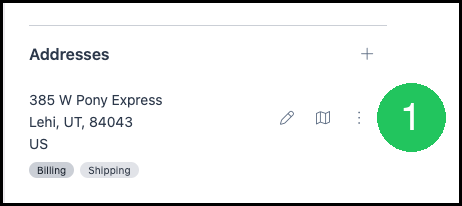
a. Addresses lists the addresses stored on the Company.
b. Billing marks the address used as the Billing default.
c. Shipping marks the address used as the Shipping default.
Add a Billing Address
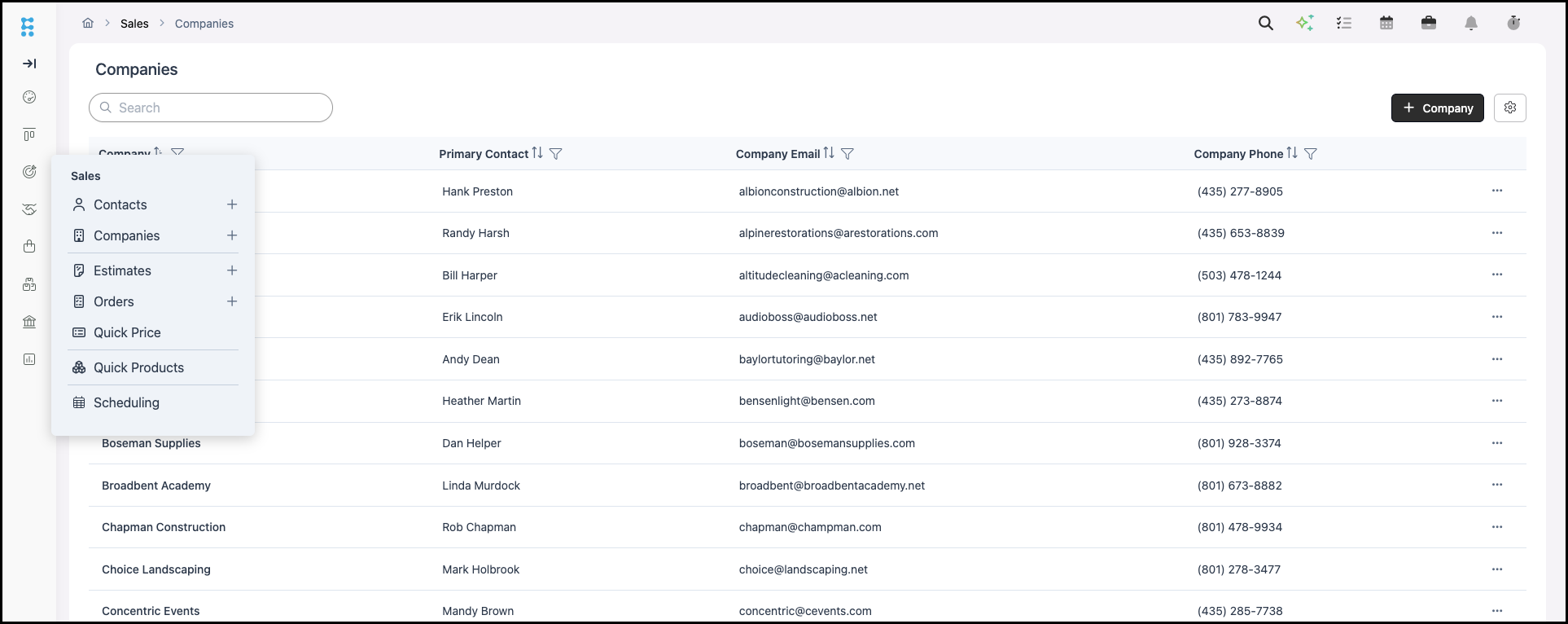
Navigate to Sales / Companies.
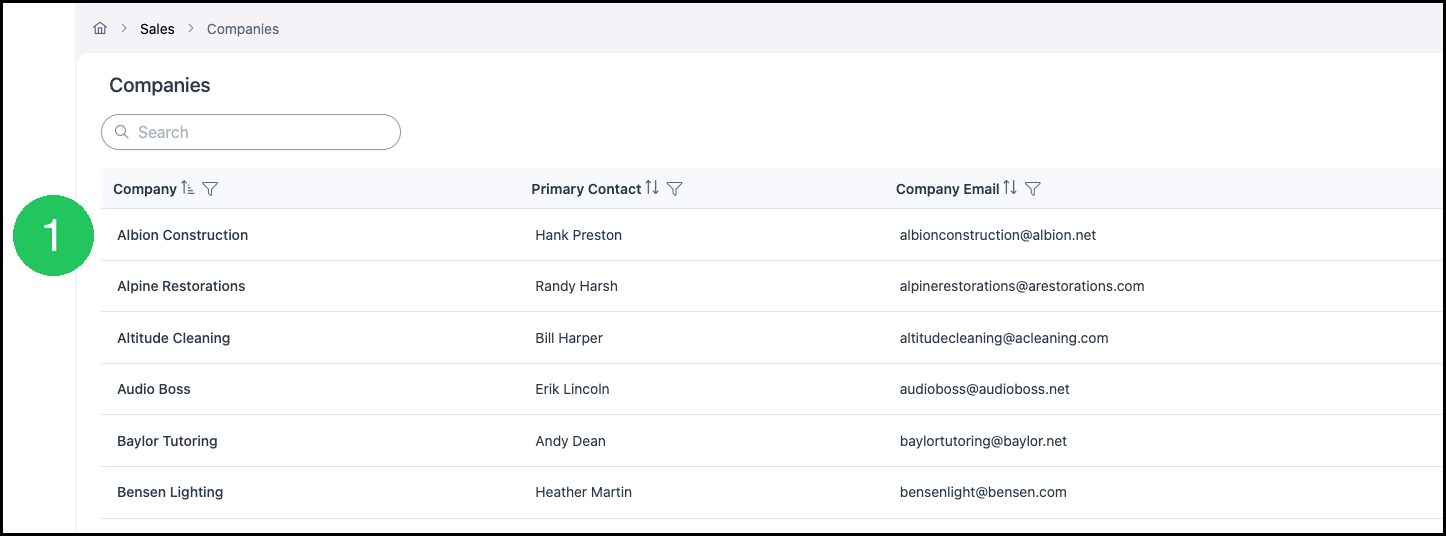
1. Open the Company.
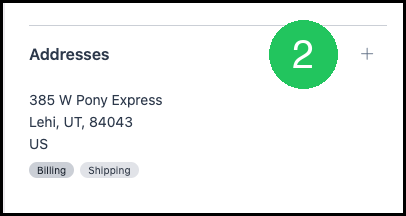
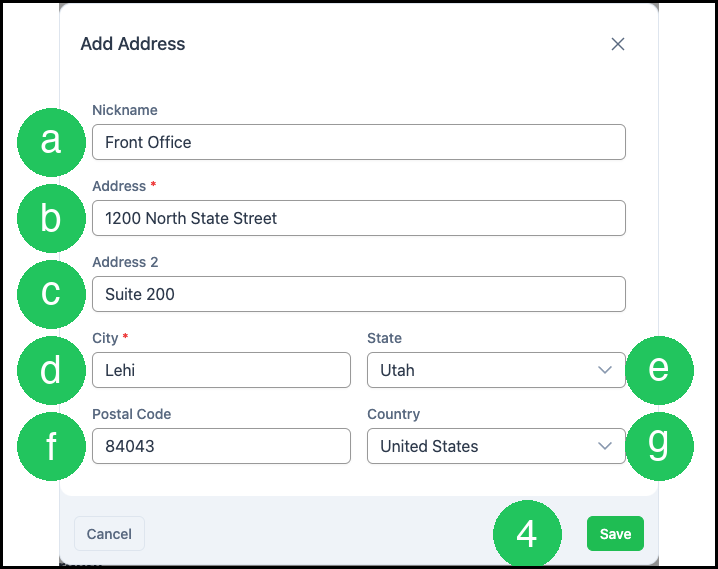
2. In Addresses, click Add. The Add Address dialog opens.
3. Enter the address.
a. Nickname is the name that identifies this address.
b. Address is the street address.
c. Address 2 is additional address information, such as a suite.
d. City is the city for this address.
e. State is the state for this address.
f. Postal Code is the postal code for this address.
g. Country is the country for this address.
Note: Address and City are required. Save becomes available after the required fields are completed.
4. Click Save.
Note: On Add Company, Shipping Address is same as Billing Address uses the Billing Address for Shipping. For more information, see Creating Companies.
Set the Billing Default
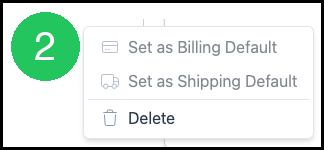
1. On the address, click More Actions.
2. Select Set as Billing Default.
Note: The same menu includes Set as Shipping Default.
Billing Address on an Estimate or Order
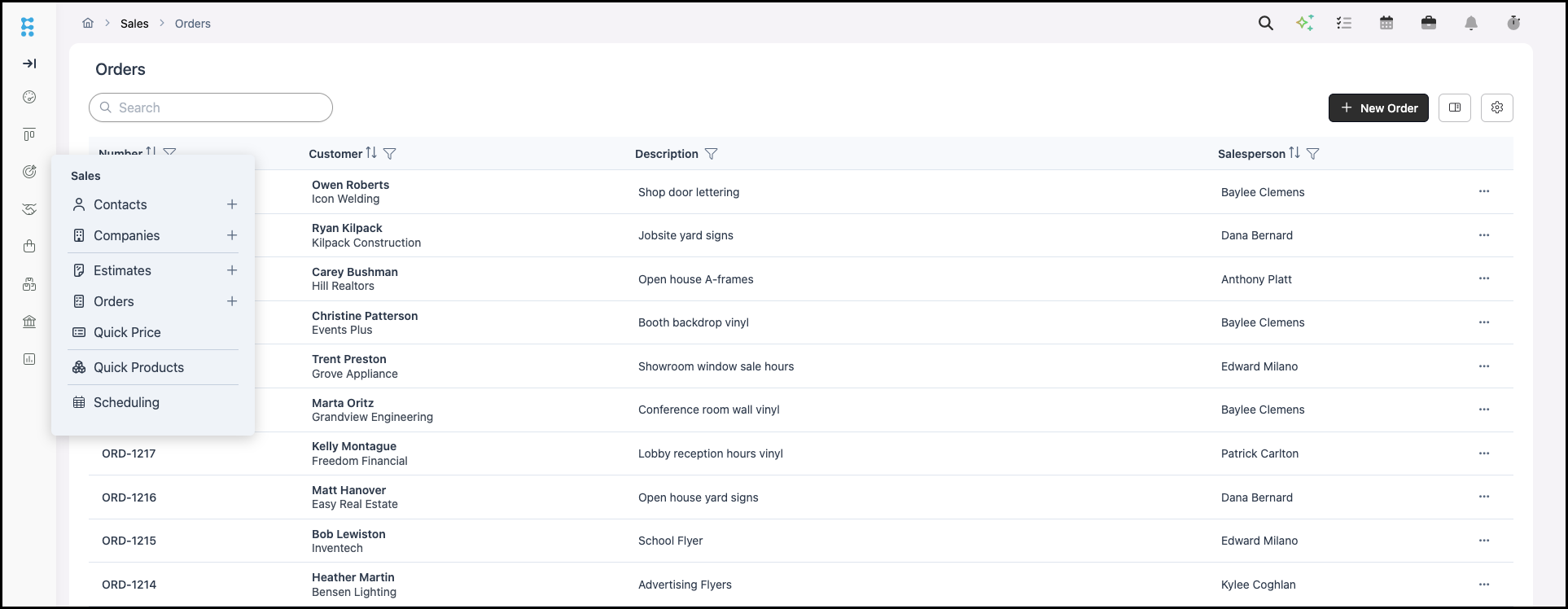
Navigate to Sales / Orders and open the Order.
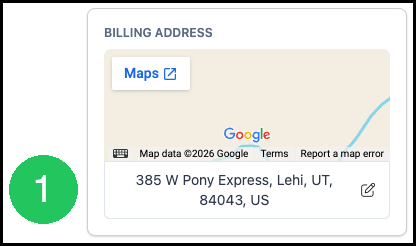
1. Under Billing Address, click the address.
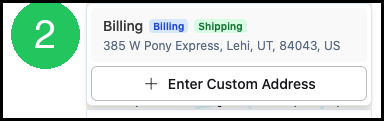
2. Select the saved address.
Note: Billing and Shipping show when that address is the default for both.
Enter a Custom Address
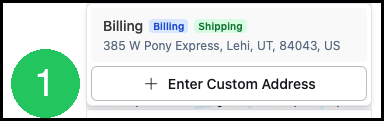
1. Click Enter Custom Address.
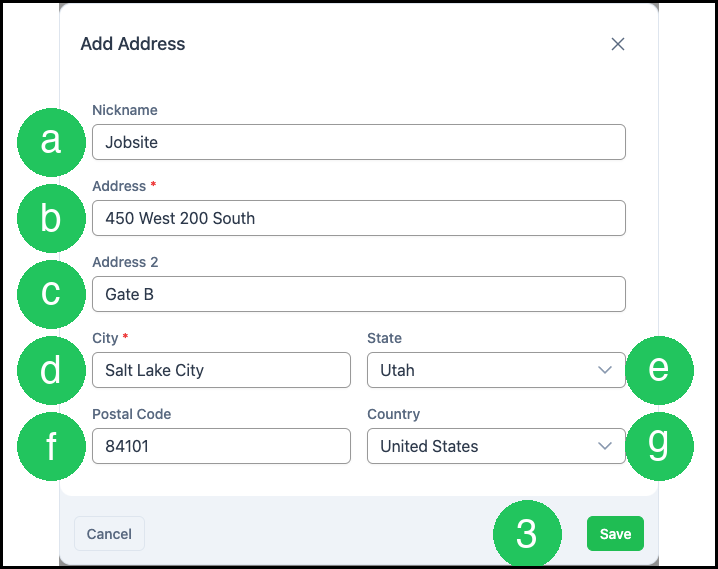
2. Enter the address.
a. Nickname is the name that identifies this address.
b. Address is the street address.
c. Address 2 is additional address information, such as a suite.
d. City is the city for this address.
e. State is the state for this address.
f. Postal Code is the postal code for this address.
g. Country is the country for this address.
3. Click Save.
Note: The custom address is used on that Estimate or Order.
Frequently Asked Questions
1. What is the difference between a Billing Address and a Shipping Address?
Answer: A Billing Address is the address used when billing the Company. A Shipping Address is the address used for delivery.
2. Can one address be the Billing Address and the Shipping Address?
Answer: Yes. One address can be marked as both Billing and Shipping.