
An Estimate is a formal quote created in CoreBridge that outlines the products, services, and pricing for a Customer before work begins. This article walks through creating an Estimate, reviewing it after it opens, adding proofs when needed, and converting the Estimate to an Order.
Table of Contents
- Creating the Estimate
- Viewing the Estimate Document
- Editing the Estimate
- Manage Fees, Discounts, and Taxes
- Additional Line Items
- Adding Proofs
- Proof and Estimate Approval
- Destinations
- Purchase Orders
- Converting an Estimate to an Order
- Frequently Asked Questions
- Related Articles
Creating the Estimate
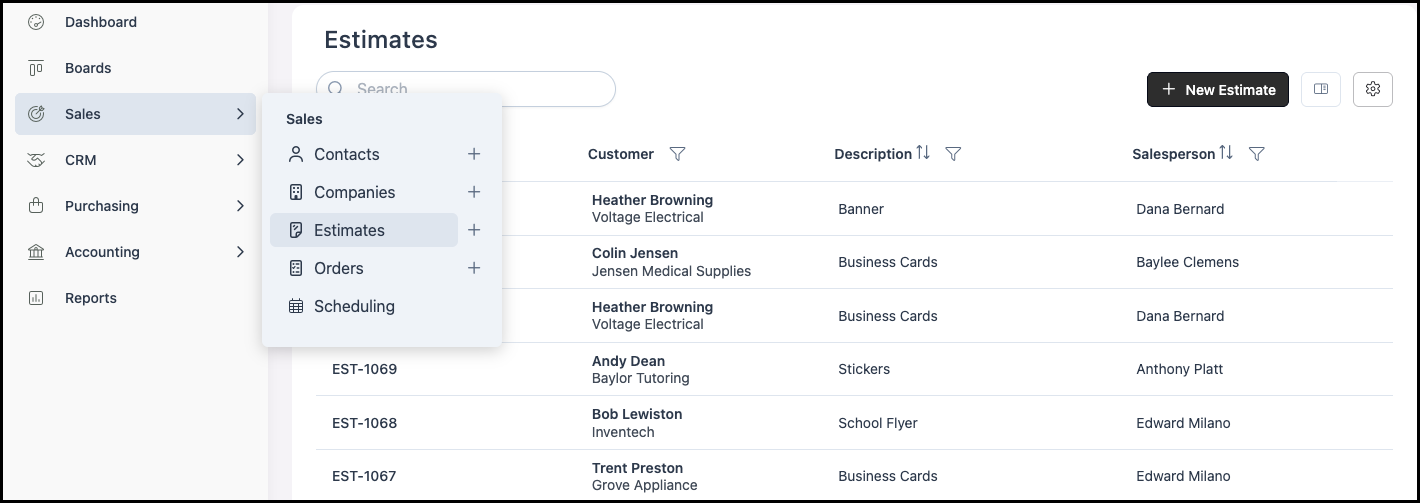
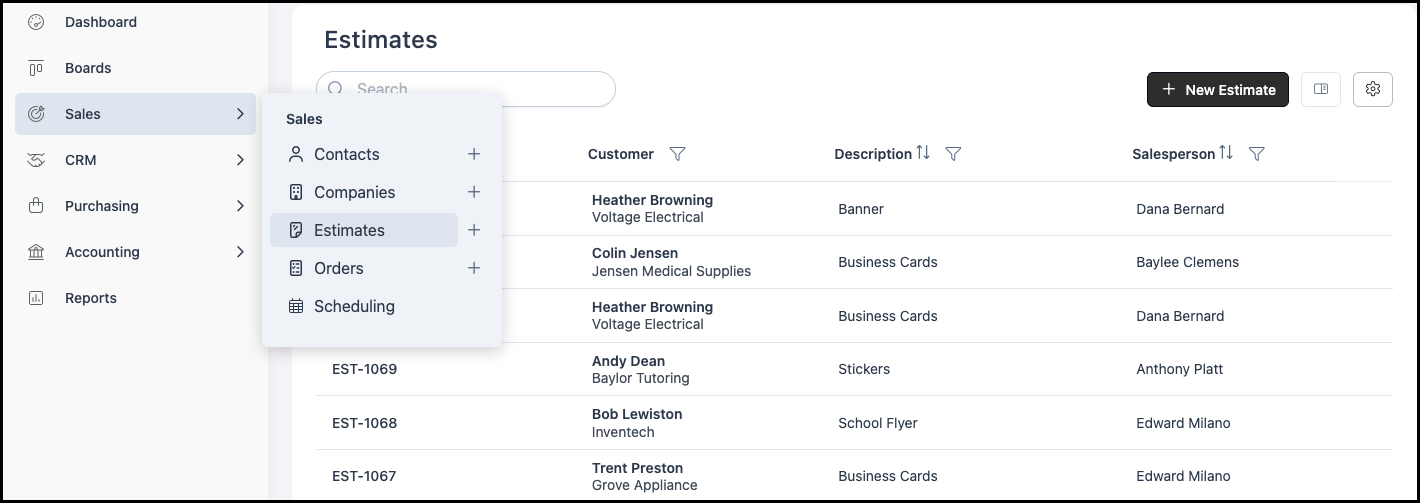
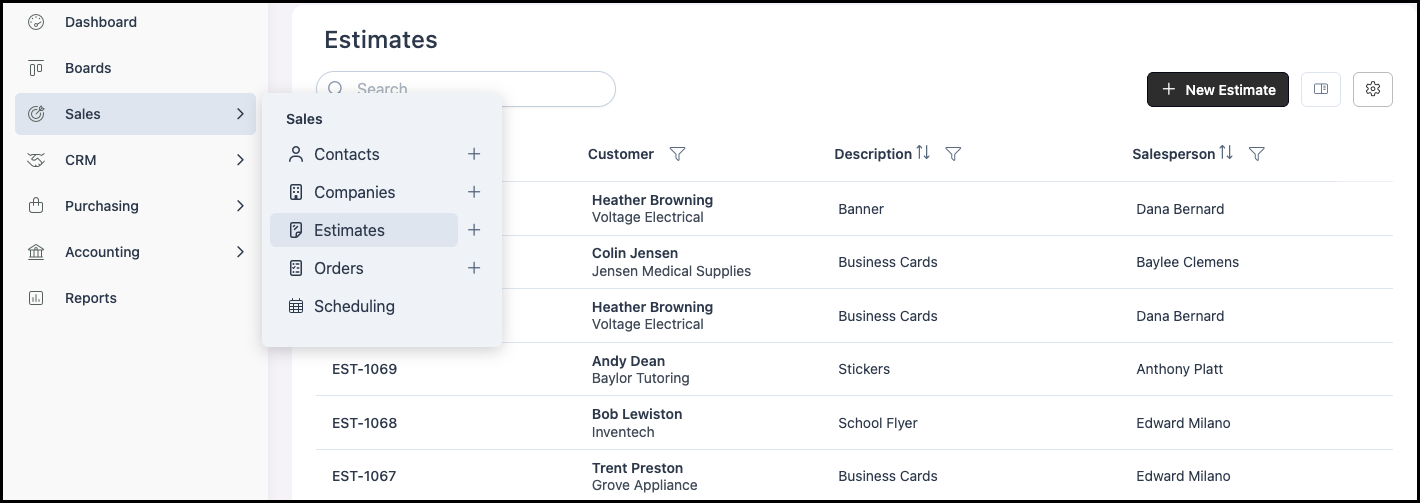
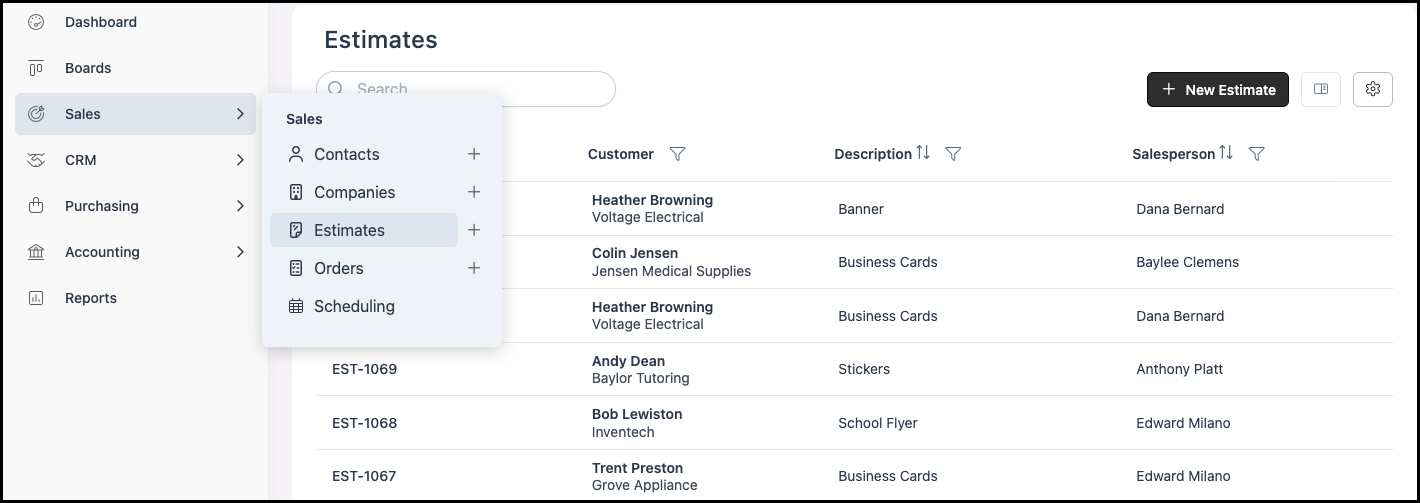
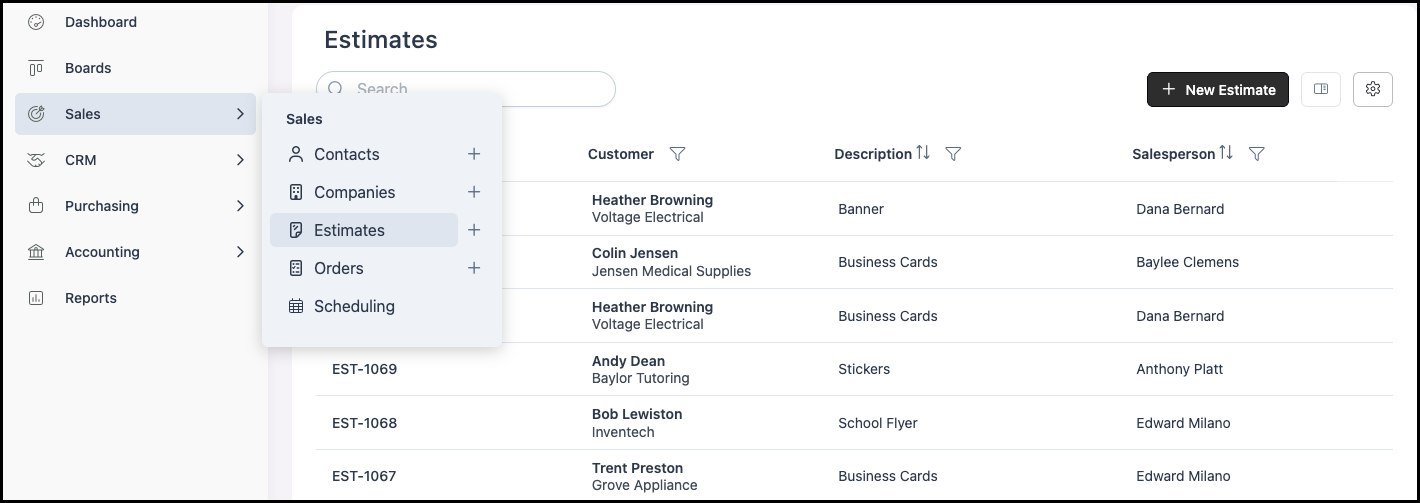
Navigate to Sales / Estimates.
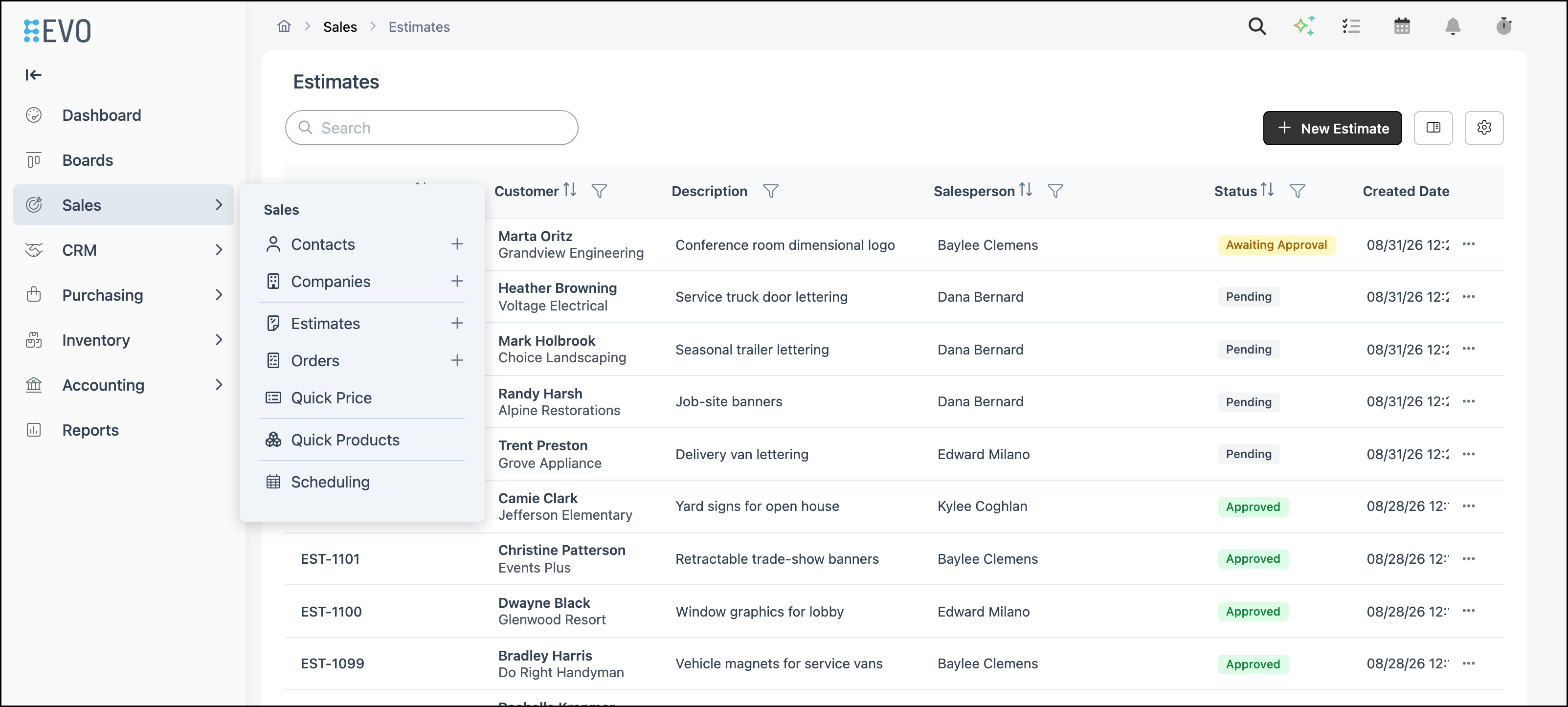
1. Click New Estimate.
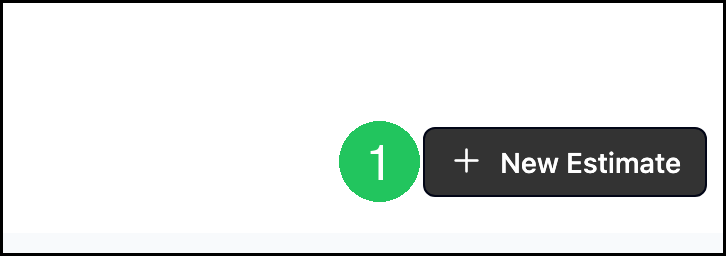
2. Select a Customer in Select Customer. Results show as Company | Contact. Search or browse to choose an existing Company and Contact.
Note: After you select a Customer, the list shows contacts for that Company. Clear Select Customer to search all companies again.
Note: Select Customer is required to create the Estimate.
3. Enter the Estimate Description. This is a summary of what the Estimate contains, is Customer-visible, and searchable.
4. Click Next.
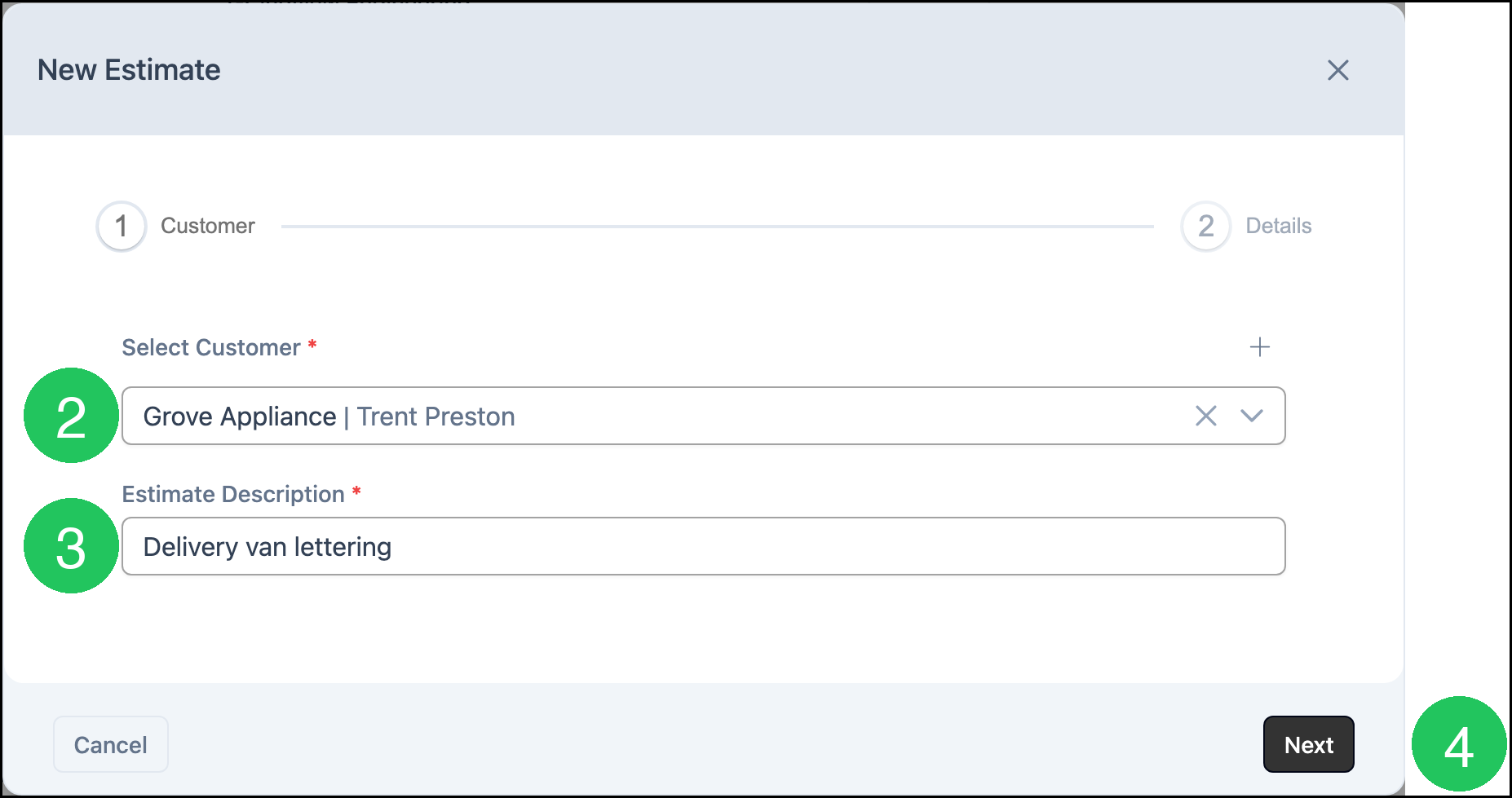
5. Enter Customer PO#, if applicable.
Note: This is a document issued by your Customer authorizing the purchase of goods or services from your business.
6. Select Estimate Origination, if desired.
Note: This is how the Customer found you.
7. Click Create Estimate.
Note: Required fields can be managed in System Settings / Sales / Estimate and Order Options. For more information, see Estimate and Order Options.
Note: After you click Create Estimate, the Estimate opens. Add products and services from the Line Items tab. For more information, see Line Items Overview.
Viewing the Estimate Document
Once the Estimate is created, you can open it to review details, add Line Items, make updates, generate a document, email the Customer, or clone the Estimate. For more information, see Estimates Overview and Estimate and Order Tools Menu.
Navigate to Sales / Estimates and open the Estimate.
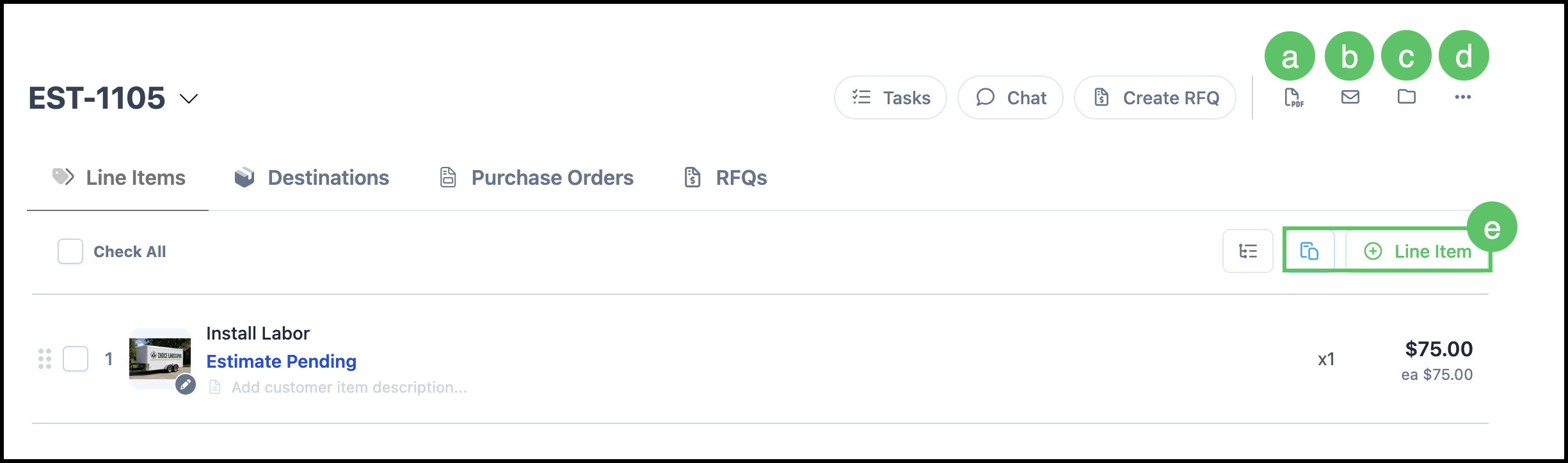
a. The Document icon allows you to select from options such as Invoice, Work Order, Packing Slip, or Receipt.
Note: These options can be managed in Settings / System / Documents.
b. The Email icon opens a popup with a fillable Email Template.
c. Files allows you to upload and organize pertinent information.
d. More Actions includes Clone, Customer Portal Link, Link Opportunity, and History. Voided is a Status on the Estimate, not an option in More Actions.
e. Line Items can be added with the Add Line Item icon or from the Paste from Clipboard. For more information, see Line Items Overview.
Editing the Estimate
Estimates can be edited at any time after they are created, making it easy to update details before converting them into an Order. You can adjust Company and Sales information, update due dates, and manage the Roles associated with the Estimate. For more information, please see Employee Roles and Permissions in Settings.
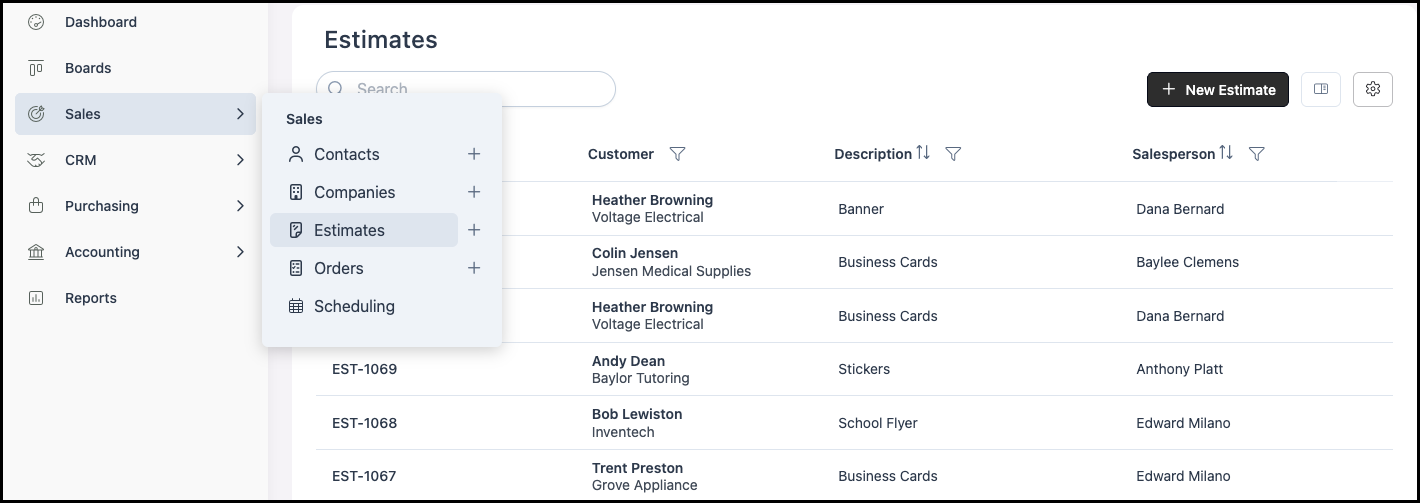
Navigate to Sales / Estimates and select the appropriate Estimate.
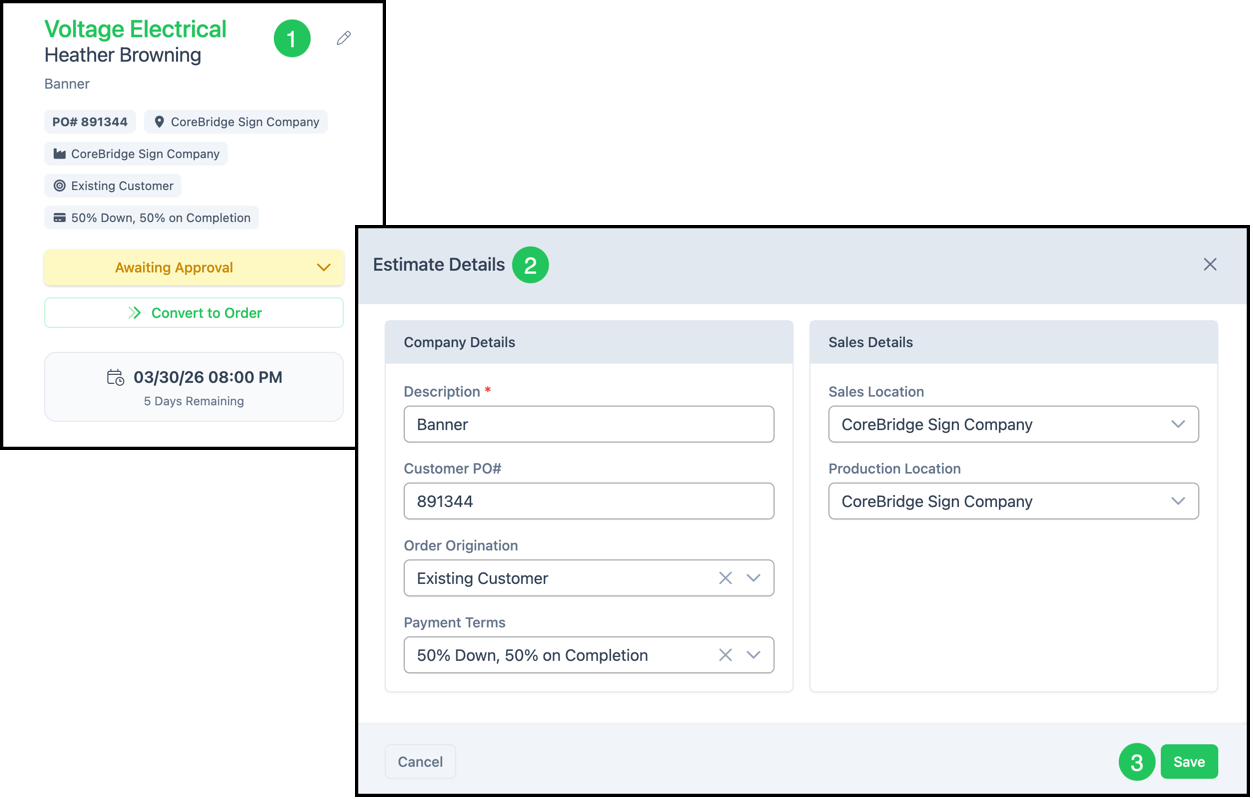
Updating Estimate Details:
1. Click on the Edit icon or on the side panel near the Company Information.
Note: The Edit icon is visible when hovering over this area.
2. Update any Estimate Details.
Note: All fields are editable.
3. Click Save.
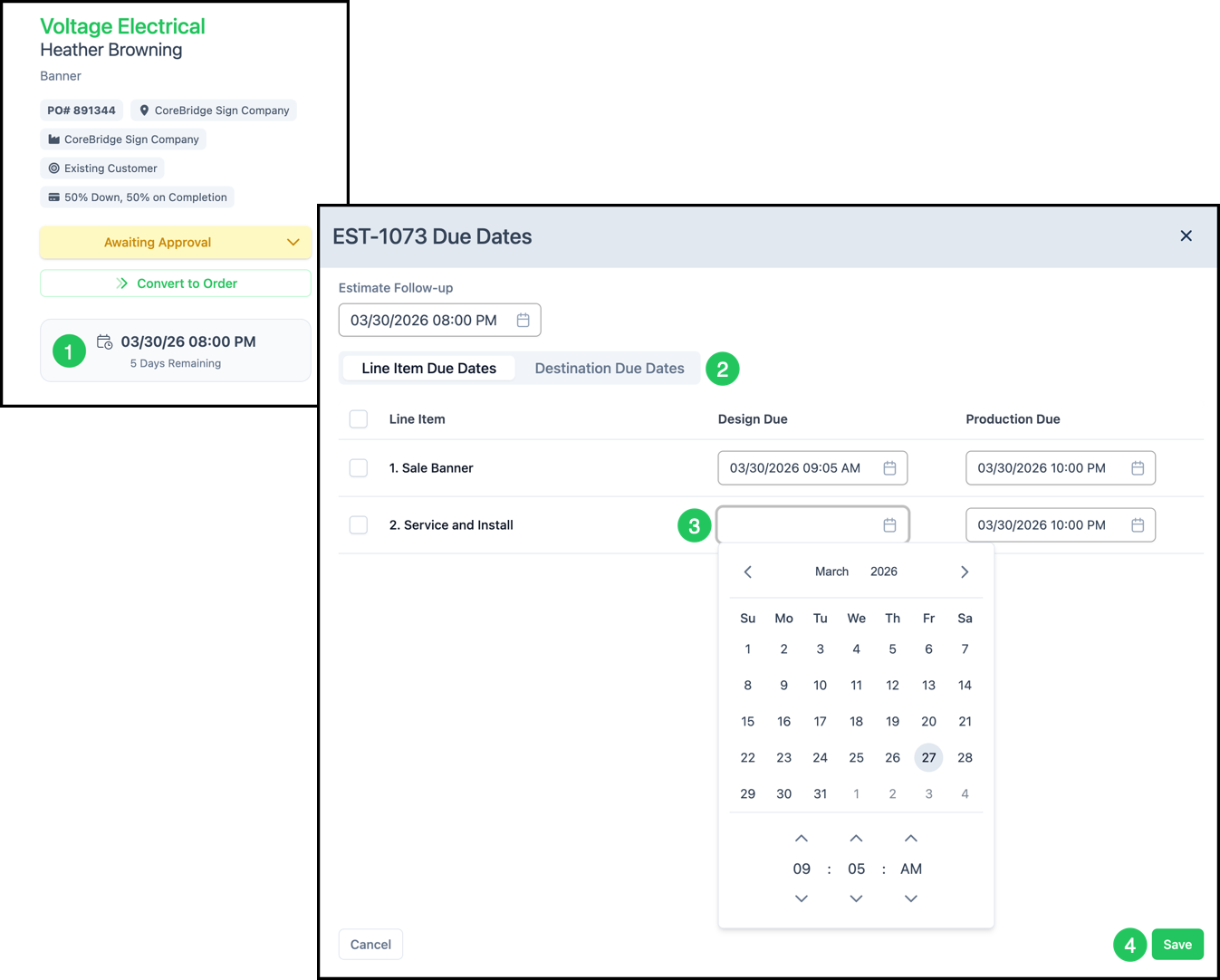
Updating Due Dates:
1. Click on the Date icon.
2. Select Line Item or Destination Due Dates.
3. Update any of the dates using the calendar drop downs.
4. Click Save.
Managing Roles:
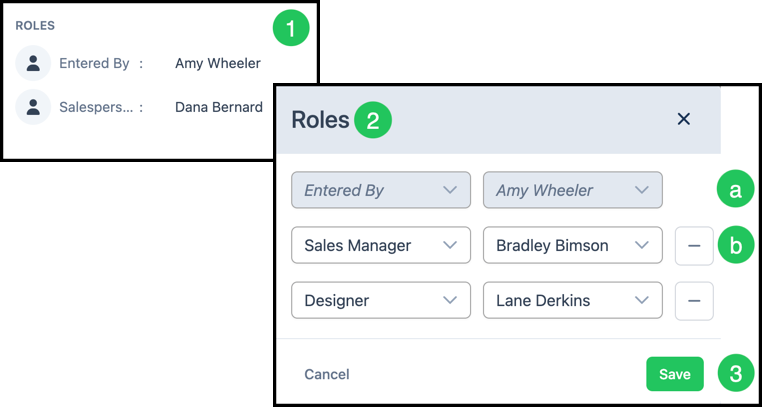
1. Click on Roles area of the side panel.
2. Update the Roles associated with this Estimate.
a. The Entered By field is automatically populated to reflect who created the record.
b. The dropdown menus allow you to change your selections. The subtraction signs remove the row.
3. Click Save.
Manage Fees, Discounts, and Taxes
Use this section to adjust the financial details of the Estimate by adding fees, applying discounts, and updating tax settings. These updates ensure the total reflects accurate pricing before sharing with the Customer or converting to an Order. For more information, please see Tax Groups.
Adding Fees:
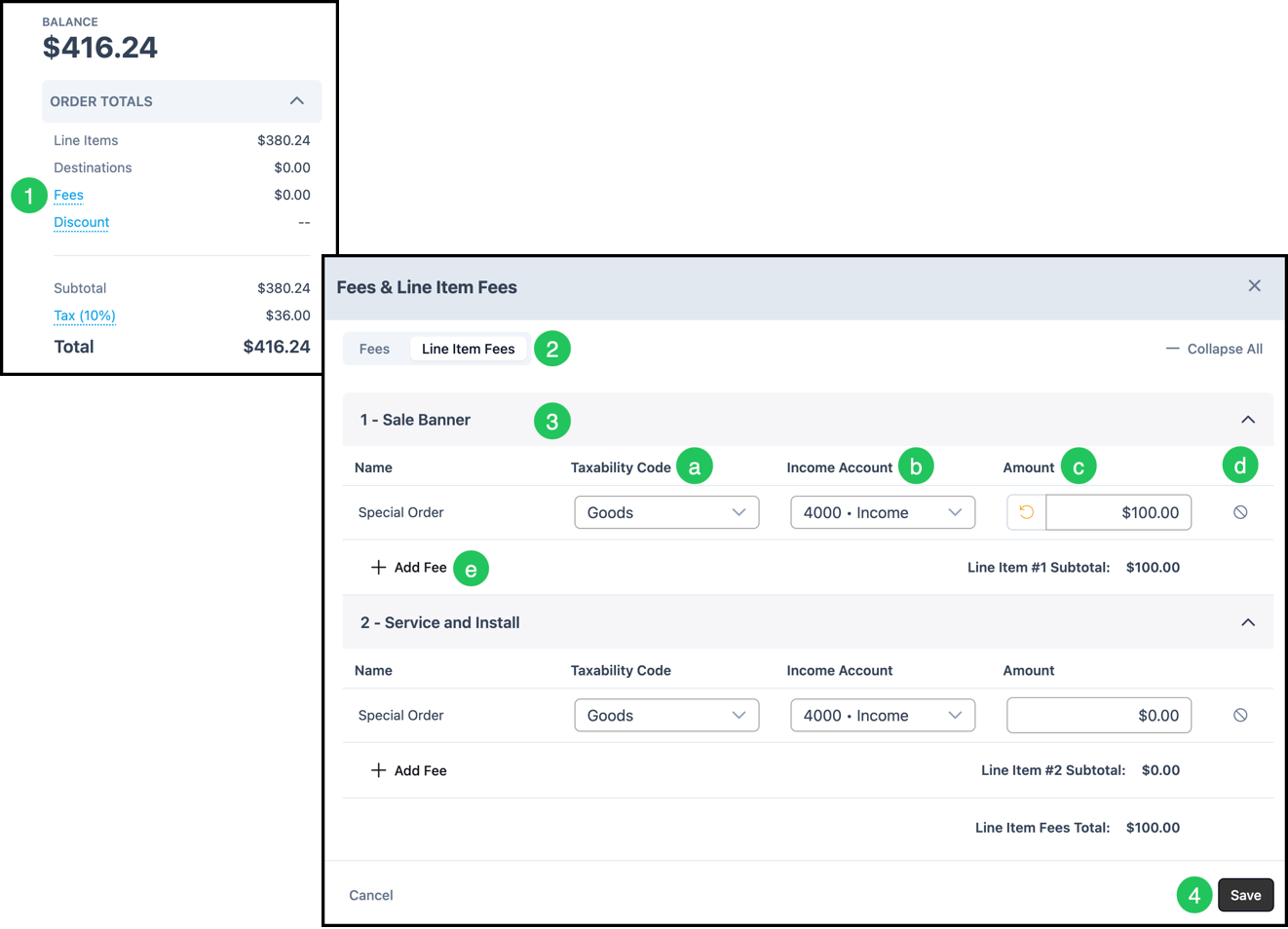
1. Click the Fees link.
2. Select either Fees or Line Item Fees.
Note: Fees are associated to the full Order.
3. Select the Line Item, if you selected the Line Item Fee.
Note: The following information will need to be filled in whether the Fee is Order or Line Item level.
a. Taxability Code associated with the Fee.
b. Income Account associated with the Fee.
c. The amount field can be adjusted.
d. Clicking this icon will remove the Fee.
e. Click here to add an additional Fee, if desired.
Note: Order and Line Item Fees can be managed in System Settings / Sales / Order and Line Item Fees.
Adding a Discount:
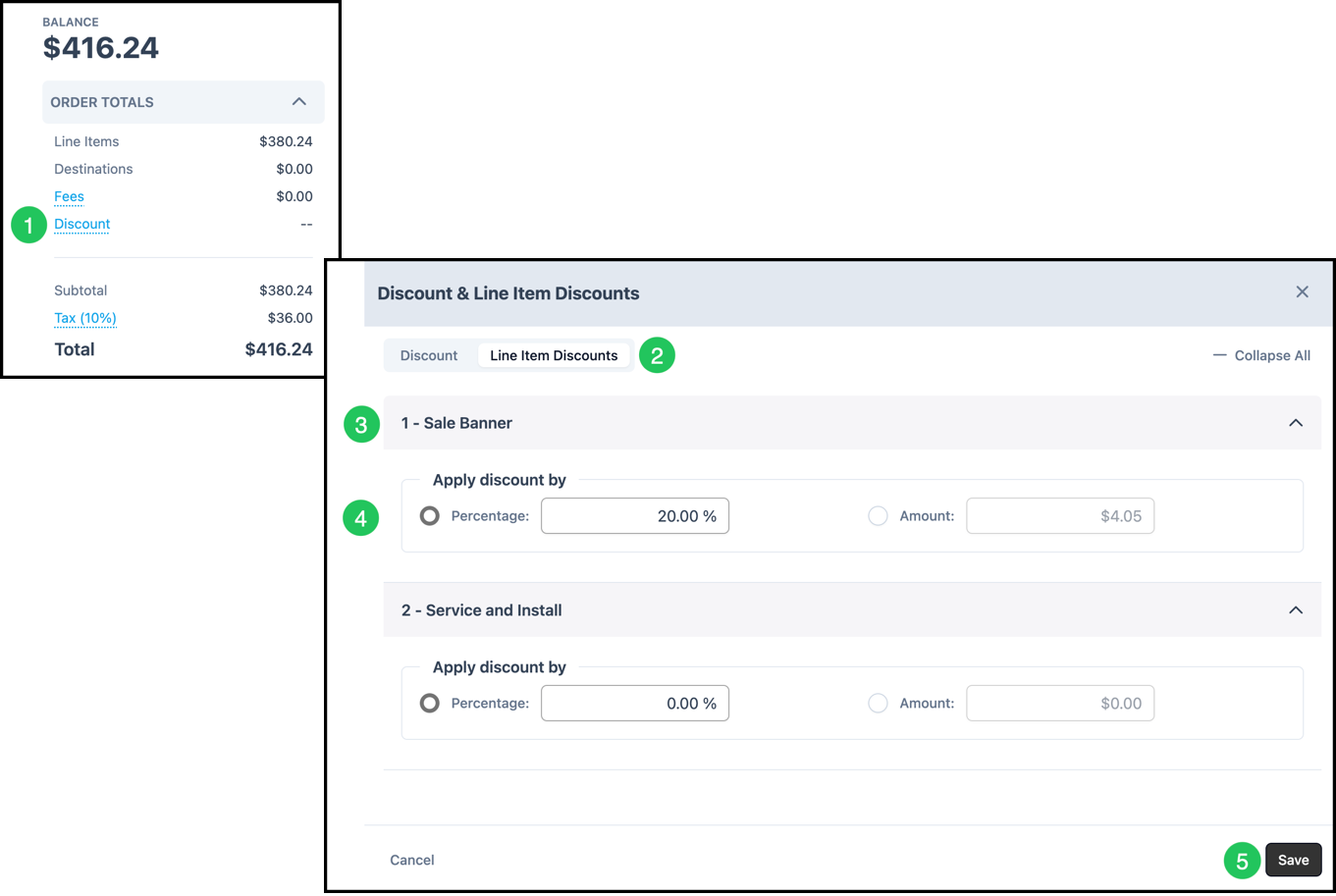
1. Click the Discount link.
2. Select either Discount or Line Item Discounts.
Note: Discount is associated to the full Order.
3. Select the Line Item, if applicable.
4. Select between a Percentage or Amount and enter the desired discount.
Note: When you enter a value in one field, the system automatically calculates the other.
5. Click Save.
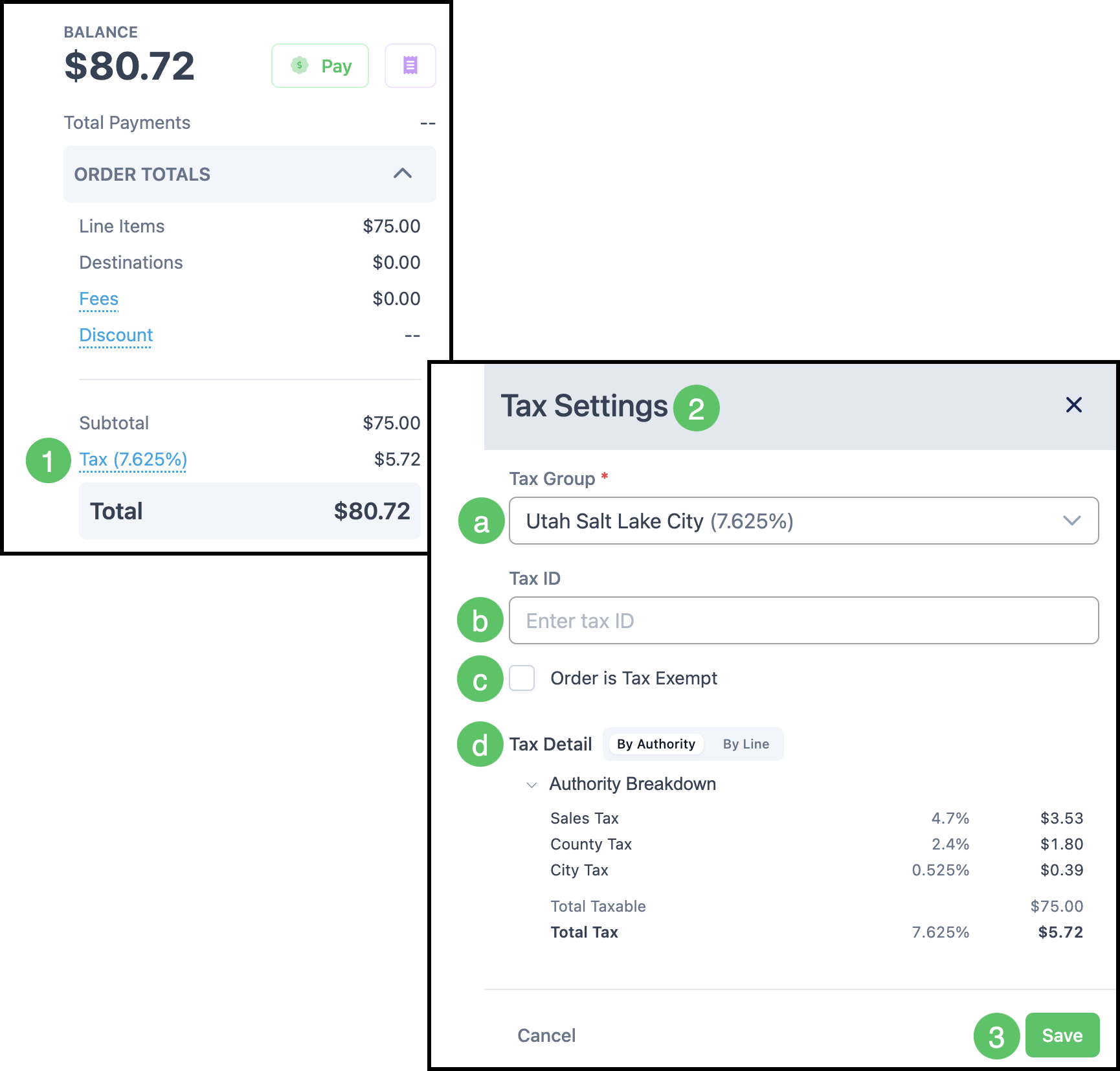
Updating Tax:
1. Click the Tax link.
2. Update the Tax Settings.
Note: These can be managed in System Settings / Accounting / Tax Groups.
a. Tax Group - The Tax Group assigned to this record.
b. Tax ID - Optional. The Customer tax ID, when you have one to record.
c. Order is Tax Exempt - Marks the record as tax exempt.
d. Tax Detail - Choose By Authority or By Line. Expand Authority Breakdown to see each tax amount.
Note: The authorities listed depend on the Tax Group on the Order.
3. Click Save.
Additional Line Items
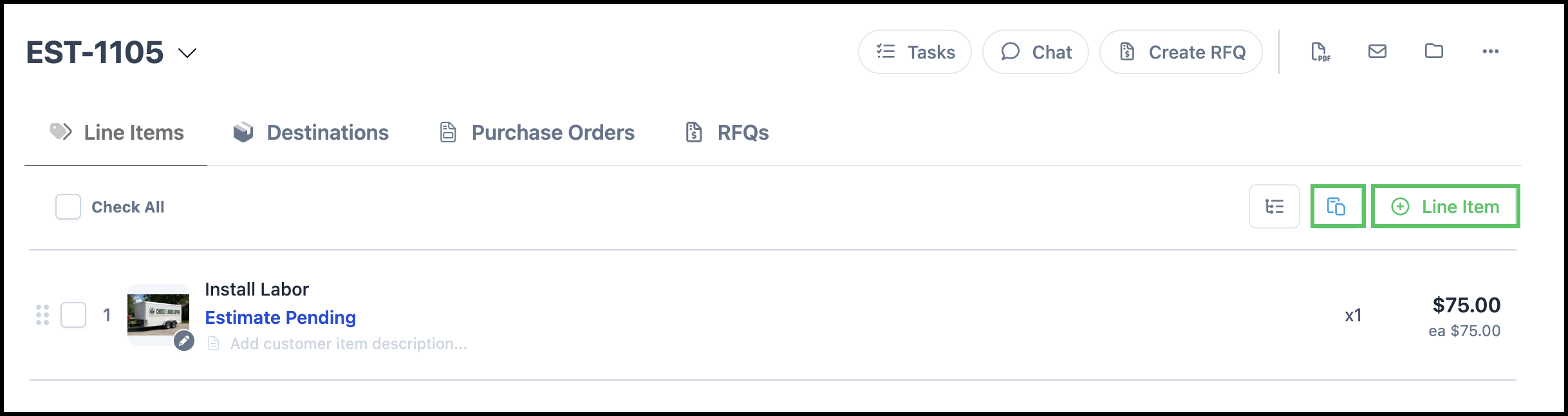
After the Estimate is created, add products and services on the Line Items tab. Click Line Item to add a product or service, or use Paste from Clipboard to paste Line Items you copied earlier.
Note: For more information, see Line Items Overview and Clipboard Feature.
Adding Proofs
Proofs allow the Customer to review artwork or mockups before the Estimate is approved or converted to an Order.
Navigate to Sales / Estimates and select the appropriate Estimate.
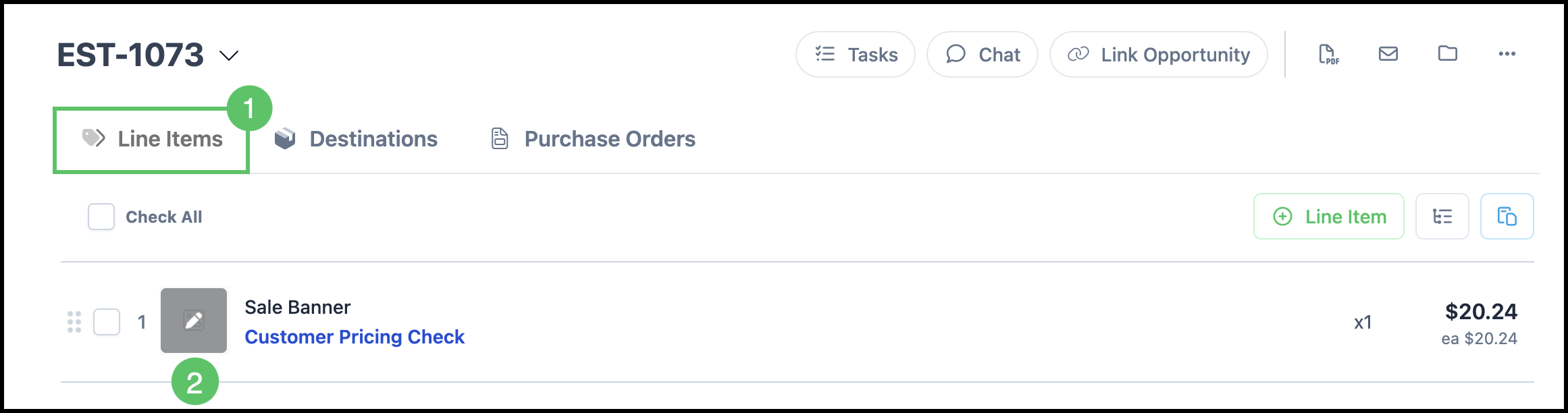
1. Select the Line Items tab.
2. Click the Edit icon that appears when hovering over the proof area.
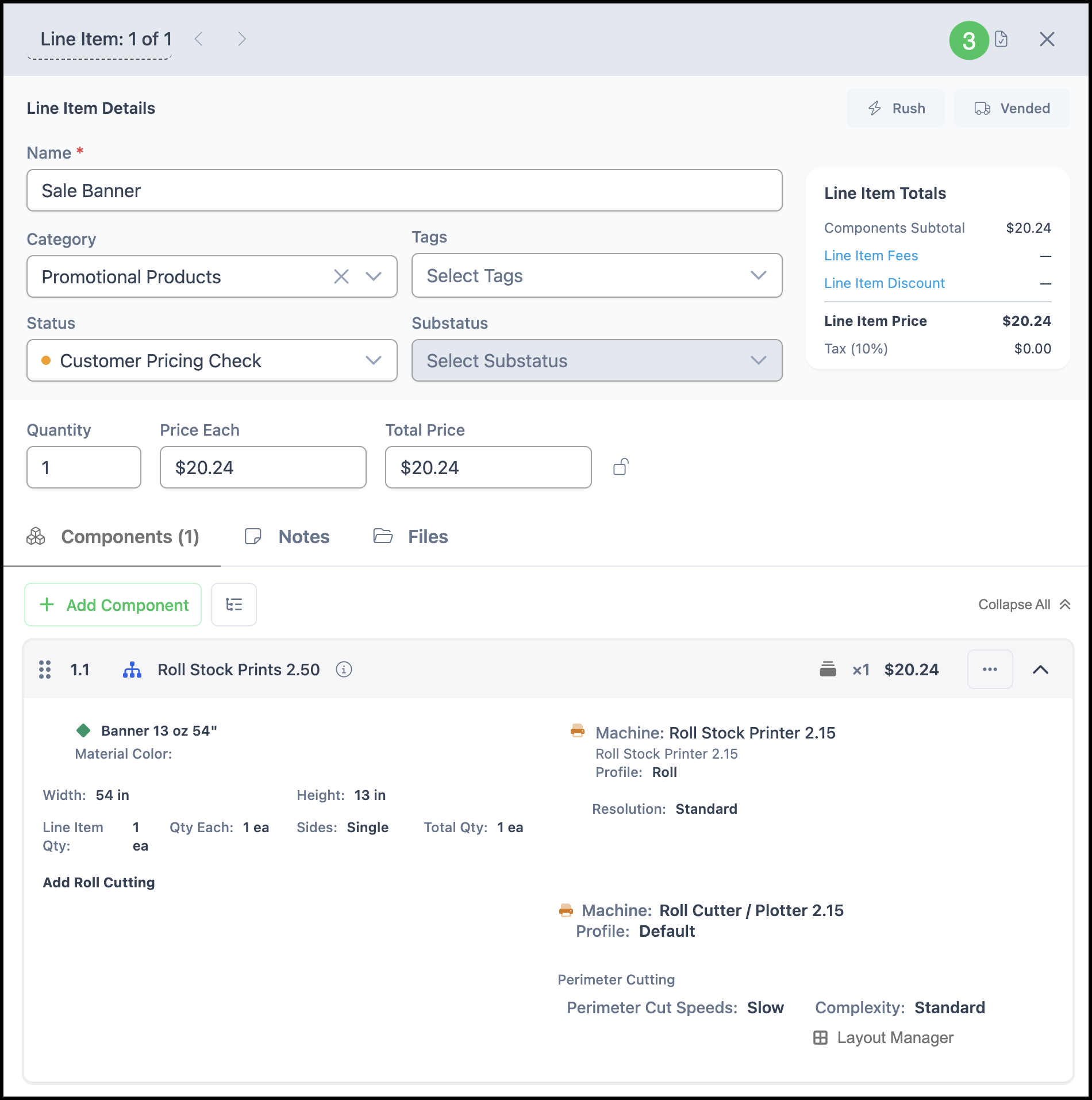
Note: You can also open up the Line Item and click the Proofing icon. See example below.
Example:
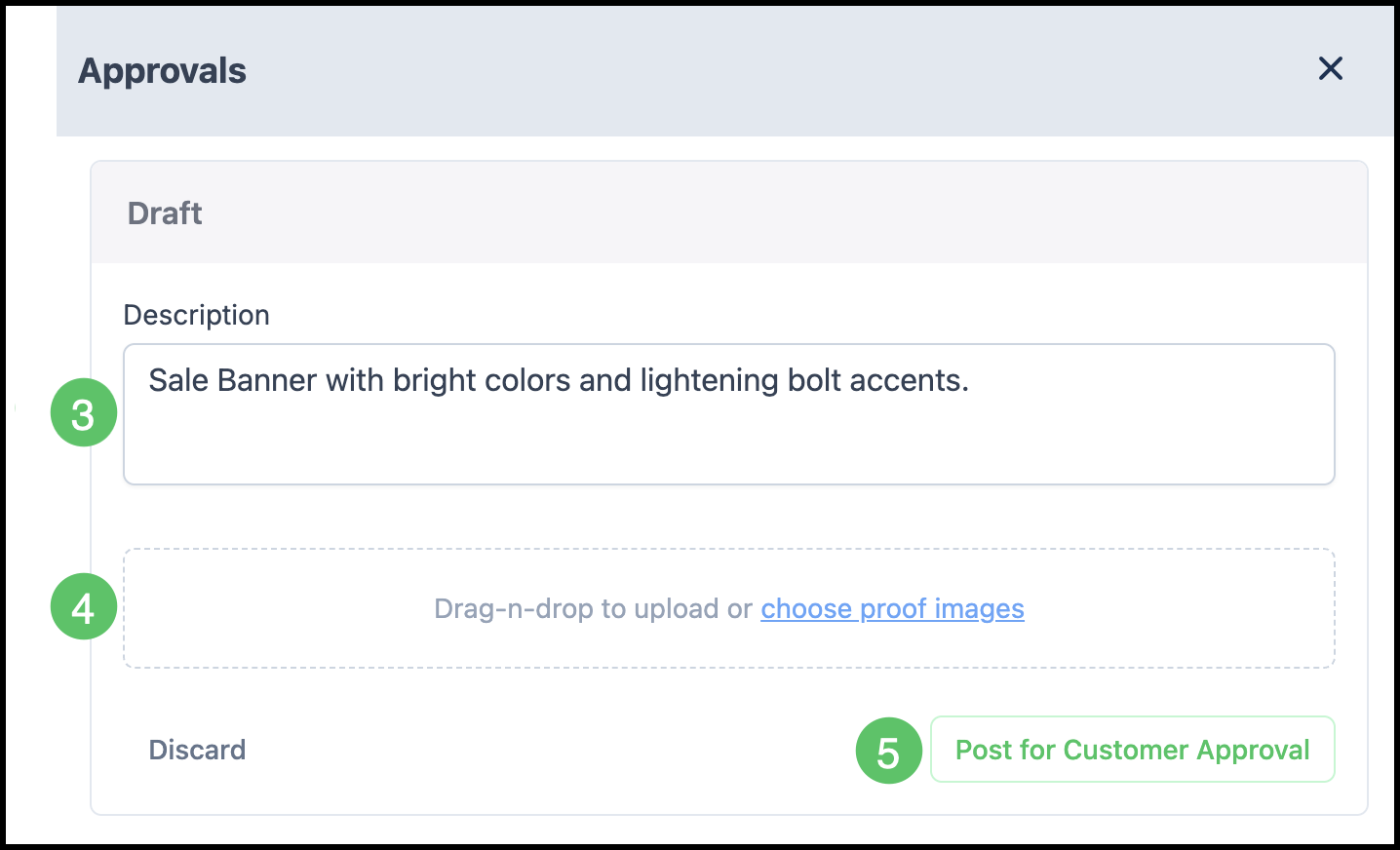
3. Enter a Description, if desired.
Note: This is Customer facing.
4. Select method for importing image, either drag and drop or select from your computer.
5. Click Post for Customer Approval.
Note: Follow this same process for updating proofs as well.
Note: Once proofs are added, you can send the Estimate (and proofs) to the Customer via email or the Customer Portal for review and approval.
Proof and Estimate Approval
When the Customer needs to review proofs or approve the Estimate, you can email them the Estimate along with any associated proofs. From the email, the Customer can view the Estimate, review proofs, and either approve or request changes.
Navigate to Sales / Estimates and select the appropriate Estimate.
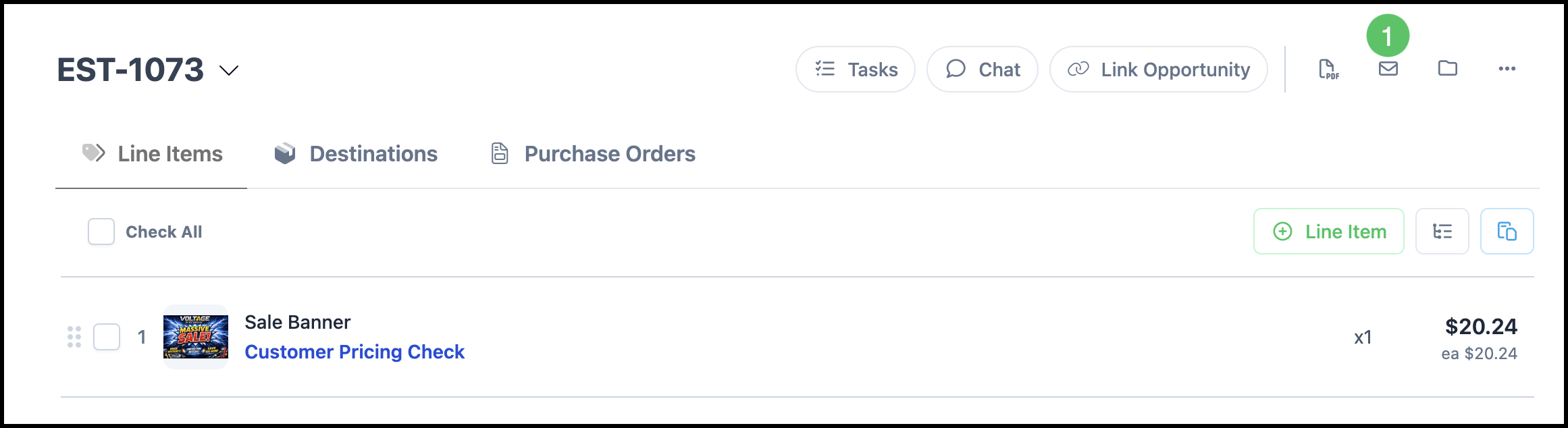
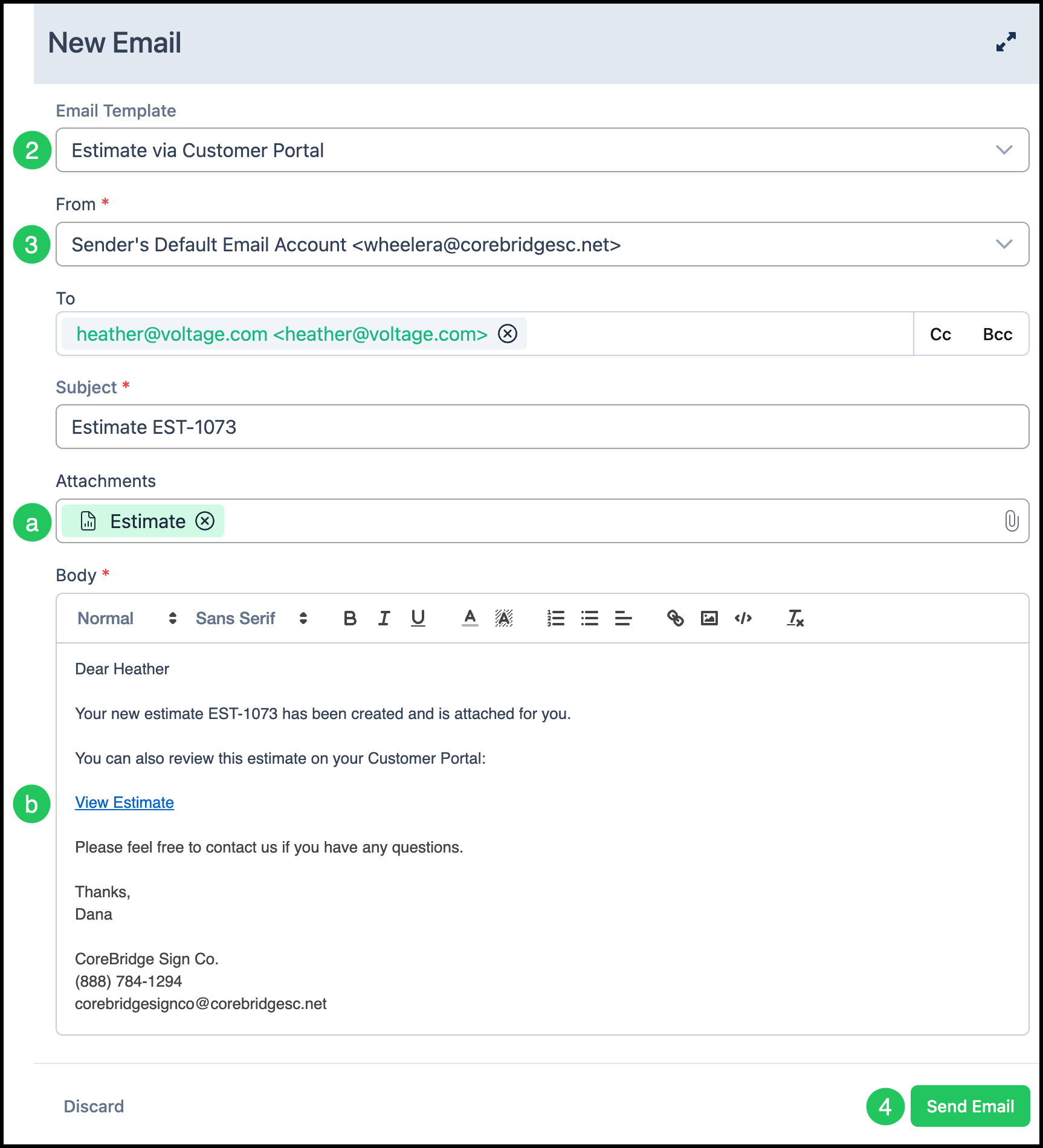
1. Click the Email icon.
2. Select the Email Template or Blank.
a. Email Templates can be set up to automatically include attachments such as the Estimate. If using the Blank Email option, you can manually add the attachment.
b. Email Templates can be created to include specific links. For more information, please see Creating and Editing Email Templates.
3. Select the Email From Address in the dropdown.
Note: Email From Addresses can be managed in System Settings / System / Email From Addresses. For more information, please see Adding Email From Addresses.
4. Click Send Email.
Destinations
The Destinations tab shows how the product will be delivered or transported to the Customer (e.g., pickup, ship). Destinations represent delivery or workflow stages. Destinations can be set up on Estimates so that delivery details are in place. However, Destination status on an Estimate typically does not progress until the Estimate is converted to an Order. For more information, see Using Destinations.
Note: Destinations can be managed in System Settings / Workflow / Destination Options.
Navigate to Sales / Estimates and select the appropriate Estimate.
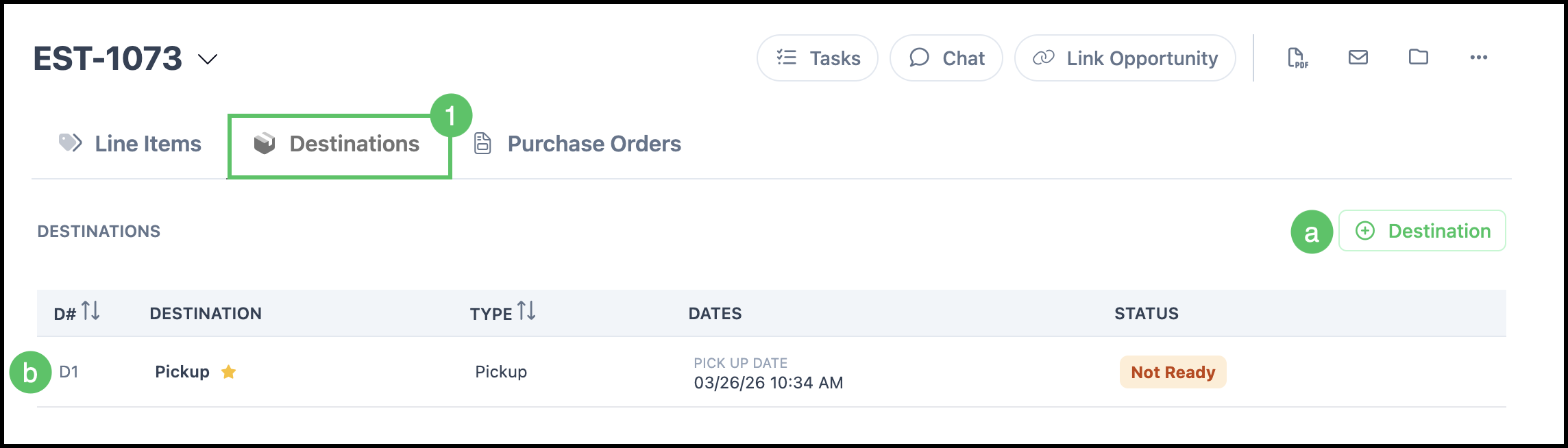
1. Select the Destinations tab.
a. Destinations can be added here.
Note: Multiple Destinations can be utilized for Estimates that include multiple items going out to different locations or being delivered to the Customer in more than one way.
b. Destinations can be edited and updated by clicking on the Destination row. See Destinations Example below.
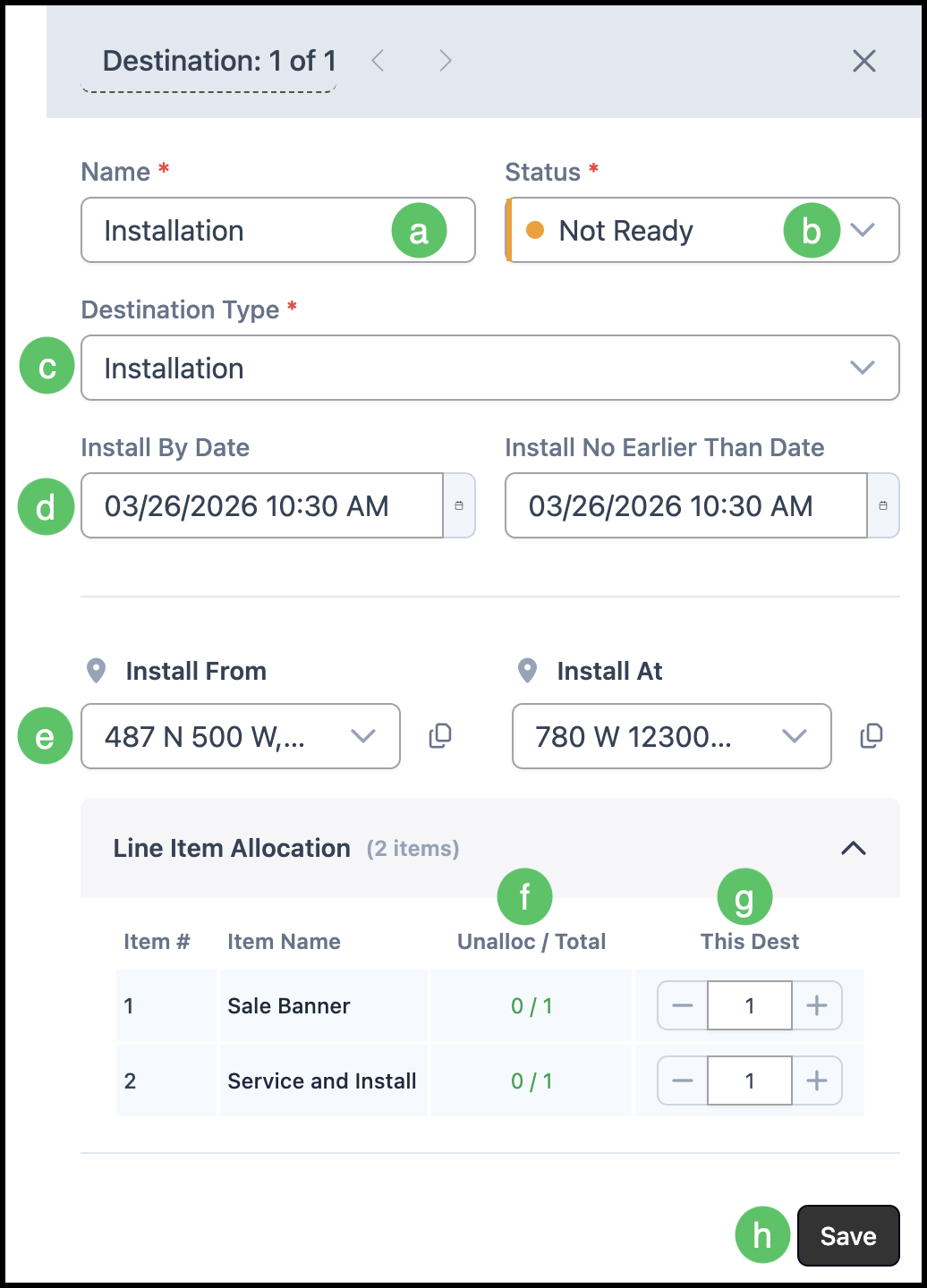
Destinations Example:
Note: Some of these fields may appear differently depending on the Destination Type selected.
a. Name -This name should make sense with the Destination Type.
b. Status - This can be manually updated here.
Note: Status usually remains as Not Ready on an Estimate.
c. Destination Type - Destination Types can be managed in System Settings / Workflow / Destination Options.
d. Date - This can be adjusted using the calendar dropdown.
e. Address - This can be adjusted using the dropdown.
f. Allocation Totals -This display shows allocation status for the item. The top number indicates how many units are not yet assigned to a destination, and the bottom number shows the total quantity for the item.
g. This Destination Totals - This number indicates how many have been assigned to this Destination.
Note: When lowering the total quantity, the allocated quantity and the Line Item quantity must remain in sync. Reduce the allocated quantity first, then update the Line Item quantity.
h. Changes made to this panel must be manually saved.
Purchase Orders
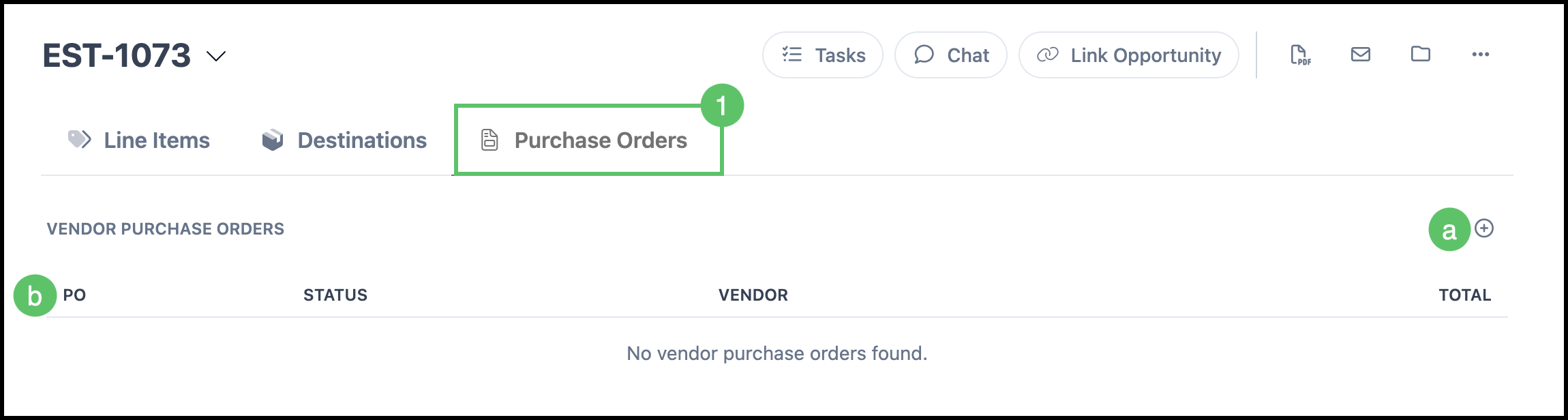
The Purchase Orders tab shows vendor purchase orders linked to this Estimate. These are orders for goods or services that need to be purchased from a vendor to fulfill the Estimate once it becomes an Order.
Navigate to Sales / Estimates and select the appropriate Estimate.
1. Select the Purchase Orders tab.
a. Use the add button (e.g., plus icon) in this tab to create a new vendor purchase order for this Estimate when the option is available.
b. The list displays columns such as PO (purchase order number), Status, Vendor, and Total. If there are no vendor purchase orders yet, the list will indicate that.
Converting an Estimate to an Order
When the Estimate is ready, convert it to an Order so work can continue in Sales / Orders.
Open the Estimate.
1. Click Approve & Convert to Order.
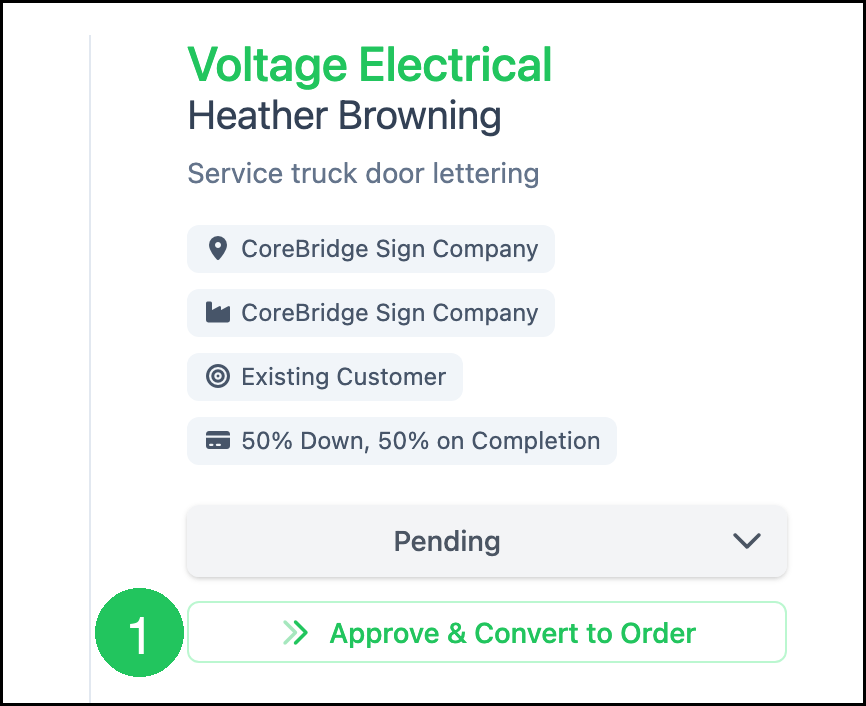
Note: Setting Status to Approved does not convert the Estimate. Use Approve & Convert to Order.
Note: Once converted to an Order, the Estimate is locked and further adjustments must be made on the Order. See example below.
Example:
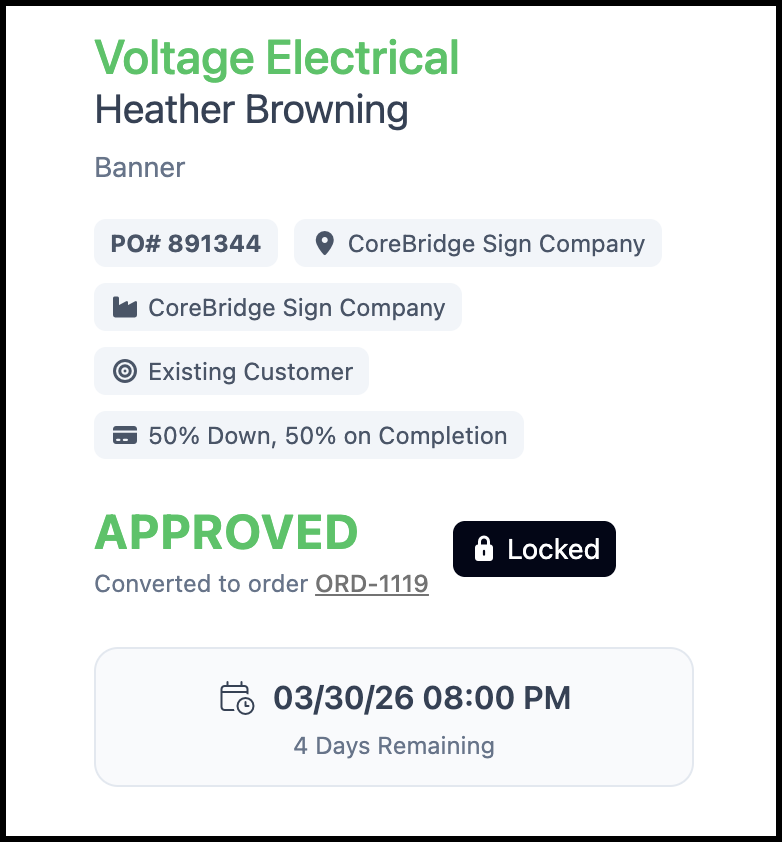
After the Estimate is converted to an Order, it is located in Sales / Orders.
Note: Depending on how your Numbering Options are set, the Order may be assigned a different number than the original Estimate. These options can be managed in System Settings / Sales / Numbering Options.
Frequently Asked Questions
1. Why does Select Customer only show some contacts after I pick a Customer?
Answer: After you select a Customer, the list shows contacts for that Company. Clear Select Customer to search all companies again.
2. Does changing Status to Approved convert the Estimate to an Order?
Answer: No. Click Approve & Convert to Order to convert the Estimate. Setting Status to Approved does not convert it.
Related Articles
Adding Email From Addresses
Clipboard Feature
Creating an Order
Creating and Editing Email Templates
Employee Roles and Permissions in Settings
Estimate and Order Options
Estimate and Order Tools Menu
Estimates Overview
Line Items Overview
Line Item Statuses
Order and Estimate Change History
Tax Groups
Using Destinations