
Minimums and fees are pricing controls that let you set price floors and add charges on top of the calculated price for a Product. Both can be set as a fixed value or driven by a formula.
Table of Contents
Accessing Minimums and Fees
Navigate to System Settings / Components / Products & Modifiers and select the Product you want to update.
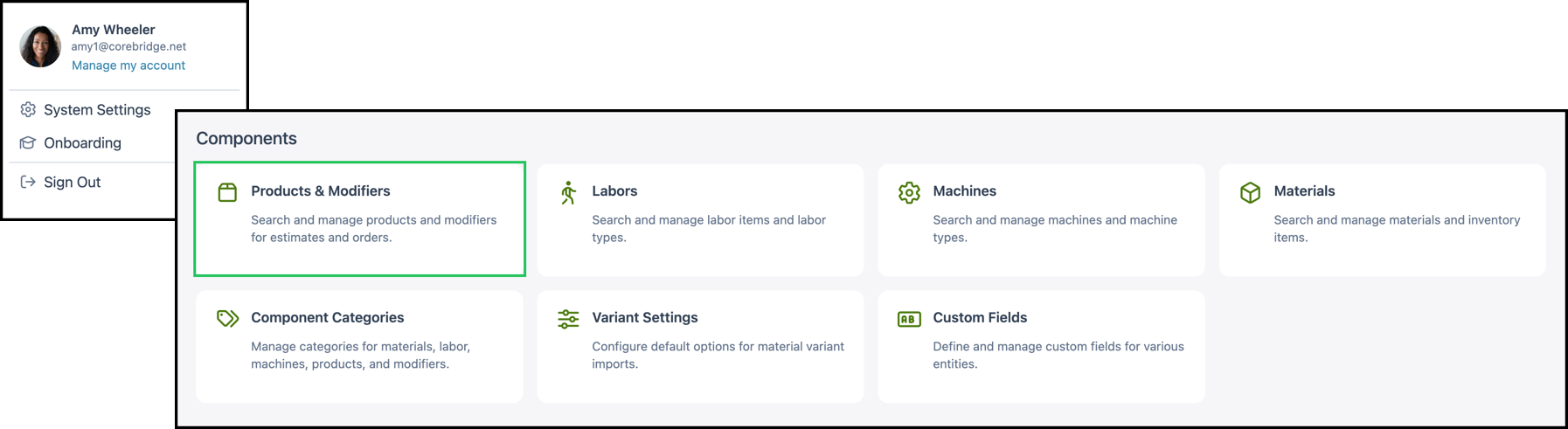
1. Click the Pricing card to open the Pricing panel.

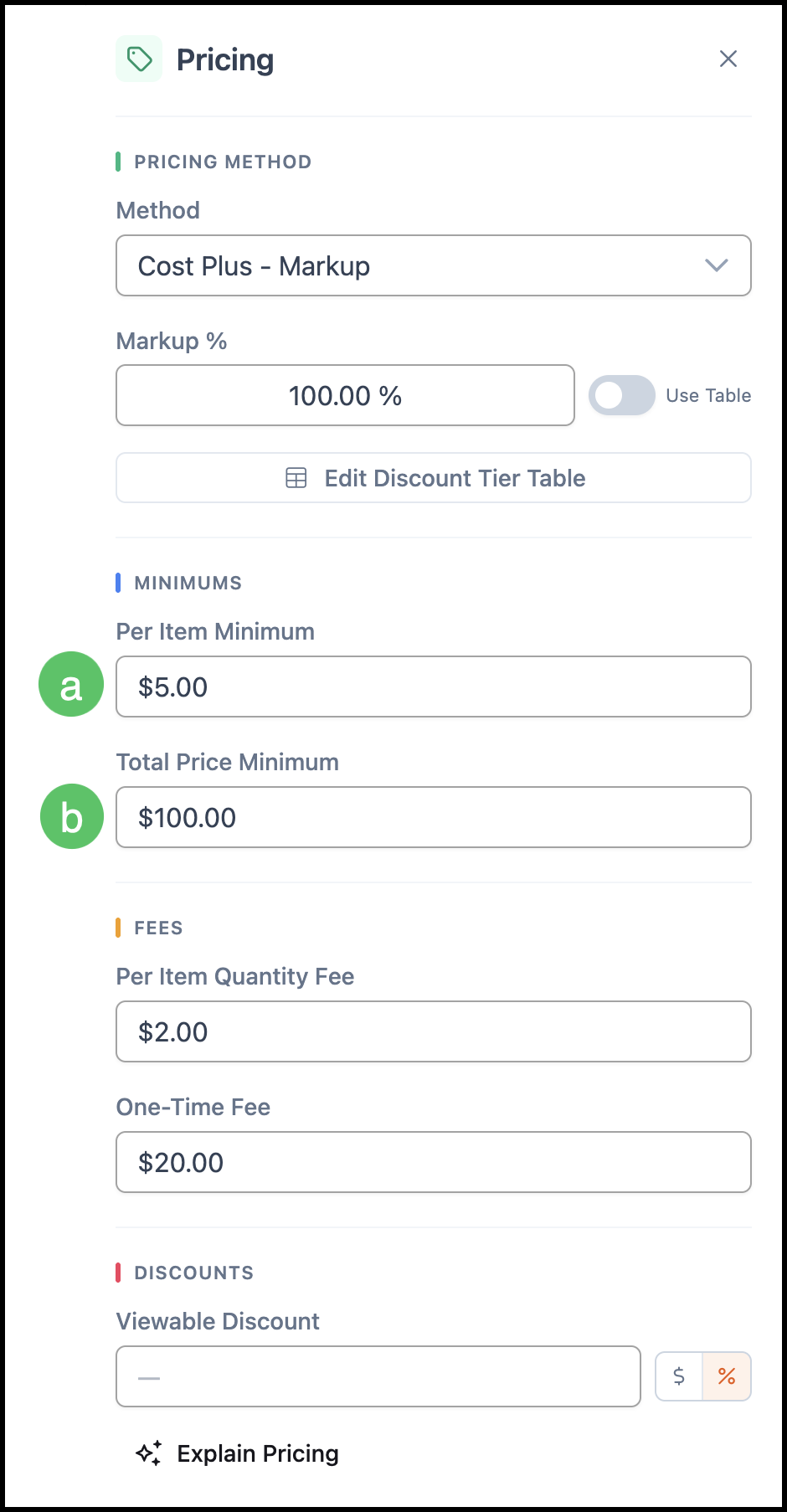
Minimums
Minimums set a price floor for a Product. If the calculated price falls below the minimum you set, CoreBridge uses the minimum value instead. Both minimums can be set as a fixed dollar amount or driven by a formula. Using a formula allows you to apply a minimum conditionally, such as when a specific material is selected or when a job falls below a certain size. For more information on custom formulas, please reach out to the support team at supportdesk@corebridge.net.
a. Per Item Minimum - Sets the minimum price per unit or quantity. If the calculated price per item falls below this value, CoreBridge charges the minimum instead of the calculated amount.
Example: If the Per Item Minimum is set to $5.00 and the calculated price comes out to $4.00, CoreBridge will charge $5.00.
b. Total Price Minimum - Sets the minimum for the total Order price. If the overall price comes in below this value, CoreBridge uses the minimum instead.
Example: If the Total Price Minimum is set to $100.00 and the price on the Order comes out to $50.00, CoreBridge will charge the minimum of $100.00. If the calculated price is over $100.00, CoreBridge will charge the calculated price.
Fees
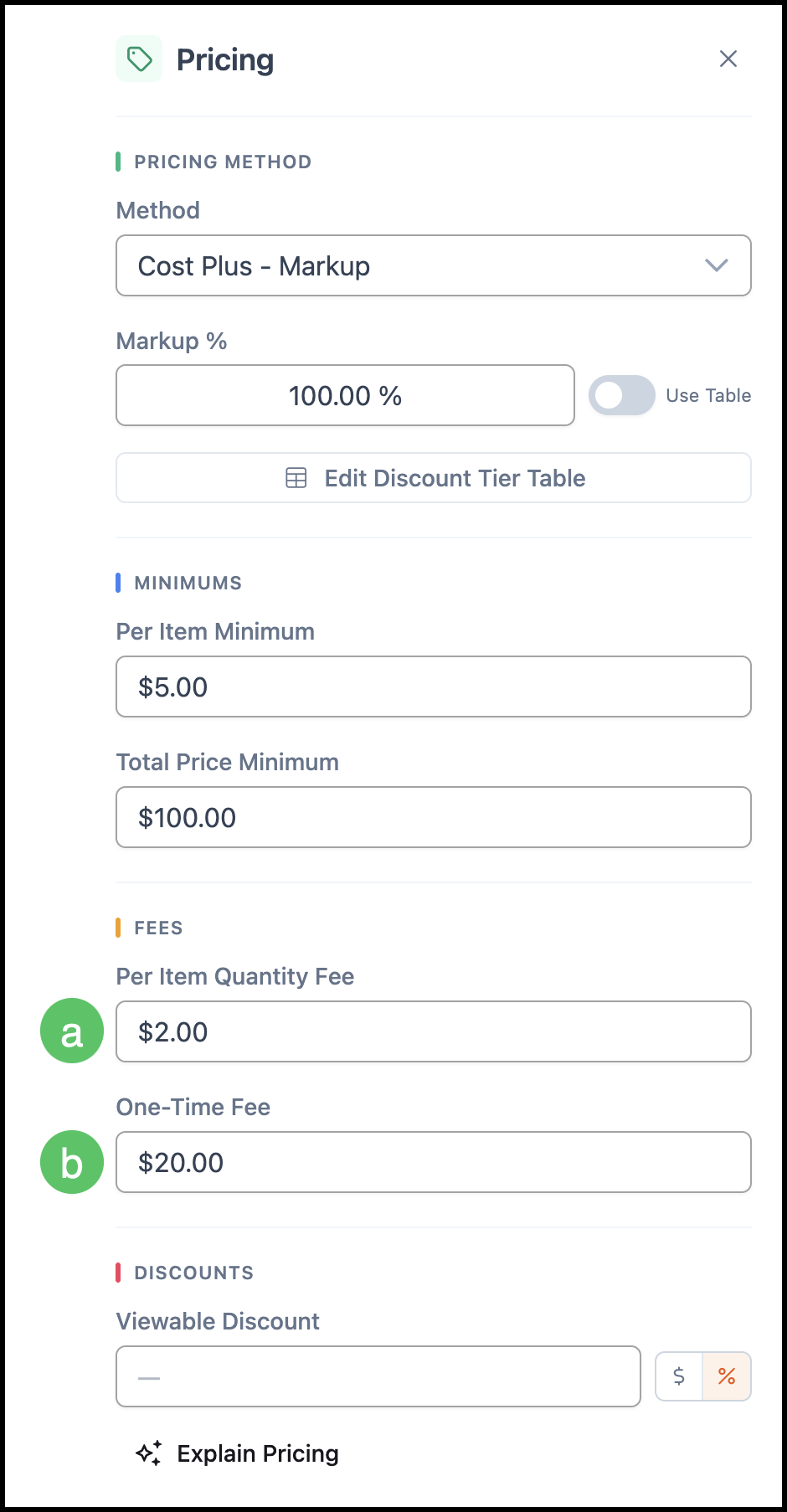
Fees are additional charges added on top of the calculated price for a Product. Like minimums, fees can be set as a fixed amount or driven by a formula. For more information on custom formulas, please reach out to the support team at supportdesk@corebridge.net.
a. Per Item Quantity Fee - Adds a fee for each unit in the Order.
Example: If the fee is $2.00 and the quantity is 10, a total of $20.00 is added to the price.
b. One-Time Fee - Adds a flat charge once, regardless of quantity. This is useful for setup costs, handling charges, or other one-time costs associated with a job.
Note: Fees are applied after the calculated price. For example, if the calculated price is $50.00 and the One-Time Fee is $20.00, the total becomes $70.00.
Discounts
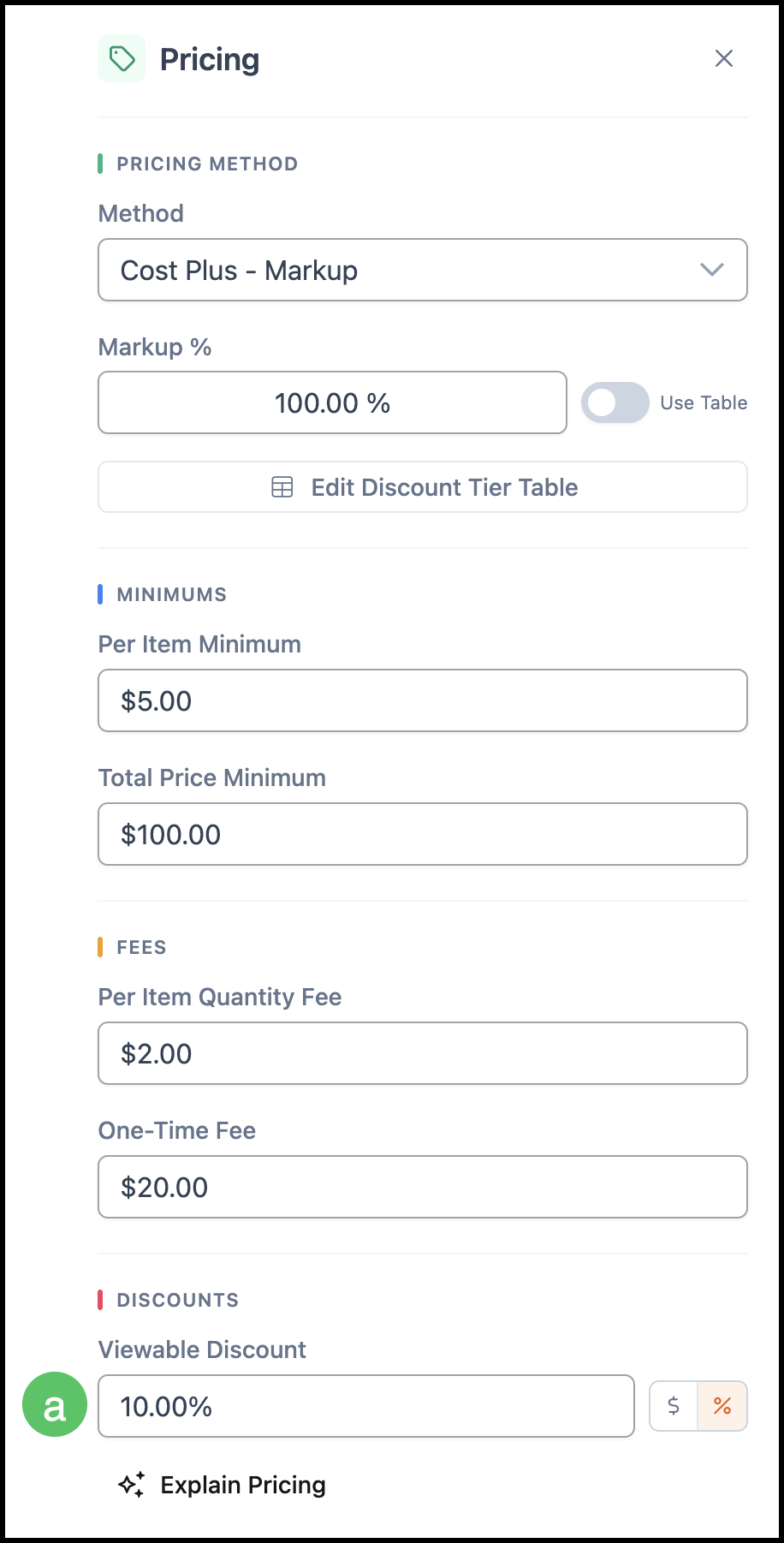
Discounts reduce the calculated price for a Product. A Viewable Discount appears on the Customer's Invoice so they can see the savings applied to their Order. Discounts can be set as a fixed amount or driven by a formula. For more information on custom formulas, please reach out to the support team at supportdesk@corebridge.net.
a. Viewable Discount - Applies a reduction to the calculated price. Enter the amount as a dollar value, a percentage, or define it with a formula.
Example: If the calculated price is $100.00 and a Viewable Discount of $10.00 is applied, the total on the invoice becomes $90.00.
Note: Discounts are applied after the calculated price and are visible to customers on the Invoice.
Related Articles
Understanding Cost-Plus vs. Market Based Pricing