
The More Actions menu provides options for managing Opportunities, including editing, copying, creating an Estimate or Order, reviewing Change History, and scheduling events. More Actions is available on the Opportunity record, in the Side Panel, and on Pipeline cards. Available options vary by location.
Table of Contents
- Important Information
- More Actions in the Opportunity Record
- Edit an Opportunity
- Create Estimate or Create Order
- Review Change History
- Recalculate the Amount or Change Active Status
- Use More Actions in the Side Panel
- Use More Actions on a Pipeline Card
- Log an Activity
- Link an Estimate or an Order
- Frequently Asked Questions
- Related Articles
Important Information
- More Actions is on the Opportunity record, in the Side Panel, and on each Pipeline card. The commands are not the same in each place.
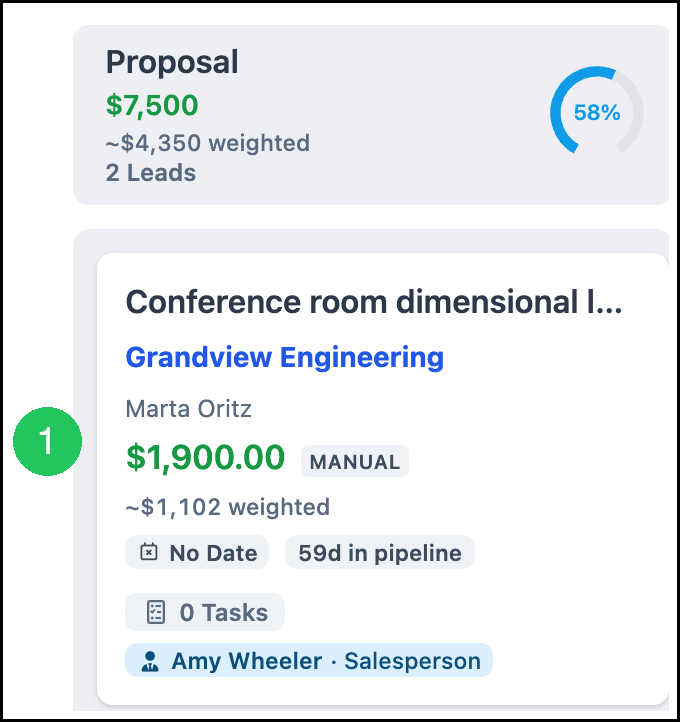
- Click the Opportunity name to open the detail screen. Click the card, or the row in list view, to open the Side Panel.
- Recalculate Amount appears when the amount was entered by hand. That amount is marked Manual.
- Delete removes the Opportunity. It is available on the detail screen, in the Side Panel, and on the card.
More Actions in the Opportunity Record
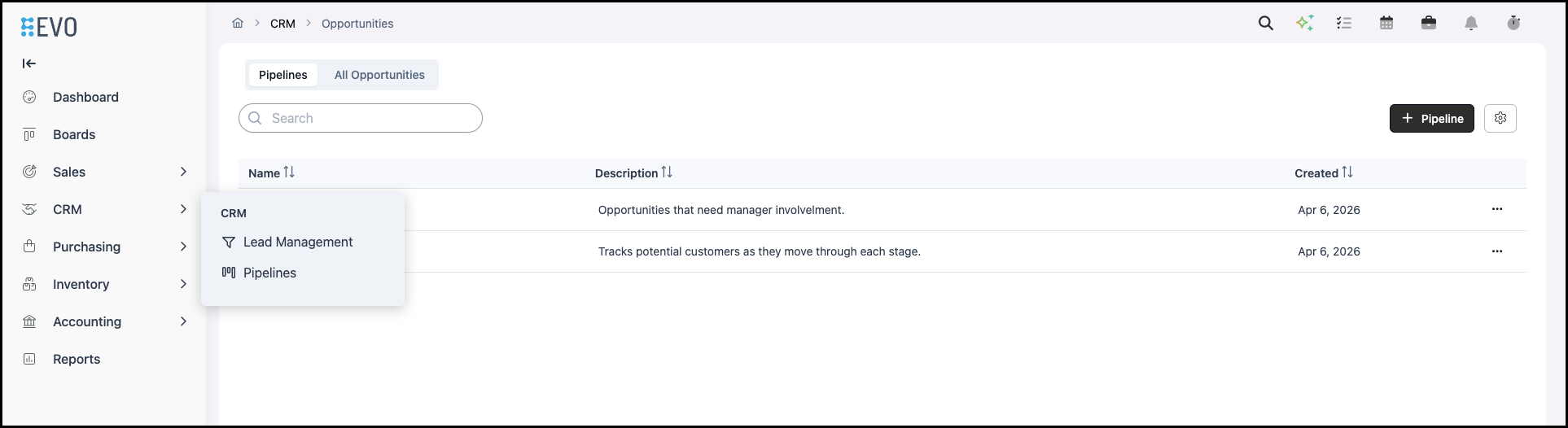
Navigate to CRM / Pipelines.
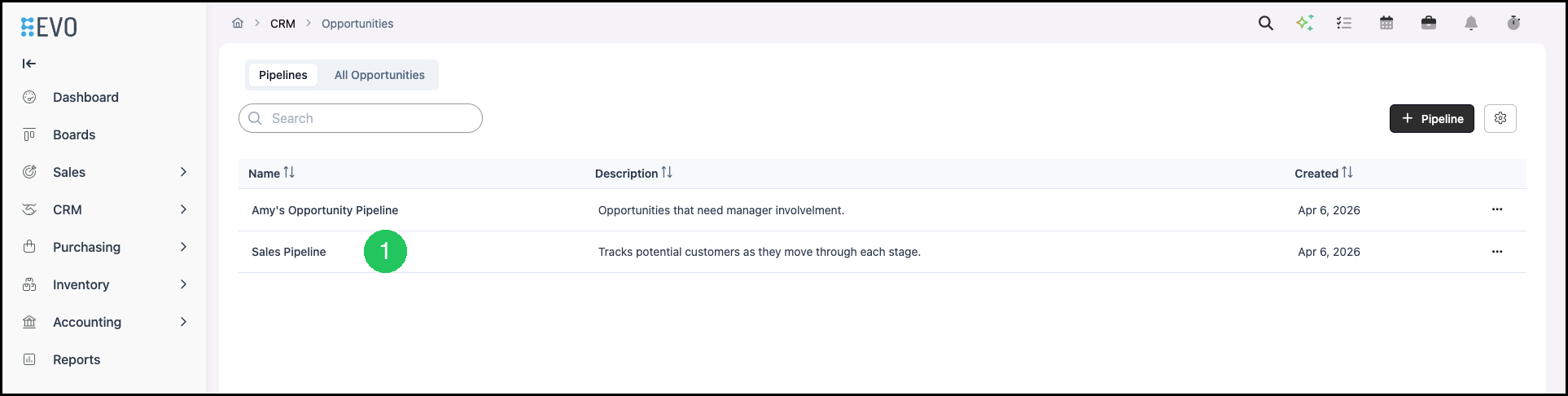
1. Select the Pipeline.
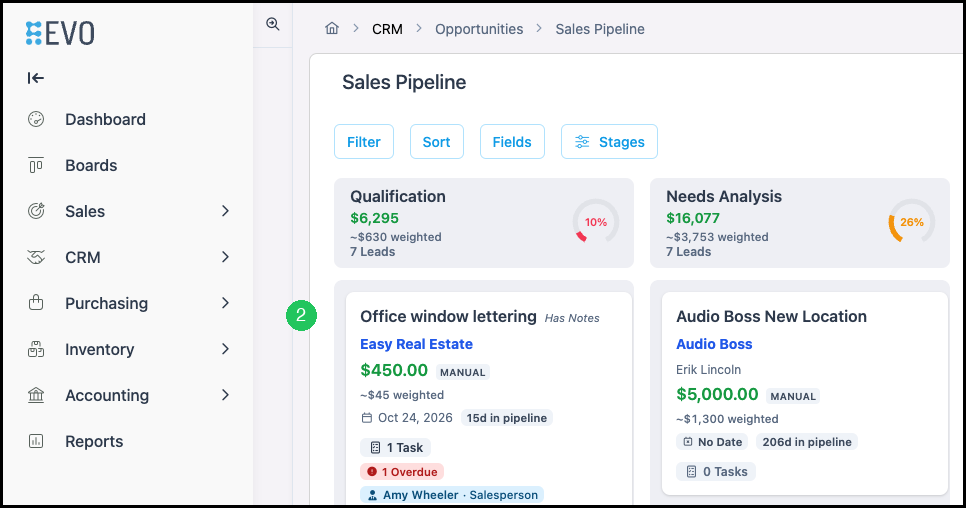
2. Open the Opportunity.
Note: Click the Opportunity name to open the detail screen. Clicking on the card or row in list view will open the side panel.
3. Click More Actions.
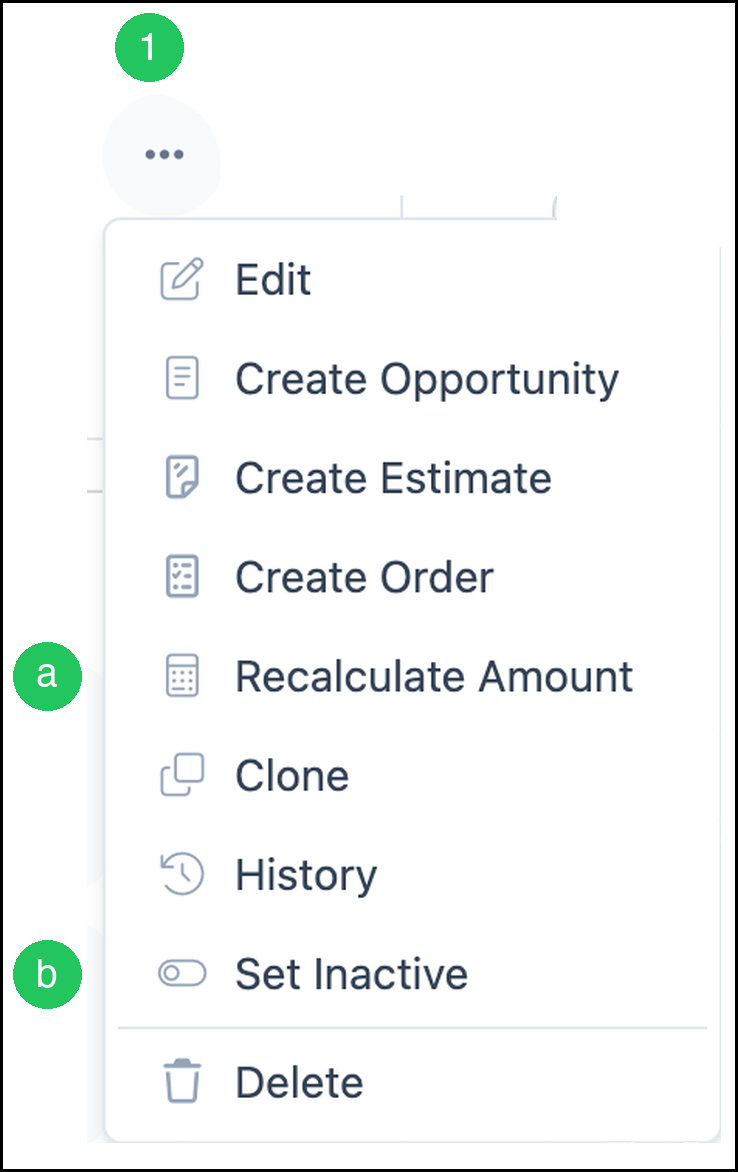
a. Edit opens Edit Opportunity so you can change the name, Company, Contacts, linked records, close date, and amount.
b. Create Opportunity opens New Opportunity so you can add another Opportunity. For more information, please see Opportunities Pipeline.
c. Create Estimate opens New Estimate for the Company on this Opportunity. For more information, please see
d. Create Order opens New Order for the Company on this Opportunity. For more information, please see Creating an Order.
e. Recalculate Amount updates the Opportunity amount from linked Estimates and Orders. This command appears when the amount was entered by hand and is marked Manual. See Recalculate the Amount or Change Active Status.
f. Clone copies the Opportunity. The copy adds (Copy) to the name.
g. History opens Change History for this Opportunity.
h. Set Inactive marks the Opportunity Inactive. On an inactive Opportunity this command is Set Active.
i. Delete removes the Opportunity.
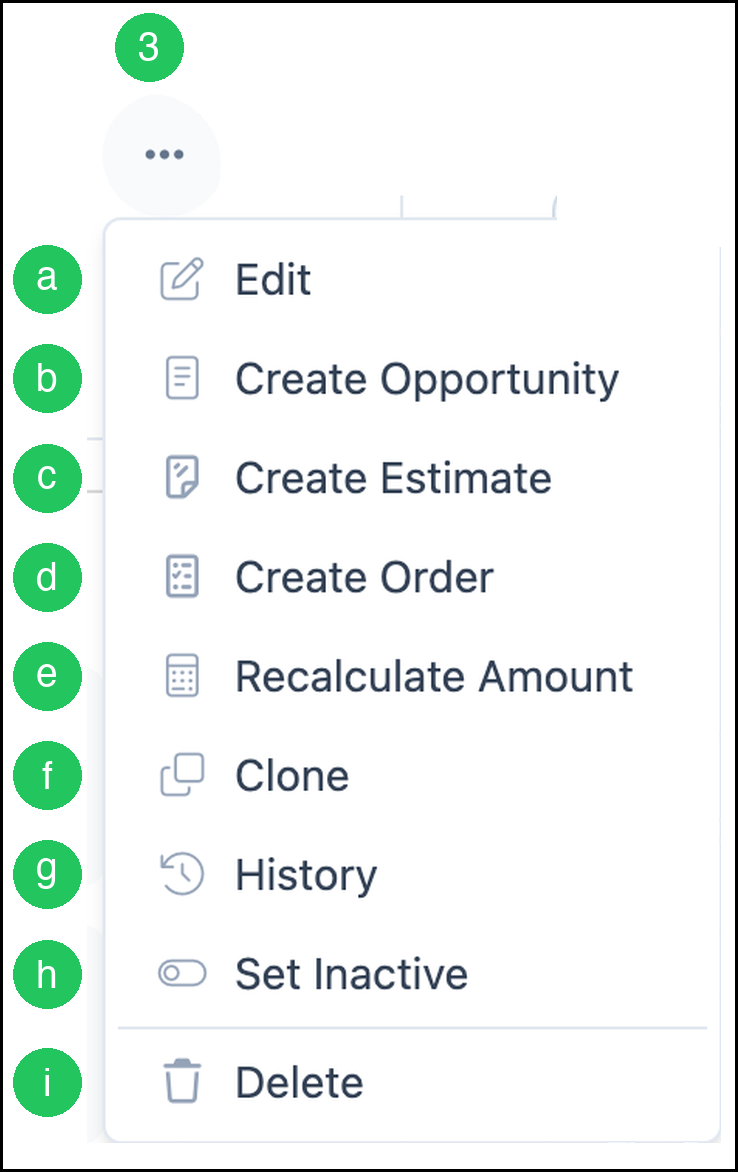
Note: Recalculate Amount appears in this menu when the amount was entered by hand. That amount is marked Manual until you recalculate it.
Edit an Opportunity
1. Click More Actions.
2. Click Edit. Edit Opportunity opens.
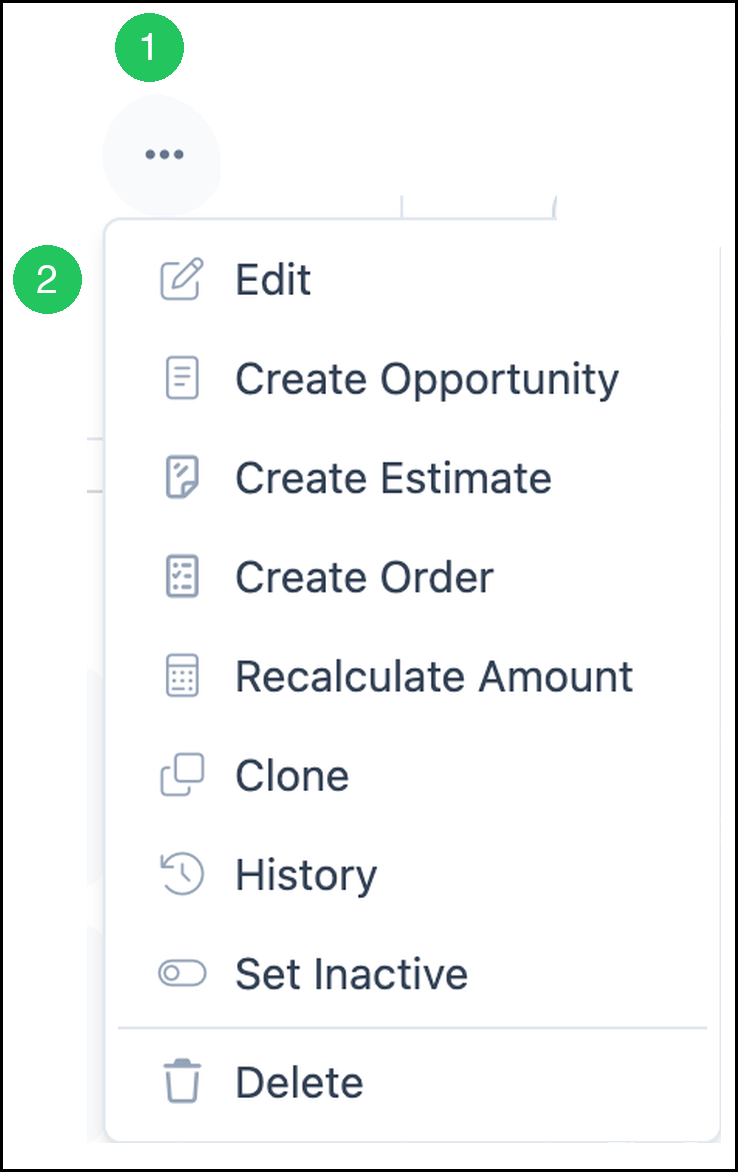
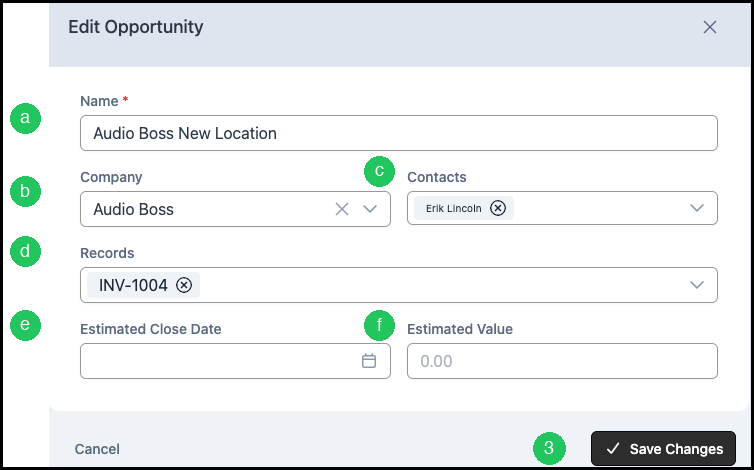
a. Name is required.
b. Company is the Company this Opportunity belongs to.
c. Contacts are the people tied to the Opportunity.
d. Records are Estimates, Orders, or Invoices already linked to the Opportunity.
e. Estimated Close Date is the date you expect the Opportunity to close.
f. Estimated Value is a hand-entered amount. Leave it blank when the amount should come from linked Estimates and Orders.
3. Click Save Changes.
Create Estimate or Create Order
The process is the same for creating an Estimate or Order from an Opportunity. This article uses an Estimate as the example. For more information, see Creating an Estimate or Creating an Order.
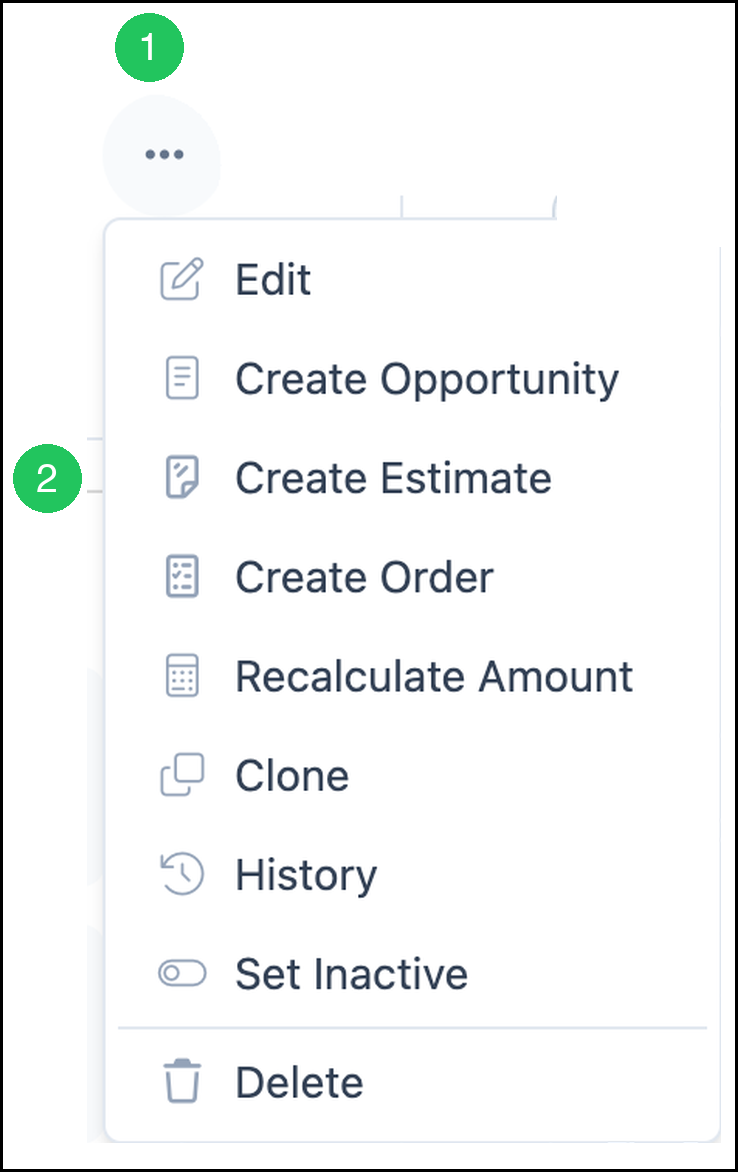
1. Click More Actions.
2. Click Create Estimate. New Estimate opens, and you stay on the Opportunity.
Note: Select Customer is filled with the Company from the Opportunity. You can choose a different Customer.
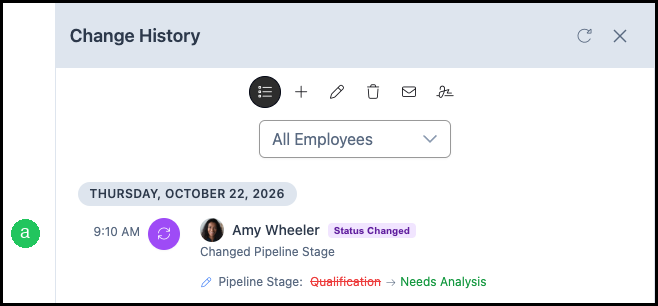
Review Change History
1. Click More Actions.
2. Click History. Change History opens.
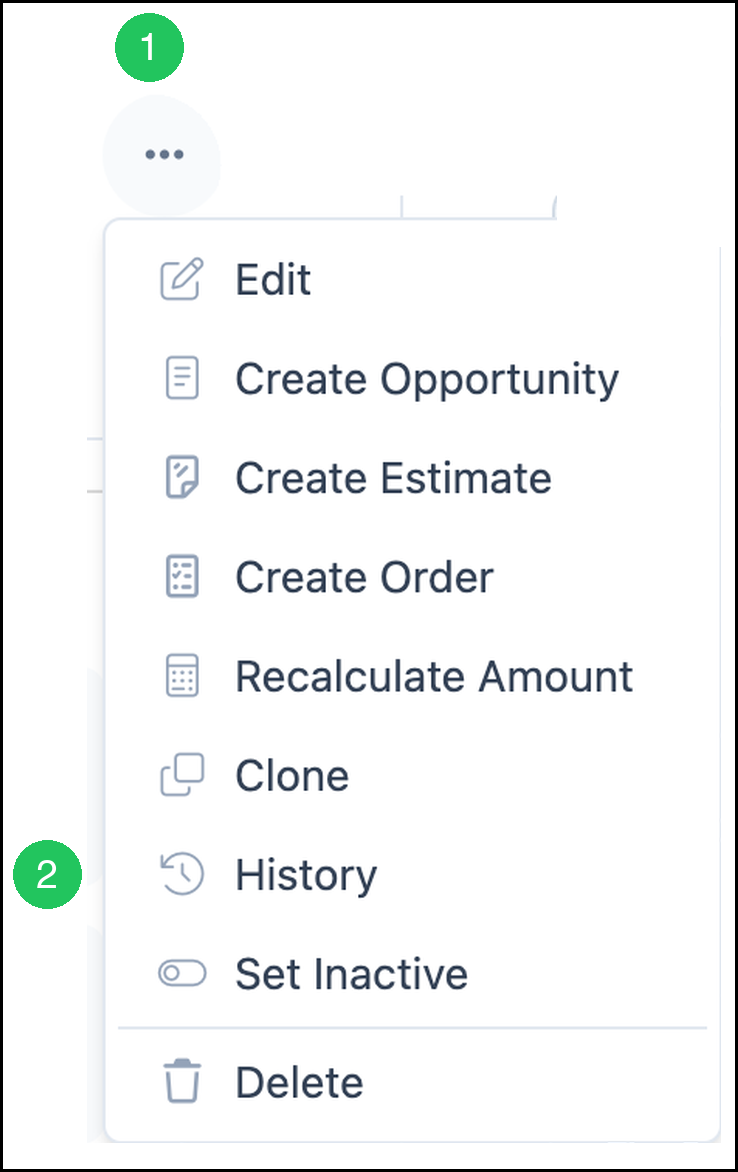
a. Each entry shows the date, the employee, and what changed. All Employees filters the list by employee.
Recalculate the Amount or Change Active Status
1. Click More Actions.
a. Recalculate Amount updates the Opportunity amount from linked Estimates and Orders. This command appears when the amount was entered by hand and is marked Manual.
b. Set Active marks an inactive Opportunity active again. On an active Opportunity the command is Set Inactive, and the Opportunity header shows Inactive after you set it inactive.
Use More Actions in the Side Panel
The Side Panel opens on the Pipeline. You stay on the board.
1. Click the card, or the row in list view. The Side Panel opens.
Note: Click the Opportunity name when you want the detail screen. A click on the rest of the card, or on the row in list view, opens the Side Panel.
2. Click More Actions.
a. Edit opens Edit Opportunity so you can change the name, Company, Contacts, linked records, close date, and amount. See Edit an Opportunity.
b. Create Estimate opens New Estimate for the Company on this Opportunity. See Create an Estimate.
c. Create Order opens New Order for the Company on this Opportunity. Create Order follows the same steps as Create Estimate.
d. Recalculate Amount updates the Opportunity amount from linked Estimates and Orders. This command appears when the amount was entered by hand and is marked Manual. See Recalculate the Amount or Change Active Status.
e. Clone copies the Opportunity. The copy adds (Copy) to the name.
f. Schedule Event opens Scheduling and New Event. The Title is filled with the Company and the Opportunity name. The Opportunity is already the Linked Record. Calendar is required. Click Cancel to close New Event without saving an event. The Opportunity detail screen also has Schedule an event under Upcoming Events. That button opens the same New Event.
g. Set Inactive marks the Opportunity Inactive. On an inactive Opportunity this command is Set Active. See Recalculate the Amount or Change Active Status.
h. Delete removes the Opportunity.
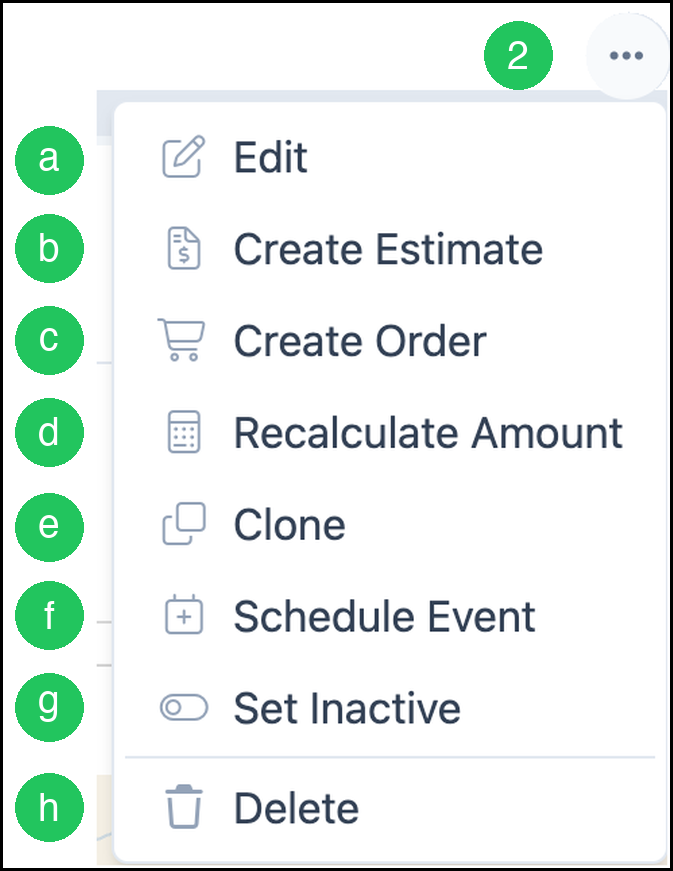
Note: Create Opportunity and History are on the Opportunity detail screen. They are not in the Side Panel menu.
Use More Actions on a Pipeline Card
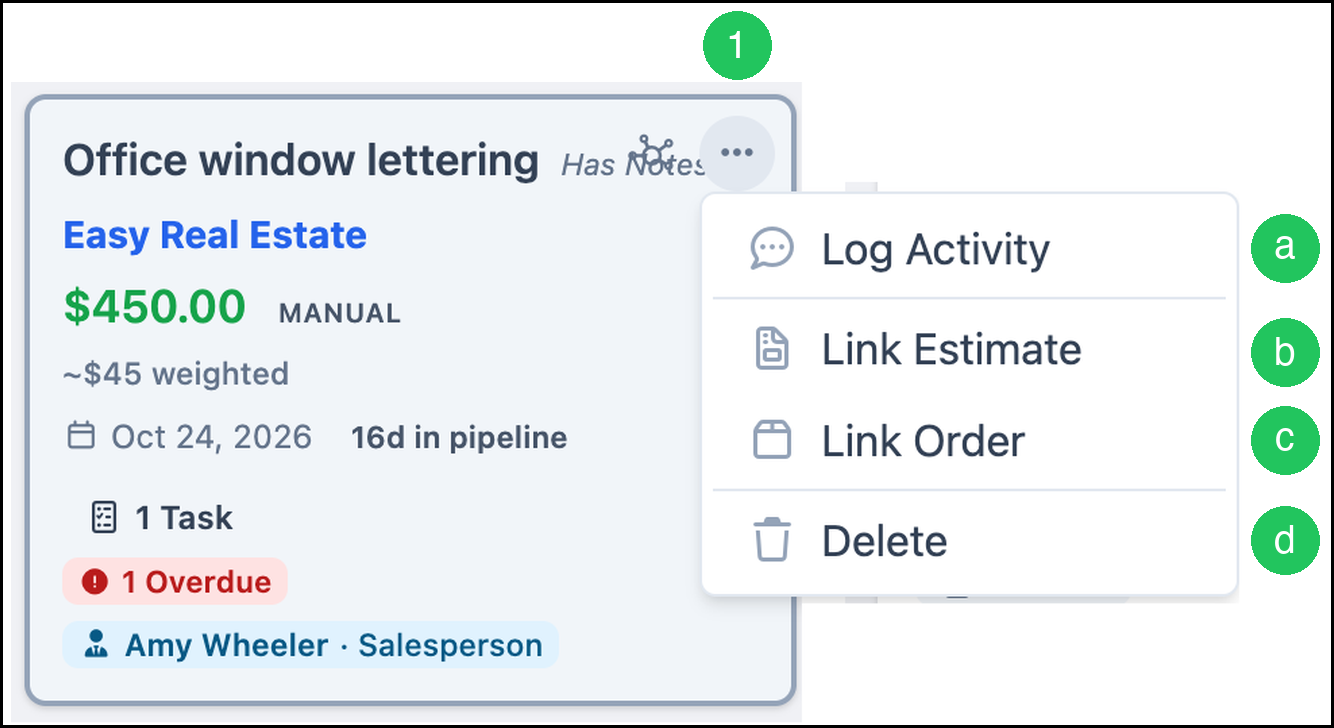
The menu on a Pipeline card is separate from More Actions on the Opportunity record and in the Side Panel.
1. Click More Actions on the card.
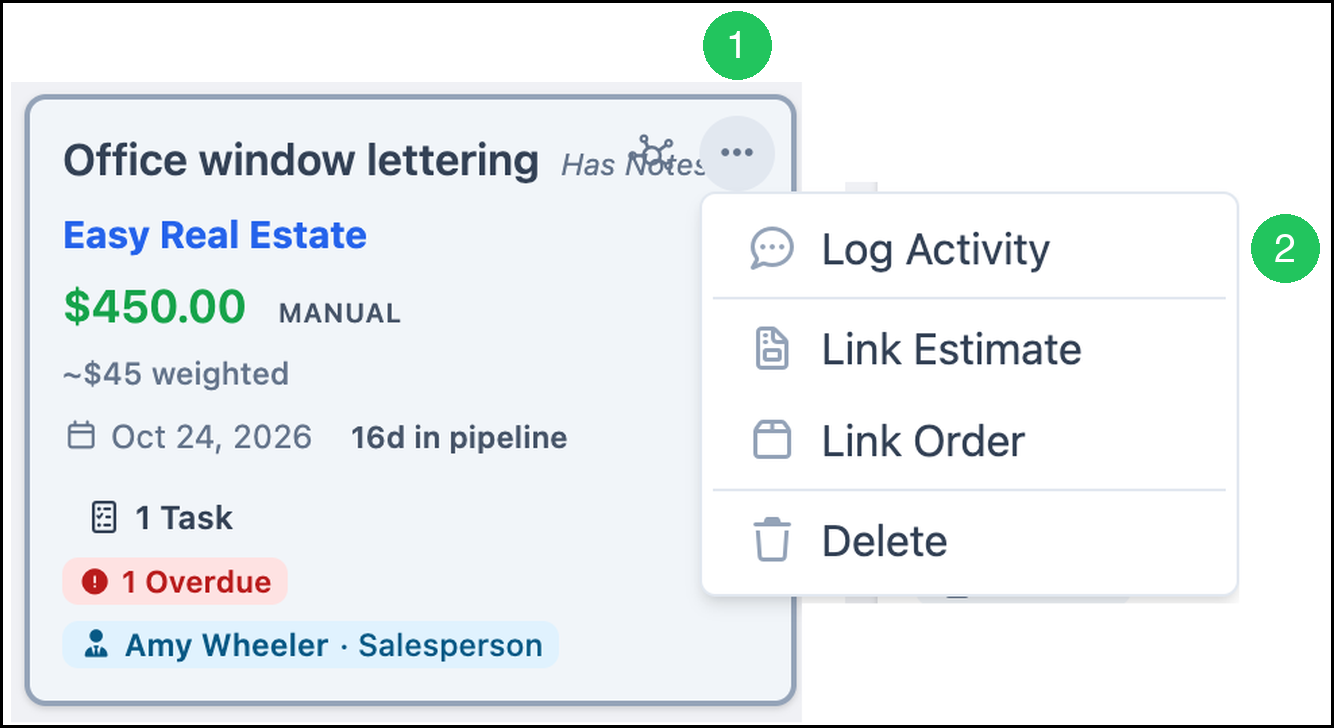
a. Log Activity records a call, meeting, email, text, or other activity on the Opportunity.
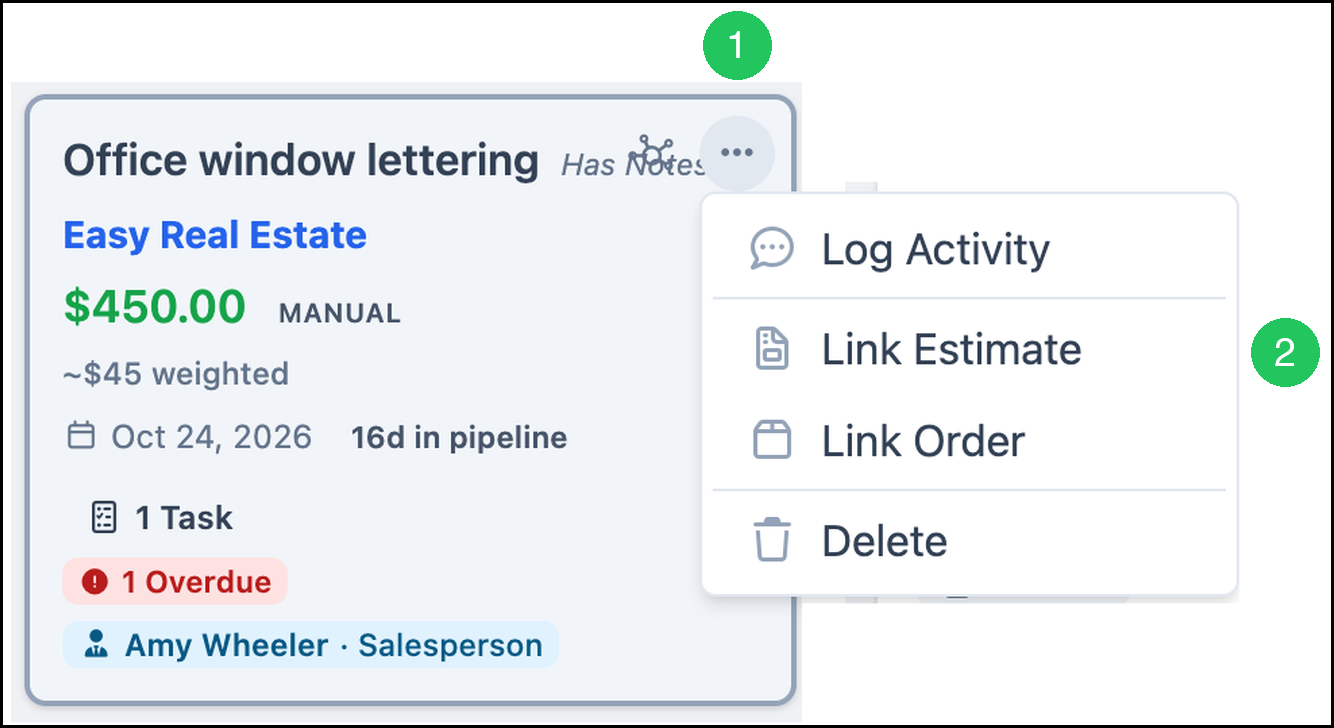
b. Link Estimate attaches an Estimate that already exists.
c. Link Order attaches an Order that already exists.
d. Delete removes the Opportunity.
Log an Activity
1. Click More Actions on the card.
2. Click Log Activity.
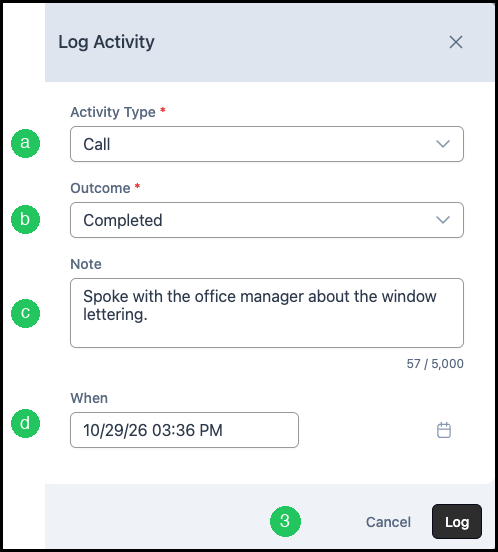
a. Activity Type is Call, Meeting, Email, Text/SMS, or Other.
b. Outcome is required before you can log the activity when your company requires an outcome. Select an Outcome such as Completed, No Answer, Left Voicemail, Not Interested, or Follow Up.
c. Note is optional.
d. When is the date and time of the activity.
3. Click Log.
Activity types and the outcome requirement are set up in CRM Activity Setup and CRM Options.
Link an Estimate or an Order
For more information on linking records, please see Linking Records.
1. Click More Actions on the card.
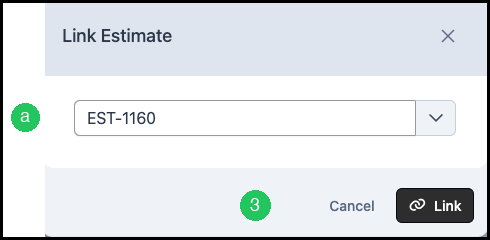
2. Click Link Estimate. Link Order opens the same kind of window for Orders.
a. Search for the Estimate and select it. Link stays unavailable until an Estimate is selected.
3. Click Link.
Note: Create Estimate starts a new Estimate. Link Estimate attaches an Estimate that already exists.
Frequently Asked Questions
1. Where are Edit Pipeline, Manage Access, Favorite, and Clone for the Pipeline?
Answer: Those commands are on the Pipeline, not on an Opportunity. See Opportunities Pipeline.
2. What is the difference between Create Estimate and Link Estimate?
Answer: Create Estimate is on the Opportunity record and in the Side Panel. It starts a new Estimate. Link Estimate is on the Pipeline card and attaches an Estimate that already exists. Create Order and Link Order work the same way for Orders.
3. How do I make an inactive Opportunity active again?
Answer: Open the Opportunity, or open the Side Panel, click More Actions, and click Set Active.
4. Why is Log unavailable?
Answer: Select an Outcome. Log stays unavailable until an Outcome is selected when your company requires one.