
CRM Options sets when a Lead, Prospect, or Customer becomes stale, where an Opportunity amount comes from, and whether a CRM activity requires an outcome. These choices are made on the CRM Options screen. Stale timing is a number of days with no new activity, no new estimates, or no new orders.
Table of Contents
Setting CRM Options
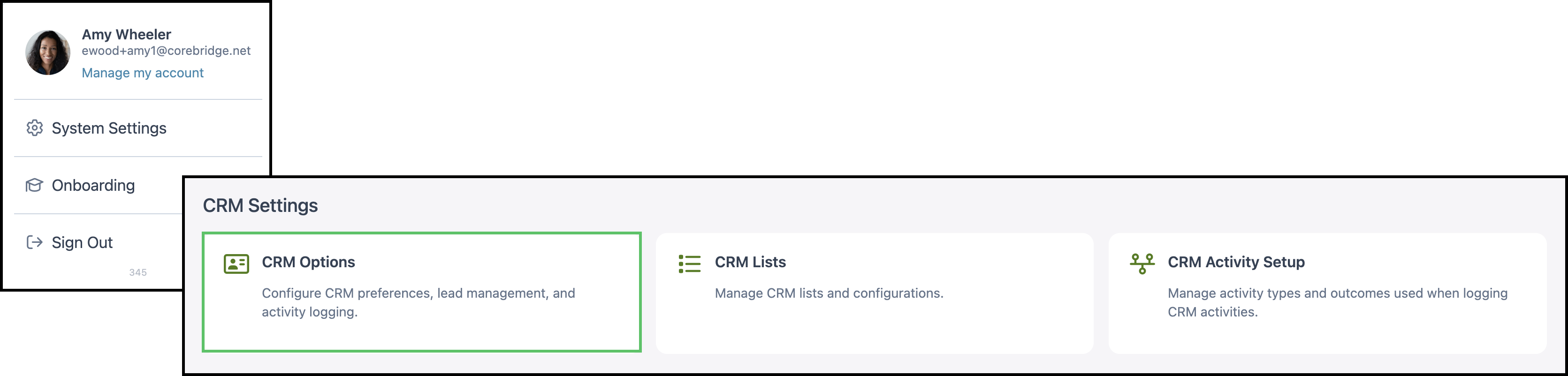
Navigate to System Settings / CRM Settings / CRM Options.
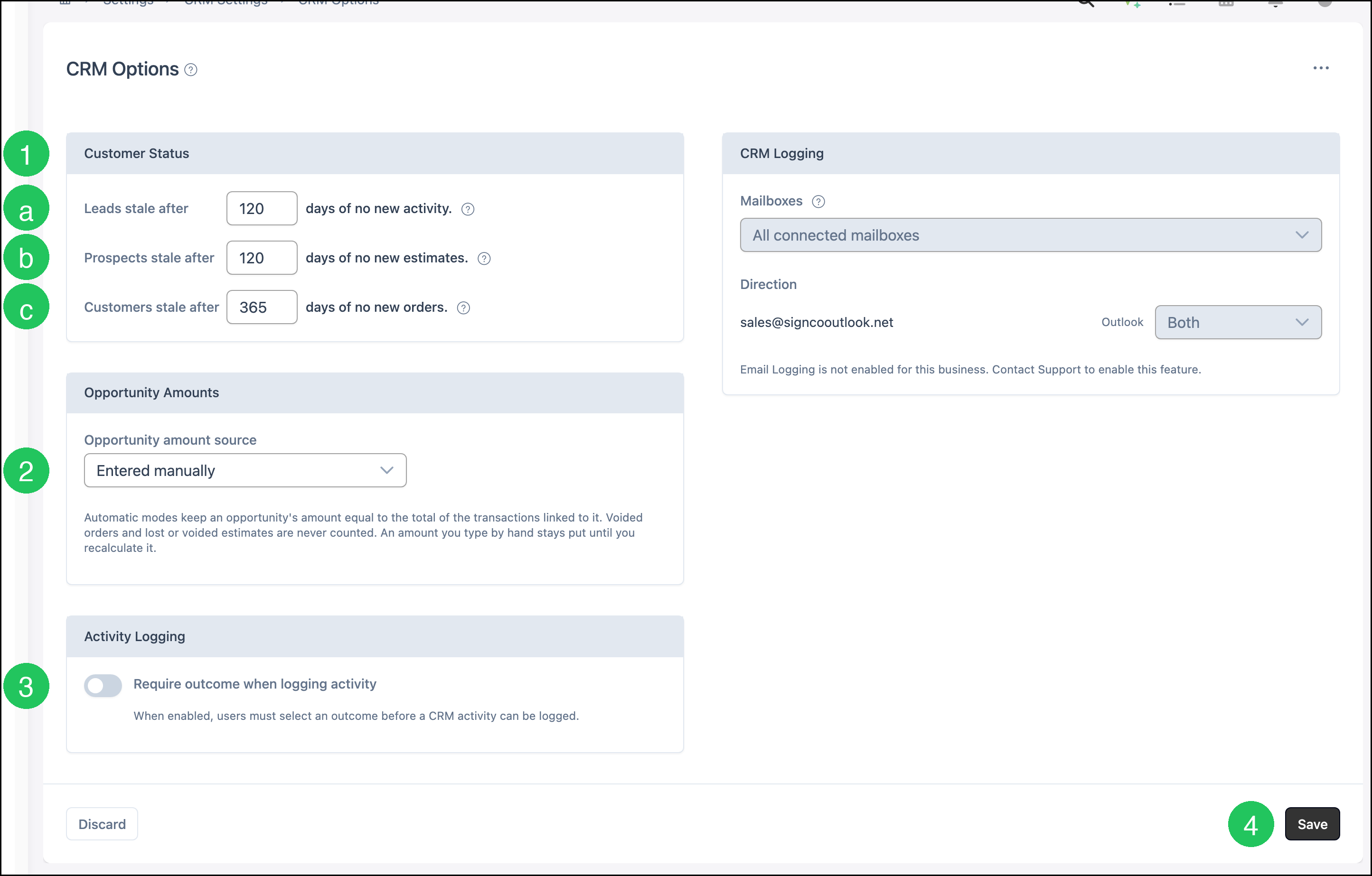
1. Enter the number of days under Customer Status.
a. Leads stale after is the number of days of no new activity before a Lead is stale.
b. Prospects stale after is the number of days of no new estimates before a Prospect is stale.
c. Customers stale after is the number of days of no new orders before a Customer is stale.
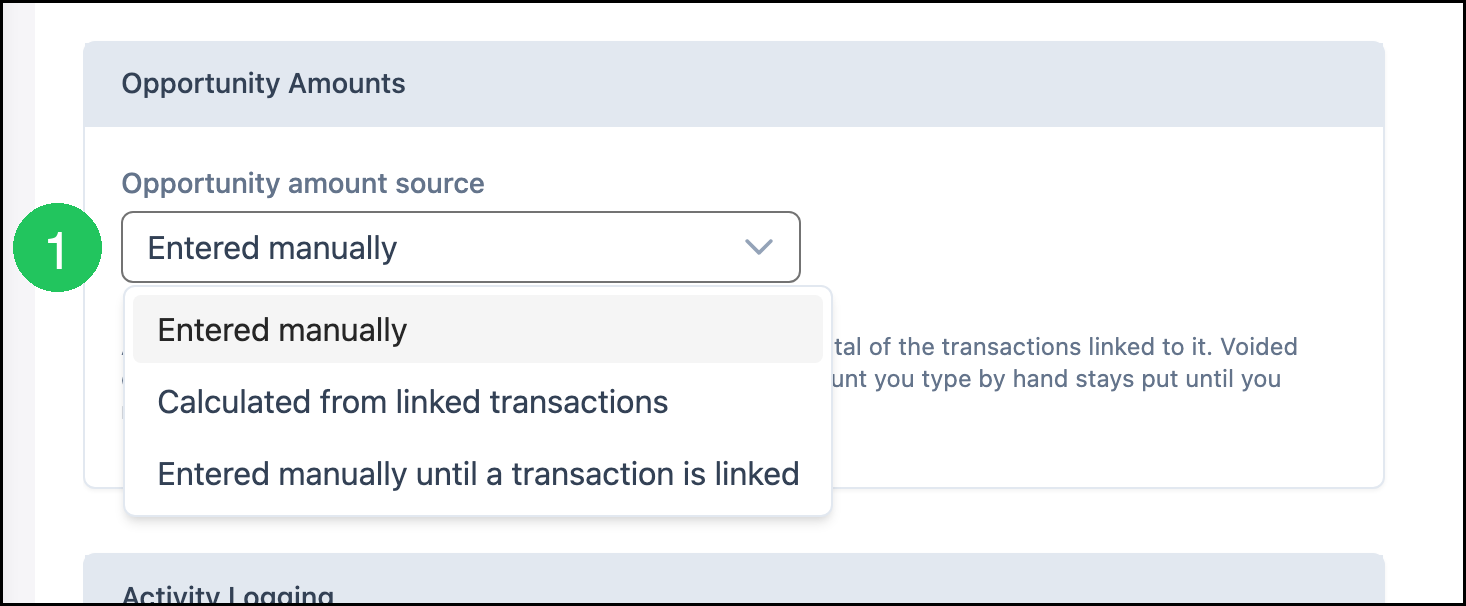
2. Select Opportunity amount source.
- Entered manually
- Calculated from linked transactions
- Entered manually until a transaction is linked
Automatic modes keep an opportunity's amount equal to the total of the transactions linked to it. Voided orders and lost or voided estimates are never counted. An amount you type by hand stays put until you recalculate it.
3. Click Require outcome when logging activity when an outcome is required before a CRM activity can be logged.
Note: CRM Logging lists connected mailboxes and a Direction. When Email Logging is not enabled, the screen says to contact Support.
4. Click Save.
Note: Save becomes available after a choice changes. Discard returns the screen to the last saved choices.
Calculated Opportunity Amounts
Selecting Calculated from linked transactions or Entered manually until a transaction is linked opens Calculated from and the Change where amounts come from dialog.
Calculated from starts on Sum of linked open estimates and orders. The formulas are:
- Sum of linked open estimates
- Sum of linked orders
- Sum of linked open estimates and orders
- Average of linked open estimates
- Average open estimate, plus the full order total
1. Select Calculated from linked transactions or Entered manually until a transaction is linked from Opportunity amount source.
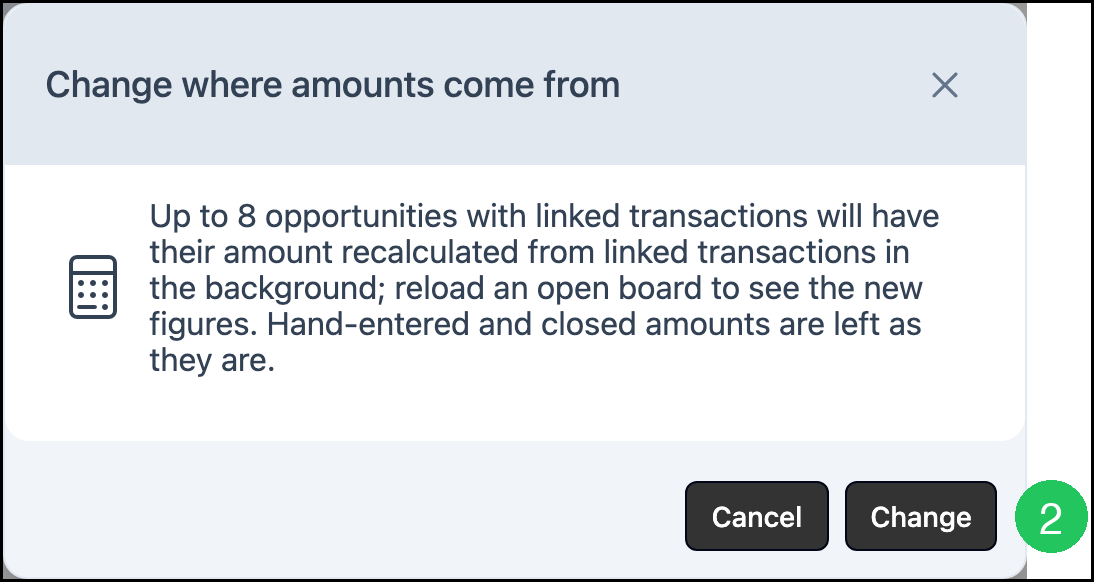
2. Click Change.
Up to 8 opportunities with linked transactions will have their amount recalculated from linked transactions in the background. Reload an open board to see the new figures. Hand-entered and closed amounts are left as they are.
Note: Cancel keeps the previous Opportunity amount source.
Frequently Asked Questions
1. Which Opportunity amount source opens Calculated from?
Answer: Calculated from linked transactions and Entered manually until a transaction is linked. Entered manually keeps the amount that is typed on the Opportunity.
2. What does Change do on Change where amounts come from?
Answer: Up to 8 opportunities with linked transactions are recalculated in the background. Reload an open board to see the new figures. Hand-entered and closed amounts stay as they are. Cancel keeps the previous source.
3. Why does CRM Logging say to contact Support?
Answer: Email Logging is not enabled. Contact Support to enable it. Mailboxes and Direction stay on the screen.