
Line Items are the products and services on an Estimate or Order. Each Line Item has its own name, Status, quantity, pricing, components, notes, files, and roles. This article explains how to find Line Items, review the list and Line Item Details Side Panel, select items for bulk actions, and add a Line Item.
Note: Line Item behavior is the same on Estimates and Orders. This article uses Orders as an example.
Table of Contents
- Locating Line Items
- Line Items List
- Line Item Details
- Selecting Line Items
- Adding a Line Item
- Frequently Asked Questions
- Related Articles
Locating Line Items
Navigate to Sales / Orders.
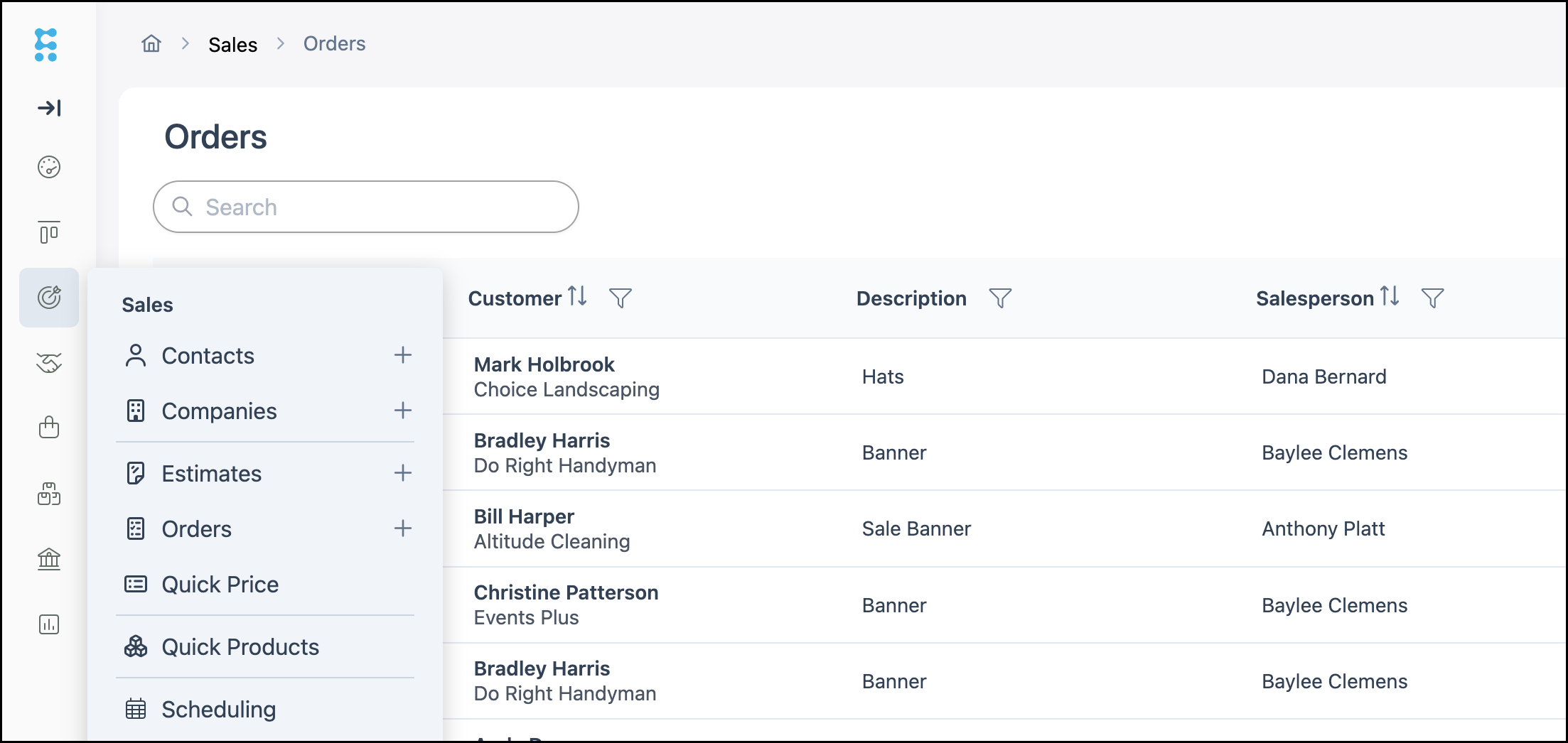
Open an Order. The Line Items tab is selected by default.
Note: You can also work with Line Items from Sales / Estimates.
Line Items List
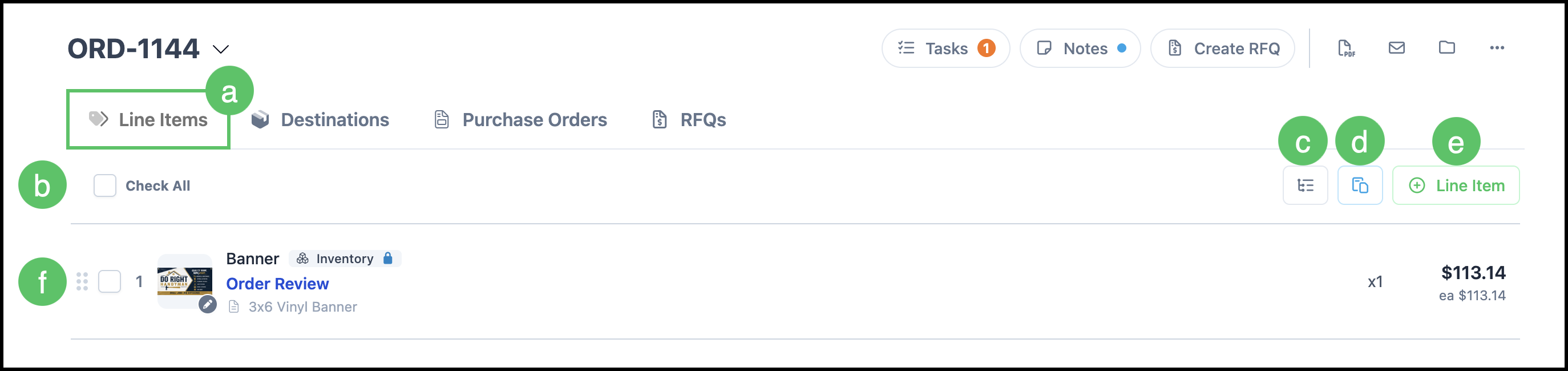
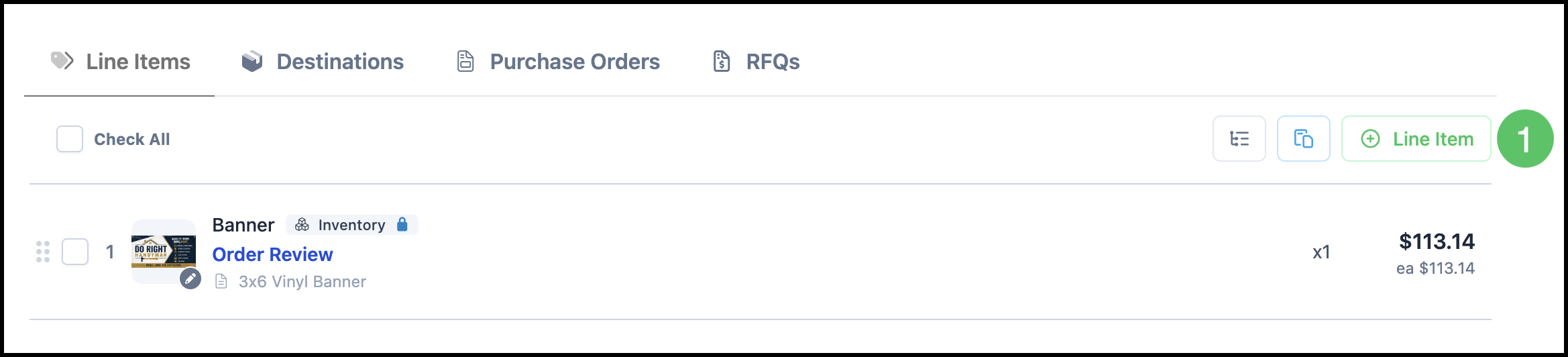
a. The Line Items tab lists each product or service on the Order.
b. Check All - Selects every Line Item in the list.
c. Bill of Materials - Opens the Bill of Materials for the Line Items on this Order.
d. Paste from Clipboard - Pastes Line Items that were copied to the Clipboard. For more information, see Clipboard Feature.
e. Line Item - Opens the dialog used to add a product or service.
f. Each row shows the Line Item number, name, Status, description, quantity, and price. Click the row to open Line Item Details. Click the checkbox to select a single Line Item.
Line Item Details
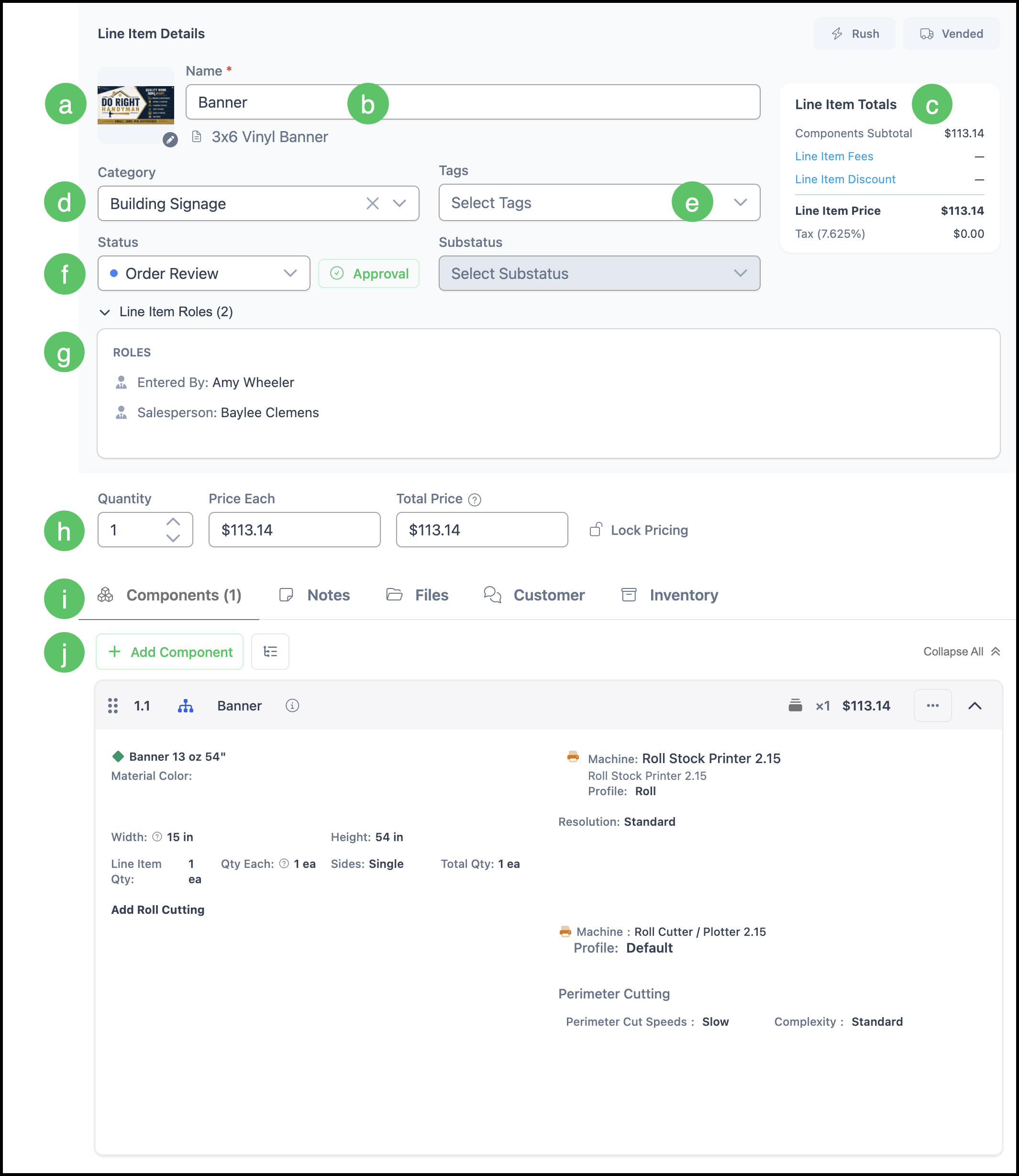
Click a Line Item row to open the Line Item Details Side Panel.
a. Image - Option to upload an image here.
b. Name - The Line Item name as it appears on the Estimate or Order.
c. Line Item Totals - Includes Components Subtotal, Line Item Fees, Line Item Discount, Line Item Price, and Tax. For more information on fees, see Order and Line Item Fees.
d. Category - The Line Item Category assigned to this item.
e. Tags - Optional labels used to organize the Line Item.
f. Status, Approval, and Substatus - Provides detail into where the Line Item is in the workflow. For more information, see Line Item Statuses.
g. Line Item Roles - Employees assigned to roles for this Line Item.
h. Quantity, Price Each, and Total Price - The quantity and pricing for the Line Item. Lock Pricing keeps the price from recalculating when selected.
i. Components, Notes, Files, Customer, and Inventory - Tabs for the Line Item build, internal notes, files, Customer-facing details, and inventory.
j. Add Component - Adds a Component to the Line Item.
Note: Use Collapse All to collapse Component groups in the Side Panel.
Selecting Line Items
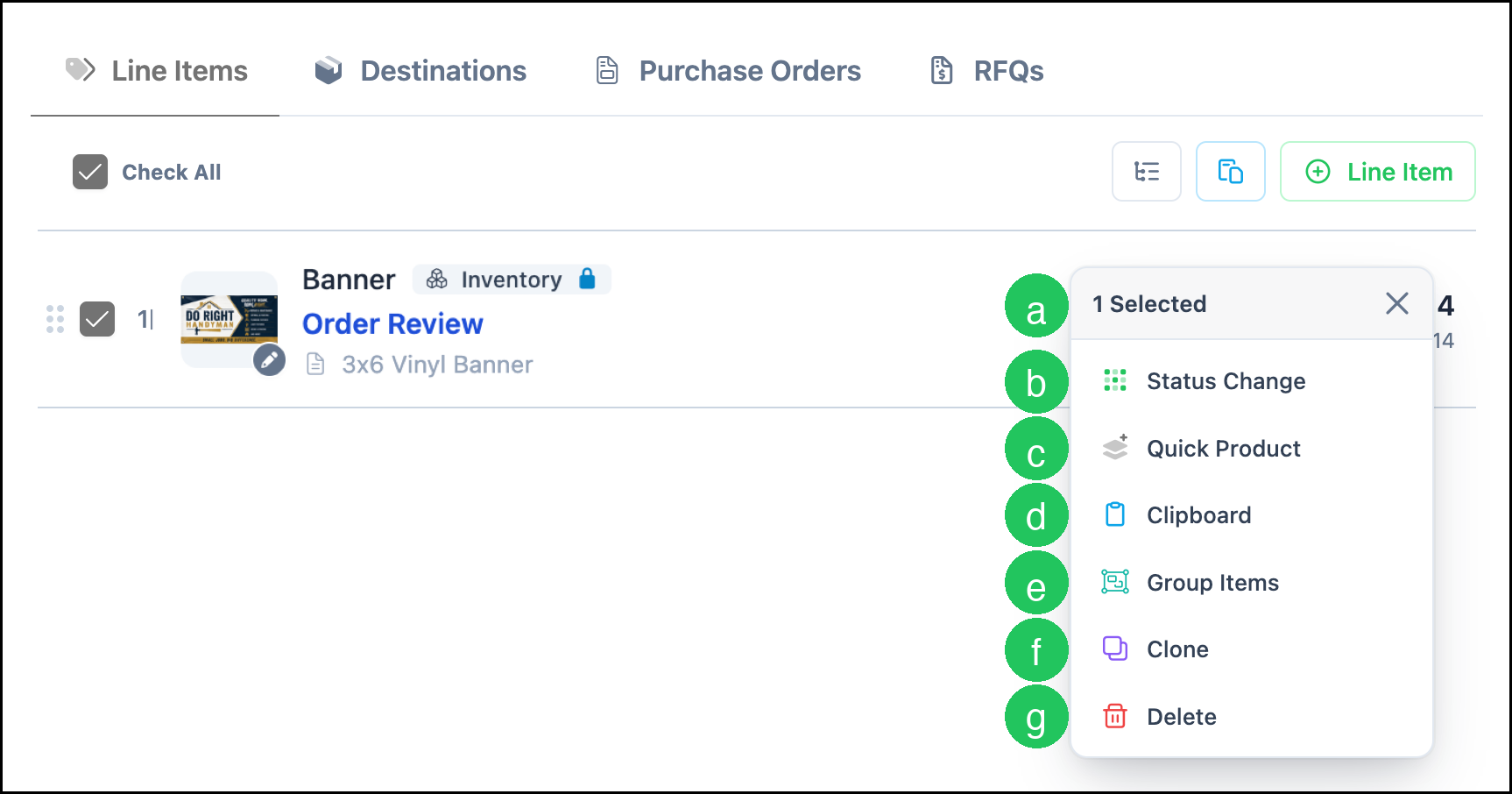
Check one or more Line Item checkboxes to open the selection menu.
a. The selected count (for example, 1 Selected) shows how many Line Items are selected. Use Clear selection to clear the selection.
b. Status Change - Updates Status for the selected Line Items. For more information, see Line Item Statuses.
c. Quick Product - Creates a Quick Product from the selected Line Items. For more information, see Quick Products Overview.
d. Clipboard - Copies the selected Line Items to the Clipboard so you can paste them into this Order or another Estimate or Order. For more information, see Clipboard Feature.
e. Group Items - Creates a group from the selected Line Items so they can move through workflow together. For more information, see Line Item Grouping Options.
f. Clone - Duplicates the selected Line Items on this Estimate or Order.
g. Delete - Removes the selected Line Items from the Estimate or Order.
Note: Delete removes the selected Line Items immediately and does not ask for confirmation.
Adding a Line Item
1. Click Line Item.
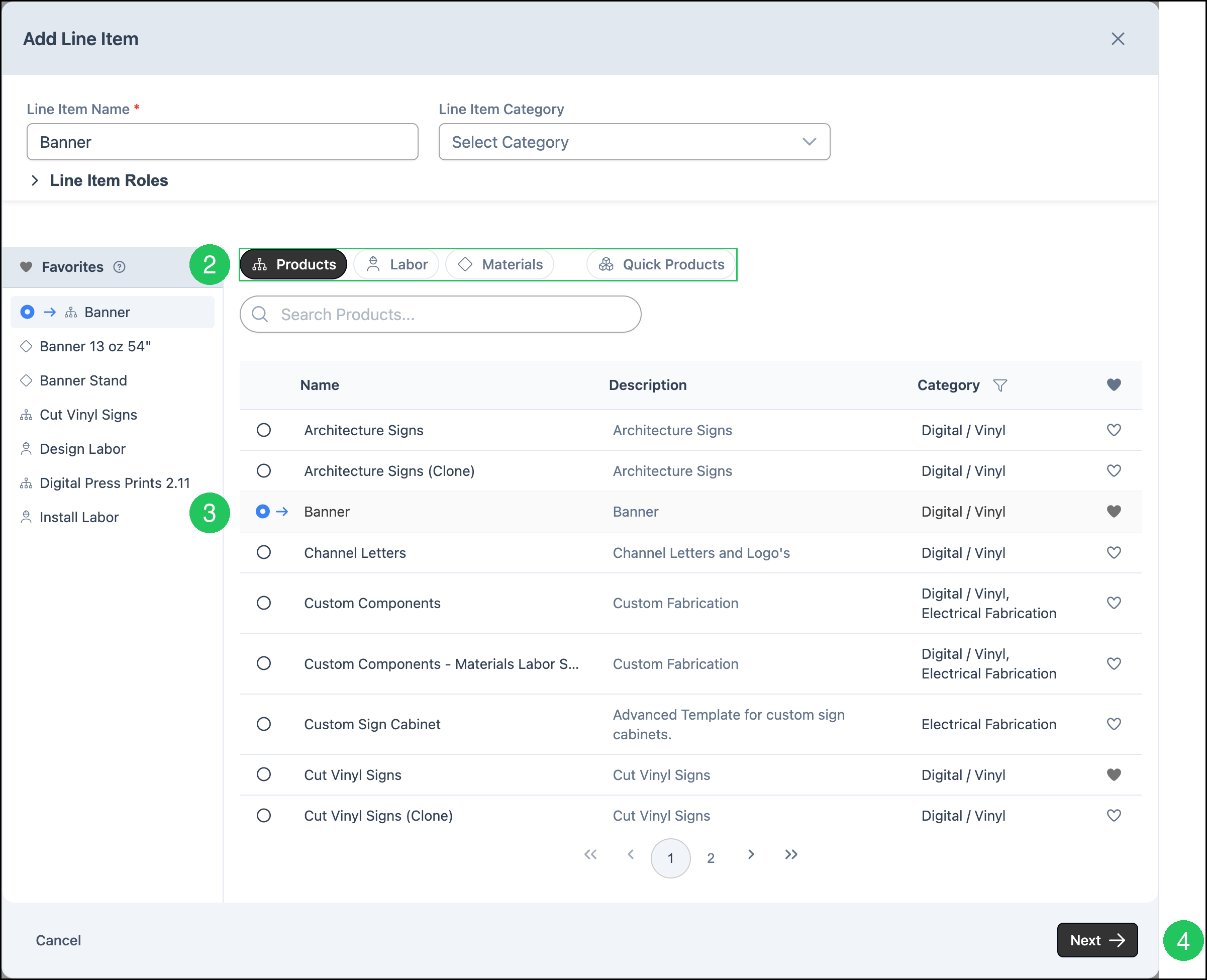
2. Select a source such as Products, Labor, Materials, or Quick Products.
3. Select the item from the list.
4. Click Next.
Note: Favorites provide a shortcut to items you use often. If a Quick Product includes more than one Line Item, all of its Line Items are added together. For more information, see Quick Products Overview.
Frequently Asked Questions
1. Where do Line Items appear?
Answer: Line Items appear on the Line Items tab of an Estimate or Order.
2. How do I open Line Item Details?
Answer: Click the Line Item row. Clicking the checkbox selects the Line Item for bulk actions instead of opening the Side Panel.
3. What happens when I delete a Line Item?
Answer: Delete removes the selected Line Items immediately and does not ask for confirmation.
4. Can I copy a Line Item to another Order or Estimate?
Answer: Yes. Select the Line Item, click Clipboard, then paste from the Clipboard on the destination Estimate or Order. For more information, see Clipboard Feature.
Related Articles
Clipboard Feature
Creating an Estimate
Creating an Order
Estimate and Order Options
Estimate and Order Tools Menu
Estimates Overview
Line Item Grouping Options
Line Item Statuses
Order and Line Item Fees
Orders Overview
Quick Products Overview