
Refunding orders can be helpful in assisting customers. This can ensure customer satisfaction and help remedy any mistakes. CoreBridge offers the options to initiate a full refund or a partial refund to a desired refund method, including In-Store Credit
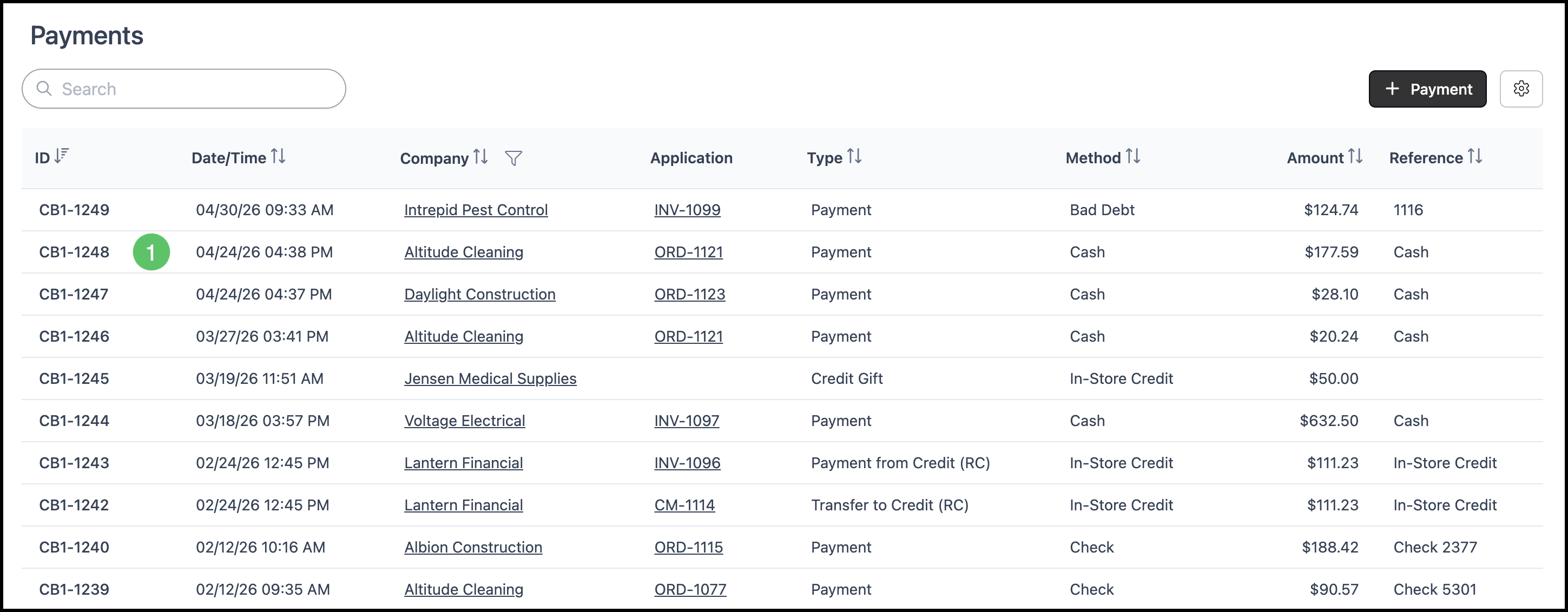
Navigate to Accounting / Search Payments.
1. Select the Payment needing to be refunded.
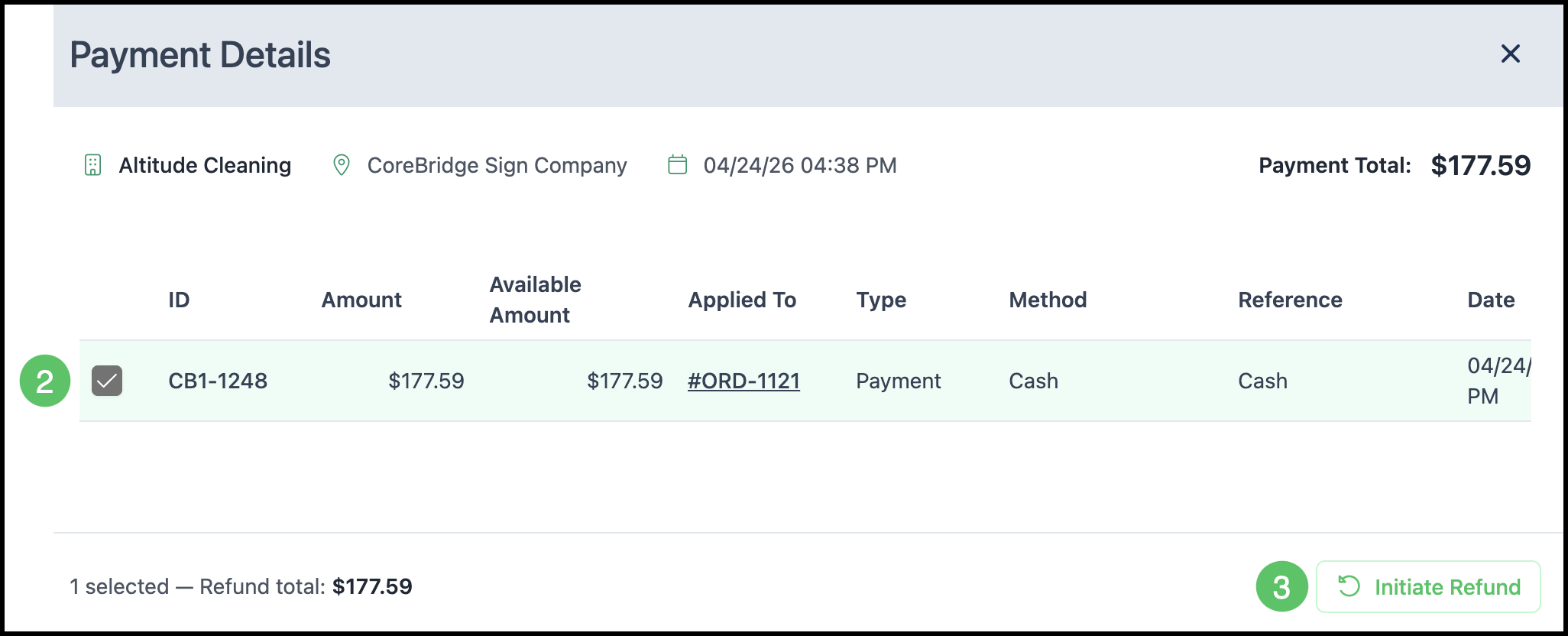
2. Check the Payment.
3. Click Initiate Refund.
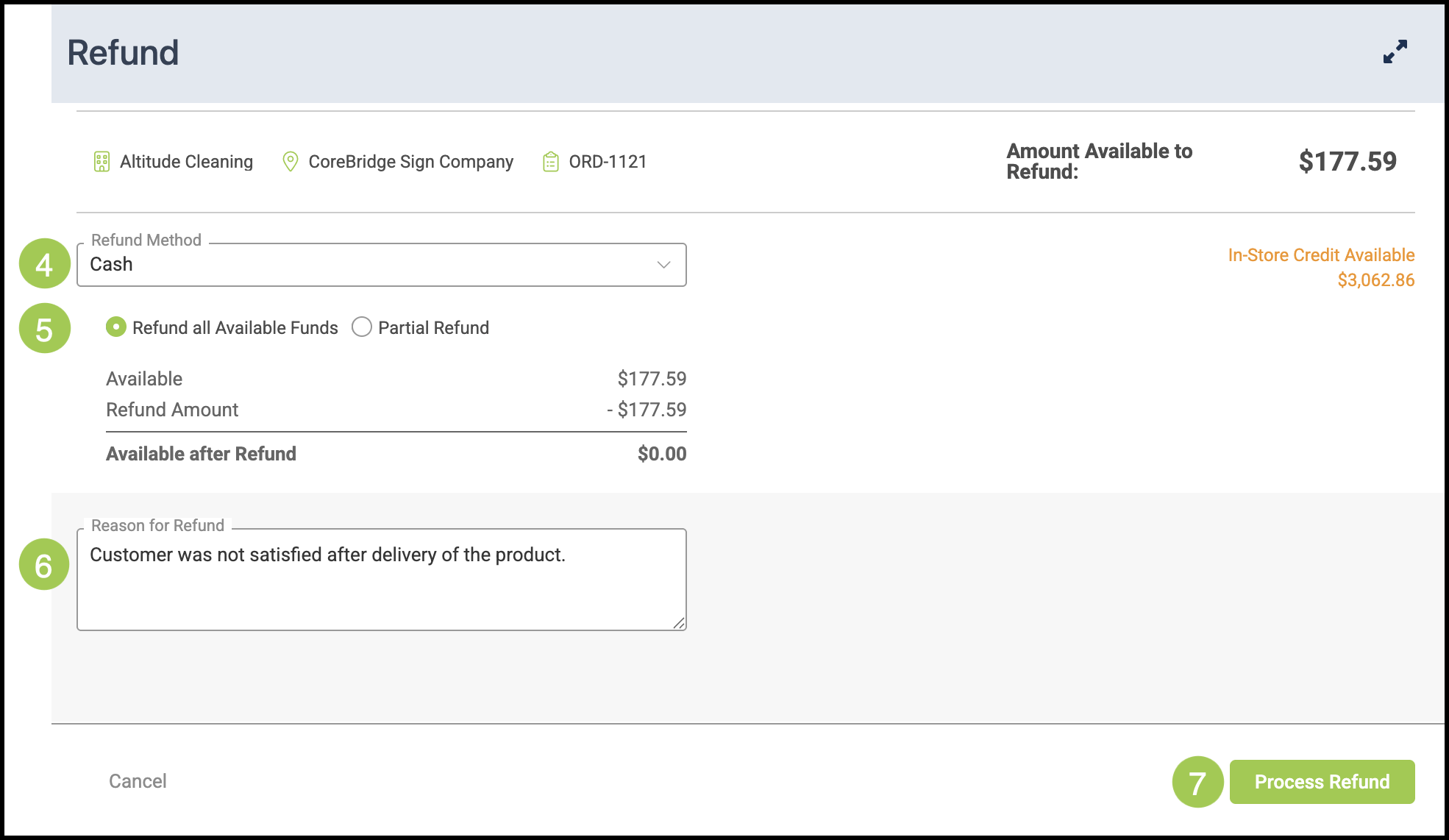
4. Select the Refund Method. This can be refunded to any payment option or In-Store Credit.
Note: Payment Methods can be managed at any time by navigating to Settings / Accounting / Payment Methods.
5. Choose if you would like to:
Refund all Available Funds - this will refund the entire amount of the payment.
Note: The Refund Amount will automatically be filled.
Partial Refund - this will allow you to select the amount you would like to refund.
Note: The Refund Amount must be entered.
6. Enter an optional Reason for Refund.
7. Select Process Refund.
Note: To ensure the refund has gone through correctly, wait until the system shows a Refund Completed text and icon. This refund will also appear in the Payment Screen.