Creating a company in CoreBridge is one of the first steps to creating orders, managing your business, and efficiently communicating with clients. Company profiles are one of the basic building blocks of the system and are needed to run your business.
You can require certain fields by changing the settings in Settings / Sales / Company Options. Any field marked as required will display with a red asterisk on the page for creating a new company and must be entered before you can save.
Table of Contents
Navigate to Sales / Companies.
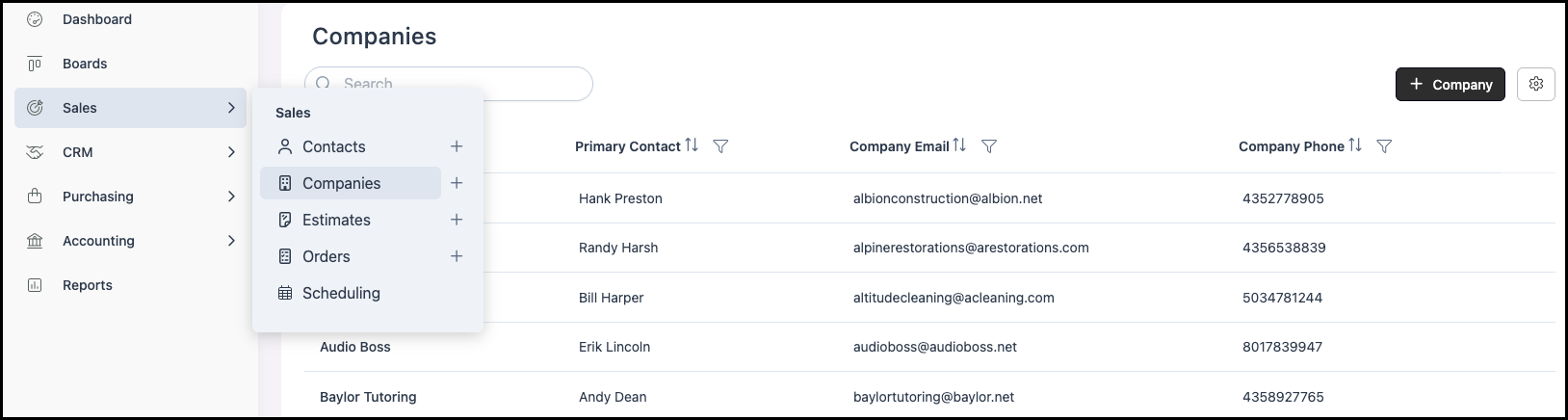
Creating a Company
1. Click the Add Company button to open the Add Company form.
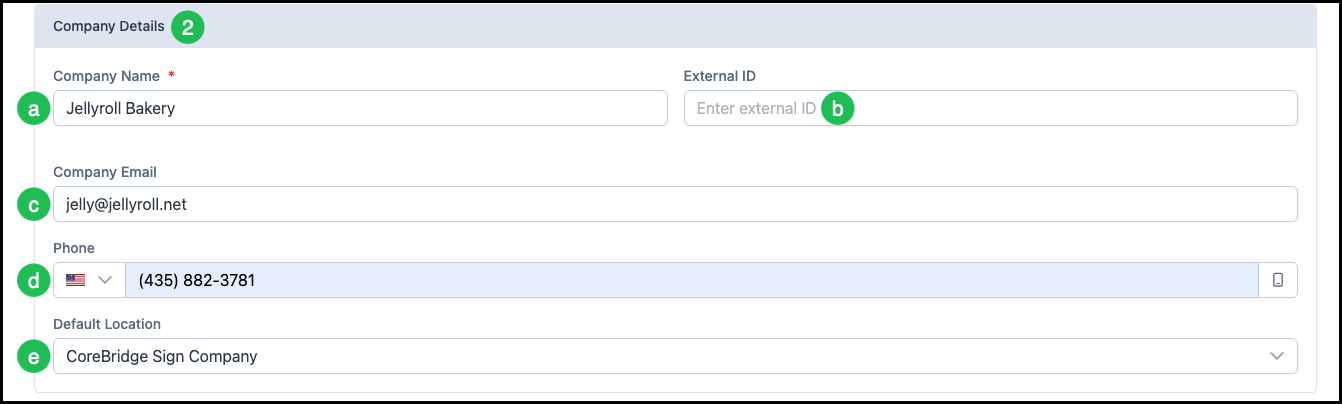
2. Complete Company Details.
a. Company Name - This is required.
b. External ID - If there is an identification number that you use to reference this Customer, it can be entered here.
c. Company Email - Main email for this Company.
d. Phone - Enter only numbers; the system will format the number based on Settings / System / Localization.
e. Default Location - Set as needed for the Company.
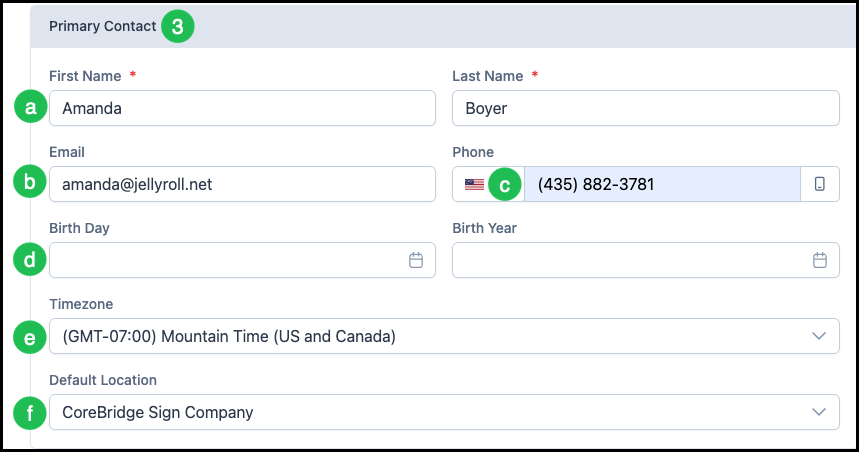
3. Enter the Primary Contact information, or select an existing contact if the option is available.
a. First Name and Last Name - Required for the Primary Contact.
b. Email - The email best used for contacting the Primary Contact.
c. Phone - The phone number best used for contacting the Primary Contact.
d. Birthdate - Including this information is optional.
e. Timezone - The timezone dropdown allows you to set the local time zone for that specific Company. This is especially helpful when a Customer operates in a different time zone than your business.
f. Default Location - If applicable, select the Default Location for this Company. If you have only one Location, it may be selected automatically.
Note: The Company email and phone may be different from the Primary Contact email and phone. A Contact can be the Primary Contact for multiple Companies. You can add more Contacts and change the Primary Contact after the Company is created.
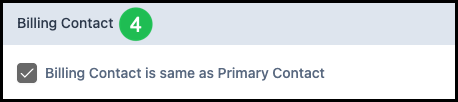
4. Under Billing Contact, check the box if the Billing Contact is the same as the Primary Contact. If unchecked, you can specify a different Billing Contact.
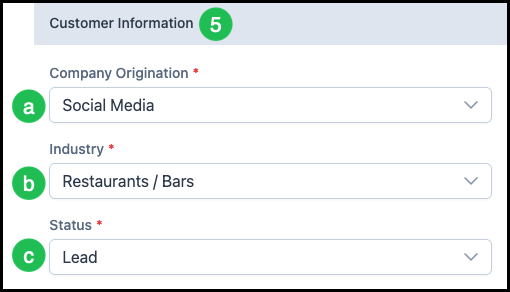
5. Enter the Customer Information.
a. Company Origination - How the Company heard about you. This can be made required in Settings / Sales / Company Options.
b. Industry - The industry the Company is affiliated with. This can be made required in Settings / Sales / Company Options.
c. Status - The lifecycle of the Customer. This will automatically update as the Customer progresses, but can be manually changed using the dropdown.
Note: A newly inputted Customer will automatically be set as a Lead. Once this Customer is used in an Estimate, the status will update to Prospect. Once the Estimate had been converted into an Order, or a new Order has been created using this Customer, the status will update to Customer.
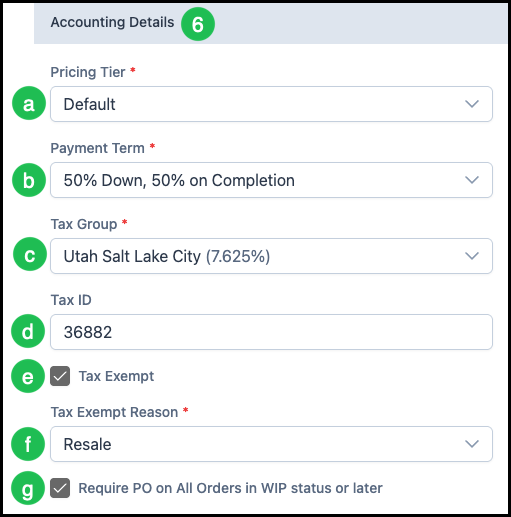
6. Input Accounting Details.
a. Pricing Tiers - Allows you to set prices based on your negotiated rates with this company.
b. Payment Terms - Define the deposit and early payment credit rules for this company.
Note: Payment Terms can be managed in Settings / Accounting / Payment Terms.
c. Tax Group - Allows you to charge a combined, single rate by grouping agencies- typically local, county, and state/province, national, etc.
Note: Set up your Tax Groups in System Settings / Accounting / Tax Groups before creating this Company, so the correct Tax Group is available to select here. For more information see Tax Groups.
d. Tax ID - Keeps a record of the business's Tax Identification if needed to verify things such as tax exemptions.
Note: You can make this field required from Settings / Sales / Estimate Options or Order Options.
e. Tax Exempt - Choose whether or not you want this company’s estimates/orders to always be Tax Exempt by default, and if so, add a Tax Exempt Reason.
f. Tax Exempt Reason - Select from a pre-created list of Tax Exempt Reasons that can be managed at any time in Settings / Sales / Reason Lists.
Note: This option will only be present if Tax Exempt has been selected.
g. Require PO on All Orders in WIP status or later - Decide if you want to require Purchase Order numbers to be entered on all orders that are a Work in Progress or further along in the workflow before the Order may be Invoiced.
Note: You can also make this setting a default from Settings / Sales / Company Options.
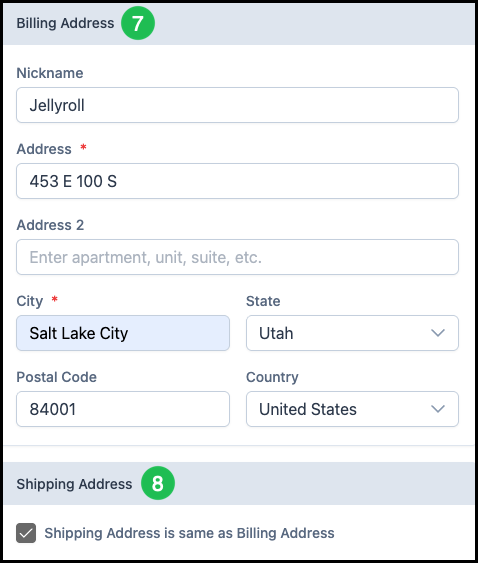
7. Enter the Billing Address (Address, Address 2, City, State, Postal Code, Country, and optional Nickname).
Note: Billing Address can be made required in Settings / Sales / Company Options.
8. Under Shipping Address, check the box if the Shipping Address is the same as the Billing Address. If unchecked, enter a separate Shipping Address.
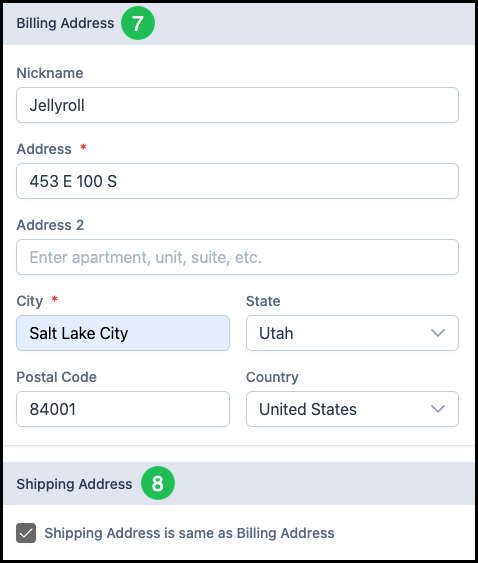
7. Input a Billing Address.
Note: You can make this a required field in Settings / Sales / Company Options.
8. Select this box if this Company has the same Billing and Shipping Address. Companies can have separate addresses by unchecking this box and filling in the appropriate Shipping Address.
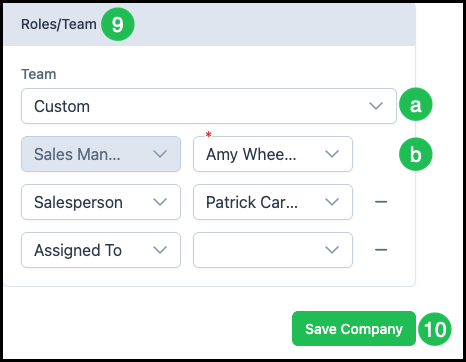
9. Input Roles.
a. If you select Custom Teams, you can add employees to Roles from this screen. If you choose a preselected Team, the Roles and employees will be auto-filled which cannot be edited at the company level.
b. Use the dropdown to select the name of your employee that will fill this role.
Note: To include the ability to create and use Employee Teams in your package, please contact sales@corebridge.net.
10. Click Save Company to create the company. Ensure all required fields (marked with a red asterisk) are completed before saving.