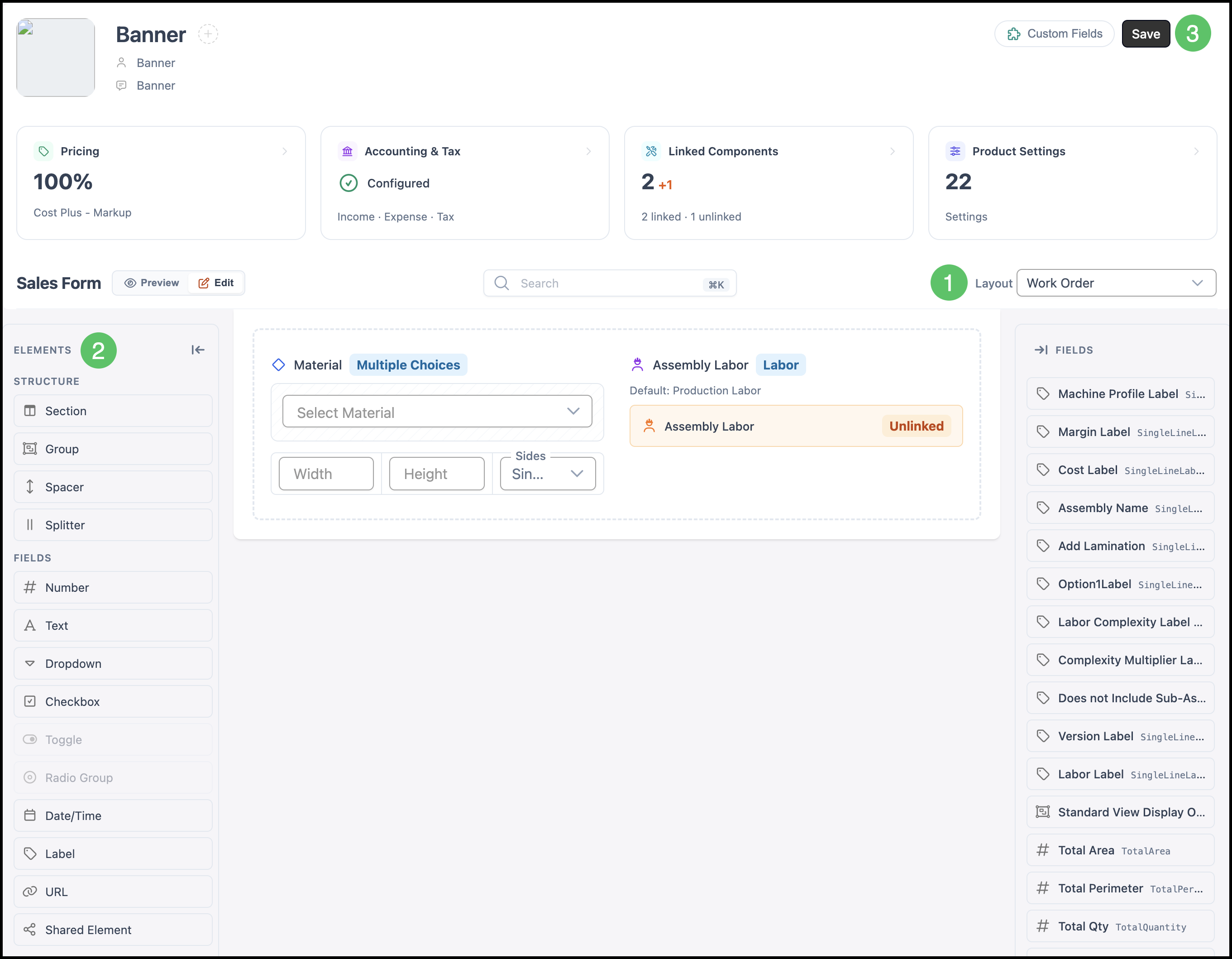
The Form Designer is a powerful tool that allows you to create, customize, and fine-tune the various forms used with Products. Within the Form Designer, the Invoice and Work Order are tailored to meet different needs. Invoices are customer-facing documents that can be customized to clearly communicate charges, payment terms, and job details. Work Orders, on the other hand, are internal documents focused on building and managing the job itself. This article explains how to locate and customize both types of documents.
Table of Contents
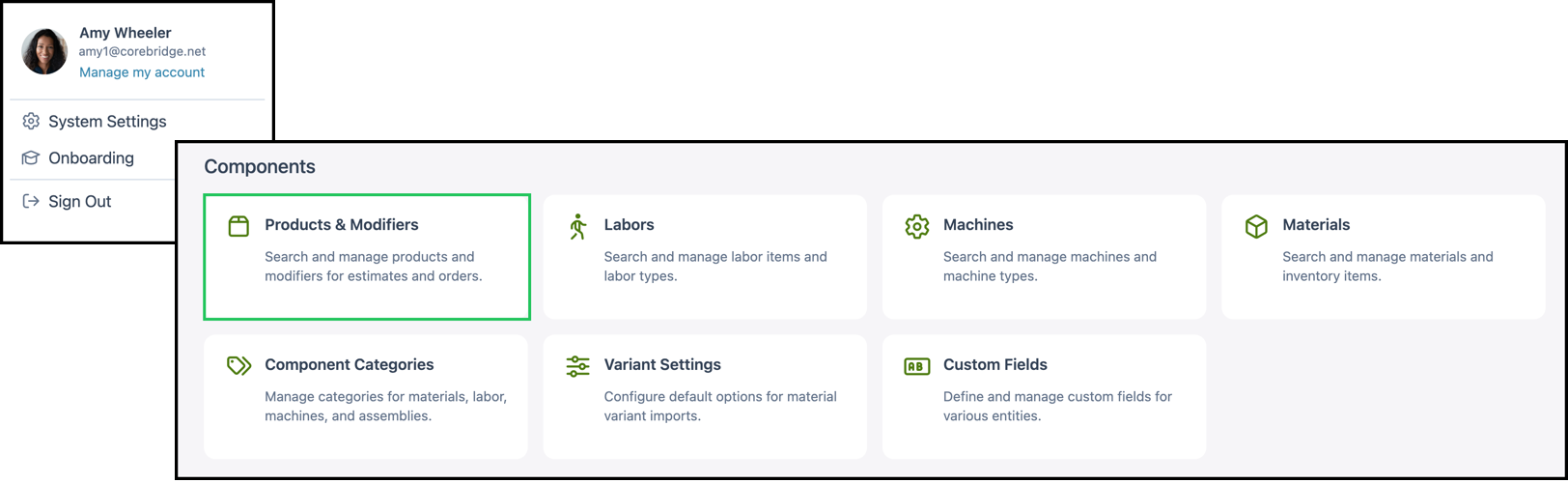
Accessing the Form Designer
Navigate to System Settings / Components / Products & Modifiers.
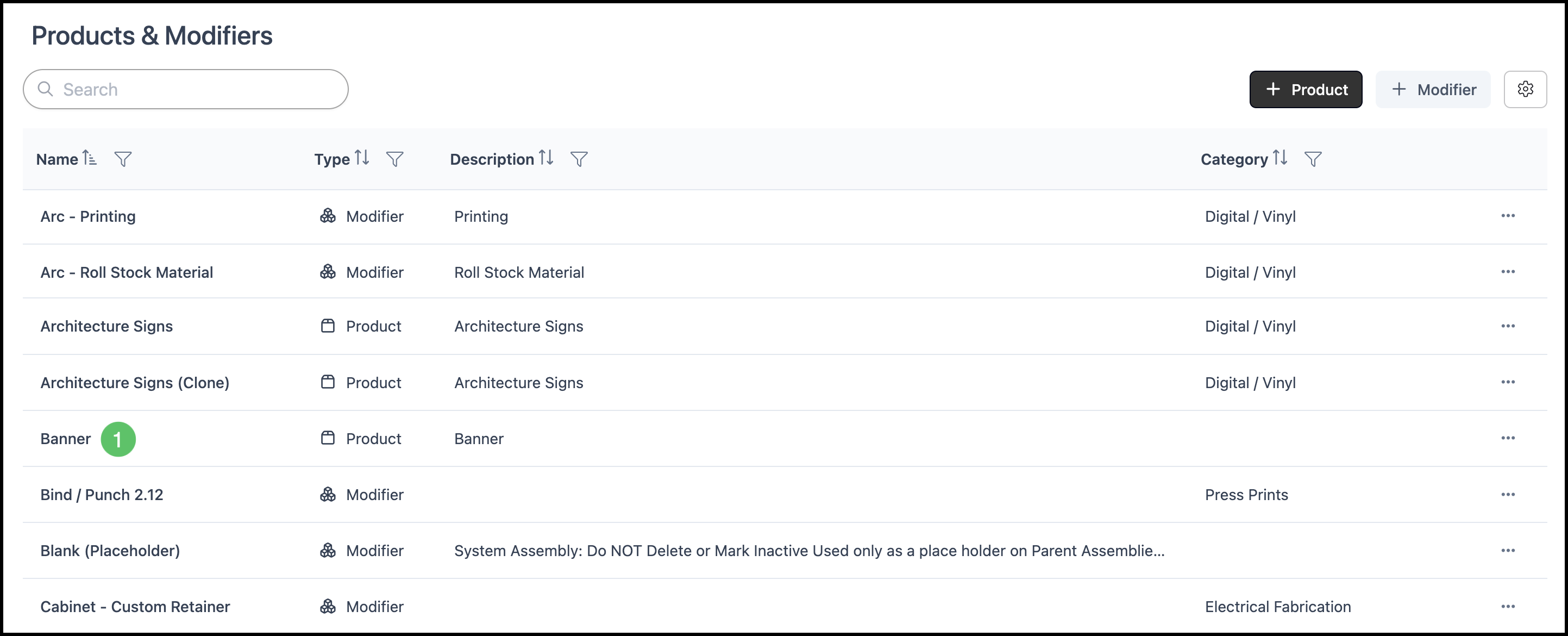
1. Select a Product.
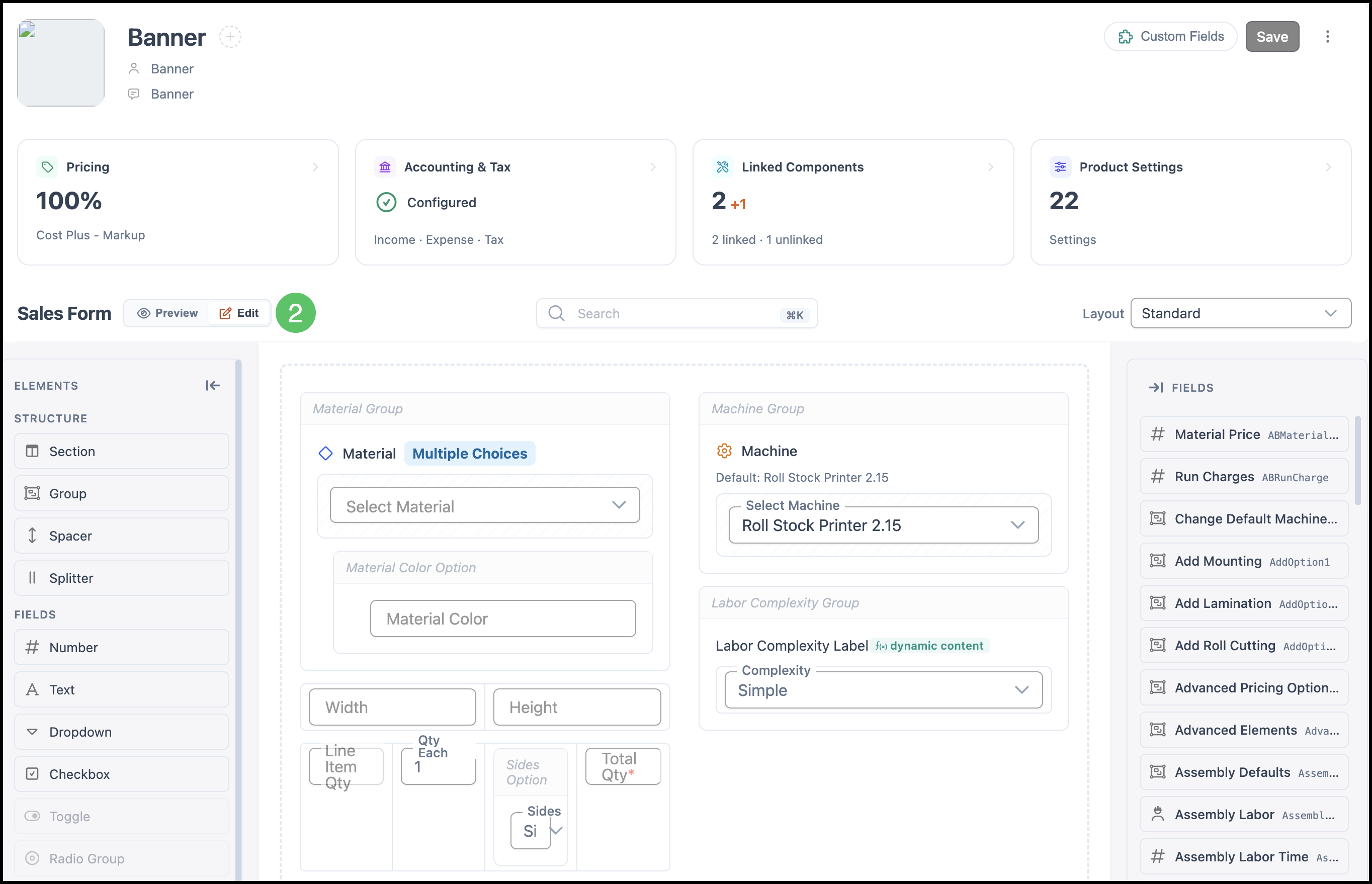
2. Select the Edit under Sales Form.
Invoice
The Invoice is a customer-facing document designed to clearly communicate the essential details of an Order including charges, payment terms, and job information. Typically, this form presents a more simplified view, showing only the information the Customer needs to see.
Note: The Invoices are also available on Estimates.
Adding Elements to the Invoice
Any Element that is already included in the Standard Order Entry form can be surfaced in the Invoice. As long as it exists in the original form, it can be added to the customer-facing view.
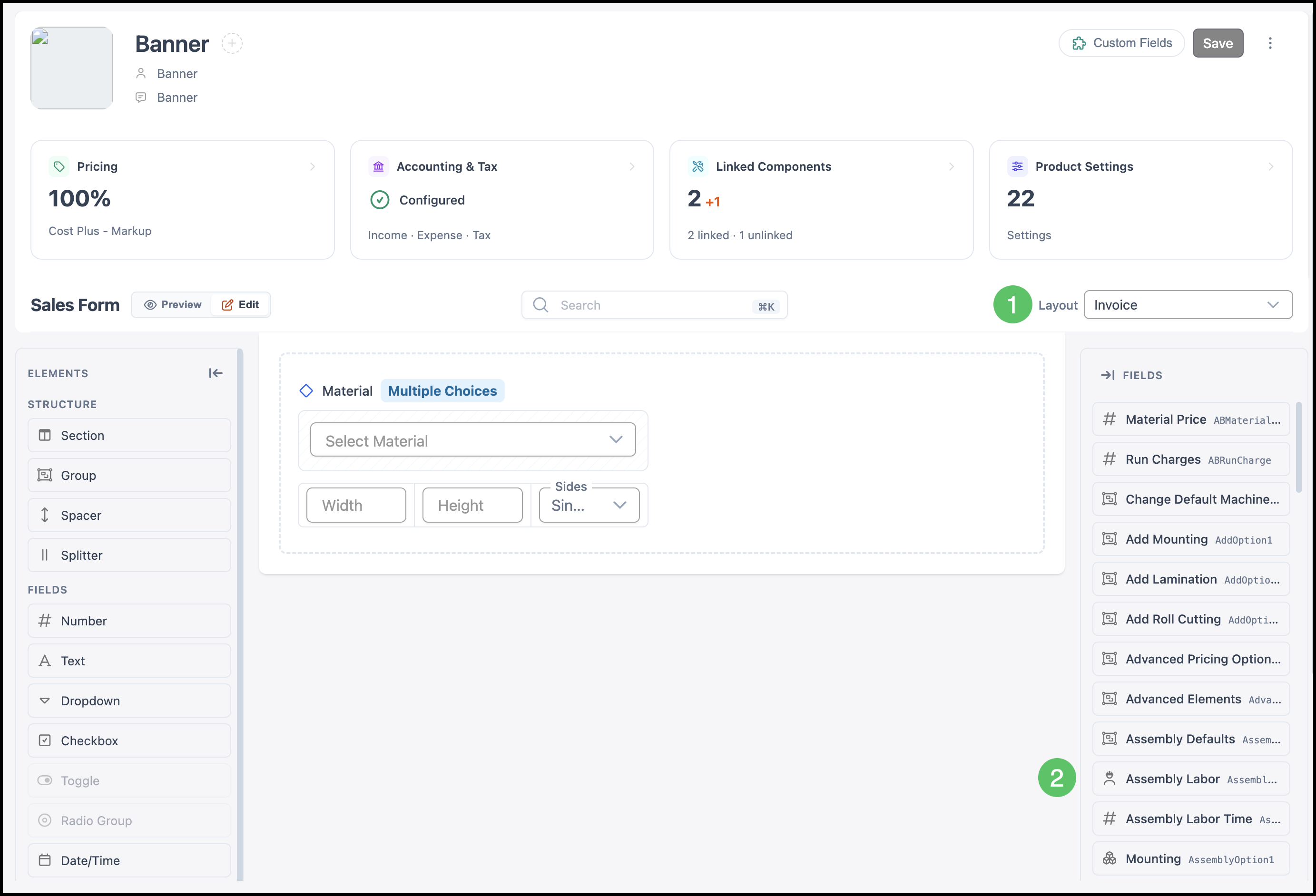
1. Select Invoice from the dropdown.
2. Click and Drag the Element into the Invoice form.
Note: The placement of the Element will be where you hover in the form.
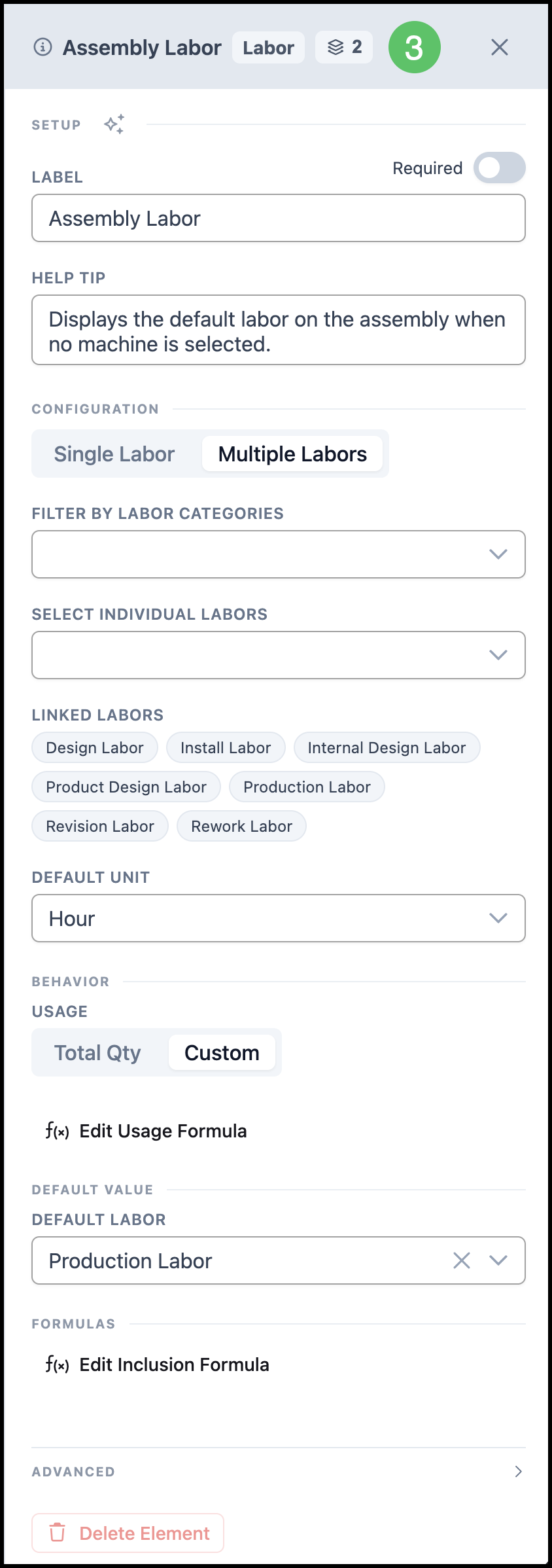
3. Make any necessary adjustments in the side panel.
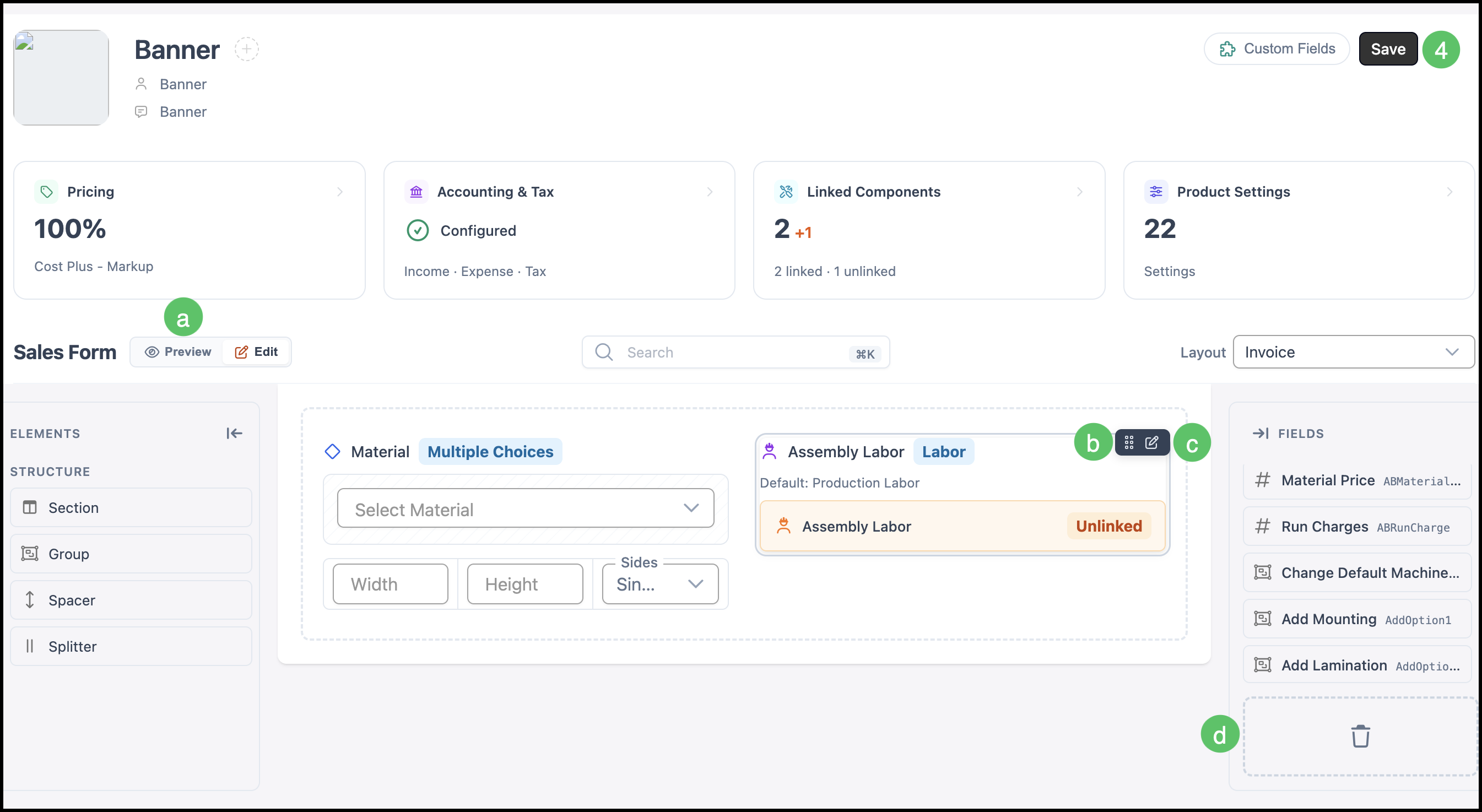
4. Click Save.
a. Saved changes can be viewed in the Preview Mode.
b. The Move icon allows you to adjust Element placement.
c. Edit icon opens the side panel allowing you to make changes.
d. Elements can be deleted by dragging and dropping into the trash icon or in the side panel.
Note: The Move and Edit icons appear on hover.
Formatting the Invoice Layout
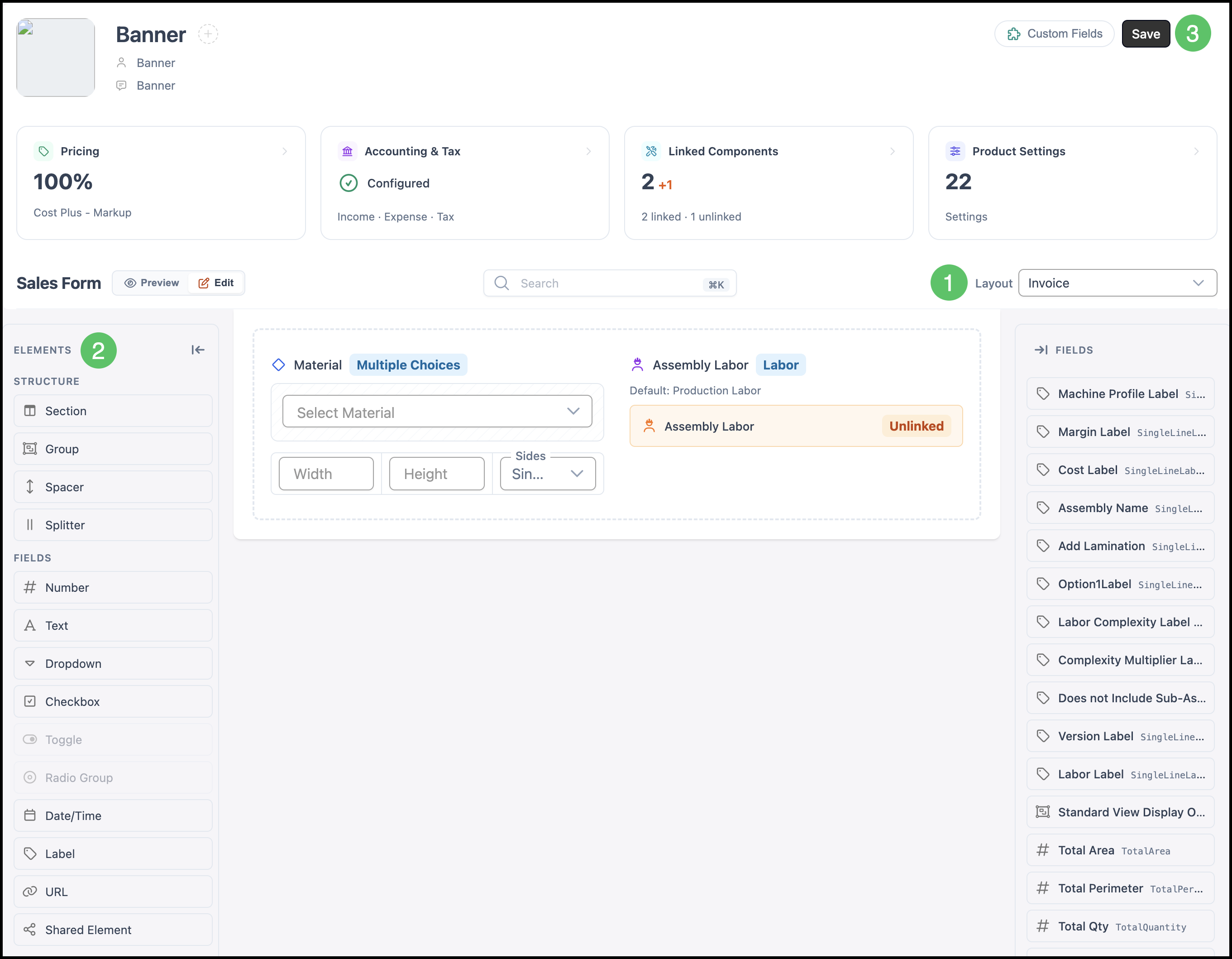
Elements such as Groups and Spacers are available to customize the view of your Invoice for better readability.
1. Select Invoice from the dropdown.
2. Click and Drag the desired Formatting, Input and Label Elements to organize your Invoice.
3. Click Save.
Work Order
The Work Order is an internal document used to build and manage the job. Unlike the Invoice, which is focused on what the customer needs to see, the Work Order is meant for your internal team and can include more detailed and operational information.
Adding Elements to the Work Order
Any Elements already included in the Standard Order Entry form are eligible to be placed in the Work Order. As long as it exists in the original form, it can be added to the customer-facing view.
1. Select Work Order from the dropdown.
2. Click and Drag the Element into the Work Order form.
Note: The placement of the Element will be where you hover in the form.
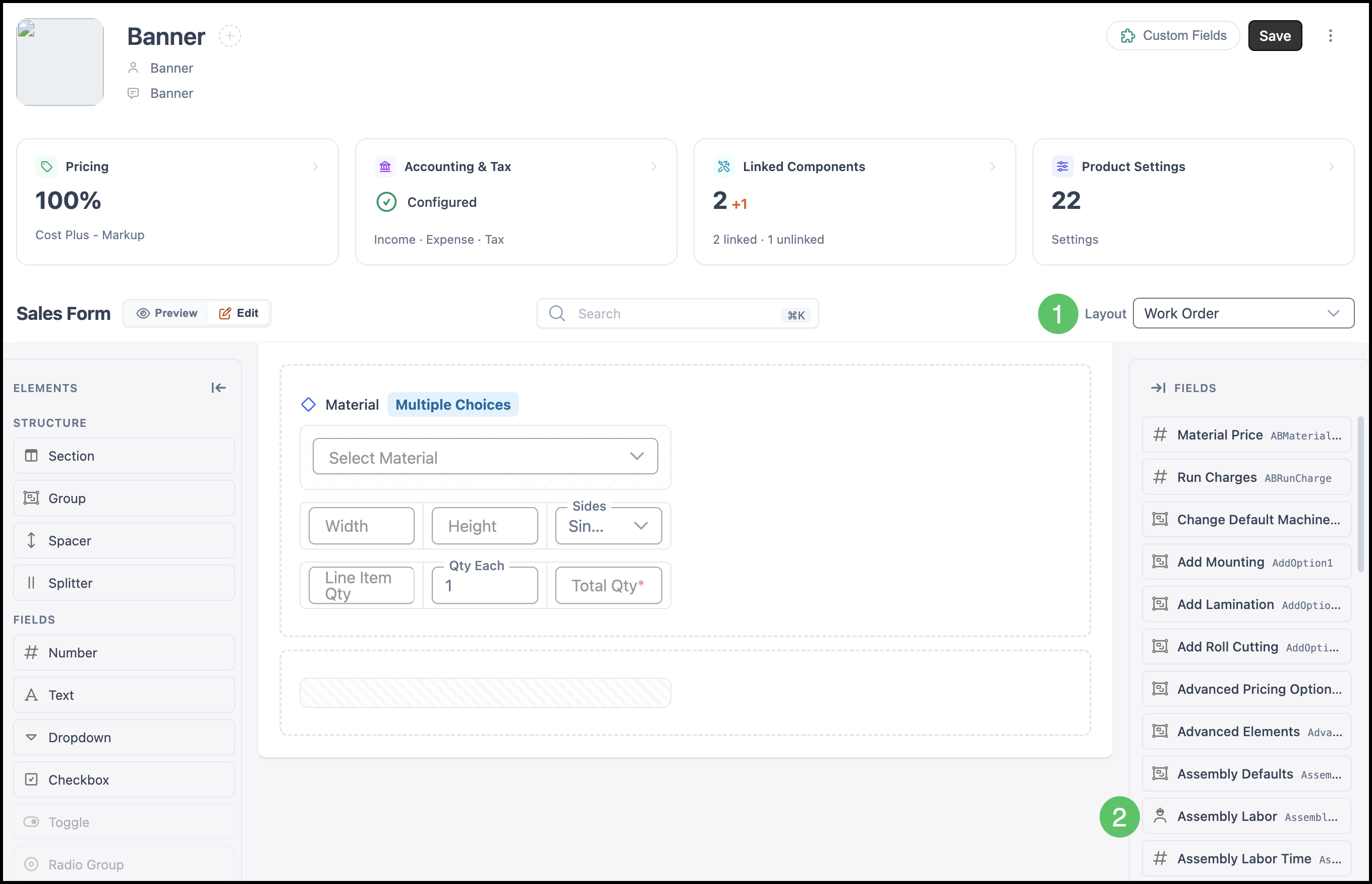
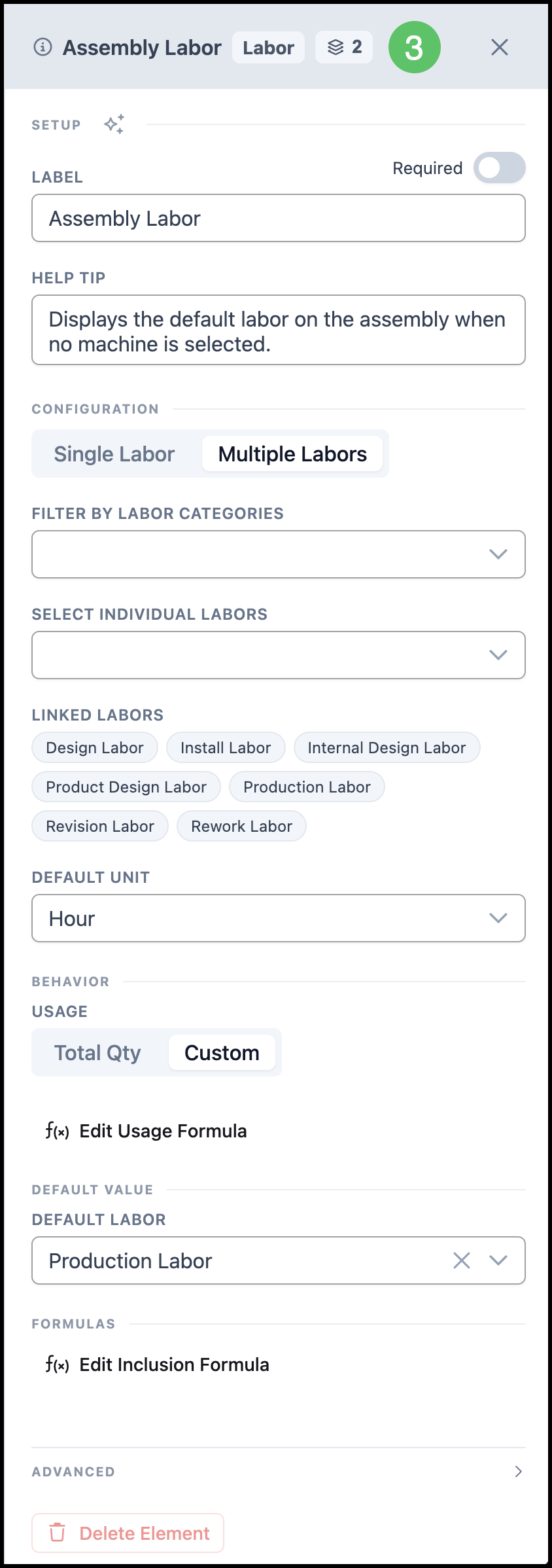
3. Make any necessary adjustments in the side panel.
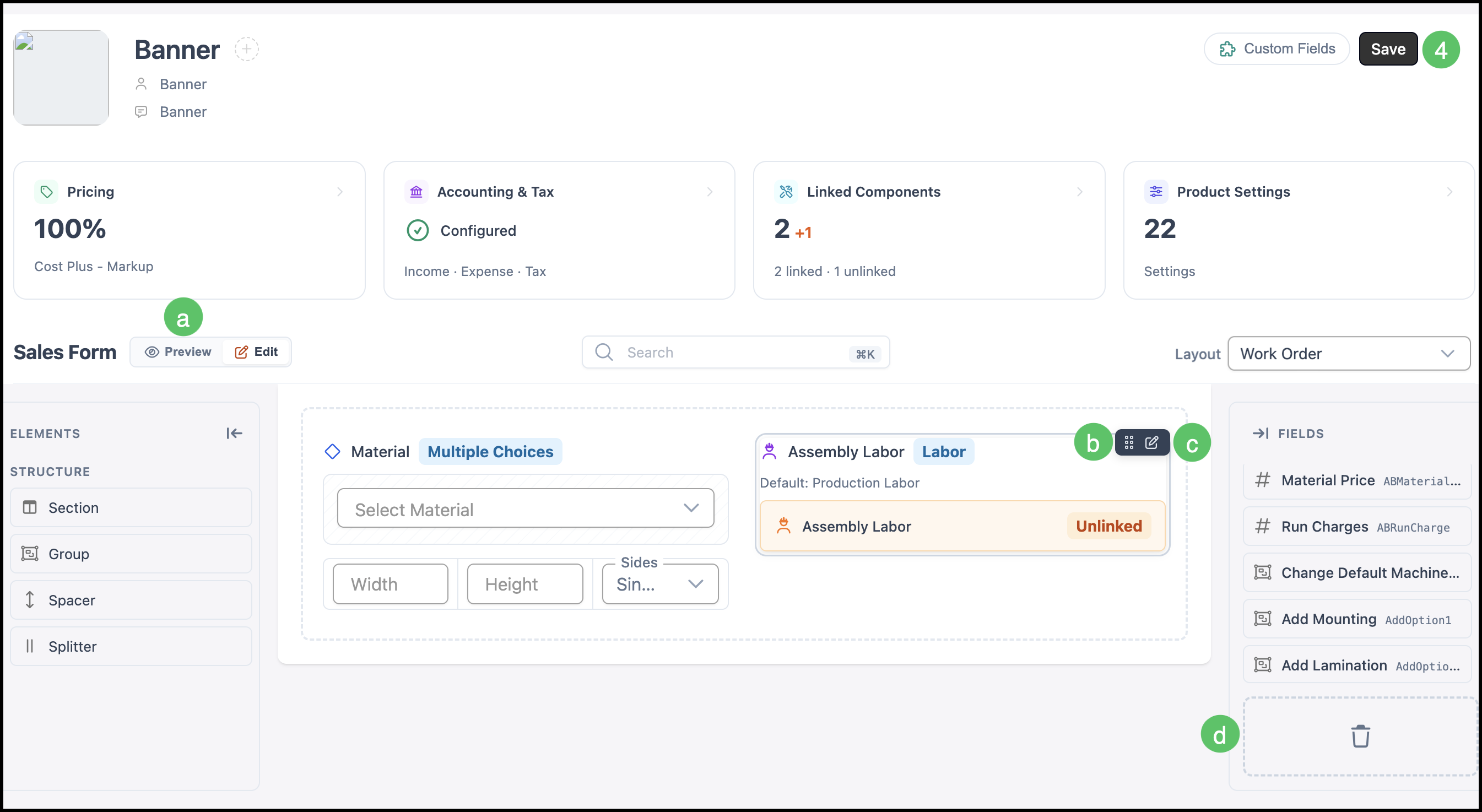
4. Click Save.
a. Saved changes can be viewed in the Preview Mode.
b. The Move icon allows you to adjust Element placement.
c. Edit icon opens the side panel allowing you to make changes.
d. Elements can be deleted in the side panel or by dragging and dropping into the trash icon.
Note: The Move and Edit icons appear on hover.
Formatting the Work Order Layout
Elements such as Groups and Spacers are available to customize the view of your Work Order for better readability.
1. Select Work Order from the dropdown.
2. Click and Drag the desired Formatting, Input and Label Elements to organize your Work Order.
3. Click Save.