Products and Modifiers are the building blocks used to create Estimates and Orders in CoreBridge EVO. Both are managed in the same location but serve distinct roles in how a job is built and priced. Understanding the difference helps you configure your catalog and build accurate Estimates for your customers.
Table of Contents
- Understanding Products
- Understanding Modifiers
- Products and Modifiers Screen Overview
- Filtering by Product
- Adding a Modifier to a Product
- Related Articles
Understanding Products
A Product represents the primary item in an Estimate or Order. It captures the starting process for a job - typically a Material and Machine combination - and is what the Customer sees when they receive a quote. Products are made up of Materials, Labors, and Machines and define the core scope of work. Examples include Flatbed Prints, Banners, and T-Shirts.
Understanding Modifiers
A Modifier is an option that can be applied to a Product. Modifiers represent the steps or choices that follow the Product's core process - such as cutting, mounting, lamination, or decoration. They can also be thought of as child Products: they inherit key details from the parent Product, such as width, height, and total area, though some Modifiers allow those values to be adjusted independently.
Common examples of Modifiers include finishing or cutting applied after direct printing, mounting and lamination options for signage, and decoration methods for garments such as screen printing, heat press, or embroidery.
Products and Modifiers in an Order
Products and Modifiers work together to build the items your customers purchase. On an Estimate or Order, the Product is the primary Line Item and represents the main item being sold, such as a Flatbed Print, Banner, or T-Shirt. Modifiers appear as options associated with the Product and represent additional production steps or customer selections, such as cutting, mounting, lamination, or decoration methods like screen printing, heat press, or embroidery. Together, they define the complete specifications and pricing for the finished item.
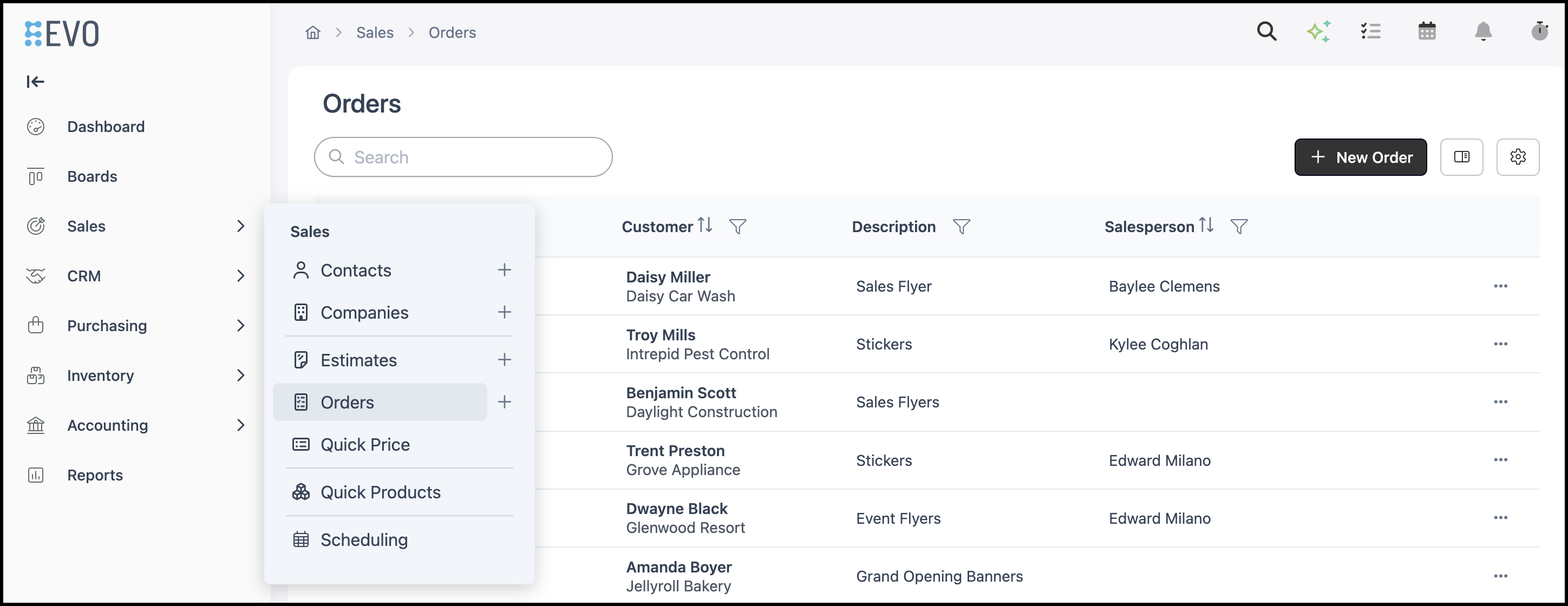
Navigate to Sales / Orders and select an Order.
Note: Products and Modifiers behave the same on Estimates and Orders. This article uses an Order as the example.
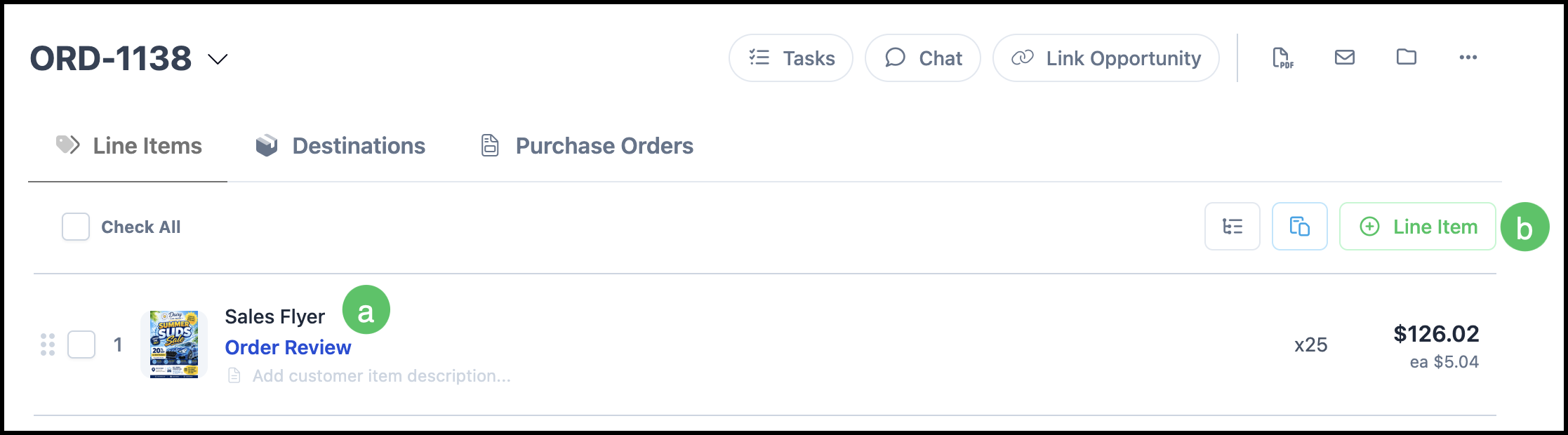
Products
a. Products are the Line Items in the Order.
b. Additional Products can be added by clicking the Add Line Item button and selecting Product.
Note: For more information, please see Creating an Order.
Modifiers
Modifiers are managed within the Product Line Item. Since Modifiers represent options or production details connected to a Product, they remain grouped with that Product on the Order.
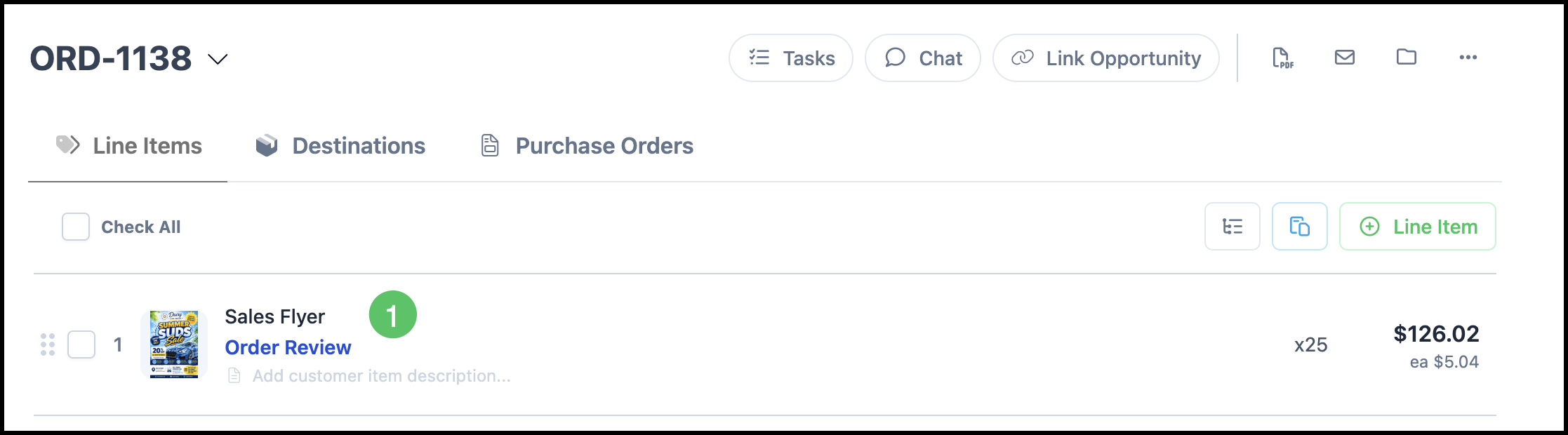
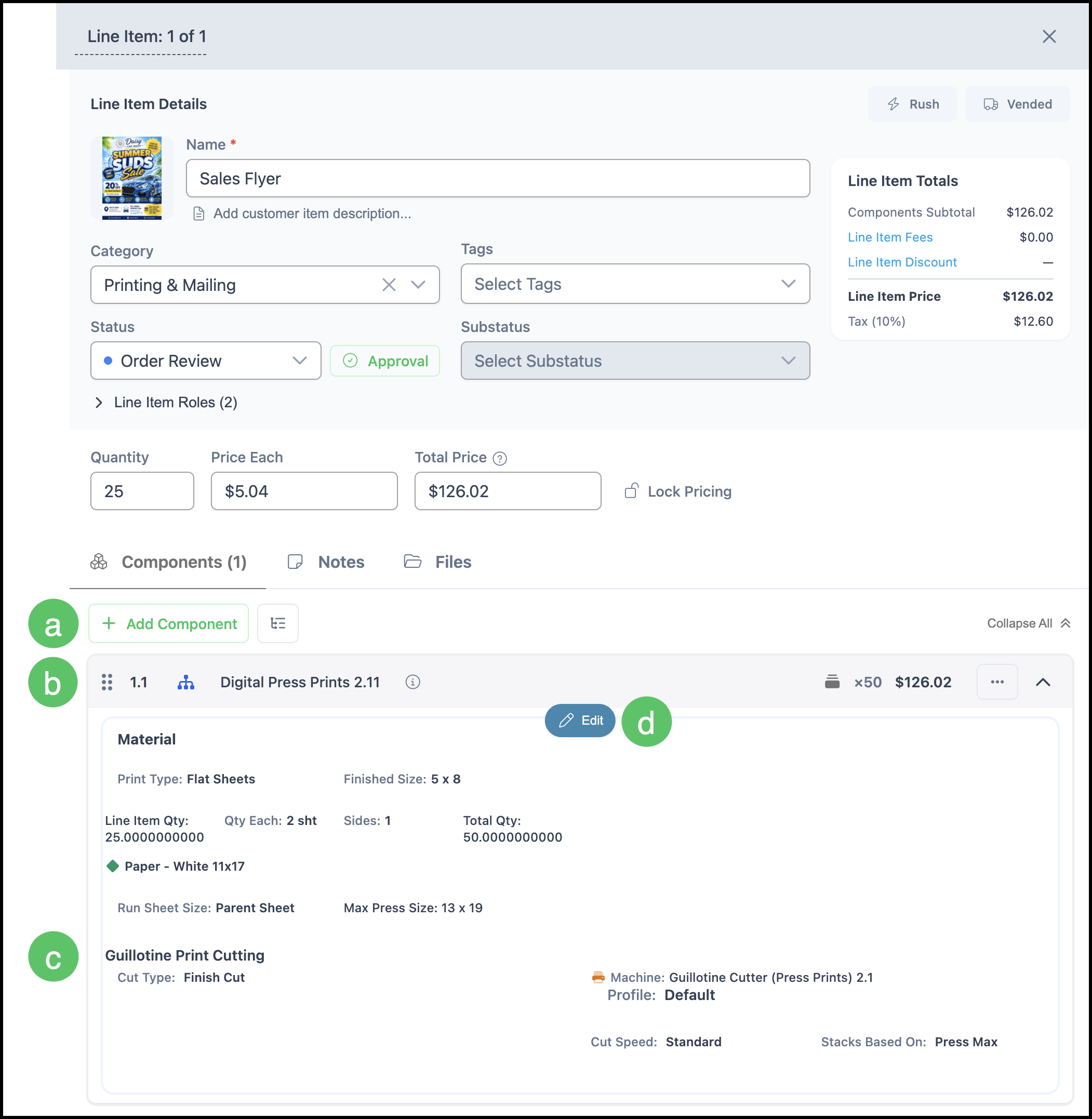
1. Click the Line Item to open the side panel.
a. Add Component - Opens the dialog to add another Product to the current Line Item.
b. Product information is displayed on the Line Item.
c. Modifiers associated with the Product are displayed below.
d. Edit - Opens the Product editor, where you can update the Product and manage its associated Modifiers.
Note: The Edit icon appears when you hover over the Product.
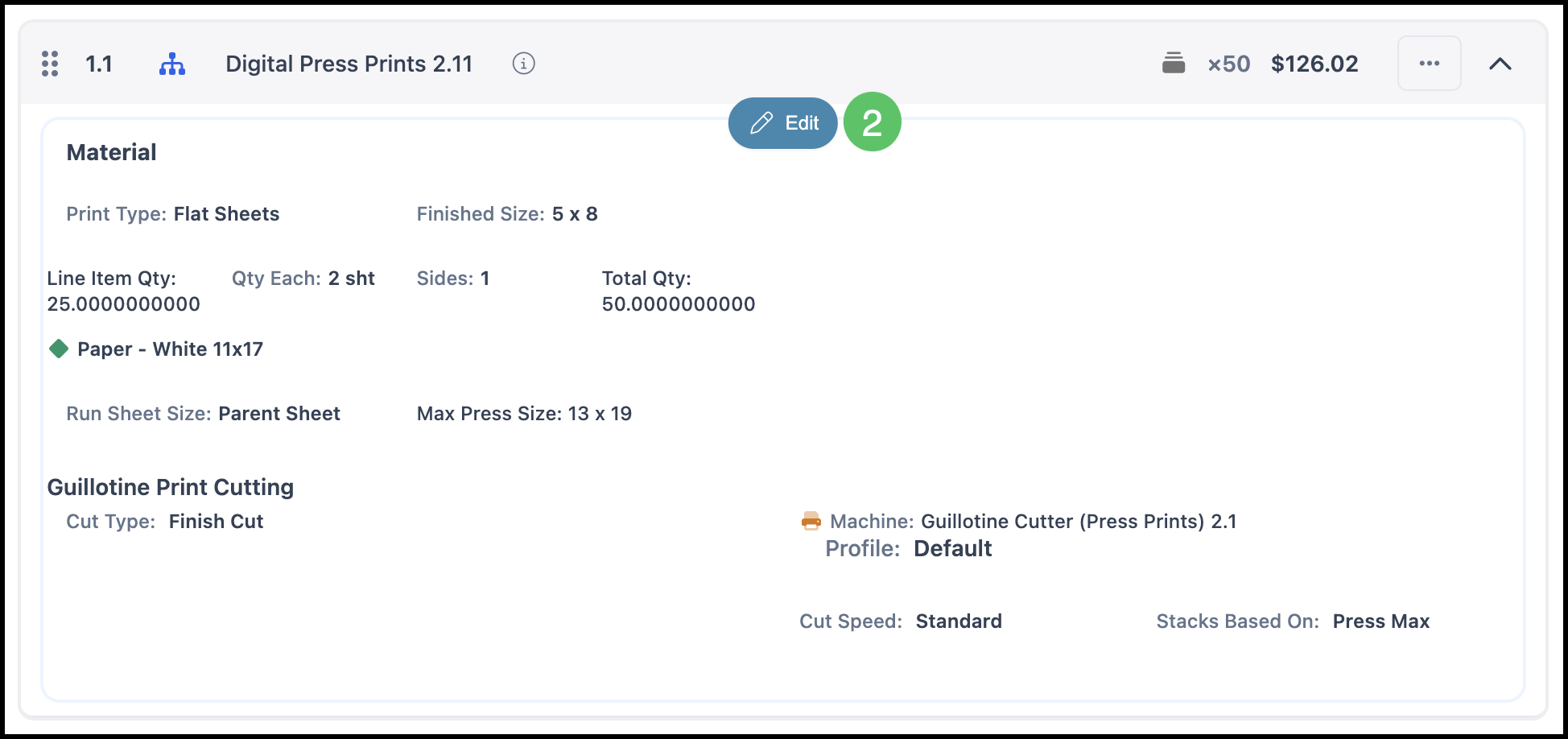
2. Click Edit to manage Modifiers.
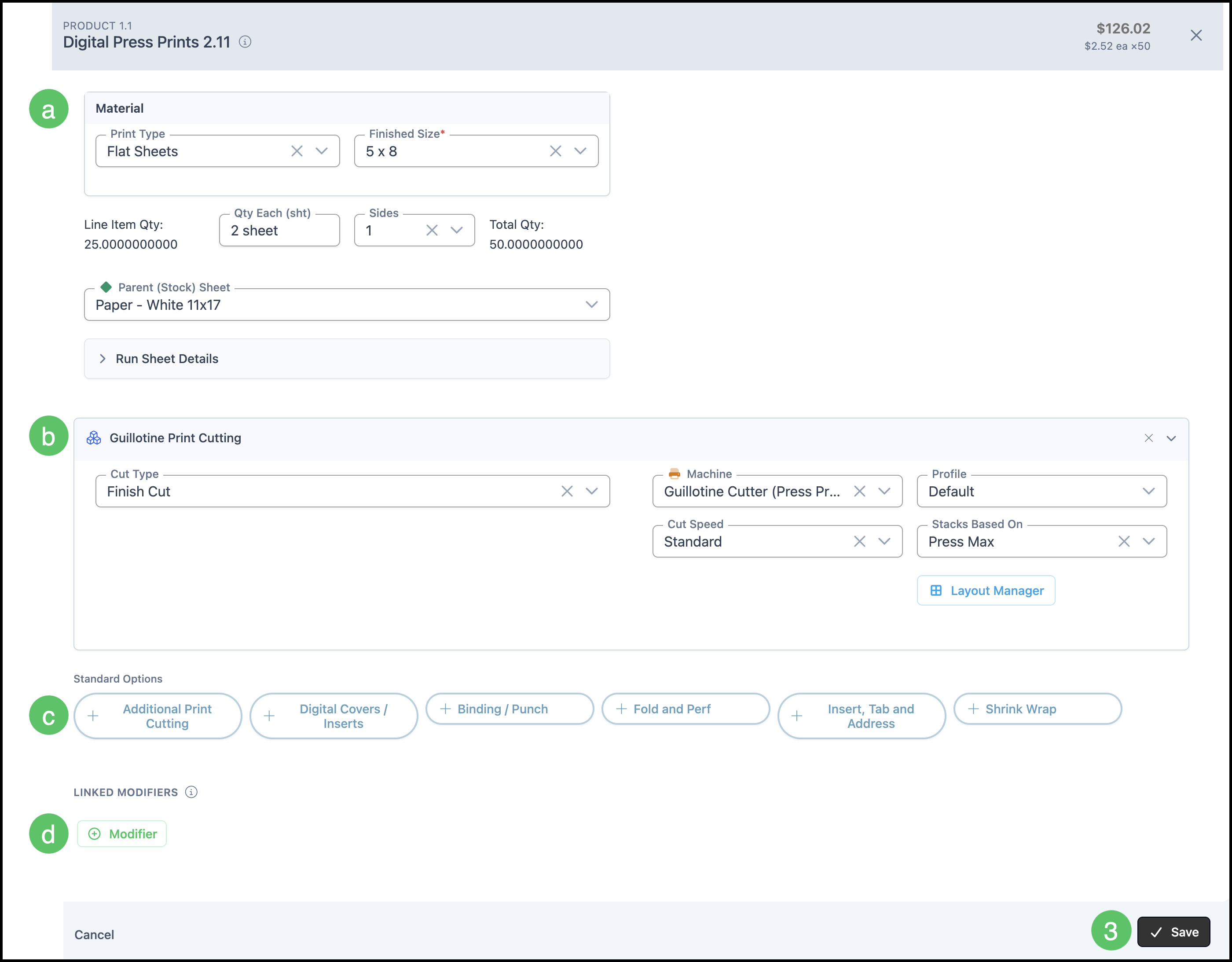
a. Product information is listed at the top.
b. Existing Modifiers are listed here.
c. Standard Options displays the default Modifiers available for the Product. Selecting a Modifier adds it to the current Line Item.
d. Add Modifier opens a dialog to add additional Modifiers beyond the standard options.
3. Click Save.
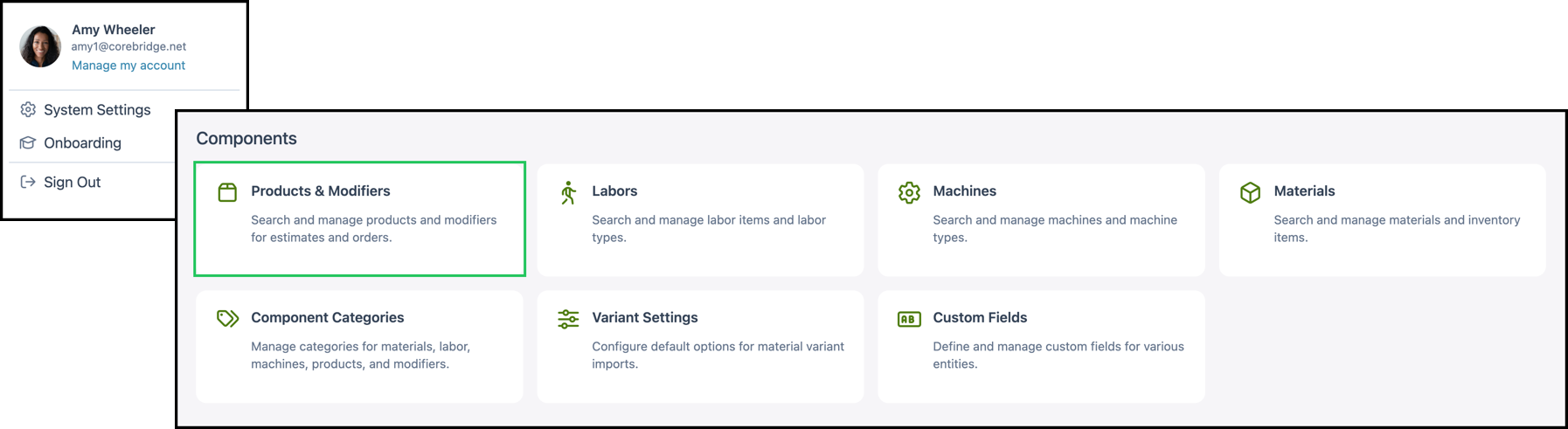
Products and Modifiers in Settings
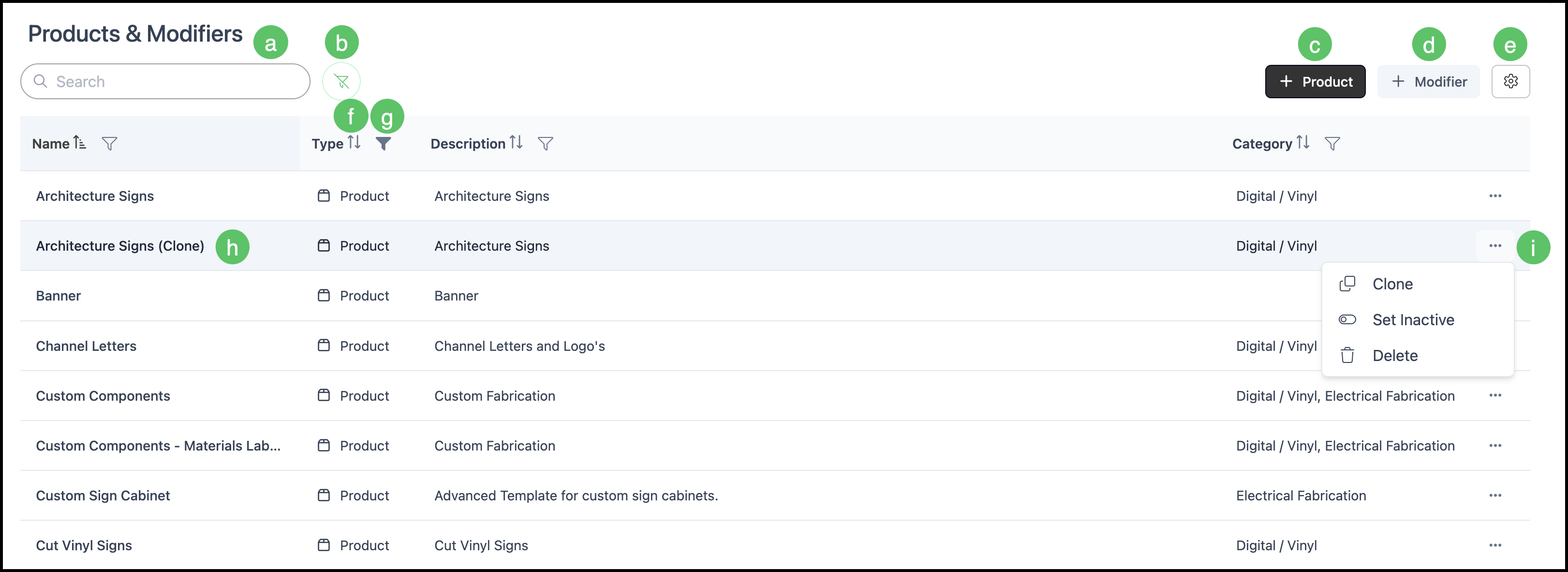
Products and Modifiers are managed together at Settings / Components / Products & Modifiers. The list includes a filter to display Products only, Modifiers only, or both. Focusing on Products is the recommended default view, as these are the items you will use to build Estimates and Orders.
Navigate to Settings / Components / Products & Modifiers.
a. The Search box allows you to find a specific Product or Modifier.
b. The Clear Filter icon removes any filters currently in place.
c. The Add Product button allows you to add a new Product.
d. The Add Modifier button allows you to add a new Modifier.
Note: The recommended practice for adding Products or Modifiers is to clone an existing one that is close to what you need and make the necessary changes.
e. The Search Settings icon allows you to choose which columns are displayed and whether inactive records are included in the display.
f. Each column header has an Order icon that allows you to sort ascending or descending.
g. Each column header has a Filter icon allowing you to customize the display by setting rules.
Note: Recommended practice is to filter by Product. For more information, see below.
Note: Columns can be reordered and resized as needed.
h. Clicking a Labor row opens the Labor Details page allowing you to view and edit this Labor.
i. Each row includes an ellipsis that opens a menu with Clone, Set Inactive and Delete options.
Note: The Delete option is unavailable for Products or Modifiers that are currently in use.
Filtering by Product
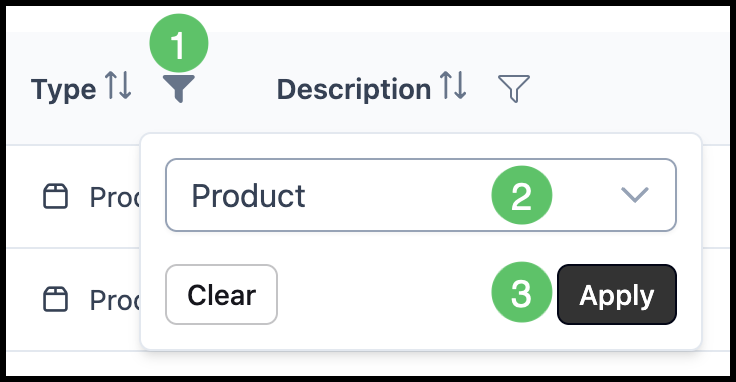
1. Click the Filter icon.
2. Select Product from the dropdown.
3. Click Apply.