
On the Orders list, you can narrow results to one or more workflow statuses by using the Status column filter. If the Status column is not visible, add it with Search Settings first.
Table of Contents
- Showing the Status Column
- Filtering by Status
- Clearing Filters
- Frequently Asked Questions
- Related Articles
Showing the Status Column
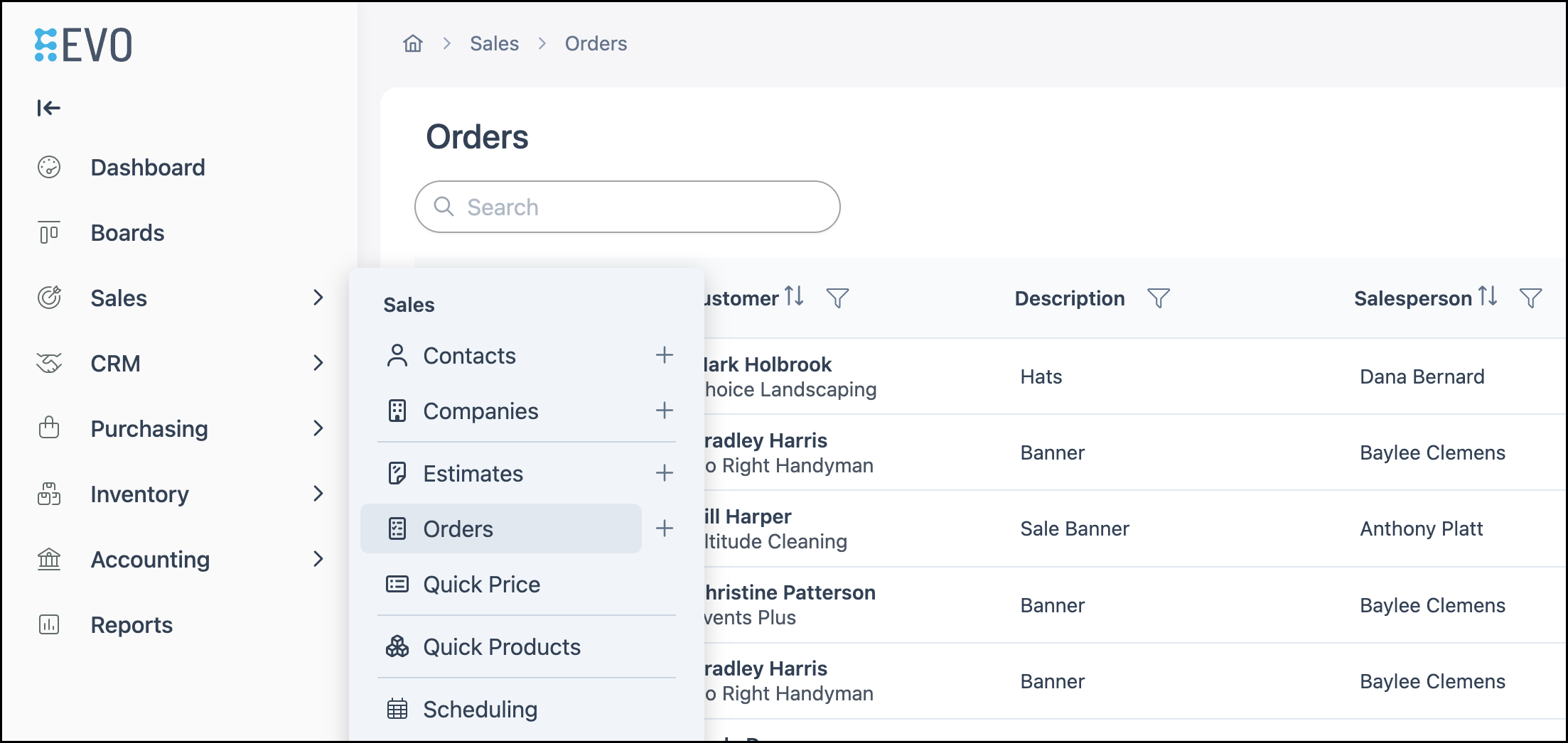
Navigate to Sales / Orders.
1. Click Search Settings.
2. Select Status.
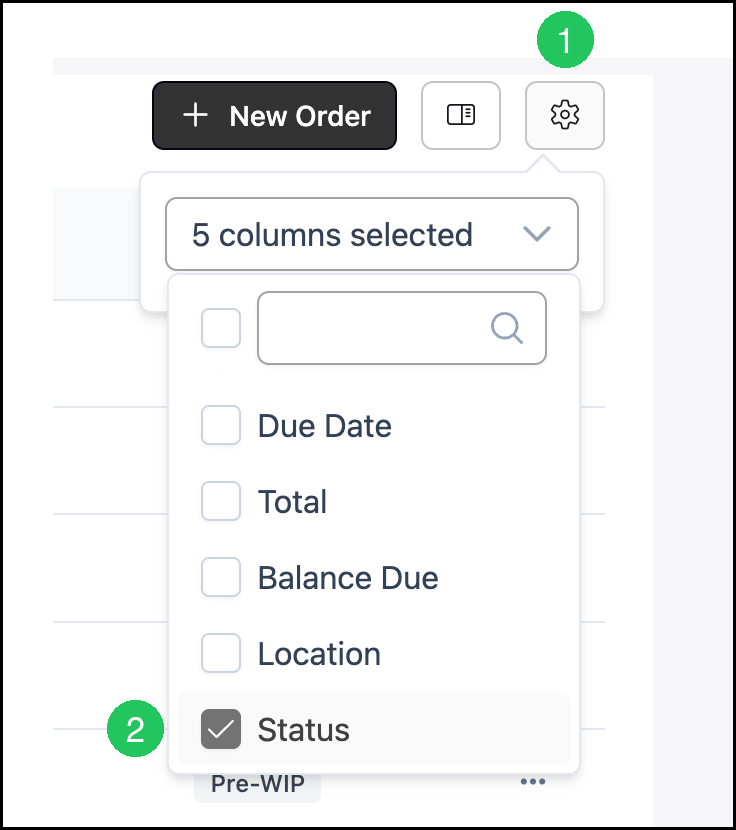
Note: The Status column appears on the Orders list after it is selected. Available statuses follow your shop’s workflow configuration.
Filtering by Status
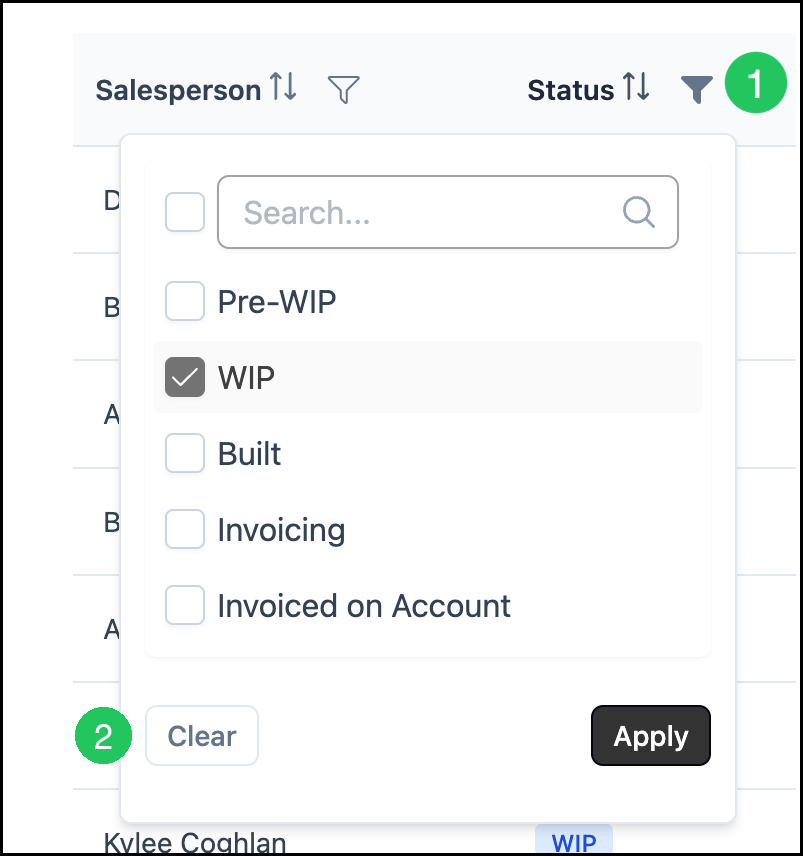
1. On the Status column header, click the filter icon.
2. Select one or more statuses (for example, WIP).
3. Click Apply.
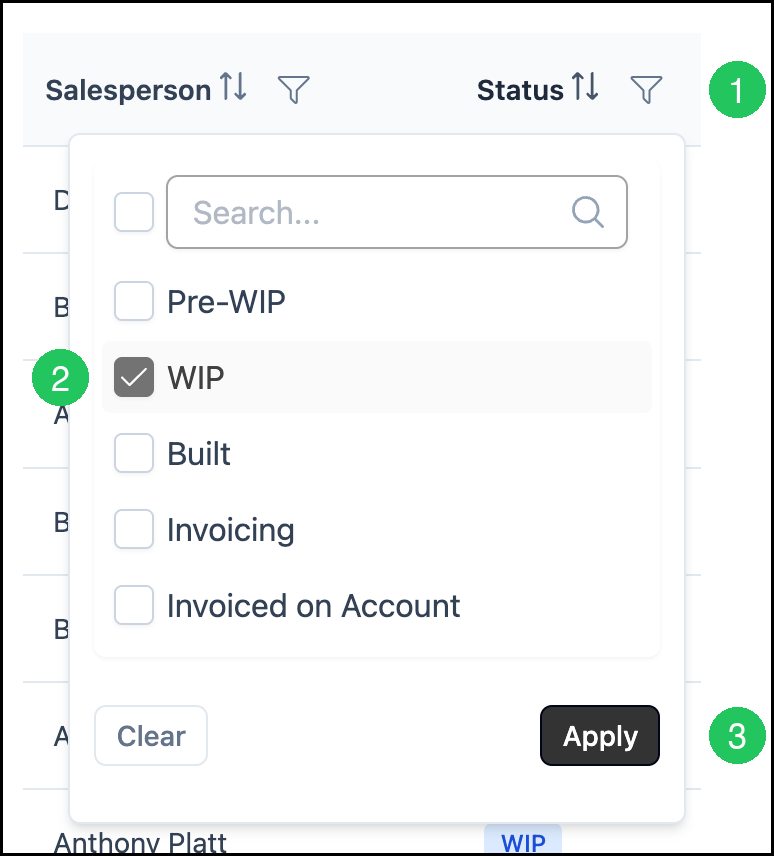
The Orders list updates to show only Orders that match the selected status(es).
a. The clear-filters control in the Orders toolbar removes applied filters when filters are active.
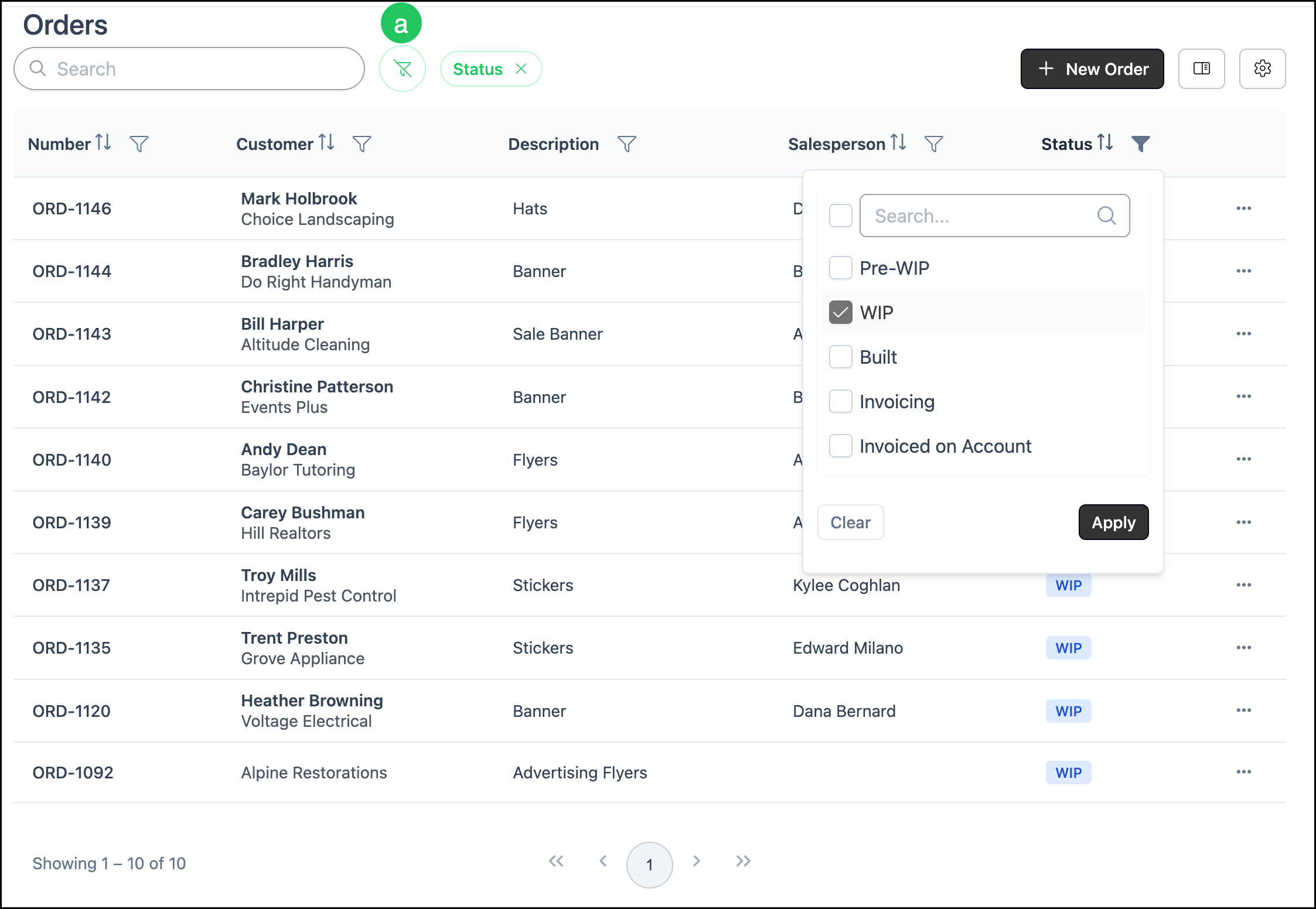
Note: Other Orders columns also include a filter icon. You can combine filters—for example, filter by Status and Customer together.
Clearing Filters
1. On the Status column header, click the filter icon.
2. Click Clear.
Note: You can also clear filters with the clear-filters control described above.
Frequently Asked Questions
1. Why don’t I see a Status column on the Orders list?
Answer: The Status column is optional. Click Search Settings and select Status to show it.
2. Can I filter by more than one status at a time?
Answer: Yes. Select multiple statuses in the Status filter menu, then click Apply.
3. Can I combine a Status filter with other column filters?
Answer: Yes. Each column that supports filtering has its own filter icon. Apply filters on more than one column to narrow the list further.