
Creating CompaniesUpload List allows you to import Companies or Contacts from a CSV file into Lead Management. You can upload Leads from either the Companies or Contacts tab. Successfully imported Leads appear in New Leads.
Table of Contents
Important Information
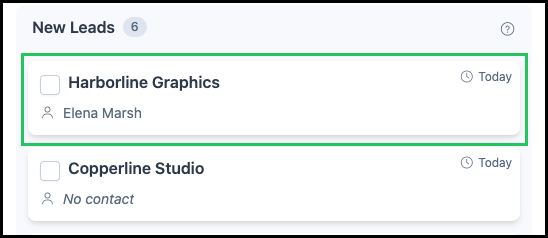
- Upload list reads a CSV file and creates a lead for each accepted row. The new leads appear in New Leads.
- The required columns depend on the tab. Companies requires Company Name. Contacts requires First and Last.
- On Companies, Lead Source, Salesperson, First, and Last can be included with Company Name.
- On Contacts, Company Name, Lead Source, and Salesperson can be included with First and Last.
- Leave Email and Phone out of the file. Add an email address or phone number on the Company or Contact after the lead appears in New Leads.
- Lead Source should match a source already used in CoreBridge, such as Direct Mail, Networking, or Existing Customer.
- Salesperson should be the name of an employee already in CoreBridge.
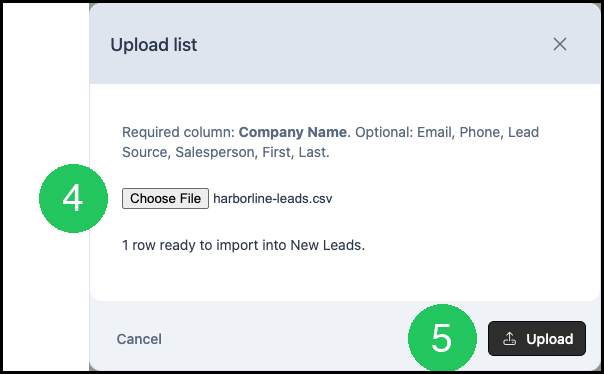
- After Choose File, the dialog shows how many rows are ready to import into New Leads. Upload stays unavailable when the dialog says No valid rows found.
- List Uploaded reports how many leads were imported. Upload Failed reports how many rows were not imported.
Upload Leads
Navigate to CRM / Lead Management.
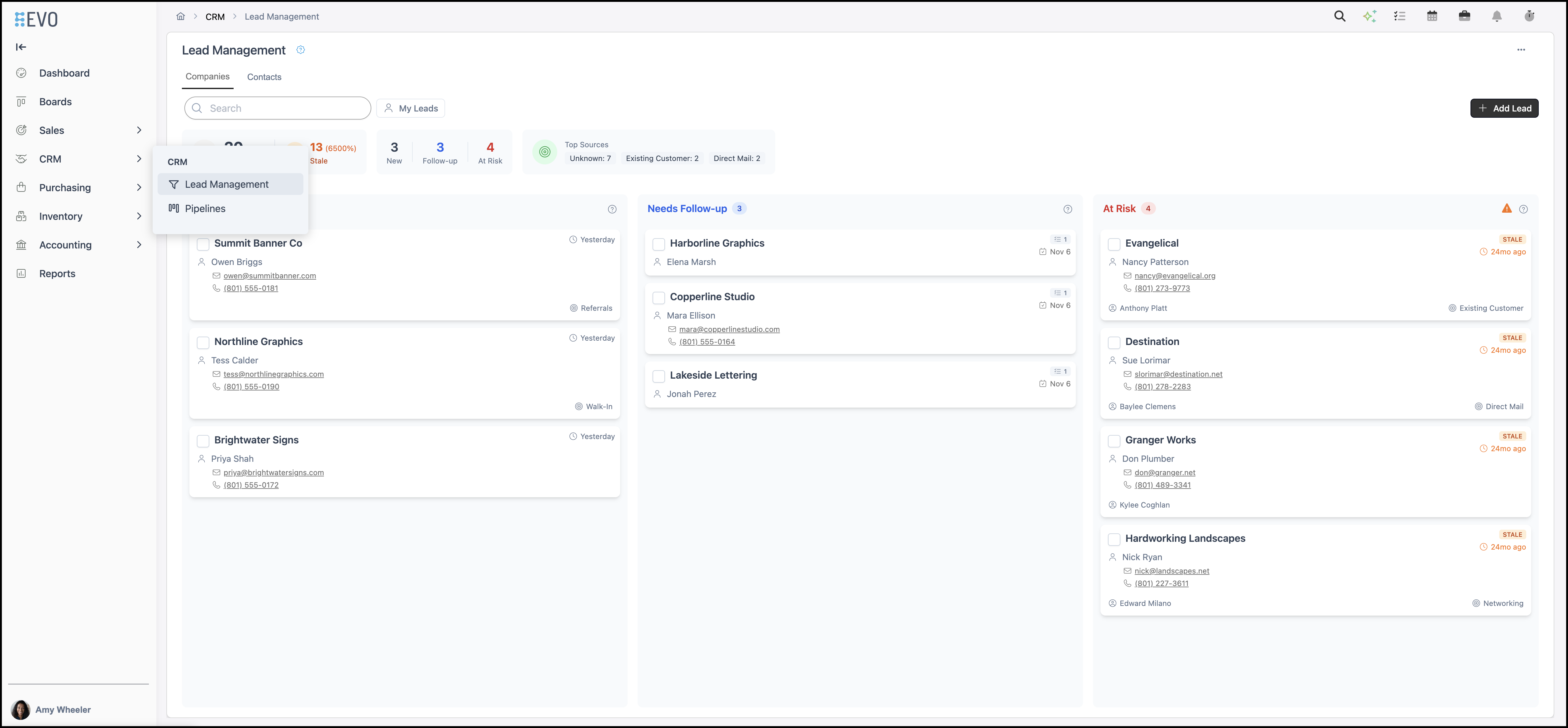
1. Select Companies or Contacts.
Note: The process is the same for either selection. This article will use Companies as the example.
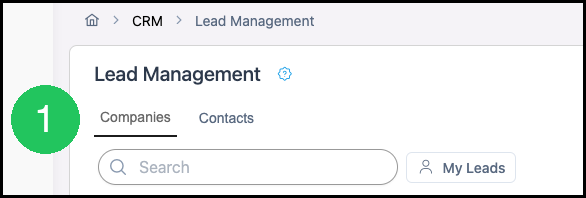
2. Click Lead Management actions.
3. Select Upload list. The Upload list dialog opens.

4. Click Choose File and select the CSV file. The dialog shows how many rows are ready to import into New Leads.
- Company Name is required.
- Lead Source, Salesperson, First, and Last can be included. Use the column names shown on the dialog.
- Leave Email and Phone out of the file.
- Lead Source should match a source already used in CoreBridge.
- Salesperson should be an employee already in CoreBridge.
5. Click Upload.
The List Uploaded message reports how many leads were imported. The new companies appear in New Leads.
Note: When a row is not imported, the message is Upload Failed and reports how many rows failed.
Frequently Asked Questions
1. Where do uploaded leads appear?
Answer: Accepted rows appear in New Leads on Lead Management.
2. What is the difference between the Companies tab and the Contacts tab?
Answer: Companies requires Company Name. Contacts requires First and Last.
3. Why does a row fail to import?
Answer: The dialog says No valid rows found when a required column is missing or the column names do not match the dialog. Upload Failed means a row was not imported. Leave Email and Phone out of the file, and use a Lead Source and Salesperson that already exist in CoreBridge.