
Use Make Payments to apply one payment across several of a company's open orders and invoices. This article shows how to record a multi-order payment and how that payment appears in Search Payments.
Table of Contents
- Important Information
- Recording a Multi-Order Payment
- After the Payment Posts
- Frequently Asked Questions
- Related Articles
Important Information
- Location is required. The location on the payment is the location that receives it.
- Select two or more Orders or Invoices. Pay stays unavailable until at least one Invoice is selected.
- Each selected row's Payment Amount fills from Balance Due. You can change a row's Payment Amount before you click Pay.
- Total Payment Amount cannot be less than Selected invoices total.
- Which payment methods appear depends on what your administrator has enabled under Settings / Accounting / Payment Methods.
Recording a Multi-Order Payment
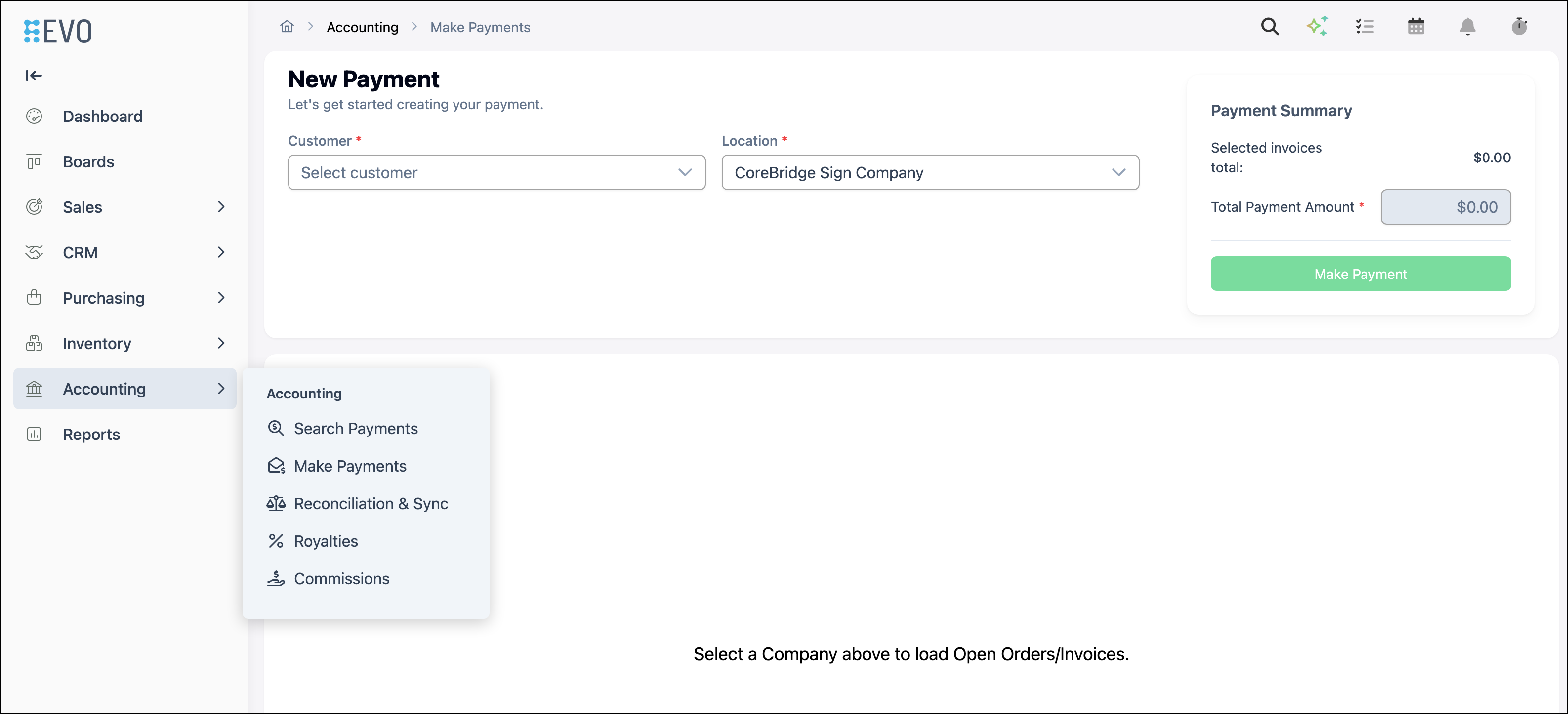
Navigate to Accounting / Make Payments.
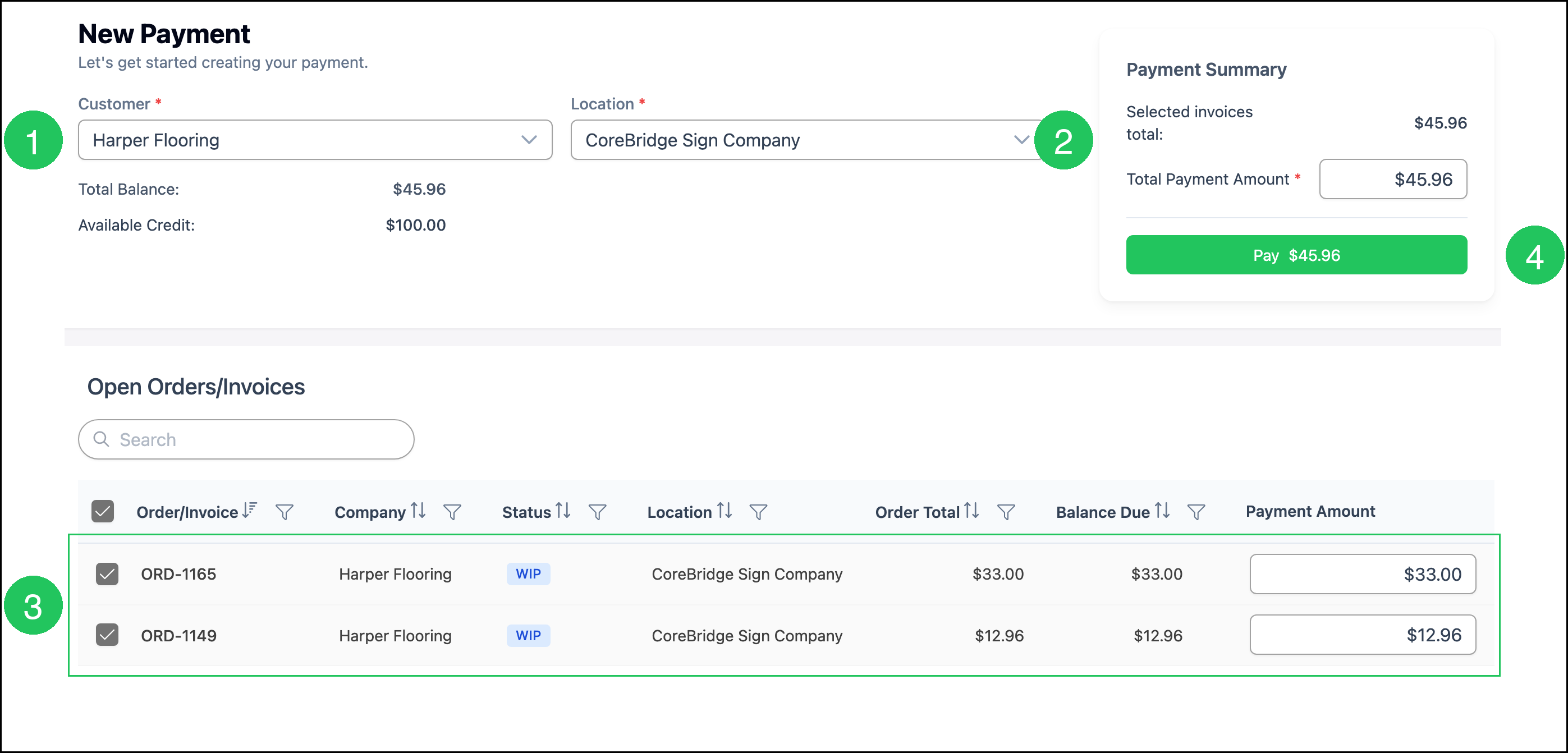
1. Select the Customer.
2. Select the Location.
Note: After you select a Customer, Total Balance, Available Credit, and Open Orders/Invoices appear.
3. Select two or more Orders or Invoices.
Note: Payment Amount on each selected row fills from Balance Due and can be changed. Selected invoices total and Pay update as you make selections.
4. Click Pay.
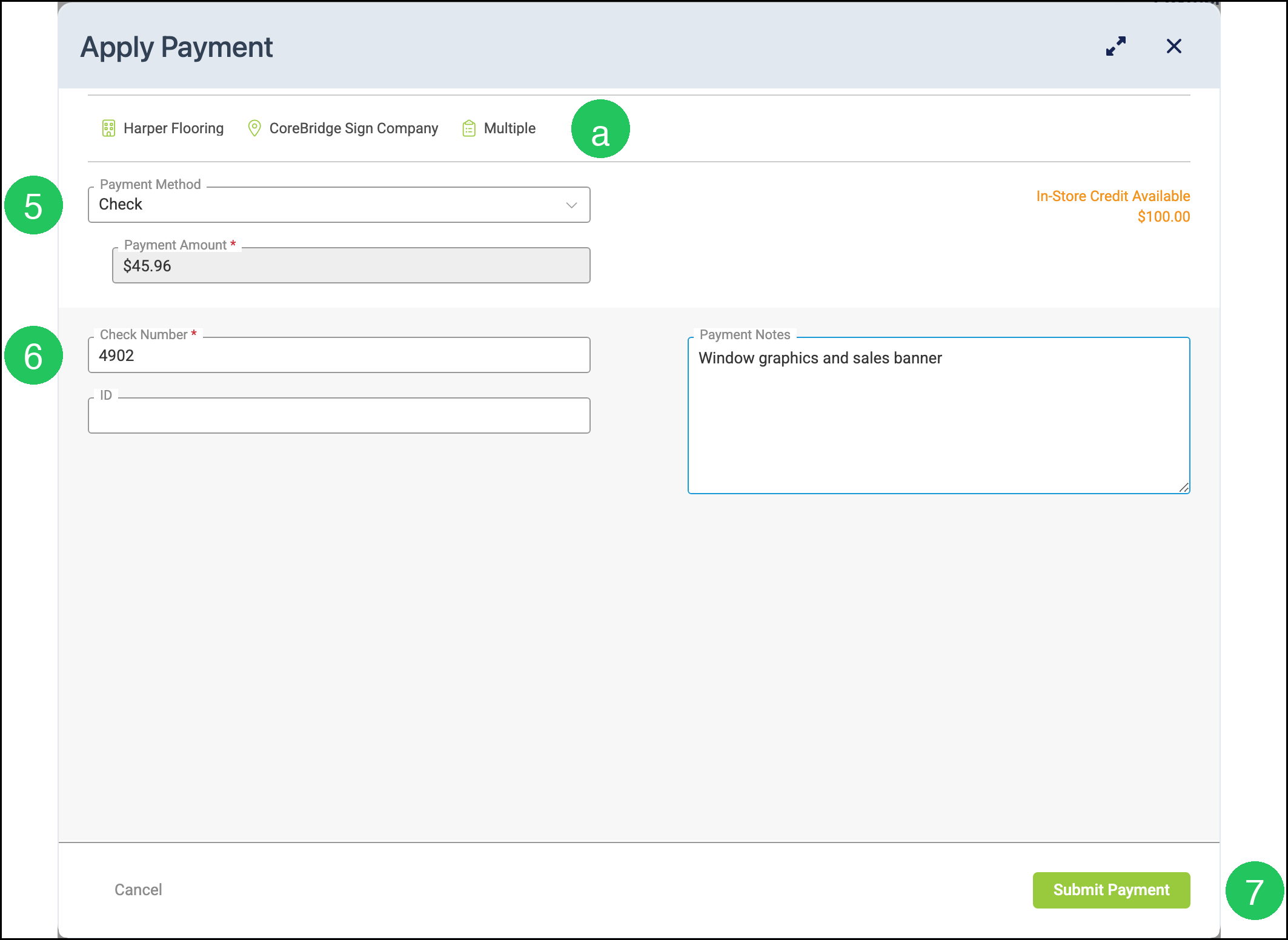
5. Select a Payment Method.
6. Complete the required fields for that method (for example, Check Number for Check).
a. Multiple - Indicates the payment applies to more than one Order or Invoice.
Note: Which methods appear depends on what your administrator has enabled under Settings / Accounting / Payment Methods. For more information, please see Taking Payments.
7. Click Submit Payment.
Note: After a successful submit, the dialog shows Payment Captured with the amount and method. Click Close.
After the Payment Posts
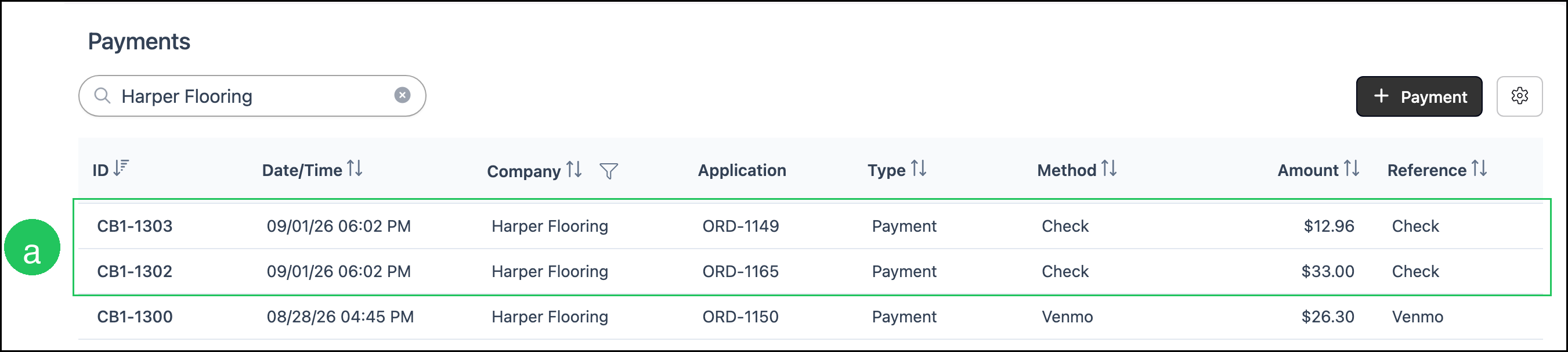
On Accounting / Search Payments, each Order included in the payment appears as its own row. The rows share the same date and time, method, and Company.
a. Each row's Application names the Order that share of the payment was applied to.
Frequently Asked Questions
1. How is a multi-order payment different from Pay on an order?
Answer: Pay on an order records a payment for that one job. Make Payments lets you apply one payment across several of a Company's open Orders and Invoices. For more information, please see Taking Payments.
2. Why is Pay unavailable?
Answer: Select at least one Order or Invoice. The grid loads with rows unchecked. Customer and Location must also be selected.
3. Can I apply a different amount to each order?
Answer: Yes. After you select an Order, Payment Amount fills from Balance Due and can be changed before you click Pay.
4. Why does Search Payments show more than one row for one payment?
Answer: Each Order included in the payment appears as its own row. The rows share the same date and time, method, and company. Application names the Order for that share of the payment.
5. What does Multiple mean in Apply Payment?
Answer: Multiple means the payment includes more than one Order or Invoice.
6. Can I pay more than the selected invoices total?
Answer: Yes. The extra amount can post as refundable In-Store Credit. For more information, please see Converting Overpayment to In-Store Credit.