
Cora AI is the AI assistant built into CoreBridge. Available from Ask Cora AI in the header, Cora can answer questions about your business data, provide information from CoreBridge documentation, and assist with supported tasks such as creating Orders and Tasks.
Cora can also use the record currently displayed on your screen as context, including Orders, Estimates, Companies, and Contacts. Additional Cora AI tools are available in System Settings / Products & Modifiers and the custom report editor with Pro.
Table of Contents
- Before You Begin
- Important Information
- Opening Cora AI
- Cora AI Window
- Asking Cora a Question
- What Cora Can Help With
- Best Practices
- Frequently Asked Questions
- Related Articles
Before You Begin
- Cora AI must be licensed for your organization. If you do not see Ask Cora AI in the header, contact Support.
- Your employee role must include access to Cora AI. For roles and employee access, see Employee Roles and Permissions in Settings and Managing Employees.
Important Information
- Cora follows the permissions you already have. Access to Cora does not grant access to records or settings you cannot already use.
- Cora adapts to the screen you are on and the Cora window remains open even when navigating to other screens. Suggestions under TRY ASKING change based on where you are.
- Cora AI for Products is available when you open Cora from System Settings / Products & Modifiers. Cora AI Report Builder is available from the custom report editor. Both require Pro.
- Voice mode and Toggle web search are separate options. Availability depends on your role permissions and, for web search, whether your browser allows location access for CoreBridge EVO.
Opening Cora AI
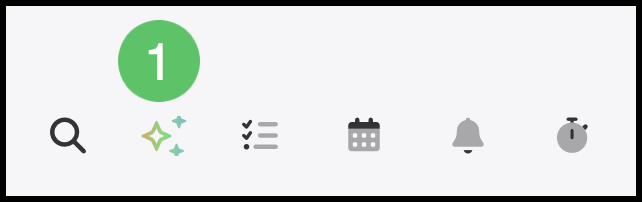
1. Click Ask Cora AI in the header.
The Cora AI window opens.
Cora AI Window
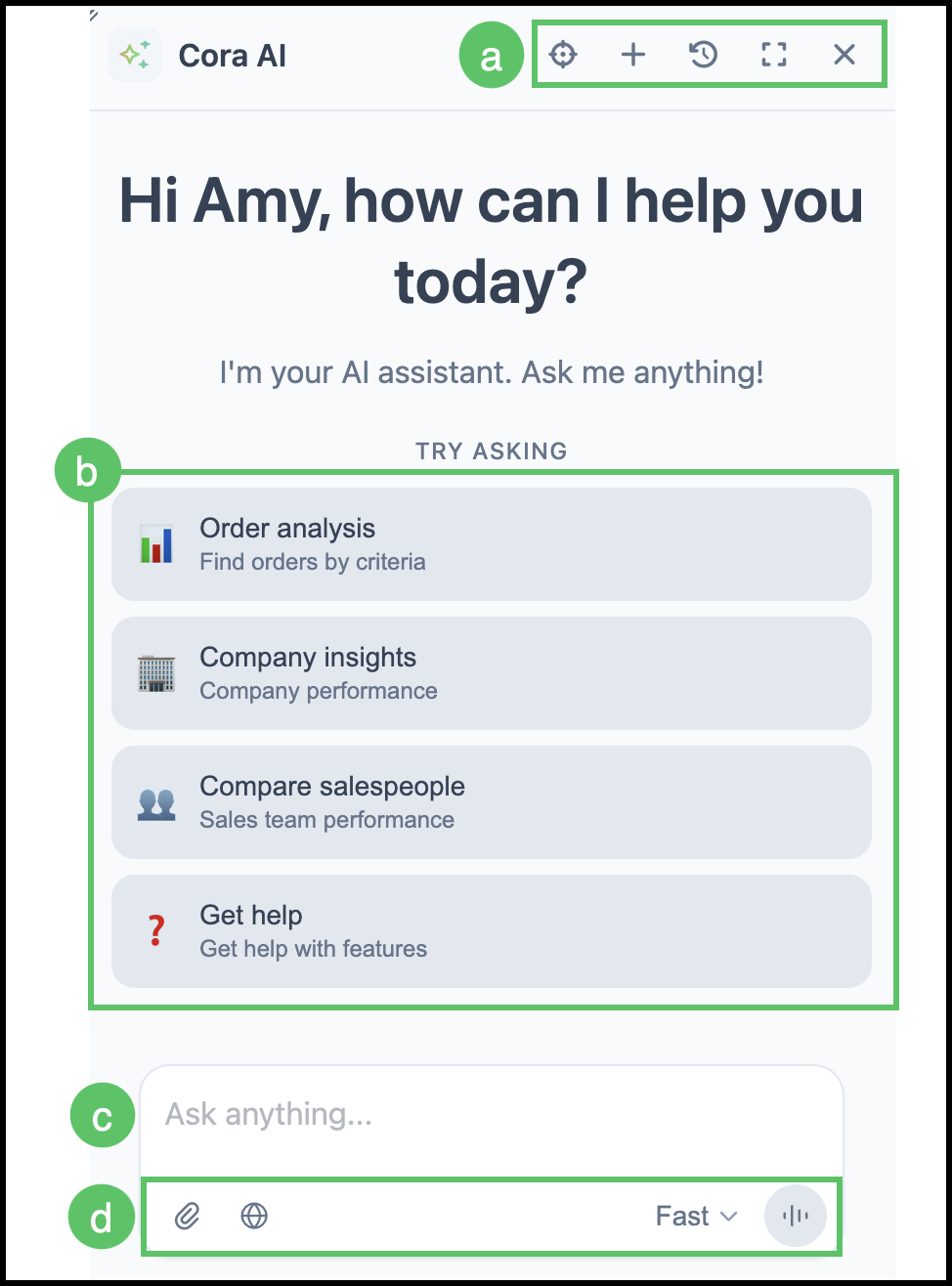
When you click Cora, the Cora AI Window opens, providing several ways to ask questions and interact with Cora. The window can also be moved anywhere on the screen, allowing you to position it where it is most convenient while you work.
a. Window header controls - Includes Reset Window, New chat, Conversations, Fullscreen, and Close.
Note: Reset Window is only present when you have moved the Cora dialog.
b. TRY ASKING - Suggested questions based on the screen you are on.
c. Ask anything... - The field where you type a question or request.
d. Toolbar - Includes Attach files, Toggle web search, Model, and Voice mode.
Note: On a narrower window, New chat, Conversations, Fullscreen, and Reset window are available from the header menu.
Note: Model selects Fast or Pro. Fast is for routine lookups and summaries. Pro is for more complex requests and is required for Cora AI for Products and Cora AI Report Builder.
Note: Voice mode requires Voice Mode permission. Toggle web search requires Web Search permission, and your browser must allow location access for CoreBridge EVO.
Asking Cora a Question
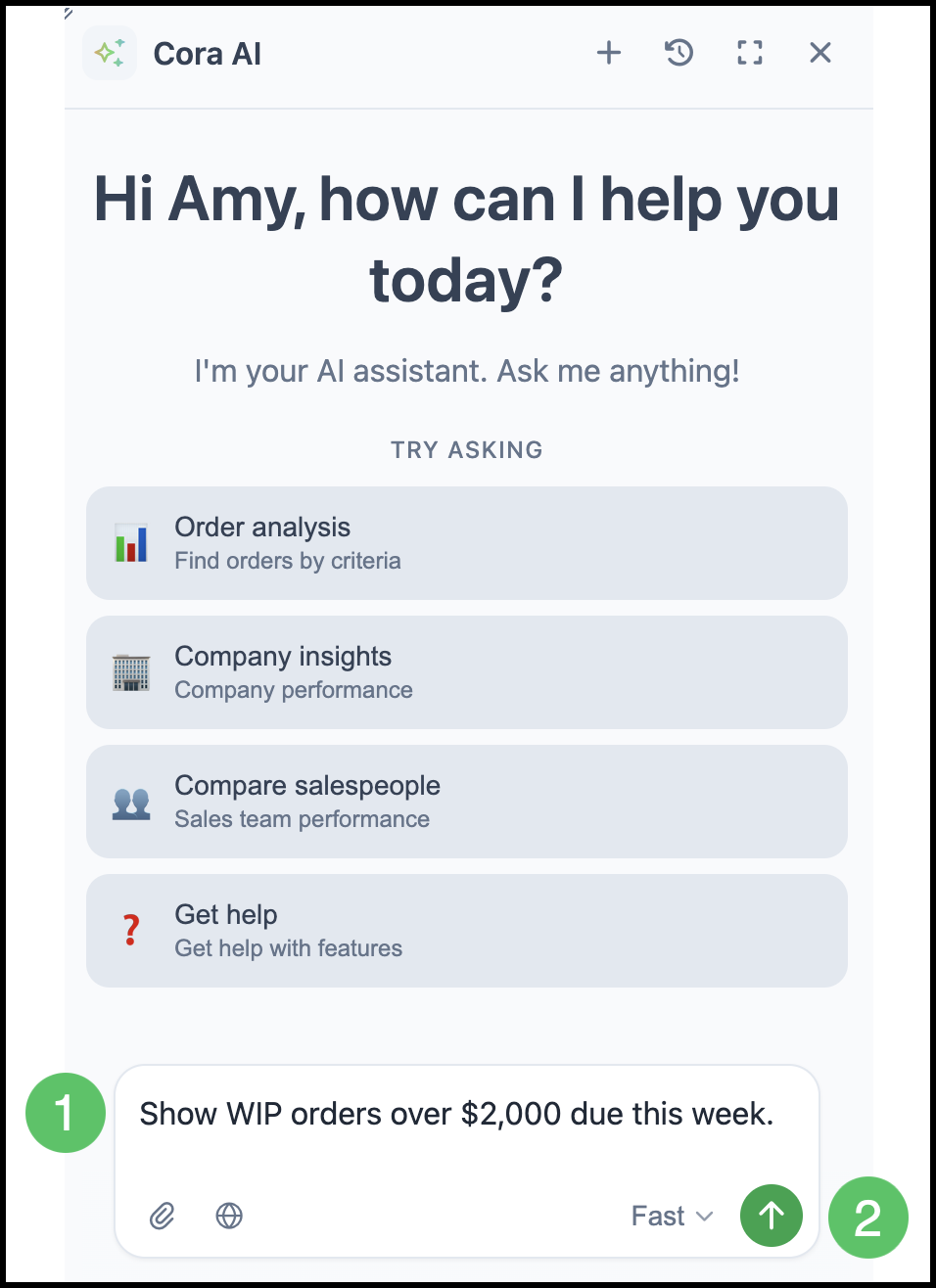
1. Type your question in Ask anything....
2. Click Send message.
Note: You can also press Enter to send, or click a TRY ASKING suggestion.
Example: Show WIP orders over $2,000 due this week.
What Cora Can Help With
Ask in the same language you would use with a coworker. Cora asks follow-up questions when it needs a company, date range, or confirmation before creating or changing a record.
- Look up an order, estimate, or invoice by number, or search using dates, amounts, status, customer, salesperson, or location.
- Summarize totals, averages, rankings, and breakdowns, such as revenue by salesperson or orders by status.
- Ask for a breakdown, such as orders by status or revenue by salesperson. Cora can show the result as a chart. Use Copy image or Download image on that chart.
- Search companies and contacts, or create and update a company when you confirm the details.
- Create an order or estimate and add products by answering Cora's follow-up questions.
- Create or update CRM tasks, such as a follow-up call or meeting.
- Ask how-to questions. Cora answers from CoreBridge documentation without leaving the screen you are on.
- On a detail screen, ask about "this order," "this estimate," "this company," or "this contact." Cora uses the record you are viewing.
- When you ask where to find a record, Cora includes a link and leaves you on the screen you are using. Ask Cora to take you to that record when you want that screen to open.
- When Cora works through more than one step, Show what Cora did lists those steps.
Best Practices
- Include the goal, date range, amount, customer, or grouping when those details matter.
- Treat the chat as a conversation. Ask Cora to narrow results, change grouping, or explain one item.
- Click New chat when you want to start without earlier context.
- Use Fast for routine lookups. Use Pro for more complex requests, including product and report work.
- Review any record Cora creates or changes before you continue working from it.
Frequently Asked Questions
1. Why don't I see Ask Cora AI?
Answer: Cora AI must be licensed for your organization, and your role must include access to Cora. If the control is missing from the header, contact Support.
2. Does Cora give me access to records I could not see before?
Answer: No. Cora follows the same permissions you already have for orders, companies, accounting, settings, and other records.
3. What is the difference between Fast and Pro?
Answer: Fast is for routine lookups, summaries, and straightforward questions. Pro is for more complex requests. Pro is also required for Cora AI for Products and Cora AI Report Builder.
4. Can I talk to Cora instead of typing?
Answer: Yes, when your role includes Voice Mode permission. With an empty message field, click Voice mode and allow microphone access if your browser asks.
5. Why do the TRY ASKING suggestions change?
Answer: Cora adapts to the screen you are on. Suggestions on Dashboard differ from those on an order, company, or other screen.
6. Can Cora help me build products or custom reports?
Answer: Yes, when you open Cora from those screens and your role includes Pro Model. Open a product or modifier under System Settings / Products & Modifiers for Cora AI for Products. Open the custom report editor for Cora AI Report Builder.
Related Articles
Employee Roles and Permissions in Settings
Help and Learning Resources
Managing Employees
System Navigation Overview