Setting up employee Access and Permissions are important parts of getting your system up and running smoothly. Access and Permissions define what an Employee can see and do within the system, ensuring that access aligns with their job responsibilities. Together, these settings help streamline workflows and reduce errors.
Table of Contents
- Employee Page Overview
- Editing Employee Details
- Connectors
- Addresses
- Online Access
- Managing Employee Roles
- Managing Location Access
Navigate to Business Settings / My Business / Employees.
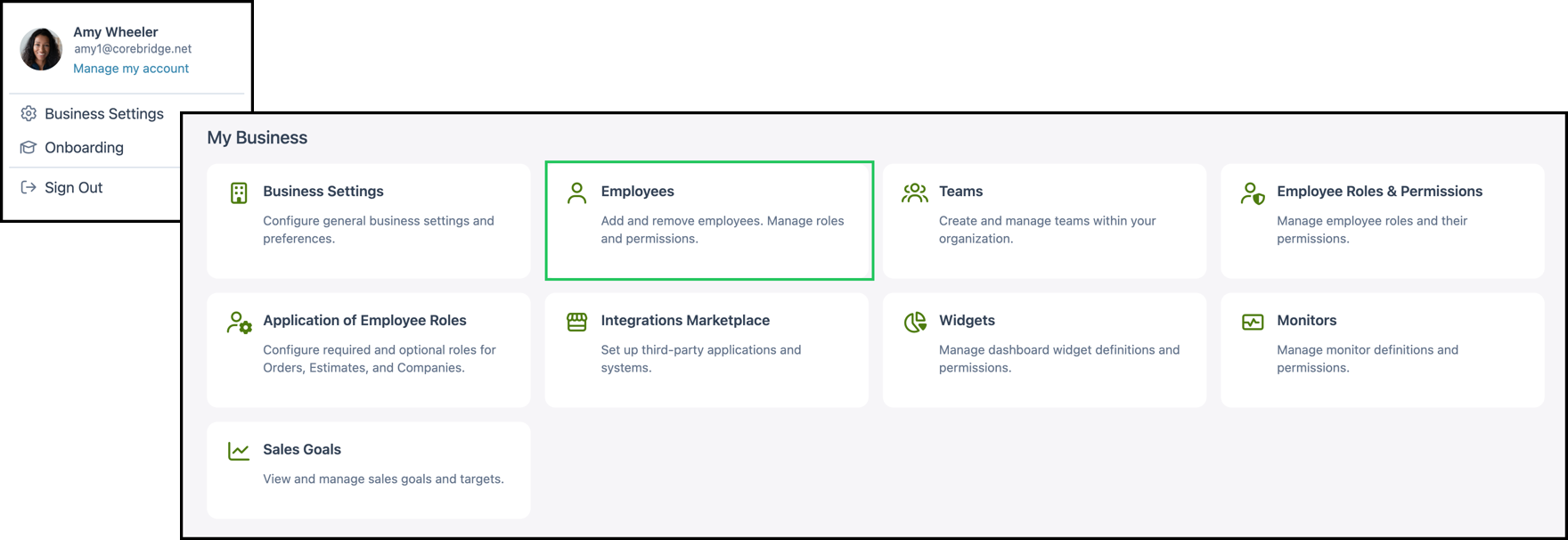
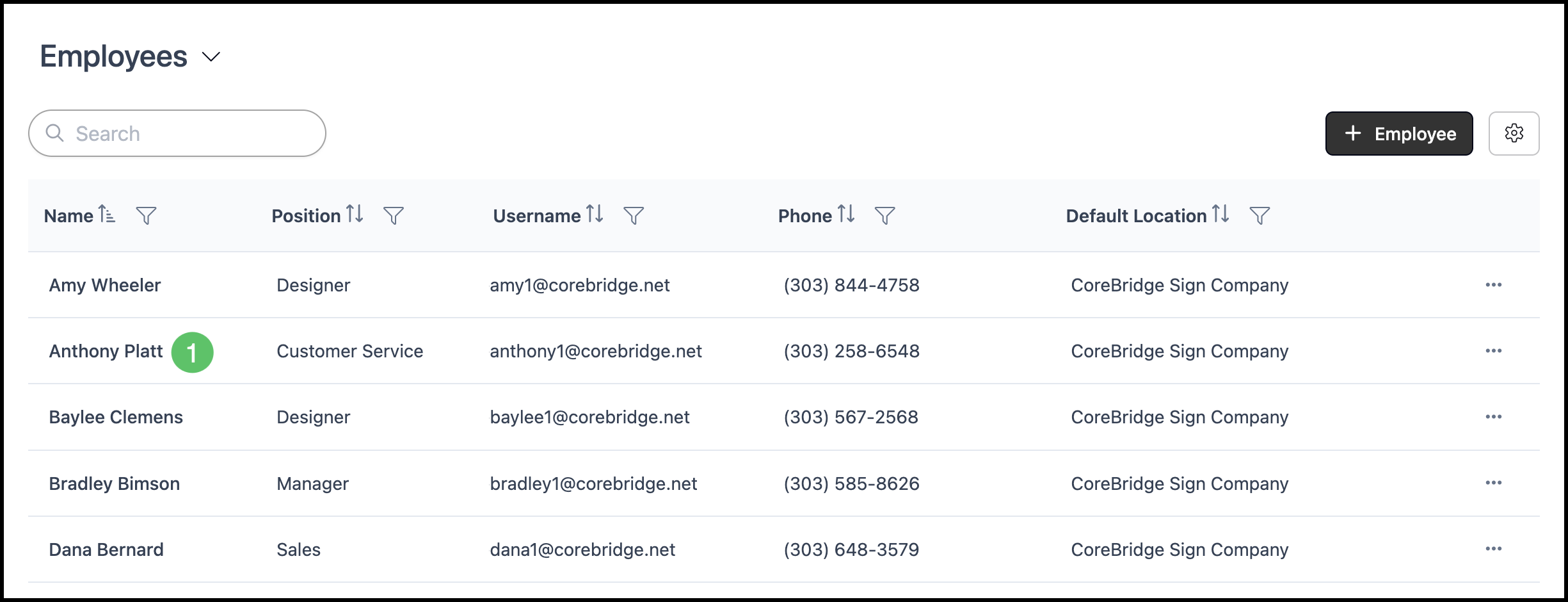
1. Select an Employee from the list to open their profile page.
Employee Page Overview
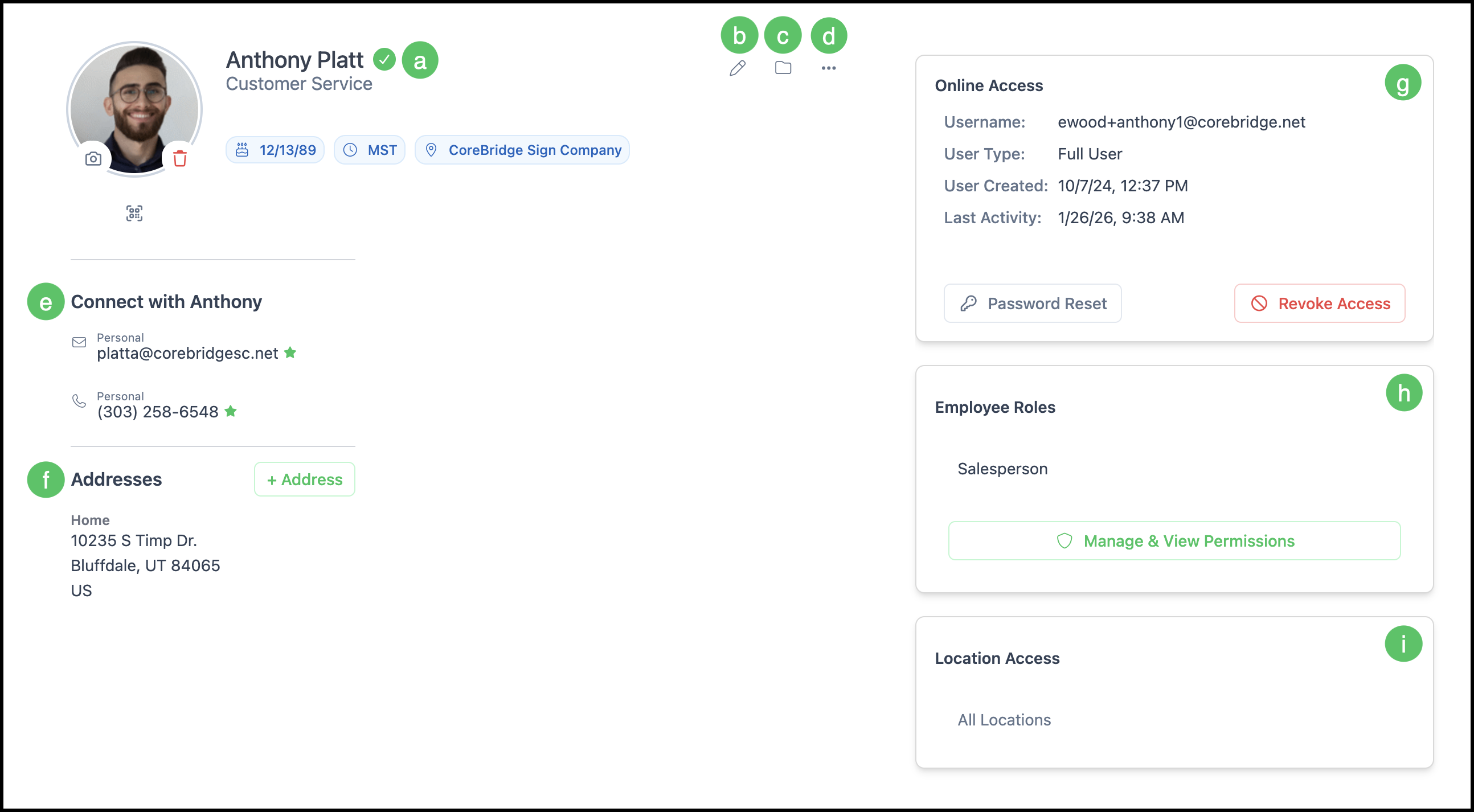
The Employee profile page is where you view and manage a single Employee’s information, contact details, addresses, system access, and roles. The page is organized into sections that appear as you scroll.
a. Employee overview with quick information including an image, name, and position.
Note: The information displayed depends on the information you have entered.
b. The Edit icon opens a dialog allowing you to update key information.
c. Upload and manage pertinent Employee Files here.
d. More actions including the options to Edit, Reassign Customers, Set Inactive, and Delete.
e. A Connectors section with contact information such as email and phone.
f. An Addresses section for physical or mailing addresses.
g. An Online Access section showing username, user type, and access-related actions.
Note: For Employees without access there will be a button allowing you to Enable Online Access.
h. An Employee Roles section listing the Roles assigned to the Employee. Clicking here allows you to edit these Roles.
i. A Location Access section listing which Location(s) this Employee has access to.
Editing Employee Details
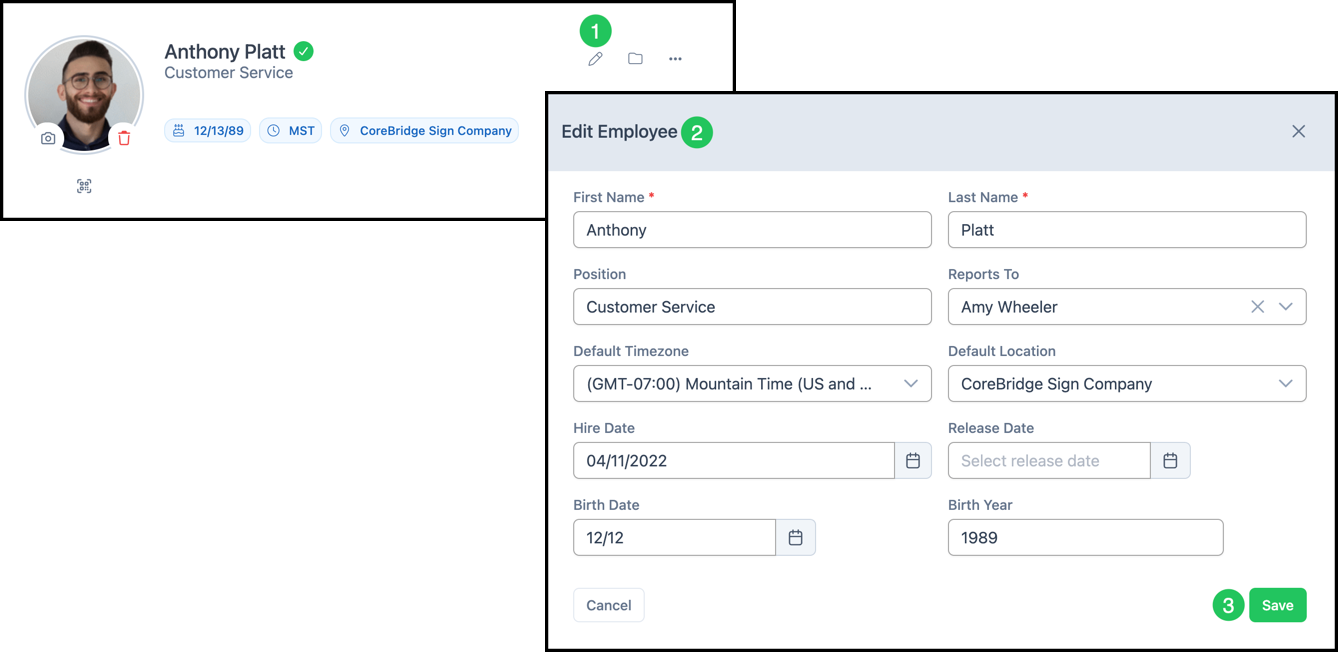
You can edit the Employee’s core details from their profile page. Required fields are marked with a red asterisk.
1. Click the Edit Icon.
2. Update information as needed.
3. Click Save.
Connectors
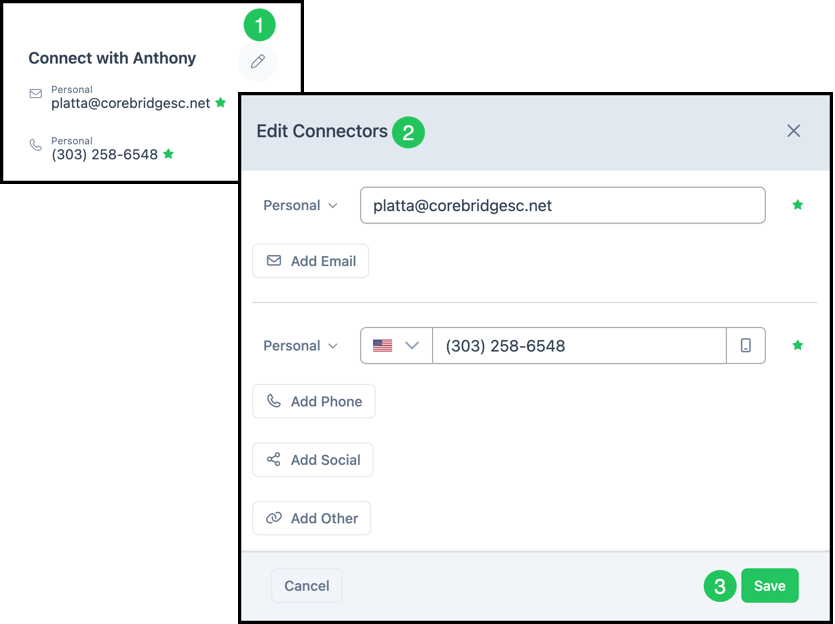
The Connectors section is where you manage the Employee’s contact information. Email, phone, and other connector types can be added or edited here.
1. Click Add Connector or the Edit icon.
Note: The Edit icon appears on hover.
2. Select the type of Connector and enter the information.
3. Click Save.
Addresses
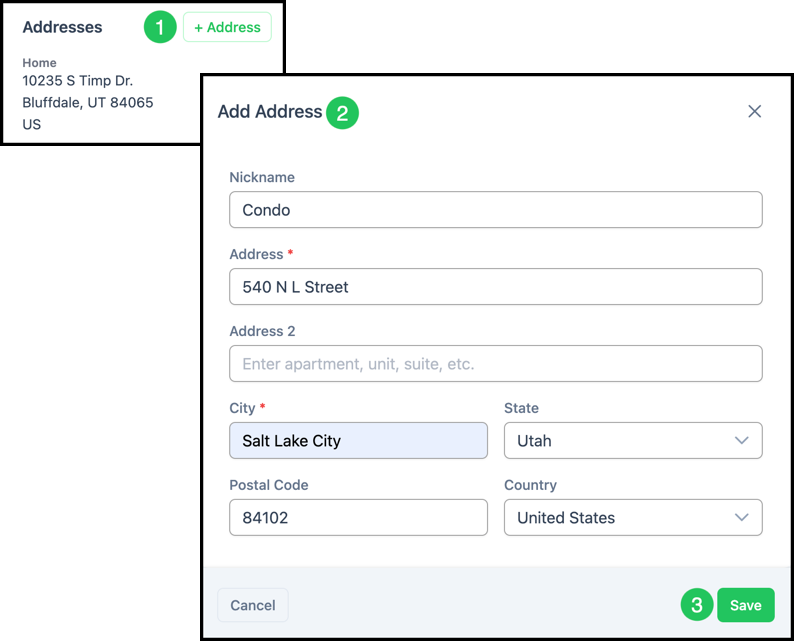
The Addresses section is where you manage the Employee's physical or mailing addresses. Use the options on each address to edit or remove it as needed.
1. Click Add Address.
2. Enter the information.
3. Click Save.
Online Access
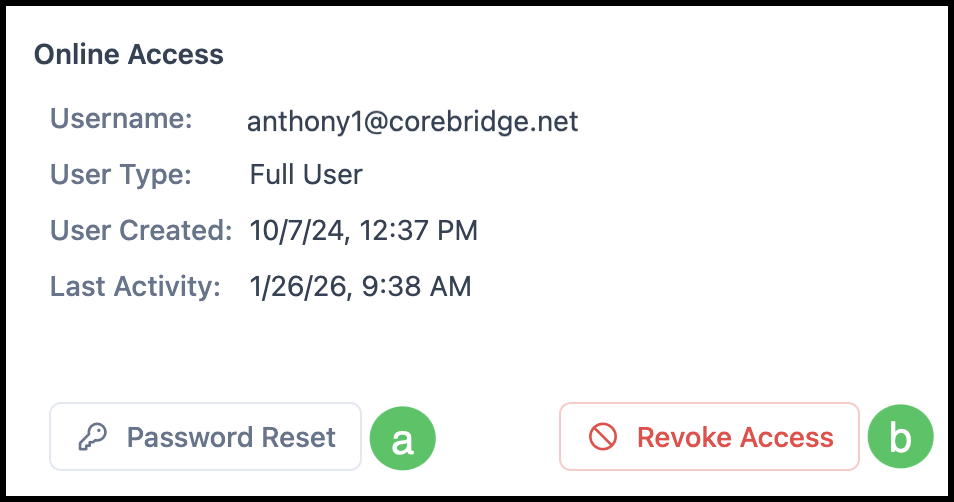
The Online Access section shows whether the Employee has system access and lets you manage it. Here you will see the Username, User Type, User Created date, and Last Activity date.
a. Password Reset - Sends the Employee a link to reset their password.
b. Revoke Access - Removes the Employee's access to the system. Use this when an Employee leaves so they can no longer sign in. Their profile and historical data are retained; only their ability to log in is removed.
Giving Employee Online Access
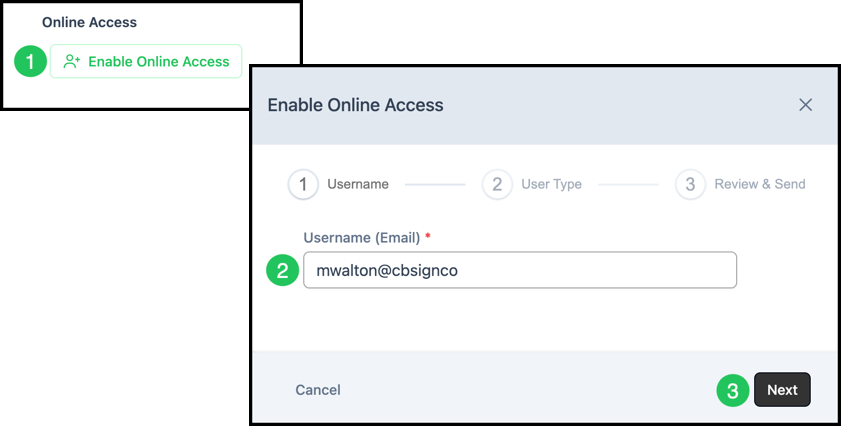
For Employees who do not yet have system access, the Employee list will show an Enable Online Access option so you can send them an invitation to create a sign-in and access the system.
1. Click Enable Online Access.
2. Enter the Username.
3. Click Next.
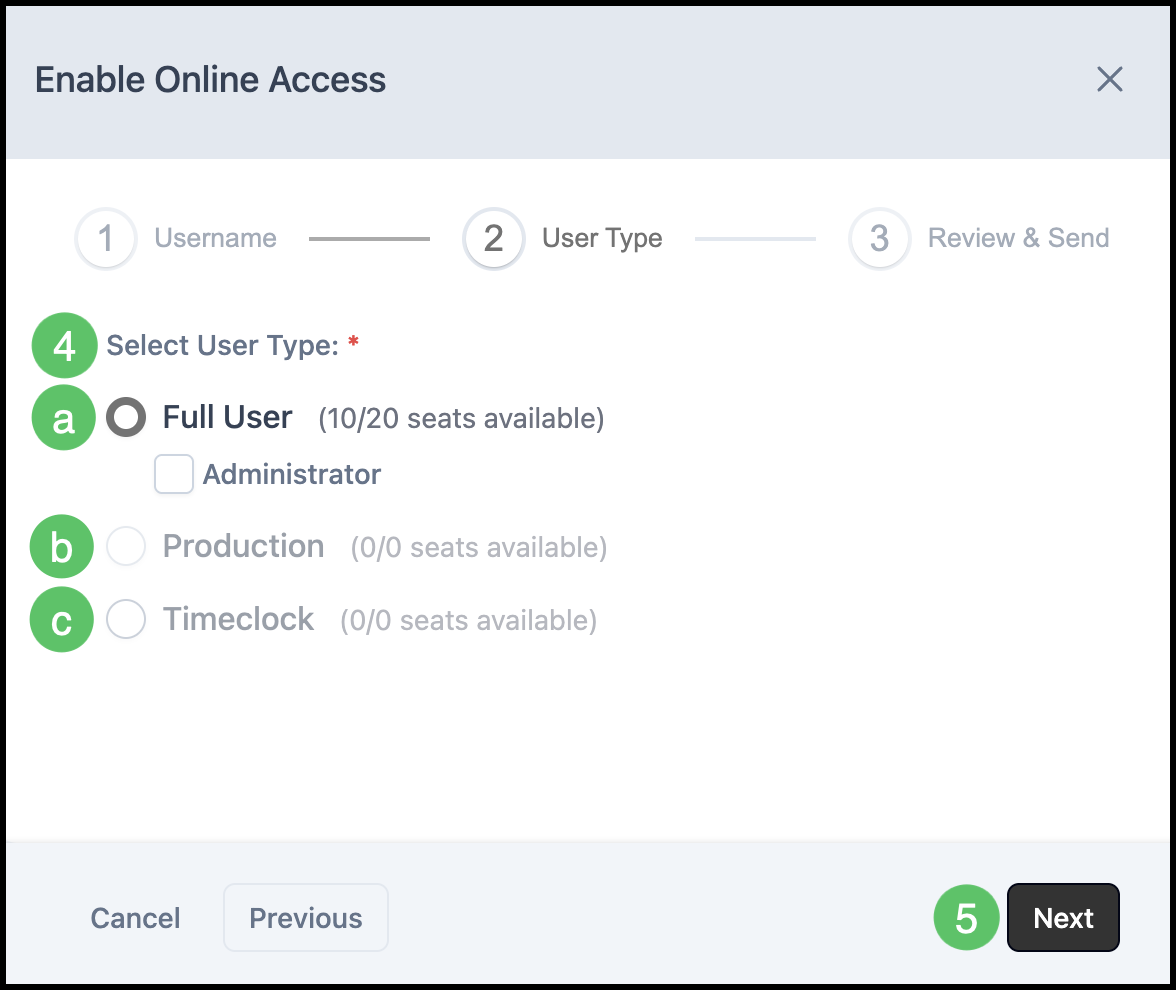
4. Select the User Type for this Employee. Options include:
a. Full User - This user is typically an owner, manager, or administrator and has complete access to the system.
b. Production - This user will only be able to access details pertaining to the production workflow.
c. Timeclock - This is the basic Employee level with access only to the most basic system functions.
5. Click Next.
6. Click Invite User.
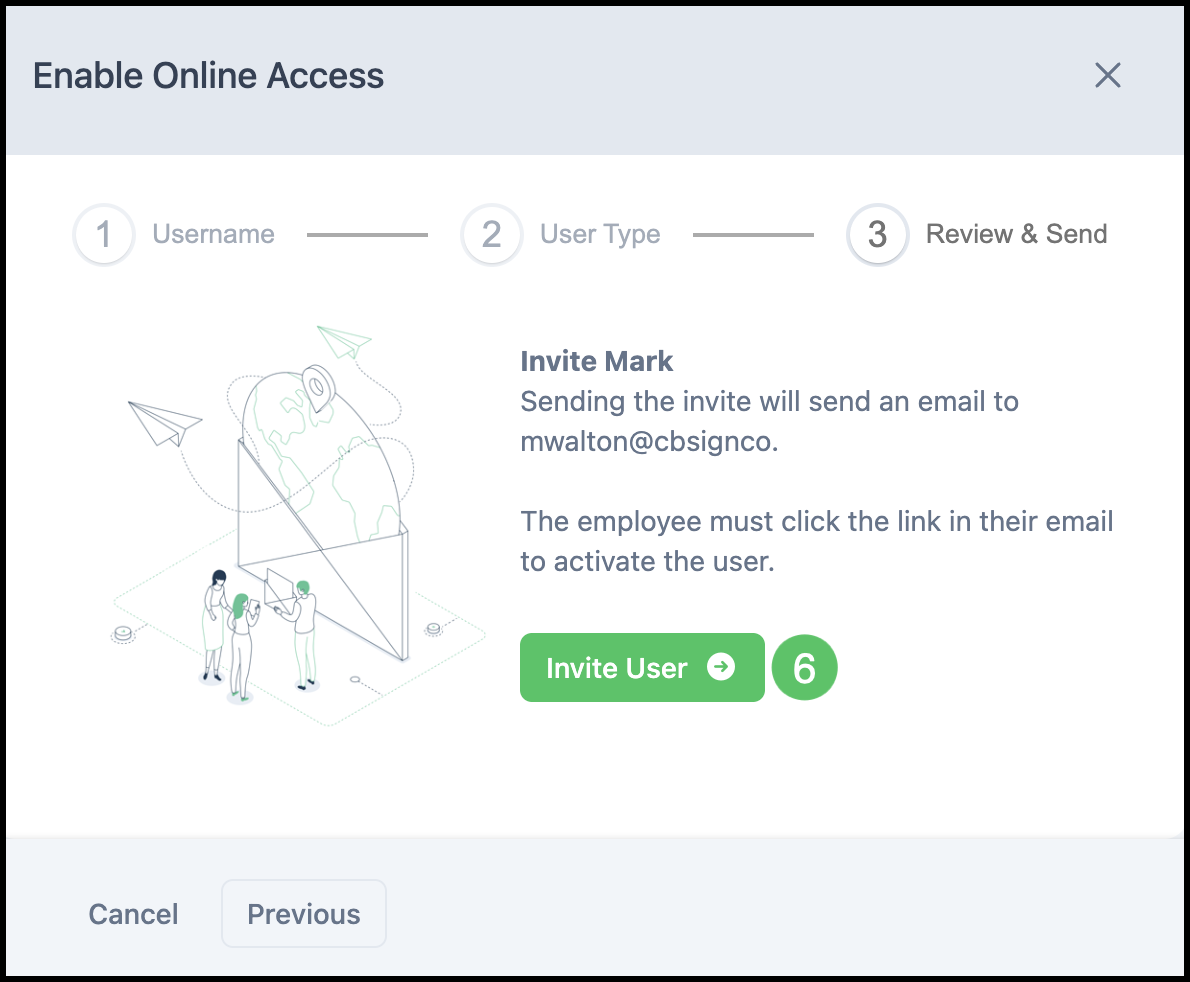
The Employee will receive an email at the address entered as their username. They must click the link in that email and follow the steps to complete the activation process.
Managing Employee Roles
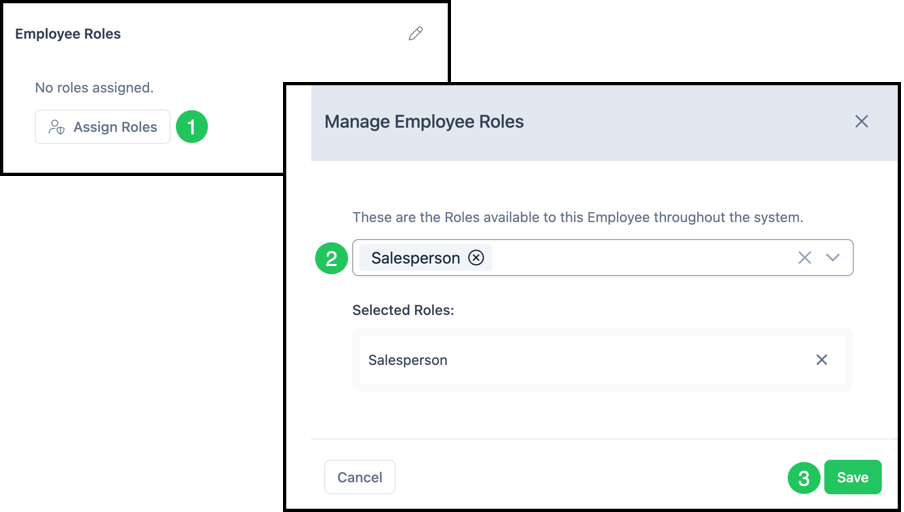
The Employee Roles section lists the roles currently assigned to the Employee (for example, Accounting, Designer, Installer, Project Manager, Salesperson). Roles determine what the Employee can see and do in the system; Employees receive all permissions associated with each Role assigned to them."
1. Click Assign Roles or the Edit icon to add, remove, or change Roles.
Note: The Edit icon appears on hover.
2. Use the dropdown to select the Roles associated with this Employee.
Note: Role definitions are managed in Business Settings / My Business / Employee Roles & Permissions.
Note: Permissions granted by the Employee’s assigned Roles cannot be reduced on the Employee profile; the Employee receives all permissions for each Role they have. To limit access, assign fewer Roles or adjust the Role definitions in Settings.
3. Click Save.
Managing Location Access
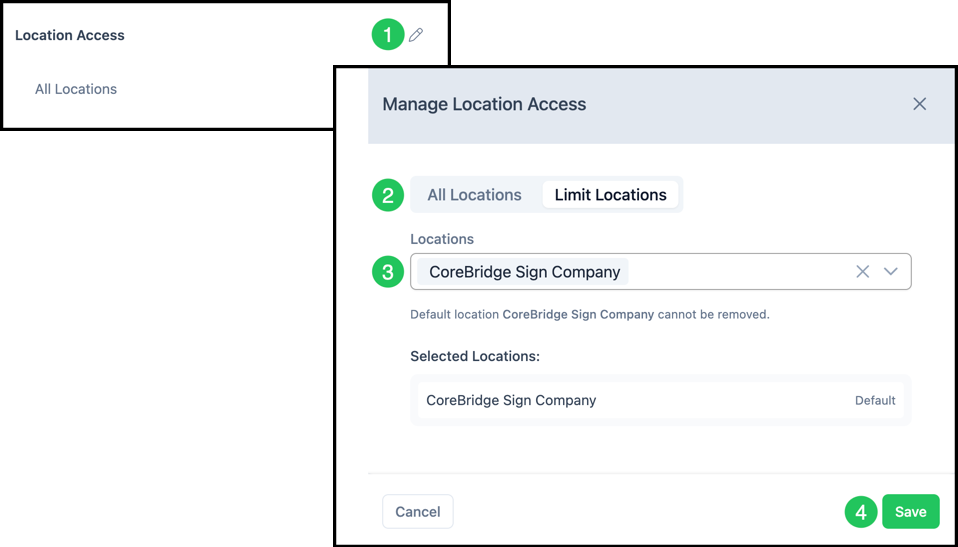
The Location Access section lists the Location(s) the Employee has access to. Location Access can be managed at any time.
1. Click the Edit icon.
2. Select All Locations or Limit Locations.
3. Select which Locations this Employee will have access to.
Note: This dropdown is only visible when Limit Locations is chosen above.
4. Click Save.