
Component Categories are classification labels used to organize Components such as Materials, Labor, Machines, and Products / Modifiers. They help you sort, filter, and select items during Estimate and Order creation, and when you configure Products.
By assigning a category to each Component, you keep naming consistent and make search easier. Your system includes a basic set of Component Categories that you can add to at any time.
Creating a category does not assign it. Assign categories on each Component. For steps to add, edit, and assign categories, see Using Component Categories.
Table of Contents
Component Categories Menu
The Component Categories screen is in System Settings under Components.
Navigate to System Settings / Components / Component Categories.
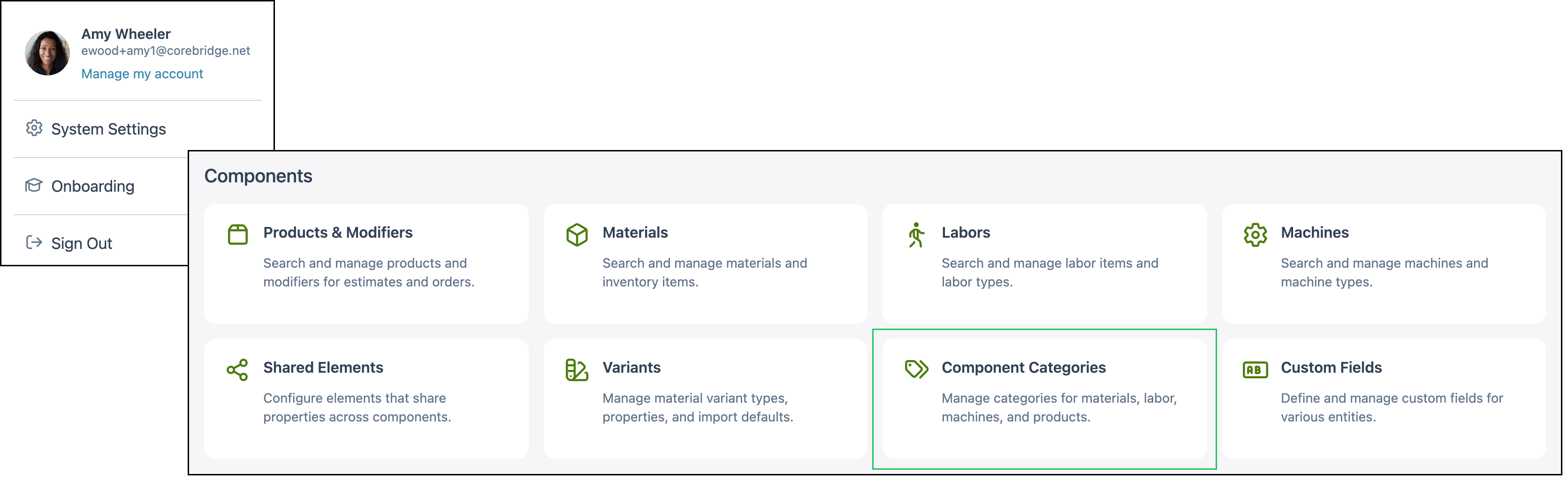
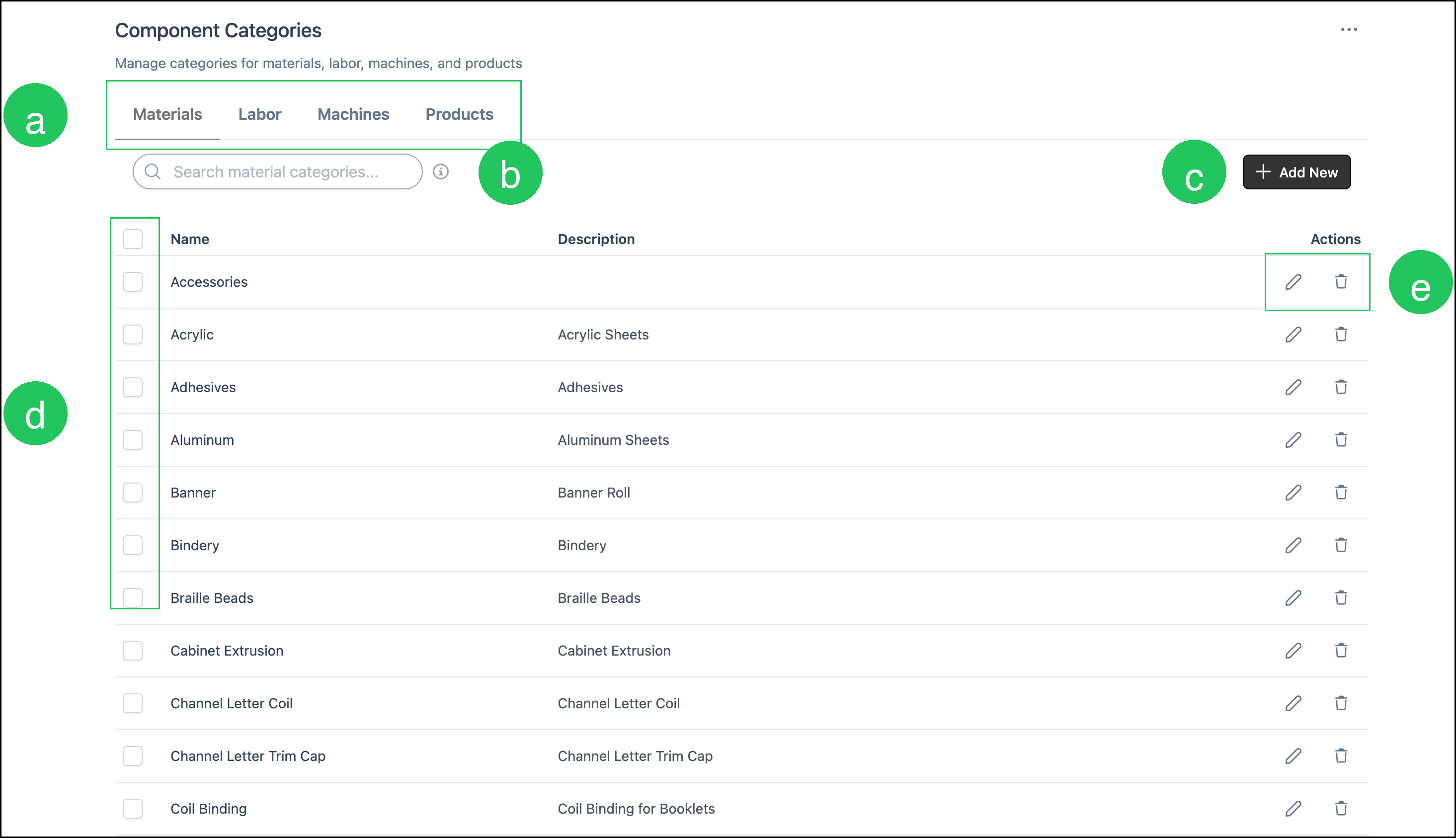
a. Tabs switch between Materials, Labor, Machines, and Products. Search and Add New apply to the current tab only.
b. The Search box finds a Component Category on the current tab.
c. The Add New button opens a dialog to create a Component Category for the current tab.
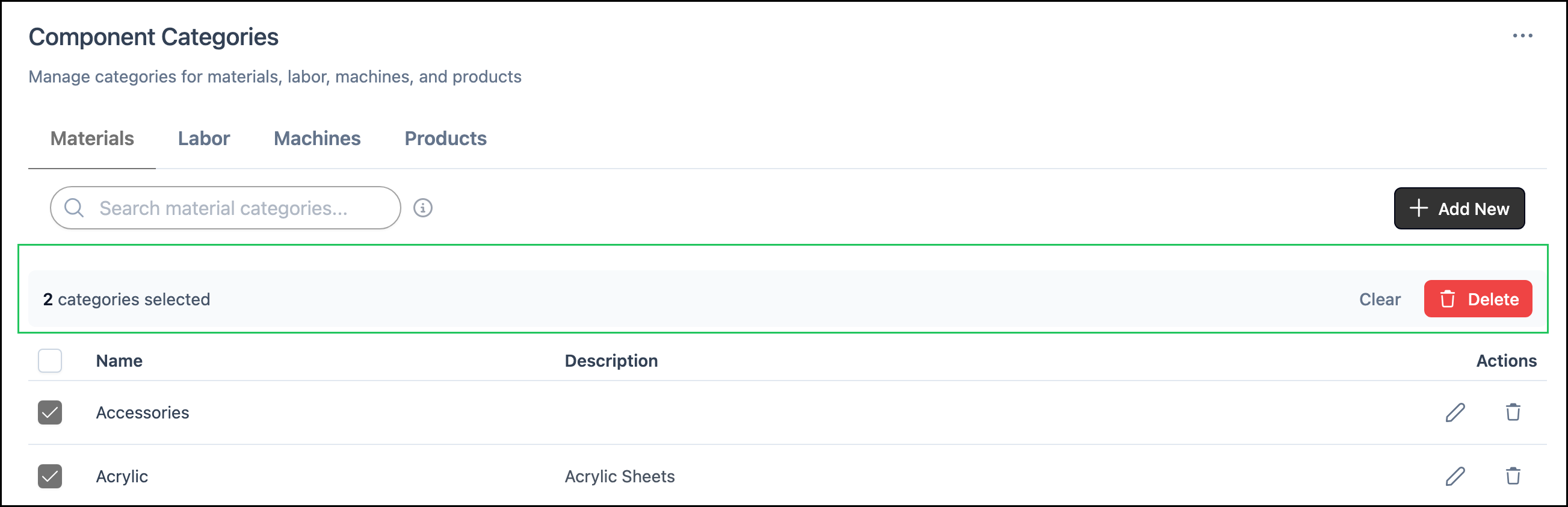
d. Checkboxes select one or more categories on the current tab.
Note: When one or more categories are selected, a bar shows how many are selected, along with Clear and Delete. Deleting a category removes that category assignment from any Components that used it. Those Components remain.
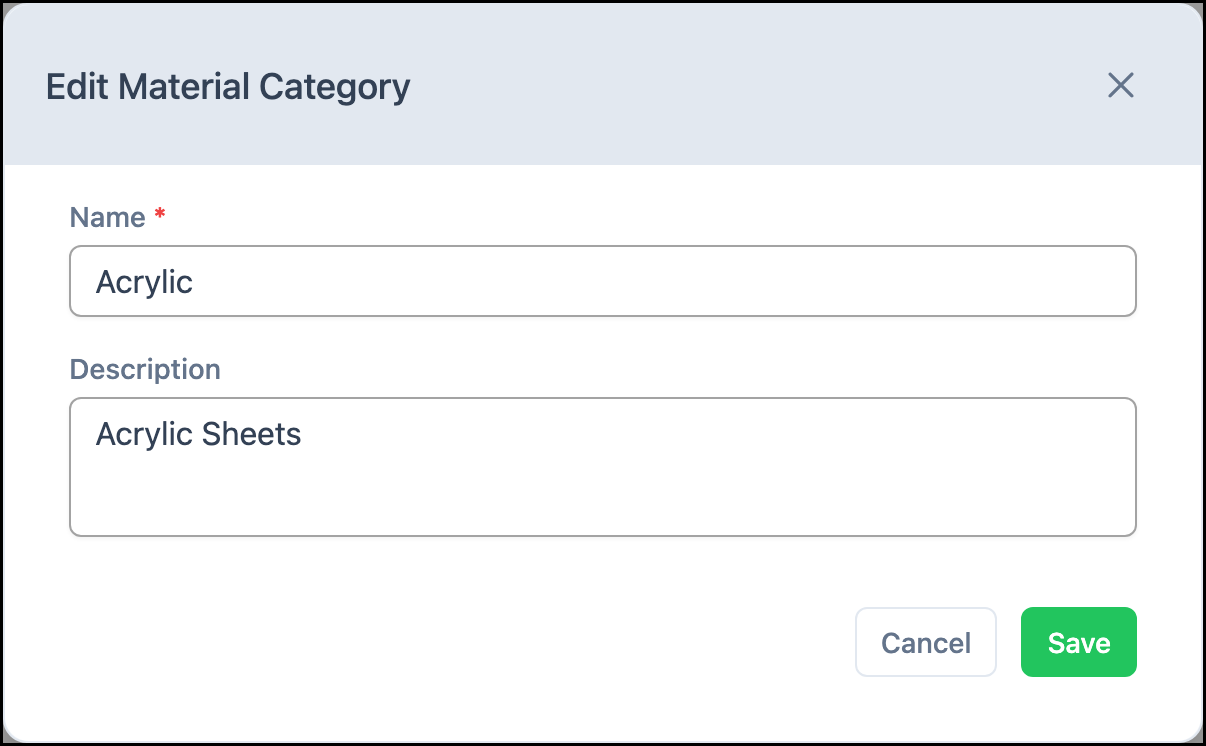
e. The Actions column includes Edit, which opens a dialog for Name and Description, and Delete, which removes this Component Category.
Note: Changes in the edit dialog must be saved.
Note: More Actions includes History, which lists create, edit, and delete changes for the current tab.
Example: Two Material categories selected, with Clear and Delete available.
Example: The edit dialog for a Material category.
Frequently Asked Questions
1. What happens if I delete a category that is assigned to Components?
Answer: The Components remain. They no longer have that category assigned. Assign a different category on each Component if you still want those records grouped in filters and Product pickers.
2. Are Component Categories the same as Line Item Categories?
Answer: No. Component Categories group catalog items such as Materials, Labor, Machines, and Products. Line Item Categories appear on Estimate and Order lines. A Material can have Material Categories and a different Default Line Item Category.
3. Why does a category I just created not appear on a Component?
Answer: Each tab is its own list. A category created on Materials is available on Materials only. Open the Component, select the category, and click Save.
Related Articles
Components Overview
Labors Overview
Machines Overview
Materials Overview
Products vs. Modifiers
Using Component Categories