
You can view the Customer Portal from CoreBridge EVO in two ways. Preview Portal opens the full portal as that Contact. A Customer Portal Link opens one Estimate or Order.
Table of Contents
- Before You Begin
- Important Information
- Viewing with Preview Portal
- Preview Portal Home
- Appearance and Profile
- Viewing a Customer Portal Link
- Customer Portal Link View
- Frequently Asked Questions
- Related Articles
Before You Begin
- Preview Portal is available after the Contact has Customer Portal access. For the steps to grant access or send a link, see How to Invite Customers to the Customer Portal.
- For what customers see after they open a link or sign in, see Customer Portal Overview.
- What appears in the portal depends on Customer Portal Options. For more information, see Customer Portal Options.
Important Information
There are two ways to view the Customer Portal from CoreBridge EVO.
- Preview Portal - Opens the full Customer Portal for that Contact, including Home, Orders, Estimates, and Payments.
- Customer Portal Link - Opens one Estimate or Order. The Contact can review that document without signing in. You can copy the same link and open it in a new browser tab to see that document view.
Viewing with Preview Portal
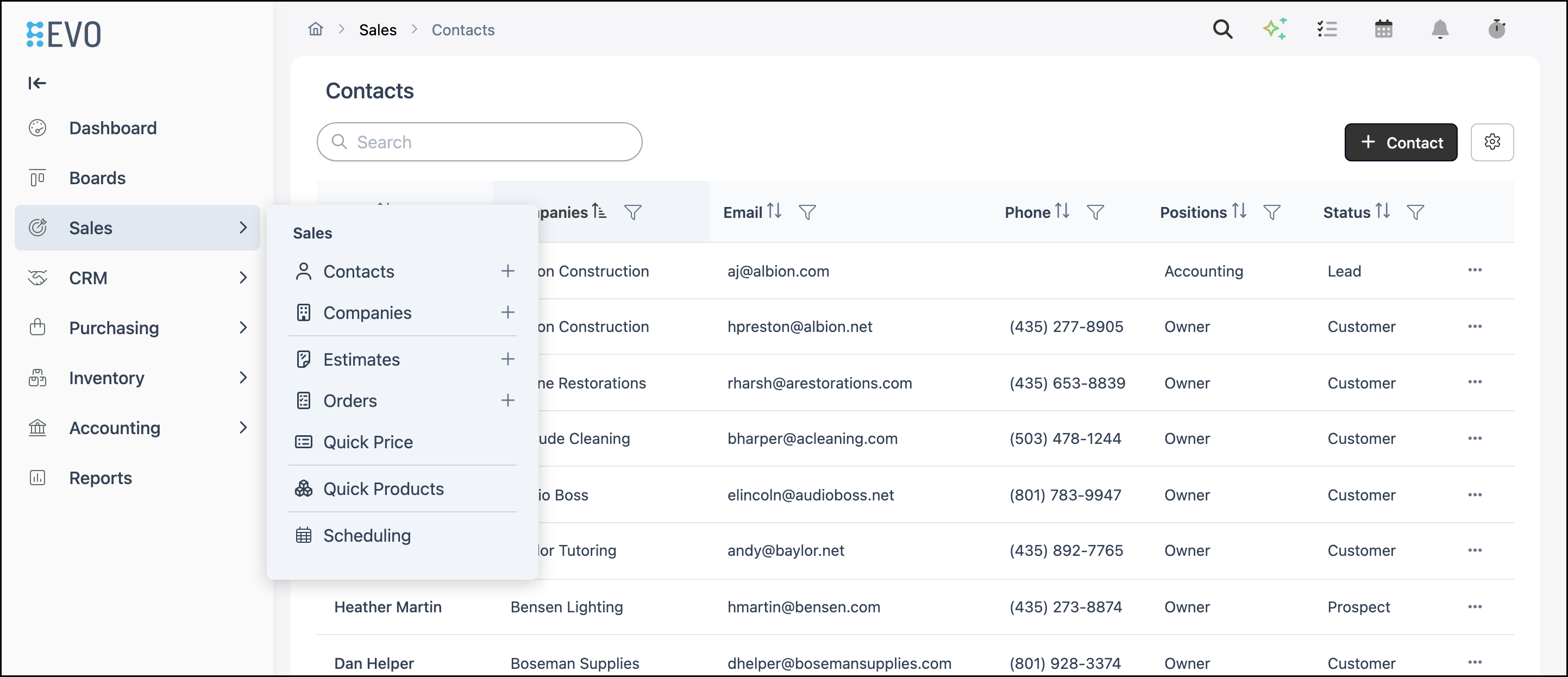
Navigate to Sales / Contacts.
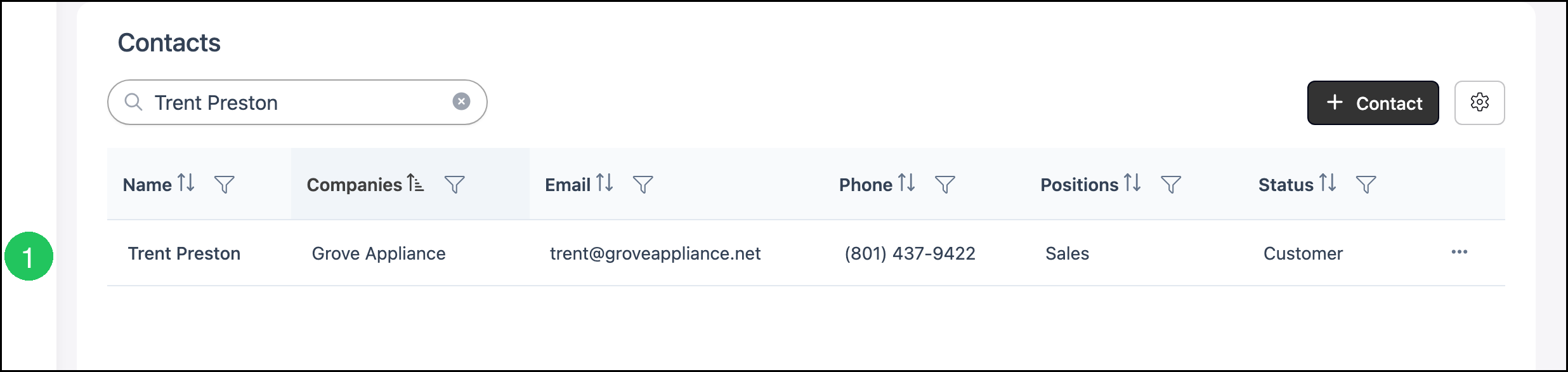
1. Select the Contact.
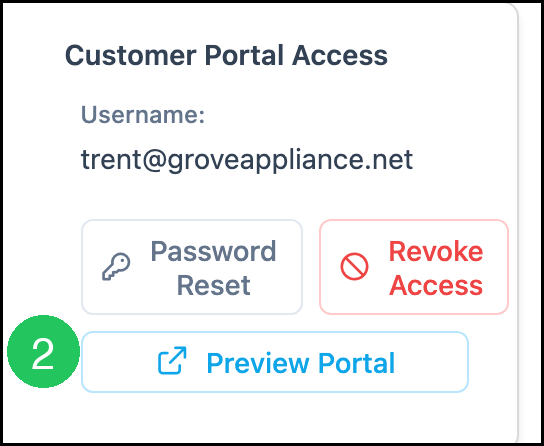
2. Click Preview Portal.
Preview Portal Home
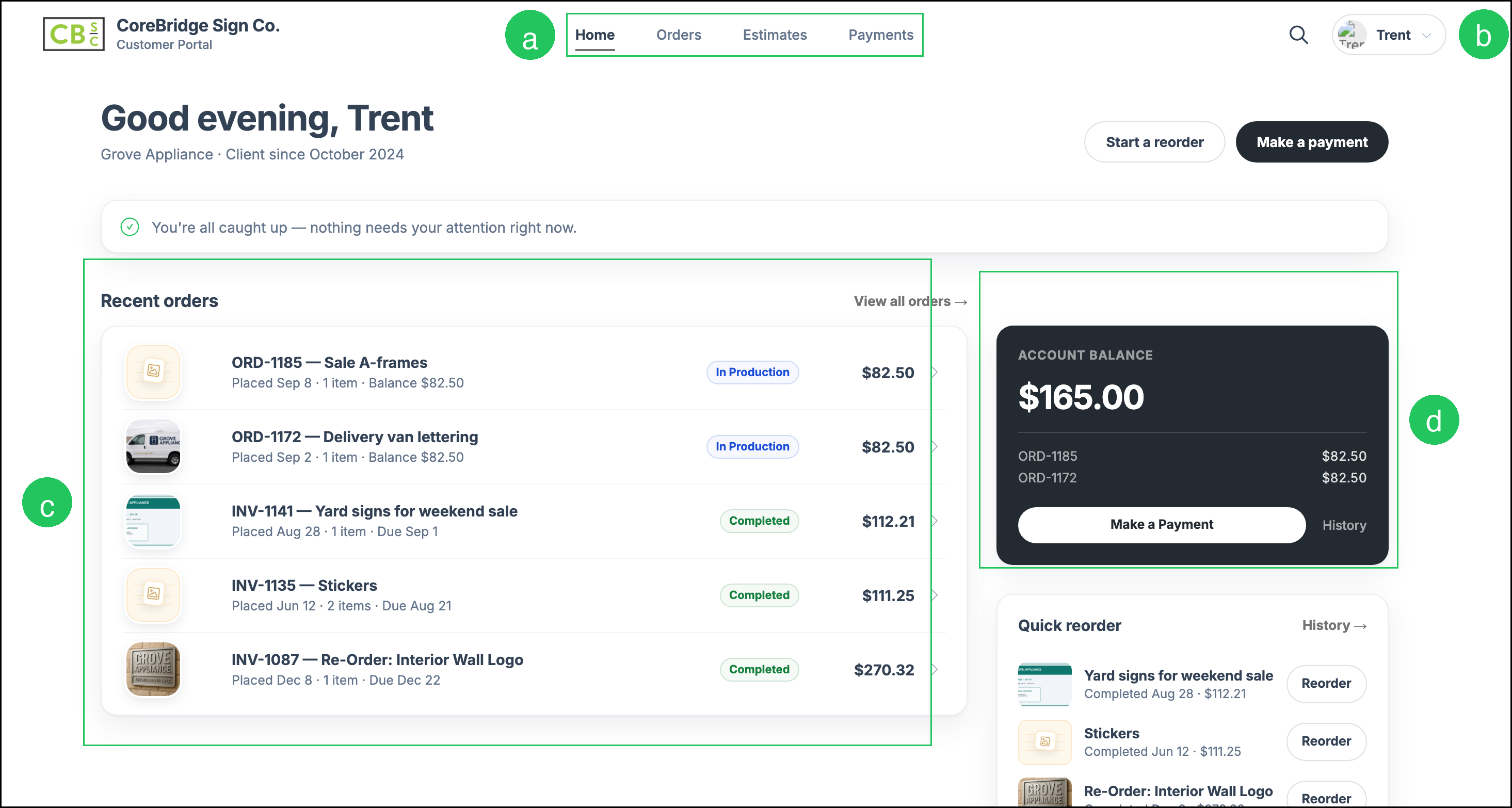
Preview Portal opens the Customer Portal Home for that Contact.
a. Home, Orders, Estimates, and Payments - Navigation for the full portal.
b. Contact name - Opens My Profile, Theme, and Sign Out.
c. Recent orders - Recent Orders for the Company. You can open an Order from this list.
d. Account Balance - Open balances for the Company, with Make a Payment and a link to payment history.
Note: For more information about Home, Orders, Estimates, and Payments, see Customer Portal Overview.
Appearance and Profile
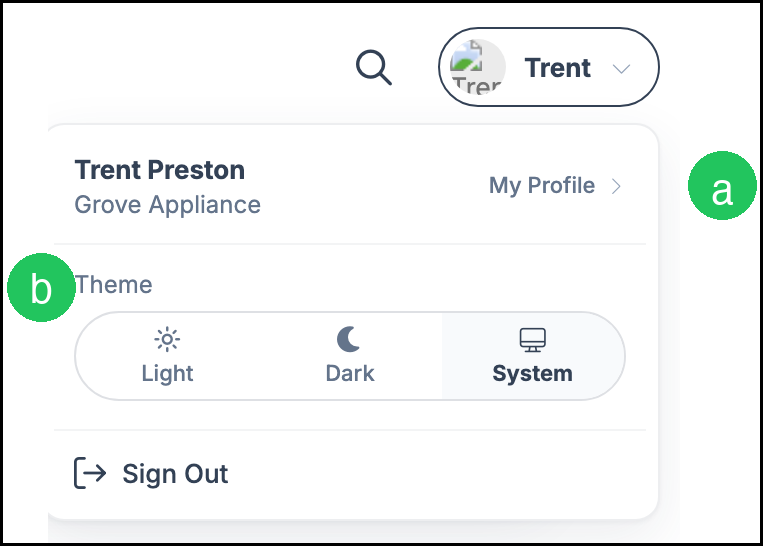
1. Click the Contact name.

The menu includes the following options.
a. My Profile - Opens the Contact's profile in the Customer Portal.
b. Theme - Sets the portal appearance to Light, Dark, or System.
Note: Sign Out returns you to the Customer Portal sign-in screen.
Viewing a Customer Portal Link
Navigate to Sales / Orders or Sales / Estimates, then open the Estimate or Order.
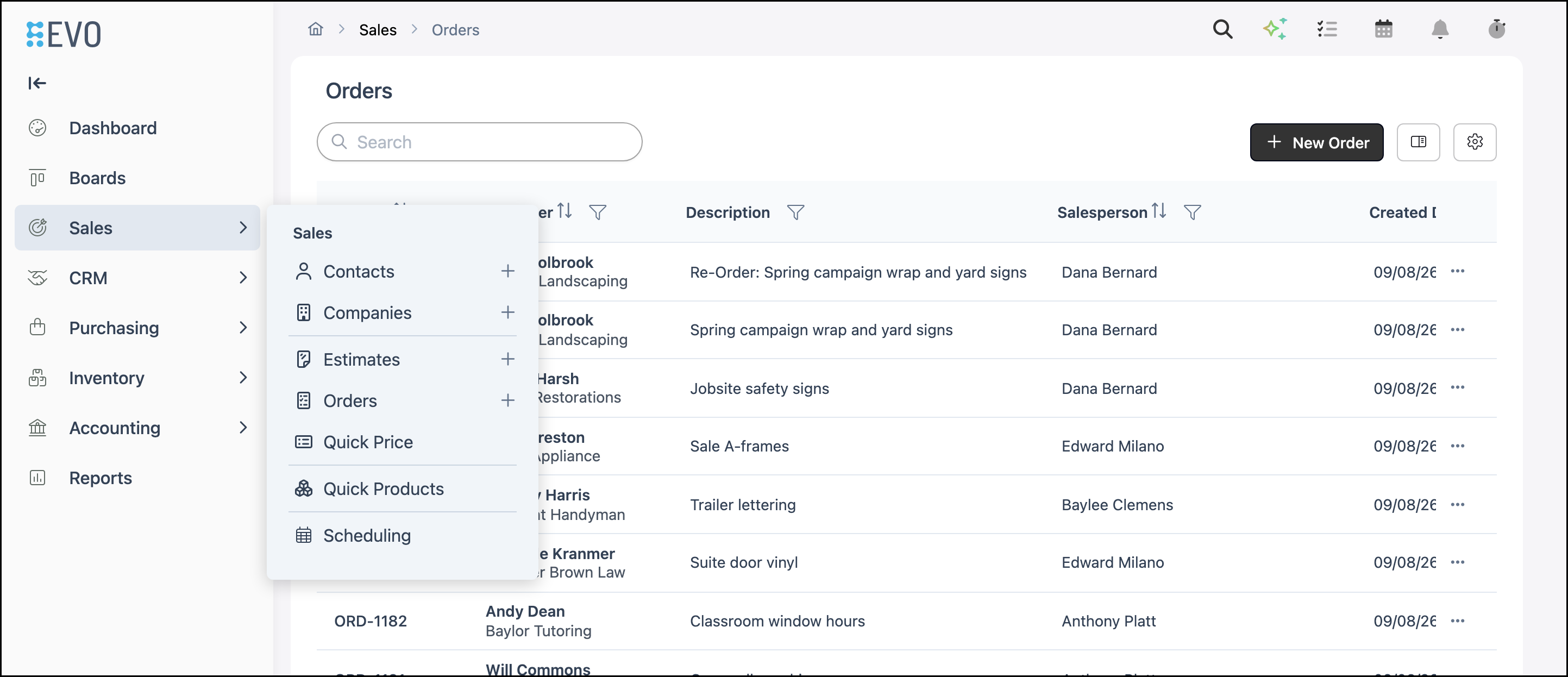
1. Click More Actions.
2. Select Customer Portal Link.

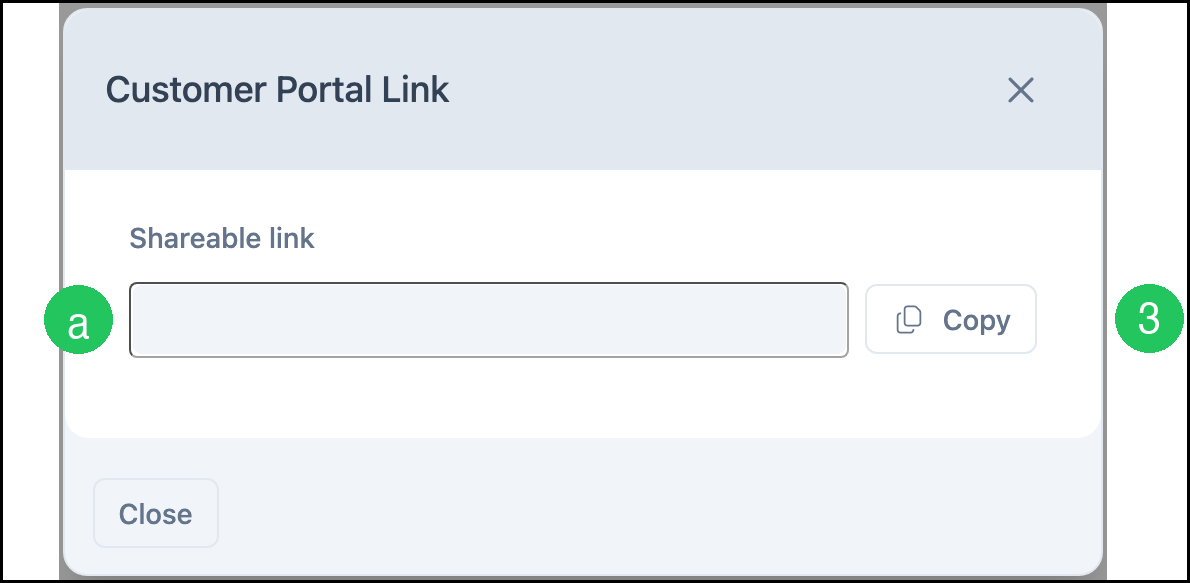
The Customer Portal Link dialog provides the shareable link for that document.
a. Shareable link - The link that opens this Estimate or Order in the Customer Portal.
3. Click Copy.
Note: Paste the link in a new browser tab to view that Estimate or Order in the Customer Portal.
Customer Portal Link View
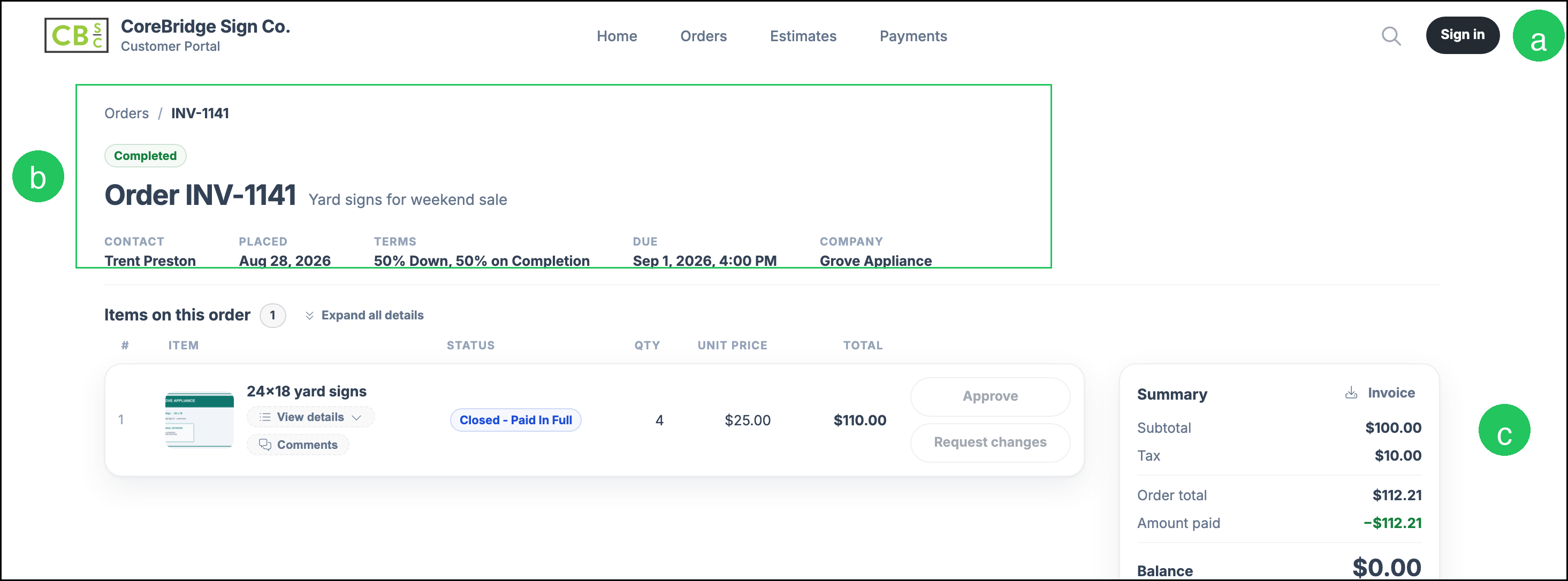
The Customer Portal Link opens that Estimate or Order. The Contact does not need to sign in to review it.
a. Sign in - Opens the Customer Portal login so the Contact can access the full portal.
b. Document header - The Estimate or Order number, status, description, and header details.
c. Summary - Totals for the Estimate or Order, including amount paid and balance.
Note: Home, Orders, Estimates, Payments, and Search fill in after the Contact signs in. For more information, see Customer Portal Overview.
Frequently Asked Questions
1. What is the difference between Preview Portal and a Customer Portal Link?
Answer: Preview Portal opens the full Customer Portal for that Contact. A Customer Portal Link opens one Estimate or Order.
2. Do I need to grant Customer Portal access to use Preview Portal?
Answer: Yes. Preview Portal appears after the Contact has Customer Portal access. For the steps to grant access, see How to Invite Customers to the Customer Portal.
3. Do I need to grant access to view a Customer Portal Link?
Answer: No. A Customer Portal Link opens that Estimate or Order without an account. Grant access when you want the Contact to sign in and see Home, Orders, Estimates, and Payments.
4. Can I open a Customer Portal Link from an Estimate?
Answer: Yes. Open the Estimate, click More Actions, then select Customer Portal Link.
Related Articles
Customer Portal Approval Process