
Customers can pay from a Customer Portal Link on an Order, or from Payments after they sign in. This article covers the settings that need to be in place, then the payment steps customers follow.
Table of Contents
- Before You Begin
- Enable Accept Online Payments
- Payment Integrations
- Paying from a Customer Portal Link
- Apply Payment
- Paying after Signing In
- Frequently Asked Questions
- Related Articles
Before You Begin
Online payments in the Customer Portal require Accept Online Payments in Customer Portal Options and an enabled payment integration in Payment Methods. For more information, see Customer Portal Options and Payment Settings.
For what customers see in the portal, see Customer Portal Overview.
Enable Accept Online Payments
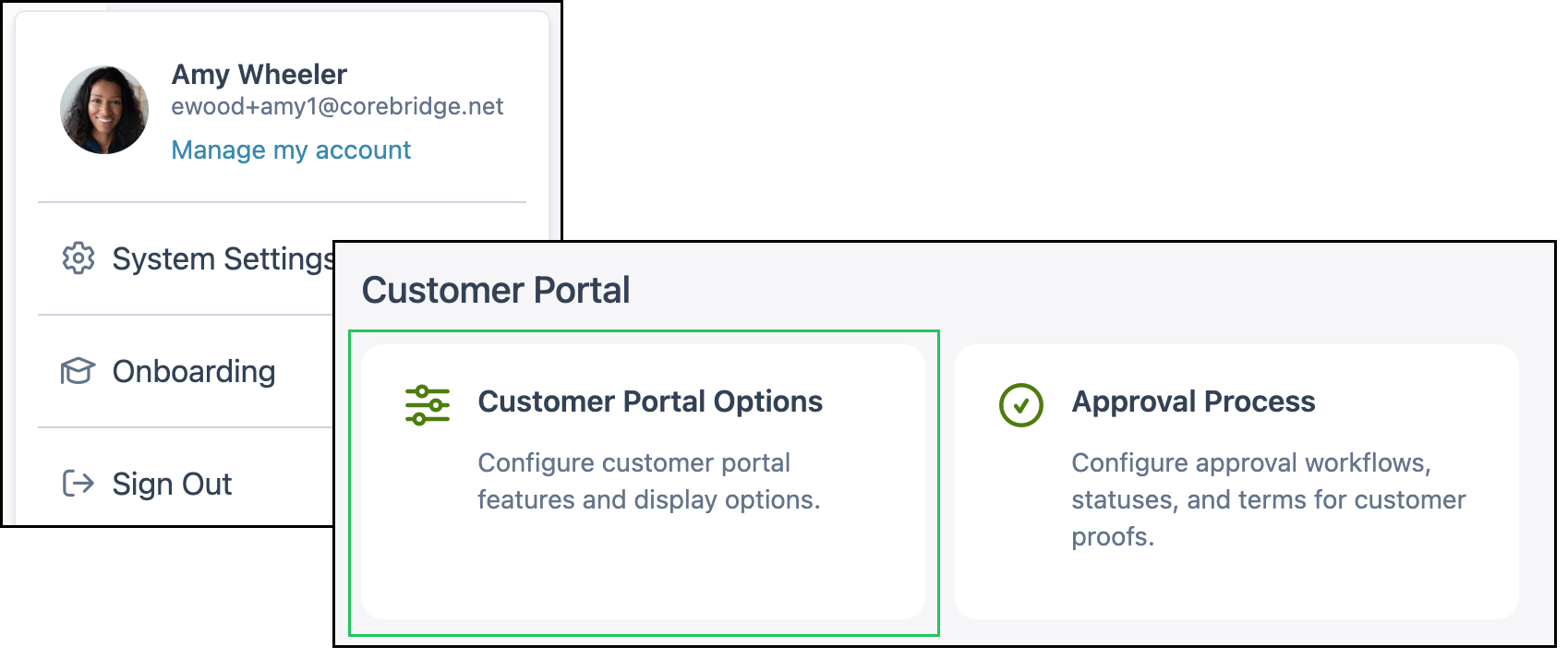
Navigate to System Settings / Customer Portal / Customer Portal Options.
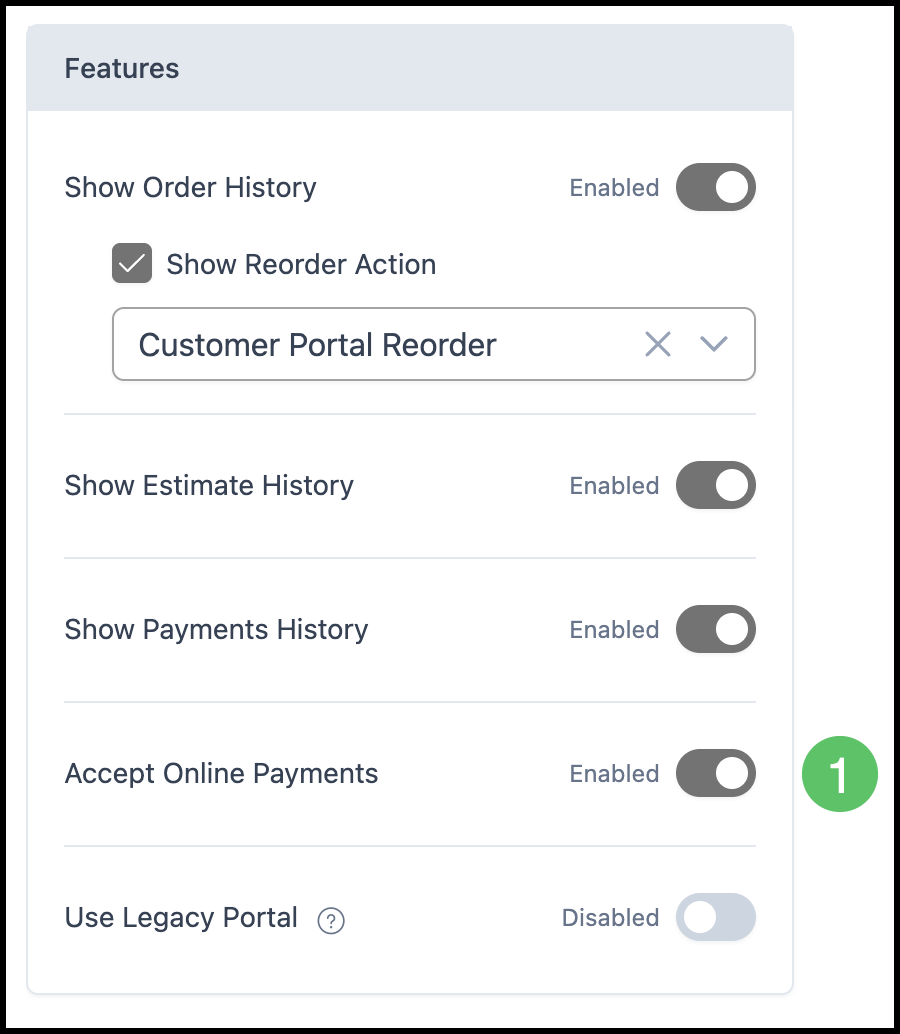
1. Confirm Accept Online Payments is enabled.
Note: Changes made here must be saved manually.
Payment Integrations
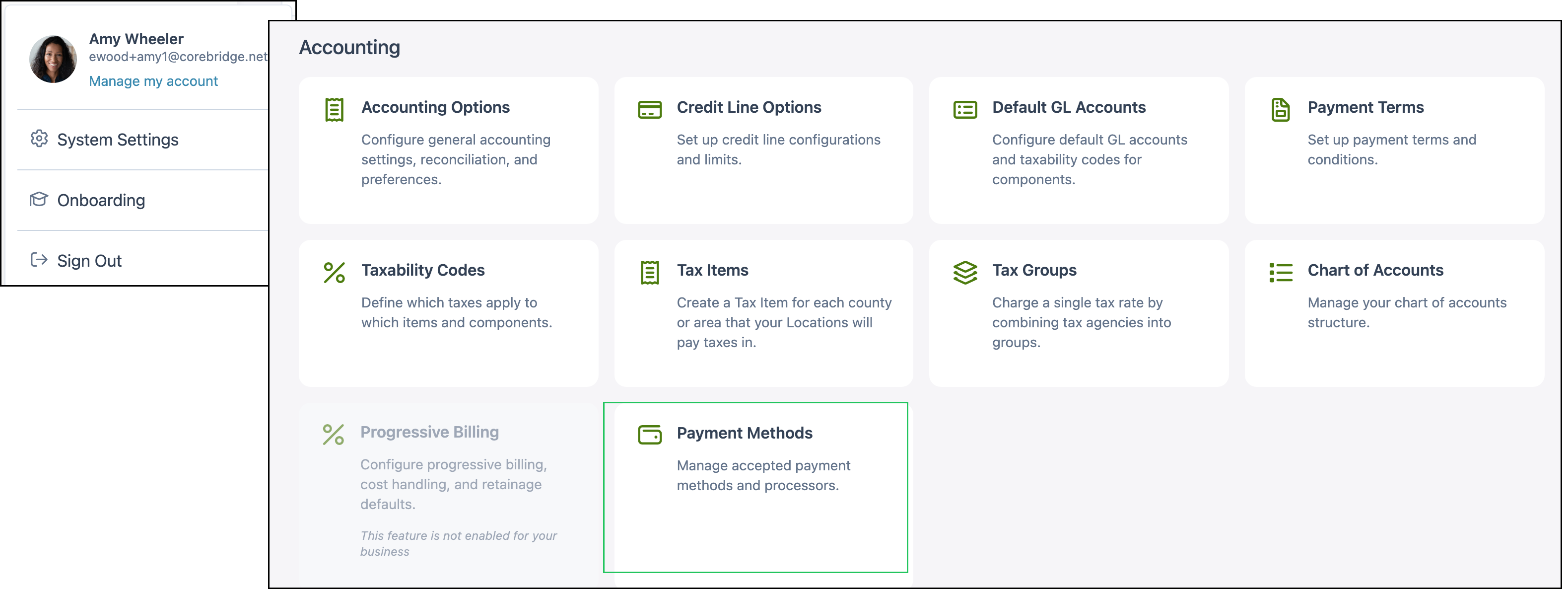
Navigate to System Settings / Accounting / Payment Methods.
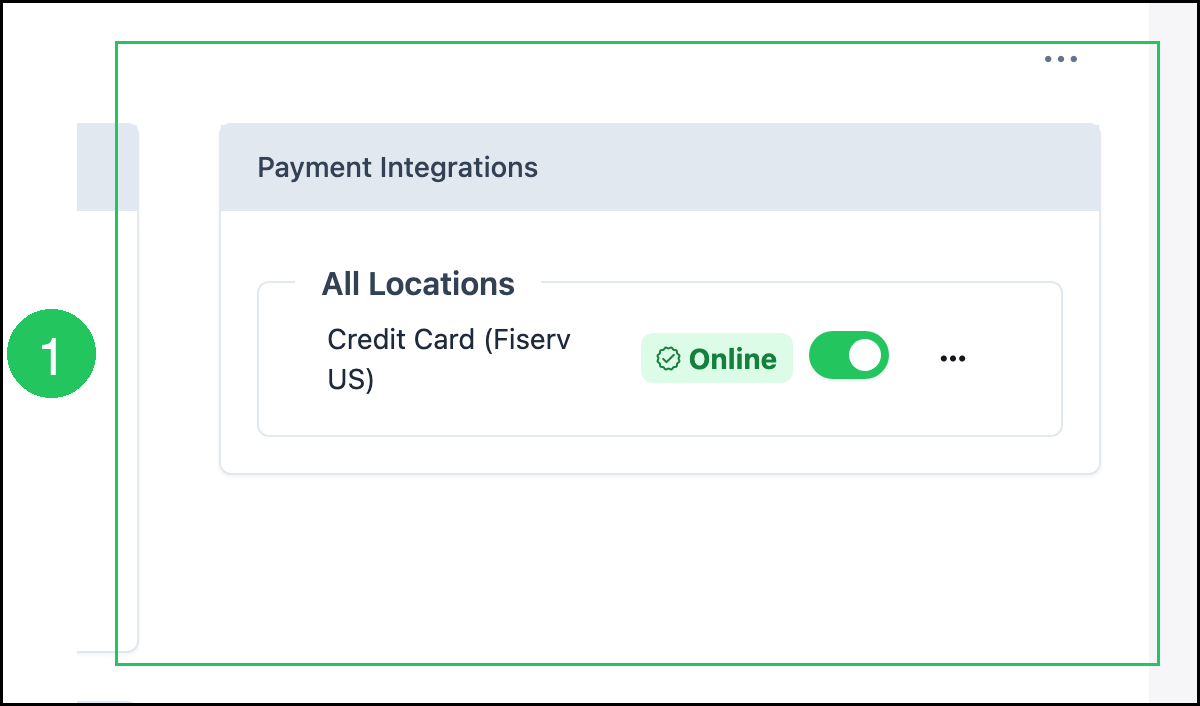
1. Confirm a payment integration is Online and enabled. Customers use this method when they pay in the Customer Portal.
Paying from a Customer Portal Link
When an Order has a balance and online payments are enabled, the customer can pay from the shared link. The same Make a payment button appears when they open that Order after signing in.
1. Click Make a payment.
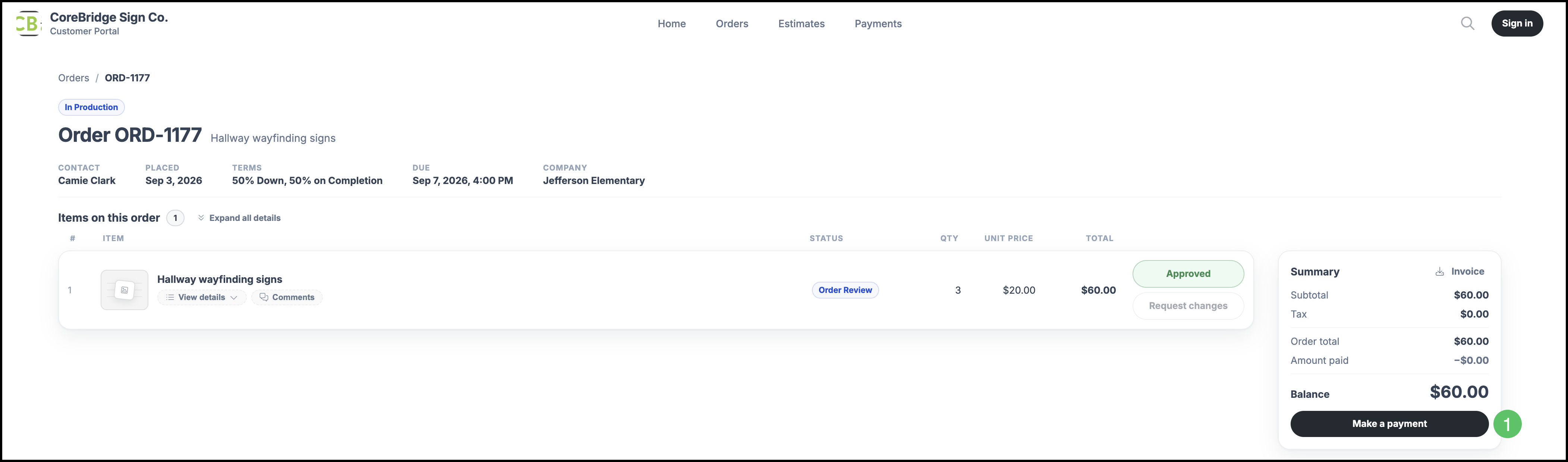
The Apply Payment dialog opens for the customer to fill out payment details.
Paying after Signing In
After the customer signs in, they can pay from Home, from an Order, or from Payments. On Payments, they can select one or more open balances.
1. Select the Order or Invoice to pay. The payment amount fills with the balance due.
2. Click Pay now.
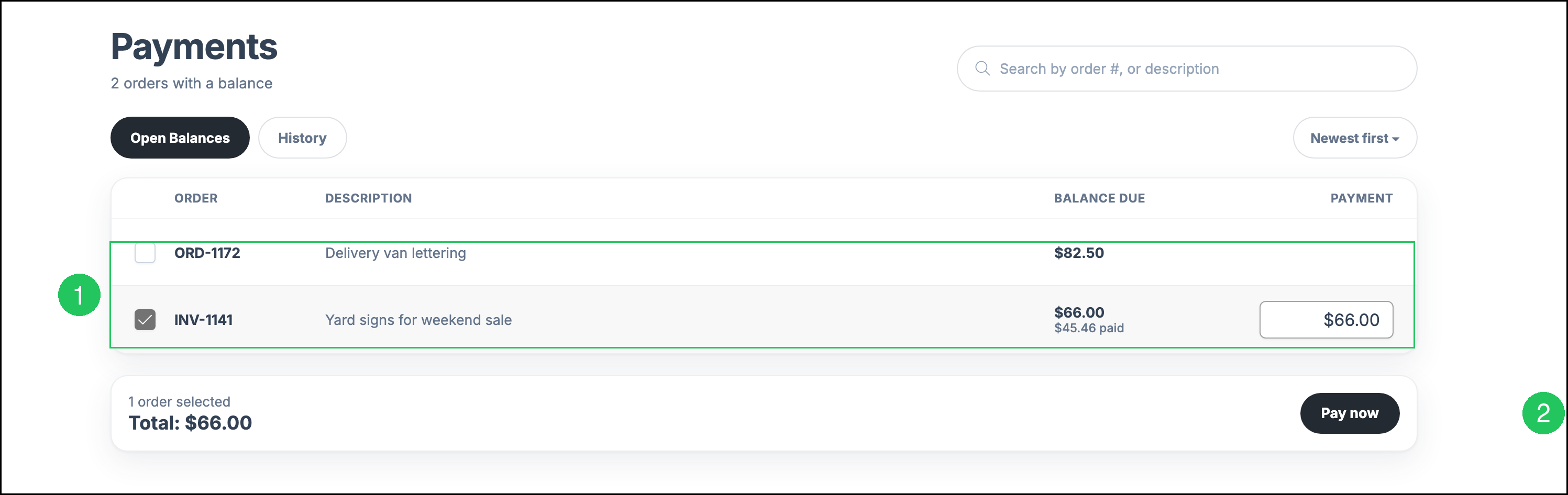
The Apply Payment dialog opens for the customer to fill out payment details.
Frequently Asked Questions
1. Why is Make a payment or Pay now unavailable?
Answer: Those actions appear when the document has a balance, Accept Online Payments is enabled, and a payment integration is online. A $0.00 balance keeps payment unavailable.
2. Can a customer pay more than one Order at a time?
Answer: Yes. After they sign in, Payments lists open balances. They select the Orders to pay, then click Pay now.
3. Can a customer pay from a shared link without signing in?
Answer: Yes. If the Order has a balance and online payments are enabled, they click Make a payment on that document.