
Quick Price is a temporary workspace for pricing Line Items before a Customer is selected. Add Line Items, review Order Totals, then convert the work to an Estimate or an Order. Line Items, fees, and discounts become the starting amounts on the new record. Tax is calculated again for the Customer after you convert.
Table of Contents
- Important Information
- The Quick Price Screen
- Adding a Line Item
- Converting to an Estimate or Order
- Frequently Asked Questions
- Related Articles
Important Information
- Quick Price keeps Line Items only while you stay on the screen. If you leave Quick Price, the Line Items are removed and the screen returns to No Line Items. Convert the work, or copy the Line Items to the Clipboard, before you leave. For more information, see Clipboard Feature.
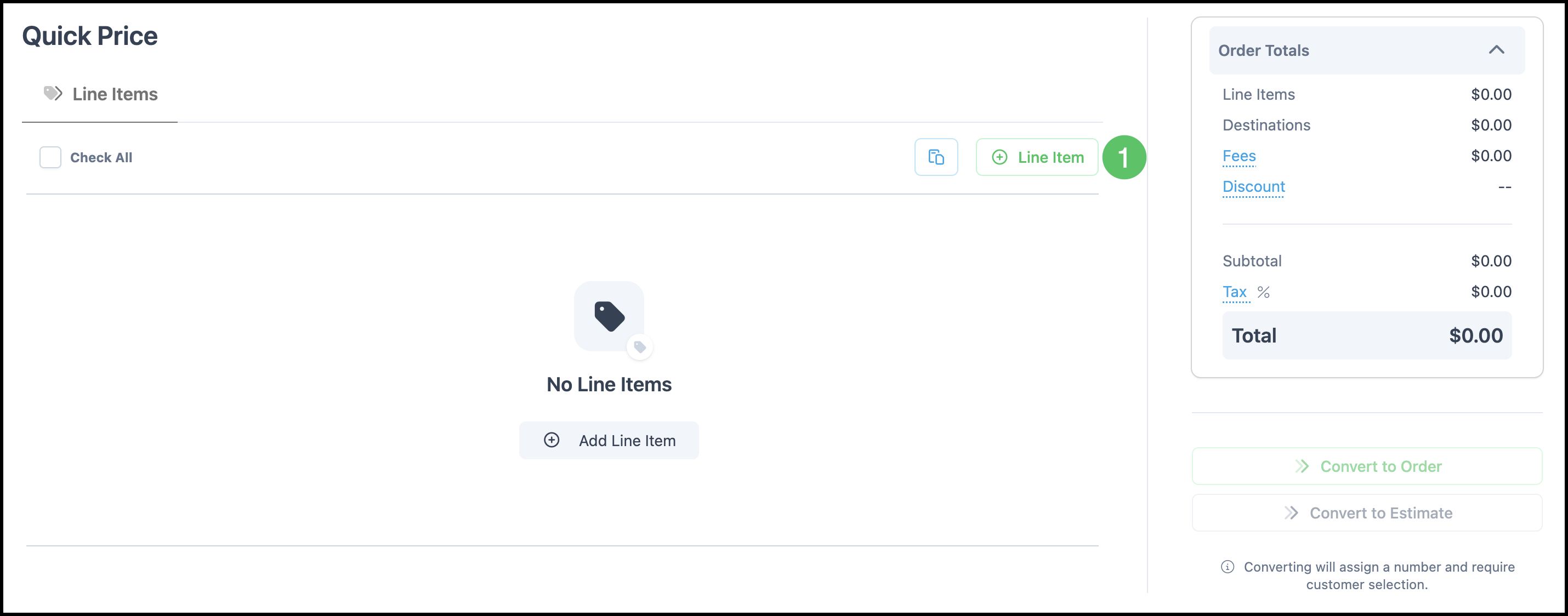
- Convert to Order and Convert to Estimate stay unavailable until Quick Price has at least one Line Item.
- You can price Line Items before a Customer is selected. A Customer is required when you convert.
- Destinations stay at $0.00 on Quick Price. Set Destinations on the Estimate or Order after you convert. For more information, see Using Destinations.
- Fees and Discount are added the same way as on an Estimate or Order, and those amounts carry over when you convert. For more information, see Order and Line Item Fees and Discounts.
- Tax on Quick Price uses the Tax Group in Tax Settings. After you convert, tax is calculated again for the Customer.
The Quick Price Screen
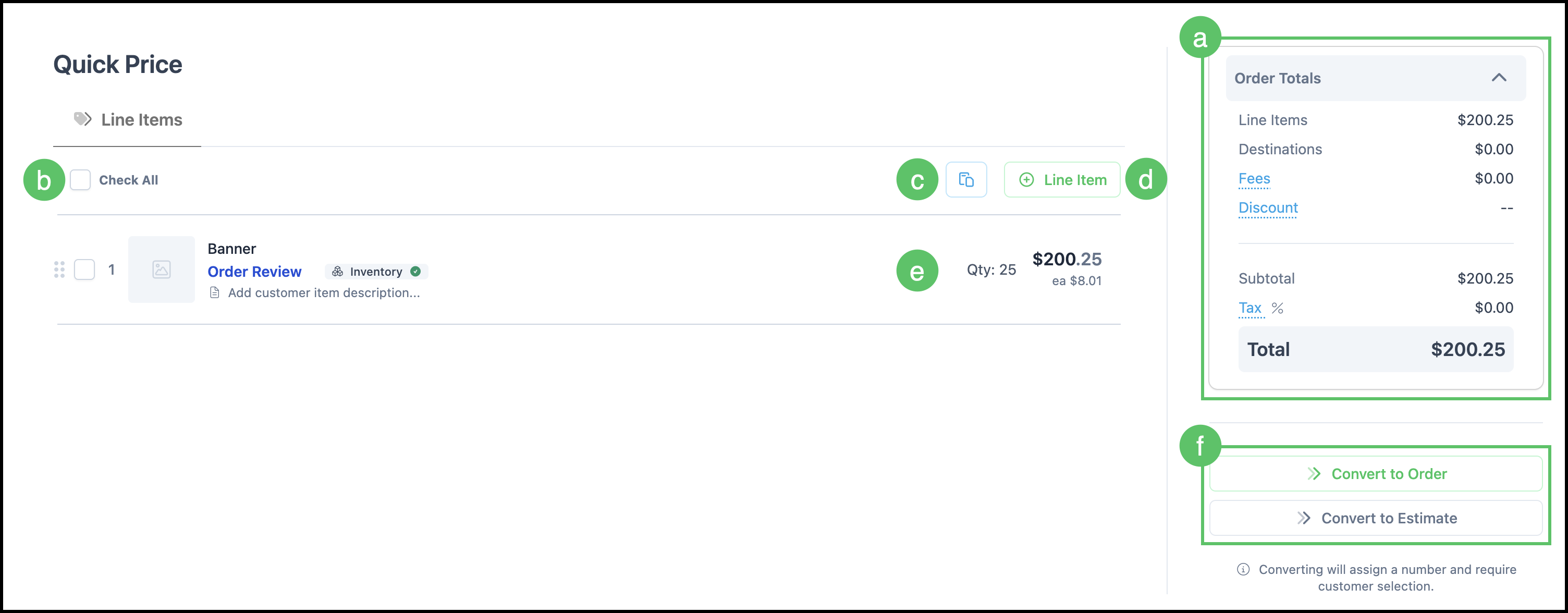
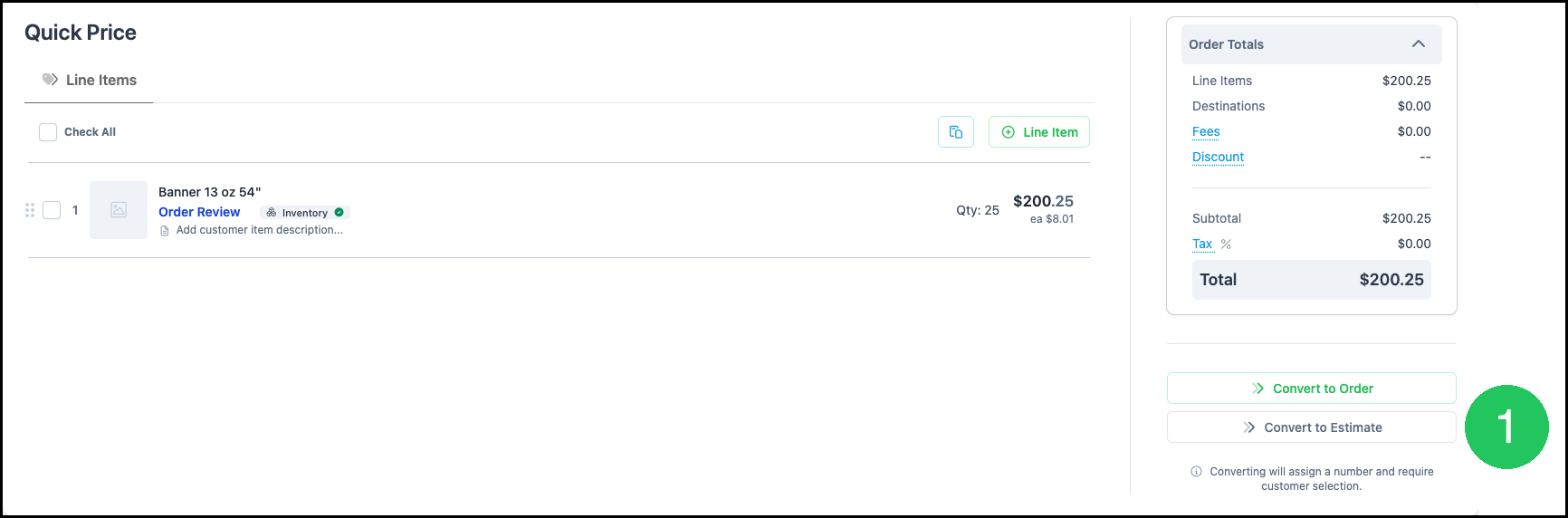
a. Order Totals lists Line Items, Destinations, Fees, Discount, Subtotal, Tax, and Total. Fees, Discount, and Tax open their settings. Destinations stays at $0.00.
b. Check All selects every Line Item on the screen.
c. Paste from Clipboard adds Line Items copied from an Estimate or Order.
d. Line Item opens the Add Line Item dialog.
e. The Line Item row shows the product, quantity, and price.
f. Convert to Order and Convert to Estimate create the Order or Estimate from the Line Items on the screen.
Adding a Line Item
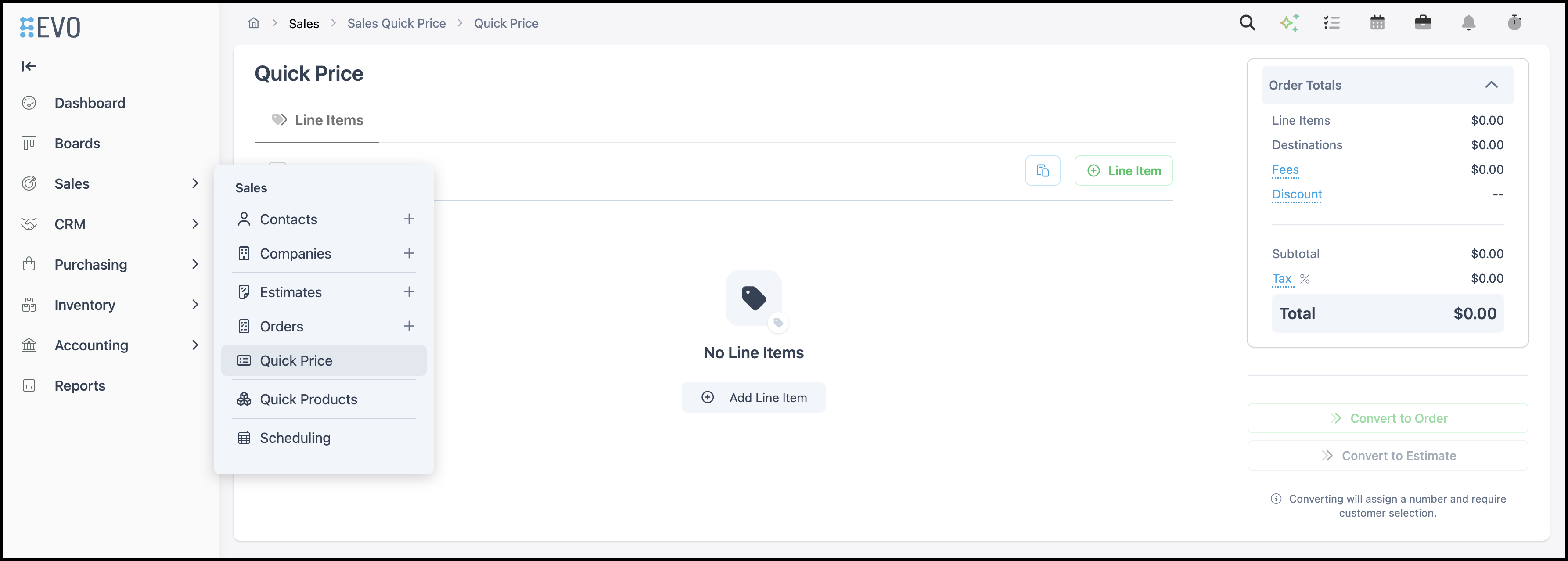
Navigate to Sales / Quick Price.
1. Click Line Item.
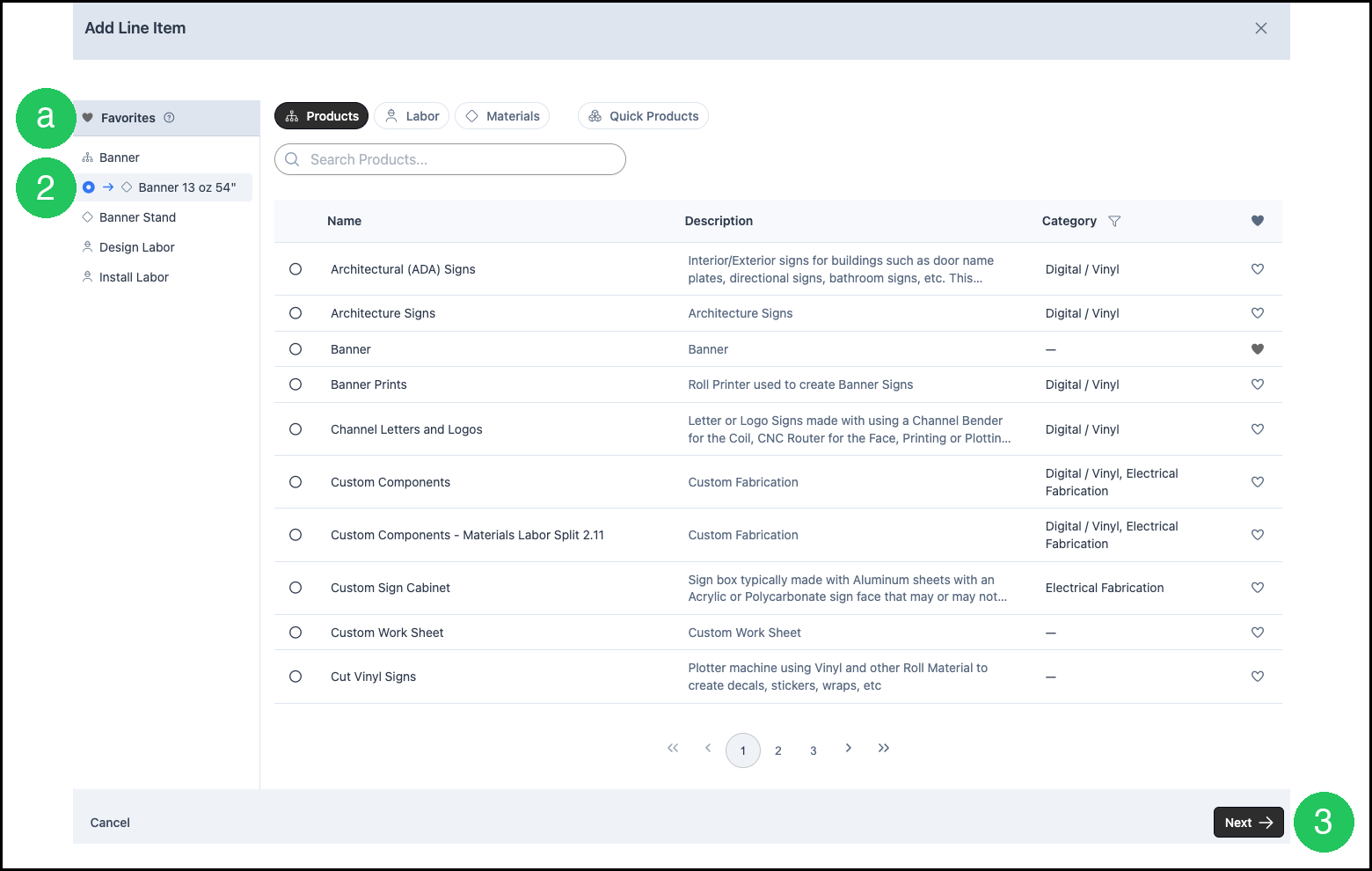
2. Select the Line Item.
a. Favorites is the list on the left. Products, Labor, Materials, and Quick Products are the tabs. Use Search Products when the item is not in the list on the screen.
3. Click Next.
4. Enter the quantity and price.
a. Unit Price ($) and Price ($) show the price for the quantity you entered.
b. Description is the text stored on the Line Item.
5. Click Save Changes.
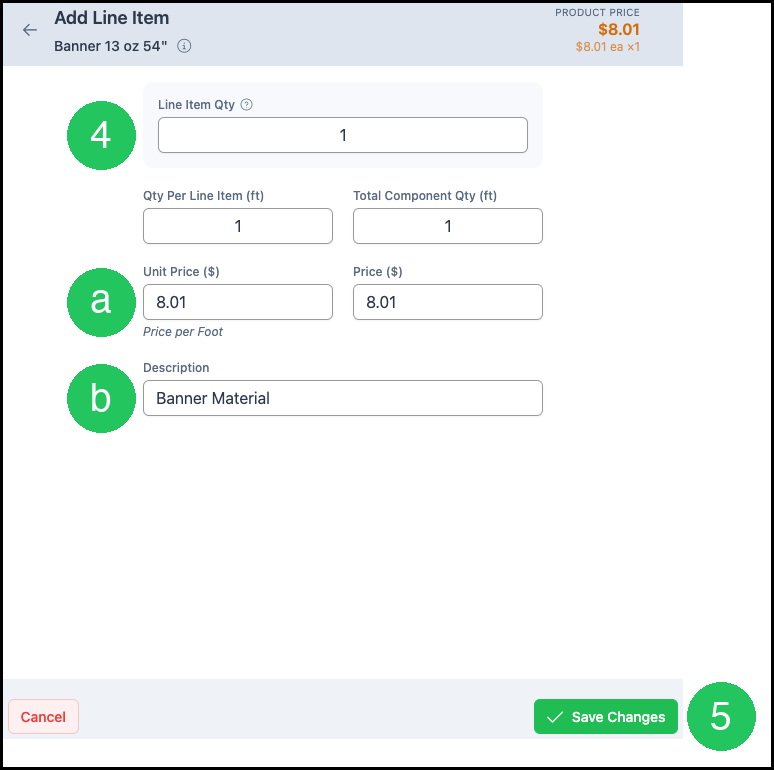
The Line Item is added to Quick Price, and Order Totals updates.
Converting to an Estimate or Order
1. Click Convert to Estimate.
Note: Convert to Order follows the same steps and opens a dialog titled New Order. The required description field is Order Description. On the Details step, enter Customer PO# if you have one, and set Order Origination and Salesperson as needed. Click Create Order.
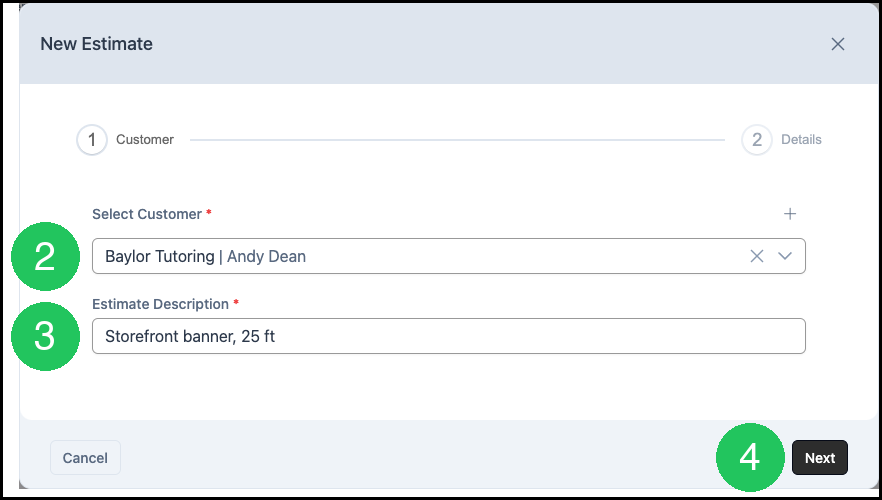
2. Select the Customer. This field is required.
3. Enter the Estimate Description. This field is required.
4. Click Next.
5. Enter Customer PO# if the Customer provided one.
a. Estimate Origination is optional.
6. Click Create Estimate.
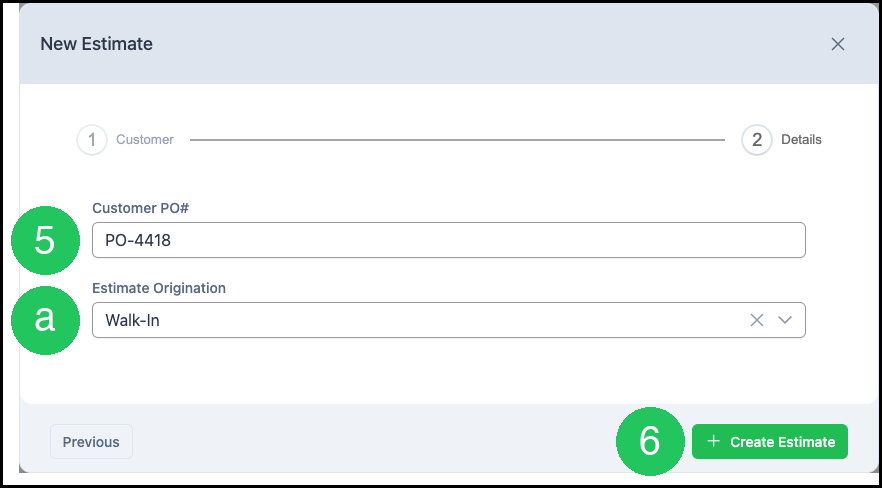
The new Estimate or Order includes the Line Items, fees, and discounts from Quick Price. Open that record to set Destinations and review tax.
Frequently Asked Questions
1. Can I price Line Items before I choose a Customer?
Answer: Yes. Choose the Customer when you convert to an Estimate or an Order.
2. Why are Convert to Order and Convert to Estimate unavailable?
Answer: Add at least one Line Item. The buttons stay unavailable while Quick Price shows No Line Items.
3. Will my Line Items still be there if I leave Quick Price?
Answer: No. Leaving the screen removes them. Convert the work, or copy the Line Items to the Clipboard, before you leave.
4. Do fees, discounts, and tax convert with the Line Items?
Answer: Fees and discounts carry over. Tax is calculated again for the Customer on the new Estimate or Order. Destinations stay at $0.00 until you set them on that record.
Related Articles
Adding Products During Estimate or Order Entry
Clipboard Feature
Creating an Estimate
Creating an Order
Discounts
Estimate and Order Options
Estimates Overview
Line Items Overview
Order and Line Item Fees
Orders Overview
Quick Products Overview
Using Destinations