
The Clipboard Feature provides a quick and efficient way to copy individual Line Items from one Order or Estimate and paste them into another. This allows you to easily recreate specific items without duplicating the entire Order or Estimate. It is especially useful when transferring Line Items between different Customers, helping to reduce manual entry and streamline your workflow. Instead of cloning and modifying an entire Order, you can now copy only what you need.
Table of Contents
- Details on the Clipboard Feature
- Copying a Line Item to the Clipboard
- Pasting a Line Item From the Clipboard
Details on the Clipboard Feature
- The Clipboard Feature is user-specific, meaning copied Line Items are only available to the individual who copied them.
- When a Line Item is copied, all its details, including any overrides such as custom pricing or descriptions, are preserved exactly as they were entered.
- When a Line Item is copied, proofs and Customer communication will not be carried over.
- If the item is added to an Order for a Customer with a different pricing tier, the price will automatically recalculate based on that tier unless a price override was applied. In that case, the override will remain unchanged.
- The item remains in your Clipboard for three days, giving you flexibility to paste it into another Order or Estimate when you are ready.
Copying a Line Item to the Clipboard
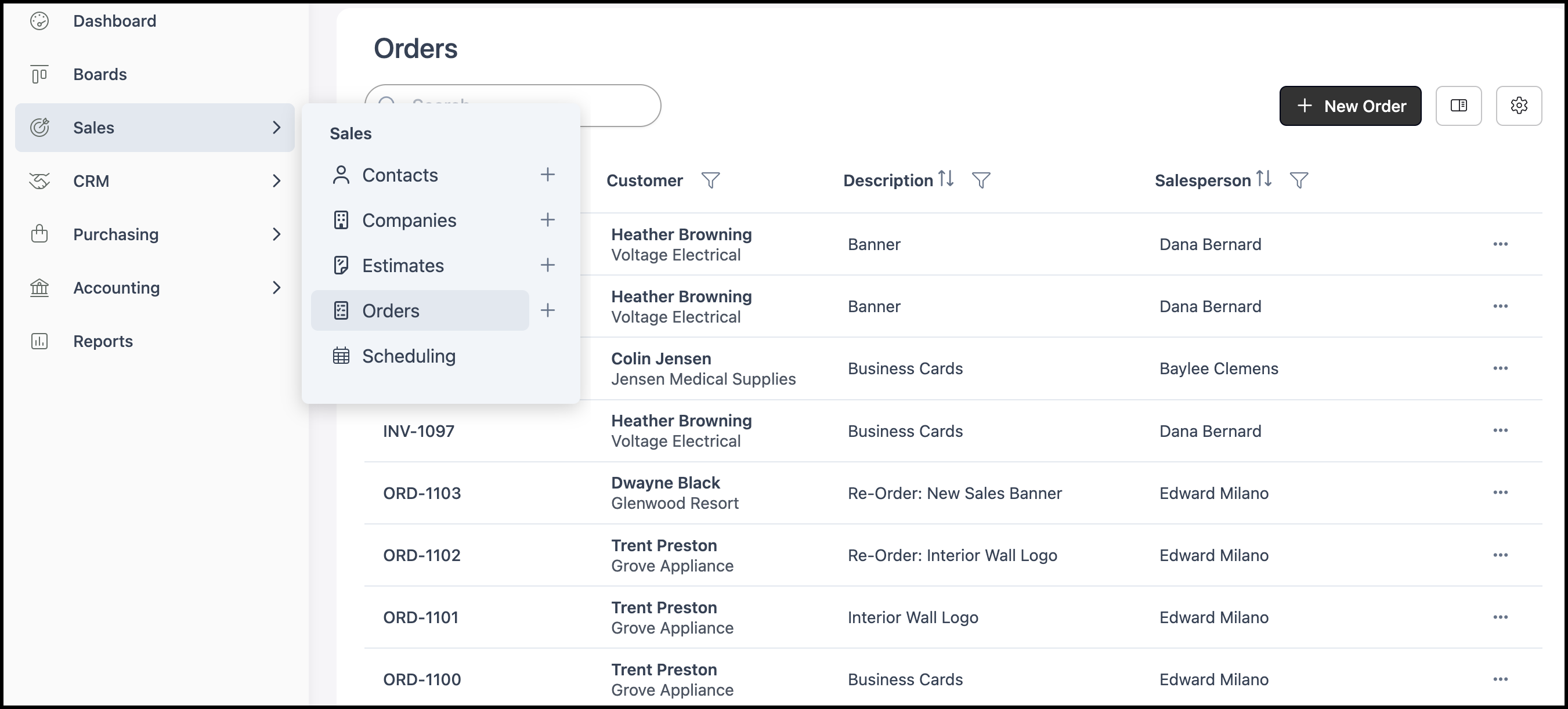
Navigate to Sales / Orders or Estimates and select the appropriate Order or Estimate.
Note: The functionality between Orders and Estimates is the same. This article will use Orders as an example.
Note: Line Items may also be copied to the Clipboard from a Draft or Credit Memo.
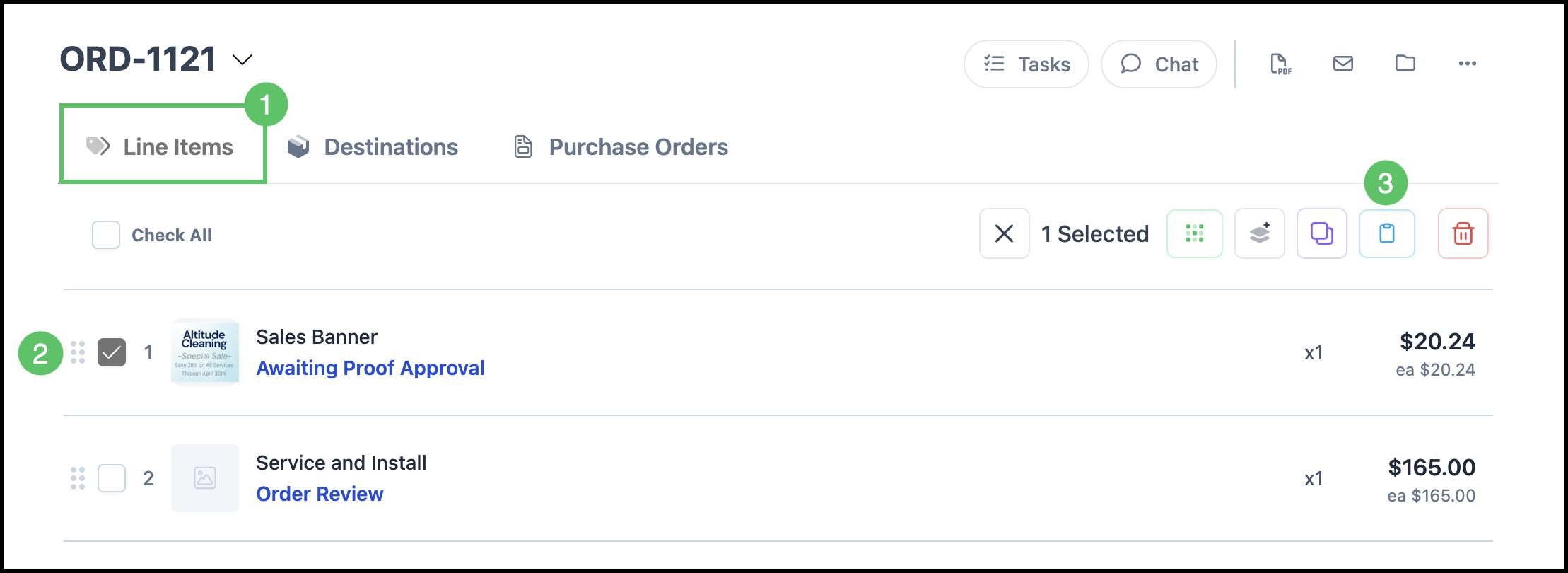
1. Select the Line Items tab.
2. Select the Line Item you want to copy.
3. Click the Clipboard icon.
Note: The Line Item is now stored on the Clipboard and can be pasted into another Order or Estimate or the same one, if desired.
Pasting a Line Item From the Clipboard
After you have copied a Line Item to the Clipboard, you can paste it into the current Order or Estimate or open a different one and paste there.
Navigate to Sales / Orders or Estimates. Open the Order or Estimate where you want to add the copied Line Item or remain on the same document if you are adding a duplicate line there.
Note: The functionality between Orders and Estimates is the same. This article will use Orders as an example.
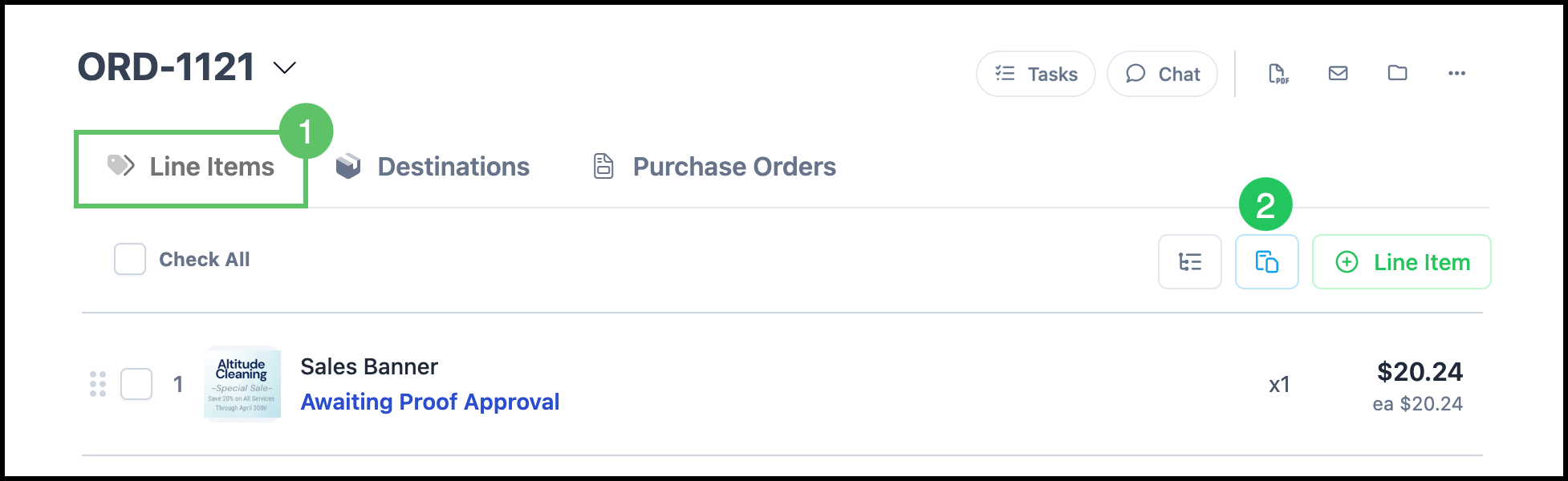
1. Select the Line Items tab.
2. Click the Clipboard icon.
3. Select the item from the Clipboard.
Note: Items in the Clipboard are user specific and are available for three days.
4. Click Paste and Close.
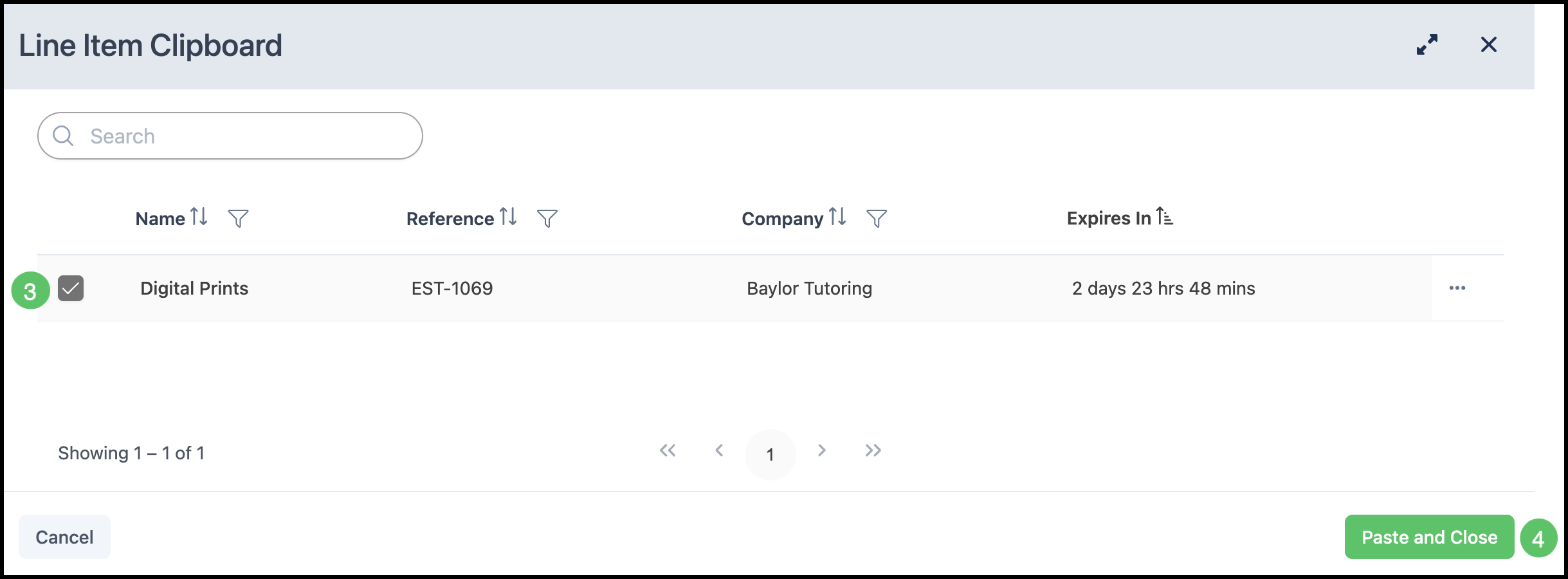
The Line Item from the Clipboard is added to the current Order or Estimate with the same product, quantity, and other configured details as the copied item. You can then edit the new line as needed.