CoreBridge tracks all changes made to Orders and Estimates, giving you a complete record of what was changed, who made the change, and when it occurred.
Note: This article uses Order Change History for all examples, but Estimate Change History works the same way.
Table of Contents
Opening Change History
The Change History panel is accessible from within any Order or Estimate.
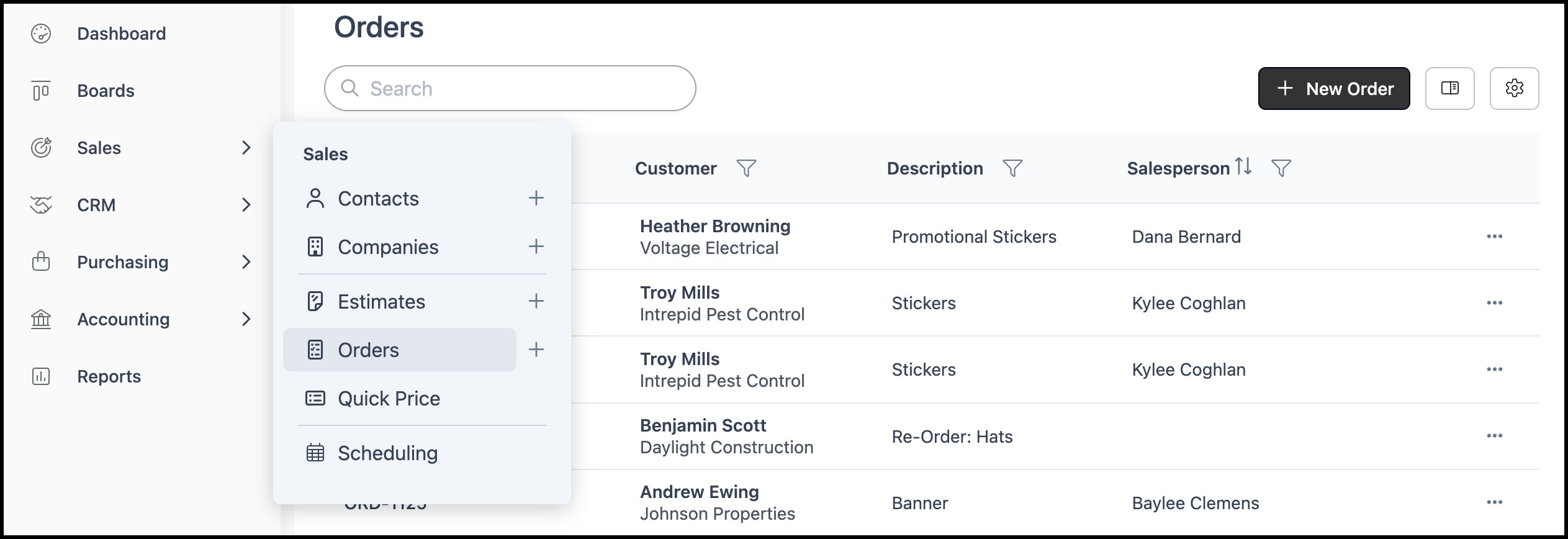
Navigate to Sales / Orders and open the Order.
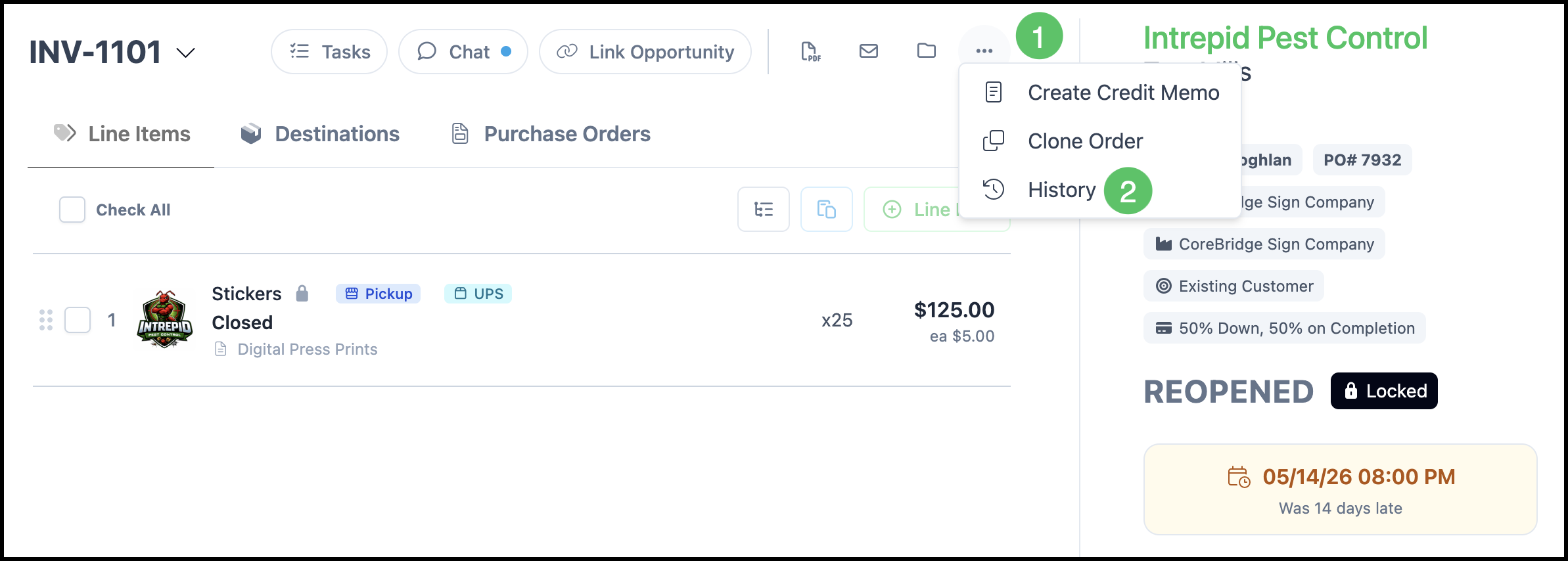
1. Select the Actions Menu.
2. Select History. The Change History panel opens on the right side of the screen.
Reading the Change History Timeline
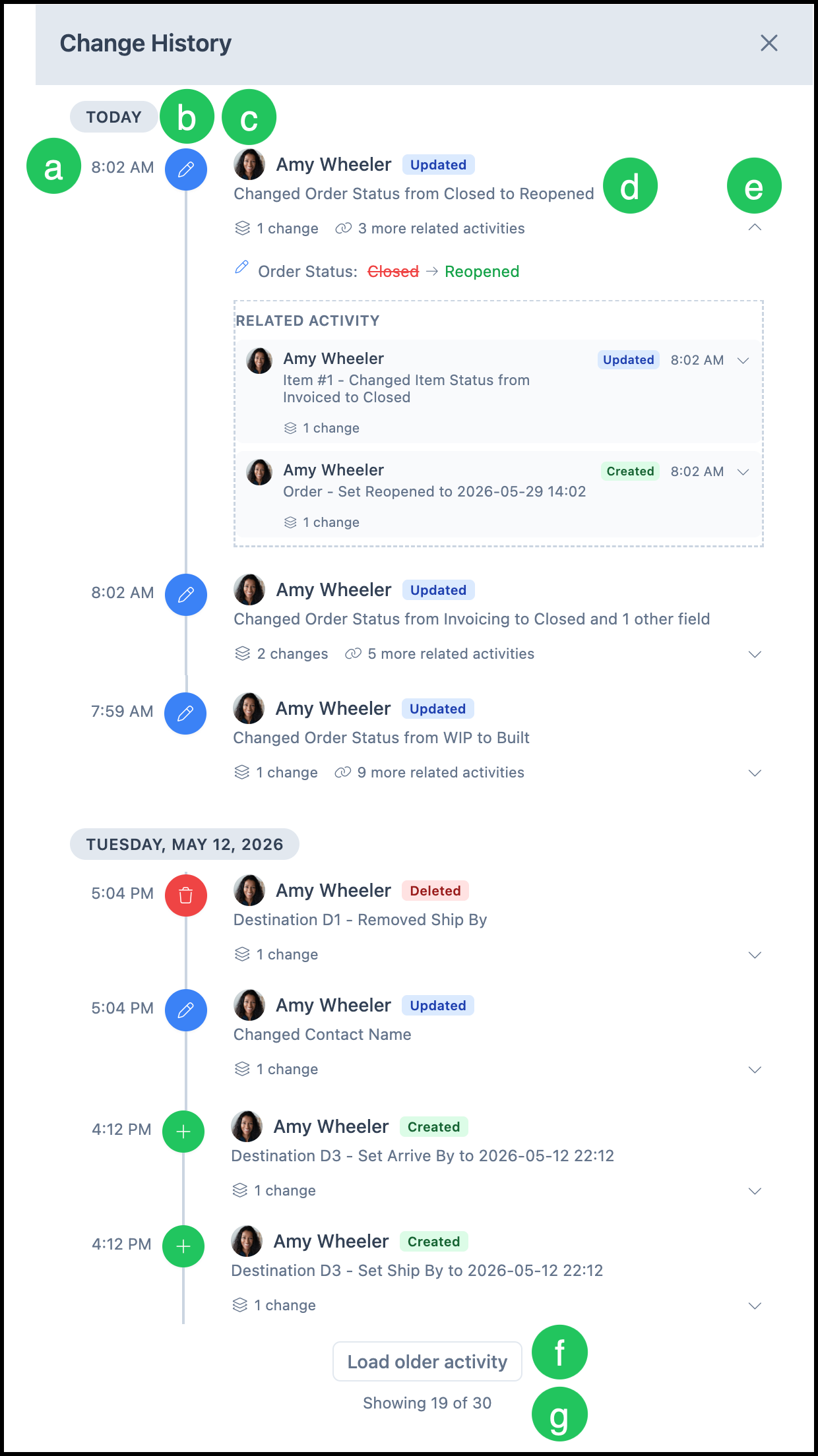
Change History entries are organized by date, with the most recent entries at the top. Each entry displays the following information.
a. Timestamp showing when the change occurred.
b. Action badge indicating the type of change: Updated (blue), Created (green), or Deleted (red).
c. The name of the person who made the change.
d. A brief description of what was changed.
e. Additional details about the change can be expanded from here.
f. Older history entries can be loaded from here.
g. The number of field changes and related activities included in the entry.