If your business is transferring data from another system, the import questionnaire can help move data seamlessly and minimize potential errors. The questionnaire is also necessary for quickly filling any data gaps or issues.
The import questionnaire can be accessed by visiting Customer Import Questionnaire.
Table of Contents
- Updating General Information
- Updating System Default Information
- Updating Optional Default Information
Updating General Information
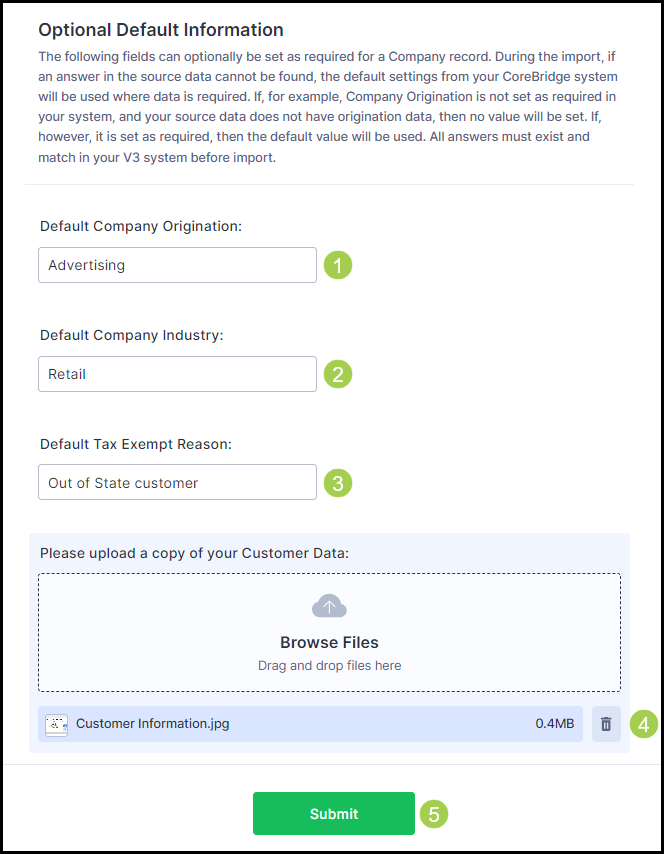
Complete the General Information section by inputting:
1. First and Last Name.
2. Company.
3. Email.
4. Name of the initial source of data - what was the original file or system called.
5. Target Go Live date - when you would like to have your system up and running.
6. Purge existing Companies and Contacts - select if you would like all contacts and companies wiped before the import.
7. Companies missing Contacts - select what actions should be taken if a contact is missing from a company profile.
8. Contacts missing Companies - select what actions should be taken if a company is missing from a contact profile.
9. Multiple Location Options - select how the data should be sorted (only applies if you have multiple locations).
10. Logic for assigning companies if necessary - provide our team with how to assign companies if needed.
Updating System Default Information
If information or data is missing from a company record, select what actions should be taken and how the import will treat such cases.
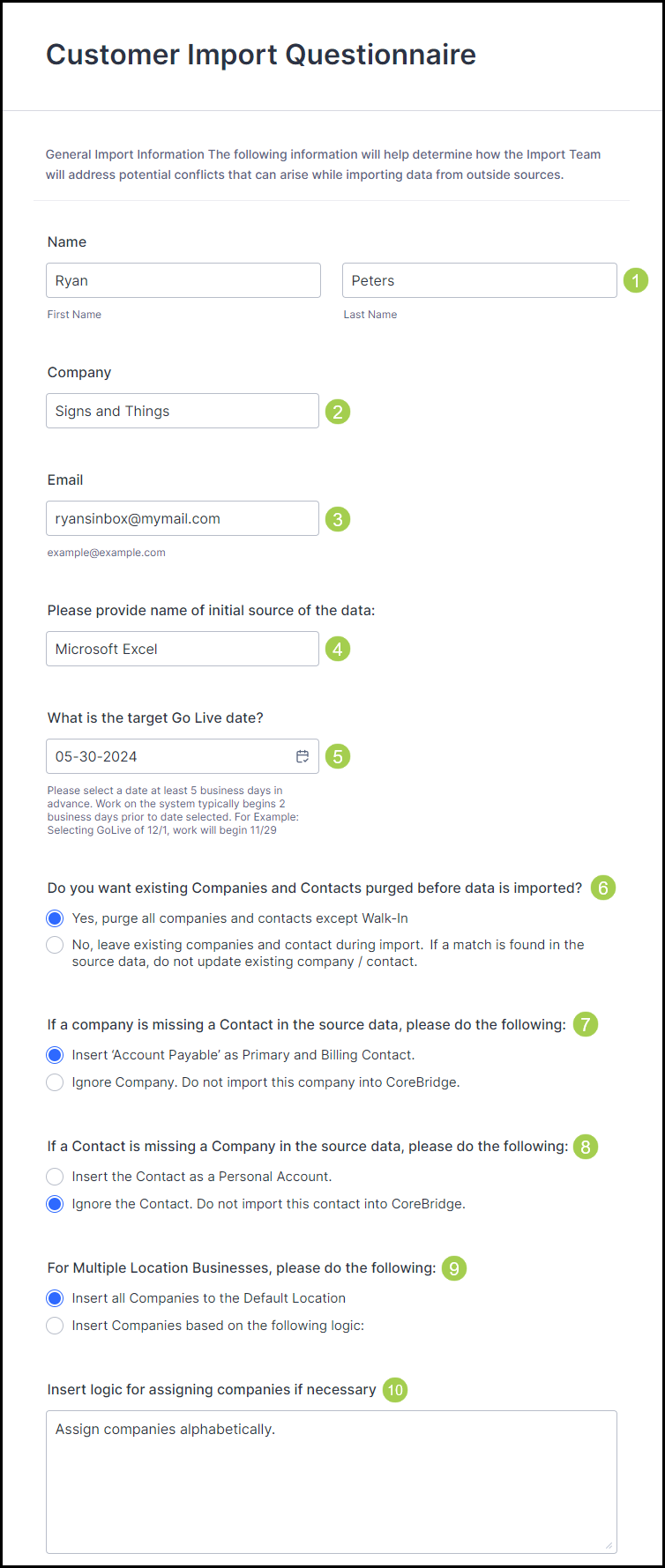
Update the section by inputting:
1. Default Location - enter which location companies will be assigned to if not indicated.
2. Default Salesperson - enter which salesperson companies will be assigned to if not indicated.
3. Default Company Status - enter which status (Lead, Prospect, Customer) will be assigned to companies if not indicated.
4. Default Pricing Tier - enter which pricing tier companies will be assigned to if not indicated.
5. Default Payment Terms - enter which payment terms companies will be assigned if not indicated.
6. Default Tax Group - enter which tax group companies will be assigned to if not indicated.
Updating Optional Default Information
If optional information or data is missing from a company record, select what actions should be taken and how the import will treat such cases.
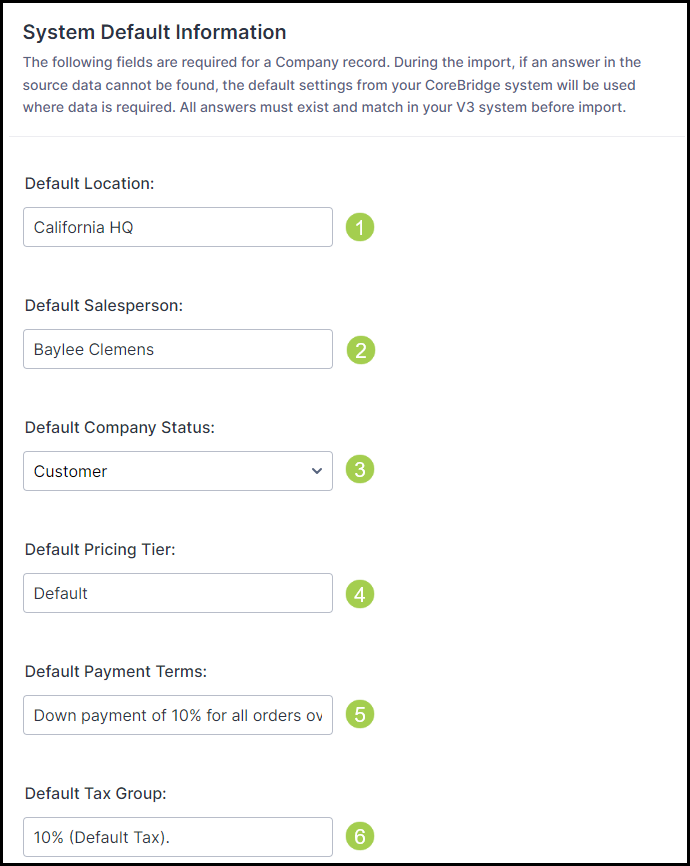
Update the section by inputting:
1. Default Company Origination - enter which origination label (where the company came from) companies will be assigned if not indicated.
2. Default Company Industry - enter which industry label (what the business does) companies will be assigned if not indicated.
3. Default Tax Exempt Reason - enter which tax exempt label companies will be assigned if not indicated.
4. Upload a copy of the information. This is the most important step as our team needs this to complete the sync.
5. Select Submit to pass the information to our team.