CRM (Customer Relationship Management) Lists are used to add Customer information to their record in the system. By adding an origination of how this Customer learned about your store and their main industry, your CRM's can target their time and efforts better. The system allows the ability to create additional labels. The lists are organized into two separate groups, Industries and Originations. Within each group, parent labels and sub-labels can be created. As your business changes and grows you will need to periodically change or update your CRM lists.
Table of Contents
- Adding Industries or Originations
- Editing or Deleting Industries or Originations
- Customer Information Options
Adding Industries or Originations
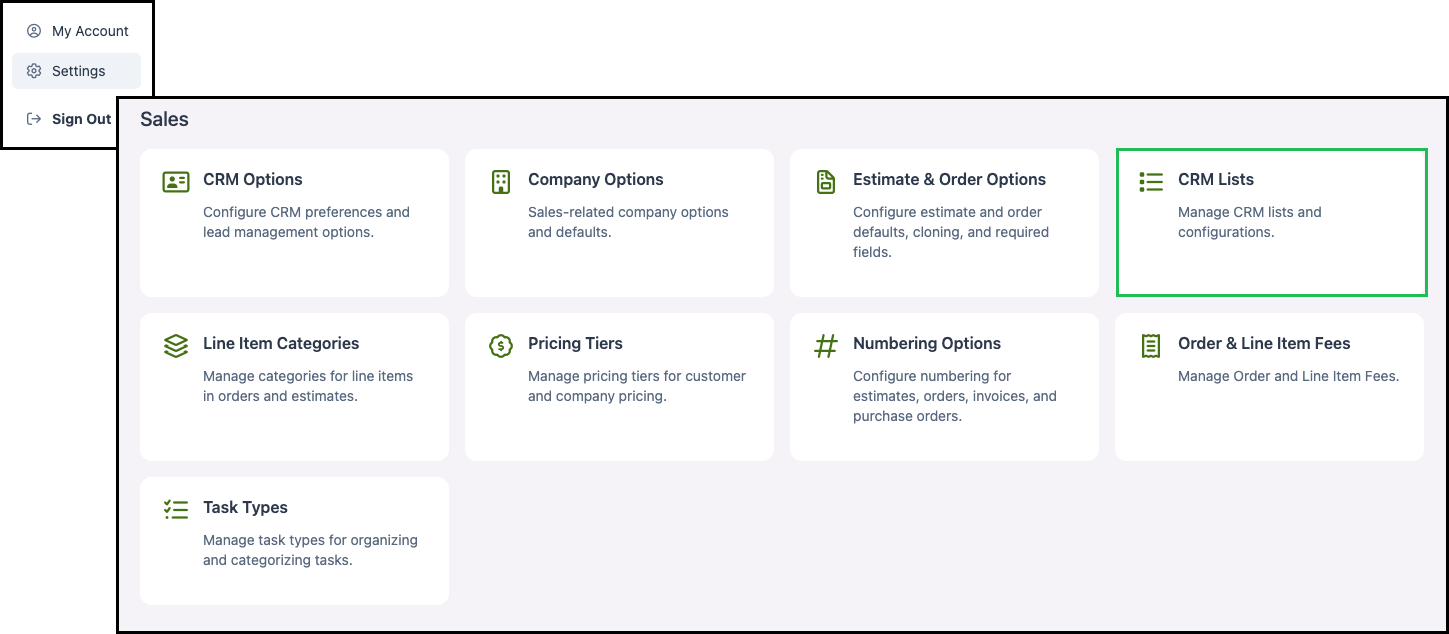
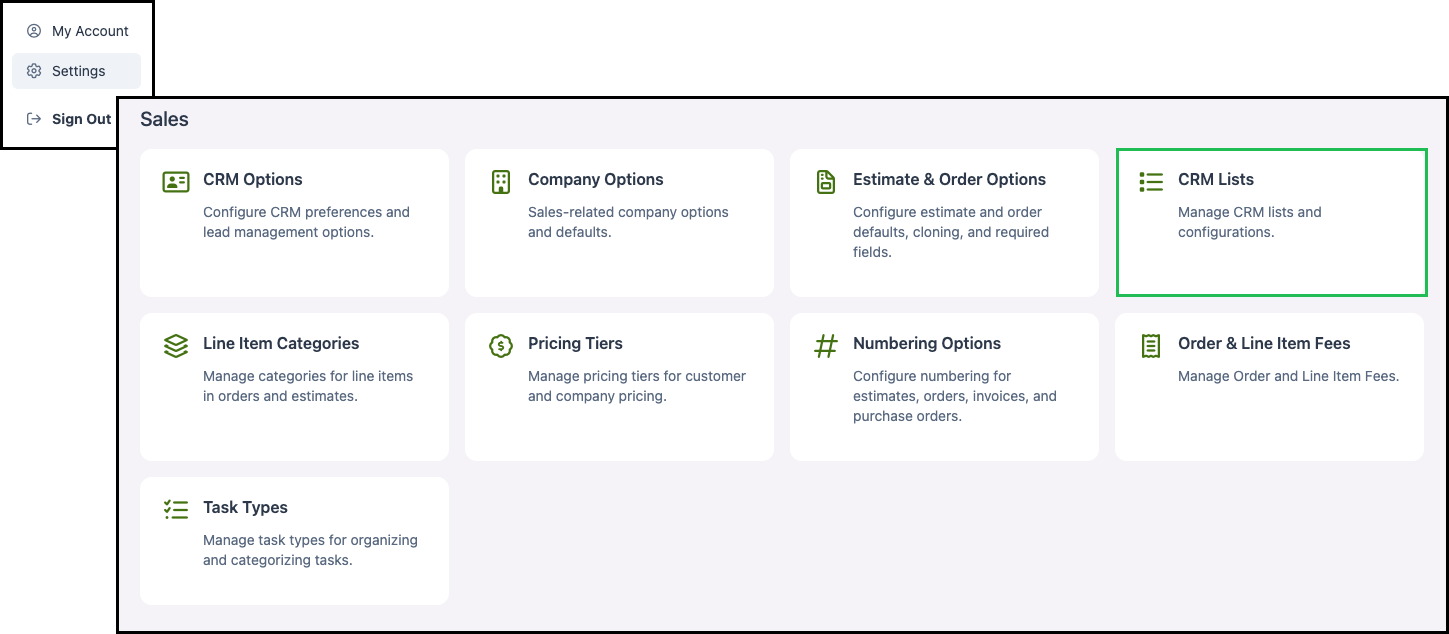
Navigate to Settings / Sales / CRM Lists.
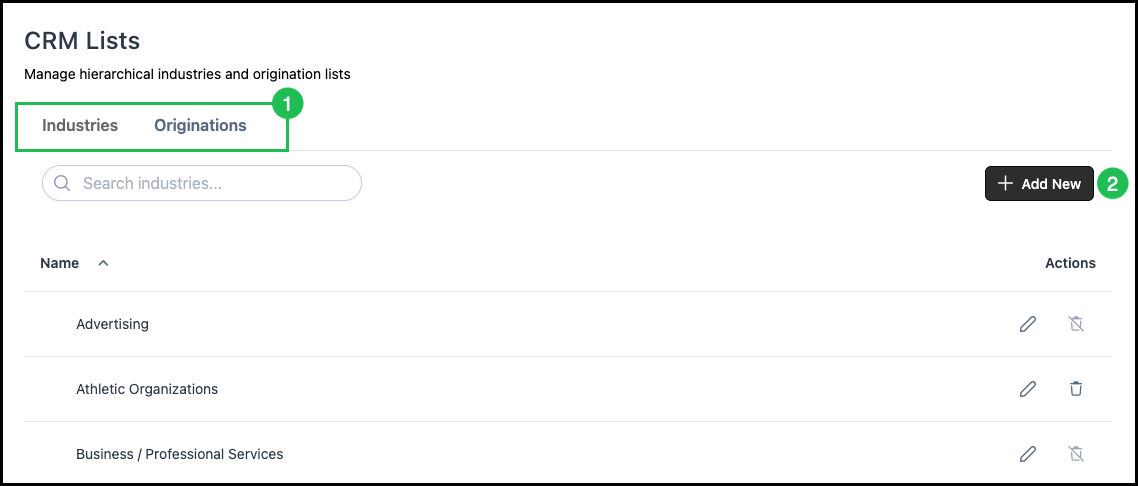
1. Select the Industries or Originations tab.
Note: The two tabs have the same layout and functionality; only the type of list (Industries or Originations) changes.
2. Click the Add New button.
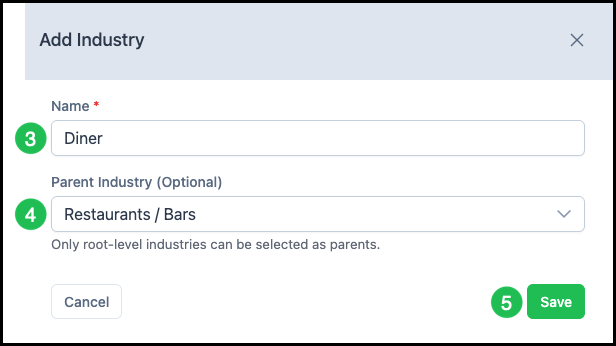
3. In the dialog, enter a Name for the new Industry or Origination. This field is required.
4. Optionally, select a Parent Industry or Parent Origination if this label should be a sub-label under an existing parent.
- If no parent is selected, the new label will be a root-level (top-level) item.
- Only root-level Industries or Originations can be selected as parents.
5. Click Save.
Editing or Deleting Industries or Originations
You can edit or delete an Industry or Origination from the list. Items that are in use on at least one Company record cannot be deleted; the system will display a message if you attempt to delete an item in use.
Navigate to Settings / Sales / CRM Lists.
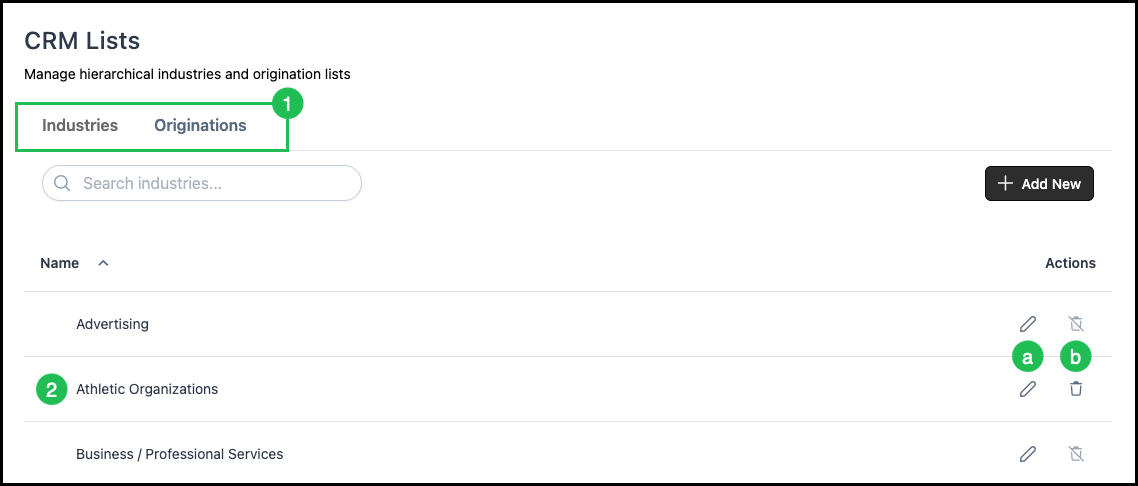
1. Select the Industries or Originations tab.
Note: The two tabs have the same layout and functionality; only the type of list (Industries or Originations) changes.
2. Locate the row for the Industry or Origination you want to change.
a. Choose Edit to change the name or parent.
b. Choose Delete to remove the item.
Note: Delete is not available if the item is in use on any Company record.
Customer Information Options
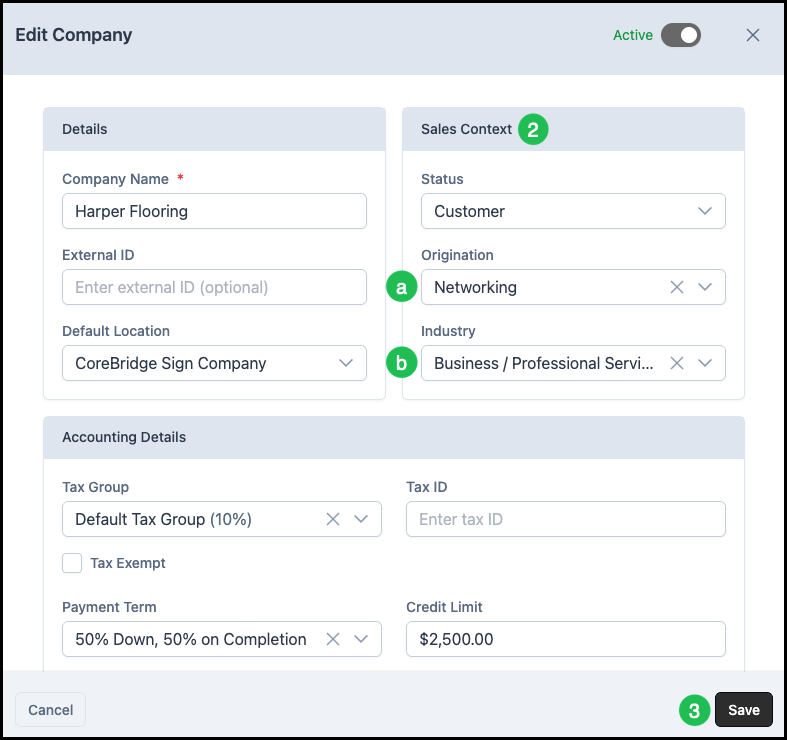
The CRM lists you maintain are used as options when entering or editing Customer or Company information. This article uses editing a Company as
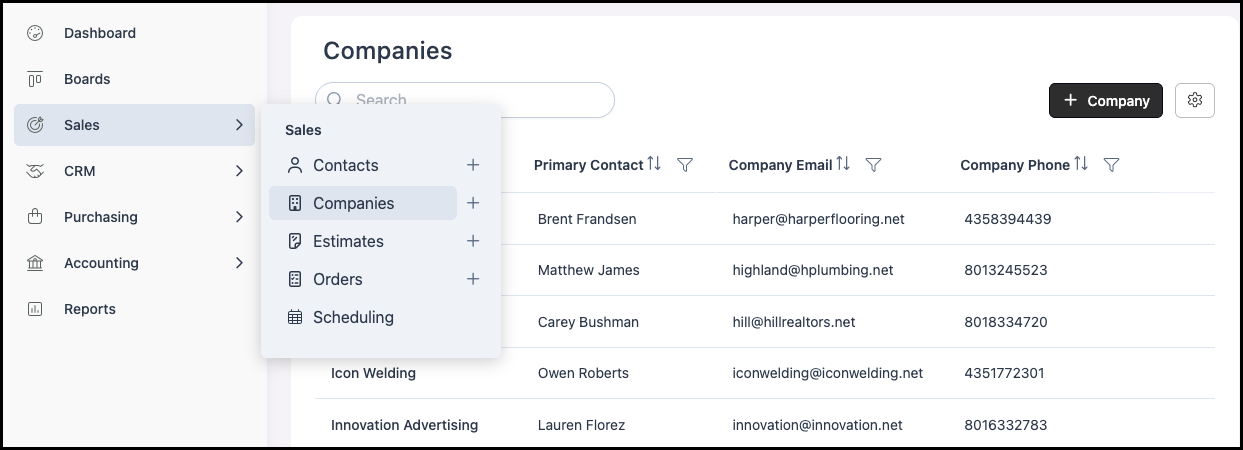
Navigate to Sales / Companies and select the appropriate Company.
1. Click the Edit icon.
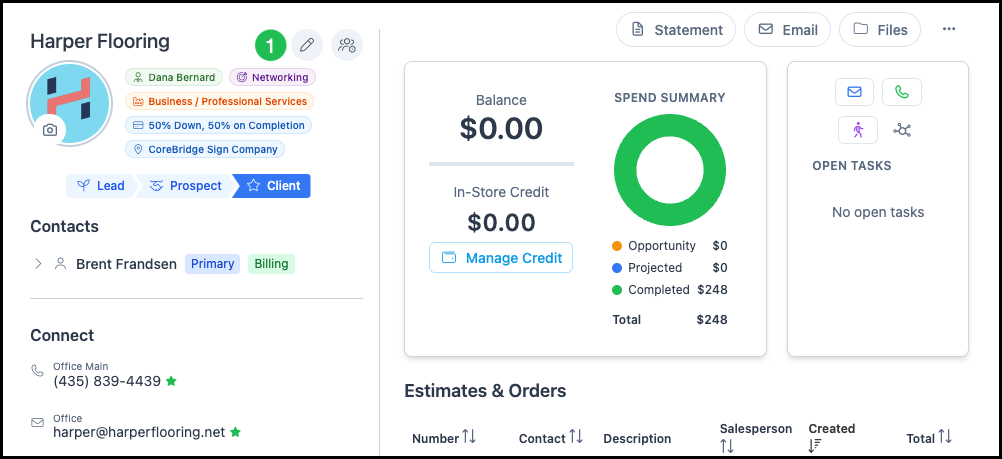
2. Edit the Sales Context information as needed using the dropdown lists.
a. Company origination - Where the company heard about your store (from the Originations list).
b. Industry - The company’s main industry (from the Industries list).
3. Click Save.