Materials are the physical items used in creating a Product or delivering a service. These tangible resources can be tracked for cost and inventory purposes and may include items such as vinyl, acrylic, aluminum sheets, banner material, ink, or paper stock. By defining Materials in your system - including those that require multiple variations through the Material with Variants option - you can support accurate job costing, inventory management, and pricing.
For more information on Materials, please see Materials Overview.
Table of Contents
- Material Options in the System
- When to Use Material with Variants
- Materials Menu
- Materials With Variants Screen
- Related Articles
Material Options in the System
The system supports two types of Materials: standalone Materials and Materials with Variants. A standalone Material represents a single item without additional selectable options. Materials with Variants, on the other hand, allow you to manage a single Material that includes multiple predefined variations such as color, size, or thickness. Both options are available so you can choose the setup that best matches how the item is used, tracked, and priced in your workflow.
When to Use Material with Variants
Use Material with Variants when the item has a single base Material but comes in multiple predefined options, such as size, color, thickness, or finish. This approach works best when all variations share the same general purpose, cost structure, and behavior in the system, allowing you to manage them under one Material instead of creating separate entries. Creating individual Materials is more appropriate when the items differ in meaningful ways - such as costing, measurement type, or how they are used in Assemblies - making them distinct enough to track separately.
Materials Menu
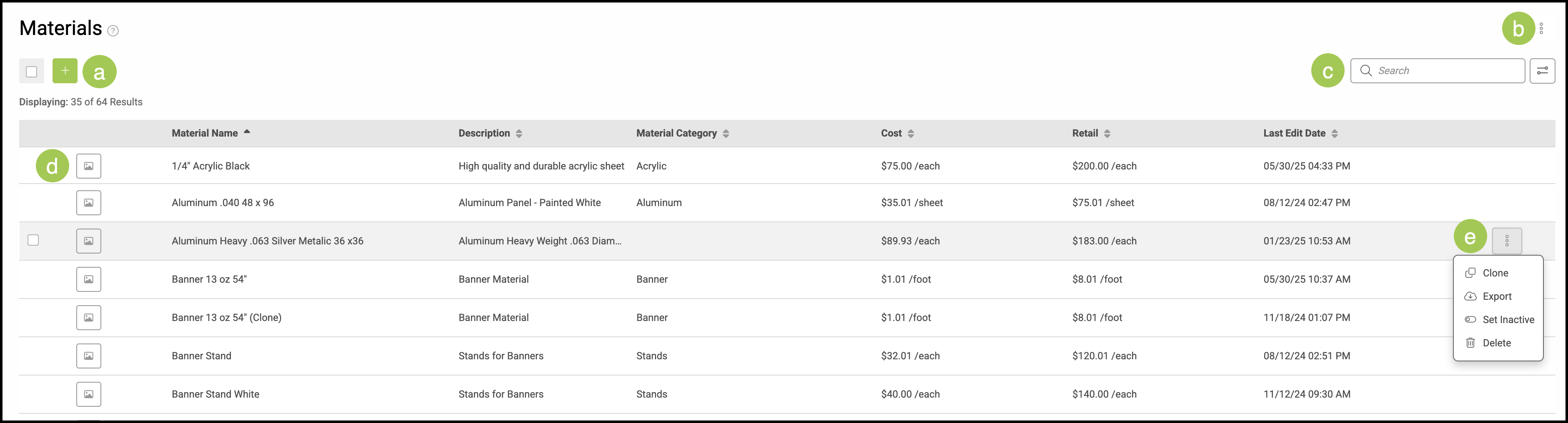
To locate Materials, navigate to Settings / Components / Materials.

a. The Green Plus button allows you to add new Materials.
b. Under this Ellipsis, you will find options for importing Materials.
c. The Search Bar and Filter icon can help you quickly locate a specific Material.
d. Clicking into a Material will show you more details.
e. This Ellipsis will give you the options to Clone, Export, Set Inactive, or Delete the Material.
Notes:
- Materials that are currently being used in active Orders can be set to Inactive, not Deleted.
- This menu can also be accessed another way. See example below.
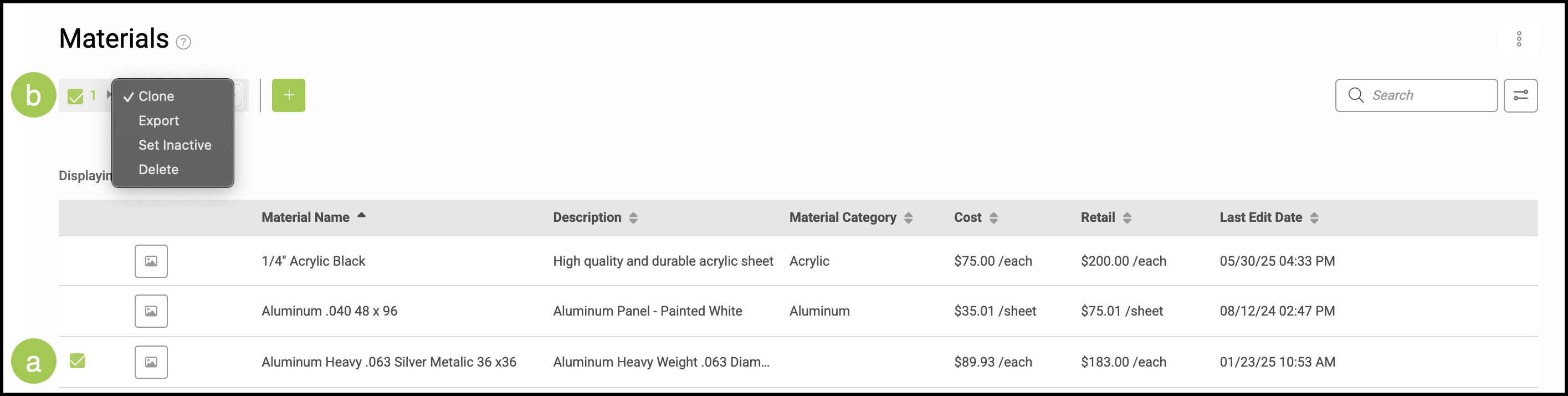
Example:
a. Checking the box on the row of the Material brings up a dropdown next to the Green Plus button near the top of the screen.
b. The dropdown menu gives you the options to Clone, Export, Set Inactive, or Delete the Material selected.
Materials With Variants Screen
Select a Material with Variants to open up the Material with Variants Screen.
a. This indicates whether this is a stand alone Material or a Material with Variants.
b. This shows the most recent date and time the Material was updated.
c. These tabs across the top allow you to navigate between topics within the Material.
d. Use this Ellipsis to access these options from within the Material.
Note: Materials that are currently used on an Estimate or Order cannot be deleted. Instead, set these Materials to Inactive.

Material Details Tab
With the Material Details tab selected on the top of the Materials Screen, you will be able to access basic information about this Material and edit as necessary.
Note: Any changes made will be automatically saved by the system.
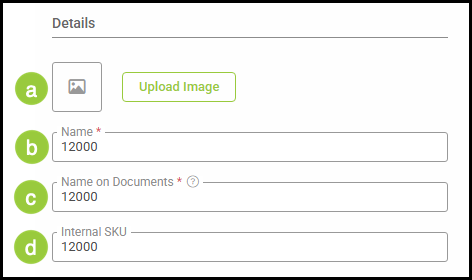
Details
a. Upload Images of the Material, if desired.
b. Name - This is the Part name. It is recommended to begin with the Material type, followed by key attributes such as thickness, color, or size, since this name will appear in your Material list.
c. Name on Documents - This pertains to how this Material will display on Customer facing documents such as Estimates and Invoices.
d. Internal SKU - A unique Stock Keeping Unit used for internal inventory and tracking purposes if available.
Settings
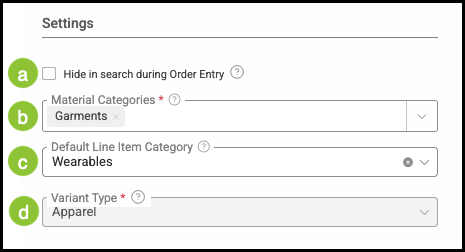
The Settings section includes options that control how a Material is organized and whether it can be selected during Order entry. These settings allow you to manage visibility in search, assign Material Categories, and designate a Default Line Item Category for consistent classification.
a. This setting controls whether the Material can be selected when adding Line Items during Order entry.
b. Material Categories help organize and sort Materials. After a Material is assigned to one or more categories, it can be located using category filters, and if a category is linked to an Assembly, the Material will be available during Order entry when that Assembly is added.
c. A Default Line Item Category determines which category is automatically applied when this Material is added to an Estimate or Order.
d. A Variant Type is a predefined group that organizes the options available for a Material with Variants. Each Variant Type includes the Properties and Values a Material can use, such as color or size.
Note: Apparel is the only currently available Variant Type.
Consumption
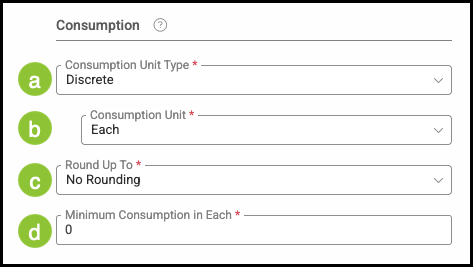
Consumption Units and Types are further ways to classify a Material. They give information on how a Material is consumed and rounded for usage.
a. This dropdown allows you to select the Unit Type used to measure this material such as Length, Volume, and Weight.
b. This field will automatically populate depending on the Consumption Unit Type chosen above, but can be changed manually.
c. This setting enables your system to automatically round up to the next unit.
d. Minimum Consumption in Each reflects the lowest amount of this Material that can be used in calculations.
Note: Best practice is to enter a 0 unless a minimum amount of this Material is used regardless of what the assembly calls for.
Example: If the Minimum Consumption is set to 1 sheet and a Customer has requested 0.5 sheets, the minimum of 1 sheet will automatically be used in all calculations.
Accounting Details
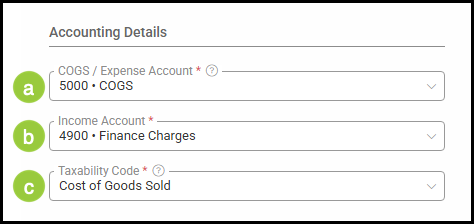
a. COGS / Expense Account reflects the account the Material will be billed to.
b. The Income Account that will be credited when this Material is sold.
c. The Taxability Code for a Material is set dependent on if the Material taxable, tax exempt, or taxable with exceptions.
Custom Fields
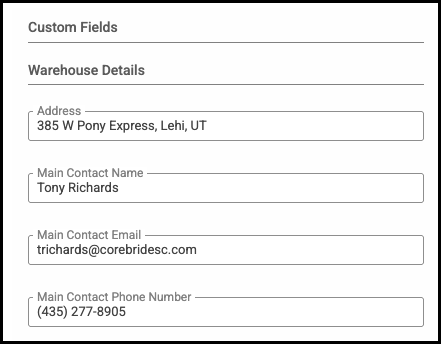
The Custom Fields found under the Material Details tab are Quick Custom Fields, which provide a flexible way to add information specific to your business or to the individual Material. These fields can be tailored to record details that aren’t covered by standard fields. You can manage them by going to Settings / Custom Fields / Material. For more information on Custom Fields, please see Custom Fields.
Variants Tab
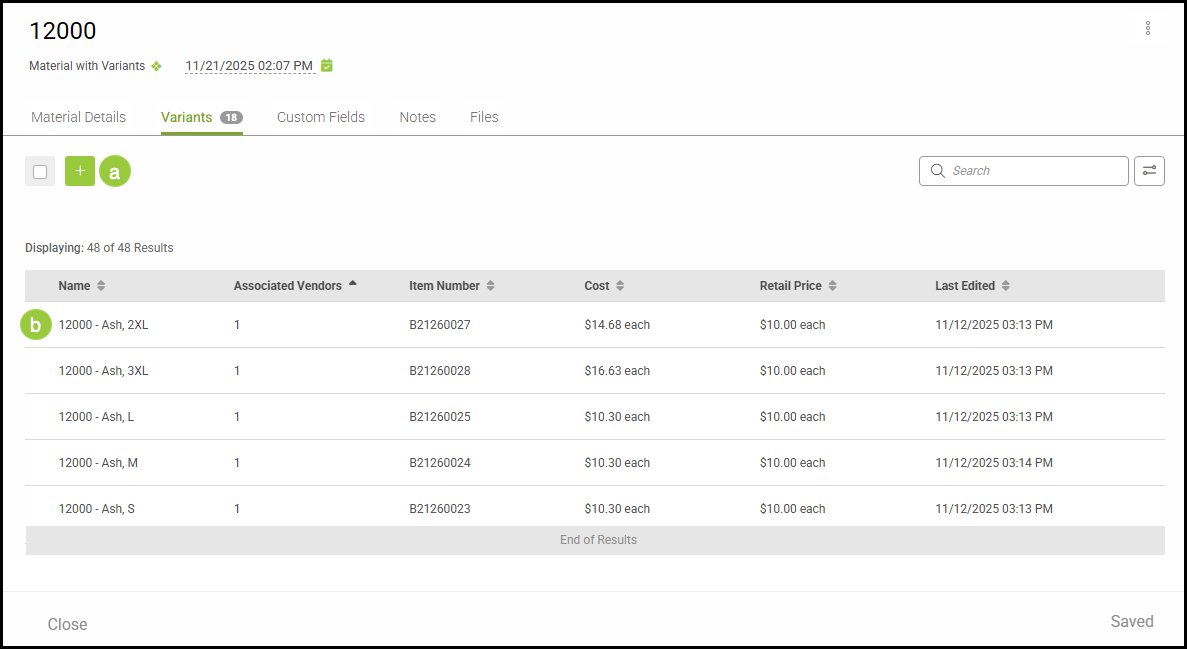
The Variants tab is where you define and manage the specific options available for a Material with Variants. This area allows you to select the Variant Type, choose the Properties and Values that apply, and review how each combination will be used during Order entry. Setting up Variants ensures that all selectable options for the Material are organized, consistent, and ready for use in Estimates and Orders.
a. Variants can be added by clicking the Green Plus button.
b. Clicking into a Variant will show more detailed information.
Note: For more information, see Variants Overview.
Custom Fields Tab
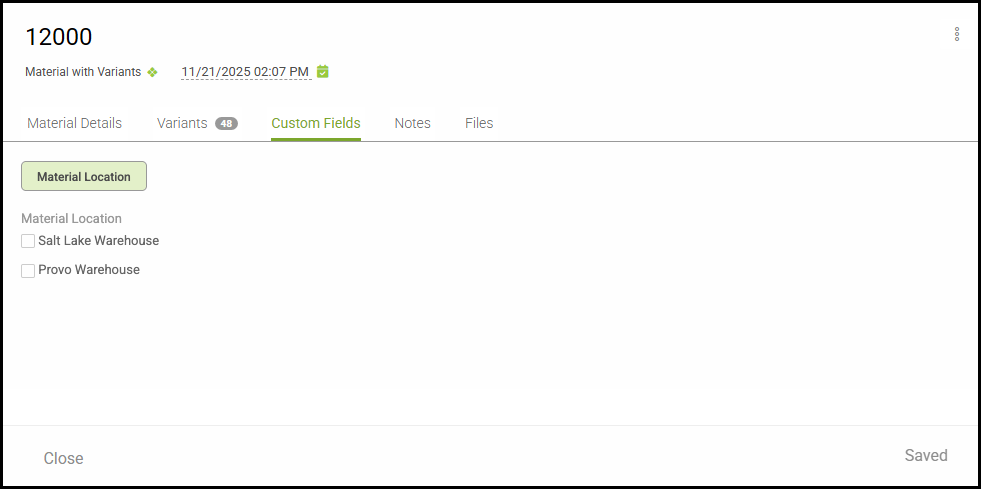
The Custom Fields tab provides another way to customize and organize the information stored about a Material. This area is especially useful when you need to include a larger amount of information or cover multiple topics related to the Material. By grouping Custom Fields into subtabs, you can keep your data organized and easy to navigate. These fields are managed in Settings / Custom Fields / Material, within the Custom Fields Subtab section.
Notes Tab
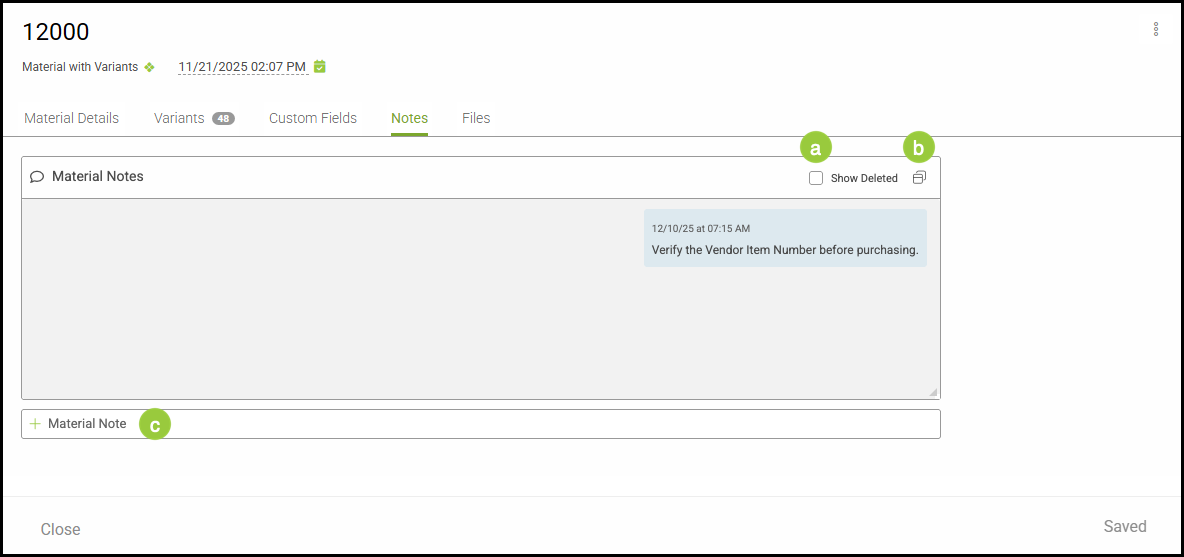
Notes that are related to this Material may be added here for internal reference.
a. Checking this will show notes that have previously been deleted.
b. Clicking here will show the notes in an expanded version. This is helpful if there are multiple notes.
c. This field allows you to add a new note on the Material.
Files Tab
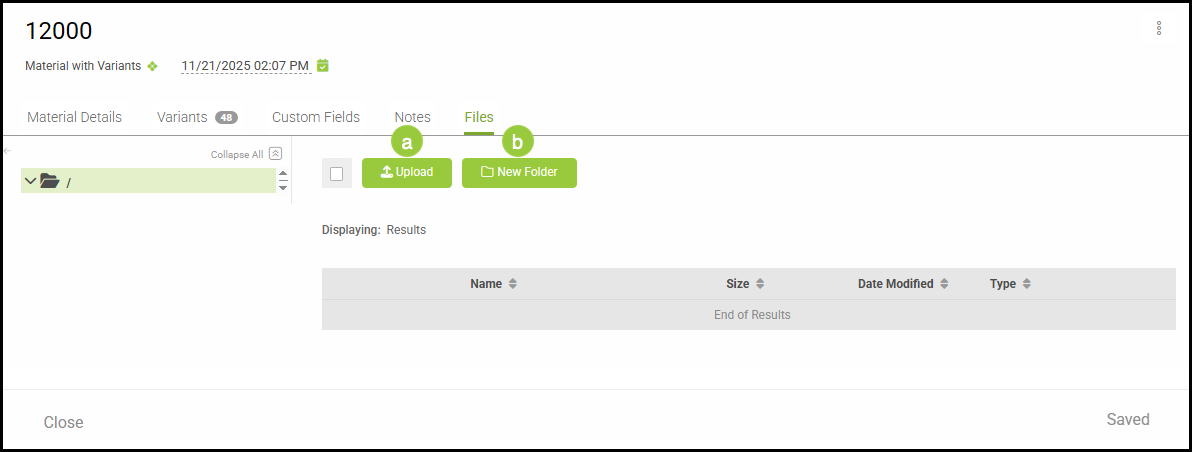
The Files tab offers a way to organize and store important documents related to this Material such as vendor contracts, purchase history, or safety data sheets.
a. Information can be directly uploaded as a file or URL.
b. Use Folders to group and manage files, keeping your information organized.