
The Chart of Accounts organizes the general ledger accounts CoreBridge uses to classify financial activity. It includes system accounts and can be expanded with custom accounts to meet your accounting needs. These accounts are used throughout CoreBridge and can be matched by account name and number with a connected accounting integration.
Note: CoreBridge tracks accounts receivable and income. Expense and liability accounts are stored here so they can be mapped and synced. Payables stay in the connected accounting software. For an account that syncs, the Account Name and Account Number match that software exactly.
Table of Contents
- Understanding the Chart of Accounts
- Creating Custom Accounts
- Edit a Custom Account
- Filtering the Chart of Accounts
- Setting Custom Accounts Inactive
- Deleting Custom Accounts
- Reactivating Custom Accounts
- Related Articles
Understanding the Chart of Accounts
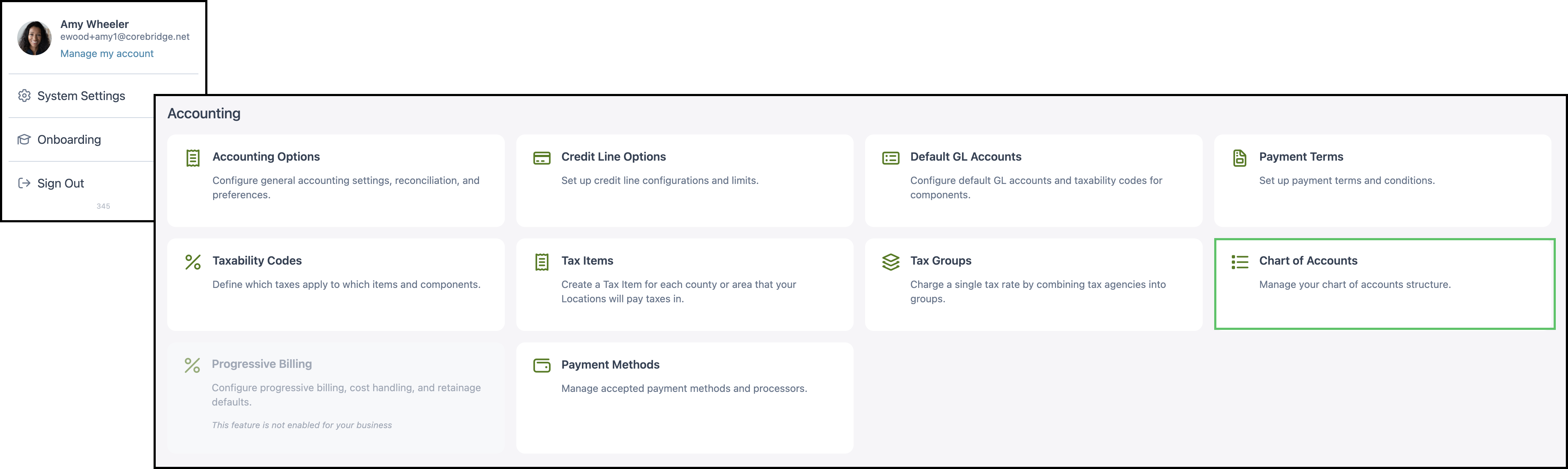
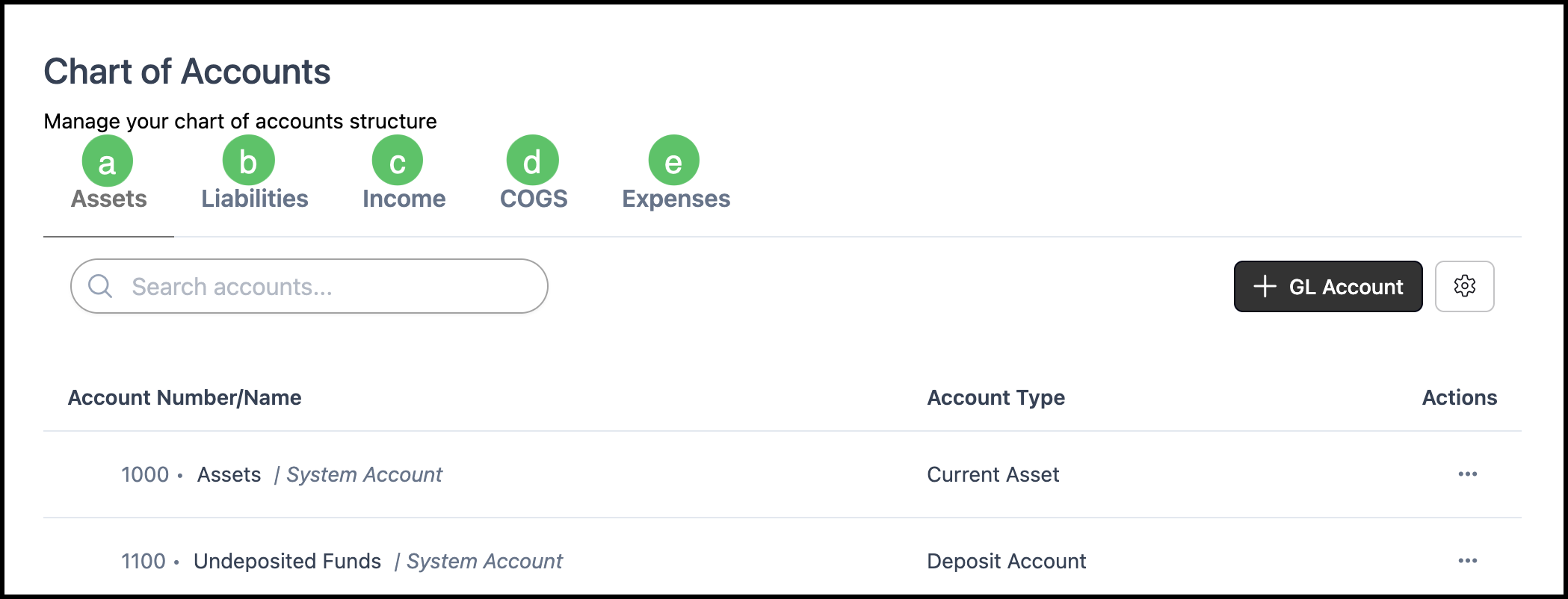
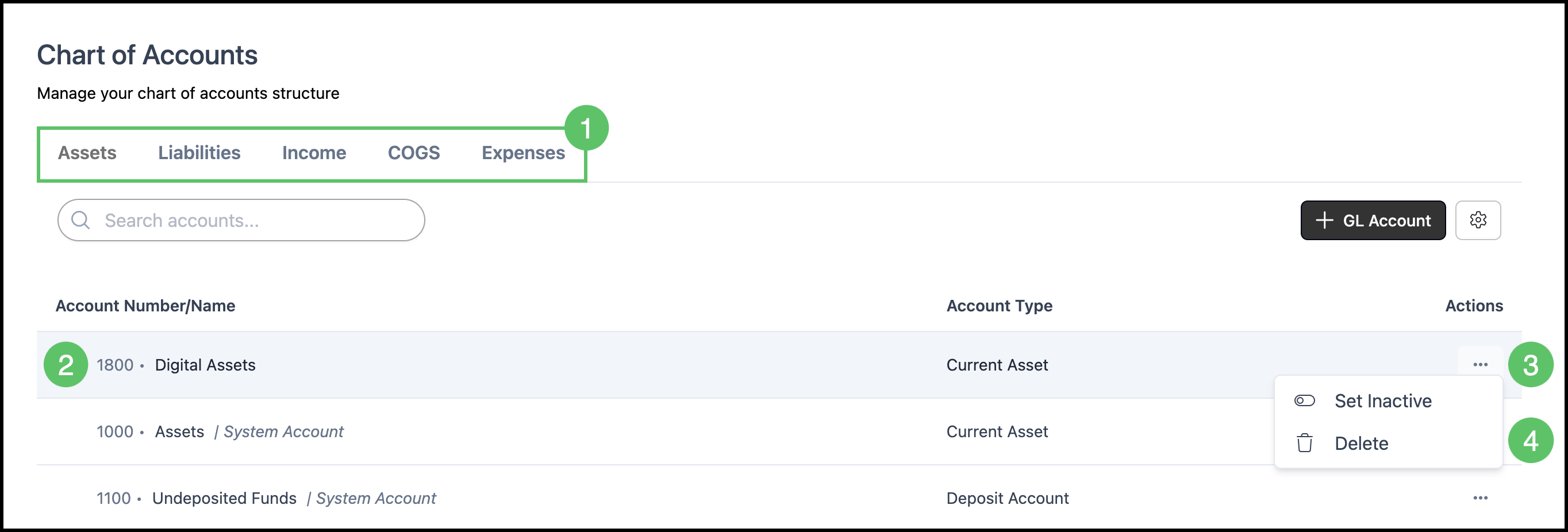
The Chart of Accounts screen has five tabs. Each account is listed on the tab for its family.
Navigate to System Settings / Accounting / Chart of Accounts.
a. Assets: Property or items owned by the business.
b. Liabilities: Amounts owed by the business.
c. Income: Incoming monetary value.
d. COGS: Cost of goods sold, or the production cost of what was sold.
e. Expenses: Costs incurred while operating the business.
Note: Built-in rows are labeled | System Account. A system account cannot be edited or deleted.
Creating Custom Accounts
A custom account is an account added for the business. Required fields are marked with a red asterisk. Account Name is required and must be unique, including against inactive accounts. Account Number is optional and, when used, must be unique.
Navigate to System Settings / Accounting / Chart of Accounts.
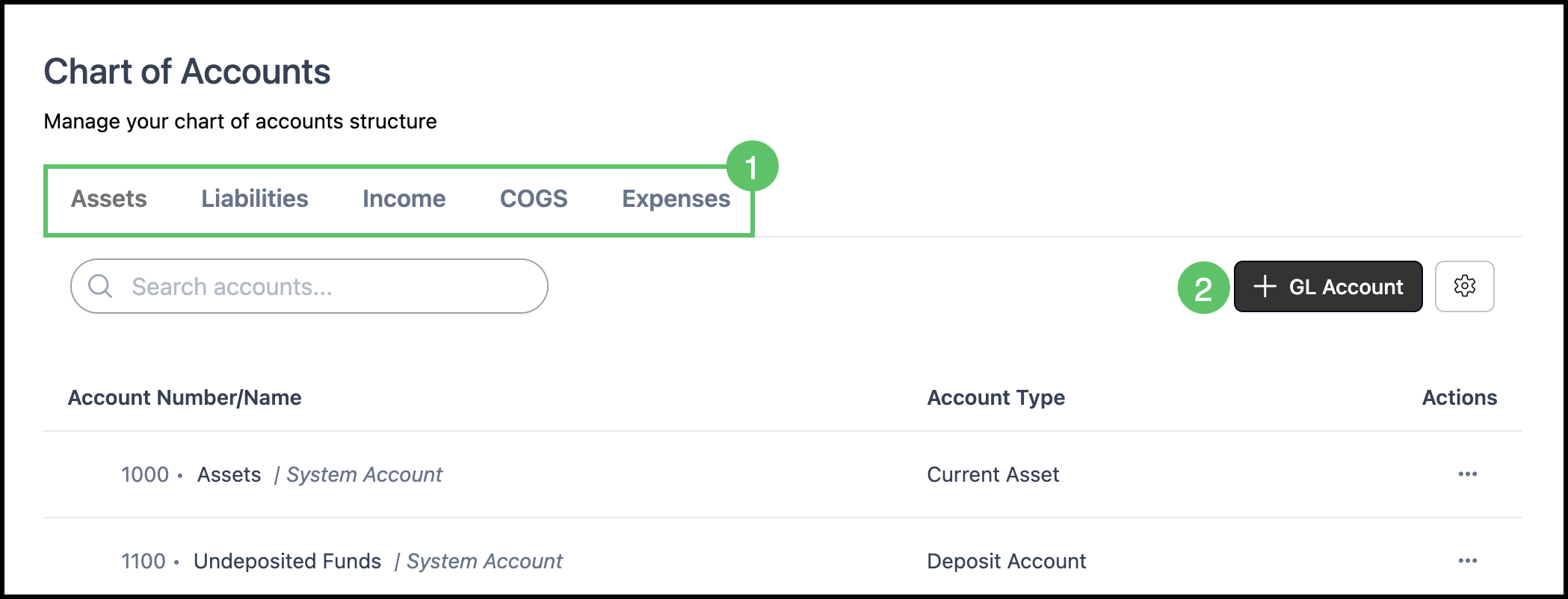
1. Select the account family tab.
2. Click + GL Account.
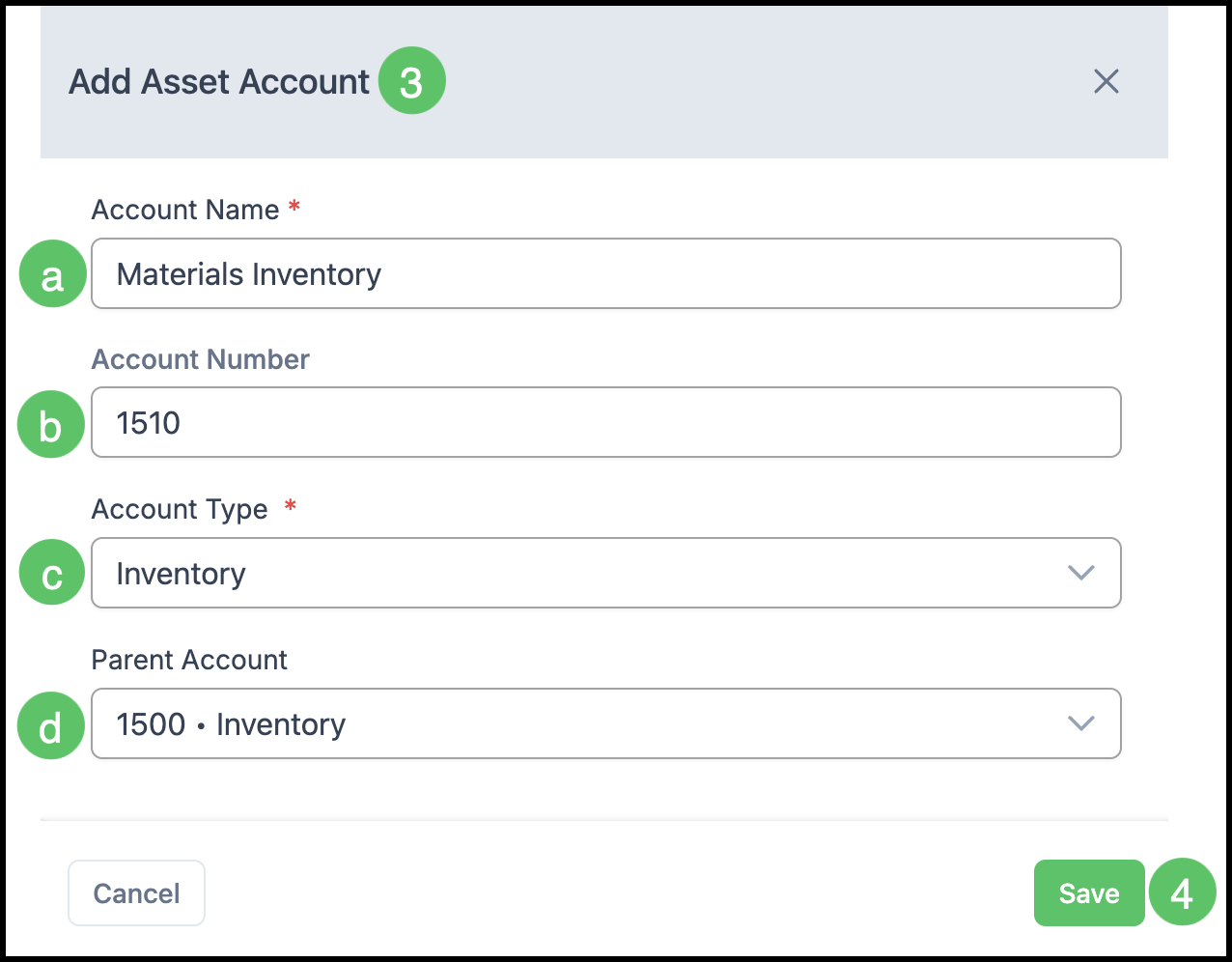
3. The Add Asset Account dialog opens. The title matches the selected family. Enter the account information.
a. Account Name: The name is required and must be unique.
b. Account Number: A number is optional. When used, it must be unique.
Note: Display GL Number before GL Account Name in System Settings / Accounting / Accounting Options controls whether the number is shown in front of the name. The number stays on the account either way. For syncing, the name and number match the accounting software exactly.
c. Account Type: An account type is required. It starts from the selected family.
d. Parent Account: Optional. Selecting a parent makes this account a subaccount.
Note: For more information, see Creating Subaccounts.
4. Click Save.
Edit a Custom Account
Navigate to System Settings / Accounting / Chart of Accounts.
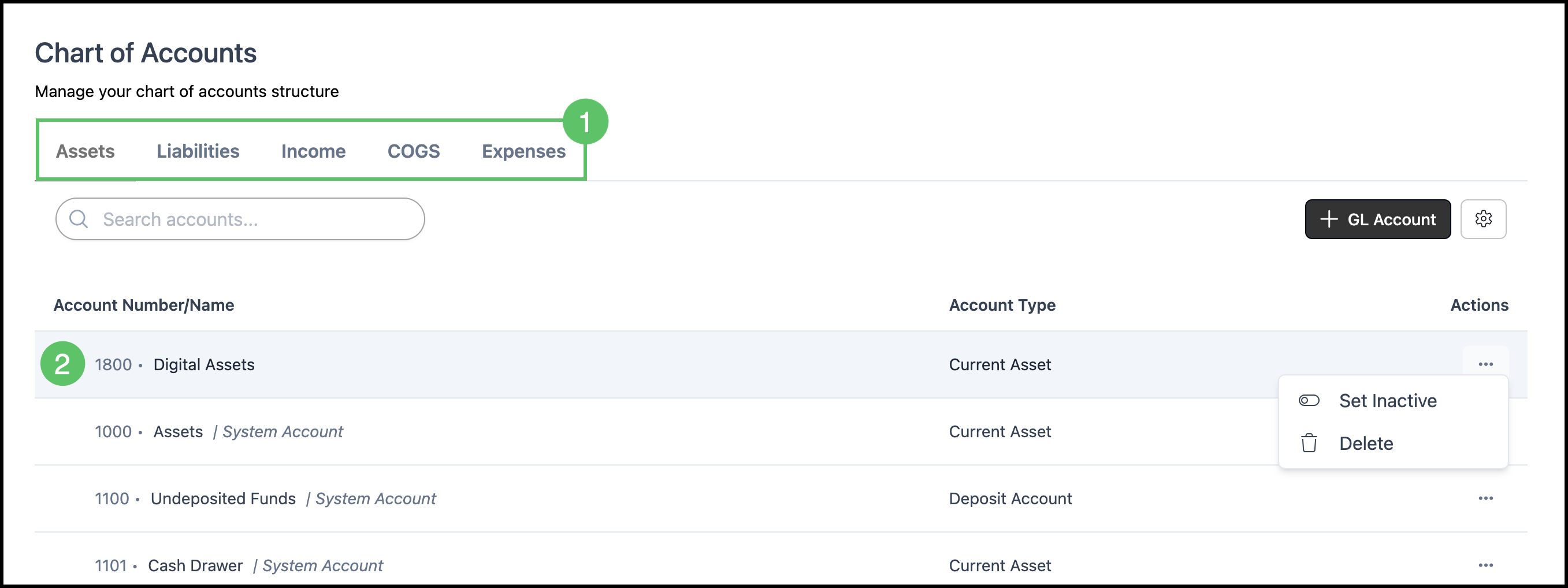
1. Select the account family tab.
2. Select the custom account to edit.
Note: More Actions in the Actions column sets the account inactive or deletes it.
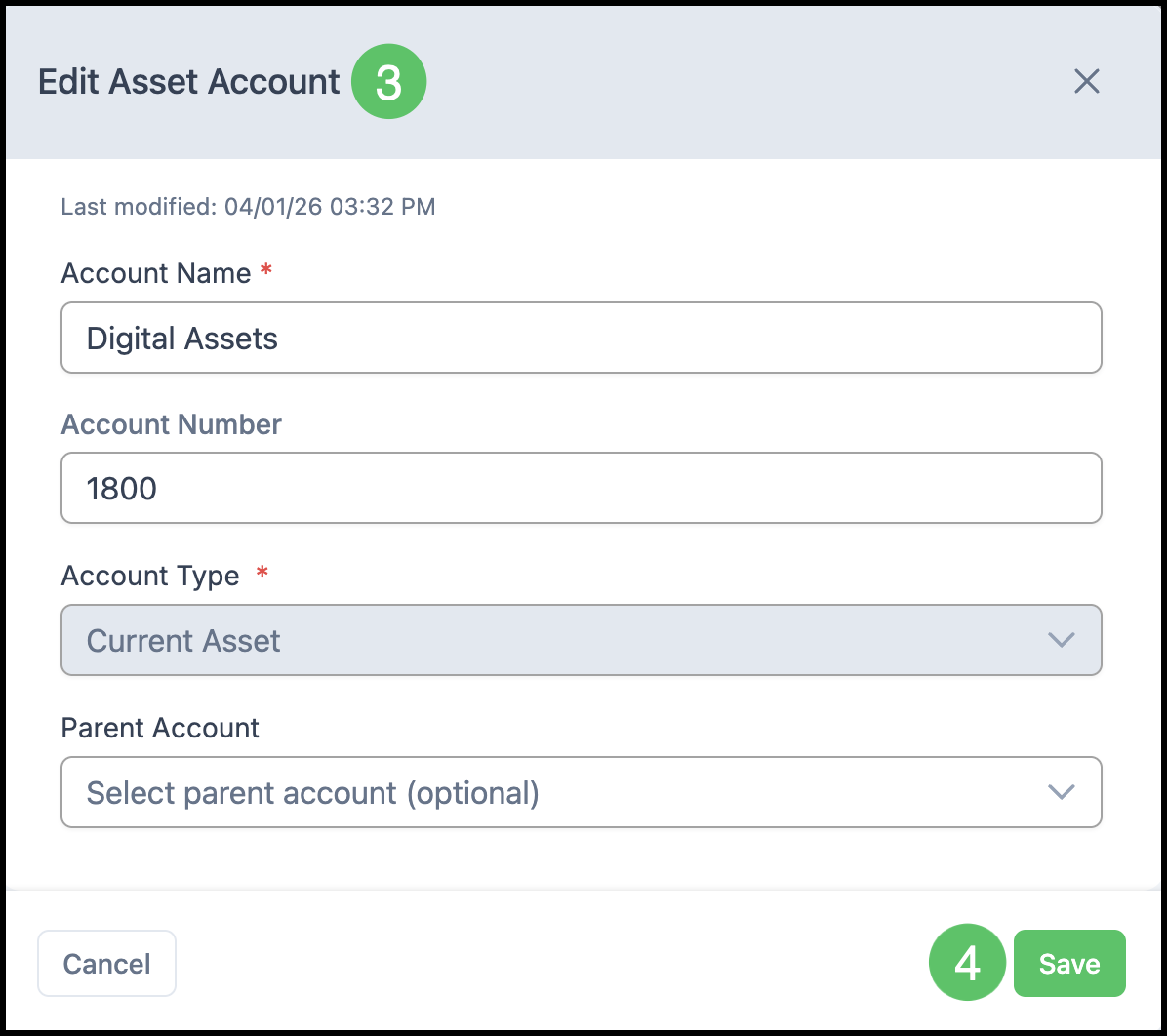
3. The Edit Asset Account dialog opens. The title matches the account family. Change the account information as needed.
Note: Account Type is unavailable after the account is saved.
Note: Display GL Number before GL Account Name in System Settings / Accounting / Accounting Options controls whether the number is shown in front of the name. For syncing, the name and number match the accounting software exactly.
4. Click Save.
Filtering the Chart of Accounts
Navigate to System Settings / Accounting / Chart of Accounts.
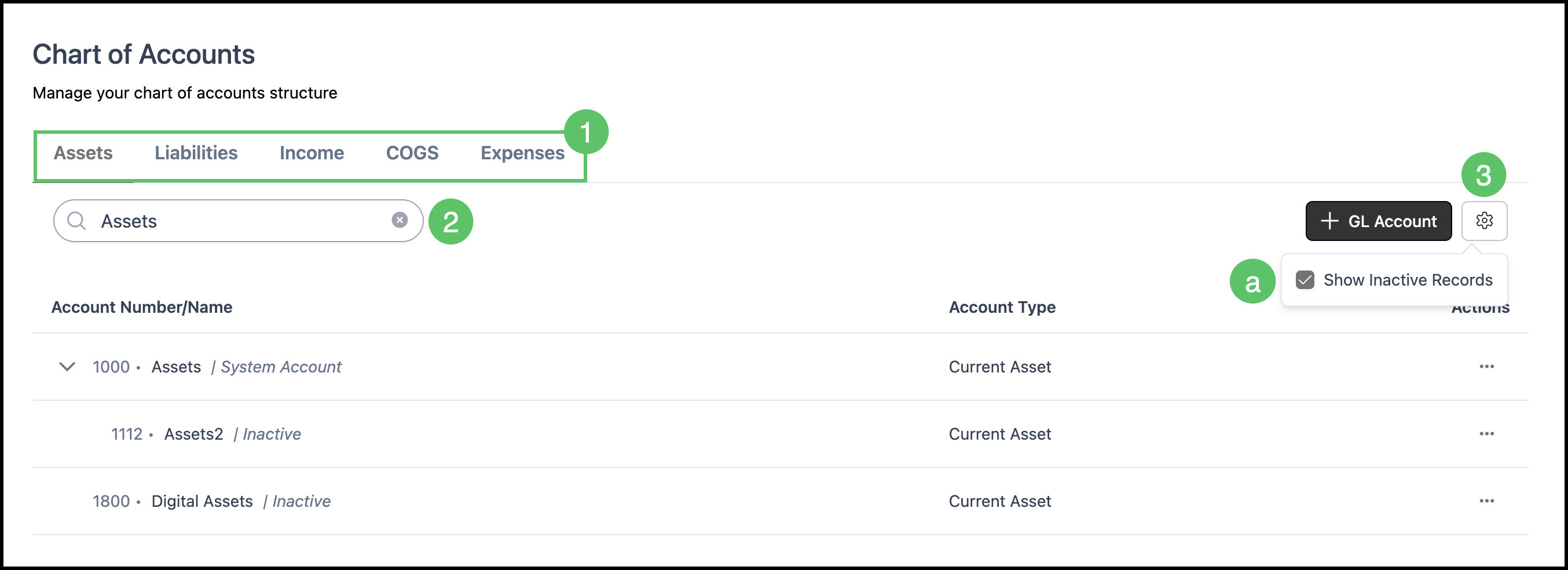
1. Select the account family tab. Search applies to the selected tab.
2. In Search accounts..., enter a keyword.
3. Open the menu beside + GL Account.
a. Show Inactive Records: When selected, inactive accounts are listed.
Note: An inactive account shows | Inactive beside the account name.
Setting Custom Accounts Inactive
Set Inactive keeps a custom account and hides it from the default list. This is the usual way to retire an account that has already been used.
Navigate to System Settings / Accounting / Chart of Accounts.
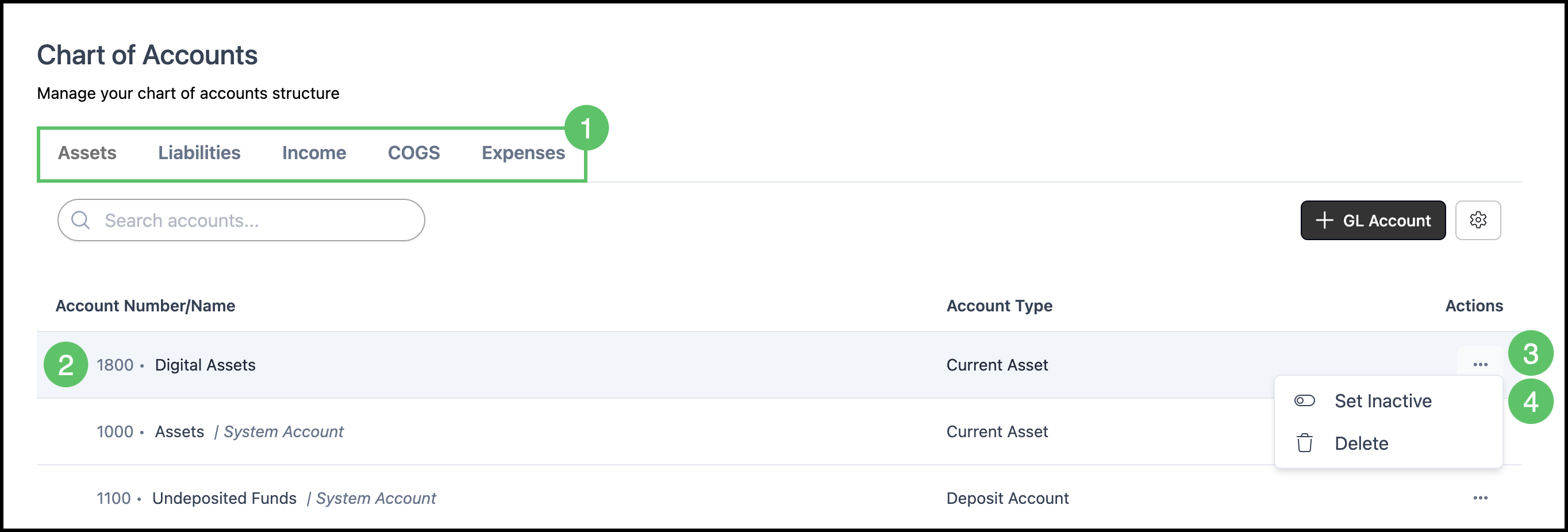
1. Select the account family tab.
2. Locate the custom account.
3. Click More Actions in the Actions column.
4. Click Set Inactive.
Note: System accounts do not include Set Inactive.
Deleting Custom Accounts
Navigate to System Settings / Accounting / Chart of Accounts.
1. Select the account family tab.
2. Locate the custom account.
3. Click More Actions in the Actions column.
4. Click Delete.
Note: System accounts cannot be deleted. An account that has already been used is retired with Set Inactive.
Reactivating Custom Accounts
With Show Inactive Records selected, an inactive custom account shows | Inactive beside the name. More Actions on that row includes Set Active, which returns the account to the default list.
Note: An inactive account still holds its name. A new account cannot reuse that name until the inactive account is renamed or removed.