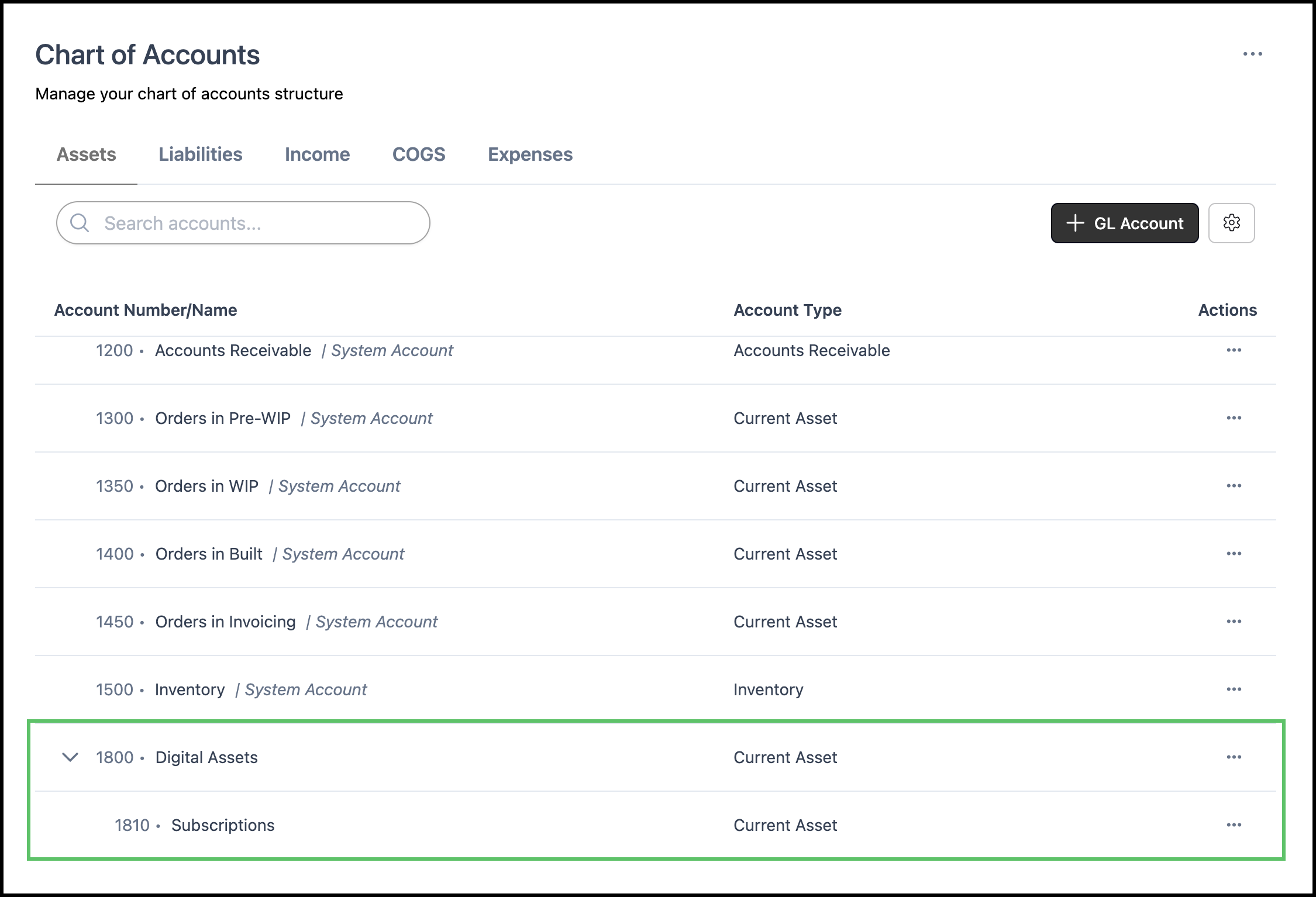
Subaccounts allow you to further organize your chart of accounts by grouping related entries under a primary (parent) account. This structure helps break down financial data into more specific categories while still maintaining accurate totals at the parent level. By using subaccounts, you can keep your chart of accounts clear, detailed, and easier to manage as your reporting needs grow.
Note: CoreBridge is not an accounting software. The system can track all accounts receivables (income) but cannot track accounts payables (expenses). However, all accounts will sync to a linked accounting system. To ensure that CoreBridge is able to seamlessly integrate with your accounting software, please be sure that all accounts are accurately accounted for and properly mapped before reconciling.
For more information on chart of accounts, please see Managing Chart of Accounts.
Creating Subaccounts
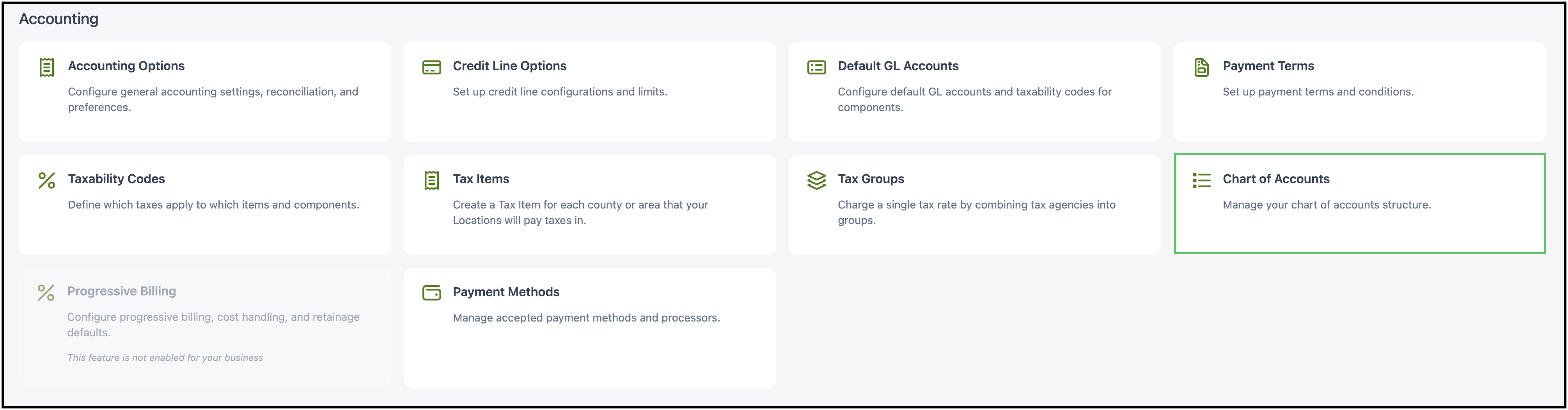
Navigate to System Settings / Accounting / Chart of Accounts.
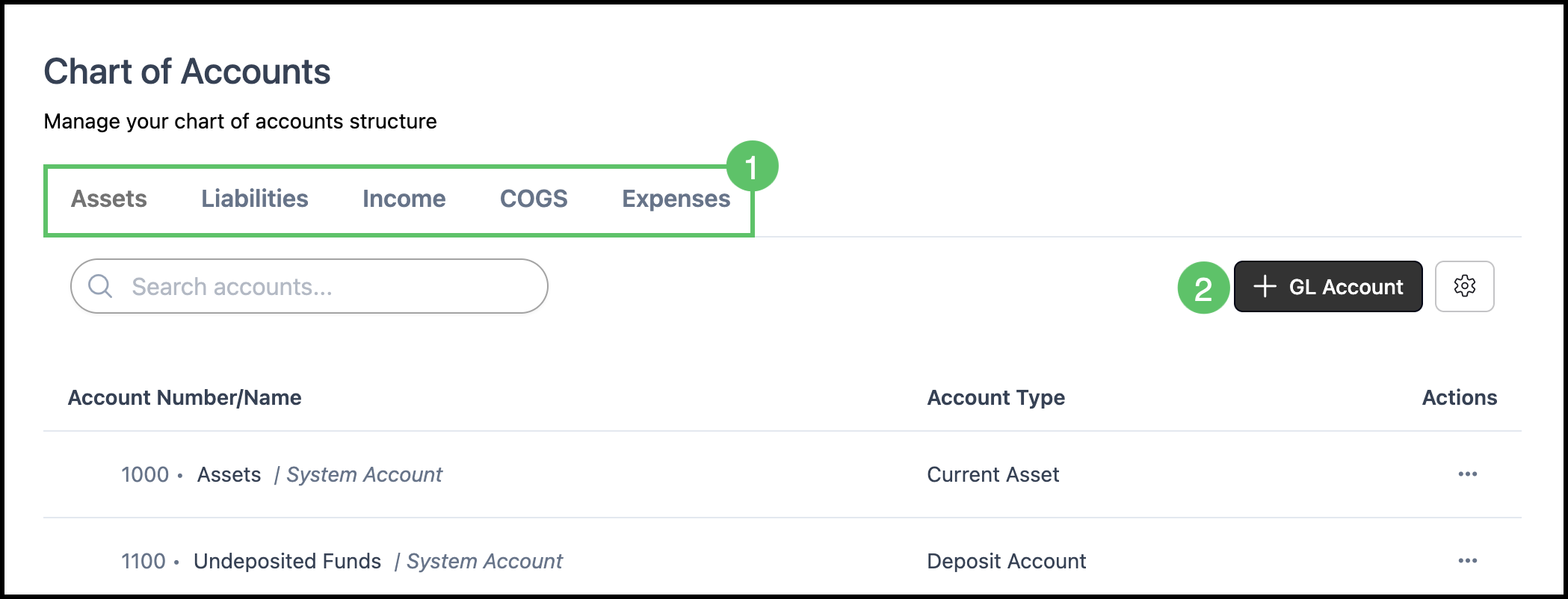
1. Select the Account Type.
2. Click the Add GL Account button.
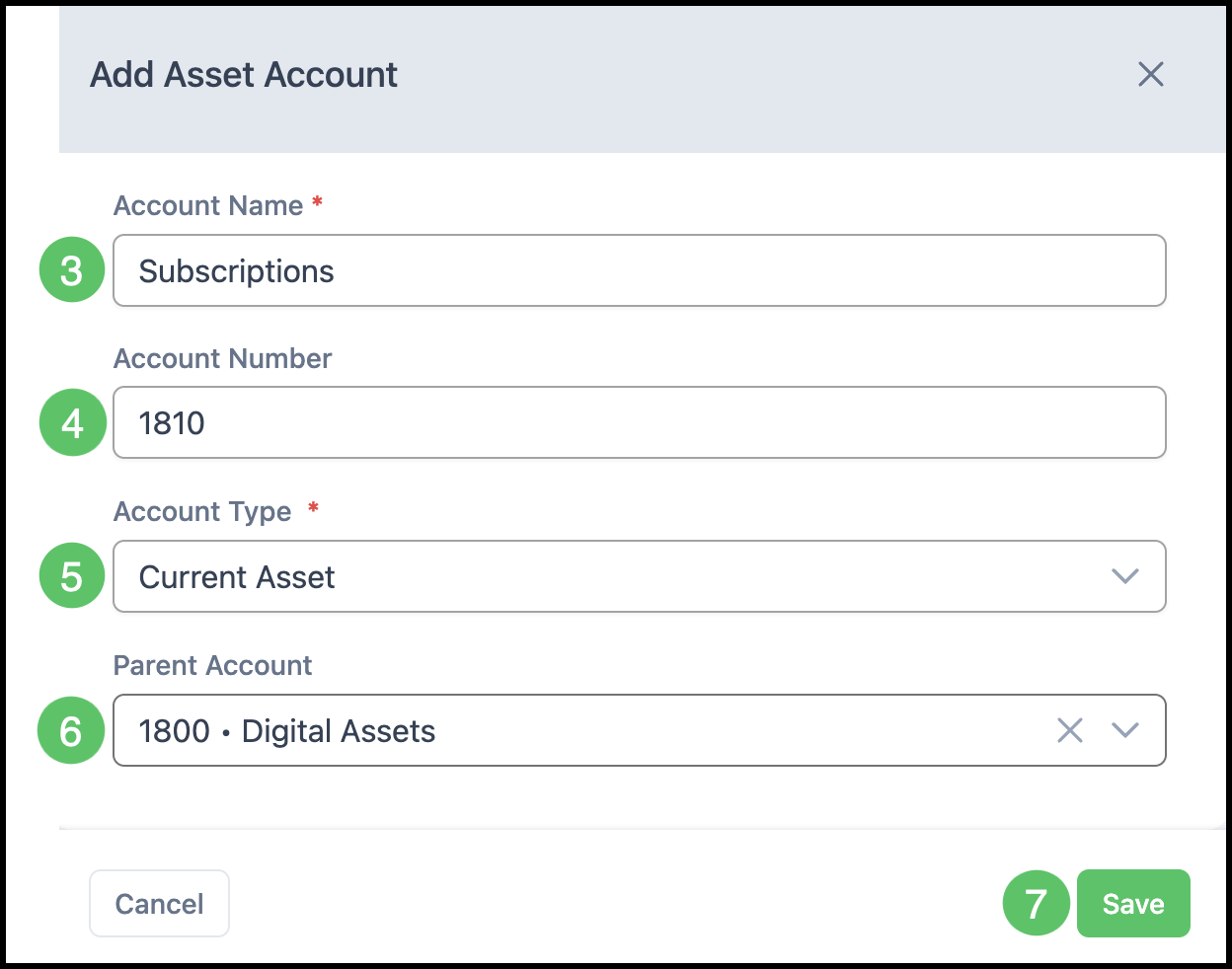
3. Enter an Account Name . The name is required and must be unique.
4. Enter an Account Number . A number is not required but, if used, must be unique. Numbers can help with organization.
Note: The Account Number can be turned off system-wide in Settings / Accounting / Accounting Options. For syncing with accounting software, the Account Name and Number must be an exact match with your accounting software for reconciliations.
5. Enter an Account Type.
Note: This field will automatically populate with the Account Type chosen above, but can be changed using the dropdown.
6. Select the Parent Account.
Note: The Parent Account is the higher-level account. Selecting a Parent Account here will automatically make this account a subaccount.
4. Click Save.
Subaccounts will be displayed directly underneath their parent account after creation.