The Full Unlock feature allows you to unlock Orders that are already Invoiced or Closed by creating a new, editable version of the Order while preserving financial accuracy and historical records.
Full Unlock is designed for scenarios where changes are needed after an Order has reached a locked state. This feature replaces the previous unlock behavior for these Orders.
Important Information
- Full Unlock applies to Orders with a Status of Invoiced or Closed.
- The original Order remains intact for historical and financial reporting purposes.
- A new unlocked version of the Order is created for editing.
- Financial entries from the original Order are automatically reversed.
- Payments, if present, are carried forward to the new Order.
- Preserves relevant historical dates and timestamps from the original Order.
Table of Contents
- Important Information
- Milestones and Order Status After Unlocking
- Payments and Full Unlock
- Invoice Numbers and Customer Communication
- Using Full Unlock on Invoiced Orders
- Using Full Unlock on Closed Orders
- History Tab
- Related Articles
Milestones and Order Status After Unlocking
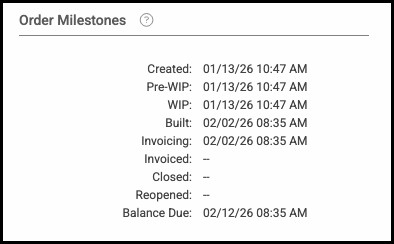
The newly created Order reflects its updated lifecycle state:
- The new Order does not include a Close Date.
- The new Order does not include an Invoice Date.
- If invoicing is enabled, the Order is placed in an Invoicing Status.
Note: If your business does not use Invoicing Status, the Order will be placed in the next available Built Status.
- Invoicing records remain associated with the Order as expected.
Example:
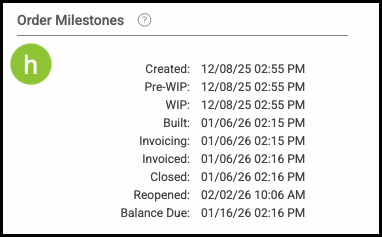
Order Milestones After Unlocking
Payments and Full Unlock
Full Unlock handles payments differently depending on whether payments exist:
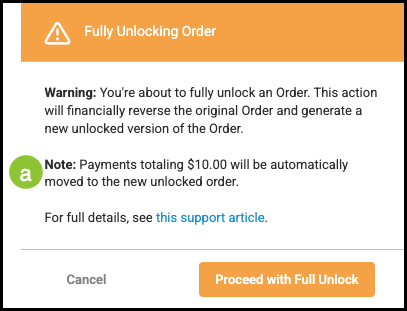
- If payments exist, the payment amounts are automatically moved to the new Order.
- If no payments exist, the new Order is created without payment records.
- Payment totals remain accurate, whether the original Order was fully or partially paid.
Example:
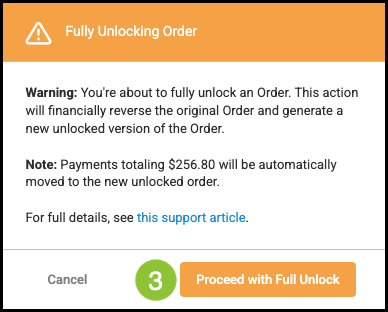
a. Any payments made, whether partial or in full, appear in this pop-up with the exact dollar amount that will be moved to the new, unlocked Order.
Invoice Numbers and Customer Communication
When resending invoices after a Full Unlock:
- The original invoice number is preserved.
- Version identifiers are hidden from customer-facing invoices.
- Customers will continue to see the expected invoice number without any suffixes.
Using Full Unlock on Invoiced Orders
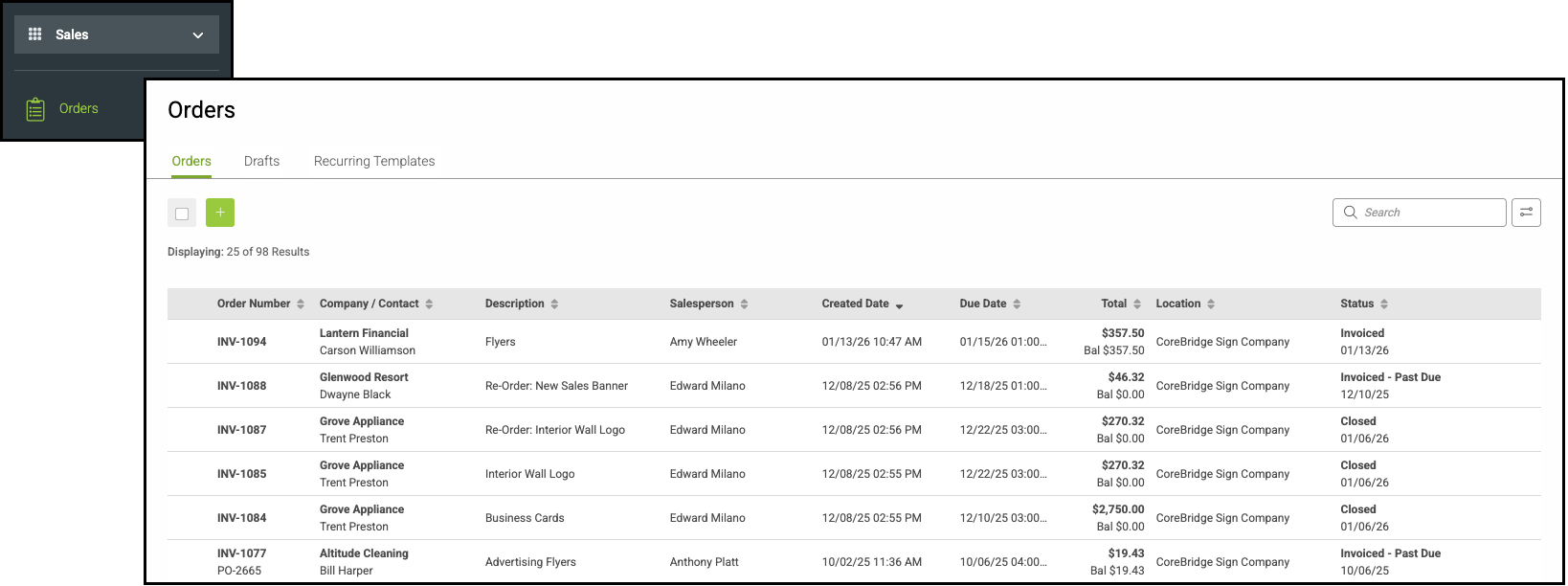
Navigate to Sales / Orders and select the appropriate Order.
1. Hover over the Locked icon.
2. Click on Full Unlock.
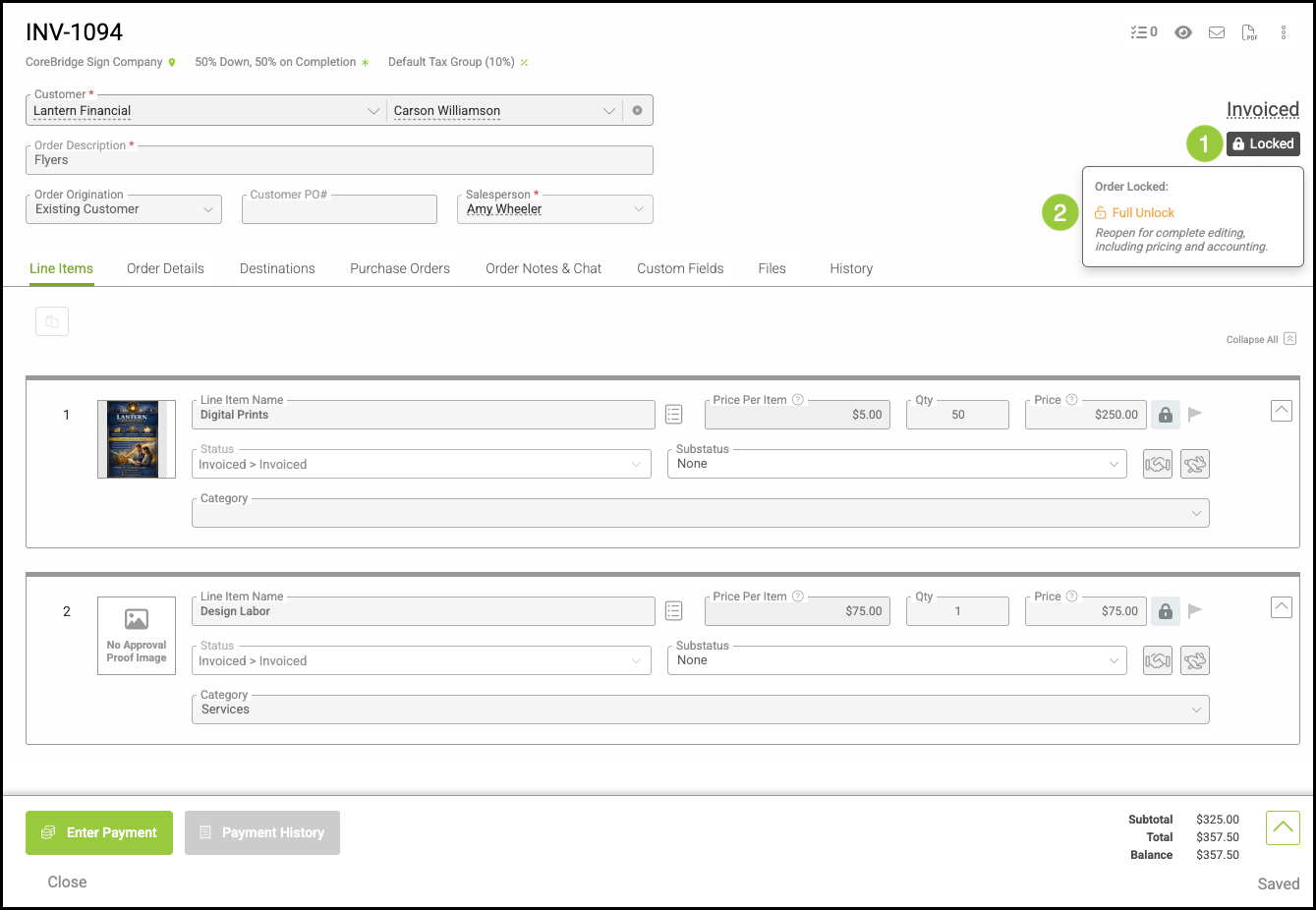
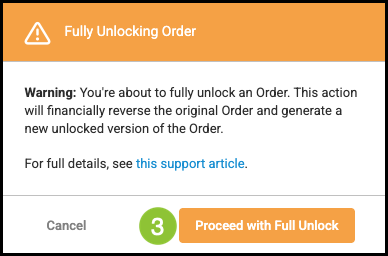
3. Select Proceed with Full Unlock.
Note: Invoiced Orders with partial payments will show the dollar amount in this pop-up. For an example, see above under
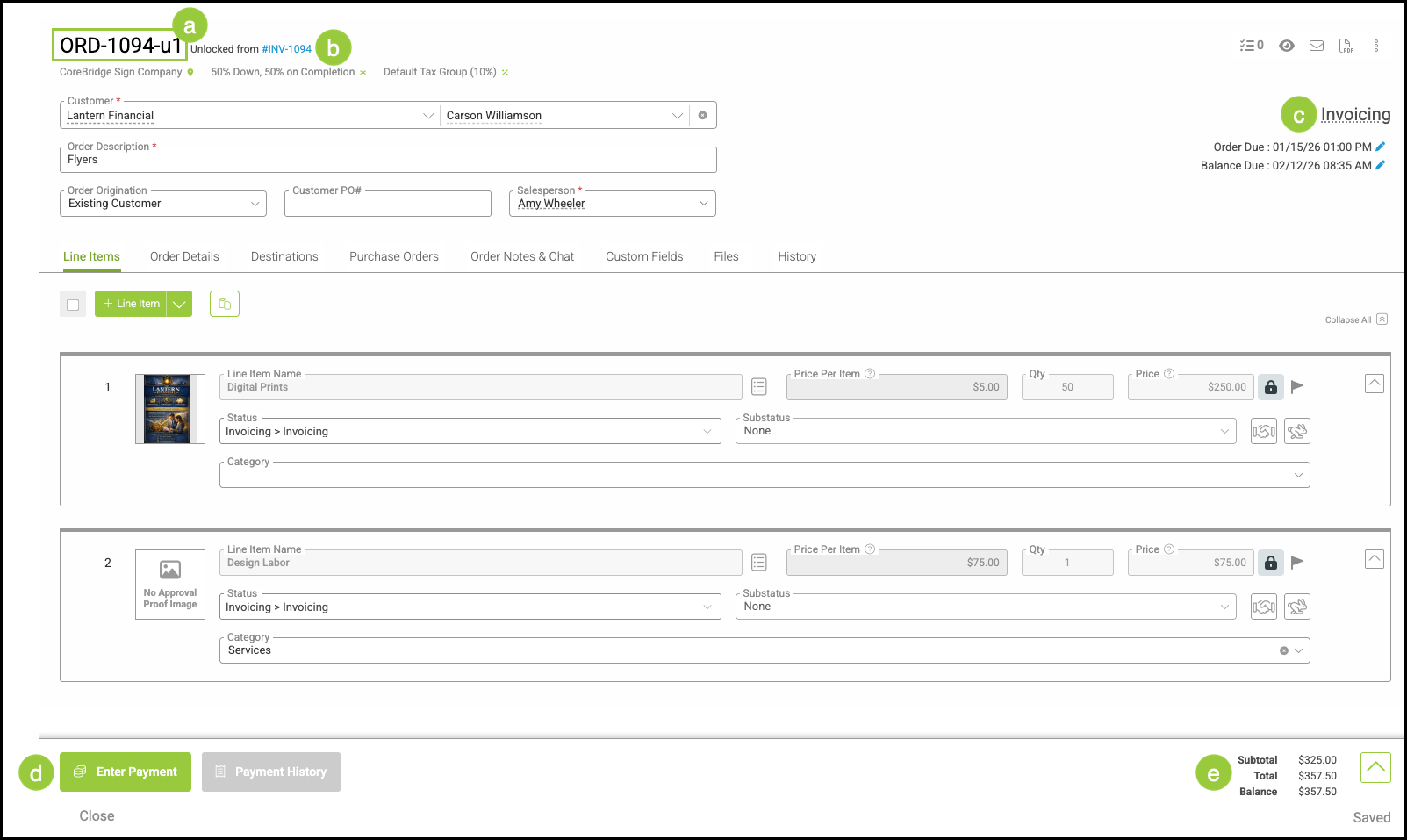
At this point, a new Order is created from the original Order.
a. The Order number remains consistent, but when an Order is reopened, a u1 suffix is added.
Note: If an Order is unlocked multiple times, the suffix number increases with each unlock. For example, u2 represents the second iteration and u3 represents the third.
b. The original Order is referenced here and can be accessed using the hyperlink.
c. The status is updated to either Invoicing, or the next available Built status.
Note: For more information on Statuses, please see Statuses Overview.
d. The Enter Payment button is available to make payments on this Order.
e. When an Order is reopened, the Totals and Balances carry over and remain the same as the original Order.
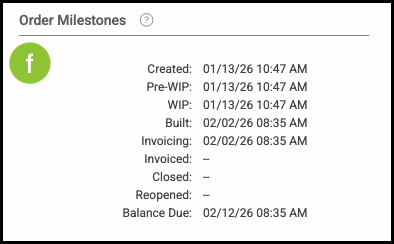
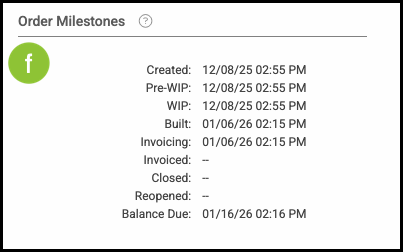
f. The milestones applied pertain to the new version of the Order.
Example: The Invoiced and Reopened milestones are blank on this Order because those milestones have not been applied to the u1 version, even though they appear on the original Order.
The original Order remains in your system.
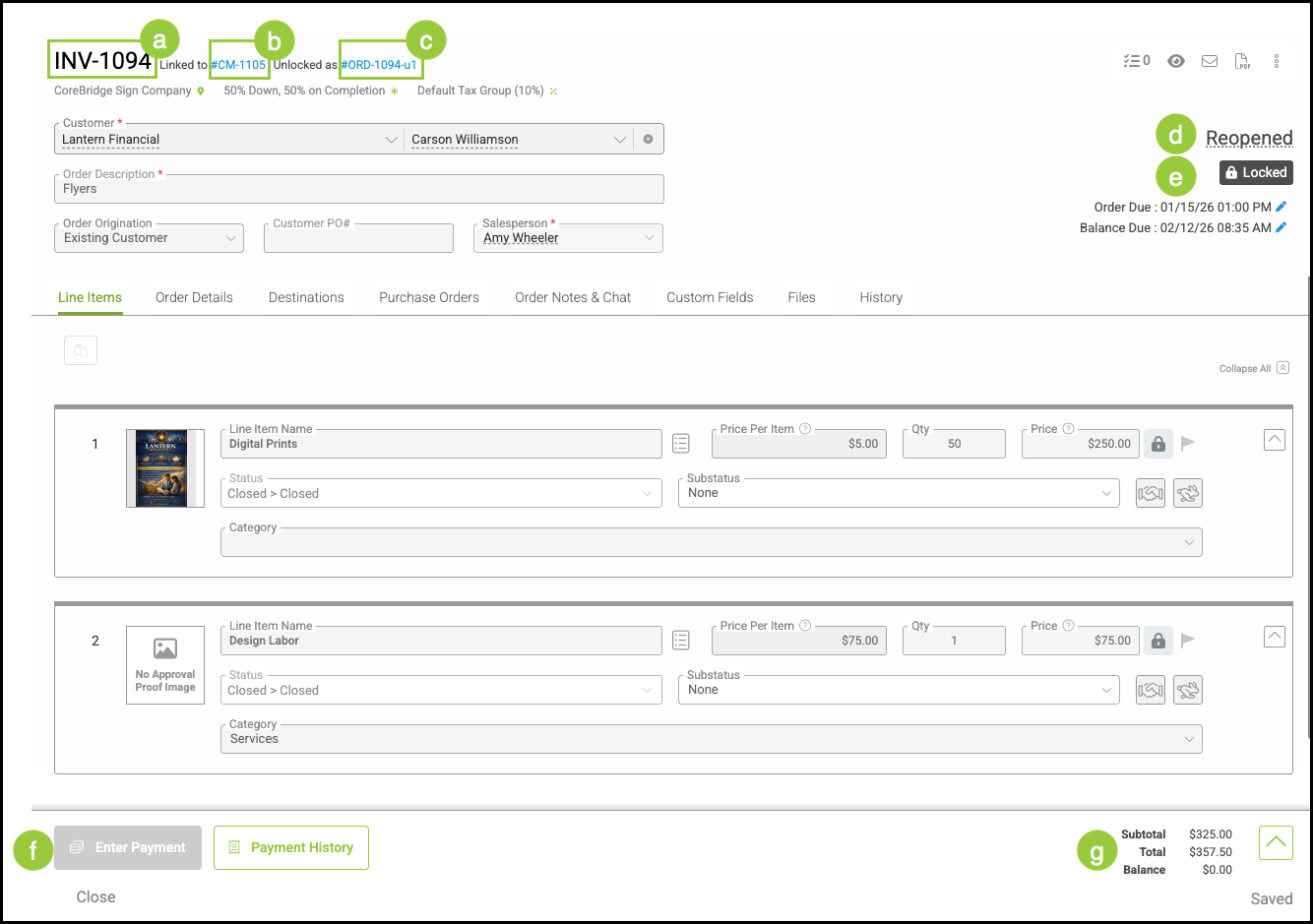
a. The original Order number is retained.
b. When an Order is unlocked, it is zeroed out and a Credit Memo is created to maintain accurate accounting records. The Credit Memo can be accessed through this hyperlink.
Note: For more information on Credit Memos, please see Credit Memo Overview.
c. The new version of this Order can be opened here using this hyperlink.
d. The status on the original Order is updated to Reopened.
Note: For more information on Statuses, please see Statuses Overview.
e. This Order remains Locked.
f. No payments can be made on this Order.
g. The Totals and Balance carry over to the new version of the Order, while this version is zeroed out.
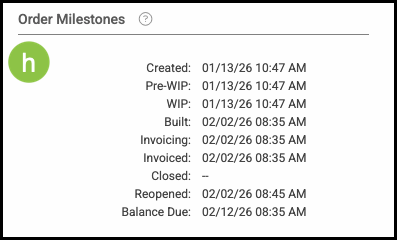
h. The Order Milestones on the original show when it was Reopened.
Using Full Unlock on Closed Orders
Navigate to Sales / Orders and select the appropriate Order.
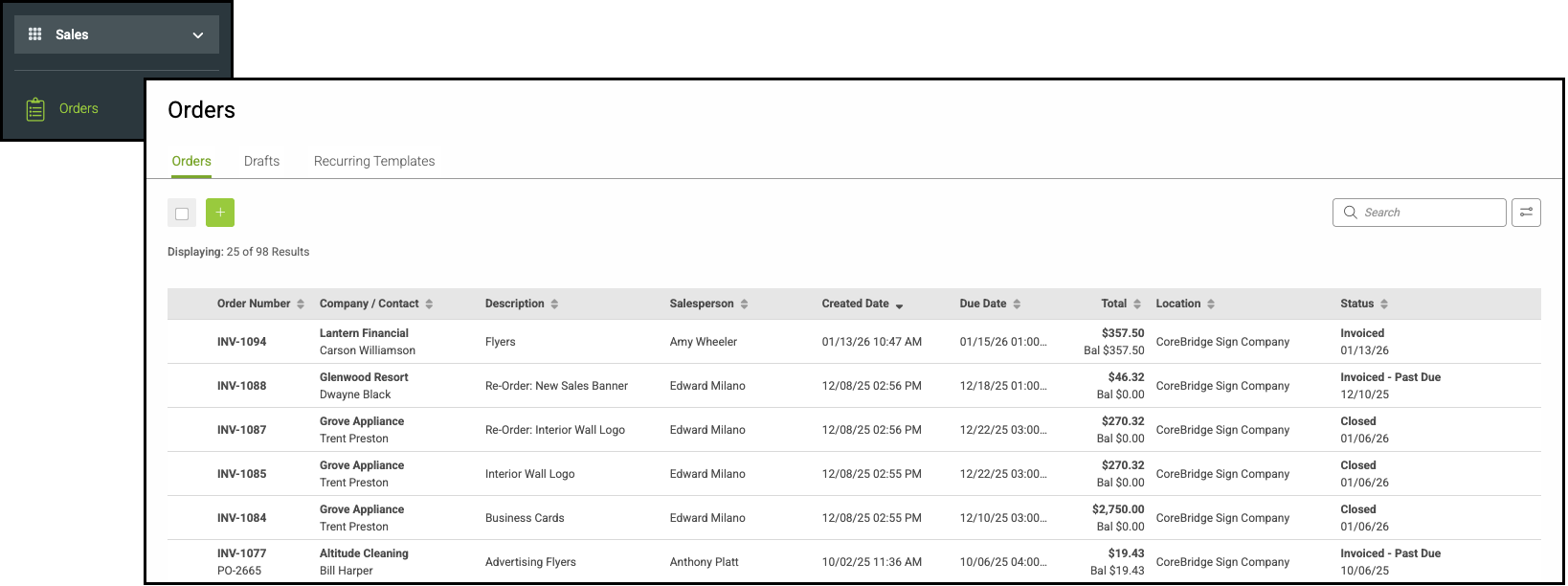
1. Hover over the Locked icon.
2. Click on Full Unlock.
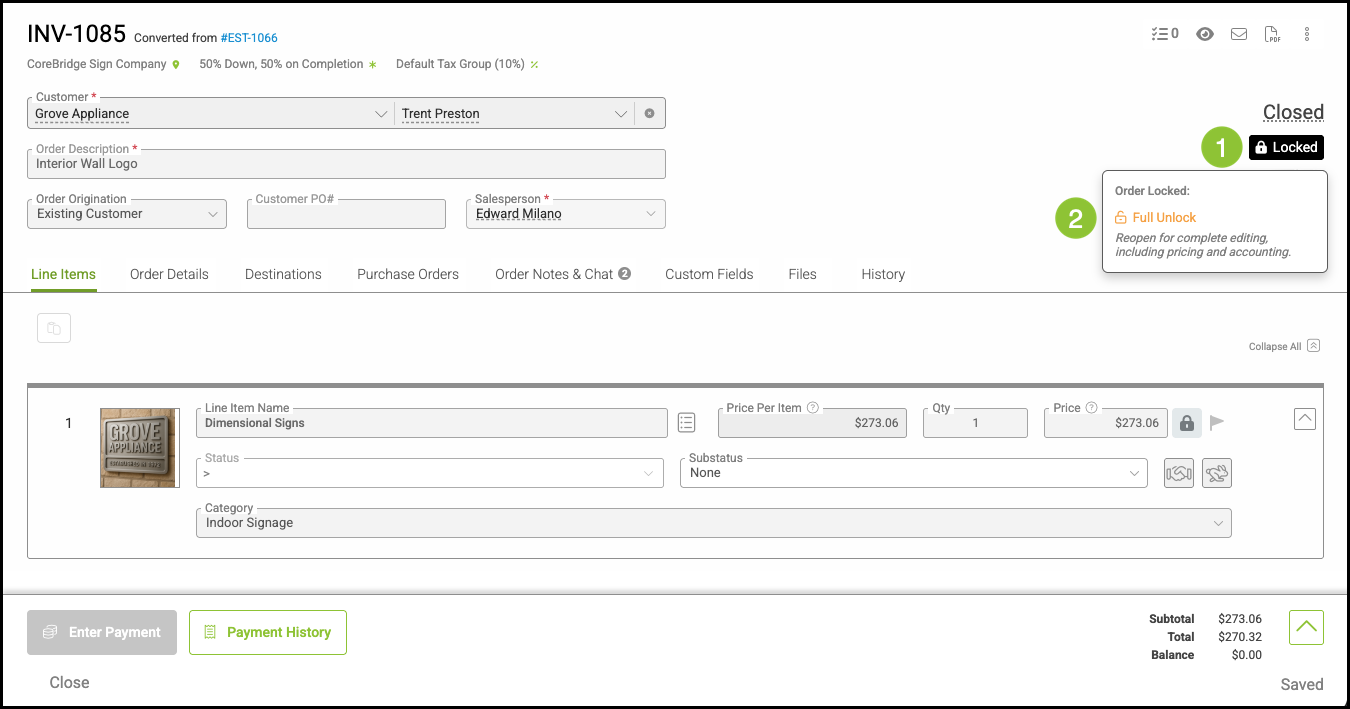
3. Select Proceed with Full Unlock.
Note: Payments will be moved to the new Order.
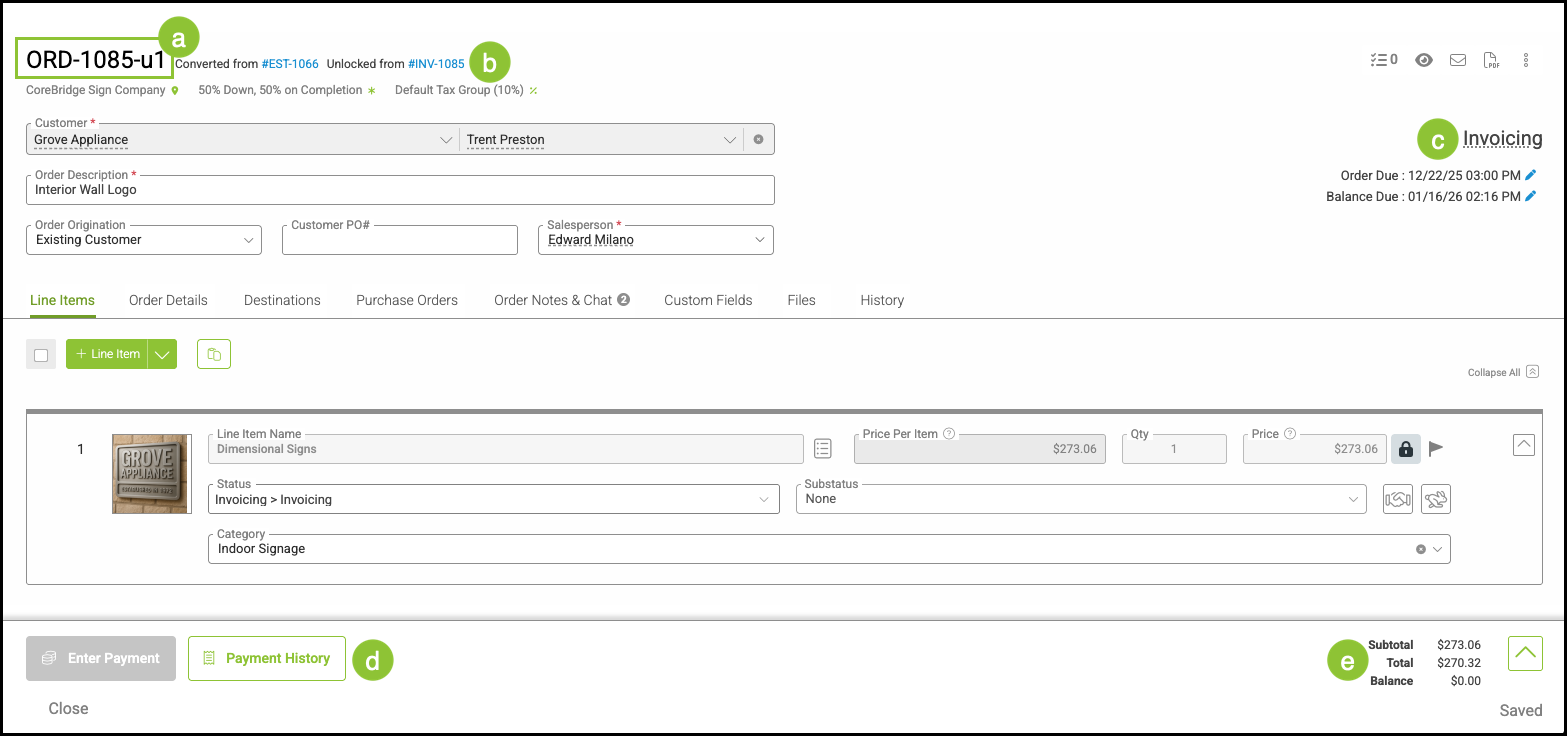
At this point, a new Order is created from the original Order.
a. The Order number remains consistent, but when an Order is reopened, a u1 suffix is added.
Note: If an Order is unlocked multiple times, the suffix number increases with each unlock. For example, u2 represents the second iteration and u3 represents the third.
b. The original Order is referenced here and can be accessed using the hyperlink.
c. The status is updated to either Invoicing, or the next available Built status.
Note: For more information on Statuses, please see Statuses Overview.
d. The Payment History button is available to view payments on this Order.
e. On a reopened Order, Totals and Payments are carried forward, and the Balance remains zero.
f. The milestones applied pertain to the new version of the Order.
Example: The Invoiced and Reopened milestones are blank on this Order because those milestones have not been applied to the u1 version, even though they appear on the original Order.
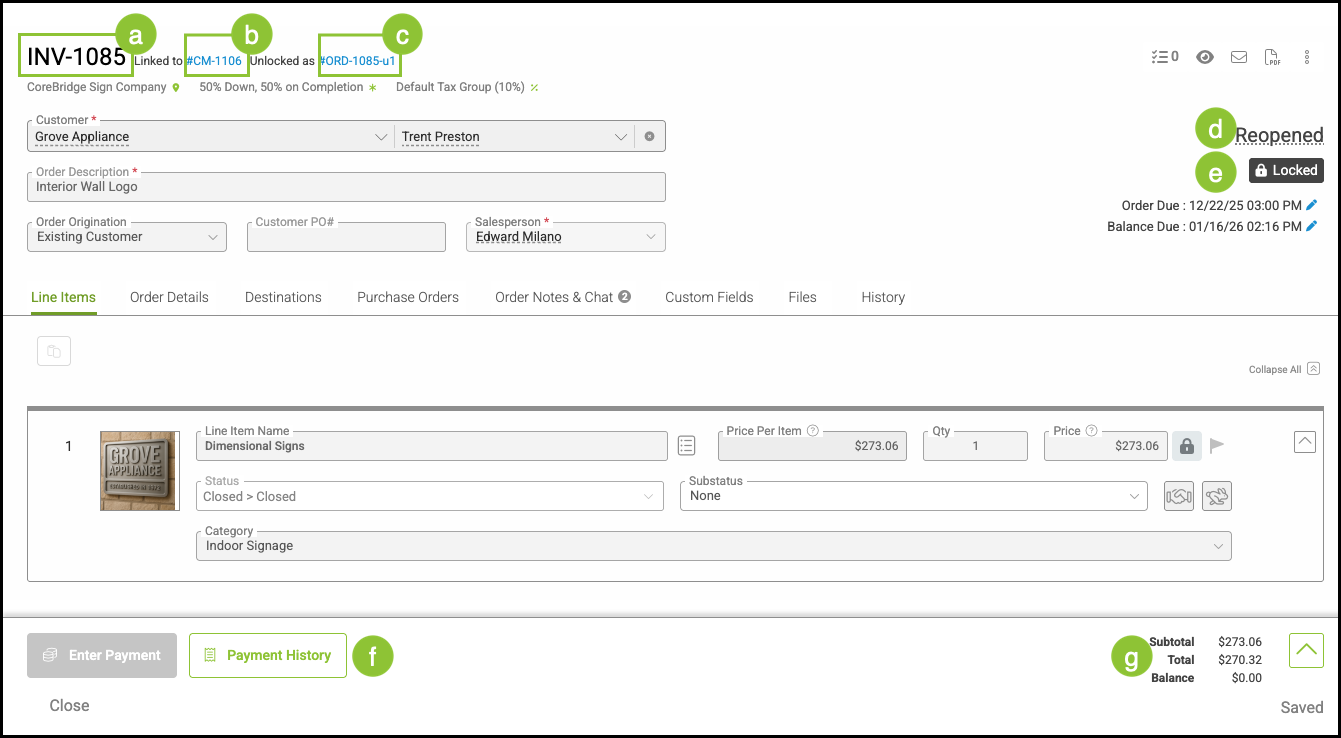
The original Order remains in your system.
a. The original Order number is retained.
b. When an Order is unlocked, it is zeroed out and a Credit Memo is created to maintain accurate accounting records. The Credit Memo can be accessed through this hyperlink.
Note: For more information on Credit Memos, please see Credit Memo Overview.
c. The new version of this Order can be opened here using this hyperlink.
d. The status on the original Order is updated to Reopened.
Note: For more information on Statuses, please see Statuses Overview.
e. This Order remains Locked.
f. The Payment History button is available to view payments on this Order.
g. On a reopened Order, Totals and Payments are carried forward, and the Balance remains zero.
h. The Order Milestones on the original show when it was Reopened.
History Tab
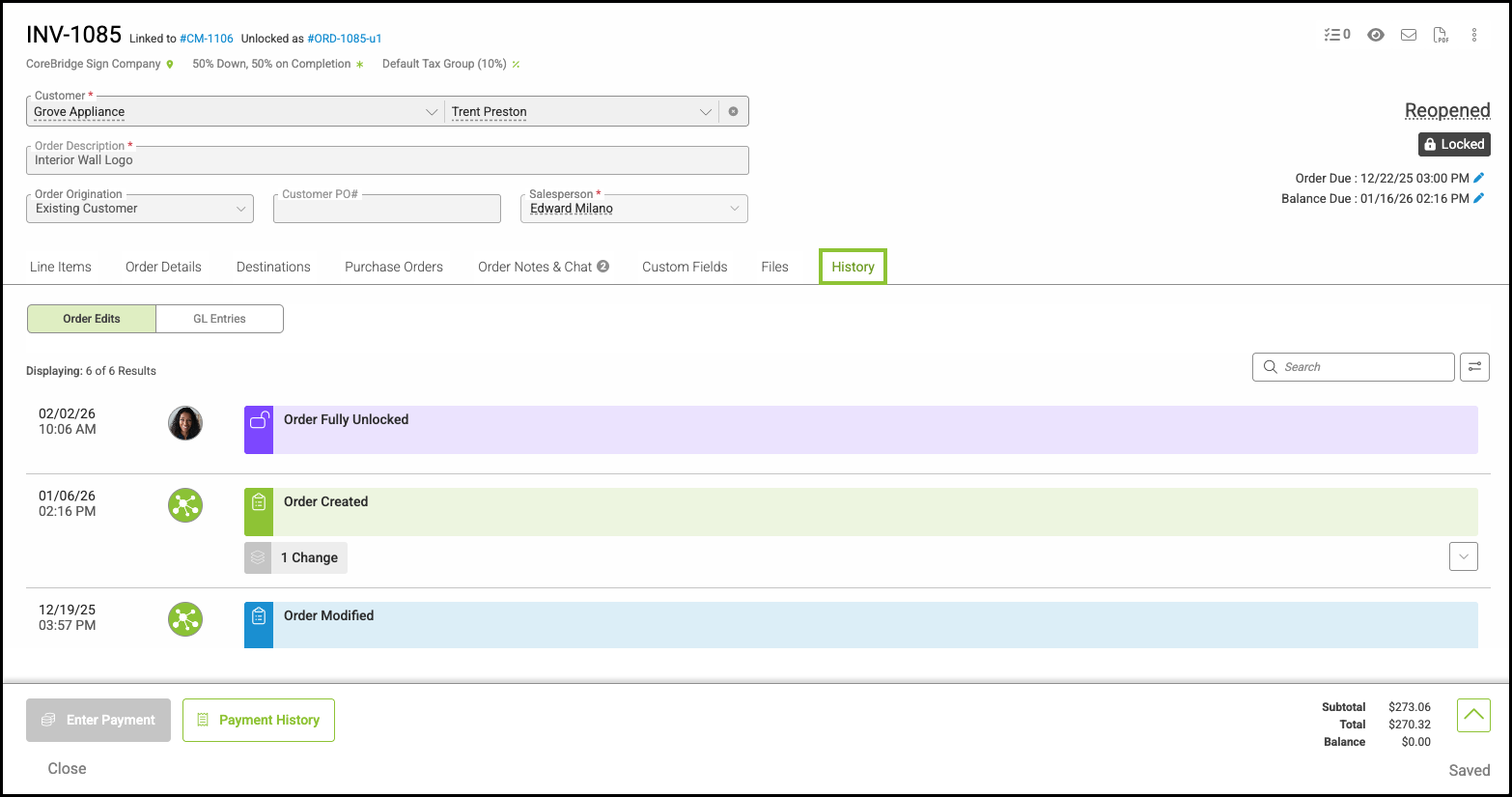
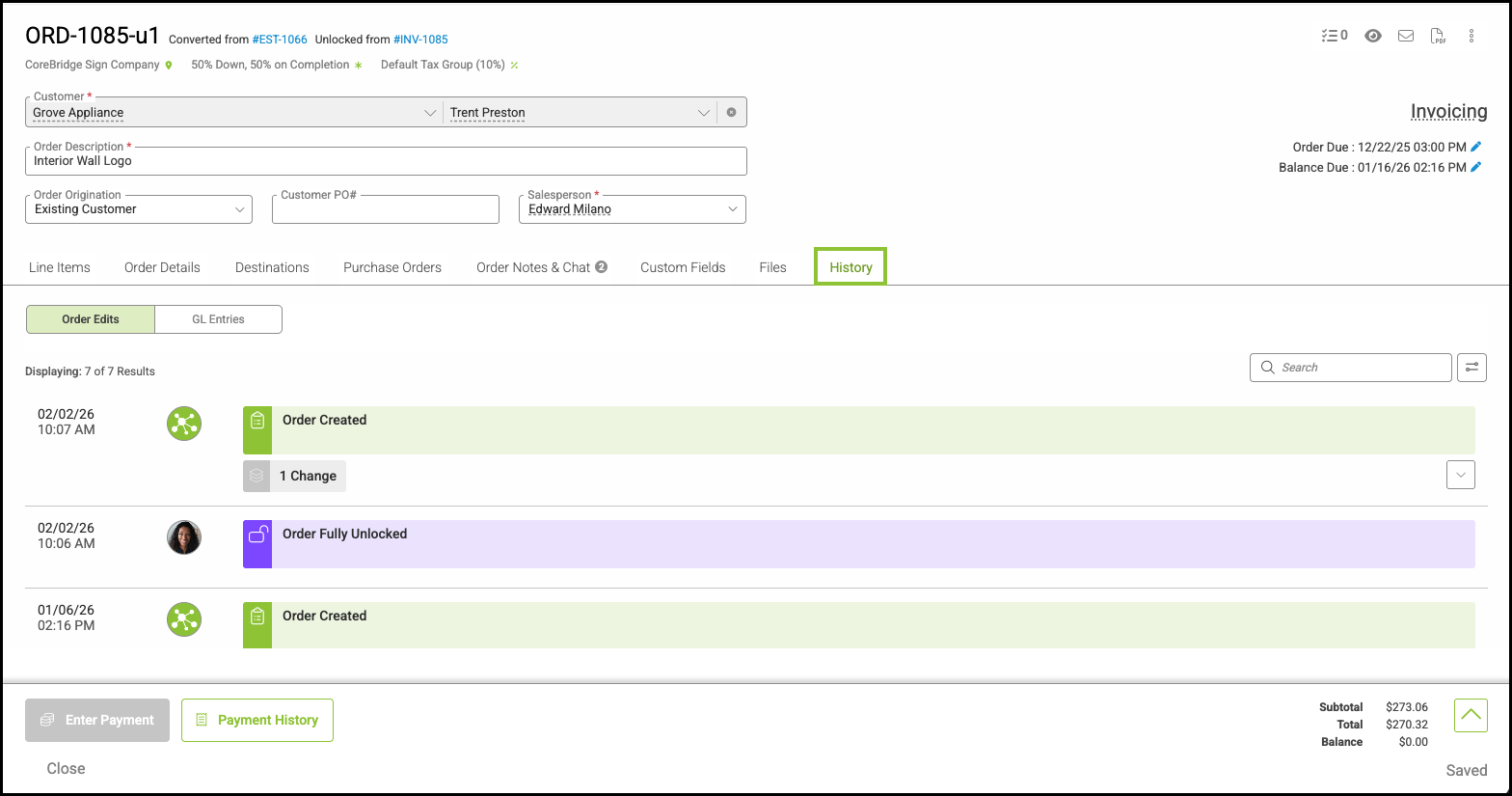
- The history tab on both the original Order and the new Order will reflect the time and date the Order was unlocked.
- The new Order will have entries that continue past this while the old one will not.
- For more information on the History tab, please see Estimate and Order History.
Examples:
New Order History Tab
Original Order History Tab