
Materials are the physical items used in creating a Product or delivering a service. These tangible resources can be tracked for cost and inventory purposes and may include items such as vinyl, acrylic, aluminum sheets, banner material, ink, or paper stock. By defining Materials in your system you can support accurate job costing, inventory management, and pricing.
For information on creating Materials, see Adding Materials. For Materials that use selectable variations such as color or size, see Materials with Variants Overview.
Table of Contents
- Material Options in the System
- When to Use Material with Variants
- Materials Screen
- Exporting Materials
- Opening a Material
- Material Details Tab
- Vendor Items Tab
- Inventory Tab
- Custom Fields Tab
- Frequently Asked Questions
- Related Articles
Material Options in the System
The system supports two types of Materials: standalone Materials and Materials with Variants. A standalone Material represents a single item without additional selectable options. Materials with Variants allow you to manage a single Material that includes multiple predefined variations such as color, size, or thickness. Both options are available so you can choose the setup that best matches how the item is used, tracked, and priced in your workflow.
When you click Material on the Materials list, you choose the format before entering Material details.
When to Use Material with Variants
Use Material with Variants when you have a group of similar items that should be treated as a single logical Material with multiple selectable variations. Common cases include:
- A substrate that comes in multiple thicknesses or finishes but is otherwise configured the same way.
- Roll media available in several widths where consumption and pricing follow the same basic rules.
- Frequently used Material families where you want consistent setup but need flexibility at order entry.
For setup and the Variants tab, see Materials with Variants Overview and Creating Materials with Variants.
Materials Screen
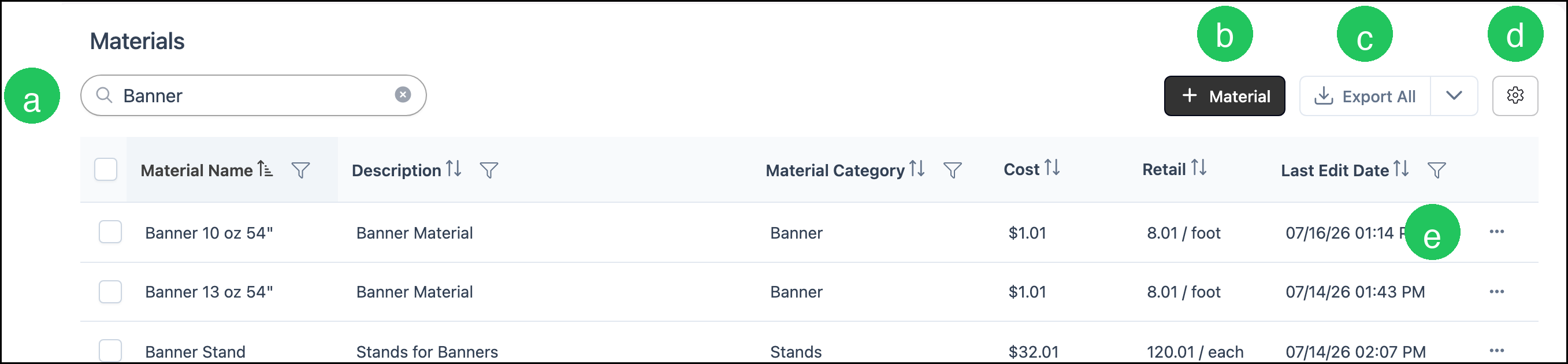
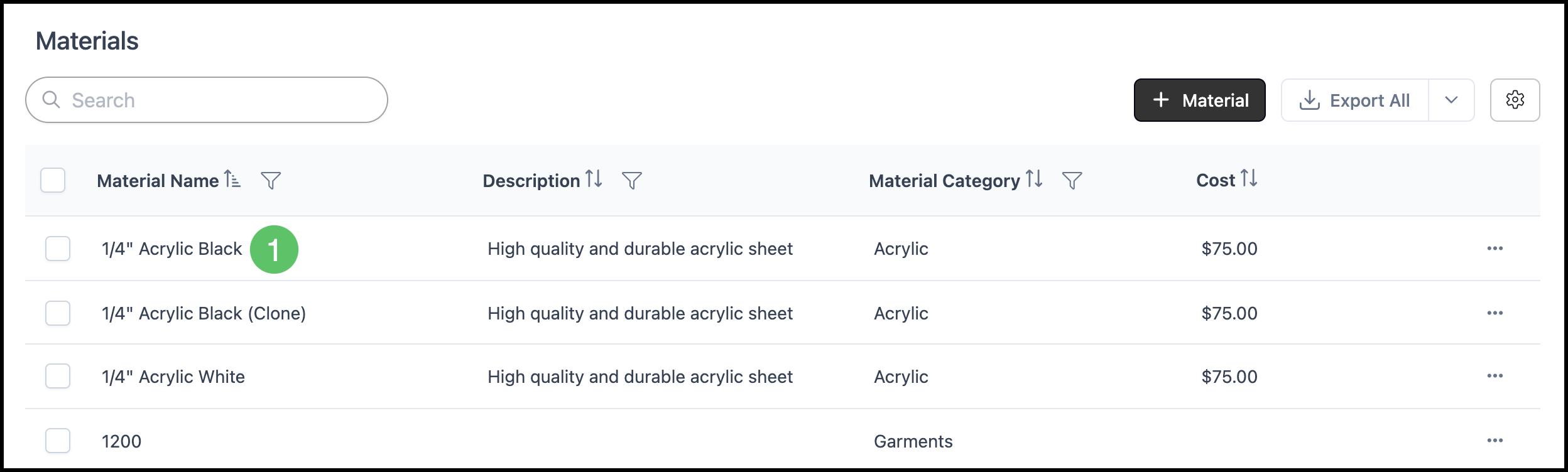
The Materials screen is the list of Materials configured in CoreBridge.
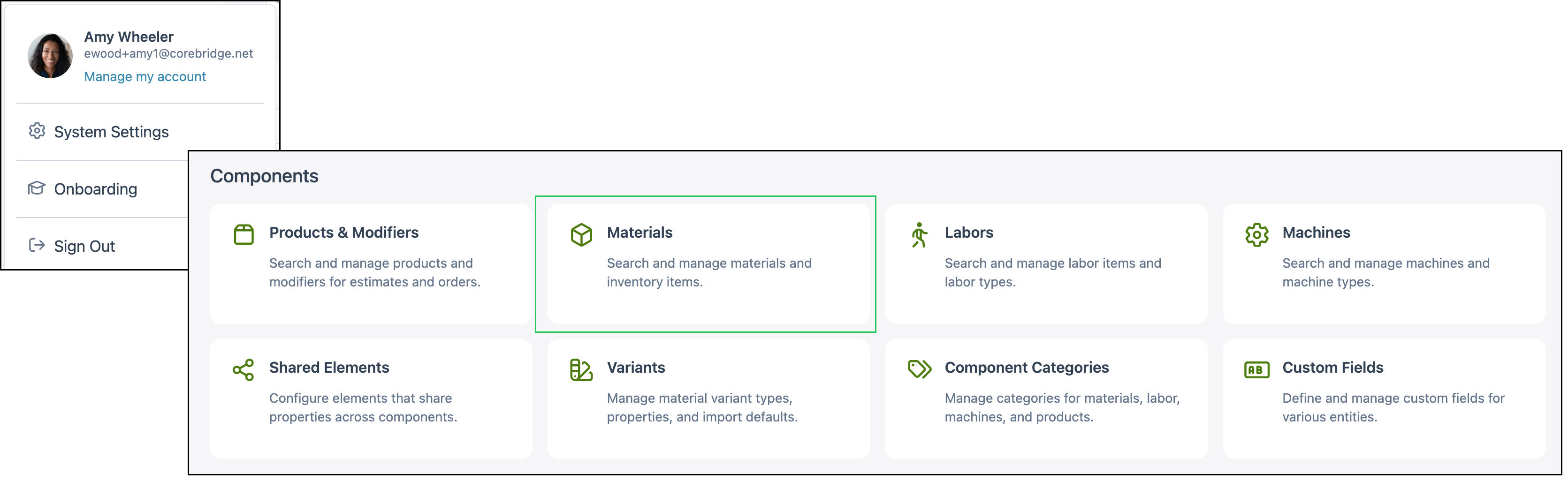
Navigate to System Settings / Components / Materials.
a. Search finds a Material by name or other list text.
b. Material starts a new Material. You then choose standalone Material or Material with Variants.
c. Export All opens the export dialog. For the export steps, see Exporting Materials.
d. Search Settings controls which columns are displayed and whether inactive records are included in the list.
e. More Actions on a row includes Clone, Set Inactive, and Delete.
Note: The dropdown next to Export All includes Import Materials. For the import steps, see Materials Import Template.
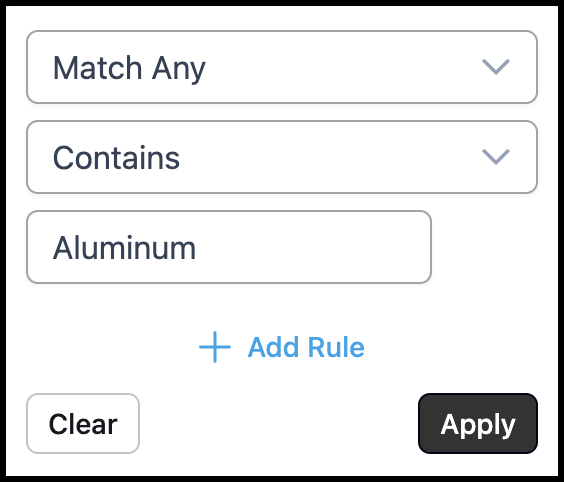
Note: Column headers can be sorted and filtered. Click a Material row to open it. Delete is unavailable for Materials that are currently in use.
Example: A column filter can limit the list, such as Material Category is Banner.
Exporting Materials
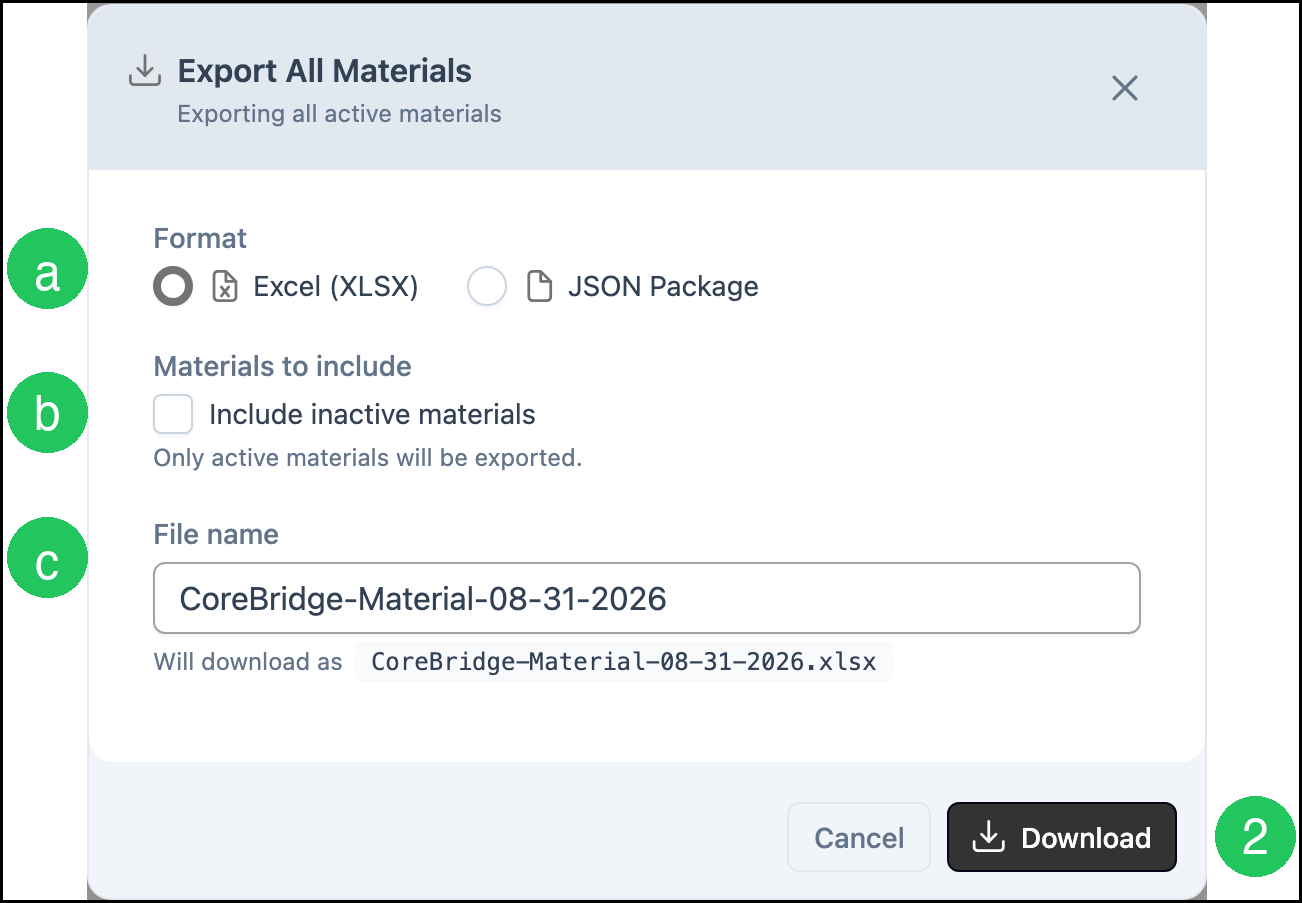
Use Export All to download Materials from the list. The export includes active Materials only unless you choose to include inactive Materials.
1. Click Export All.
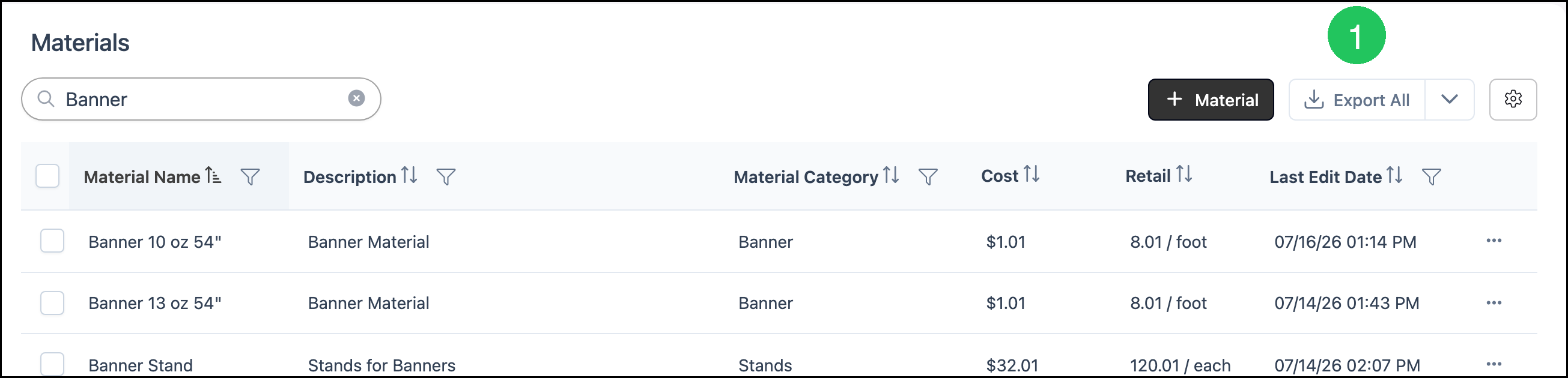
The Export All Materials dialog opens.
a. Format is Excel (XLSX) or JSON Package.
b. Include inactive materials adds inactive Materials to the file. It is cleared by default. Helper text confirms that only active Materials are exported when the checkbox is cleared.
c. File name is the download name. The preview under the field shows the final file name and extension.
2. Click Download.
Note: Select one or more rows, then use Bulk Action and Export Selected to export only those Materials. The same dialog options apply.
Opening a Material
1. Click a Material on the list to open it.
The header includes the Material name, Files, Comments, and More Actions.
Note: More Actions on the Material includes Clone, History, and Delete. Delete is unavailable when the Material is in use.
a. Material Details holds name, settings, attributes, consumption, cost, and accounting information.
b. Vendor Items links the Material to vendor catalog items.
c. Inventory shows on-hand stock when inventory tracking is enabled for the Material.
d. Custom Fields shows additional fields defined for Materials.

Material Details Tab
With the Material Details tab selected, you can review and edit the Material definition.
Note: Click Save after you make changes.
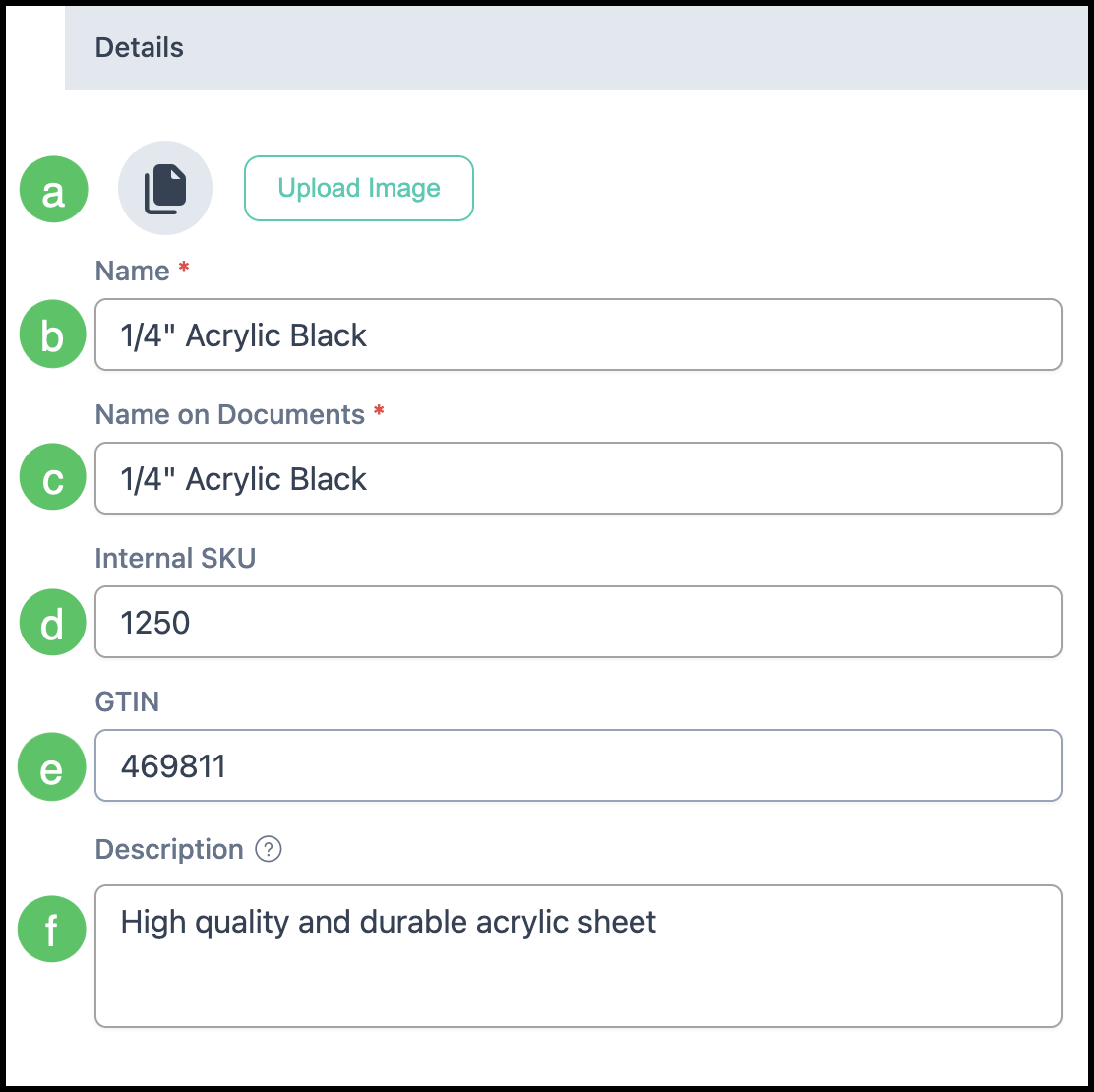
Details
a. Upload Image stores a picture of the Material, if desired.
b. Name is the Material name in your list. It is recommended to begin with the Material type, followed by key attributes such as thickness, color, or size.
c. Name on Documents is how this Material displays on customer-facing documents such as Estimates and Invoices.
d. Internal SKU is a unique Stock Keeping Unit used for internal inventory and tracking, if available.
e. GTIN is a Global Trade Item Number used to recognize the same Product across different brands and suppliers. Vendors may use their own item numbers, but the GTIN remains consistent.
f. Description is a broader description of this Material for internal purposes.
Settings
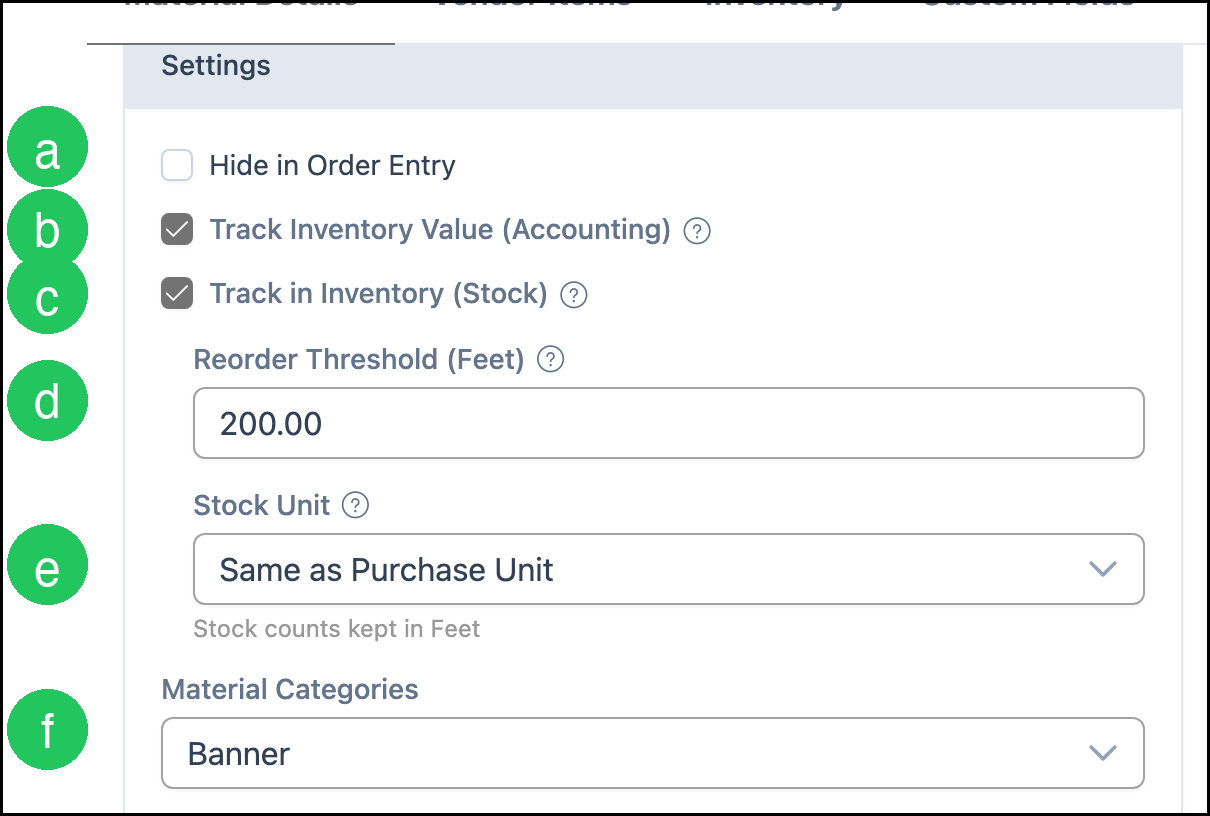
Settings control visibility in Order entry, inventory tracking, and how the Material is categorized.
a. Hide in Order Entry controls whether the Material can be selected when adding Line Items during Order entry.
b. Track Inventory Value (Accounting) includes this Material in inventory value. When this option is selected, an Inventory Asset Account is required in Accounting Details.
c. Track in Inventory (Stock) enables stock tracking for this Material and makes the Inventory tab available.
d. Reorder Threshold is the stock level used to identify low inventory. The unit follows how the Material is consumed, such as Feet.
e. Stock Unit determines whether stock counts use the purchase unit or the consumption unit.
f. Material Categories help organize and sort Materials. After a Material is assigned to one or more categories, it can be located using category filters, and if a category is linked to an Assembly, the Material is available during Order entry when that Assembly is added.
Note: Default Line Item Category determines which category is applied when this Material is added to an Estimate or Order.
Note: Inventory tracking fields appear when Inventory is included for your shop. For enabling tracking, see Setting up Inventory.
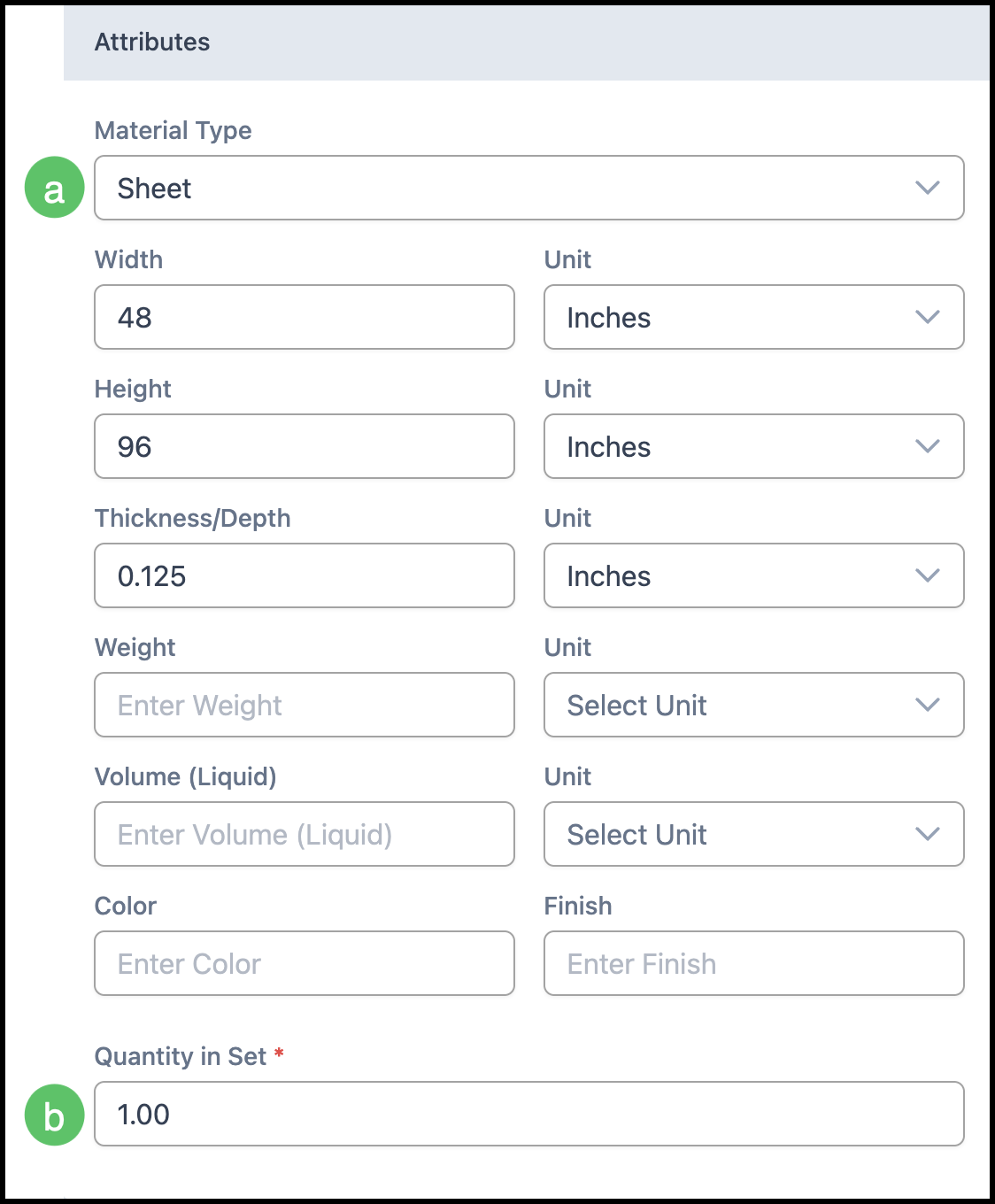
Attributes
Attributes define the physical characteristics of a Material. These properties help quoting, production, and inventory. Material Type and Quantity in Set are the only required fields. Complete as many fields as possible.
a. Material Type is the type of Material, such as Roll, Sheet, or Other.
b. Quantity in Set shows how many of this Material are sold in a set.
Example: A box of 500 business cards has a quantity of 500 in one set.
Consumption
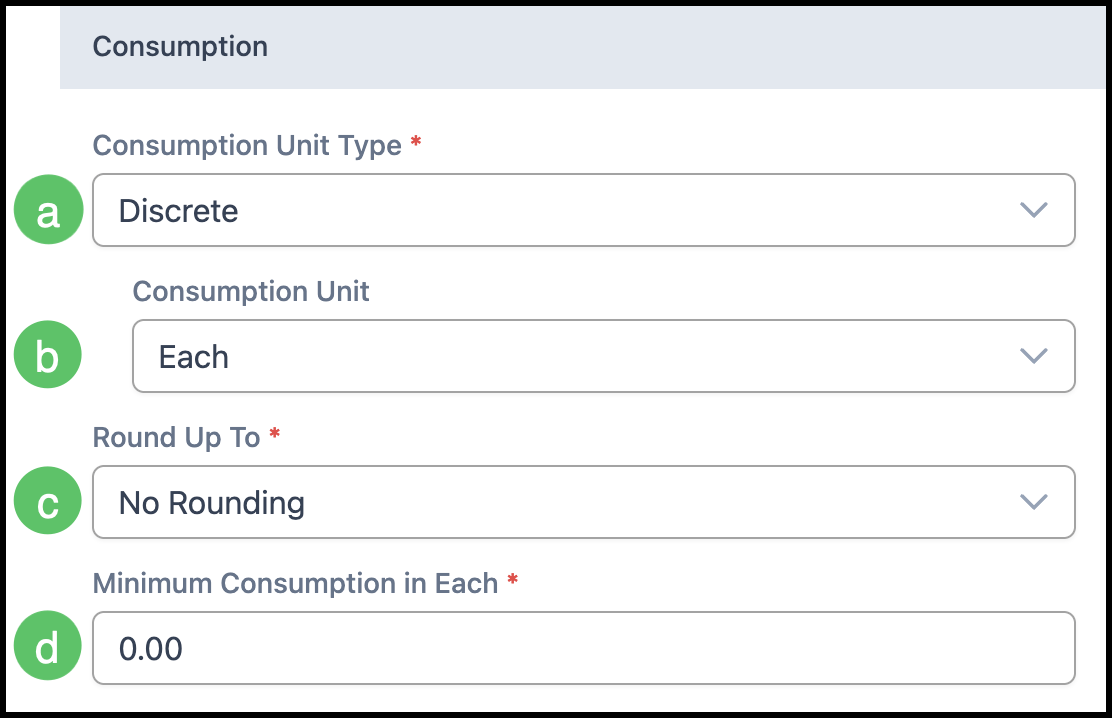
Consumption Units and Types classify how a Material is consumed and rounded for usage.
a. Consumption Unit Type is the unit type used to measure this Material, such as Length, Volume, and Weight.
b. Consumption Unit populates from the Consumption Unit Type and can be changed.
c. Round Up To rounds usage up to the next unit.
d. Minimum Consumption is the lowest amount of this Material used in calculations.
Note: Best practice is to enter 0 unless a minimum amount of this Material is used regardless of what the Assembly calls for.
Example: If Minimum Consumption is set to 1 sheet and a Customer has requested 0.5 sheets, 1 sheet is used in calculations.
Cost & Price
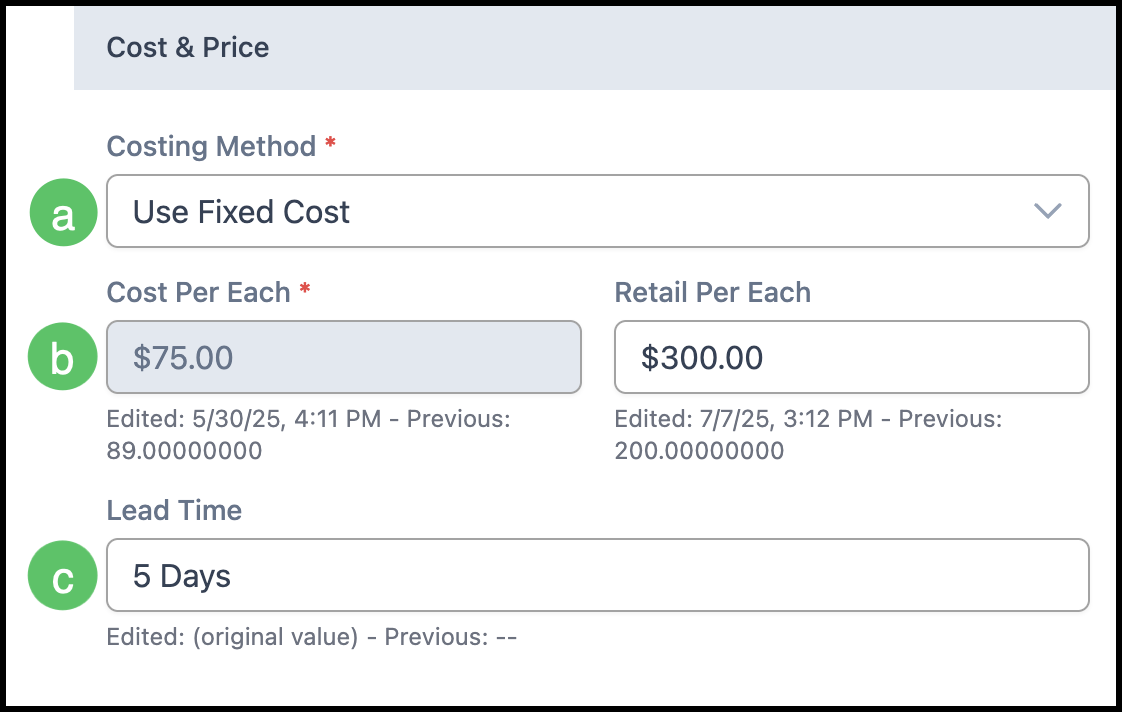
a. Costing Method determines how the system calculates the cost of a Material.
b. Cost Per is the unit cost of this Material. This value is used in job costing whenever the Material is measured or sold per unit.
c. Lead Time is the amount of time required to complete the Order from the time the Order is created.
Note: Retail Per is the selling price per unit for this Material.
Accounting Details
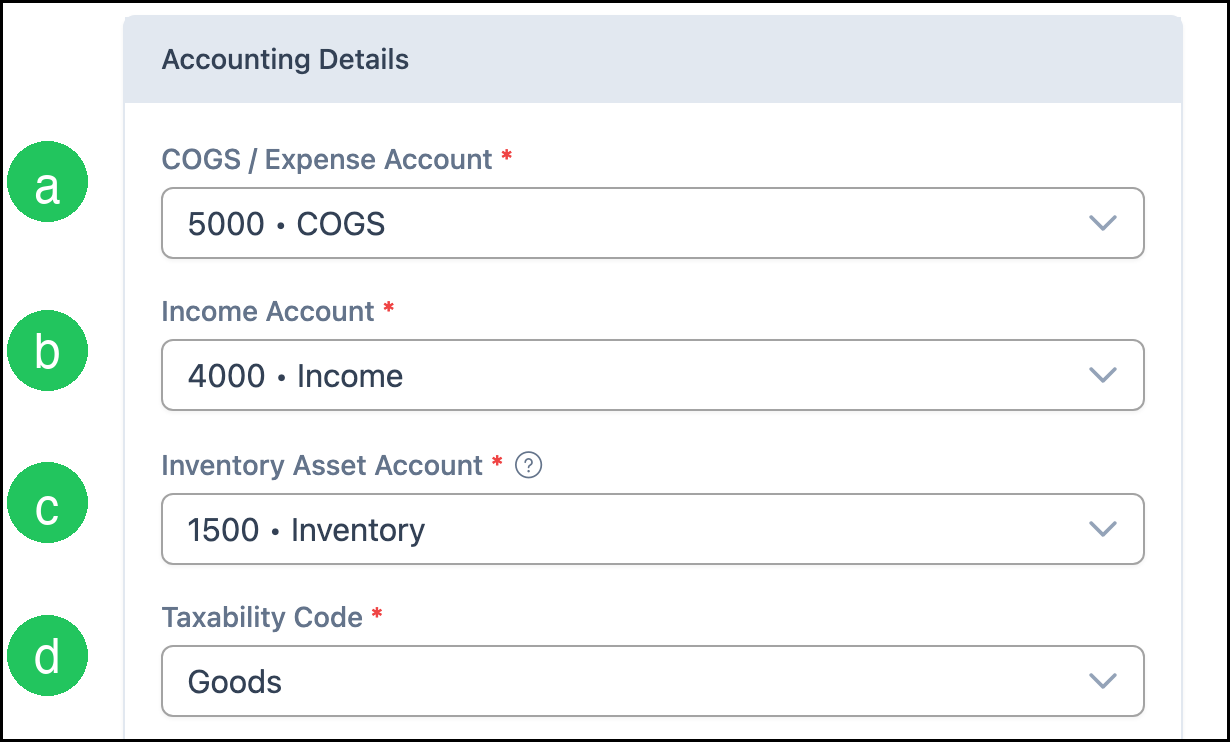
a. COGS / Expense Account is the account the Material is billed to.
b. Income Account is credited when this Material is sold.
c. Inventory Asset Account is required when Track Inventory Value (Accounting) is selected.
d. Taxability Code sets whether the Material is taxable, tax exempt, or taxable with exceptions.
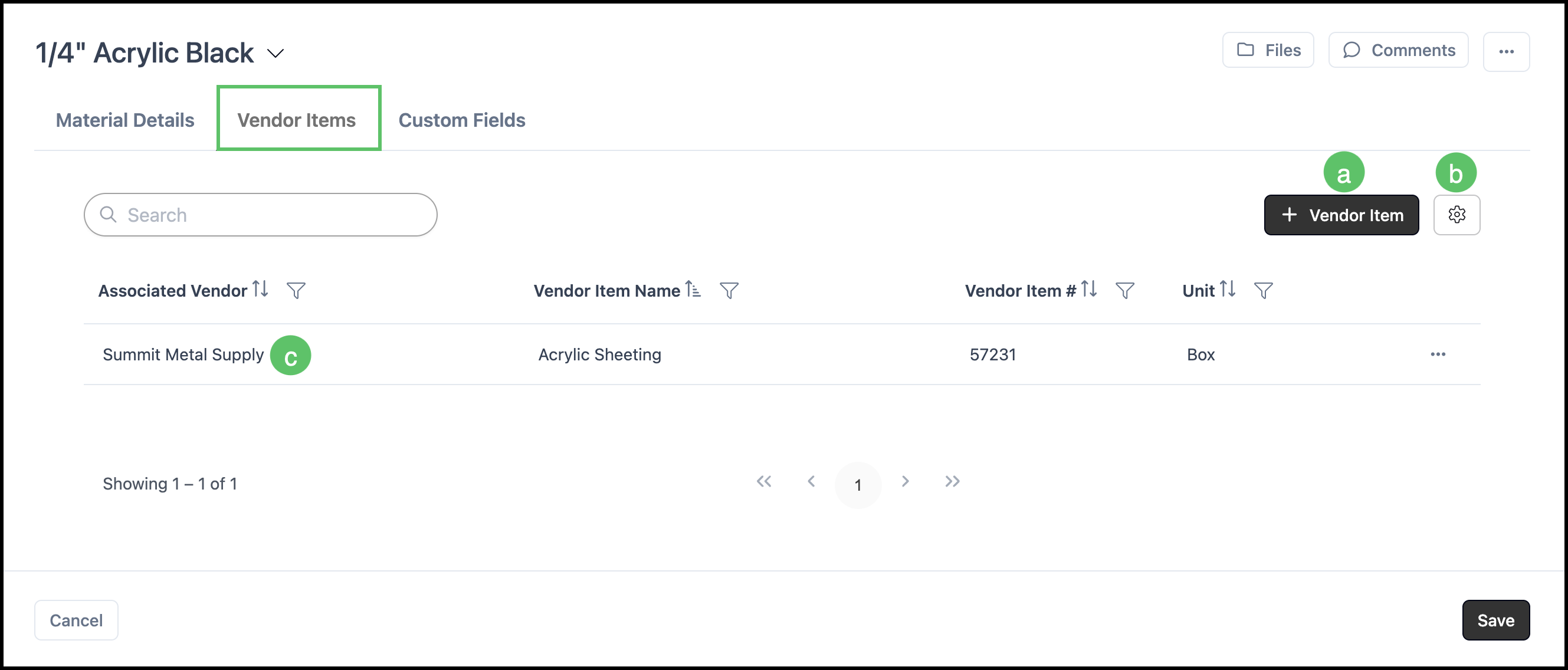
Vendor Items Tab
The Vendor Items tab links a Material to one or more vendor-specific items so you can track purchasing details.
Inventory Tab
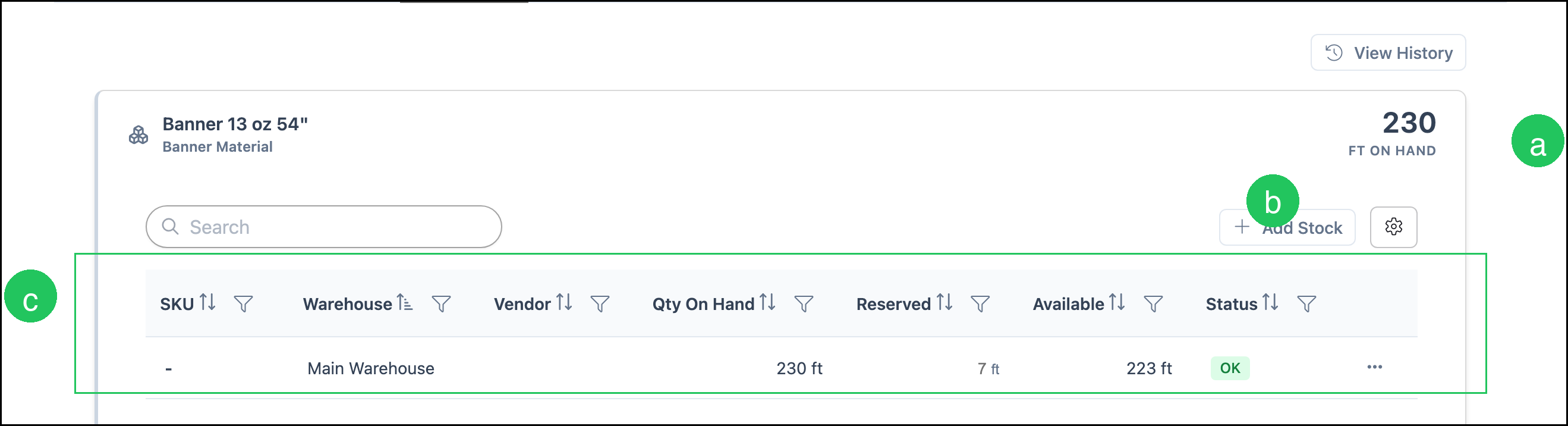
The Inventory tab shows stock for a Material when Track in Inventory (Stock) is selected and Inventory is included for your shop. For adding and adjusting stock, see Understanding and Managing Stock.
a. On-hand quantity is the total stock for this Material.
b. Add Stock opens the flow to add quantity to a warehouse.
c. The stock list shows warehouse, quantity on hand, reserved, available, and status.
Custom Fields Tab
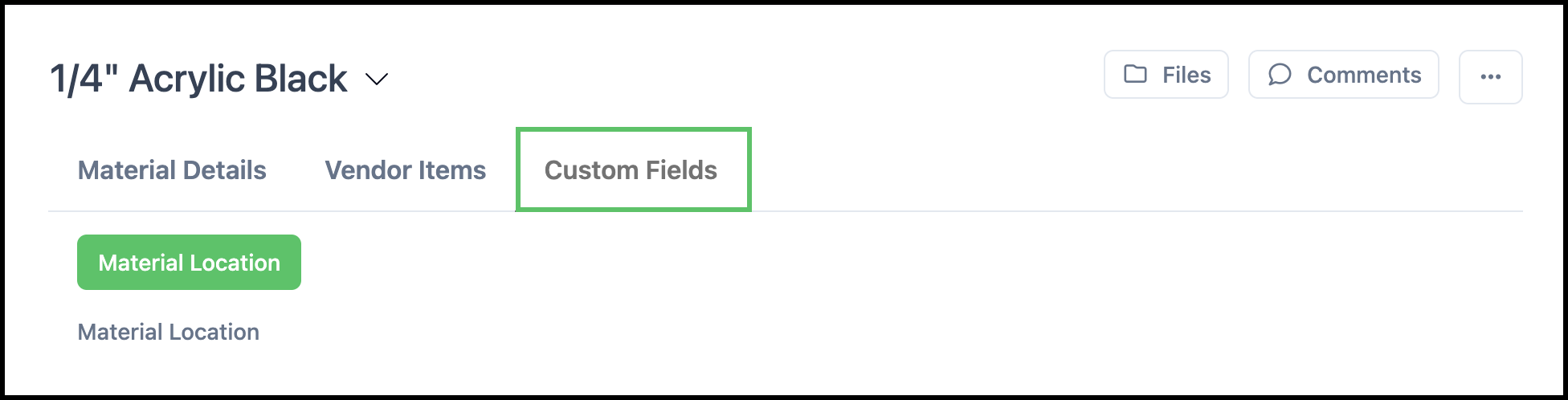
The Custom Fields tab stores additional information defined for Materials. Layouts are managed under System Settings / Components / Custom Fields. For more information, see Custom Fields.
Frequently Asked Questions
1. Does Export All include inactive Materials?
Answer: No, not by default. Select Include inactive materials on the export dialog before you click Download.
2. How do I export only some Materials?
Answer: Select the rows, then use Bulk Action and Export Selected. The same format and inactive options apply.
3. Why do I not see the Inventory tab?
Answer: The Inventory tab appears when Inventory is included for your shop and Track in Inventory (Stock) is selected on the Material. See Setting up Inventory.
4. Should I create many similar Materials or use Materials with Variants?
Answer: If items share one overall definition and differ by selectable options, Materials with Variants usually fit better than many near-duplicate Materials. If costing, measurement, or Assembly use differs, create separate Materials. See Materials with Variants Overview.
Related Articles
Adding Materials
Cloning a Material
Component Categories Overview
Components Overview
Creating Materials with Variants
Custom Fields
Materials Import Template
Materials with Variants Overview
Setting up Inventory
Understanding and Managing Stock
Variants Overview