
When an employee leaves or changes roles, reassign their customer roles before you set that employee inactive. Reassign Customers moves the employee's role on each Company to another employee you select.
Table of Contents
- Important Information
- Opening Reassign Customers
- Reassign Customers Dialog
- Reassigning Customer Roles
- Frequently Asked Questions
- Related Articles
Important Information
- Reassign Customers updates the employee's role on Companies (for example, Salesperson). It does not change that role on existing Estimates or Orders. If a different employee should appear on those records, change the role on the Estimate or Order.
- The employee whose profile you opened does not appear in the employee picker.
- If your business uses Teams, the dialog includes a Manage Teams link. Update Team role configuration in Teams. Set Inactive may be unavailable until the employee is no longer assigned on a Team. For more information, see Teams Overview.
- Revoke Access removes the employee's ability to sign in. Set Inactive is a separate option on More Actions. For more information, see Managing Employees.
Opening Reassign Customers
Navigate to System Settings / My Business / Employees.
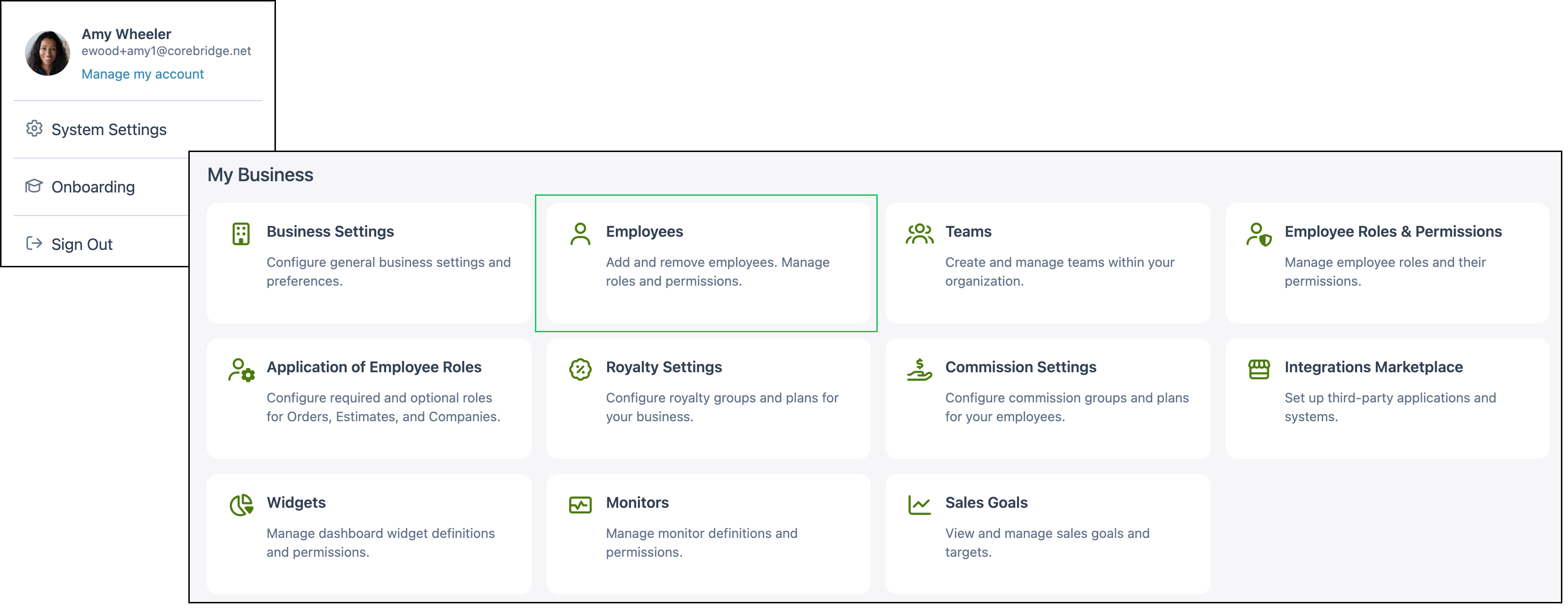
1. Click the employee whose customer roles you want to reassign.
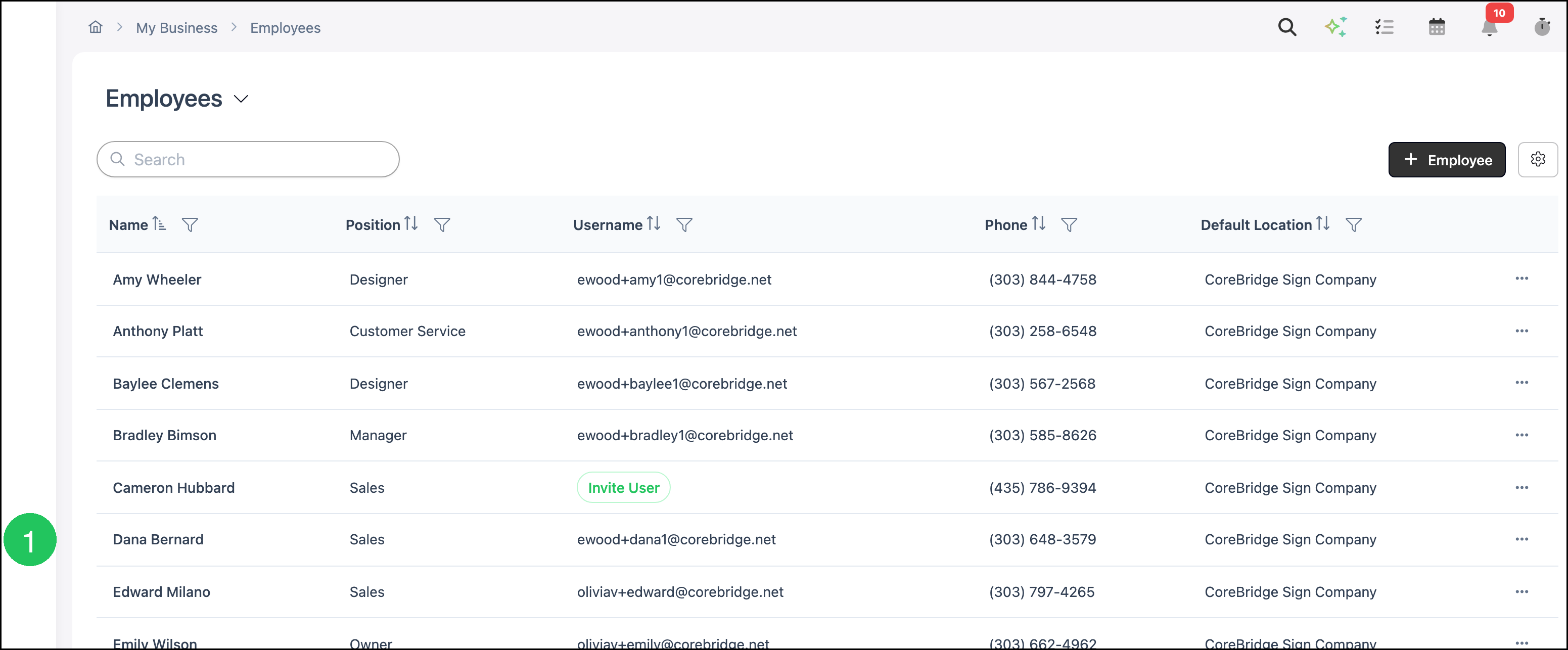
2. Click More Actions.
3. Click Reassign Customers.
Reassign Customers Dialog
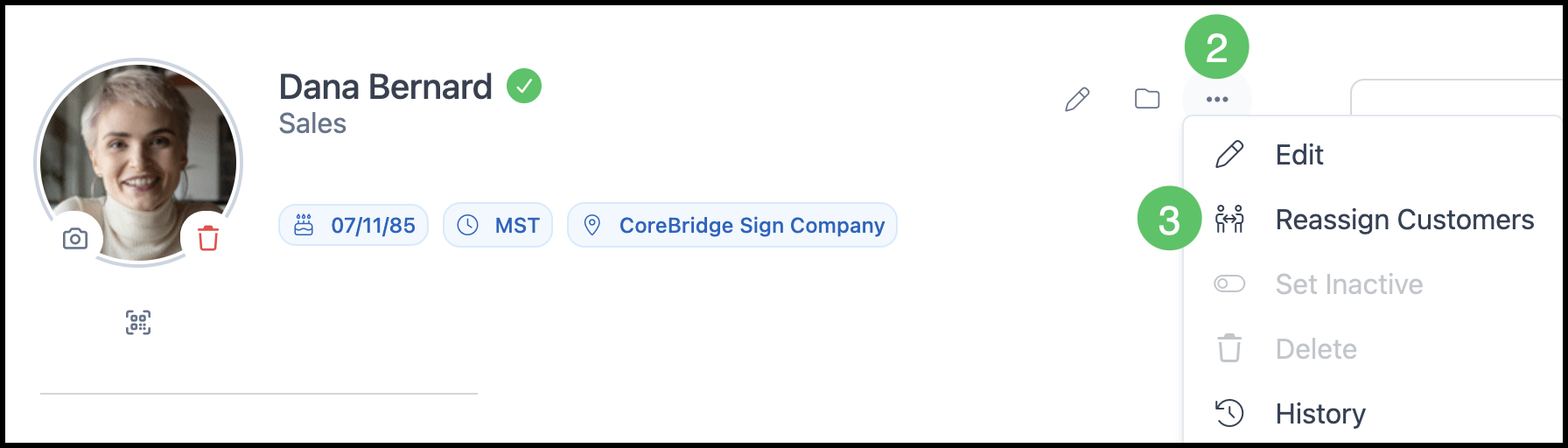
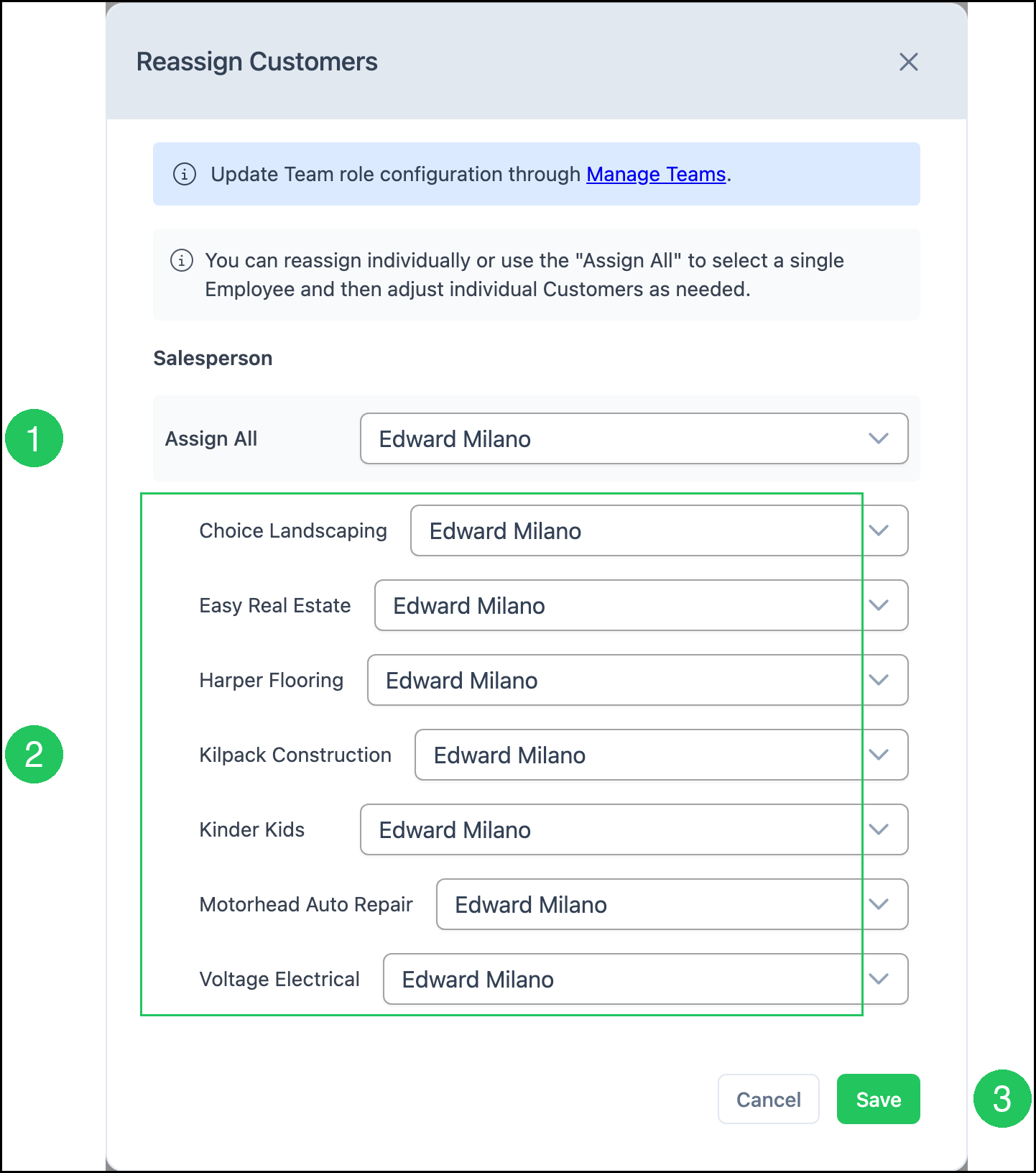
The Reassign Customers dialog lists Companies where this employee has a role. The example shows the Salesperson role. If the employee has other roles on Companies, those roles appear in the dialog as well.
a. The notices at the top. Manage Teams opens Team settings. The second notice explains that you can reassign each customer individually or use Assign All, then change individual customers as needed.
b. Assign All selects one employee for every customer in the list.
c. Each Company with this employee's role, and the employee who will receive that role.
d. Save applies the reassignment. Cancel closes the dialog without saving.
Reassigning Customer Roles
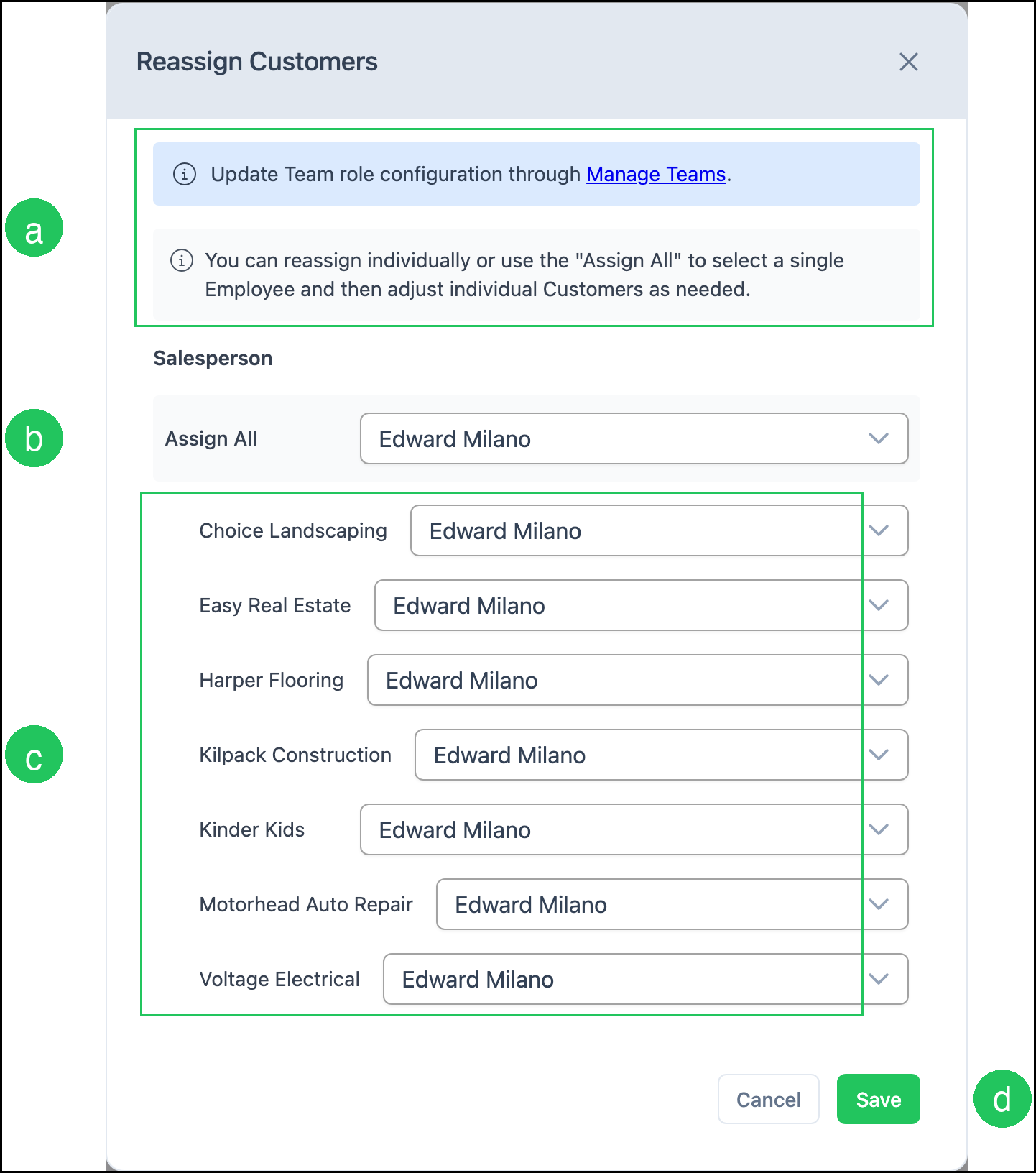
Use Assign All when one employee should receive every customer. Then change any individual Company if needed.
1. In Assign All, select the employee who should receive the customers. Each customer in the list updates to that employee.
2. To assign a different employee for a specific Company, select that employee in the Company's field.
3. Click Save.
Frequently Asked Questions
1. Does Reassign Customers change Estimates or Orders?
Answer: No. Reassign Customers updates the employee's role on Companies. Existing Estimates and Orders keep the employee already assigned. Change the role on those records if a different employee should appear there.
2. What is the difference between Assign All and the individual customer fields?
Answer: Assign All sets every customer in the list to the same employee. After you use Assign All, you can still change any individual Company to a different employee before you click Save.
3. Why does the current employee not appear in the picker?
Answer: The employee whose profile you opened is the one you are moving customers away from, so that employee is not listed as a destination.
4. What is the difference between Reassign Customers, Set Inactive, and Revoke Access?
Answer: Reassign Customers moves the employee's role on Companies to another employee. Set Inactive (on More Actions) sets the employee record inactive and keeps history. Revoke Access (on the employee profile) removes the employee's ability to sign in. Reassign customer roles before you set the employee inactive.
5. Why is Set Inactive unavailable?
Answer: Set Inactive may be unavailable while the employee is still assigned on a Team. Use Manage Teams from the Reassign Customers dialog (or open Teams from System Settings / My Business / Teams) to update Team role configuration. For more information, see Teams Overview.
Related Articles
Application of Employee Roles
Creating Employees
Employee Roles and Permissions in Settings
Managing Employees
Teams Overview