
For Cut Vinyl line items, vinyl quantity follows Cut Style. Letter counts each character in Text through Total Characters. Logo stores Width and Height, and Layout Manager uses those sizes for Print Area and Material Total Area.
Table of Contents
- How Material Usage Is Calculated
- Cut Style Letter and Quantity
- Cut Style Logo and Layout Manager
- Reviewing a Letter Line
- Reviewing Layout Manager
- Troubleshooting When Vinyl Looks High
- Related Articles
Accessing the Layout Manager
Navigate to Sales / Orders and select the appropriate Order.

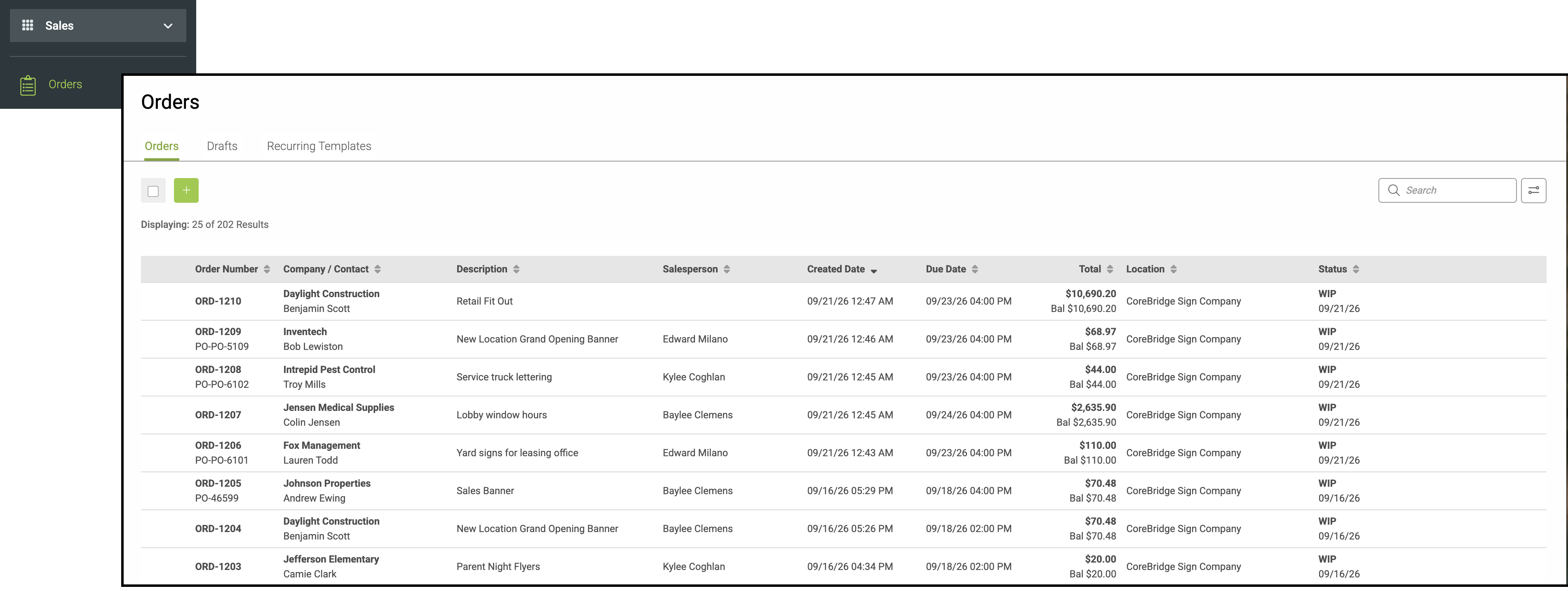

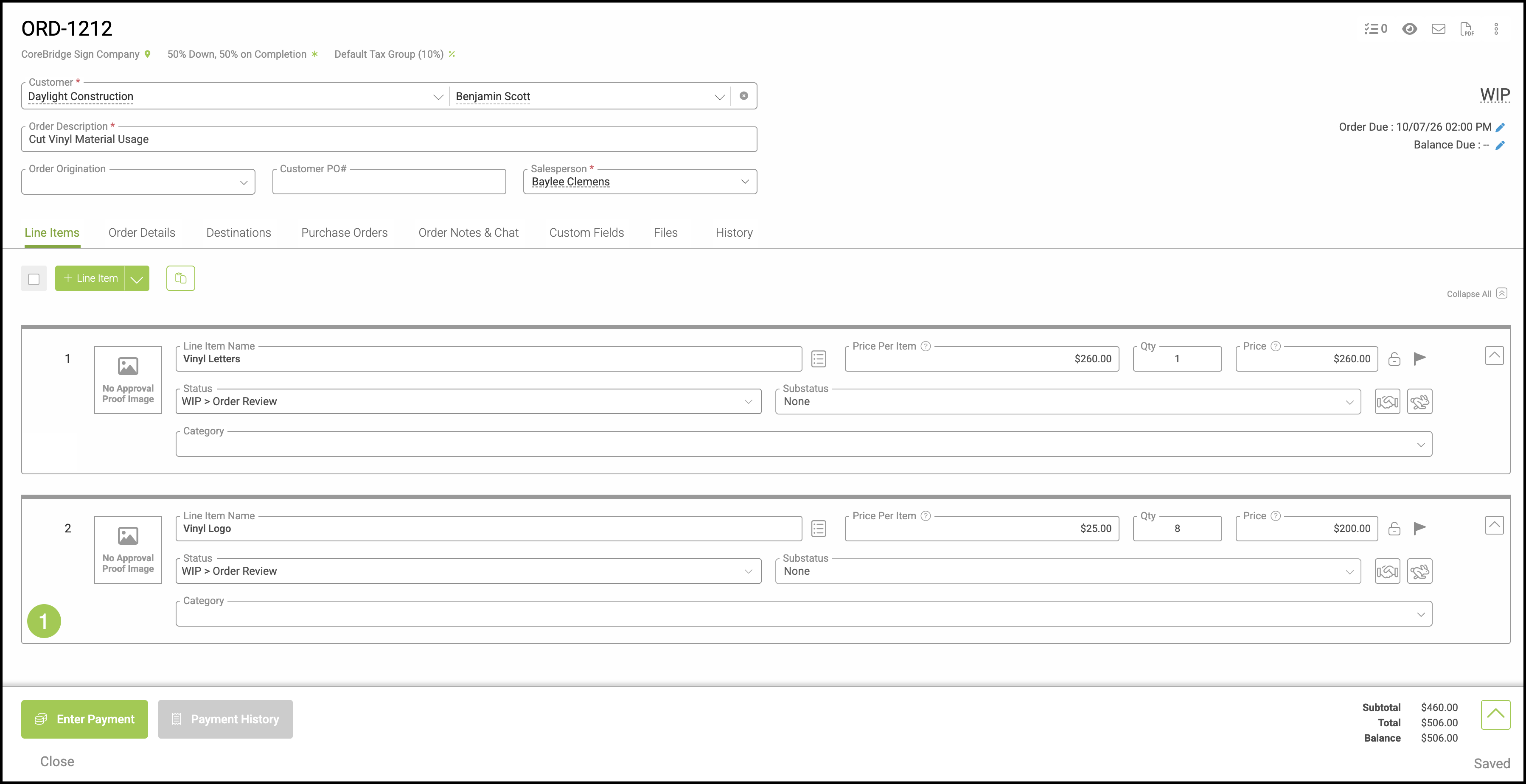
1. Click on the Line Item.
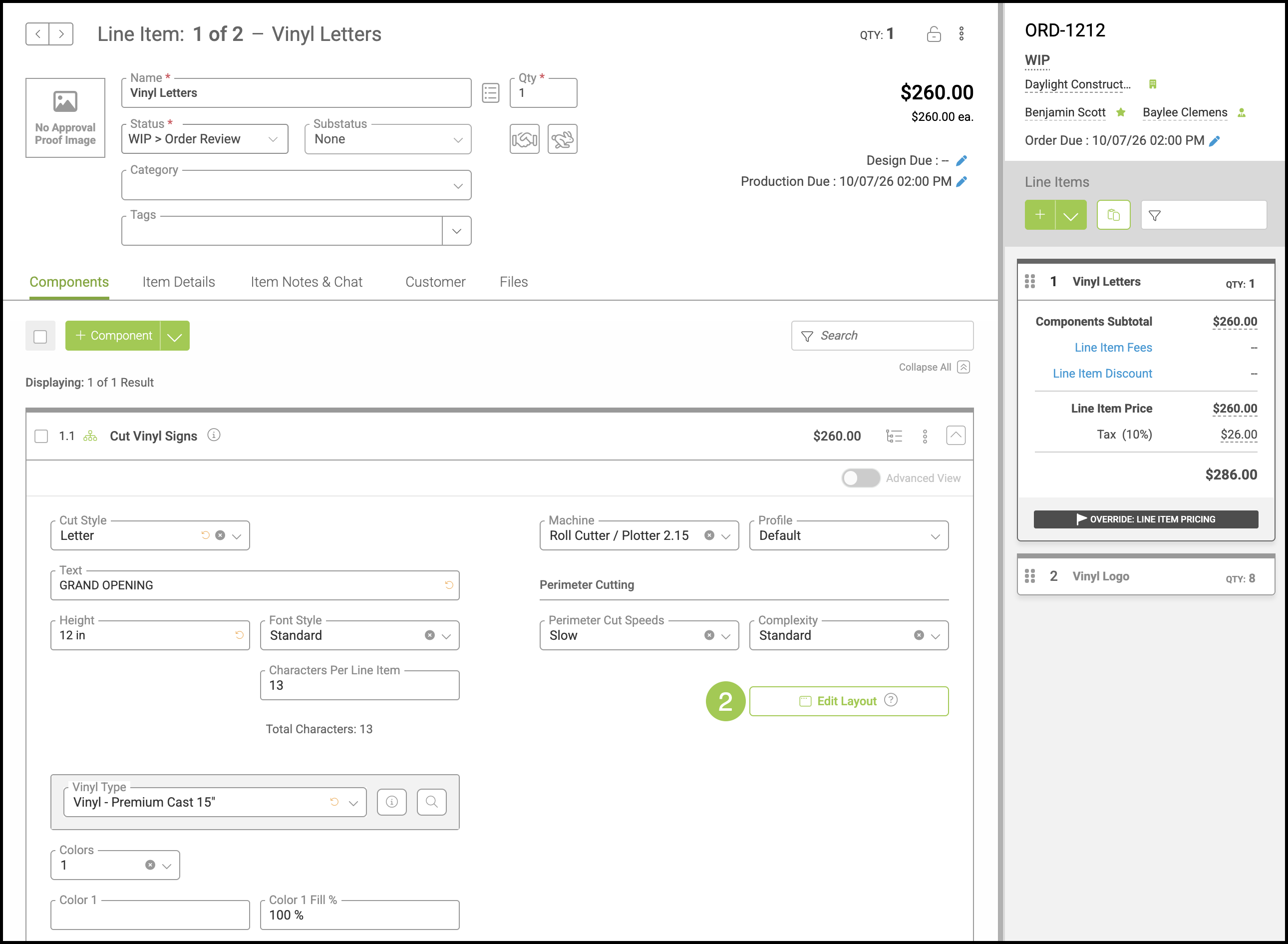
2. Click Edit Layout.
How Material Usage Is Calculated
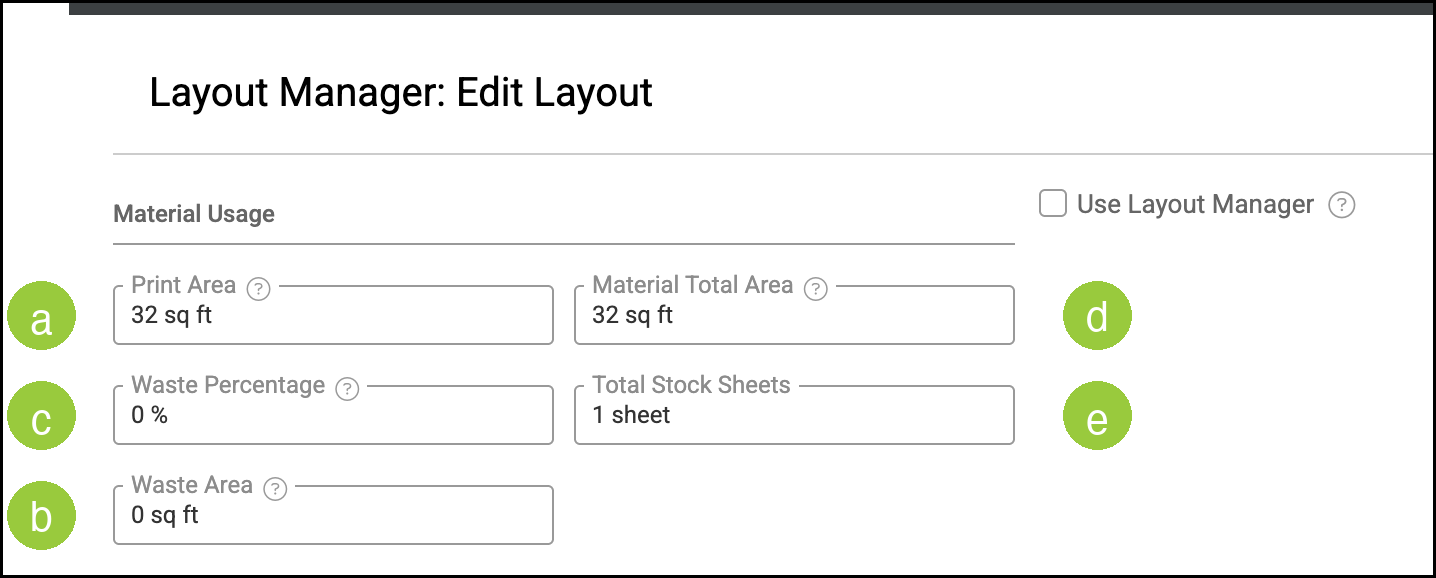
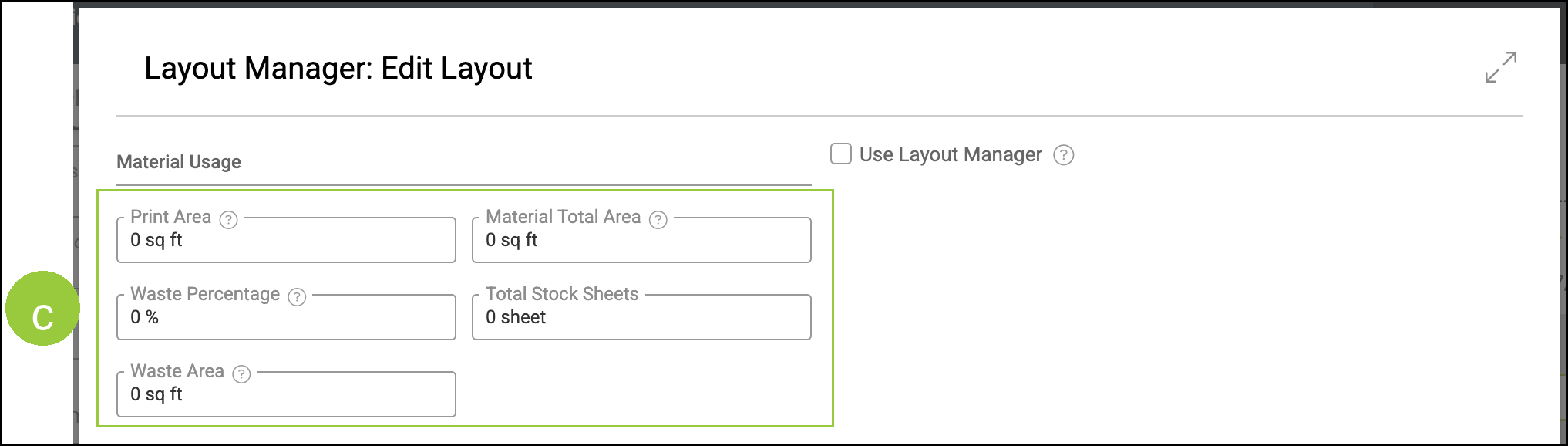
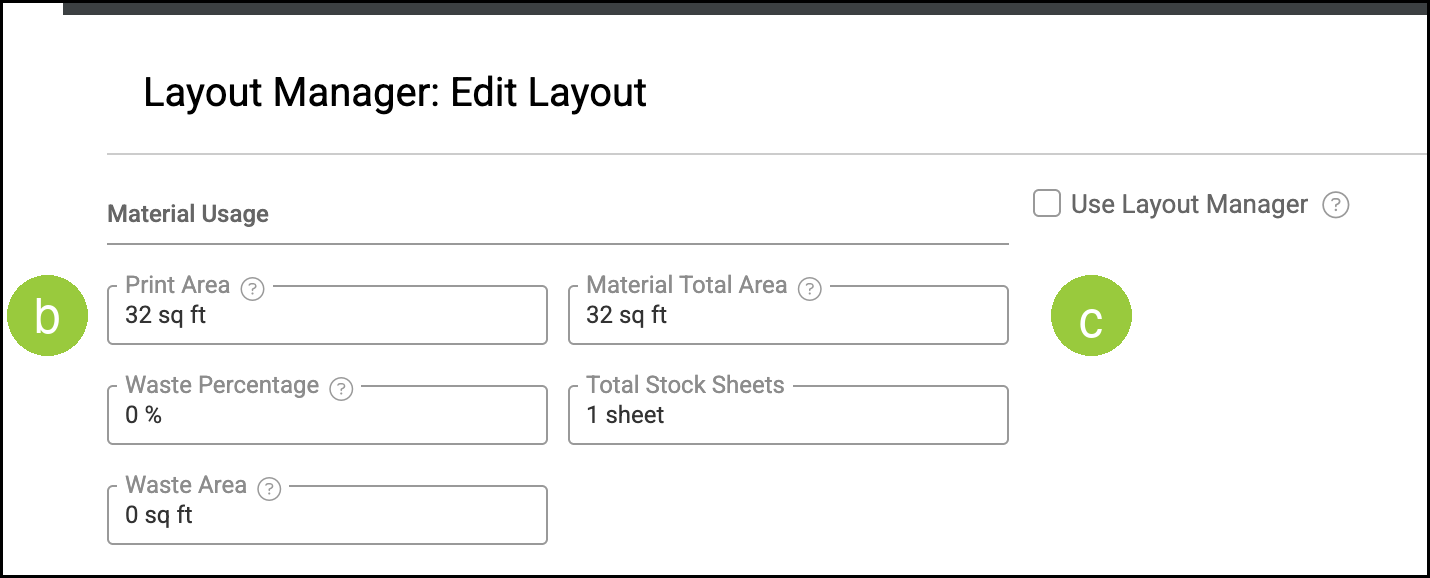
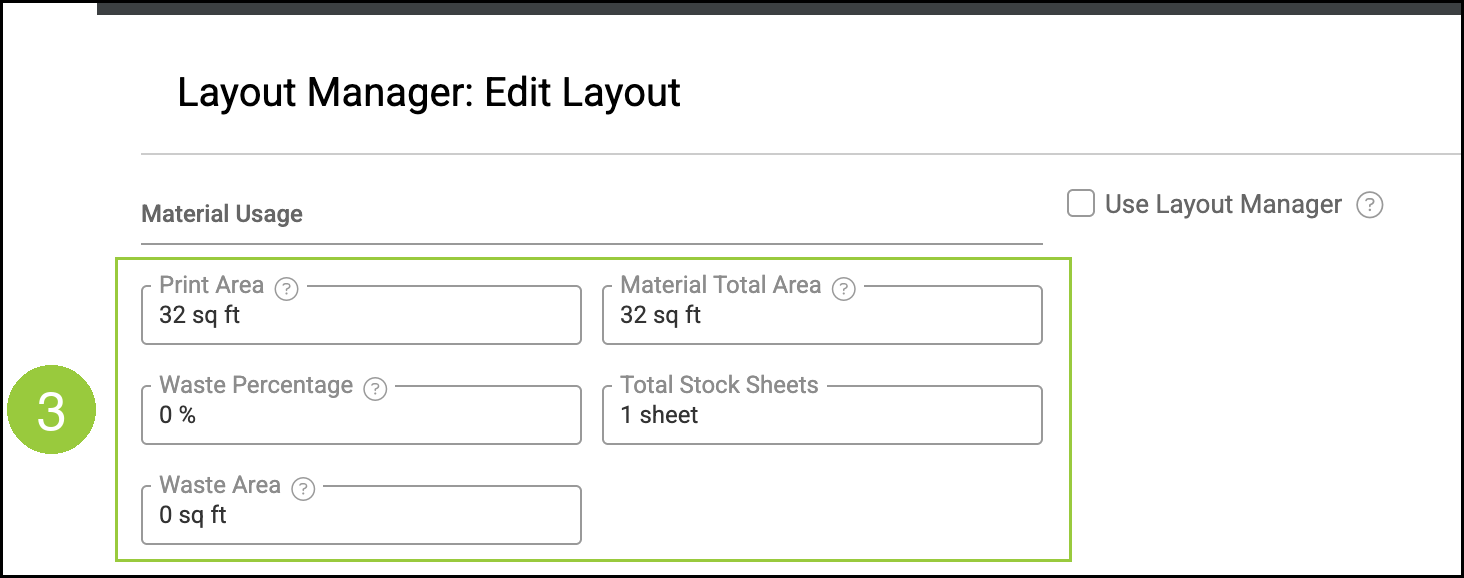
Layout Manager: Edit Layout shows Material Usage when the line has a finished width and height. Open it from Edit Layout on a Logo line. The values are:
a. Print Area equals the finished height times the finished width times the line quantity.
b. Waste Area is the material used outside the Print Area when Layout Manager is calculating the layout. When Layout Manager is off, Waste Area is a percentage of the Print Area.
c. Waste Percentage comes from that calculated waste when Layout Manager is on. When Layout Manager is off, it uses the percentage from the machine or the assembly.
d. Material Total Area equals Print Area plus Waste Area.
e. Total Stock Sheets is the sheet count for that layout.
A large Width, Height, or line quantity raises Print Area, and Material Total Area rises with it. A Waste Percentage of 0% means Material Total Area matches Print Area.
On a Letter line, finished width is 0. Print Area, Waste Area, and Material Total Area show 0, and Total Stock Sheets shows 0. Review Total Characters and the Bill of Materials for that line.
Cut Style Letter and Quantity
Cut Style on a cut vinyl component includes Letter and Logo.
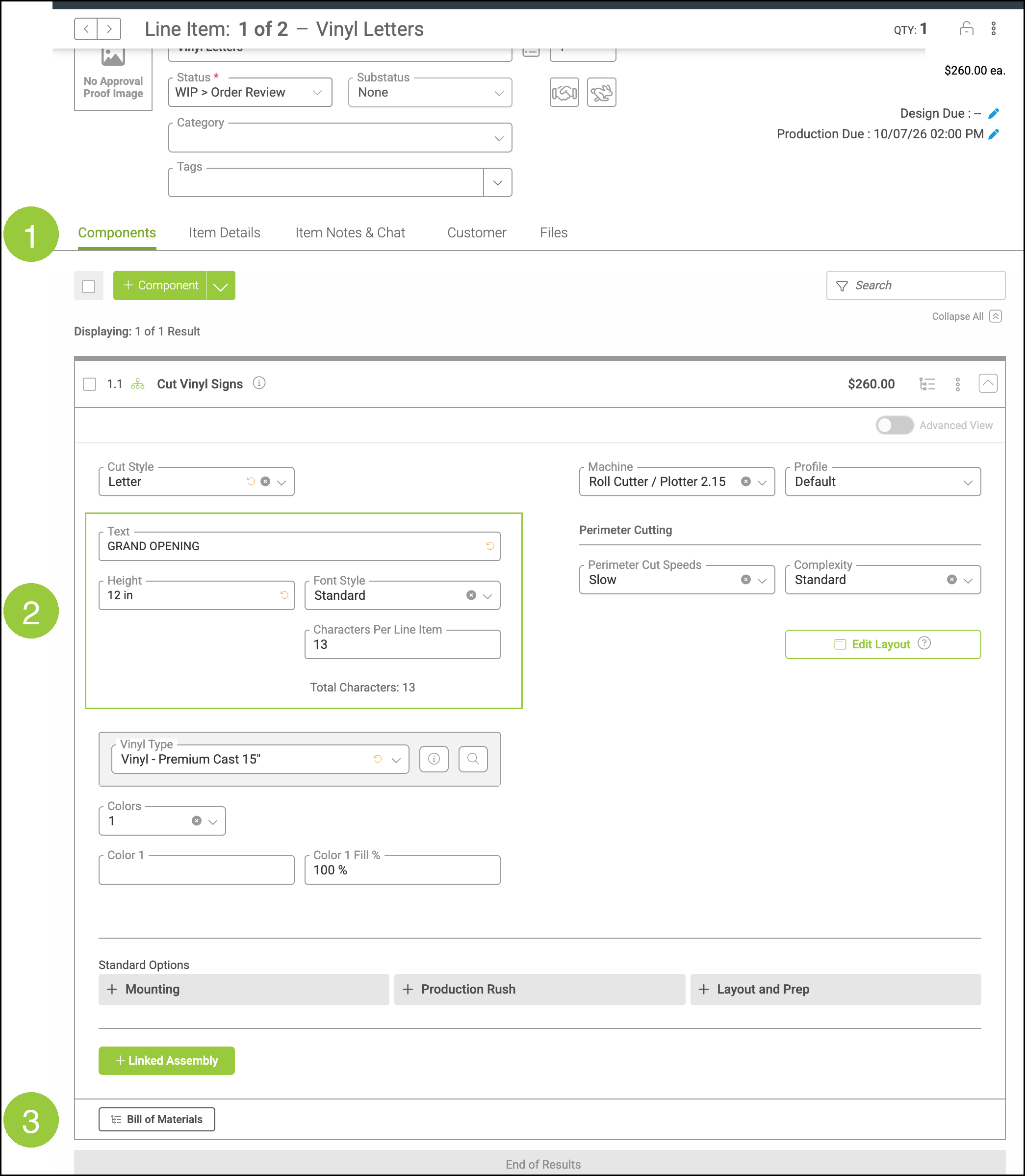
a. Letter uses Text, Height, Font Style, Characters Per Line Item, and Total Characters. Total Characters follows the text you enter.
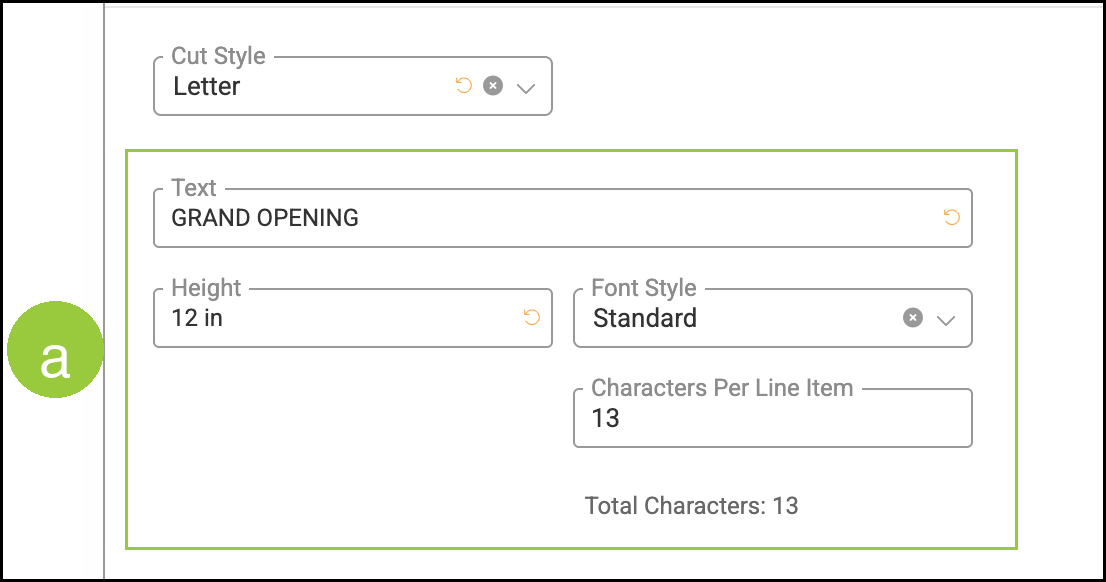
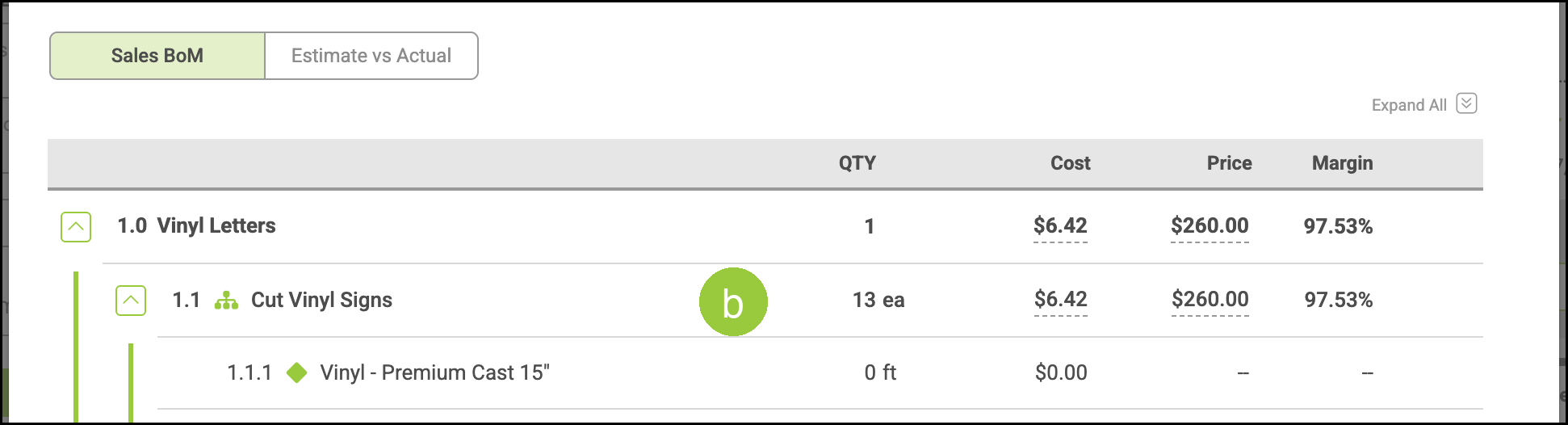
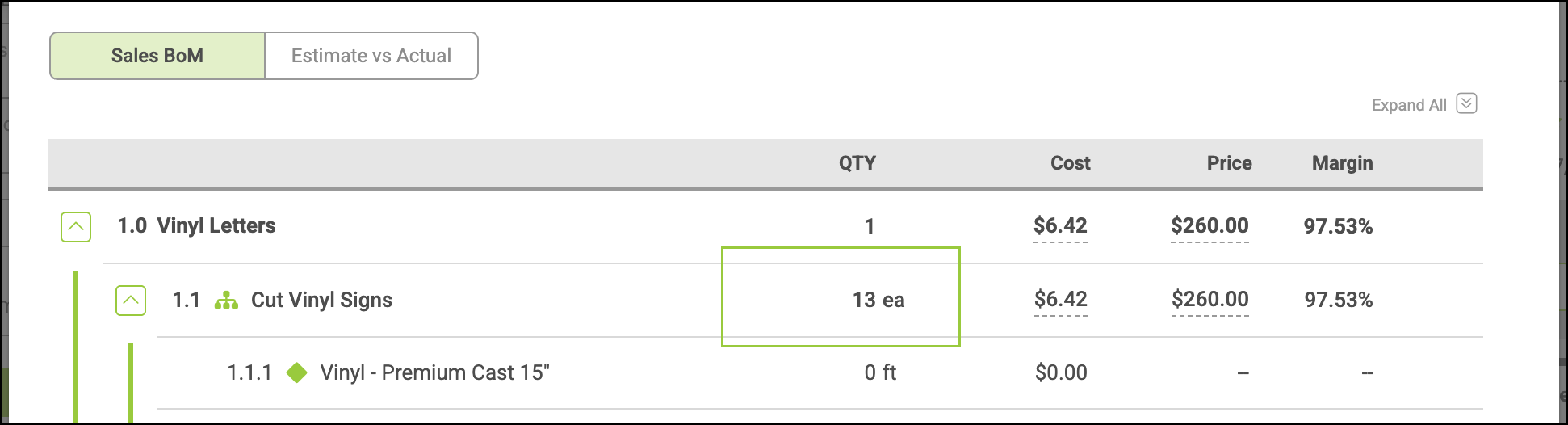
b. That count is the component quantity on the Bill of Materials. Each character is its own piece, so the line item quantity can stay at 1 while Total Characters is higher.
c. Letter uses Height and leaves finished width at 0. Layout Manager then shows 0 for Print Area and Material Total Area. The quantity to compare is Total Characters.
Cut Style Logo and Layout Manager
a. Logo uses Width and Height.
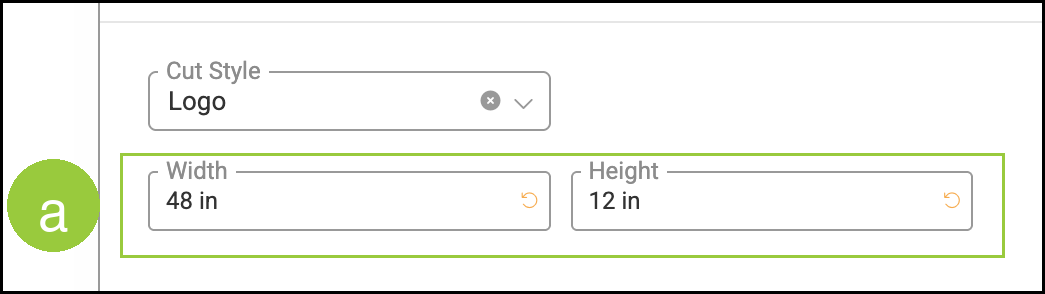
b. Print Area equals Height times Width times the line quantity.
c. Material Total Area equals Print Area plus Waste Area.
Example: A logo that is 48 inches wide and 12 inches high, with a quantity of 8, has a Print Area of 32 square feet.
Reviewing a Letter Line
Open the estimate or order and open the cut vinyl line item set to Letter.
1. Select the Components tab.
2. Review Text, Height, Font Style, Characters Per Line Item, and Total Characters.
3. Click Bill of Materials and compare the component quantity with Total Characters.
Reviewing Layout Manager
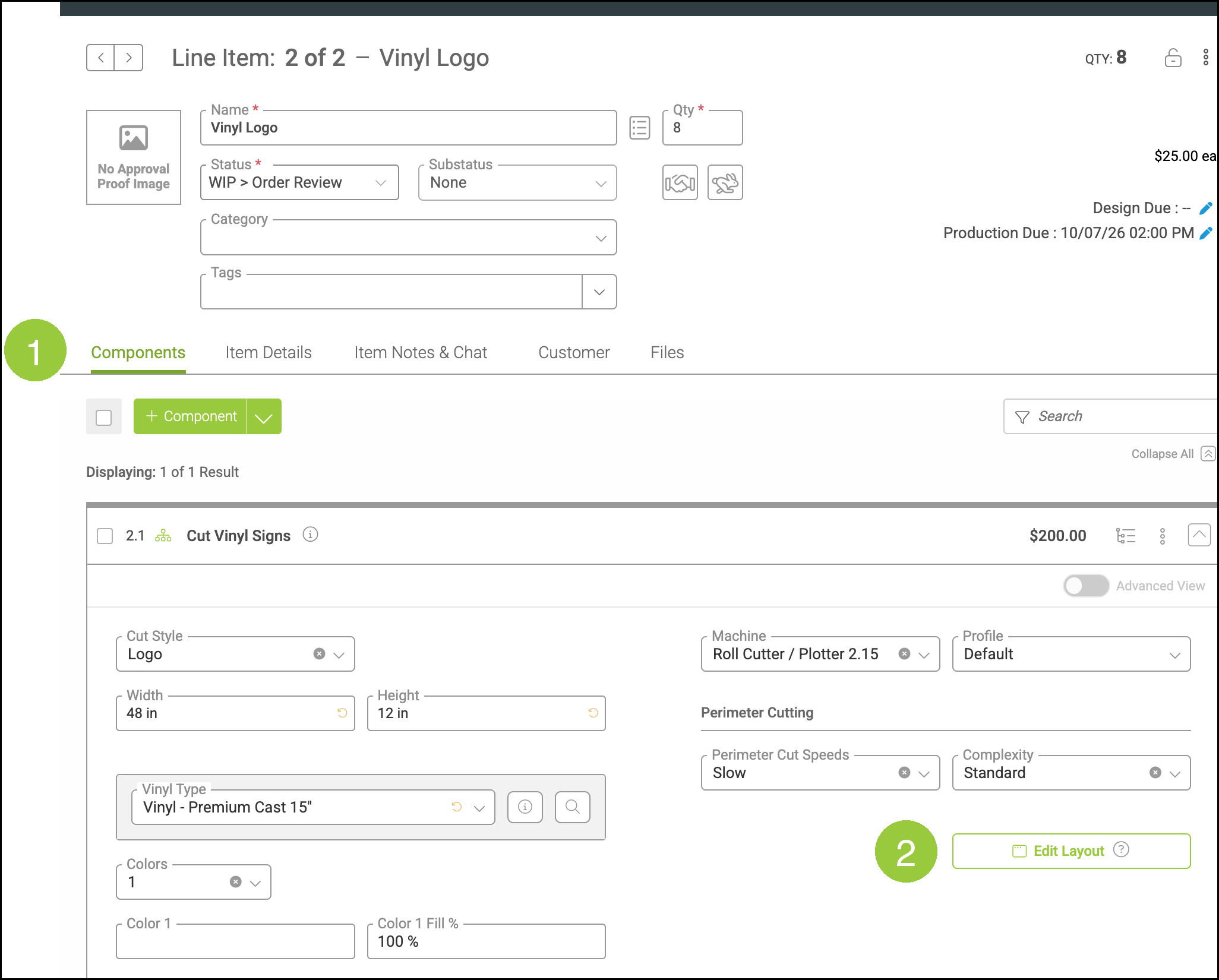
Open the estimate or order and open the cut vinyl line item set to Logo.
1. Select the Components tab.
2. On the cut vinyl component, next to Machine, click Edit Layout.
3. In Layout Manager: Edit Layout, review Print Area, Waste Percentage, Waste Area, Material Total Area, and Total Stock Sheets.
Compare Print Area with Width, Height, and the line quantity.
Troubleshooting When Vinyl Looks High
- Confirm Cut Style is the style you intended, Letter or Logo.
- For Letter, review Text, Height, Font Style, and Total Characters. Total Characters is the component quantity on the Bill of Materials. The line item quantity can stay at 1.
- For Letter, Layout Manager shows 0 for Print Area and Material Total Area because finished width is 0. Use Total Characters and the Bill of Materials for the vinyl quantity.
- For Logo, review Width and Height. Open Edit Layout and compare Print Area and Material Total Area with those sizes and the line quantity.
- Confirm Vinyl Type is the material you expect to cut.
- A Waste Percentage of 0% means Material Total Area matches Print Area.