
Roles on an Estimate or Order record the employees responsible for the work. The Roles card lists each assigned role, including the employee who created the record. Which roles appear, and which roles are required, is set in Application of Employee Roles.
Table of Contents
- Important Information
- Roles on an Order
- Updating Roles on an Order
- Line Item Roles
- Roles on an Estimate
- Frequently Asked Questions
- Related Articles
Important Information
- Application of Employee Roles sets which roles appear on Estimates and on Orders, and which of those roles are required. Estimates and Orders are configured separately. For more information, see Application of Employee Roles.
- Entered By is the employee who created the record. CoreBridge assigns Entered By automatically.
- A red asterisk marks a required role. The role name stays in place. Select the employee for that role.
- The Roles card lists roles that have an employee assigned. An optional role with no employee appears in the Roles dialog.
- Add New adds another assignment when that role still has room for one.
- The Salesperson on a Line Item matches the Salesperson on the Estimate or Order. Change the Salesperson on the Estimate or Order.
Roles on an Order
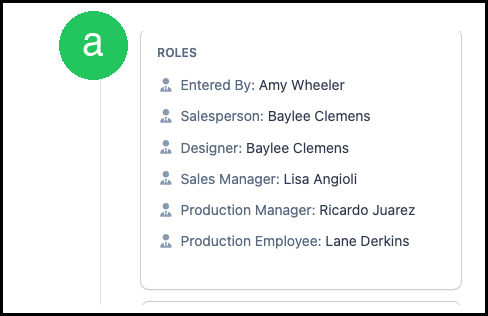
a. The Roles card lists each role that has an employee assigned. Entered By is the employee who created the Order. The other rows are the employees assigned to Salesperson, Designer, Sales Manager, Production Manager, and Production Employee.
Updating Roles on an Order
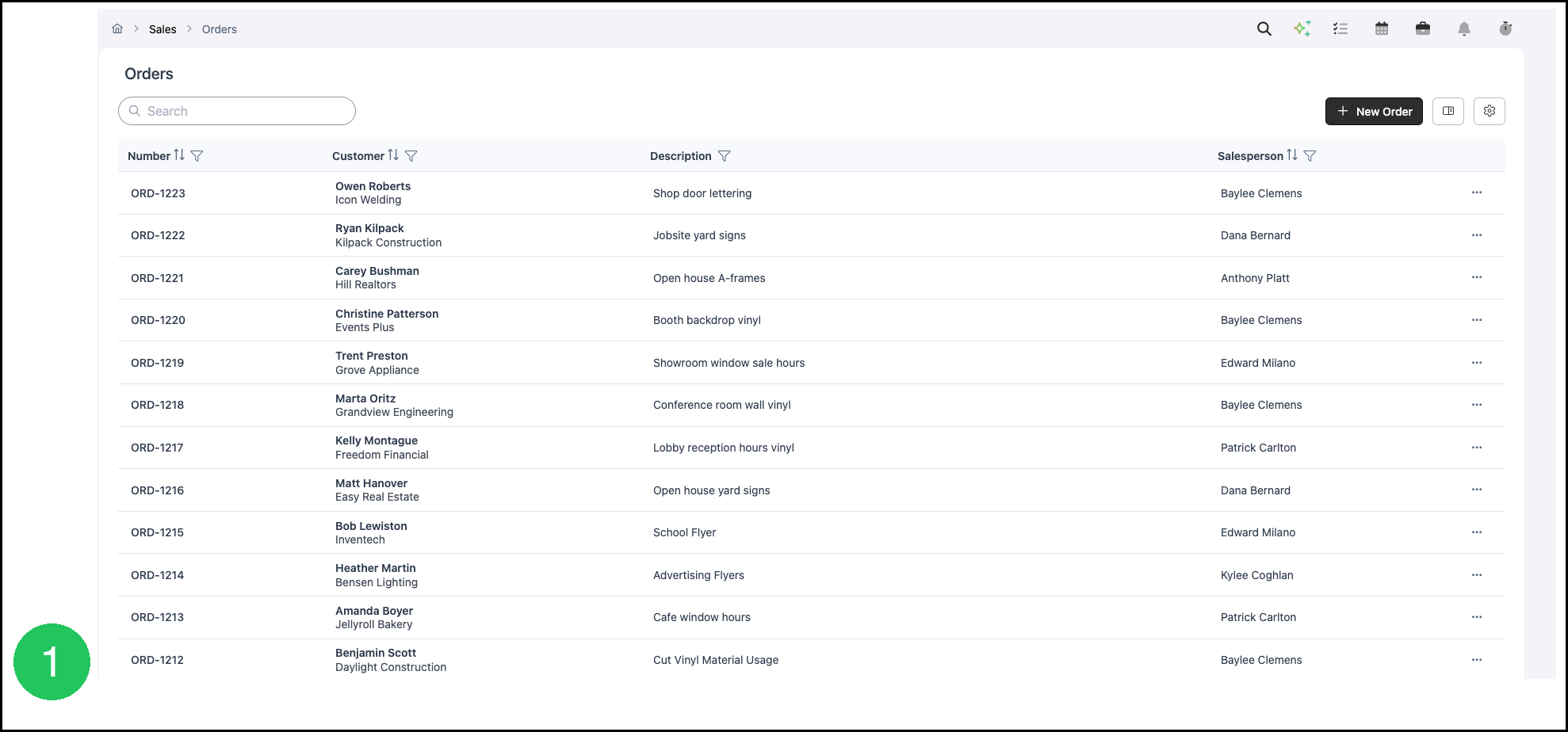
Navigate to Sales / Orders.
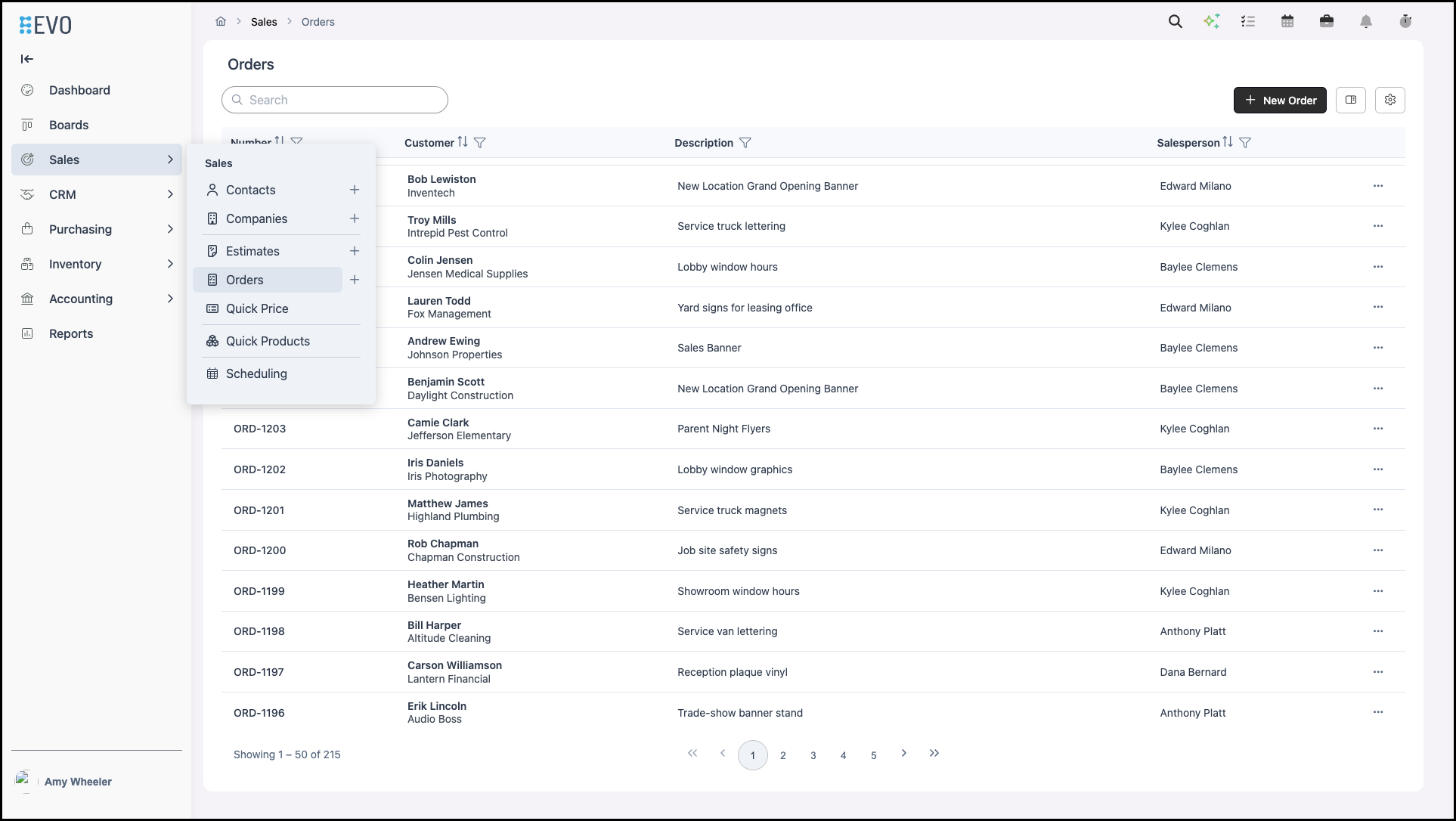
1. Open the Order.
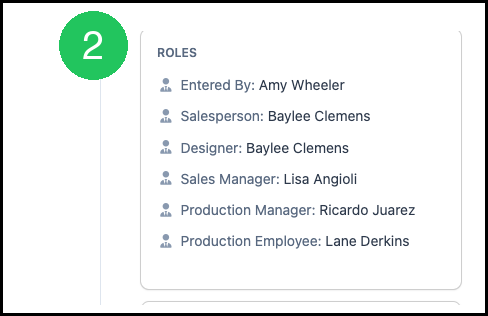
2. Click the Roles card.
The Roles dialog opens.
a. Entered By cannot be changed.
b. A required role shows a red asterisk. The role stays in place. Select the employee. Designer is required in this example.
c. An optional role can be changed, or removed. Production Manager is optional in this example.
d. Add New adds another role when more assignments are available.
3. Select the employee.
4. Click Save.
Note: A blue dropdown cannot be changed. Entered By is always blue. On a required role, the role name is blue and the employee can still be selected. On a Line Item, Salesperson is blue for both the role and the employee. Change that Salesperson on the Estimate or Order. To change which roles are required, see Application of Employee Roles.
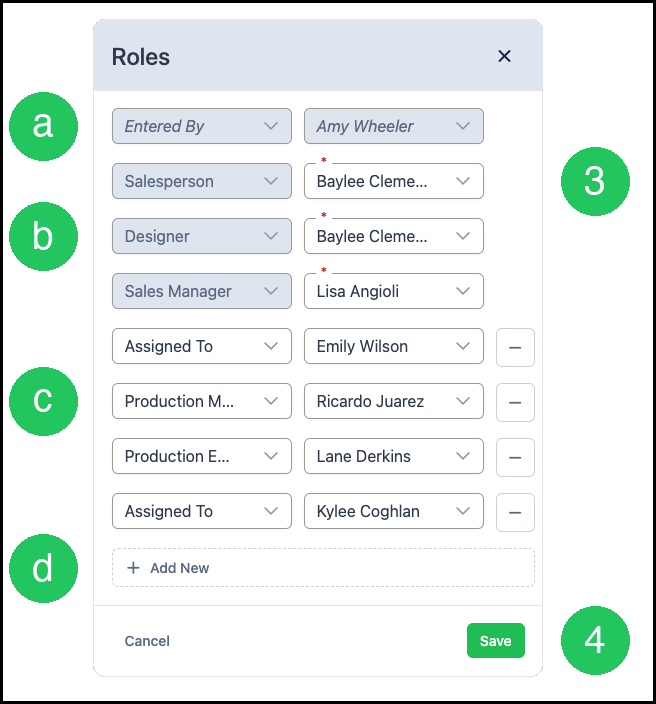
Note: Click Cancel to leave the roles unchanged.
Line Item Roles
Line Item roles record the employees responsible for that Line Item.
1. Click the Line Item.

2. Click Line Item Roles.
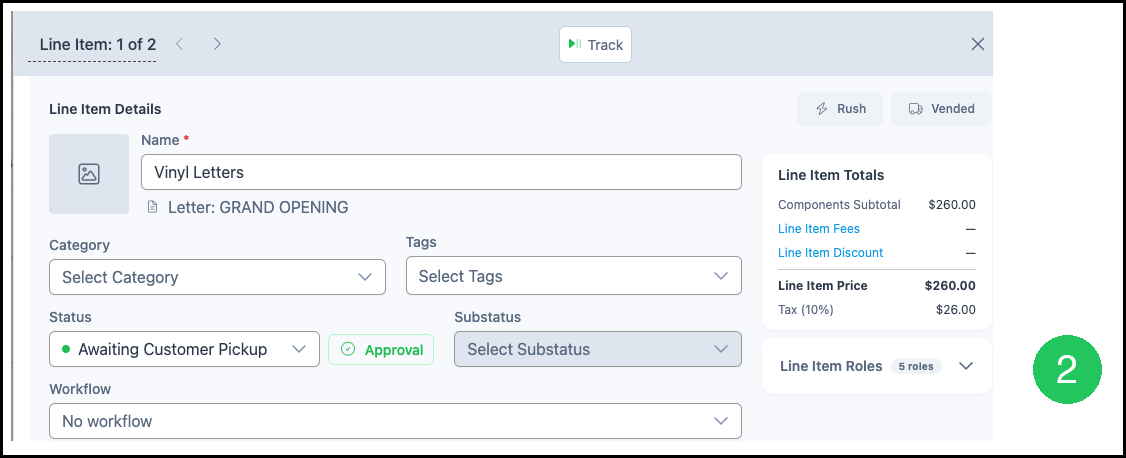
3. Click the Roles card.
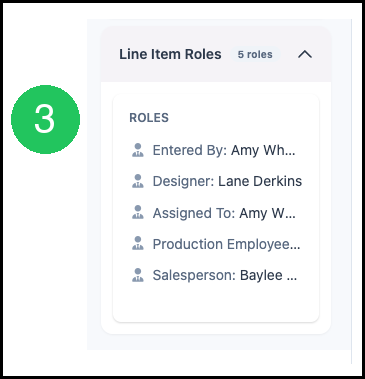
The Roles dialog opens.
a. Entered By cannot be changed.
b. Salesperson matches the Order. The Salesperson role and employee stay in place. Change the Salesperson on the Order.
c. Select the employee for a role that can be changed. Designer can be changed in this example.
4. Click Save.
Note: A blue dropdown cannot be changed. Entered By is always blue. On a required role, the role name is blue and the employee can still be selected. On a Line Item, Salesperson is blue for both the role and the employee. Change that Salesperson on the Estimate or Order. To change which roles are required, see Application of Employee Roles.
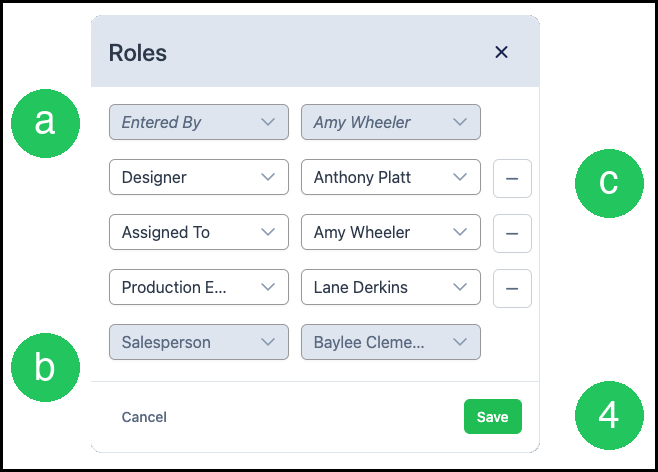
Note: Click Cancel to leave the Line Item roles unchanged.
Roles on an Estimate
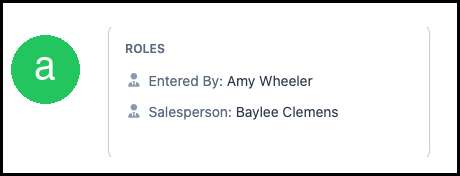
a. The Roles card lists each role that has an employee assigned. This Estimate shows Entered By and Salesperson. The Roles dialog works the same way as on an Order. Empty optional roles appear in the dialog.
Frequently Asked Questions
1. Why do roles on an Estimate differ from roles on an Order?
Answer: Estimates and Orders are configured separately in Application of Employee Roles. Each can show a different set of roles.
2. Who is Entered By?
Answer: Entered By is the employee who created the Estimate or Order. CoreBridge assigns Entered By automatically.
3. Where do I change the Salesperson on a Line Item?
Answer: Change the Salesperson on the Estimate or Order. The Line Item uses that same Salesperson.
4. What does the red asterisk mean?
Answer: The role is required. Select an employee for that role.
5. When does Add New appear?
Answer: Add New appears when another assignment is still available for a role.
6. When does a role appear on the Roles card?
Answer: The Roles card lists a role after an employee is assigned. An optional role with no employee appears in the Roles dialog.