
Vendor Lists provides the industries used to categorize vendor companies. Those industries are managed on the Vendor Industry List, where each industry has a name and can be placed under a parent industry. The industries on this list are the choices in Vendor Industry when a vendor is created or edited.
Table of Contents
- Vendor Industry List
- Adding a Vendor Industry
- Editing a Vendor Industry
- Removing a Vendor Industry
- Frequently Asked Questions
- Related Articles
Vendor Industry List
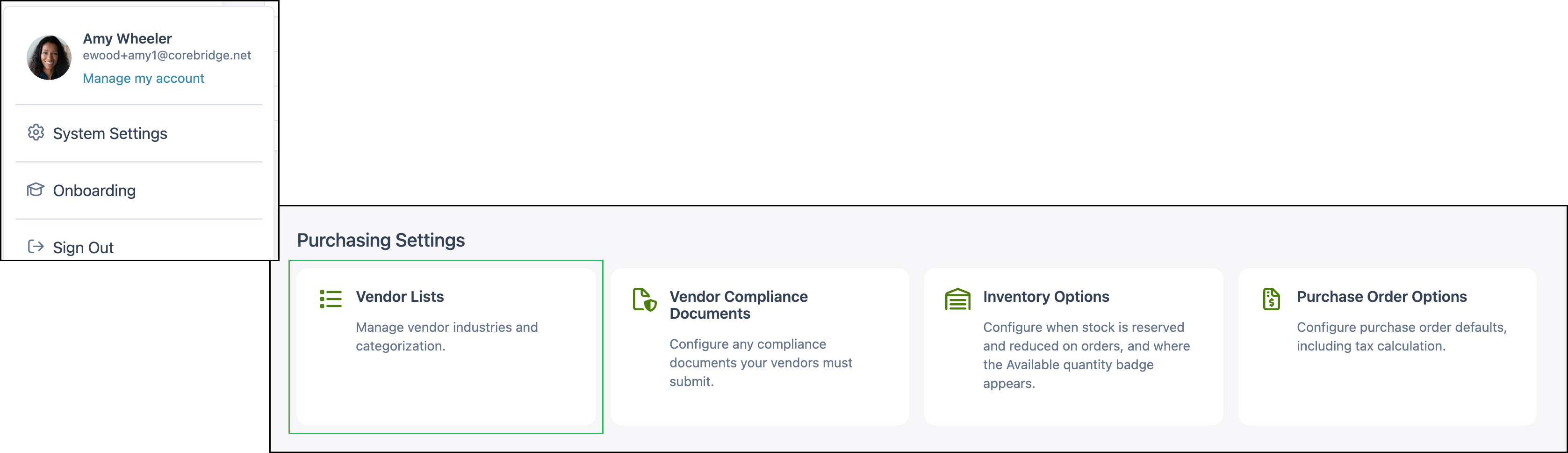
Navigate to System Settings / Purchasing Settings / Vendor Lists.
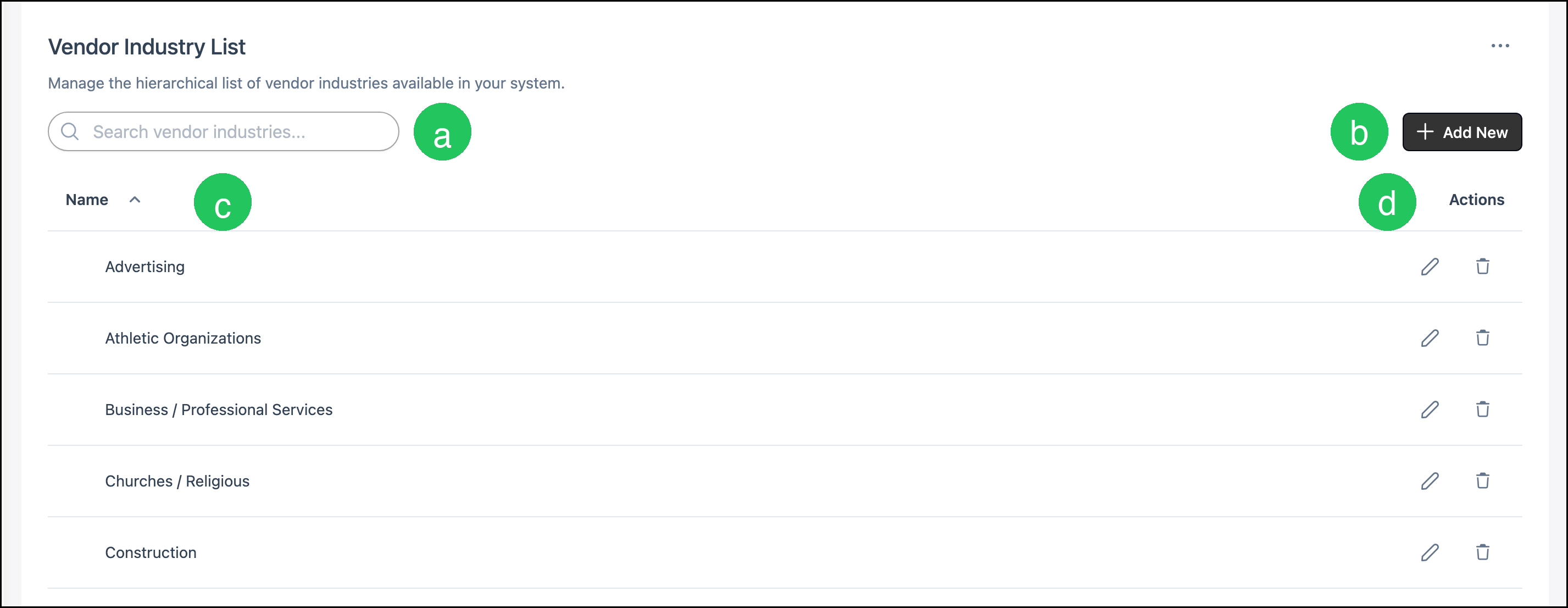
a. Search filters the list by industry name.
b. Add New opens the Add Vendor Industry dialog.
c. Name is the industry name.
d. Actions includes the edit icon and the delete icon for that industry.
Adding a Vendor Industry
Navigate to System Settings / Purchasing Settings / Vendor Lists.
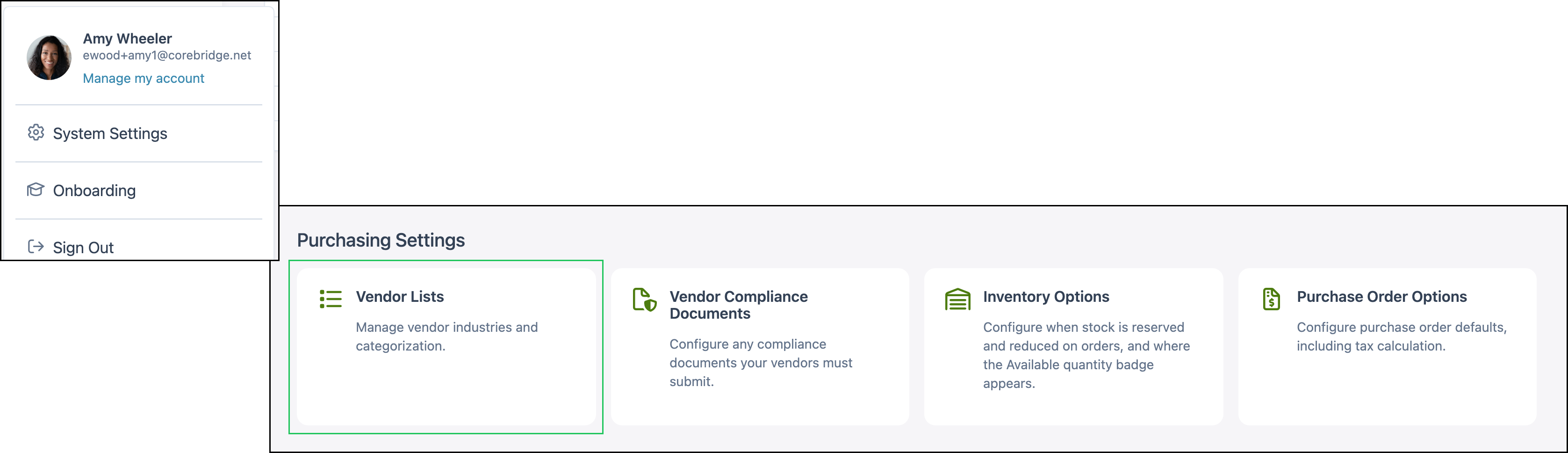
1. Click Add New.

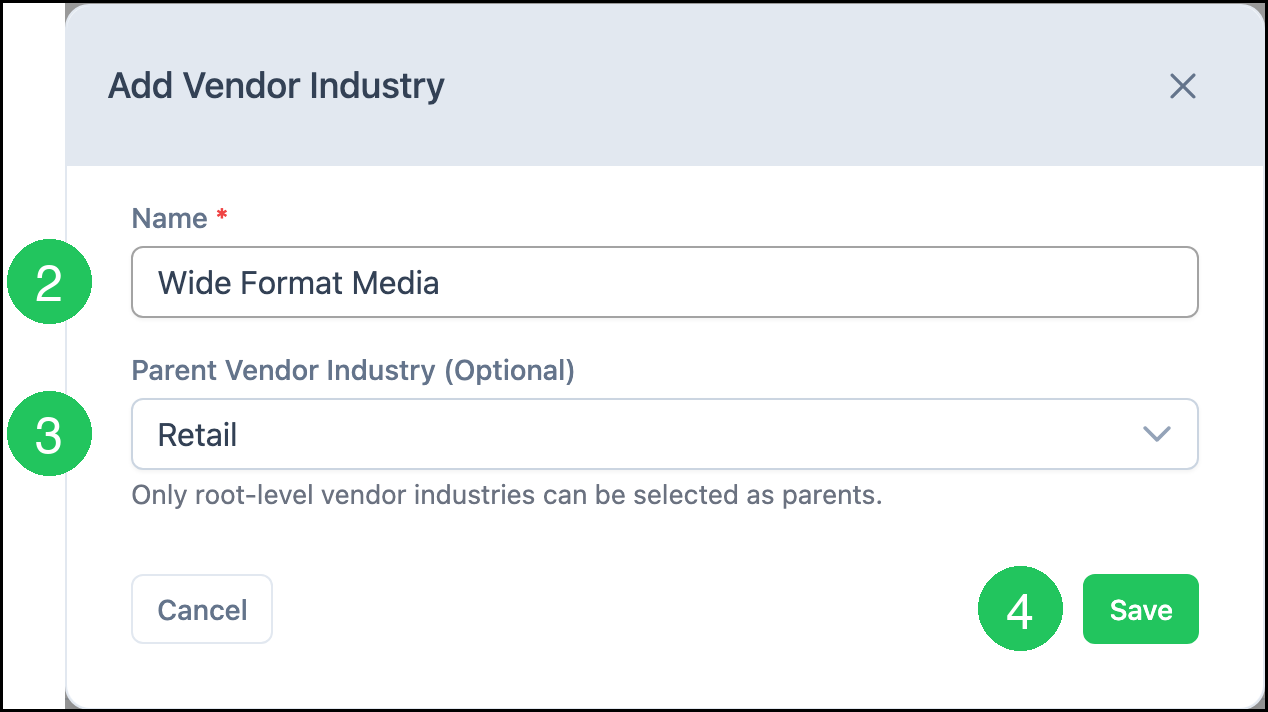
2. Enter a Name.
3. Select a Parent Vendor Industry when this industry should sit under a parent. Only a root-level vendor industry can be selected as a parent. Leave Parent Vendor Industry empty to keep the industry at the top level.
4. Click Save.
Editing a Vendor Industry
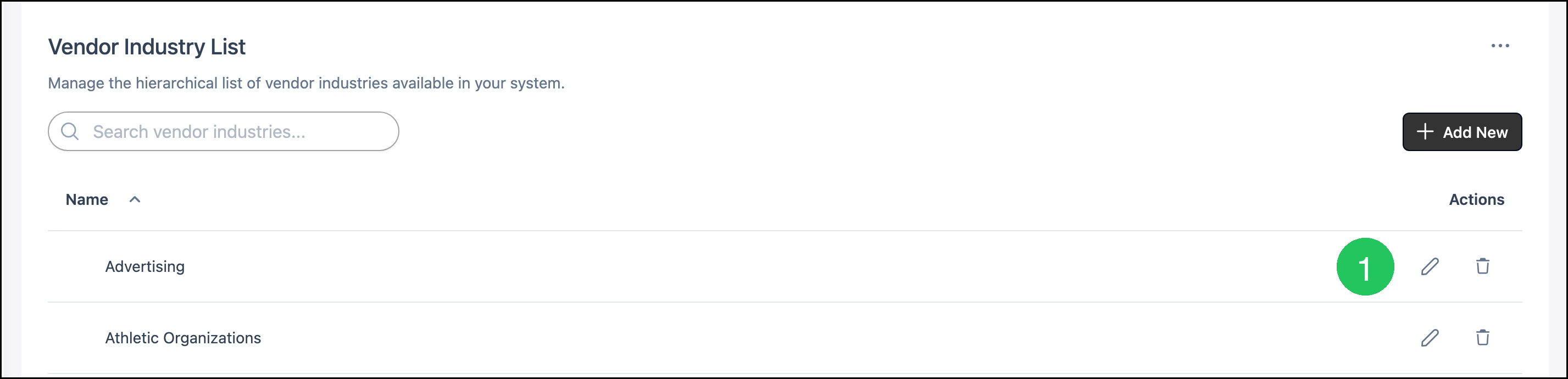
1. Click the edit icon in Actions.
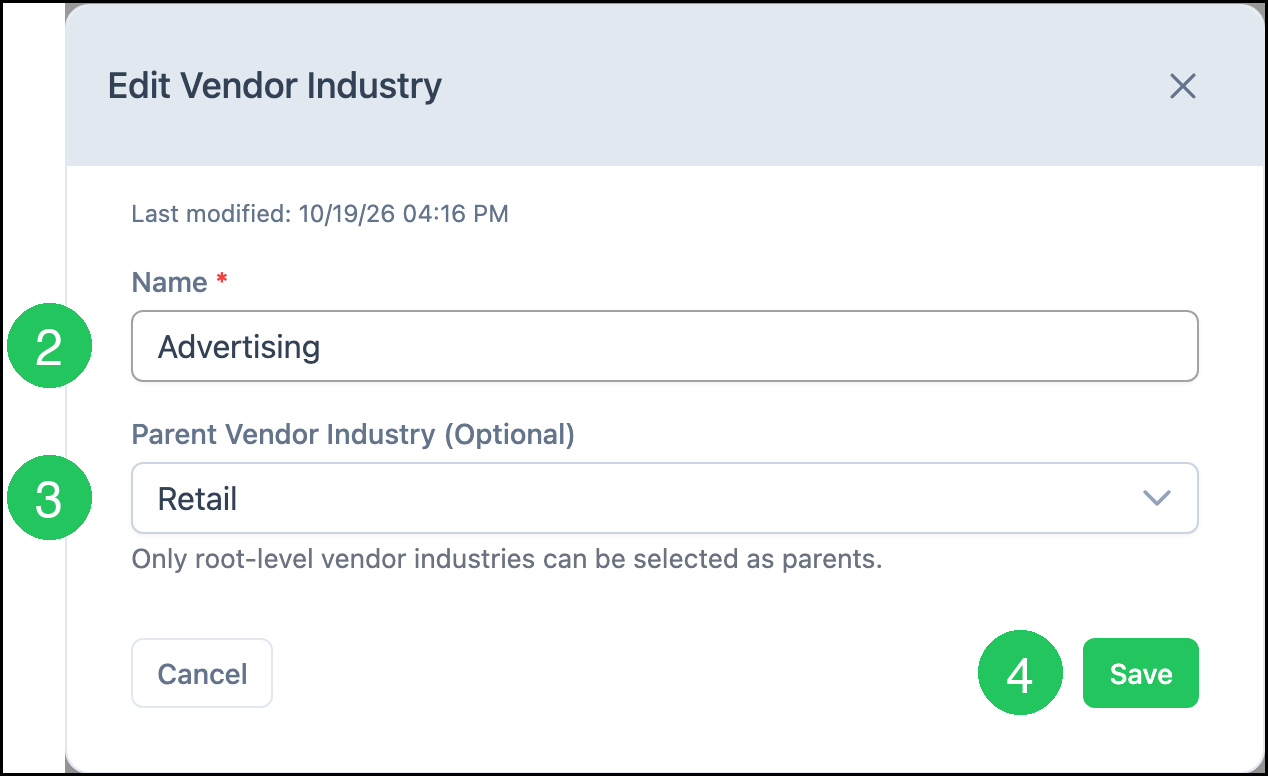
2. Update Name.
3. Select a Parent Vendor Industry when this industry should sit under a parent.
4. Click Save.
Last modified shows when the industry was last changed.
Removing a Vendor Industry
1. Click the delete icon in Actions. The industry is removed from the Vendor Industry List.
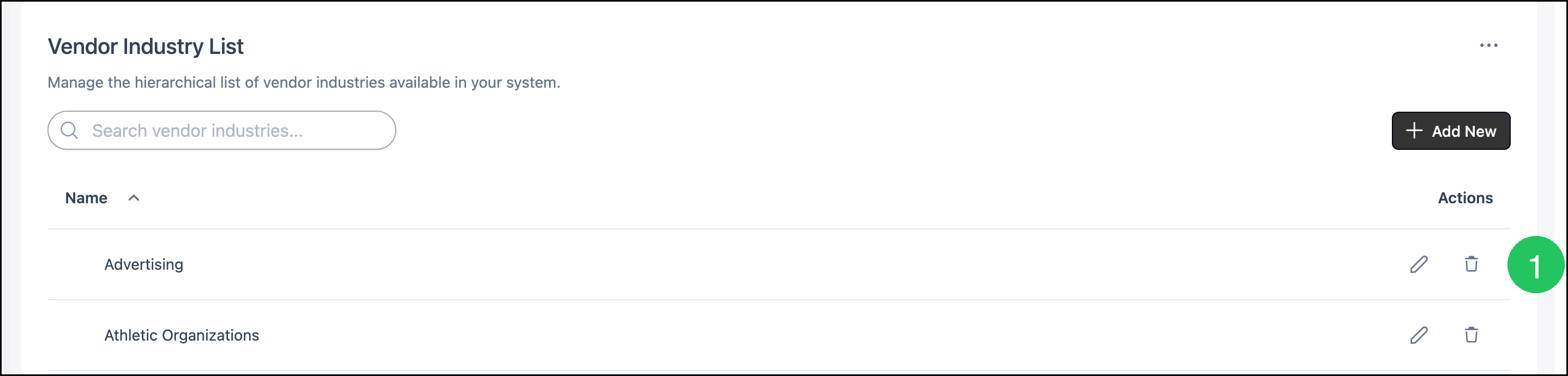
Note: The delete icon is unavailable for some industries. Those industries stay on the list.
Frequently Asked Questions
1. Where is a vendor industry selected on a vendor?
Answer: Select Vendor Industry in Vendor Details when you create or edit a vendor. For more information, see Creating Vendors.
2. Can a child industry have its own child industries?
Answer: Only a root-level vendor industry can be selected as a Parent Vendor Industry. A child industry is not offered as a parent.