
Use folders, channels, and search on the Messages & Notifications screen in CoreBridge EVO to focus the list. You can also mark items as read or unread.
Table of Contents
Opening Messages and Notifications
1. Click Notifications in the header.
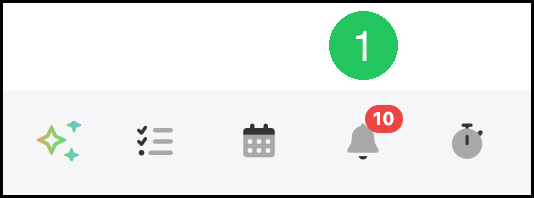
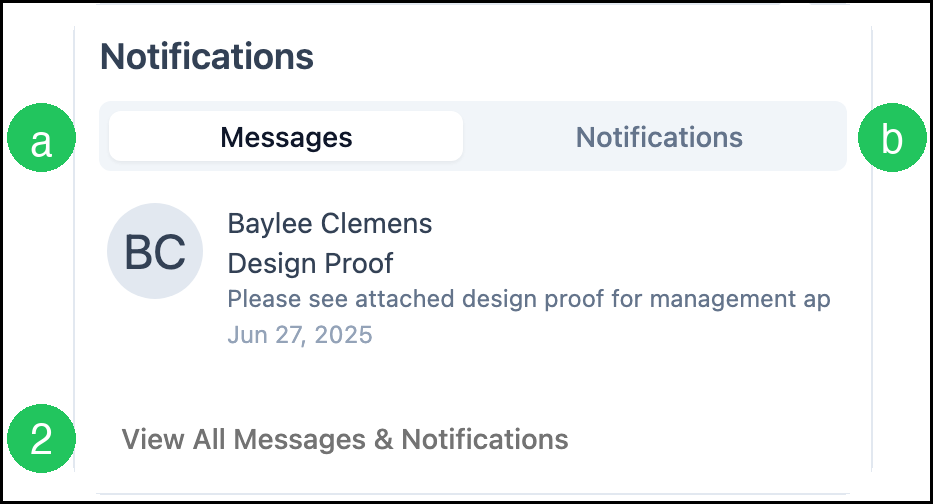
The Notifications window opens.
a. The Messages tab shows recent employee Messages.
b. The Notifications tab shows recent system Notifications.
2. Click View All Messages & Notifications.
a. Search - The Search field narrows the list based on entered keywords.
b. Folders - Organizes items into Inbox, Sent, and Deleted folders.
c. Channels - Filters items by All, Messages, or Notifications.
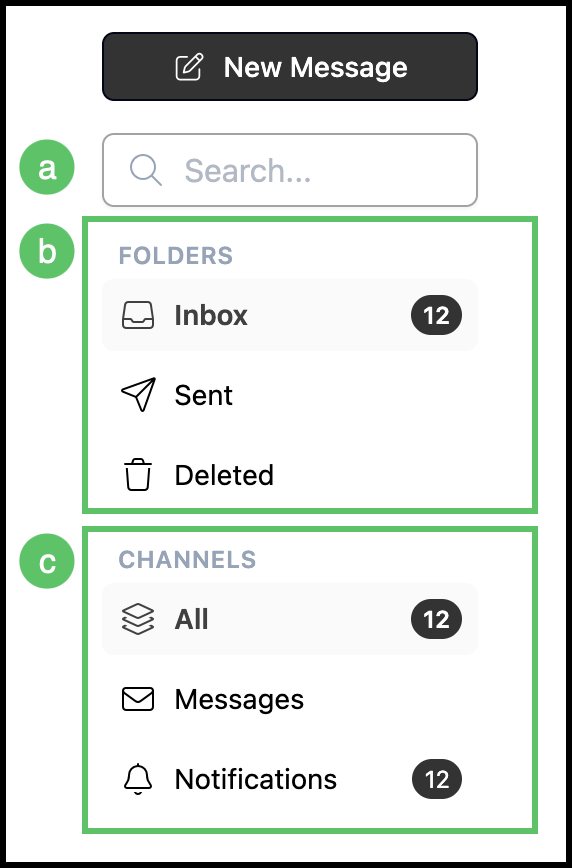
Note: Use the Messages channel to focus on employee Messages, and the Notifications channel to review system alerts.
Actions
1. Select one or more items in the list.
2. Click Mark as Read, Mark as Unread, or Delete.
Note:The available action depends on whether the selected items are unread or already read.
a. Mark as Read
b. Mark as Unread
c. Delete
Note: Available options are also shown on the row of individually selected items.
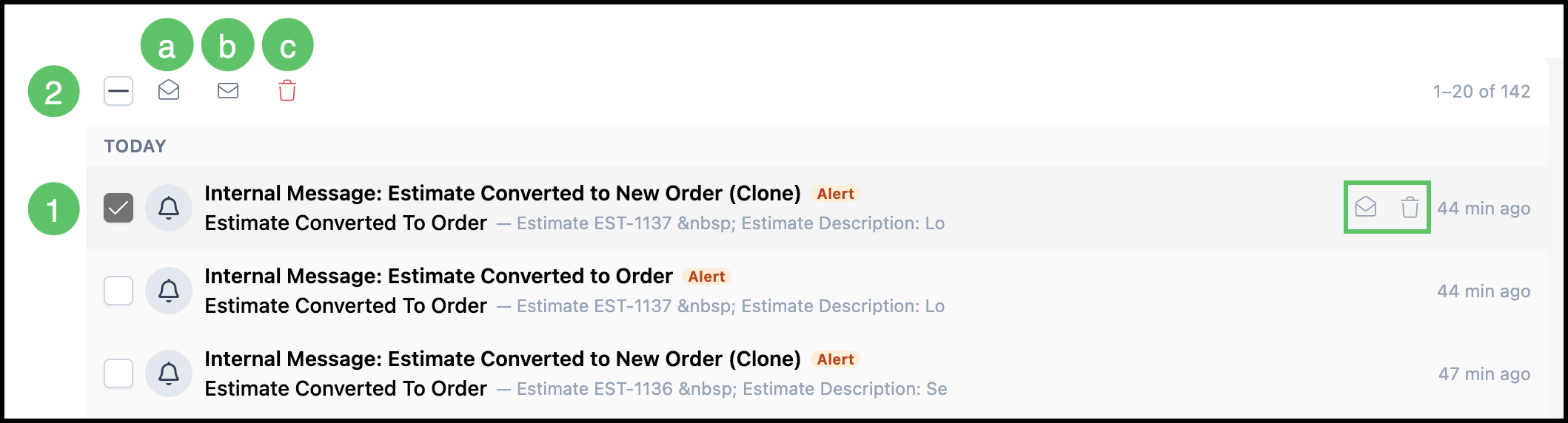
Note: You can also mark a single item as read or unread, or delete it, from the actions on that row. Delete moves selected items to the Deleted folder.
Frequently Asked Questions
1. What is the difference between Folders and Channels?
Answer: Folders organize items as Inbox, Sent, or Deleted. Channels filter the list by All, Messages, or Notifications.
2. How do I find a specific Message or Notification?
Answer: Enter keywords in the Search field. You can combine Search with a folder and a channel to narrow the list further.
3. Can I hide items I have already read?
Answer: The list shows both read and unread items for the selected folder and channel. Use Folders, Channels, and Search to focus the list, and mark items as read or unread as needed.
Related Articles
Creating and Managing Notifications
Messages and Notifications