
Materials are the physical items used when building a Product or delivering a service—items such as vinyl, acrylic, aluminum, banner stock, ink, or paper. Along with Labor and Machines, Materials help CoreBridge EVO calculate cost, pricing, and production needs.
Cloning a Material creates a new Material that starts with the same setup as an existing one. When you need a similar Material, cloning is usually faster and more accurate than creating a Material from scratch, because consumption, costing, categories, and other details are already in place. You then update only what should be different.
Table of Contents
- Important Information
- When to Clone a Material
- Cloning a Material
- Updating the Cloned Material
- Frequently Asked Questions
- Related Articles
Important Information
A cloned Material is a separate Material. Changes you make to the clone do not change the original Material.
When you clone a Material, CoreBridge EVO copies the Material details from the original, including category assignments and files associated with the Material. The new Material name uses the original name with (Clone) added. If that name already exists, the system uses (Clone) (2), and so on.
CoreBridge EVO supports standalone Materials and Materials with Variants. This article covers cloning a Material from the Materials list (or from Material detail). For background on Material types, fields, and tabs, see Materials Overview. For creating a Material from scratch when nothing similar exists, see Adding Materials.
Note: When creating a Material that is similar to an existing one, cloning is often the best starting point. Start from scratch only when the new Material does not closely match any Material you already have.
When to Clone a Material
Clone a Material when you need another Material that should keep most of the same setup. Common situations include:
- A new substrate or media that uses the same consumption and costing rules as an existing Material, with only thickness, color, size, or name changing.
- A customer-specific or location-specific version of a Material you already use.
- A close match to a standard Material where you want to adjust cost, retail, categories, or document naming without rebuilding every field.
If you need multiple selectable variations (for example color or thickness) under one Material definition, review Materials with Variants in Materials Overview before creating many near-duplicate Materials.
Cloning a Material
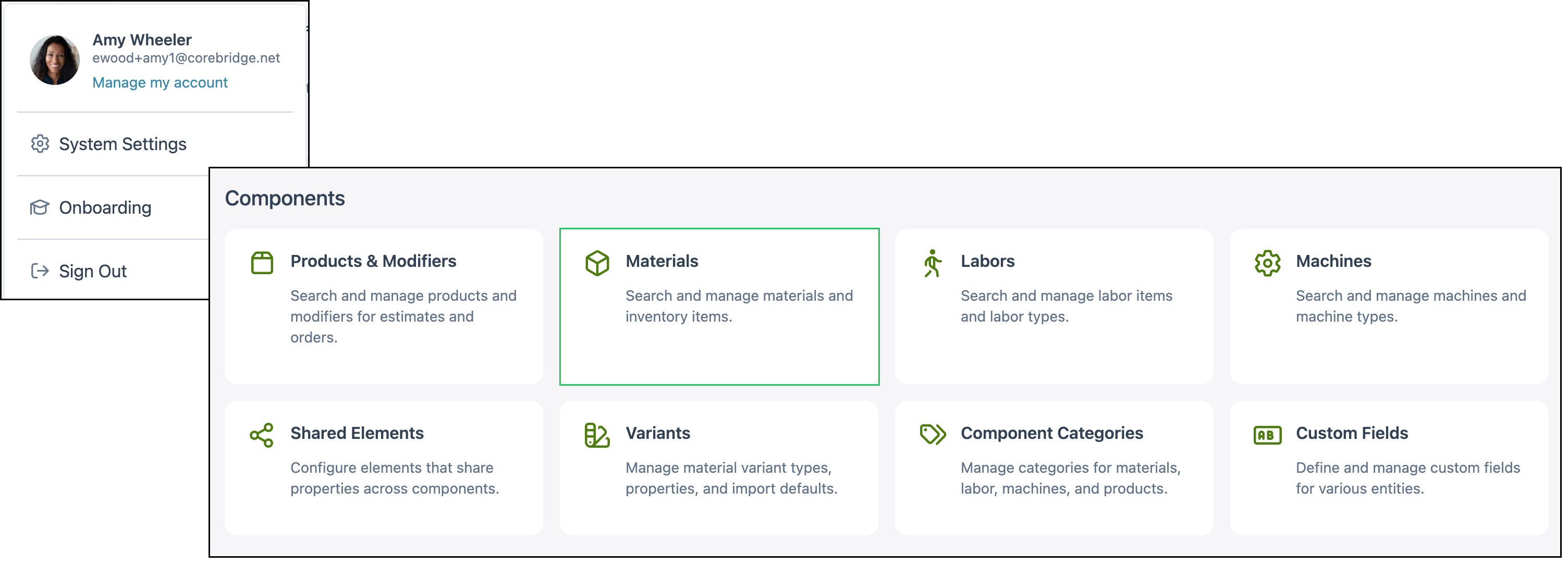
Navigate to System Settings / Components / Materials.
1. Locate the Material you want to clone on the Materials list. Use Search or column filters if the list is long.
2. Click the More Actions menu for that Material.
3. Select Clone.
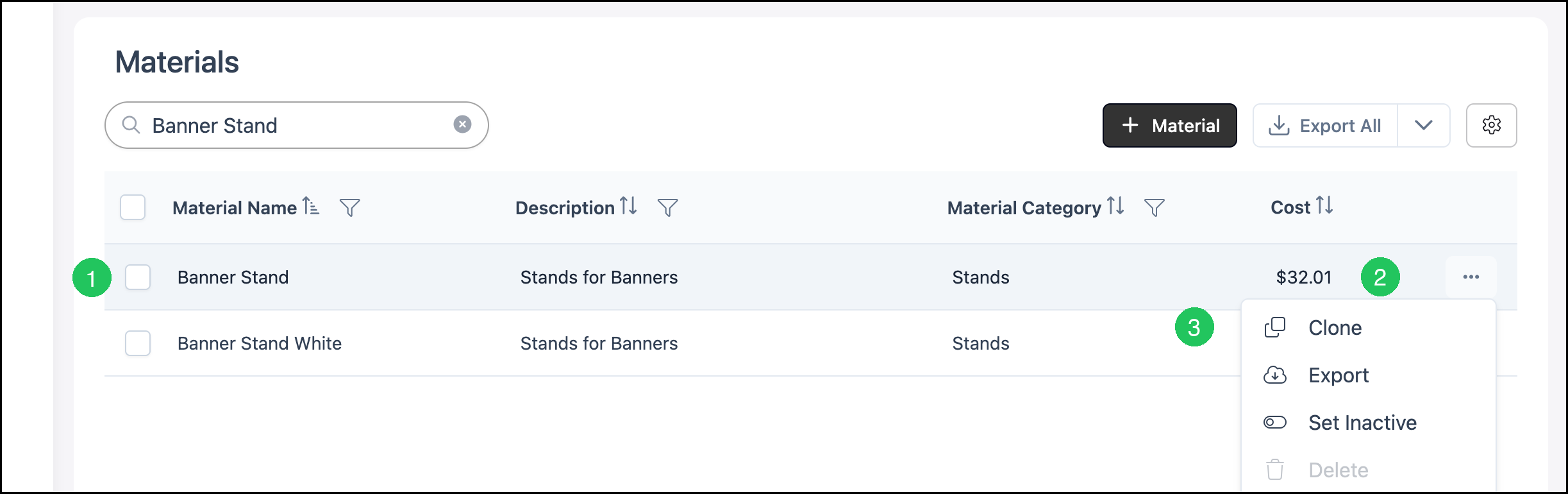
The cloned Material appears in the Materials list with (Clone) in the name. You remain on the Materials list after cloning.
Note: You can also clone a Material from the Material detail screen. Open the Material, click More Actions, and select Clone.
Updating the Cloned Material
After cloning, open the new Material and update anything that should differ from the original. At minimum, change the Name so the clone is easy to find later. Review related fields and tabs so costing, documents, and order entry stay accurate.
4. Click the cloned Material to open it.
5. Update the Name and any other fields that should differ from the original Material.
6. Click Save.
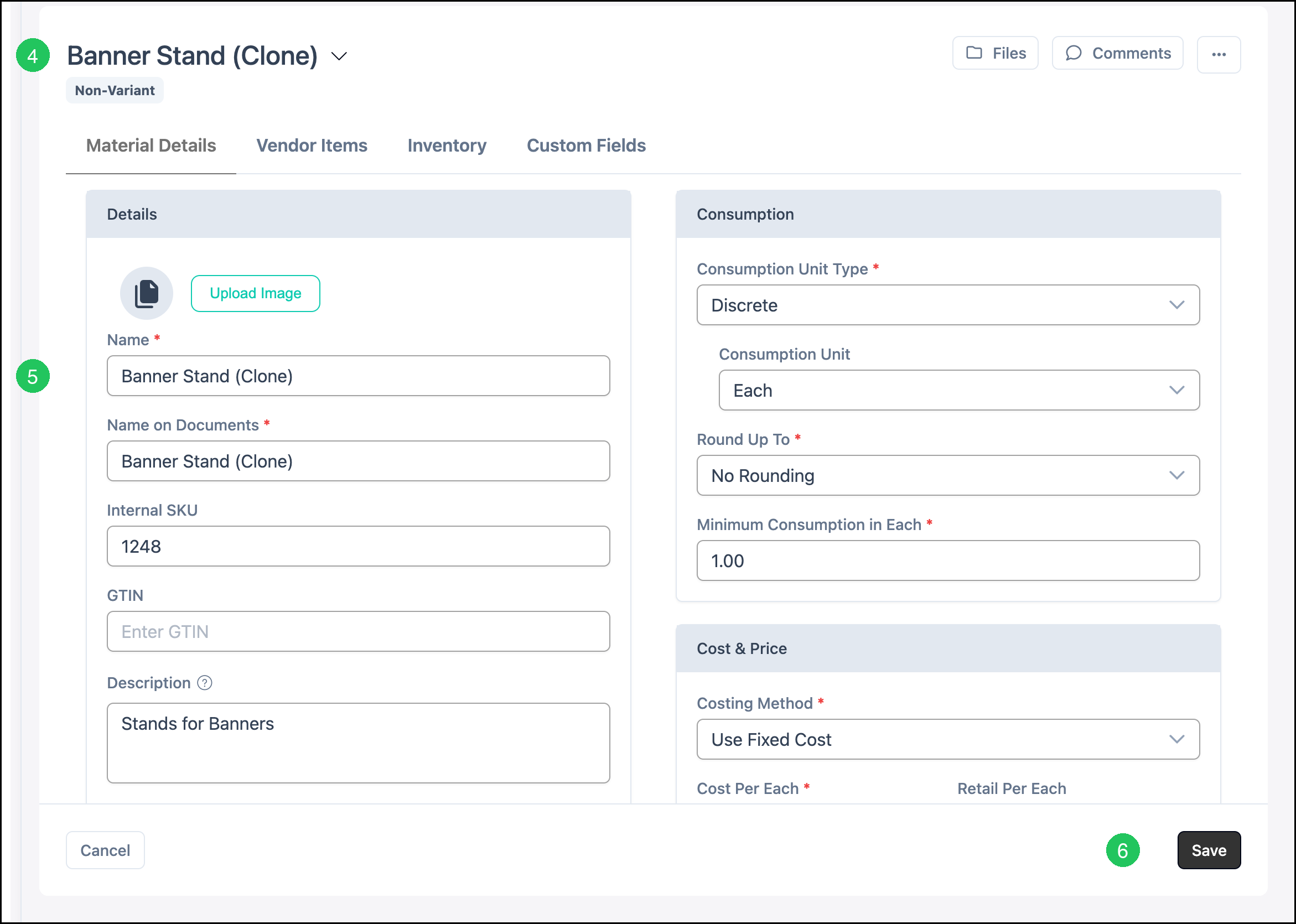
When updating the clone, check these areas as needed:
- Details — Name (how the Material appears in your list), Name on Documents (customer-facing Estimates and Invoices), Internal SKU, GTIN, Description, and the Material image.
- Settings — whether the Material can be selected on Line Items, Material Categories, and Default Line Item Category.
- Attributes and Consumption — Material type, unit type, rounding, and minimum consumption, when those values should change for the new Material.
- Cost & Price — costing method, cost, and retail values for the new Material.
- Vendor Items, Custom Fields, and Files — confirm vendor links, custom values, and attached files still apply to the clone.
Note: Required fields marked with a red asterisk must be completed before you can save. Additional setup may still be needed before the Material is ready to use in Assemblies. See Adding Materials for field-by-field guidance.
Frequently Asked Questions
1. Why should I clone instead of creating a Material from scratch?
Answer: Cloning keeps consumption, costing, categories, and other setup from a Material that already works. You only change what needs to be different, which reduces setup time and mistakes. Use Adding Materials when nothing similar exists.
2. What is copied when I clone a Material?
Answer: The clone starts with the same Material details as the original, including category assignments and associated files. The original Material is not changed.
3. How is the cloned Material named?
Answer: The new Material uses the original name with (Clone) added. If that name already exists, CoreBridge EVO uses (Clone) (2), and continues numbering as needed. Update the Name (and usually Name on Documents) after cloning so the Material is clear in lists and on customer documents.
4. Does cloning change the original Material?
Answer: No. The clone is a separate Material. Edits you make after cloning apply only to the clone.
5. Should I create many similar Materials or use Materials with Variants?
Answer: If the items share one overall definition and differ by selectable options such as color, size, or thickness, Materials with Variants may fit better than many separate clones. See Materials Overview for when to use variants.
6. Can I clone from the Material detail screen?
Answer: Yes. Open the Material, click More Actions, and select Clone. The new Material still appears on the Materials list with (Clone) in the name.