
API Keys connect CoreBridge EVO to external applications, the developer portal, and MCP tools. This article shows where to open API Keys, what each control on the screen does, and how to open the API Portal.
Table of Contents
- Important Information
- Opening API Keys
- API Keys Screen
- Opening the API Portal
- Using API Keys
- Frequently Asked Questions
- Related Articles
Important Information
- Treat API keys as secrets. Store them in a password manager or secret store. Do not send them in email, chat, or screenshots.
- API Product shows the API access package for this business and how many keys exist versus how many the package allows. Packages include Free, Starter, Professional, Business, and Enterprise. When the key limit is reached, Add API Key is unavailable until a key is revoked or the API Product is changed. Contact CoreBridge Support to change the package.
- Access to System Settings / API / API Keys depends on the Employee Role. For more information, see Employee Roles and Permissions in Settings.
- Endpoint documentation, authentication examples, and usage limits are in the CoreBridge Developer Portal.
- Ready-made connections such as calendars and payments are managed in the Integrations Marketplace. For more information, see Integrations Marketplace Overview.
Opening API Keys
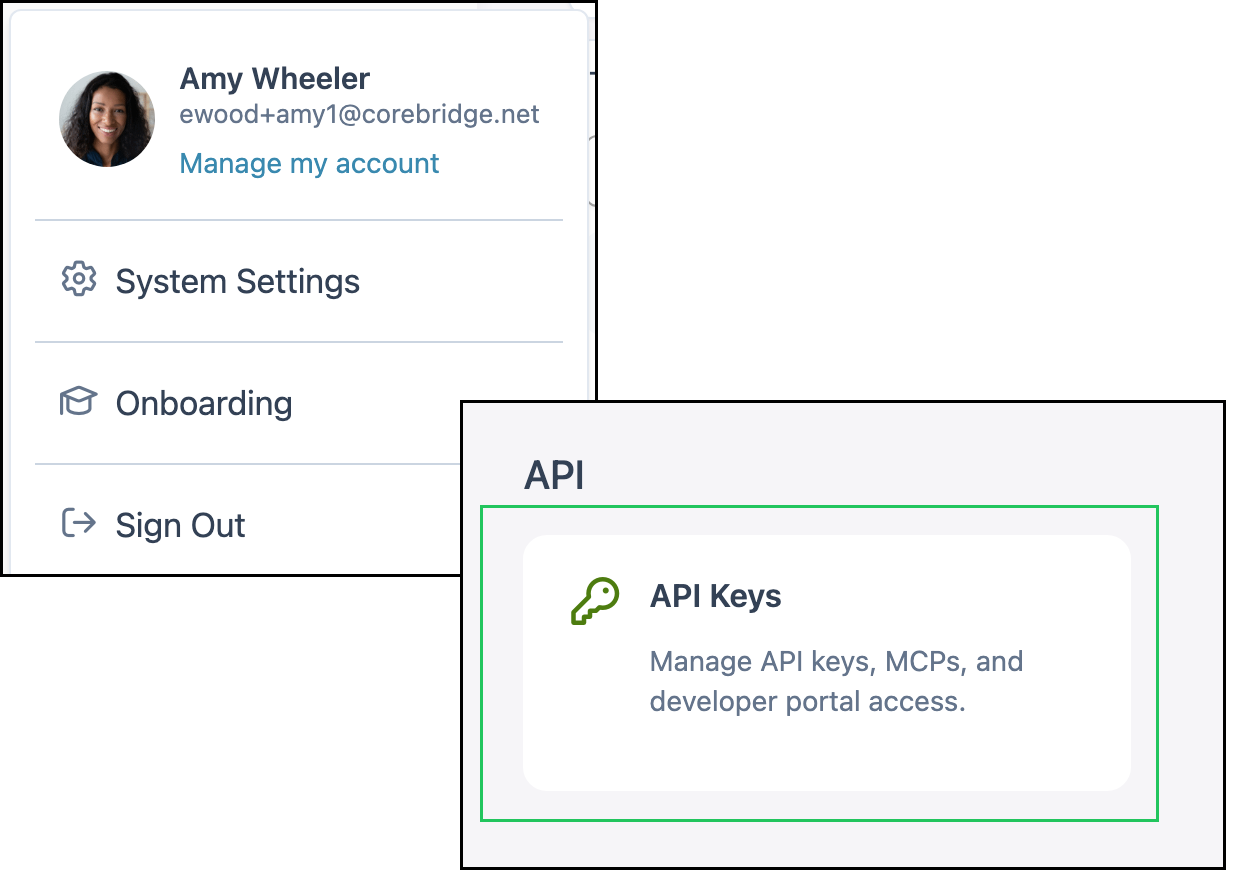
Navigate to System Settings / API / API Keys.
API Keys Screen
The following elements are available on the API Keys screen.
a. API Product - The API access package for this business, including how many keys exist and how many the package allows.
b. Search - Filters the list of API keys.
c. Open API Portal - Opens the API Portal in a new browser tab, where you review documentation and developer resources for this business.
d. Add API Key - Creates a new API key. This button is unavailable when the business has reached the key limit for the current API Product.
e. The API key list shows API Key Nickname, Contact, Notification Email, Product, and Expires for each key.
Note: The More Actions menu on a row includes Revoke, which permanently disables that key.

Opening the API Portal
1. Click Open API Portal.

The API Portal opens in a new browser tab. Use it with the public CoreBridge Developer Portal for guides, the API reference, and endpoint documentation.
Using API Keys
When a key is created, two values are shown once. Store both as secrets. Each REST request uses both headers:
- Ocp-Apim-Subscription-Key - Send as Ocp-Apim-Subscription-Key.
- Authentication-Token - Send as Authorization: Bearer followed by the token.
The REST base URL is https://developer-api.corebridge.net/api/v1. Your business context comes from the bearer token. For first-call examples and MCP setup, see Getting Started (Customer) on the developer portal.
Note: MCP uses the same subscription key with a different sign-in method. An API Keys Authentication-Token is not used for MCP. See Connect Via MCP on the developer portal.
Frequently Asked Questions
1. Why is Add API Key unavailable?
Answer: The business has reached the key limit for the current API Product. Revoke a key you no longer need, or contact CoreBridge Support to change the API Product.
2. What happens when I revoke a key?
Answer: That key stops working immediately. Applications that used it can no longer call the API until you create a new key and update their credentials.
3. Where do I find API documentation?
Answer: Click Open API Portal on the API Keys screen, or open the CoreBridge Developer Portal.
4. Who can open API Keys?
Answer: Employees whose Role includes access to this System Settings screen. For more information, see Employee Roles and Permissions in Settings.