
Monitors are built-in Dashboard tabs that give your team a focused view of sales and financial performance. This article explains how to open Sales Monitor and Financial Monitor, what each monitor is for, and how to control who can view them in System Settings.
Note: In System Settings, Financial Monitor is listed as Financial Overview.
Table of Contents
- Finding the Sales Monitor
- Finding the Financial Monitor
- Locating Monitors in System Settings
- Setting Who Can View a Monitor
- Frequently Asked Questions
- Related Articles
Finding the Sales Monitor
The Sales Monitor provides an overview of key sales metric activity across your CoreBridge system, including created, approved, and invoiced Estimates and Orders for today and month to date.
Navigate to Dashboard.
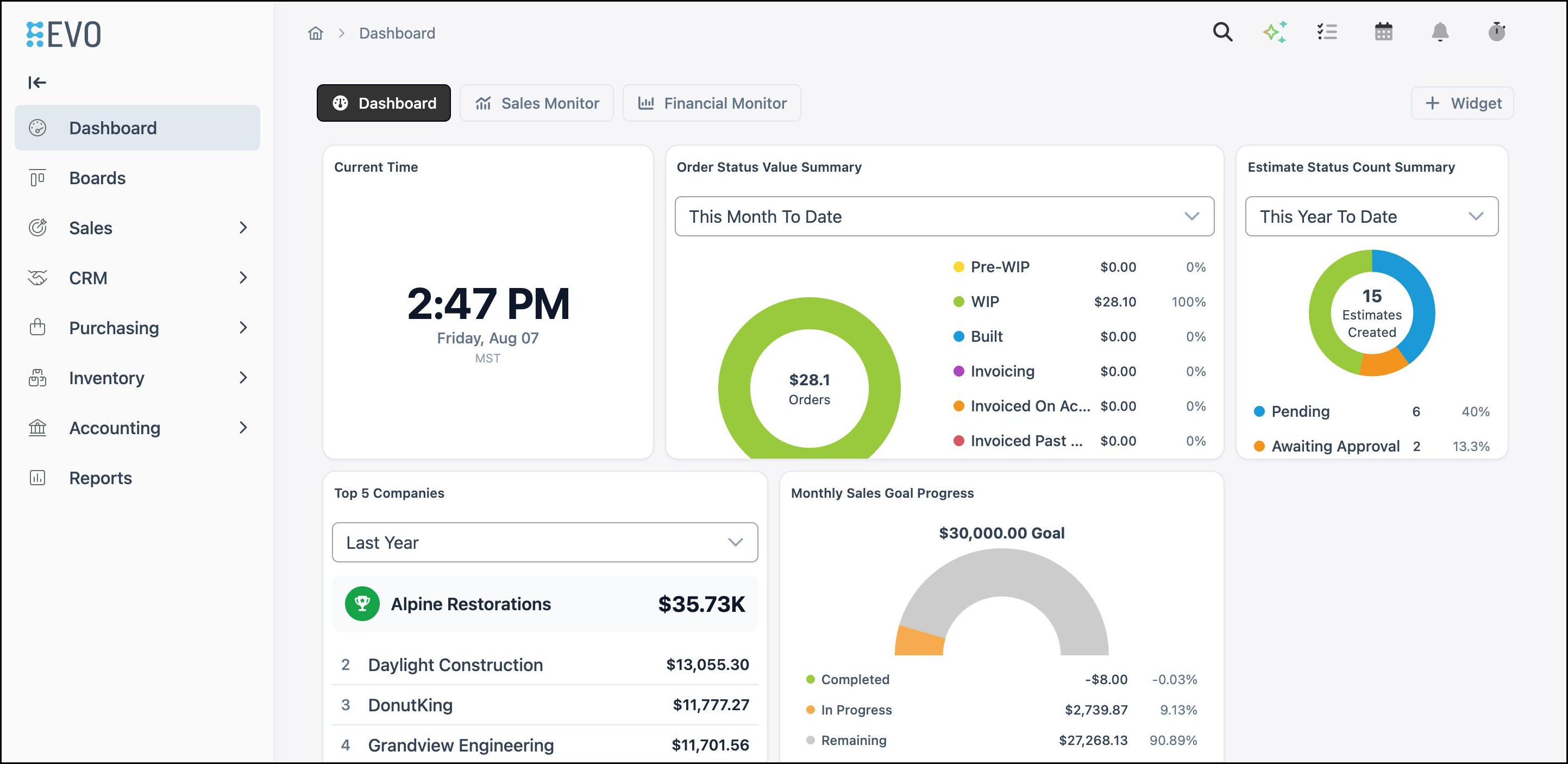
1. Click Sales Monitor.
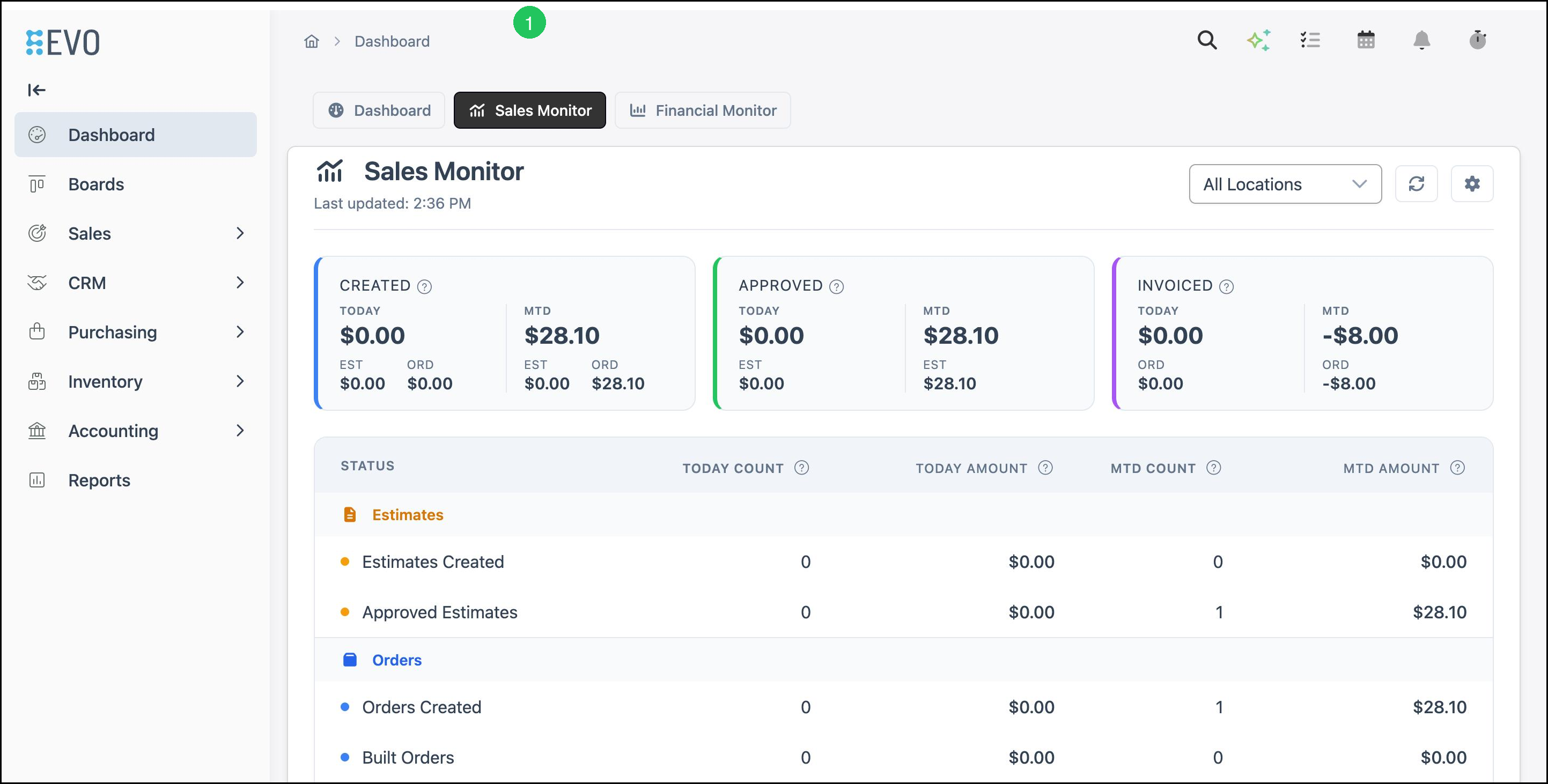
Note: Use the Locations dropdown to view data for individual Locations or a combined view. The refresh control updates the monitor with the latest information. For display and refresh options, see How to Set Up Dashboards and Widgets.
Finding the Financial Monitor
The Financial Monitor provides an overview of key financial metrics by Location, such as open WIP and Built amounts, invoiced and closed activity for the period, accounts receivable, payments, and progress toward Sales Goals.
Navigate to Dashboard.
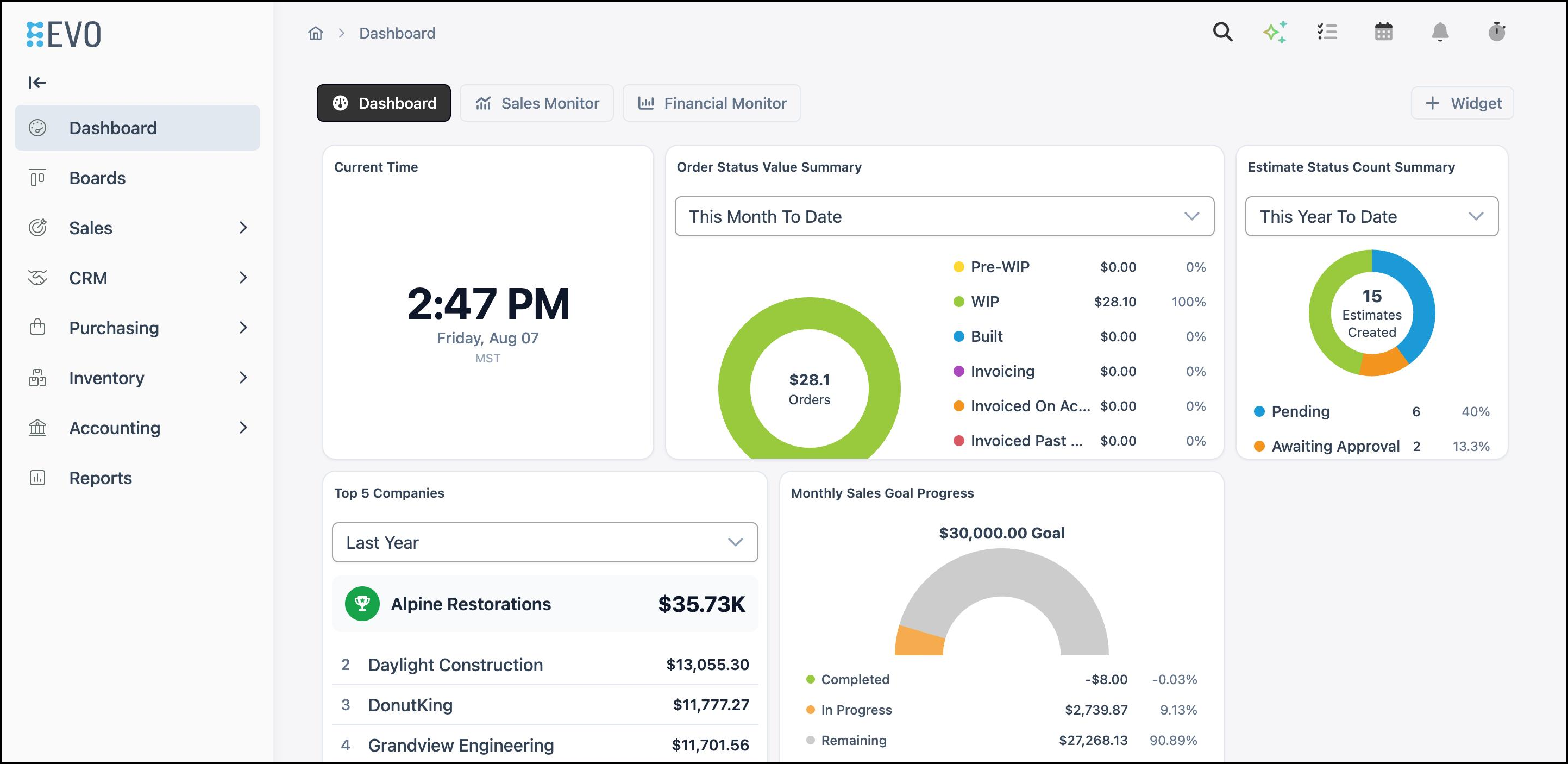
1. Click Financial Monitor.
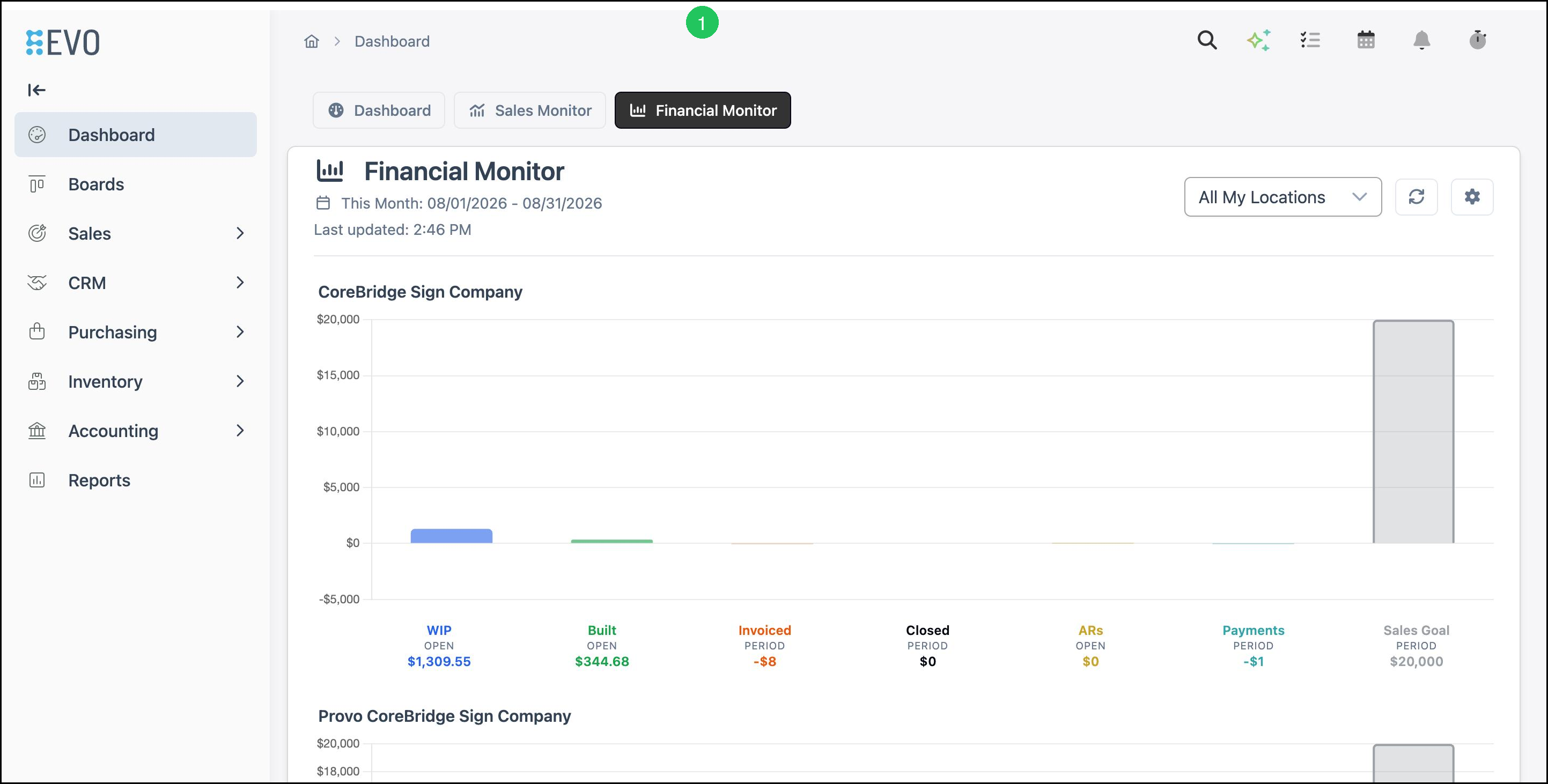
Note: Use the Locations dropdown and refresh control the same way as on Sales Monitor. Financial Monitor settings also include date range and display options.
Locating Monitors in System Settings
Use System Settings to control who can open each monitor on the Dashboard. You do not create or delete monitors here.
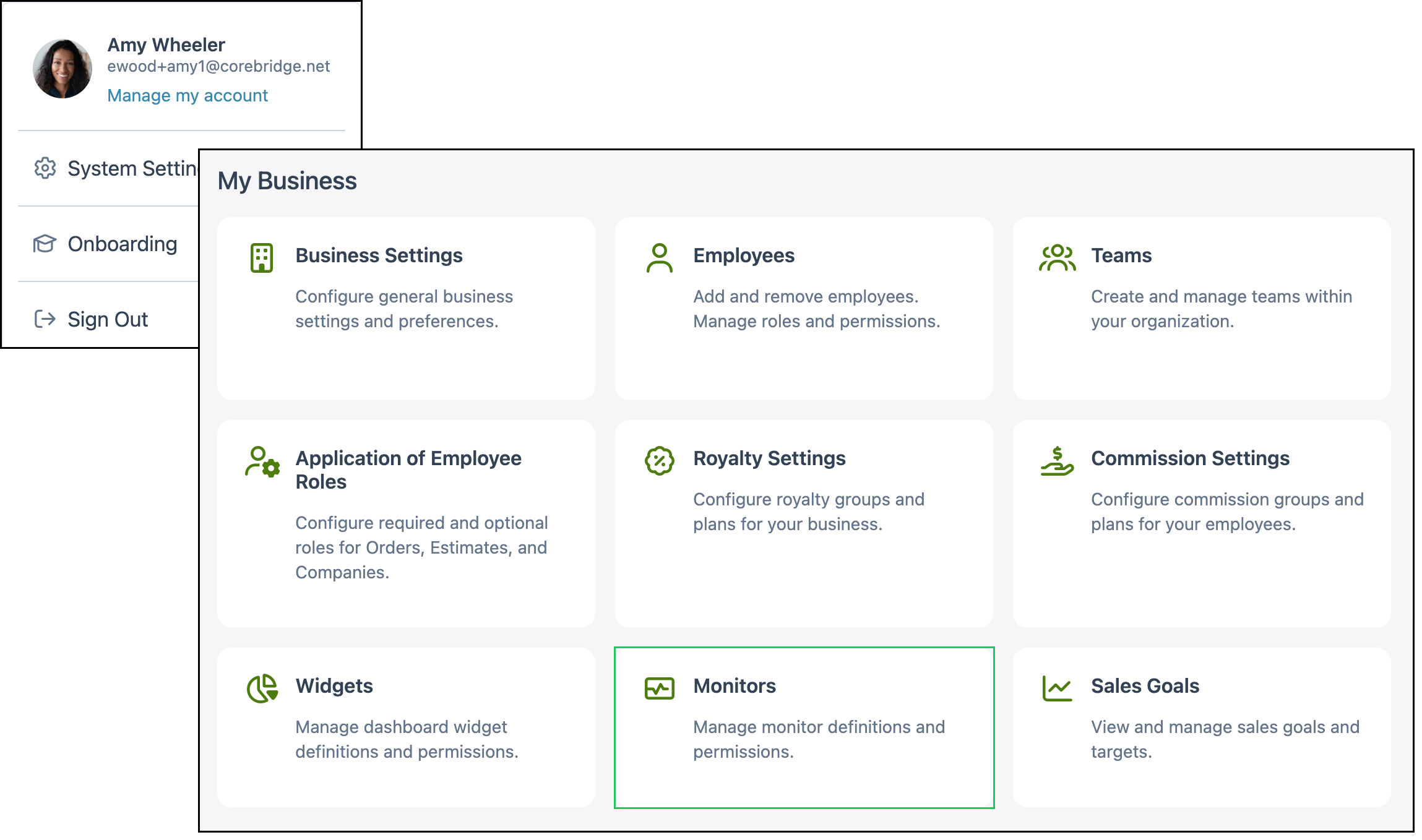
Navigate to System Settings / My Business / Monitors.
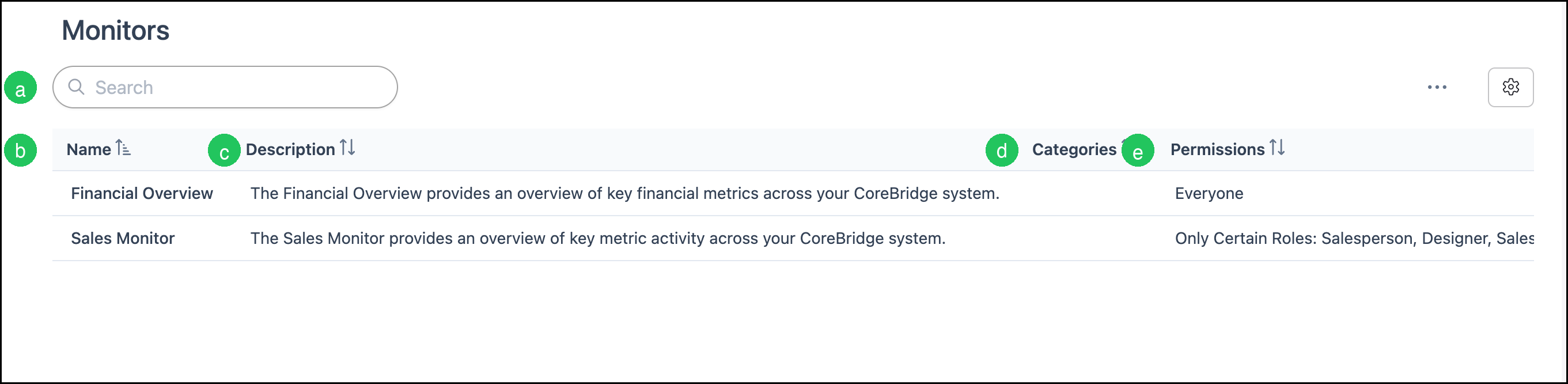
The Monitors screen lists each system monitor and its current visibility settings.
a. Search - Filters the list by typing part of a monitor name or description.
b. Name - The monitor name. Click the name to open the edit dialog.
c. Description - A short summary of what the monitor shows. Descriptions are system-defined and cannot be edited.
d. Categories - Category labels for the monitor, when present.
e. Permissions - Who can view the monitor: Everyone, named roles, or Disabled.
Note: The More Actions menu includes options such as viewing history for a monitor.
Setting Who Can View a Monitor
Use the edit dialog to change visibility for a monitor.
1. Click the monitor name to open the edit dialog.

2. Under Who can view this Monitor, select one of the following:
- Everyone - All employees can open the monitor on the Dashboard.
- Only Certain Roles - Only employees in the roles you select can open the monitor.
- Disabled - No one can open the monitor on the Dashboard.
3. If you selected Only Certain Roles, select one or more roles in the Roles field. Clear a role by clicking the X on its chip, or clear all selected roles with Clear All.
4. Click Save to apply your changes, or click Close to dismiss without saving.
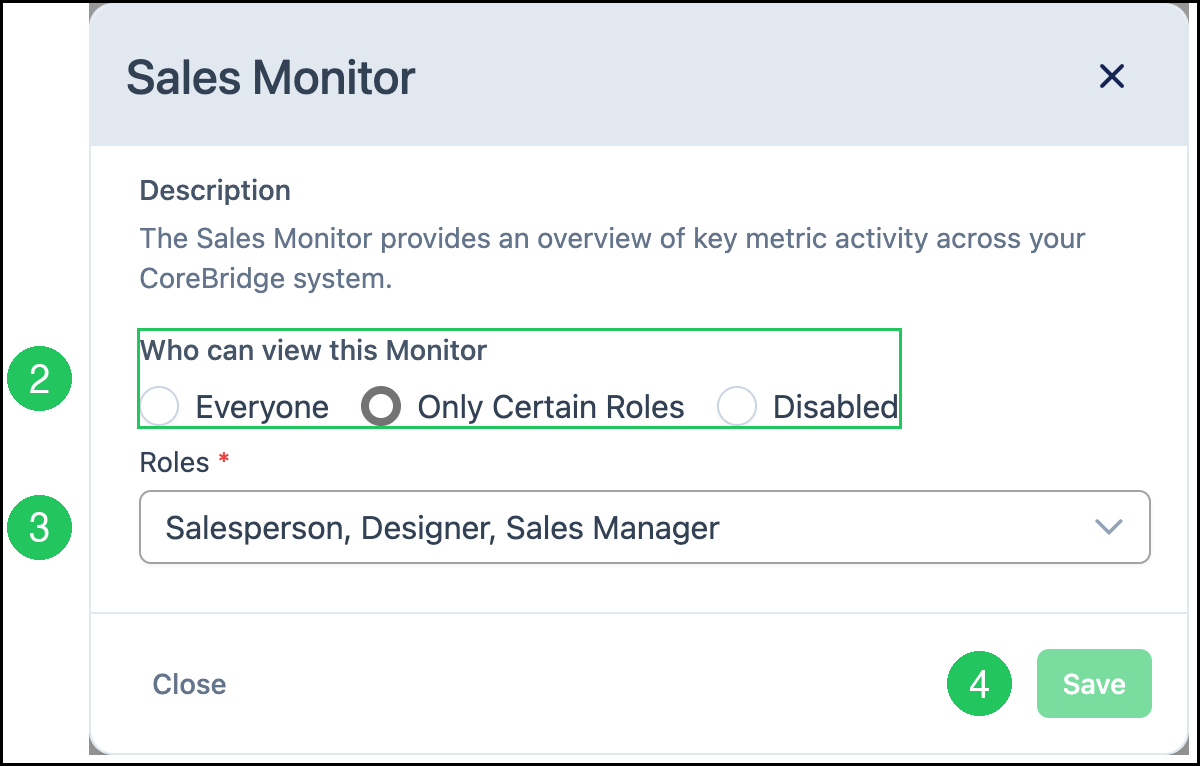
After you save, the Permissions column on the Monitors list updates to match your choice.
Frequently Asked Questions
1. Can I create or delete monitors?
Answer: No. Monitors are system-defined. You can only change who can view each monitor (or disable it).
2. What is the difference between Monitors and Widgets?
Answer: Monitors are full Dashboard tabs (Sales Monitor and Financial Monitor). Widgets are individual charts and summaries you place on a dashboard. Configure widgets under System Settings / My Business / Widgets. For setup steps, see How to Set Up Dashboards and Widgets.
3. What happens when a monitor is Disabled?
Answer: The monitor tab does not appear for anyone on the Dashboard. You can turn it back on later by choosing Everyone or Only Certain Roles and saving.
4. Who can change monitor permissions?
Answer: Employees who can open System Settings and access Monitors (typically administrators). Role-based access to System Settings is controlled under Employee Roles & Permissions.
Note: Administrators can still open monitors on the Dashboard even when a monitor is limited to Only Certain Roles.
5. Why does the list say Financial Overview but the Dashboard says Financial Monitor?
Answer: Financial Overview is the name in Monitors settings. On the Dashboard, the same monitor appears as the Financial Monitor tab.
Related Articles
Creating and Managing Employee Roles