
Sales tax on an Estimate or Order is calculated from the Tax Group and from which Line Items are taxable. The rate and the tax amount appear in Order Totals. Tax Settings is where you review the Tax Group, record a Tax ID, mark the document tax exempt, and see the tax breakdown. Estimates and Orders use the same Tax Settings.
Table of Contents
- Important Information
- Updating Sales Tax
- Marking an Estimate or Order Tax Exempt
- Frequently Asked Questions
- Related Articles
Important Information
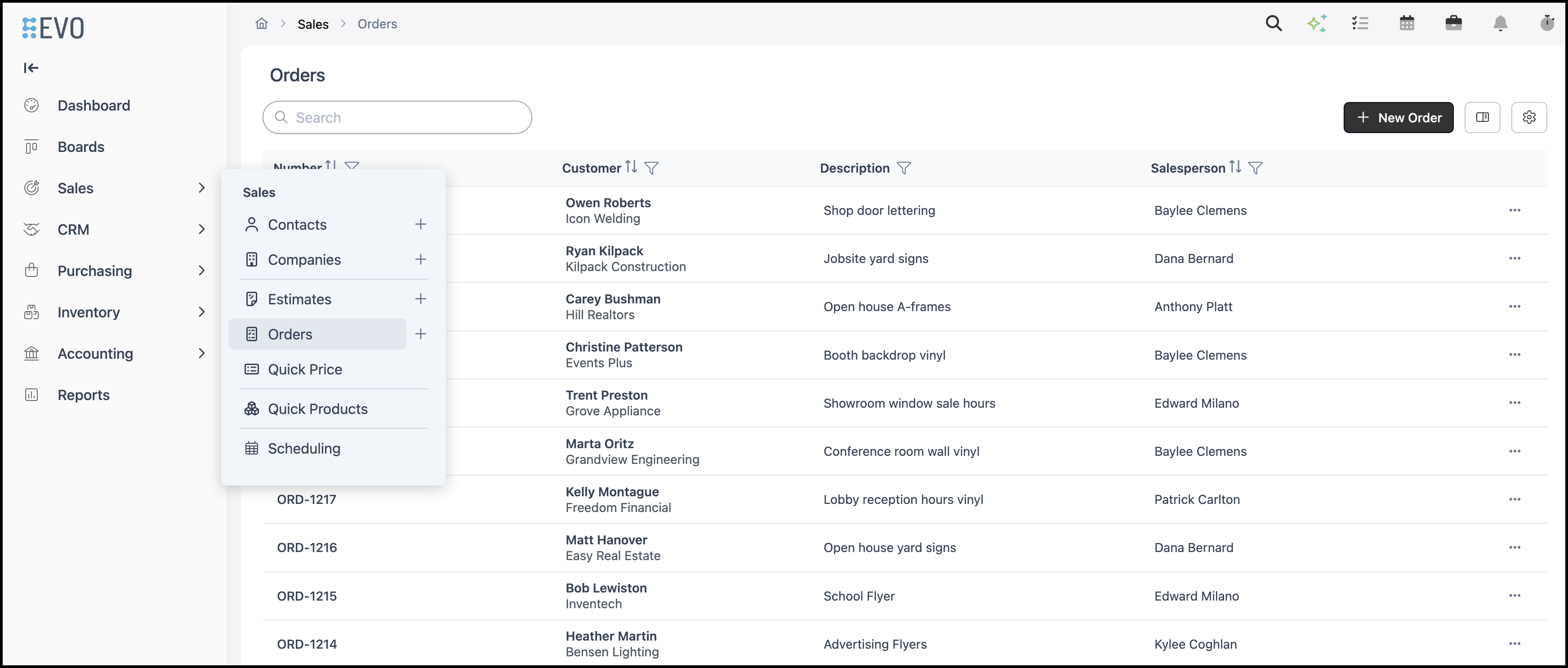
- The Tax link in Order Totals shows the combined rate, such as Tax (7.625%), and the tax amount.
- On an Estimate, the checkbox reads Estimate is Tax Exempt. On an Order, the checkbox reads Order is Tax Exempt.
- Tax Detail set to By Authority lists each agency after you click Authority Breakdown. The breakdown includes the agency, rate, amount, Total Taxable, and Total Tax. Total Taxable can be lower than the Subtotal when some Line Items are not taxable.
- Tax Detail set to By Line lists the tax for each Line Item. A tax amount of $0.00 means that Line Item is not taxable. For more information, see Taxability Codes.
- When Online Tax Lookup is the selected Tax Group, Tax Compute Mode appears. Realtime calculates tax as you work. On Demand calculates tax when you request it.
- Tax Calculation Method in Accounting Options is Per Line Item or On Order Subtotal. Per Line Item calculates tax on each taxable Line Item. On Order Subtotal calculates tax on the Order subtotal.
- An existing Estimate or Order keeps the Tax Group saved on that document. Open Tax Settings on that document to select a different Tax Group. A new Estimate or Order uses the Customer's Tax Group. For more information, see Tax Groups.
- When a tax rate changes on Estimates that are already open, see Updating Sales Tax Rates on Open Estimates.
- Save becomes available after you change Tax Settings. Cancel closes Tax Settings without saving.
Updating Sales Tax
Navigate to Sales / Orders and open the Order.
Note: The same steps apply on an Estimate. This section uses an Order.
1. Click Tax in Order Totals.
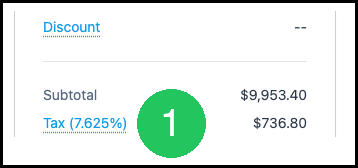
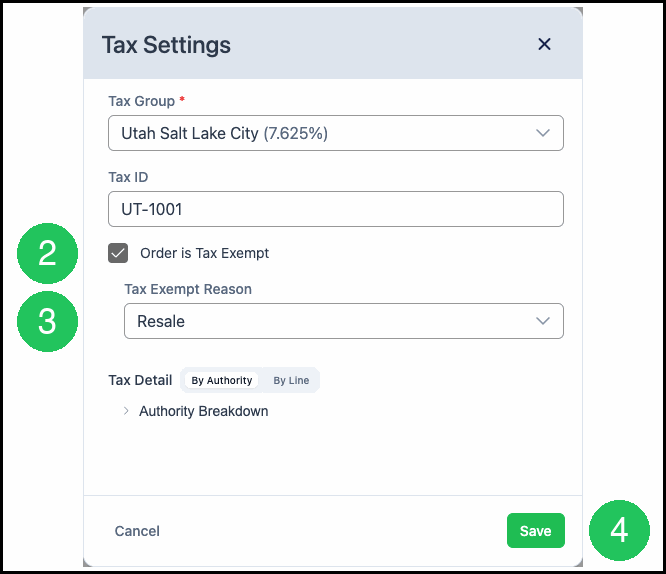
2. Select the Tax Group. The percentage is the combined rate.
a. Tax ID is optional.
b. Order is Tax Exempt marks the Order tax exempt. On an Estimate, the checkbox reads Estimate is Tax Exempt.
c. Tax Detail set to By Authority shows the tax by agency after you click Authority Breakdown. By Line shows the tax for each Line Item.
3. Click Save.
Marking an Estimate or Order Tax Exempt
Navigate to Sales / Orders and open the Order.
Note: On an Estimate, the checkbox reads Estimate is Tax Exempt.
1. Click Tax in Order Totals.
2. Select Order is Tax Exempt.
3. Select the Tax Exempt Reason.
4. Click Save.
Frequently Asked Questions
1. Why does one Line Item show tax of $0.00?
Answer: Open Tax Settings and select Tax Detail By Line. A tax amount of $0.00 means that Line Item is not taxable. For more information, see Taxability Codes.
2. Does the Company Tax Group update every open Estimate and Order?
Answer: An existing Estimate or Order keeps the Tax Group saved on that document. Open Tax Settings on that document to select a different Tax Group. A new Estimate or Order uses the Customer's Tax Group. For more information, see Tax Groups.
3. What is the difference between By Authority and By Line?
Answer: By Authority lists each agency, rate, and amount after you click Authority Breakdown, along with Total Taxable and Total Tax. By Line lists the tax for each Line Item.
4. Where is tax set to calculate per Line Item or on the Order subtotal?
Answer: Tax Calculation Method in Accounting Options is Per Line Item or On Order Subtotal.