
The Kipanga Denise AI Sales Agent integration connects CoreBridge to Kipanga so inbound website and email inquiries can be researched, answered, and qualified. Qualified opportunities are handed to your sales team. New leads are written into CoreBridge as a company and contact.
Note: CoreBridge can help with installing the integration and completing the connection in CoreBridge. Questions about Denise, lead replies, or the Kipanga service itself should be directed to Kipanga Support at support@kipanga.com.
Table of Contents
- Benefits of Integrating With Kipanga Denise AI Sales Agent
- How to Integrate With Kipanga Denise AI Sales Agent
- Functionality
- Kipanga Denise AI Sales Agent Details
- Frequently Asked Questions
- Related Articles
Benefits of Integrating With Kipanga Denise AI Sales Agent
- Respond to inbound website and email inquiries in minutes.
- Research each prospect and send a personalized first reply.
- Hand qualified opportunities to the sales team and filter poor-fit leads.
- Write new leads into CoreBridge as a company and contact, without manual entry.
- Connect all Locations to one Kipanga account, or connect each Location to its own account.
How to Integrate With Kipanga Denise AI Sales Agent
To integrate Kipanga Denise AI Sales Agent with CoreBridge, navigate to System Settings / My Business / Integrations Marketplace.
Note: Get an onboarding token from Kipanga before you connect. Kipanga issues this token during setup.
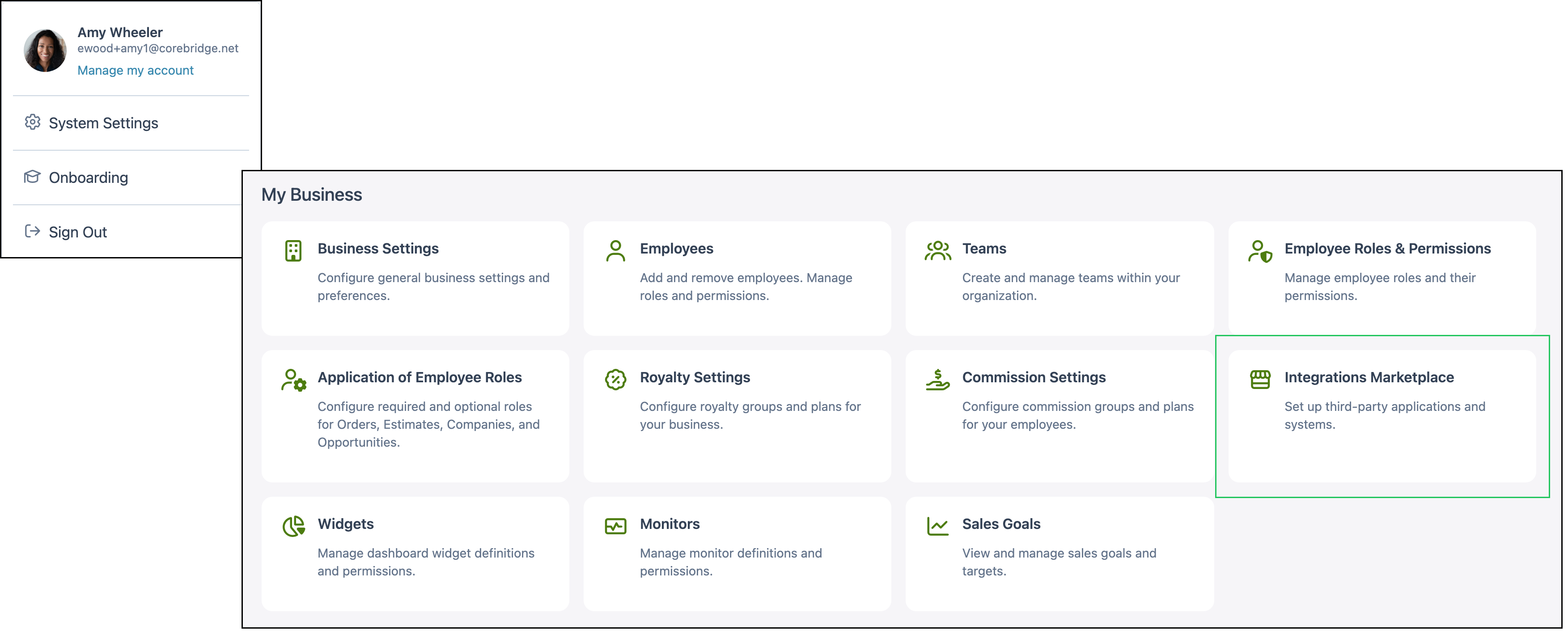
1. Select the Customer Engagement category.
Note: You can also find Kipanga Denise AI Sales Agent using All Categories, the AI category, or the search bar.
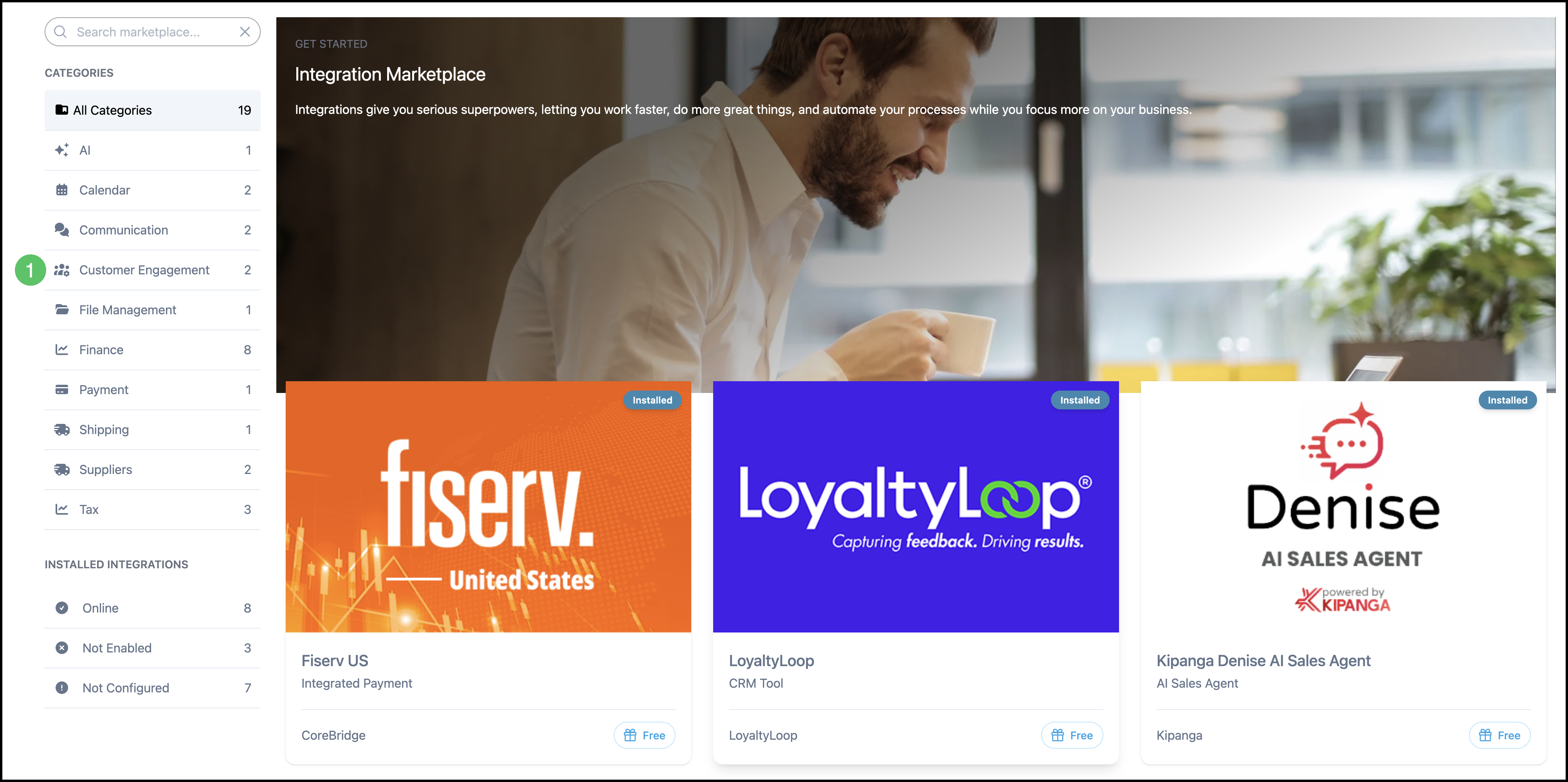
2. Select the Kipanga Denise AI Sales Agent integration.
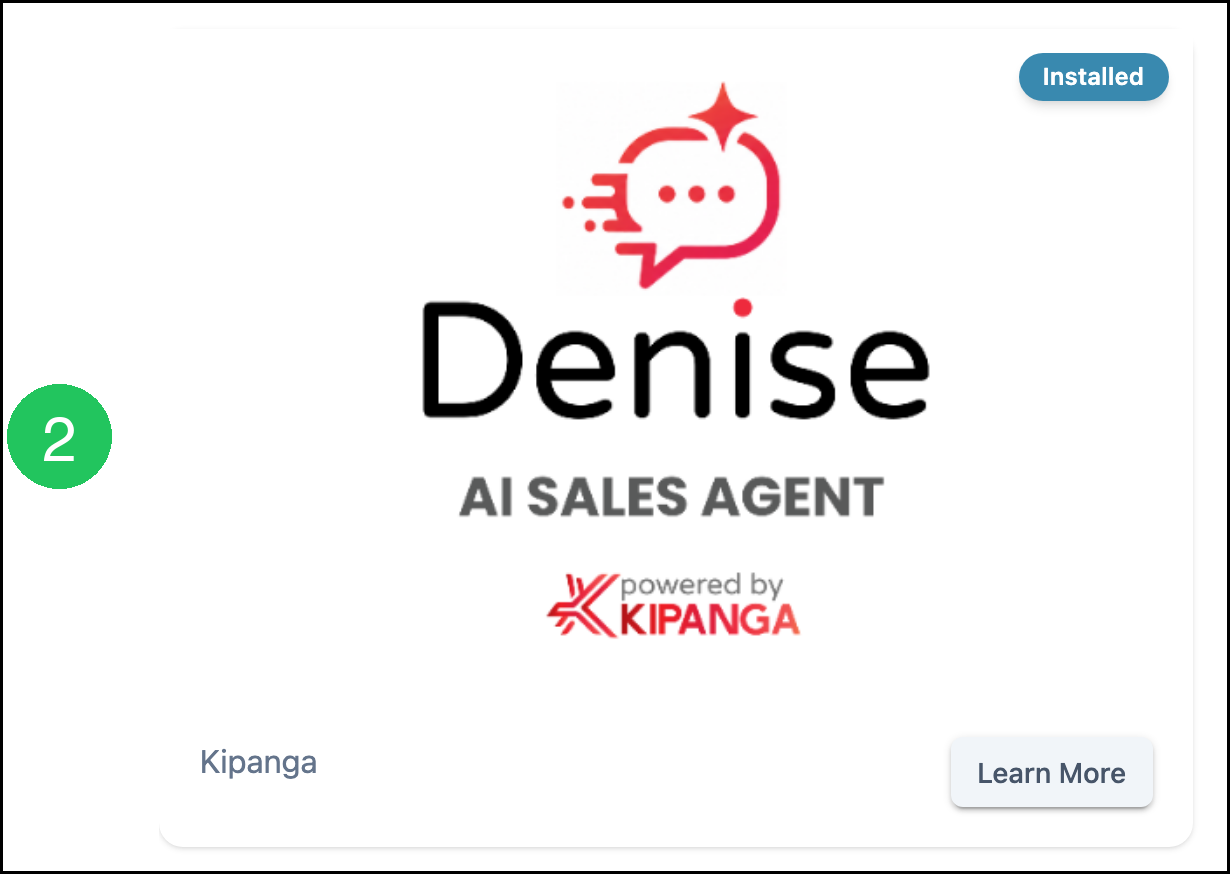
3. Click Install.
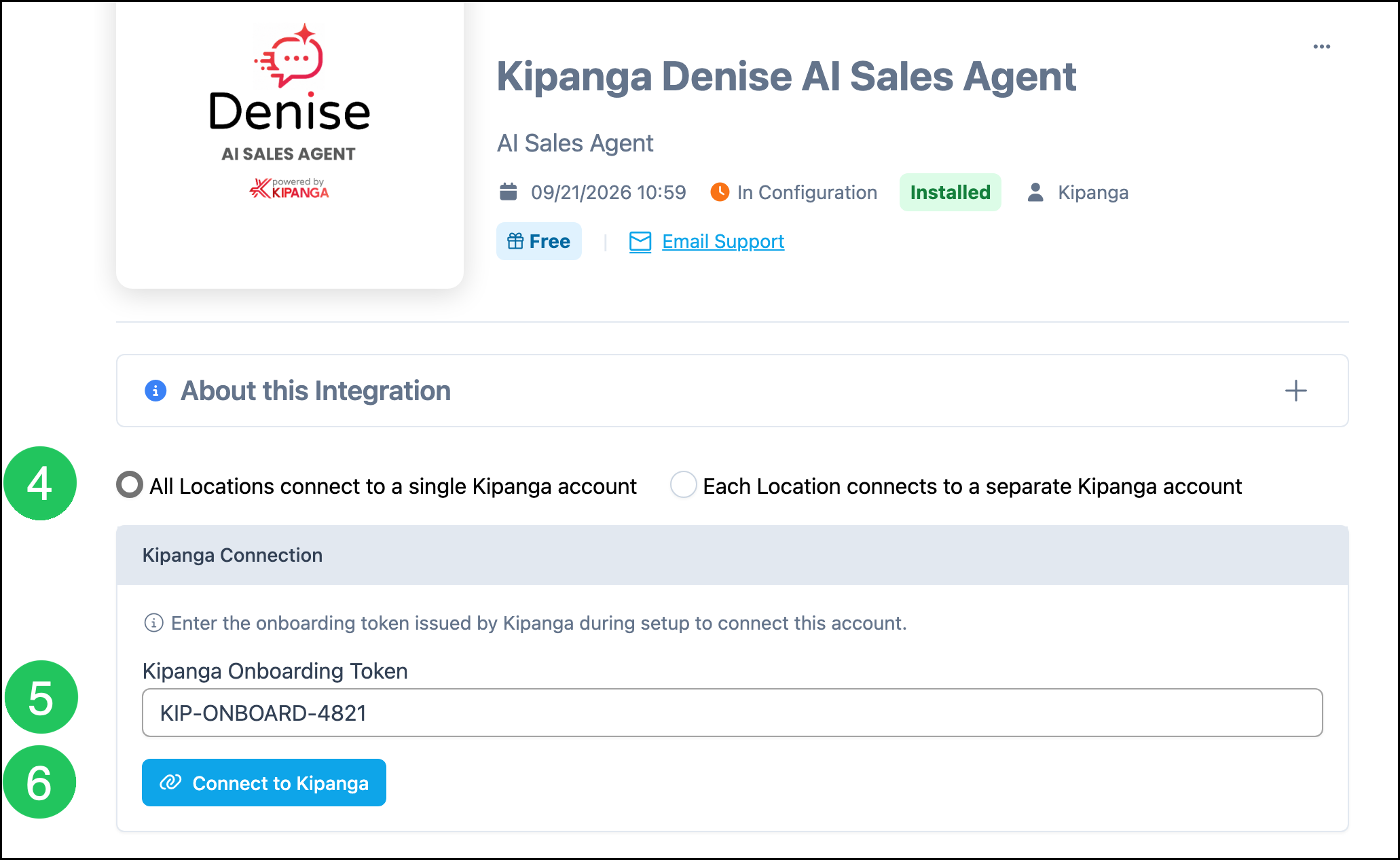
Note: After it is installed, the Kipanga Denise AI Sales Agent screen opens so you can choose location options and enter the onboarding token.
4. Select All Locations connect to a single Kipanga account or Each Location connects to a separate Kipanga account.
5. Enter the Kipanga Onboarding Token issued by Kipanga during setup.
6. Click Connect to Kipanga.
Functionality
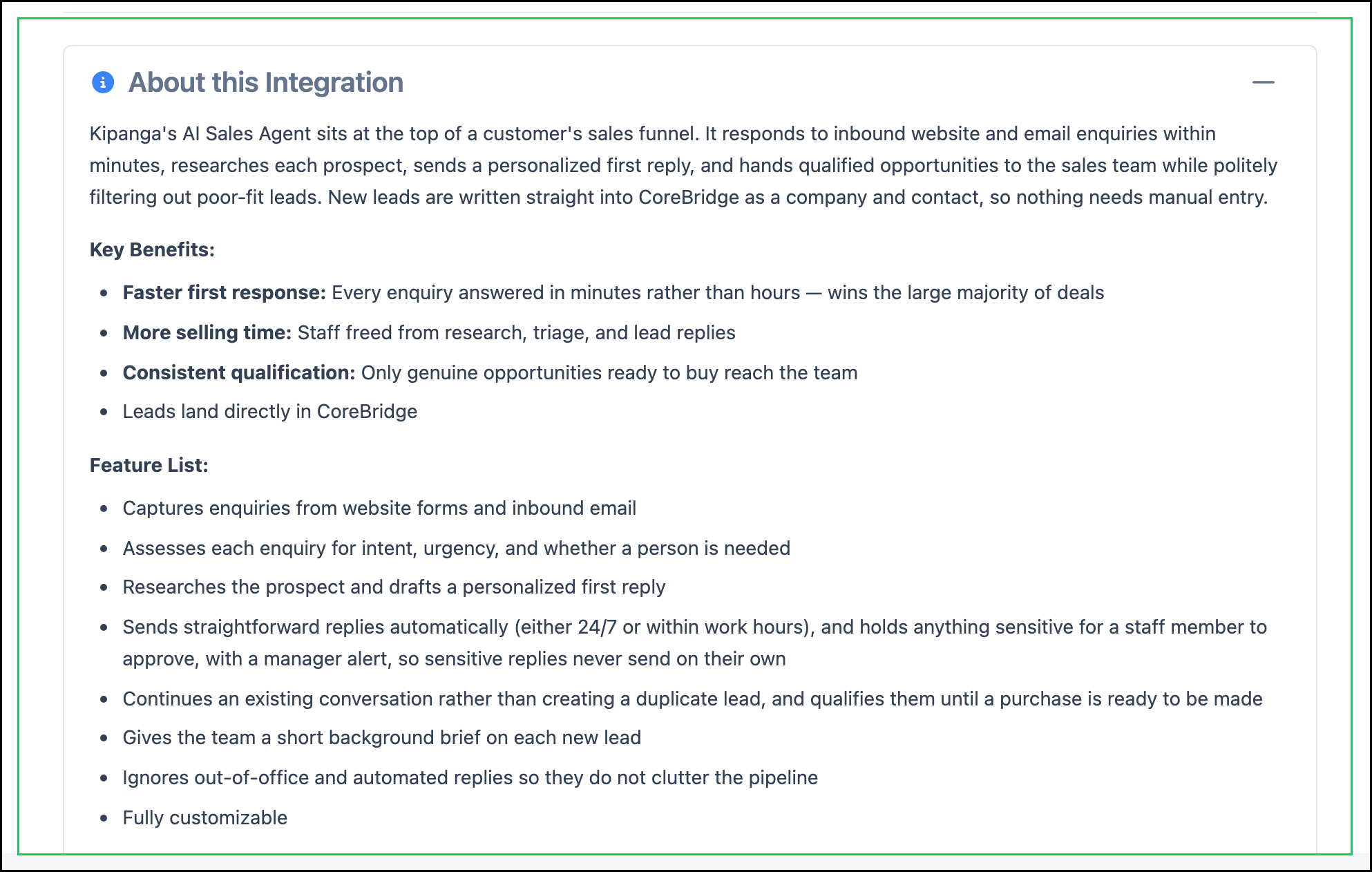
After Kipanga Denise AI Sales Agent is connected, it sits at the top of the sales funnel. It captures inquiries from website forms and inbound email, assesses intent and urgency, researches the prospect, and drafts a personalized first reply. Straightforward replies can send automatically. Sensitive replies are held for a staff member to approve, with a manager alert, so they do not send on their own.
The integration continues an existing conversation rather than creating a duplicate lead, ignores out-of-office and automated replies, and gives the team a short background brief on each new lead. New leads are written into CoreBridge as a company and contact.
The About this Integration section on the Kipanga Denise AI Sales Agent screen describes what the integration can do:
- Capture inquiries from website forms and inbound email.
- Assess each inquiry for intent, urgency, and whether a person is needed.
- Research the prospect and draft a personalized first reply.
- Send straightforward replies automatically, and hold sensitive replies for staff approval.
- Continue an existing conversation instead of creating a duplicate lead.
- Give the team a short background brief on each new lead.
- Write new leads into CoreBridge as a company and contact.
Kipanga Denise AI Sales Agent Details
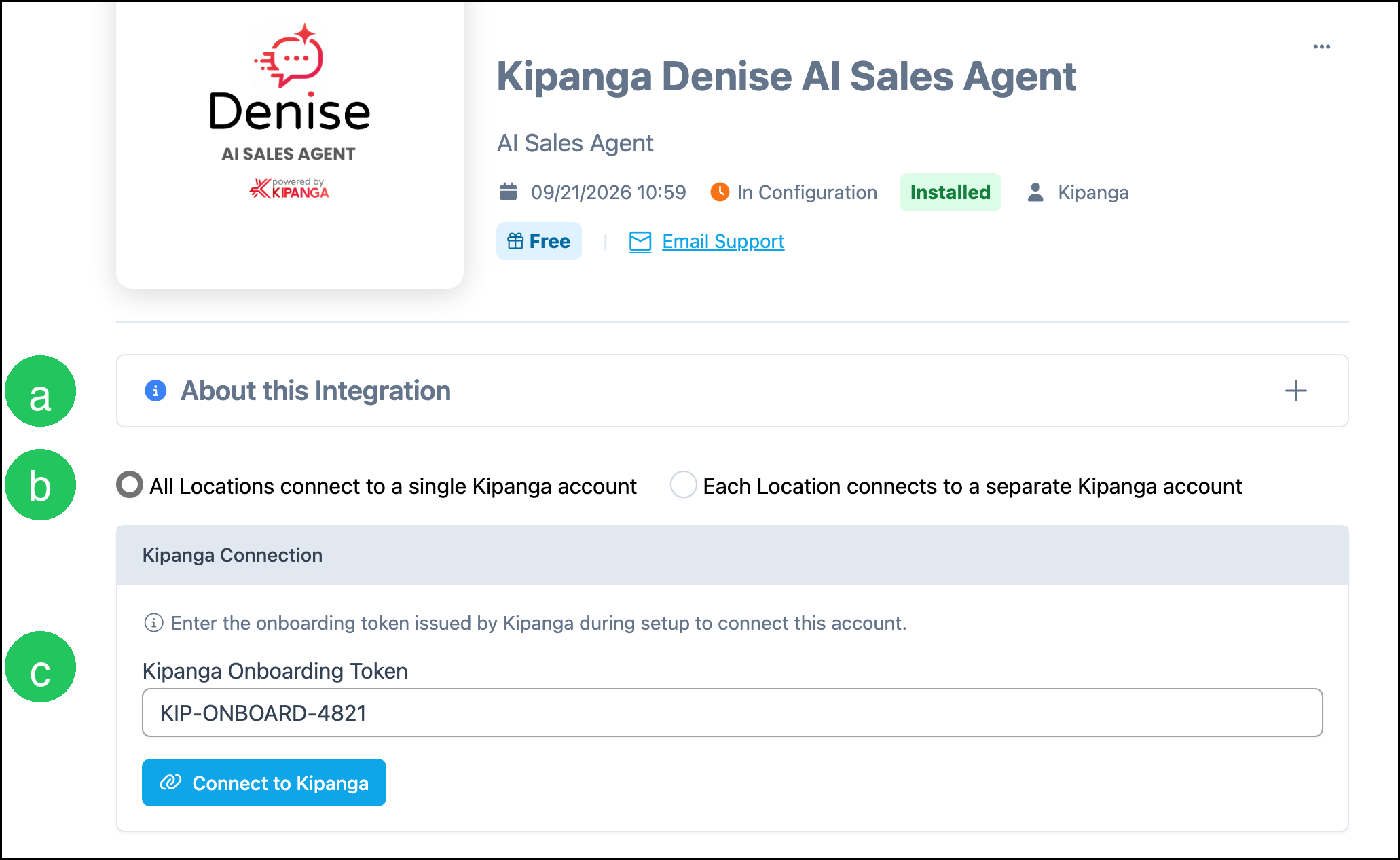
The Kipanga Denise AI Sales Agent screen includes status information, location options, and the Kipanga connection.
a. About this Integration describes what Denise does after it is connected, including inquiry capture, research, first replies, qualification, and writing leads into CoreBridge.
b. Location options control whether All Locations connect to a single Kipanga account or Each Location connects to a separate Kipanga account.
c. Kipanga Connection is where you enter the Kipanga Onboarding Token and click Connect to Kipanga.
Note: Email Support contacts Kipanga Support. The listing is marked Free.
Frequently Asked Questions
1. Who should I contact about Denise replies, lead qualification, or the Kipanga service?
Answer: Contact Kipanga Support at support@kipanga.com for questions about the Kipanga service. CoreBridge can help with installing the integration and entering the onboarding token in CoreBridge.
2. What is the difference between All Locations and Each Location?
Answer: All Locations connect to a single Kipanga account uses one Kipanga account for every Location. Each Location connects to a separate Kipanga account uses a different Kipanga account per Location. Choose the option that matches how your business is set up in Kipanga.
3. Where do I get the Kipanga Onboarding Token?
Answer: Kipanga issues the onboarding token during setup. If you do not have a token, contact Kipanga Support at support@kipanga.com. Enter that token in Kipanga Onboarding Token, then click Connect to Kipanga.
4. Do I still need to connect if the listing already shows Installed?
Answer: Installed means the integration is added in CoreBridge. If the screen still shows In Configuration, enter the onboarding token from Kipanga and click Connect to Kipanga to complete the connection.