
CoreBridge EVO includes help articles, videos, onboarding training, Q&A webinars, and Support. This article shows how to open each resource from Onboarding and the Knowledge Base.
Table of Contents
- Important Information
- Accessing Help and Learning Through Onboarding
- Accessing Help and Learning Through Support Desk
- Frequently Asked Questions
- Related Articles
Important Information
- Use articles in the New CoreBridge EVO Interface category. CoreBridge Legacy articles describe the previous interface.
- Knowledge Base, webinar, and Support links open in a new tab.
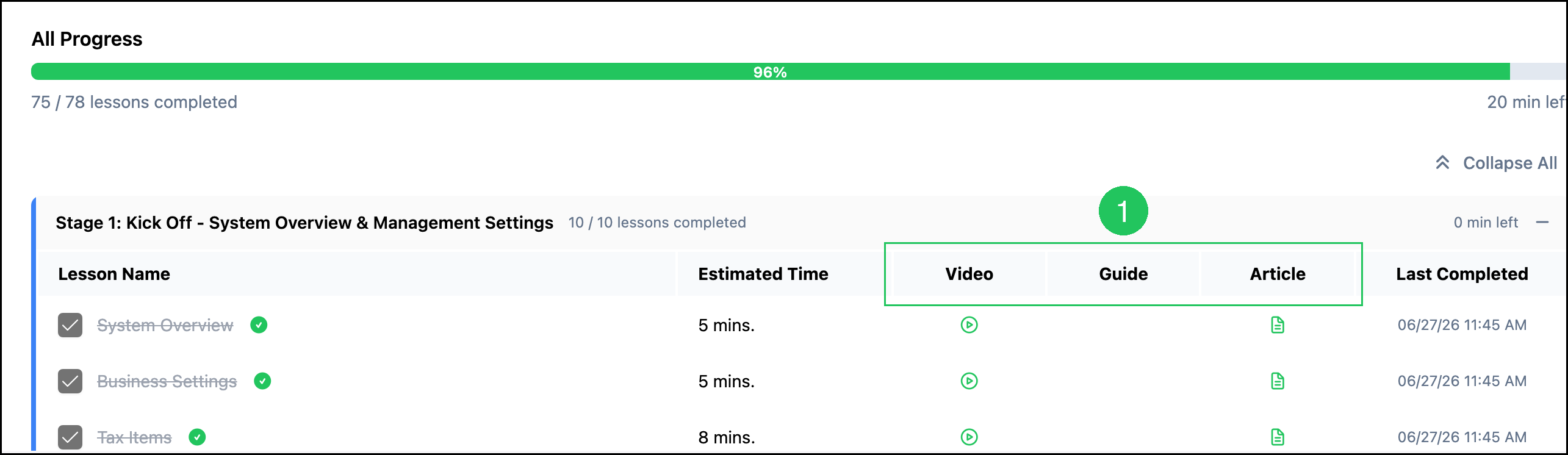
- Opening a video, guide, or article in Onboarding does not mark the lesson complete. Select the checkbox in the Lesson Name column to mark a lesson complete.
Accessing Help and Learning Through Onboarding
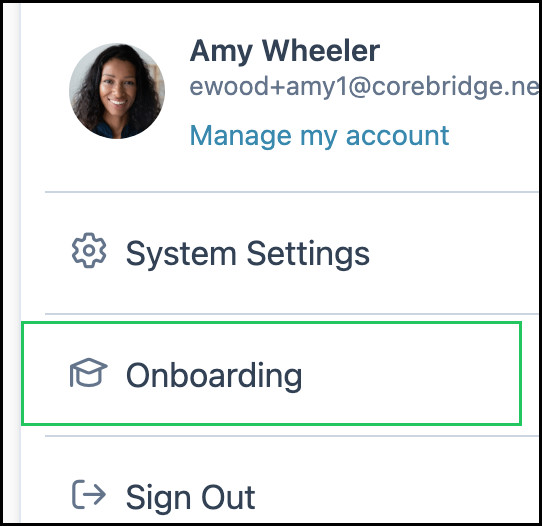
Navigate to Onboarding by opening the Account menu and select Onboarding.
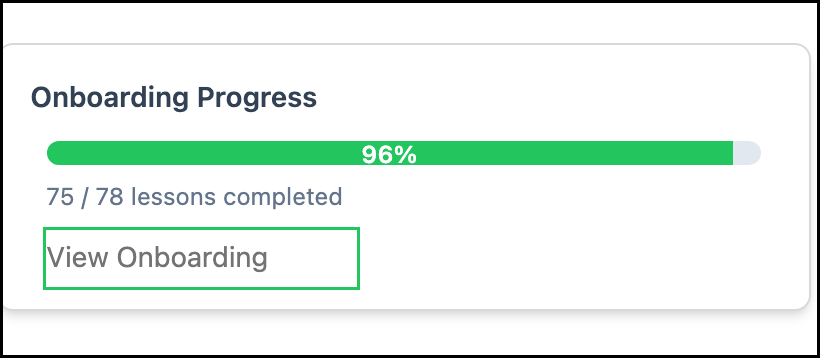
You can also open Onboarding from My Profile by clicking View Onboarding.
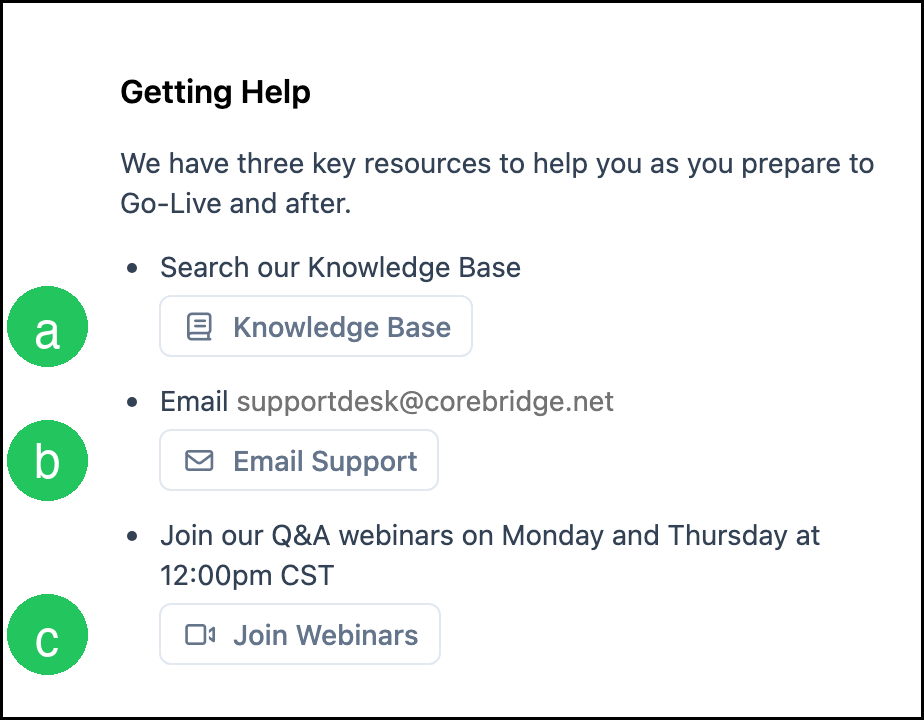
The Getting Help section on Onboarding includes three resources:
a. Knowledge Base - Opens help articles for CoreBridge EVO.
b. Email Support - Opens an email to supportdesk@corebridge.net.
c. Join Webinars - Opens the live Q&A webinar.
Knowledge Base
1. Click Knowledge Base.
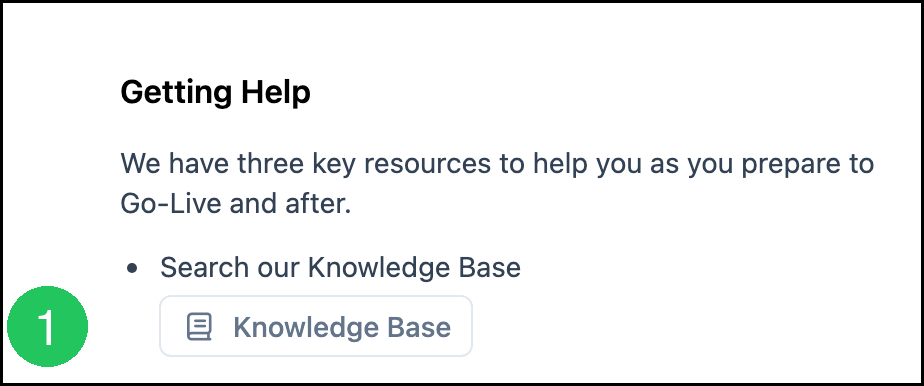
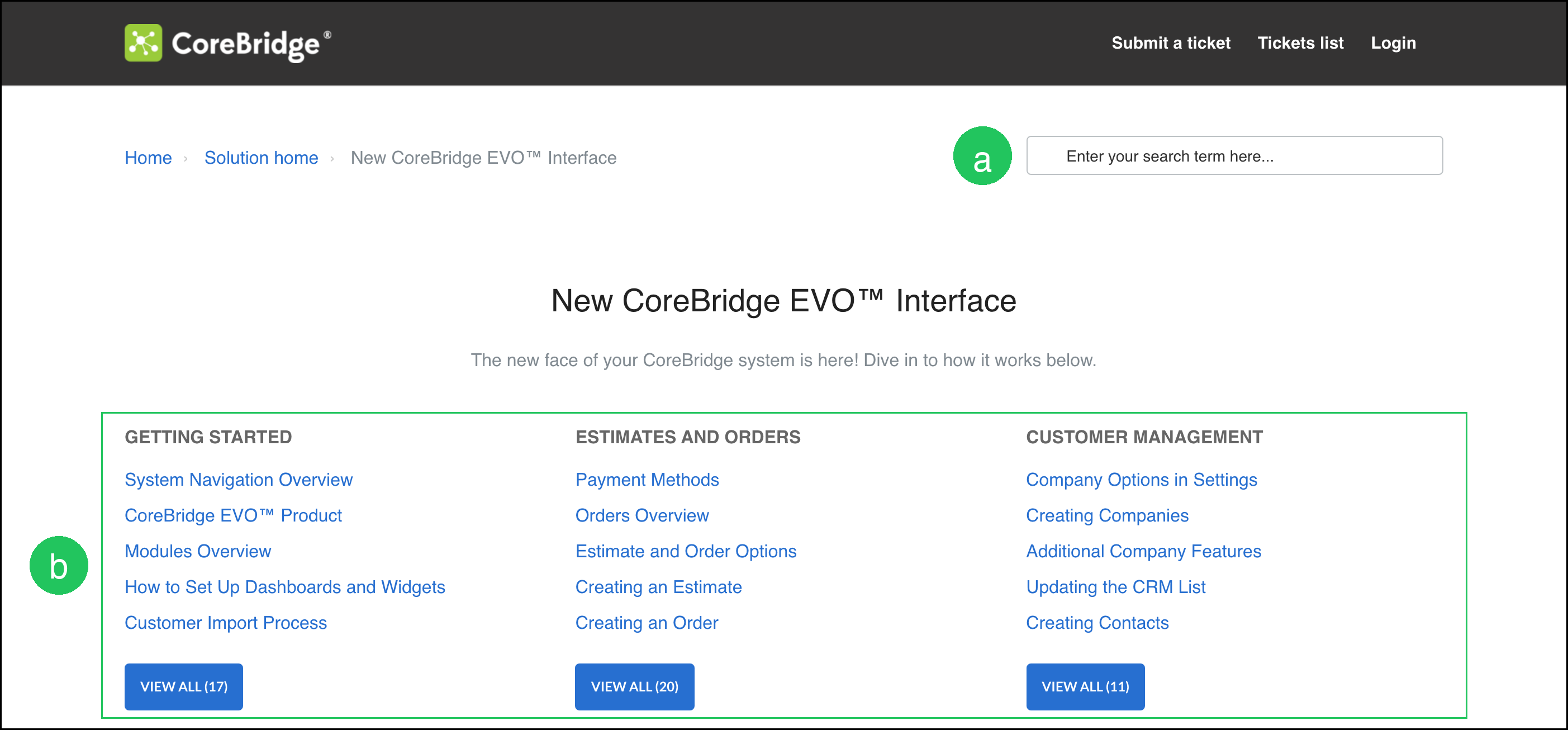
The Knowledge Base opens in a new tab to the New CoreBridge EVO Interface category.
a. Search - Finds articles by topic.
b. Article folders - Groups help articles by area, such as Getting Started or Estimates and Orders.
Note: Click VIEW ALL on a folder to see every article in that folder.
Contacting Support
You can email Support from Onboarding.
1. Click Email Support.
This opens an email to supportdesk@corebridge.net.

Joining Q&A Webinars
Q&A webinars are held Monday and Thursday at 12:00pm CST.
1. Click Join Webinars.
Note: The webinar opens in Microsoft Teams.

Videos and Training
Onboarding lessons are organized into stages. Expand a stage heading to see its lessons. Each lesson can include a Video, Guide, and Article.
1. Click Video, Guide, or Article to open the lesson content.
Note: For the full Onboarding process, see Onboarding.
Accessing Help and Learning Through Support Desk
Support Desk is a central resource for finding help and staying informed. Access help articles, review the latest Release Notes, and submit Support tickets when additional assistance is needed.
Navigate to supportdesk.corebridge.net.
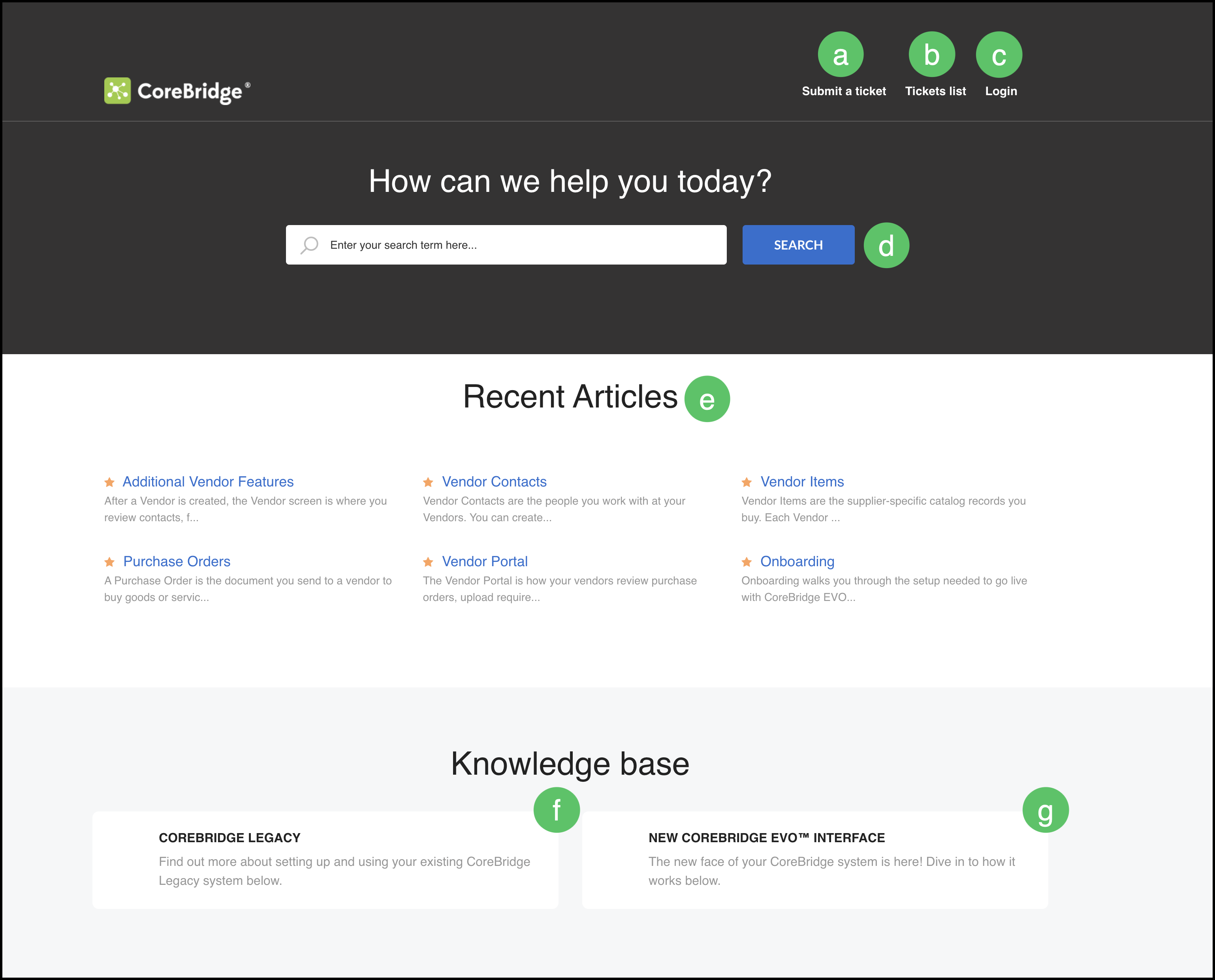
a. Submit a Ticket - Opens the form for submitting a new Support ticket.
b. Tickets List - Displays open and pending Support tickets associated with your account.
Note: If you are not currently signed in, you will be directed to the sign-in screen before accessing your tickets.
c. Login - Provides access to sign in to your CoreBridge Knowledge Base account.
d. Search - Provides a quick way to find Knowledge Base articles by topic or keyword.
e. Recent Articles - Displays the most recently added articles in the Knowledge Base.
f. CoreBridge Legacy - Provides access to Knowledge Base articles specific to the CoreBridge Legacy interface.
g. New CoreBridge EVO Interface - Provides access to Knowledge Base articles specific to the CoreBridge EVO interface.
Submitting a Ticket
1. Click Submit a ticket.
Note: You can submit a ticket even if you are not logged in.

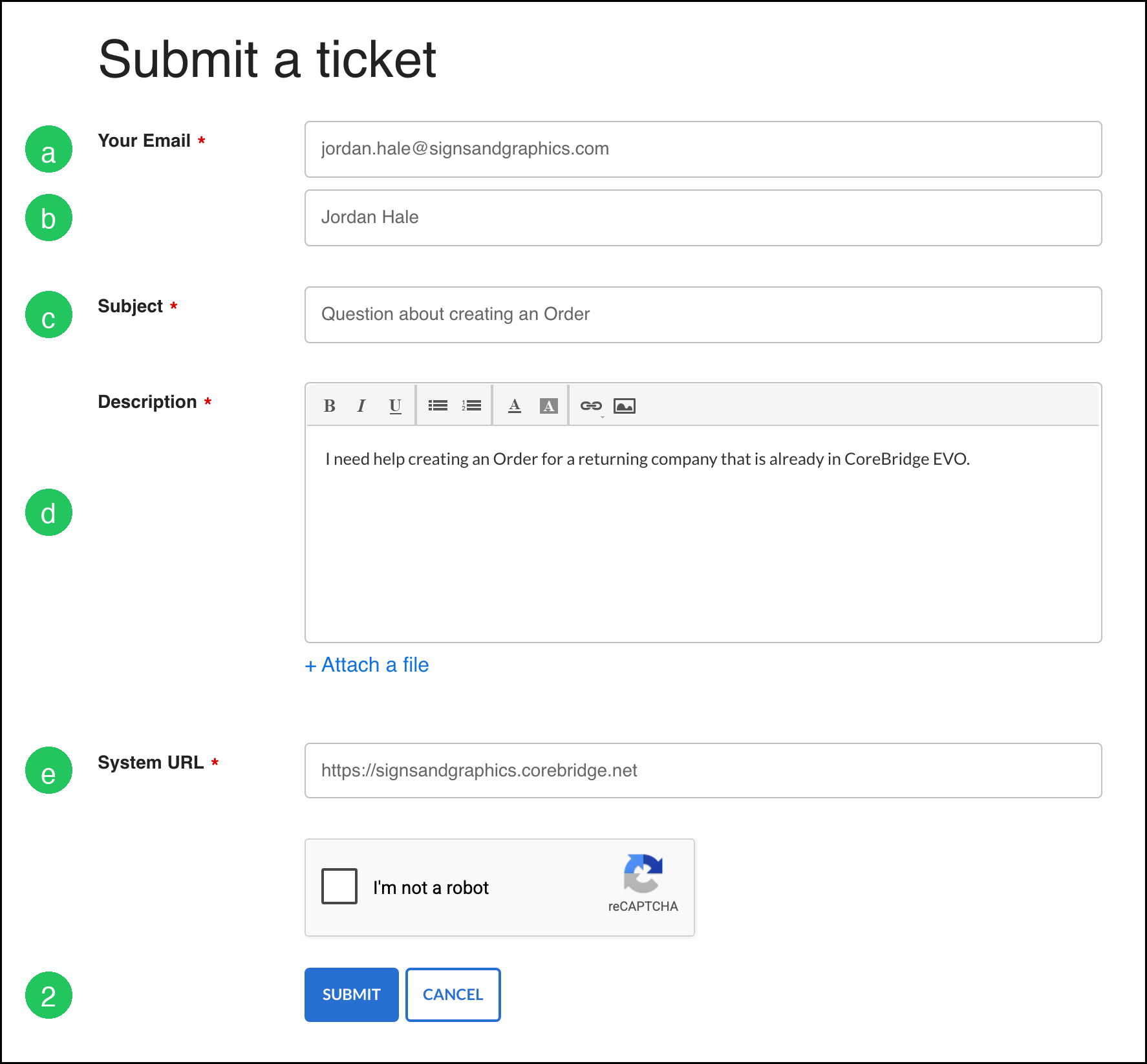
Complete the form:
a. Your Email - The email address Support should use to reply.
b. Your Name - Your name. This field appears after you enter Your Email.
c. Subject - A short summary of the request.
d. Description - Details about the question or issue.
e. System URL - The web address you use to sign in to CoreBridge.
2. Click SUBMIT.
Note: Complete the verification if it appears. You can also use + Attach a file to include a screenshot or document.
Note: Click CANCEL to leave the form without sending.
Finding Recent Articles
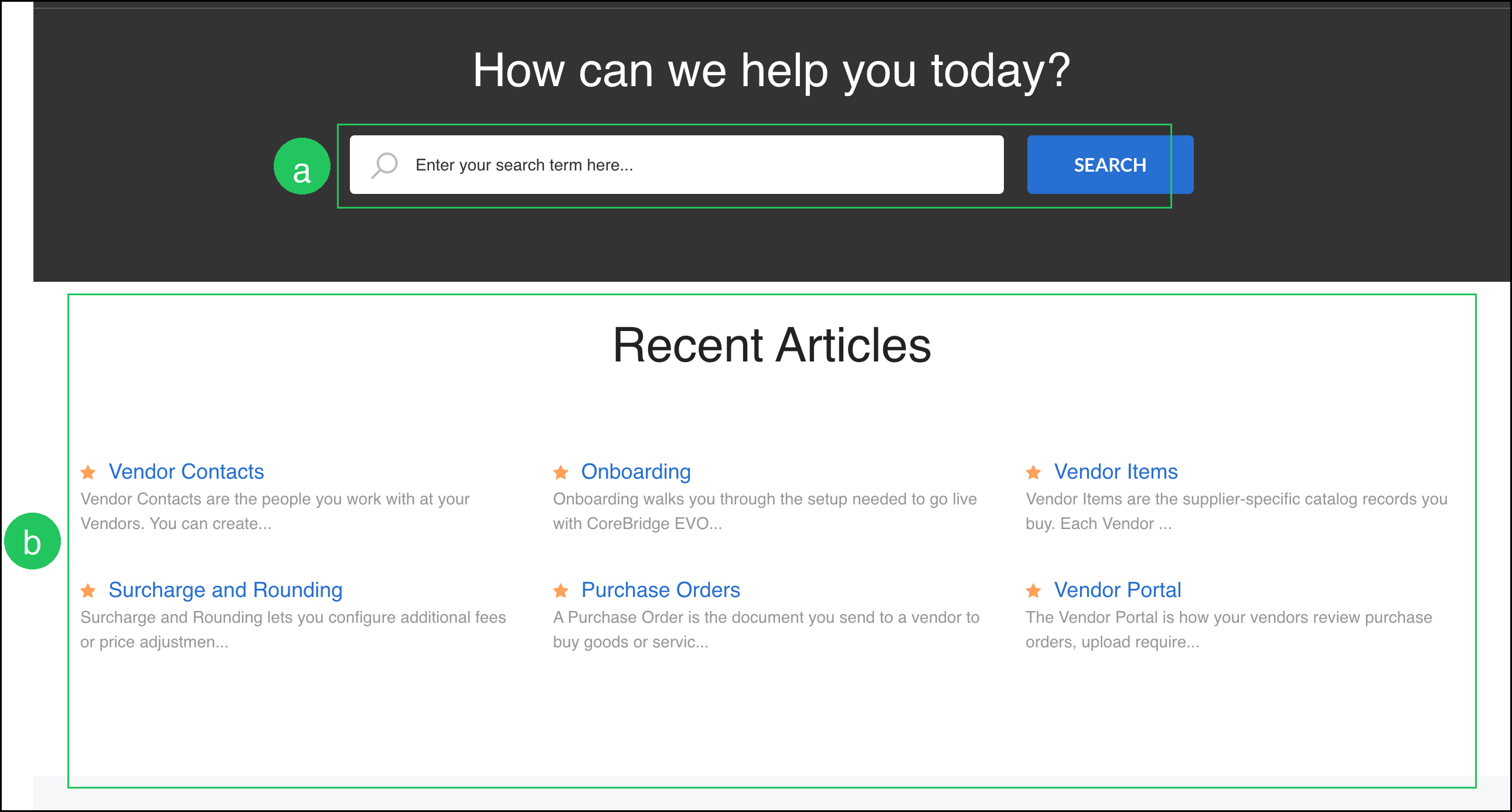
The Knowledge Base home is where you search all articles and review recently published articles.
a. Search - Enter a topic and click SEARCH to find matching articles.
b. Recent Articles - Lists newly published help articles.
Note: When you open an article, confirm it is in the New CoreBridge EVO Interface category.
Release Notes
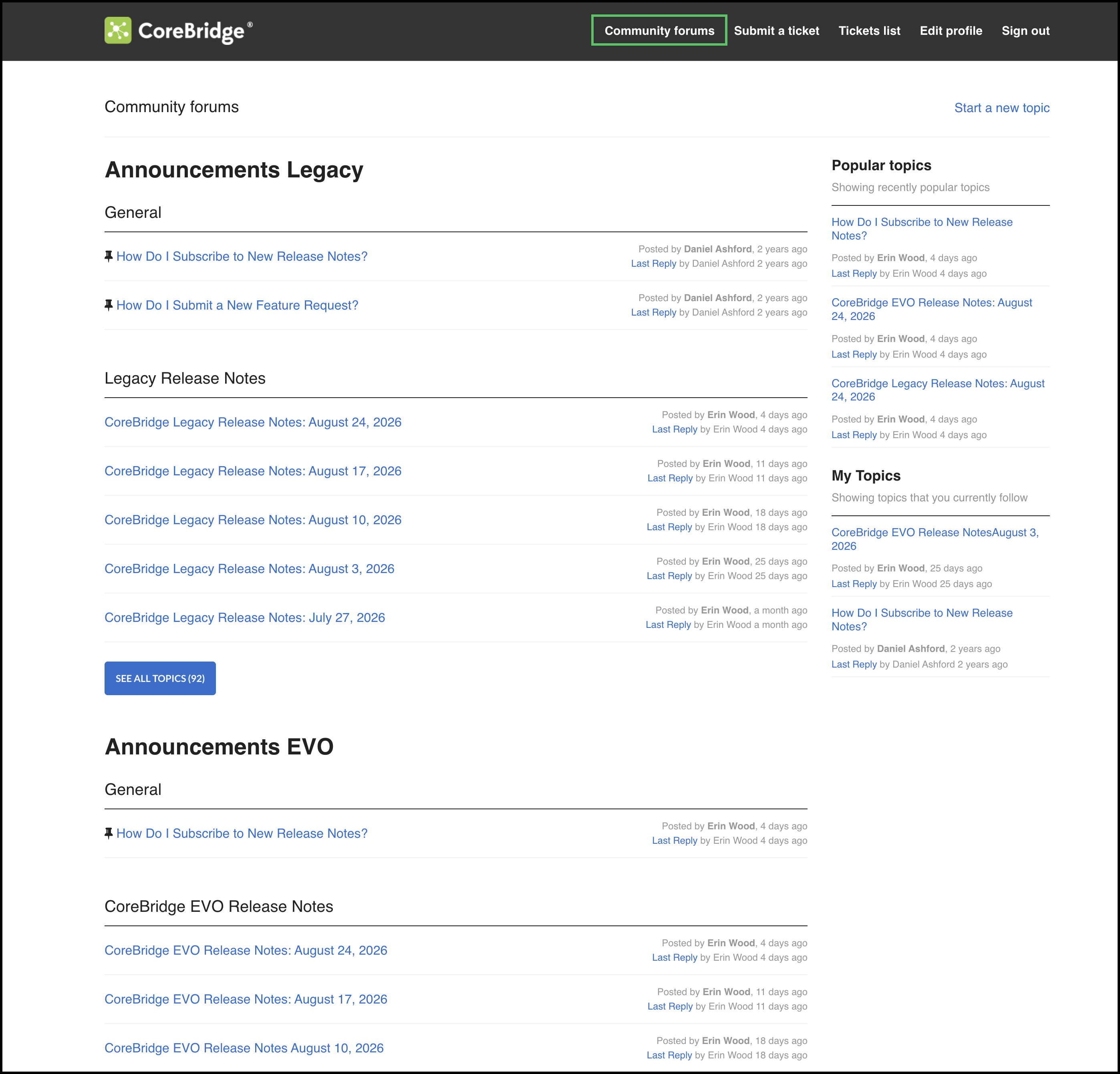
Release Notes are available within the Knowledge Base under the Community Forums tab and provide updates on changes and improvements to CoreBridge products. Release Notes are organized by product and are available to customers who are signed in to their Knowledge Base account.
Note: The CoreBridge Support website uses a separate account from your CoreBridge system. Before signing in for the first time, you will need to create a Support website account using your email address. Your CoreBridge sign-in credentials do not automatically provide access to the Support website.
Following Release Notes
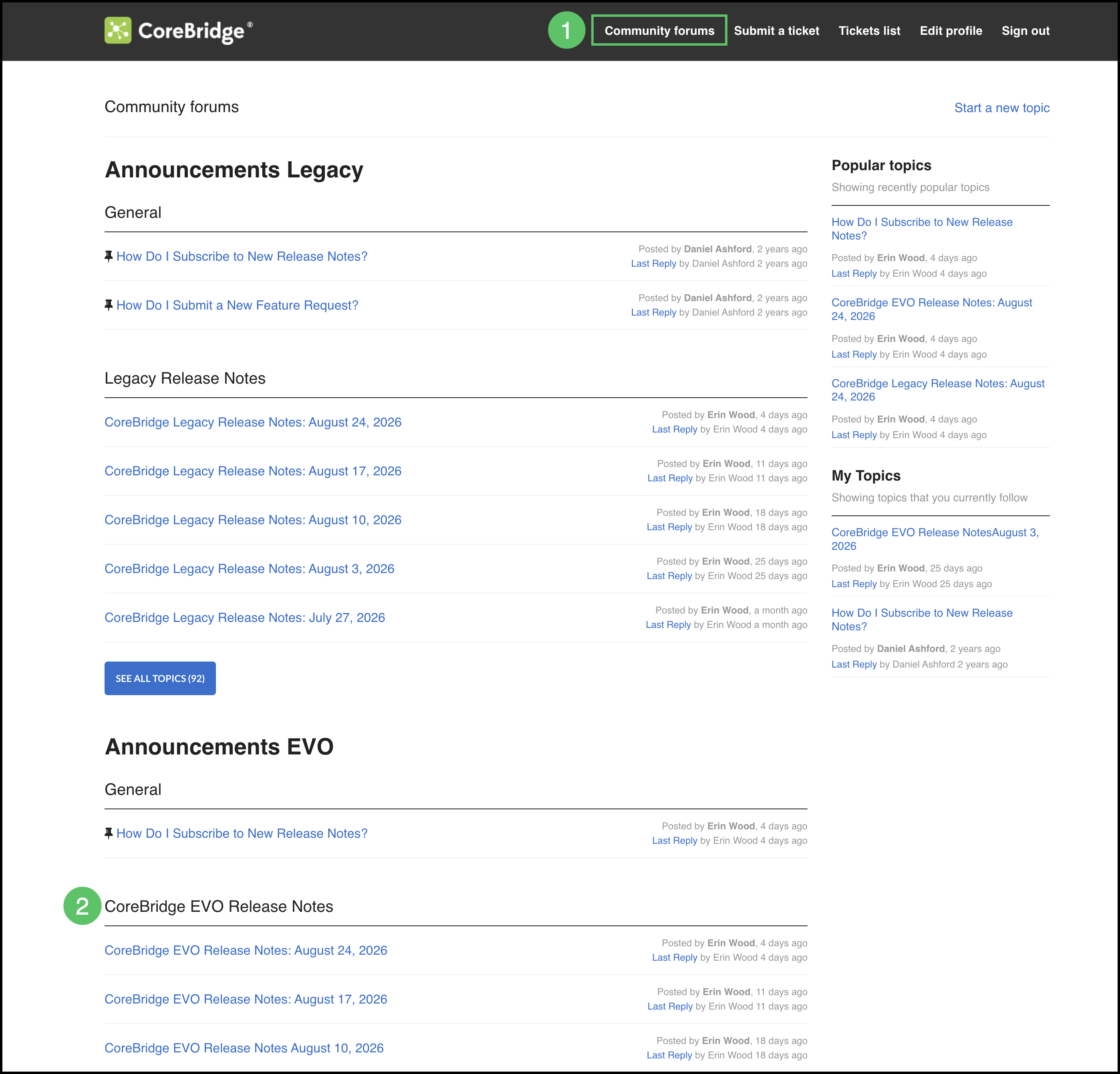
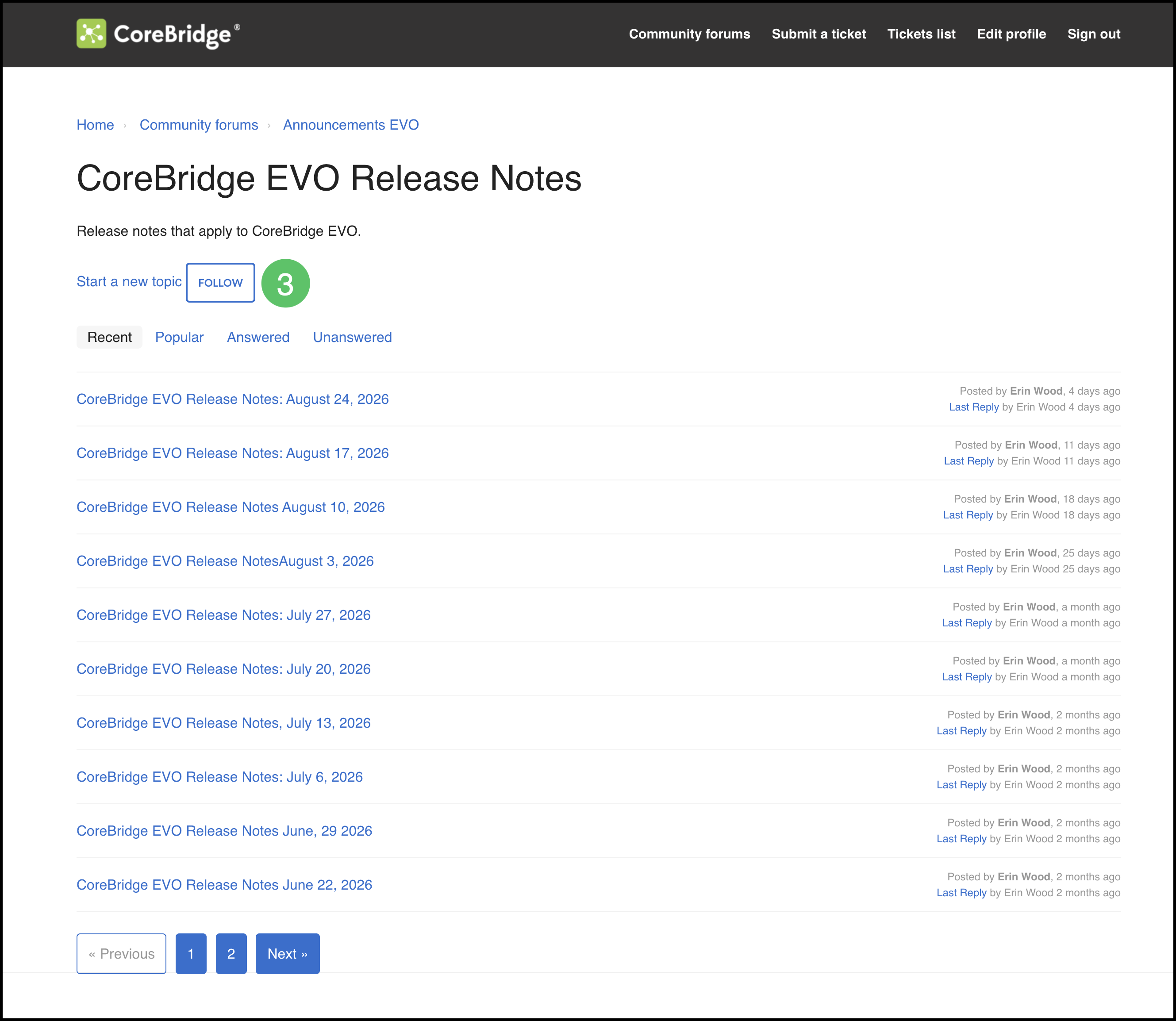
To receive Release Notes directly by email, click Follow for the product you would like to receive updates for.
Note: CoreBridge Legacy and EVO Release Notes are followed separately. Following one product does not automatically subscribe you to Release Notes for the other.
1. Select the Community forums tab.
2. Select the CoreBridge platform.
3. Click Follow.
Note: New Release Notes are sent to the email address associated with your Knowledge Base account as they are published.
Frequently Asked Questions
1. Should I use CoreBridge Legacy or New CoreBridge EVO Interface articles?
Answer: Use articles in the New CoreBridge EVO Interface category when you are working in CoreBridge EVO. CoreBridge Legacy articles describe the previous interface.
2. Does opening a video mark the Onboarding lesson complete?
Answer: No. Opening a video, guide, or article does not mark the lesson complete. Select the checkbox in the Lesson Name column when you have finished the lesson.
3. What if I miss a Q&A webinar?
Answer: Join the next session on Monday or Thursday at 12:00pm CST. You can also search the Knowledge Base or email Support.
4. Where can I see what is new in CoreBridge EVO?
Answer: Open the Knowledge Base home and review Recent Articles, or use Search to find articles about a topic.
5. Can I still get help after I go live?
Answer: Yes. The Knowledge Base, Q&A webinars, and Support remain available after you go live. Onboarding stays available from the Account menu.
6. What are Help Tips?
Answer: Help Tips appear as question mark icons throughout CoreBridge EVO. Hover over a Help Tip to read a short explanation. For more information, see System Navigation Overview.
Related Articles
CoreBridge EVO™ Product
Go Live Checklist
Go Live Form
Onboarding
System Navigation Overview