
Account Mapping pairs each CoreBridge general ledger account used in reconciliation with an account in your accounting software. When a reconciliation syncs, amounts post to the accounts you mapped.
QuickBooks Online Summary Sync is the example. The same Account Mapping card appears on QuickBooks Online Detail Sync, Xero Summary Sync, Xero Detail Sync, and NetSuite Summary Sync after the integration is connected.
Table of Contents
- Before You Begin
- Important Information
- Opening Account Mapping
- Account Mapping Overview
- Best Practices
- Frequently Asked Questions
- Related Articles
Before You Begin
Install and connect the accounting integration before you map accounts. For a list of supported options, see CoreBridge's Supported Accounting Integrations. For installing an integration, see Integrations Marketplace Overview.
Review your CoreBridge Chart of Accounts so account names and numbers match the accounts you use in your accounting software. For more information, see Managing Chart of Accounts.
Note: Only one accounting software integration can be active at a time.
Important Information
Account Mapping is required for accurate reconciliation syncs. Unmapped CoreBridge accounts display Will be added as new on sync. On the next sync, the accounting software creates a new account with that CoreBridge name.
Select existing accounts in your accounting software whenever they already match. Reserve Will be added as new on sync for accounts that exist only in CoreBridge, such as Orders in Pre-WIP.
After the integration is connected, Edit Account Mapping opens the mapping dialog. Accounts are grouped on tabs for Assets, COGS, Liabilities, Expenses, and Income. Each row shows the CoreBridge account and a dropdown of matching accounting software accounts. Click Save to keep mapping without syncing, or Save & Sync now to save and sync. If the dialog closes without saving, unsaved selections are discarded.
When each Location syncs to a separate company, Account Mapping is available after sync is enabled for that Location.
For connecting the integration and completing the first sync, see the article for the integration you use:
- QuickBooks Online Summary Sync
- QuickBooks Online Detail Sync
- Xero Summary Sync
- Xero Detail Sync
- NetSuite Summary Sync
Opening Account Mapping
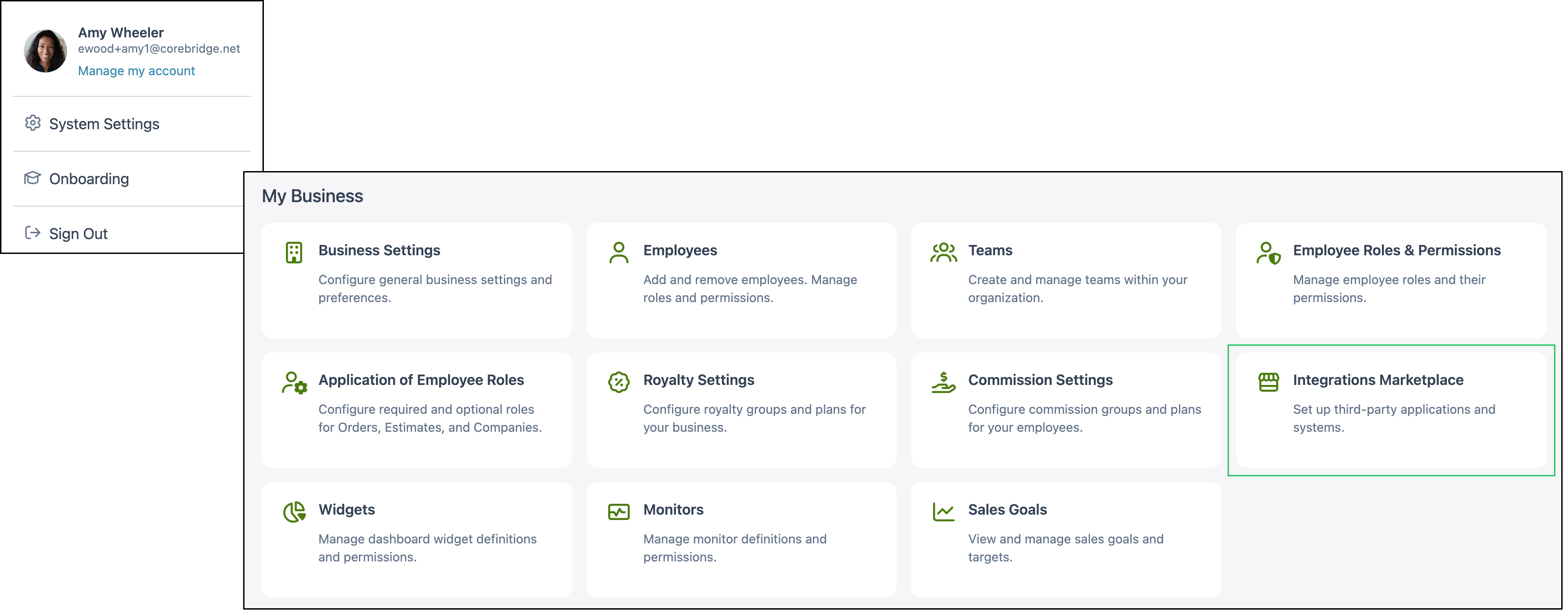
Navigate to System Settings / My Business / Integrations Marketplace.
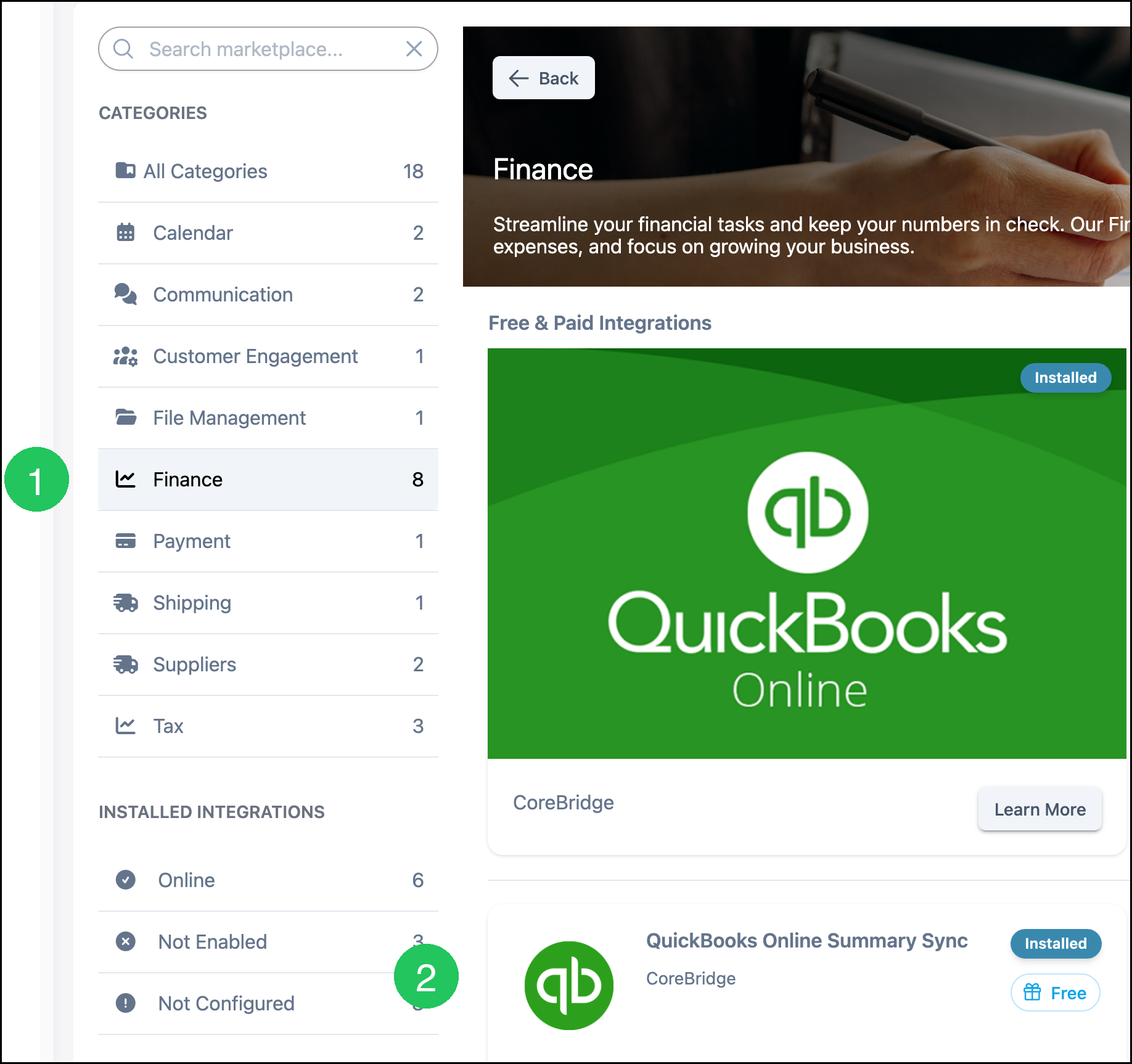
1. Select Finance.
Note: You can also find the integration from All Categories or Search marketplace.
2. Select QuickBooks Online Summary Sync, or the accounting integration you use.
Account Mapping Overview
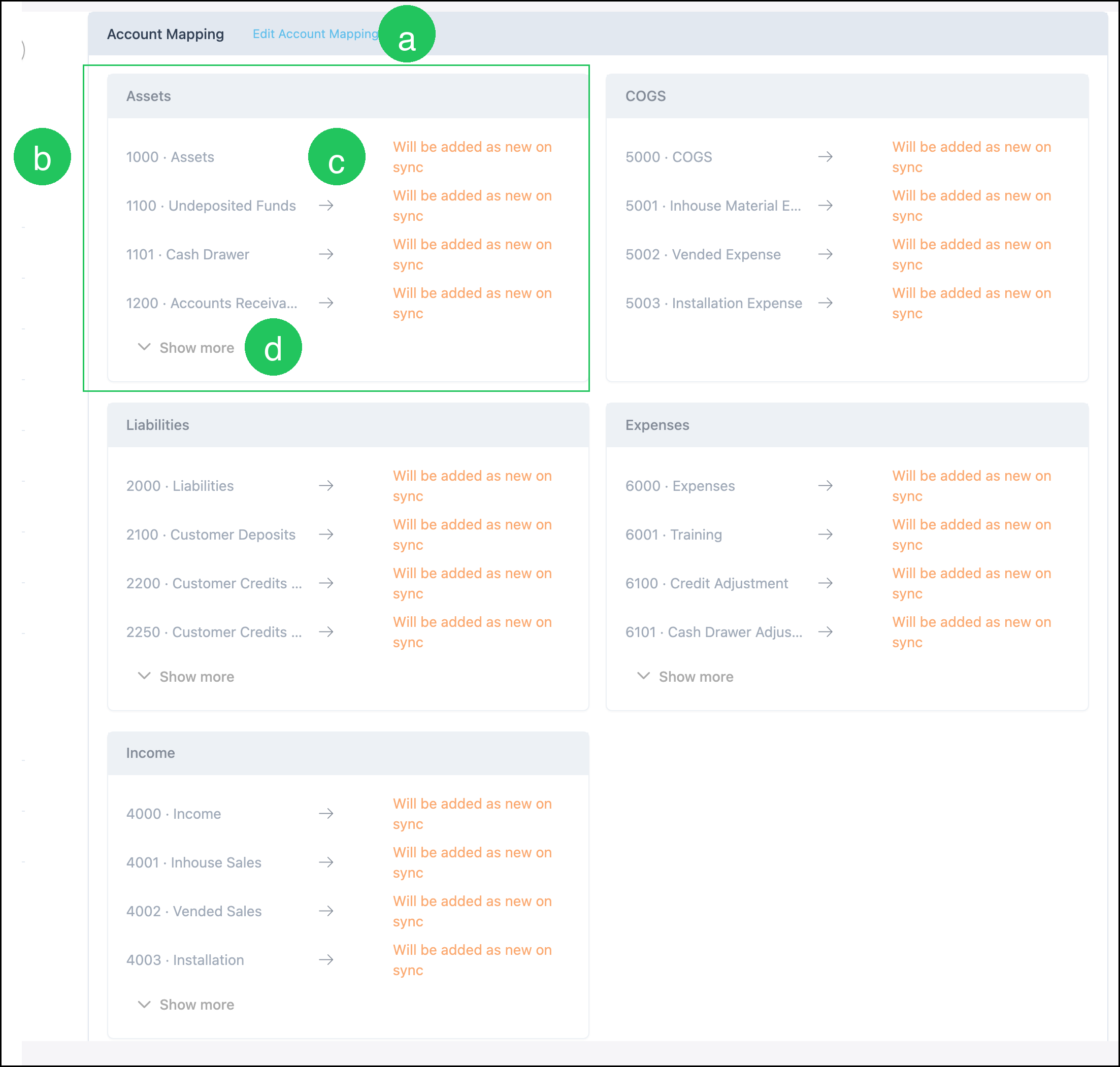
The Account Mapping card is on the integration setup screen after the integration is connected. CoreBridge accounts are grouped by type: Assets, COGS, Liabilities, Expenses, and Income. The green rectangle shows the Assets group.
a. Edit Account Mapping - Opens the mapping dialog after the integration is connected.
b. CoreBridge account - The general ledger account in CoreBridge.
c. Accounting software account - The paired account in your accounting software, or Will be added as new on sync when no account is selected.
d. Show more - Additional CoreBridge accounts in that group.
Best Practices
- Keep Chart of Accounts names and numbers aligned with the accounts you use in your accounting software.
- Map accounts before you rely on automatic reconciliation sync.
- Complete the first sync manually so you can confirm mapping before switching to automatic.
- Review every Will be added as new on sync row before you click Save & Sync now.
Frequently Asked Questions
1. Why do accounts show Will be added as new on sync?
Answer: No accounting software account is selected for that CoreBridge account. On the next sync, the accounting software creates a new account using the CoreBridge account name.
2. Should I map every CoreBridge account to an existing accounting software account?
Answer: Select existing accounts when they already match. Reserve Will be added as new on sync for accounts that are specific to CoreBridge, such as Orders in Pre-WIP.
3. Does Account Mapping work the same way for Xero and NetSuite?
Answer: Yes. The Account Mapping card and Edit Account Mapping dialog follow the same pattern on the supported accounting integrations after the integration is connected.
4. Why do I not see Account Mapping on the integration screen?
Answer: Connect the integration first. If each Location syncs to a separate company, enable sync for that Location. Account Mapping then appears on the integration setup screen.
5. Can more than one accounting integration be active at the same time?
Answer: No. Only one accounting software integration can be active at a time.
Related Articles
Automatic Reconciliation and Sync
CoreBridge's Supported Accounting Integrations
Integrations Marketplace Overview
Managing Chart of Accounts
NetSuite Summary Sync
QuickBooks Online Detail Sync
QuickBooks Online Summary Sync
Reconciliation Overview
Support Expectations for Accounting Integrations
Xero Detail Sync
Xero Summary Sync