
Notifications alert employees when events happen in CoreBridge EVO, such as when an Order is created or a Payment is posted. You create and manage Notifications in Automations by using the In-App Notification action. This article explains how to locate existing Notifications, create a new one, and manage Notifications after they are saved.
Table of Contents
- Important Information
- Locating Notifications
- Creating a Notification
- Managing Notifications
- Frequently Asked Questions
- Related Articles
Important Information
Notifications and Messages serve different purposes:
- Notifications - System alerts created by Automations (for example, when an Order is created).
- Messages - Employee-to-employee conversations you compose and send.
Note: Creating and editing Automations requires the Access Workflow Settings permission. For more information, see Employee Roles and Permissions in Settings.
Note: Employees receive Notifications in the header Notifications window and on the Messages & Notifications screen. For more information, see Messages and Notifications.
Locating Notifications
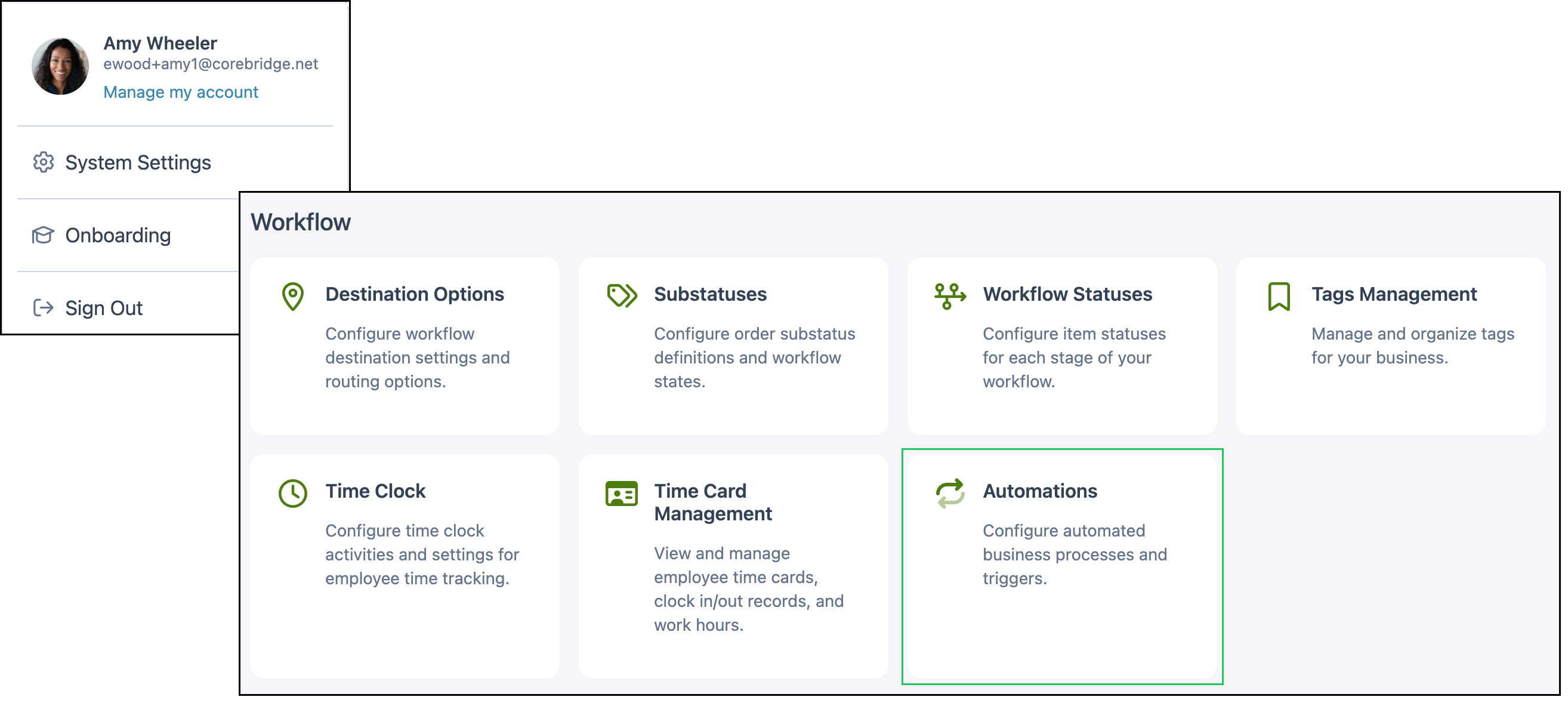
Navigate to System Settings / Workflow / Automations.
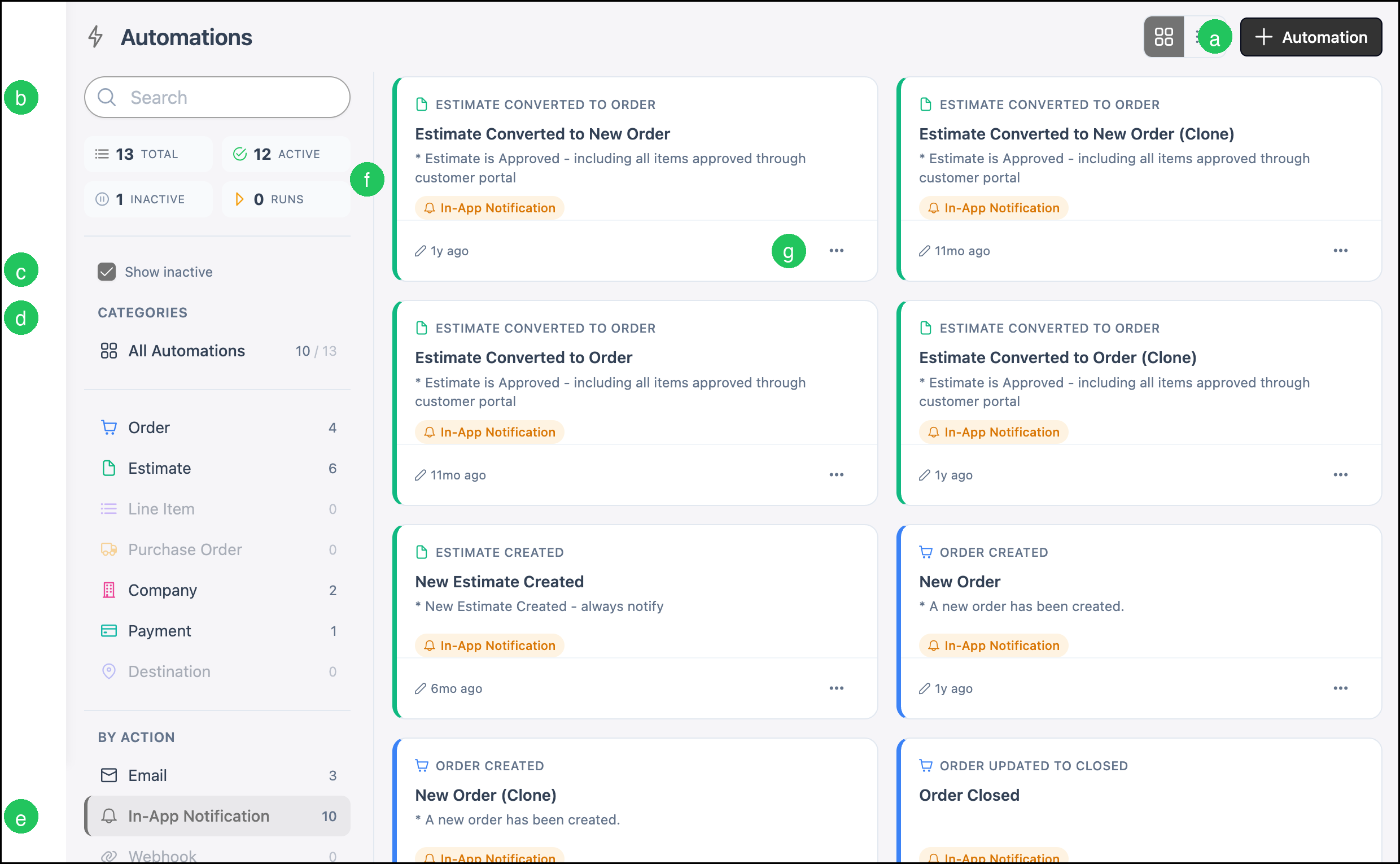
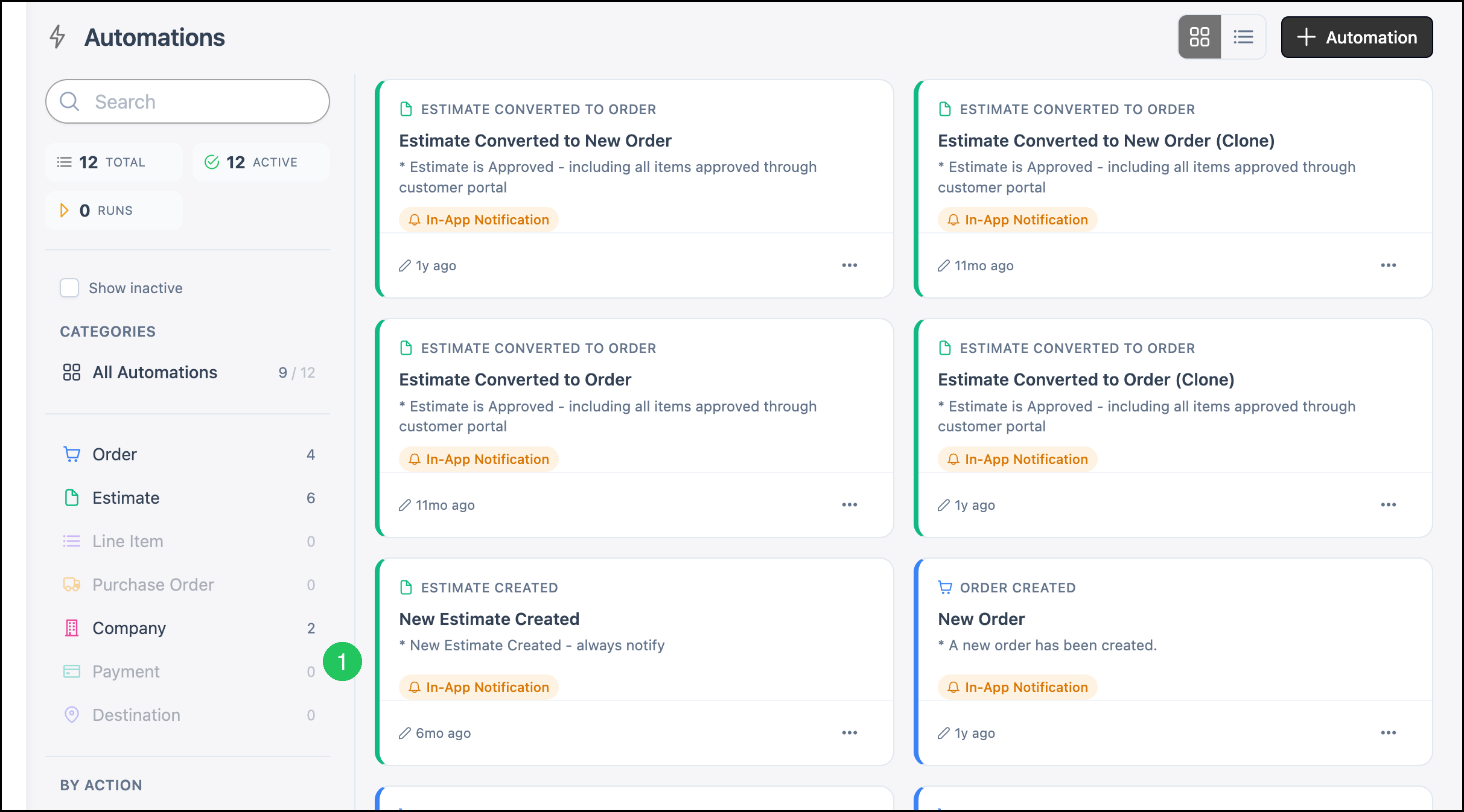
On the Automations screen, Notifications appear as Automations that use the In-App Notification action.
a. Automation opens the Automation Library to create a new Automation or Notification.
b. Search filters Automations by name or keywords.
c. Show inactive displays Automations that are currently inactive when selected.
d. Categories filters Automations by object, such as Order, Estimate, Company, or Payment.
e. By Action filters by action type. Select In-App Notification to focus on Notifications.
f. Each card shows the trigger event, name, description, delivery method, and when it was last updated.
g. The More Actions menu includes options to Set Inactive or Set Active, Clone, and Delete.
Creating a Notification
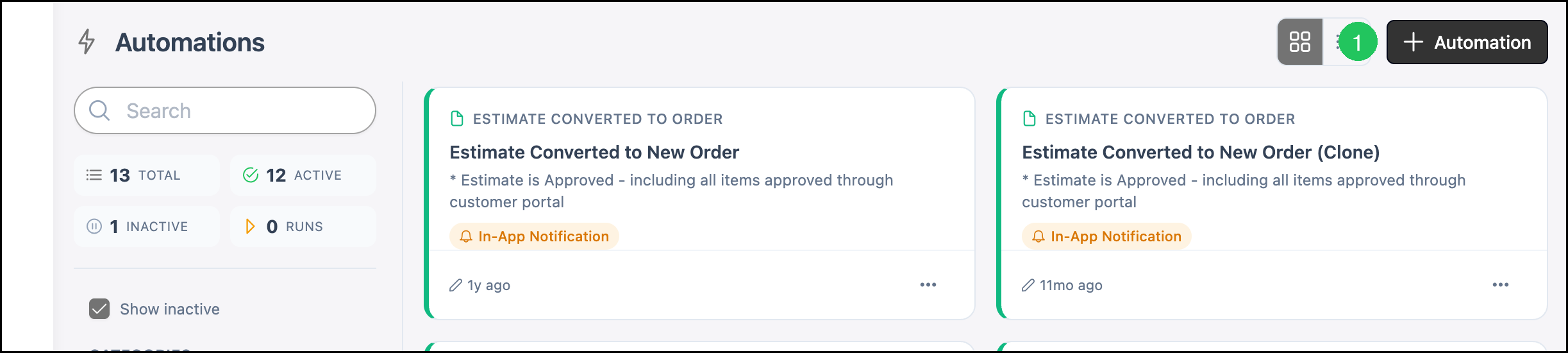
1. Click Automation.
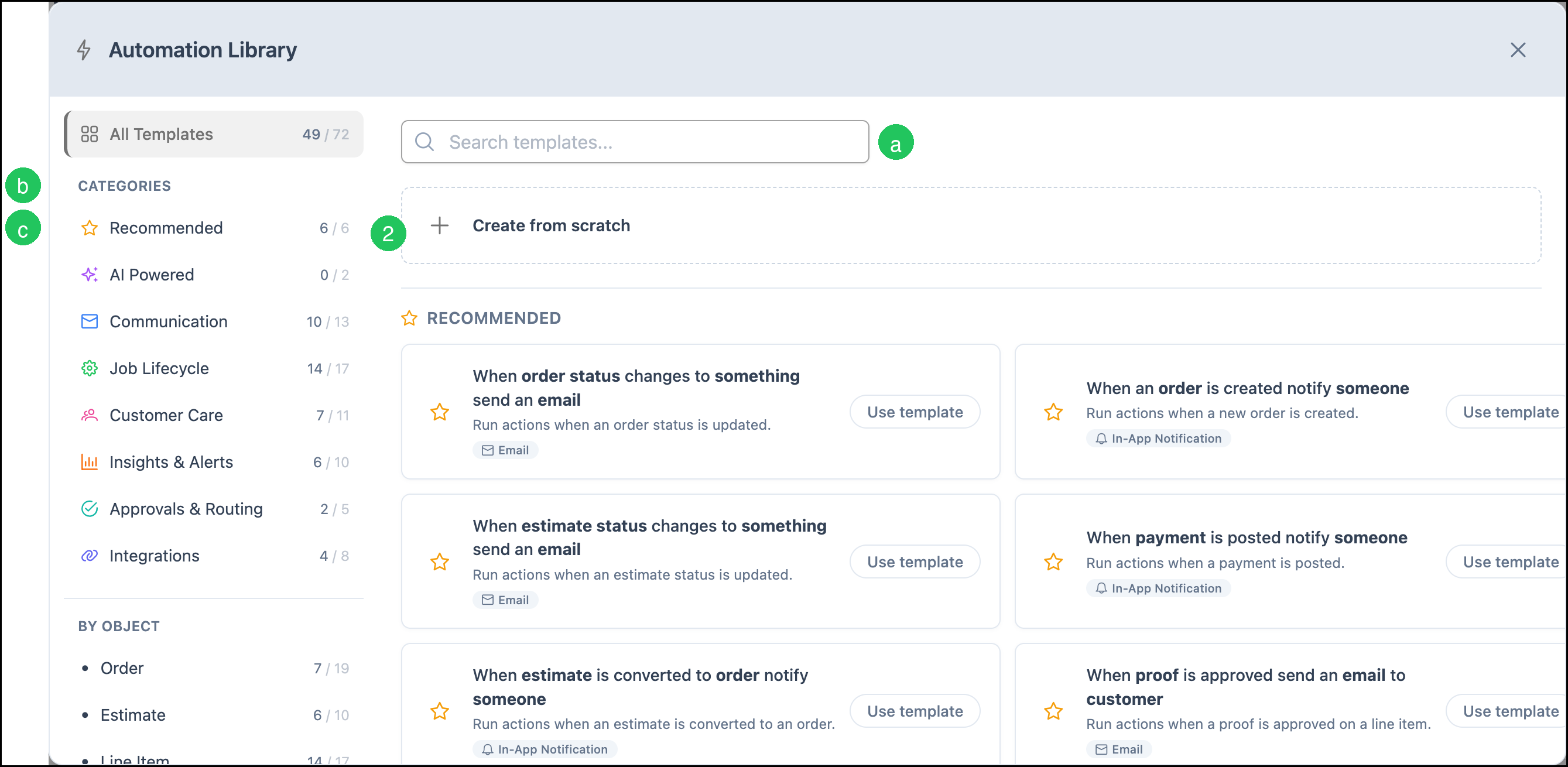
2. Select Create from scratch, or select a template that sends an in-app notification.
a. The Search bar locates a specific template.
b. Categories organize templates by purpose.
c. Category options include Recommended, AI Powered, Communication, and other groups.
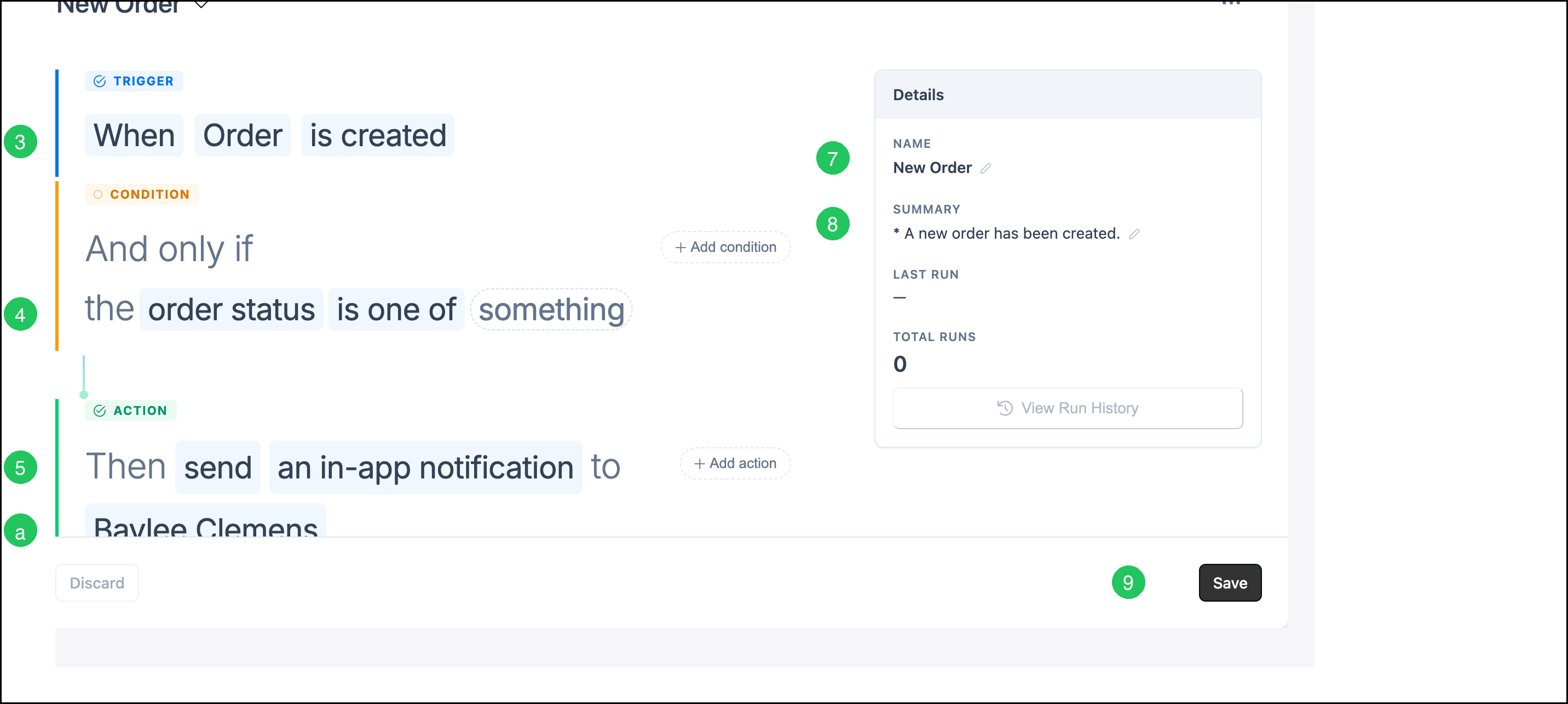
3. Set the Trigger by selecting the event that starts the Notification.
4. Optionally click Add condition to limit when the Notification runs. Conditions are optional.
5. Set the Action to send an in-app notification.
a. Select the recipient. Recipients can be People or Roles. Teams are available when Teams is included in your plan.
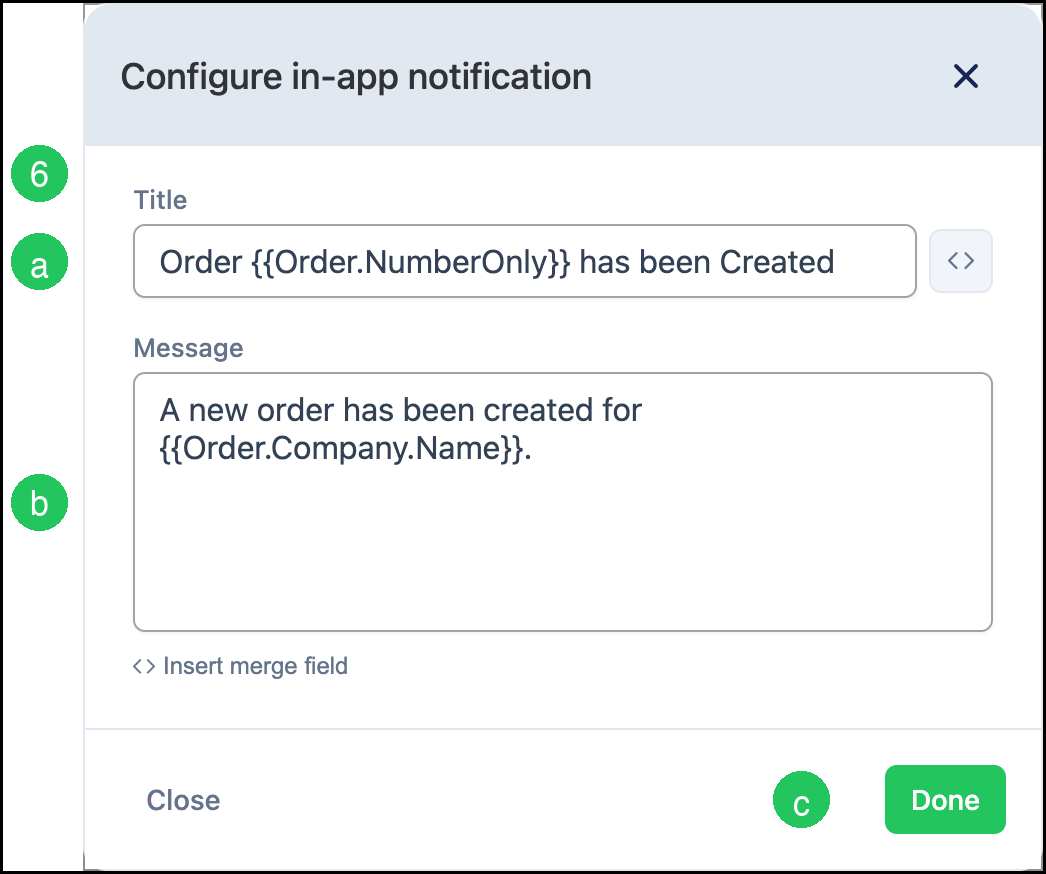
6. Click an in-app notification to open the Configure in-app notification dialog.
a. Title - The subject of the Notification. Merge fields can be inserted as needed.
b. Message - The body of the Notification. Merge fields can be inserted as needed.
c. Click Done to save the Notification content.
7. Enter a Name for the Automation.
8. Enter a Summary that describes the Notification.
9. Click Save.
Note: For more information about triggers, conditions, and other Automation actions, see Automations Overview.
Managing Notifications
After a Notification is saved, you can update it from the Automations screen.
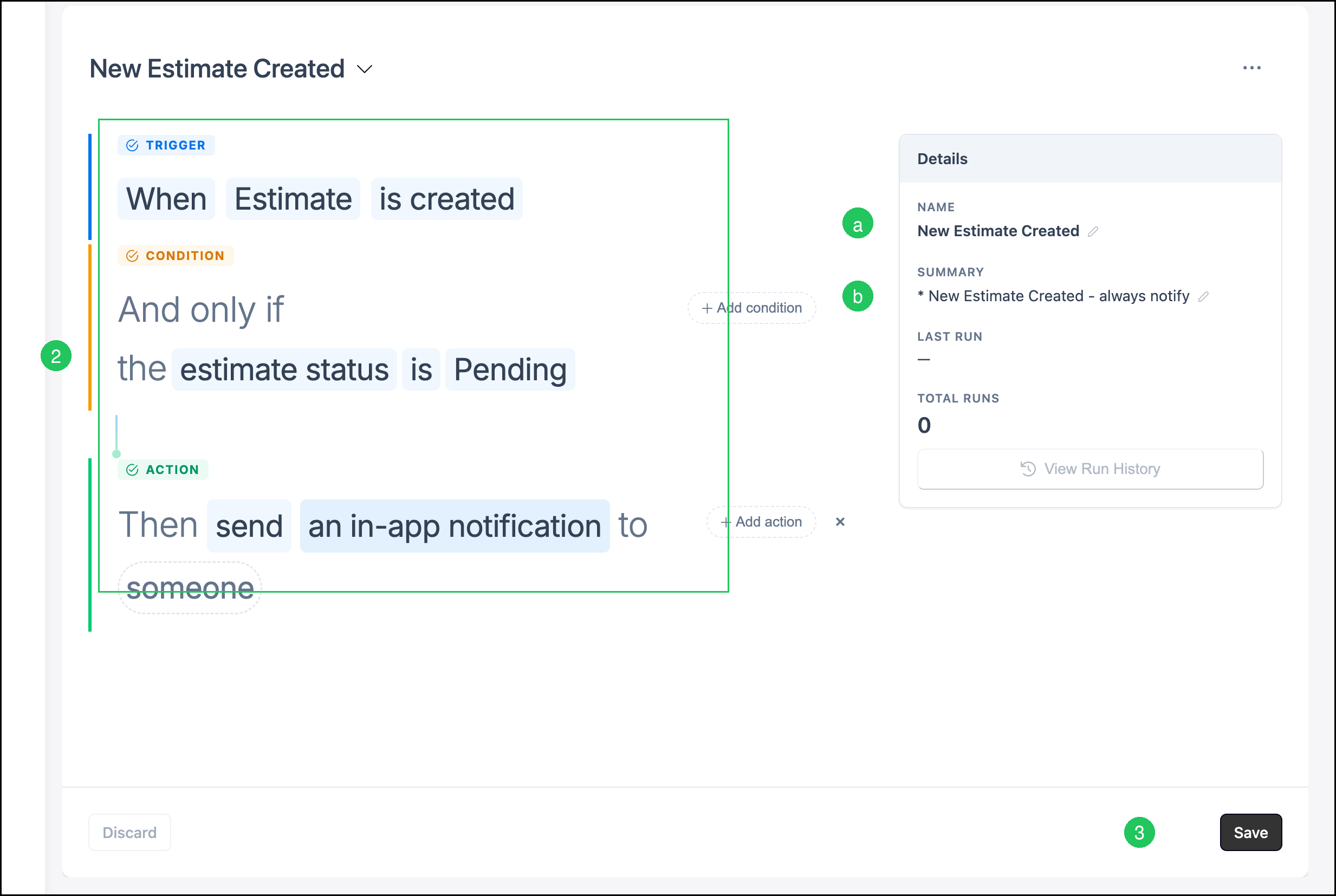
1. Click a Notification card to open it.
2. Edit the Trigger, conditions, or Action as needed.
a. Name - The title of the Notification.
b. Summary - A short description of the Notification.
3. Click Save.
Note: Use the More Actions menu on a card to set a Notification inactive or active, clone it, or delete it when deletion is available. Delete is unavailable after a Notification has run. Set it inactive instead to stop future runs.
Select Show inactive to review Notifications that are currently turned off. Select In-App Notification under By Action to filter the list to Notifications.
Frequently Asked Questions
1. What is the difference between a Message and a Notification?
Answer: A Message is sent between employees in CoreBridge EVO. A Notification is created by the system (for example, from an Automation) to alert you about an event.
2. Where do Notifications appear for employees?
Answer: Notifications appear in the header Notifications window and on the Messages & Notifications screen under the Notifications channel.
3. Can I send both an email and an in-app notification from one Automation?
Answer: Yes. An Automation can include multiple actions. Add both Send an email and Send an in-app notification when you want both delivery methods.
Related Articles
Automations Overview
Employee Roles and Permissions in Settings
Messages and Notifications