
A Machine Instance is a physical unit of a Machine in CoreBridge EVO. If you have more than one of the same Machine, you can store details for each unit on the Instances tab, such as manufacturer, model, serial number, location, and service information.
Profiles define how a Machine runs a job. Instances store asset and identity details for each physical unit. For background on Machines, see Machines Overview. For run settings, see Machine Profiles.
Table of Contents
- Important Information
- Accessing Machine Instances
- Instance Fields
- Adding an Instance
- Frequently Asked Questions
- Related Articles
Important Information
Every Machine needs at least one active Instance.
Use Instances for physical equipment details. Use Profiles for how the Machine runs (Labor, speed, layout, and related settings).
Note: As a best practice, when a new Instance is needed, clone an existing Instance and then update the necessary details before saving.
Accessing Machine Instances
Navigate to System Settings / Components / Machines.
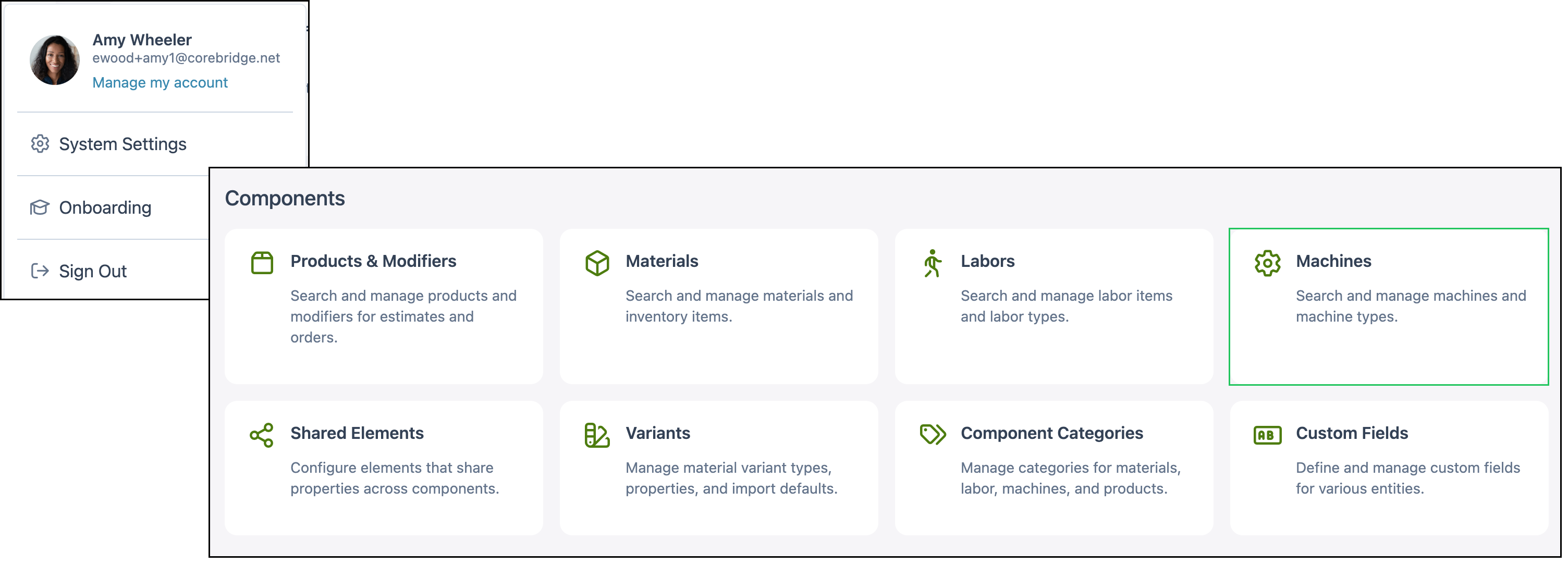
Open the Machine you want to update.
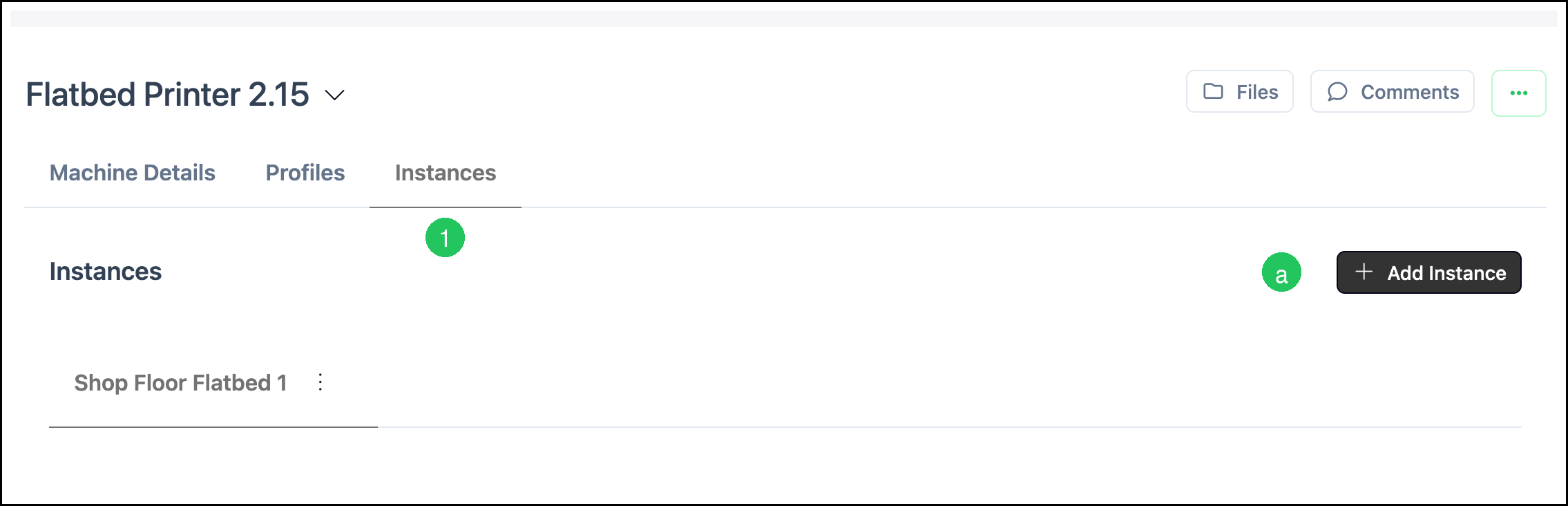
1. Select the Instances tab.
a. The Add Instance button allows you to add a new Instance.
Instance Fields
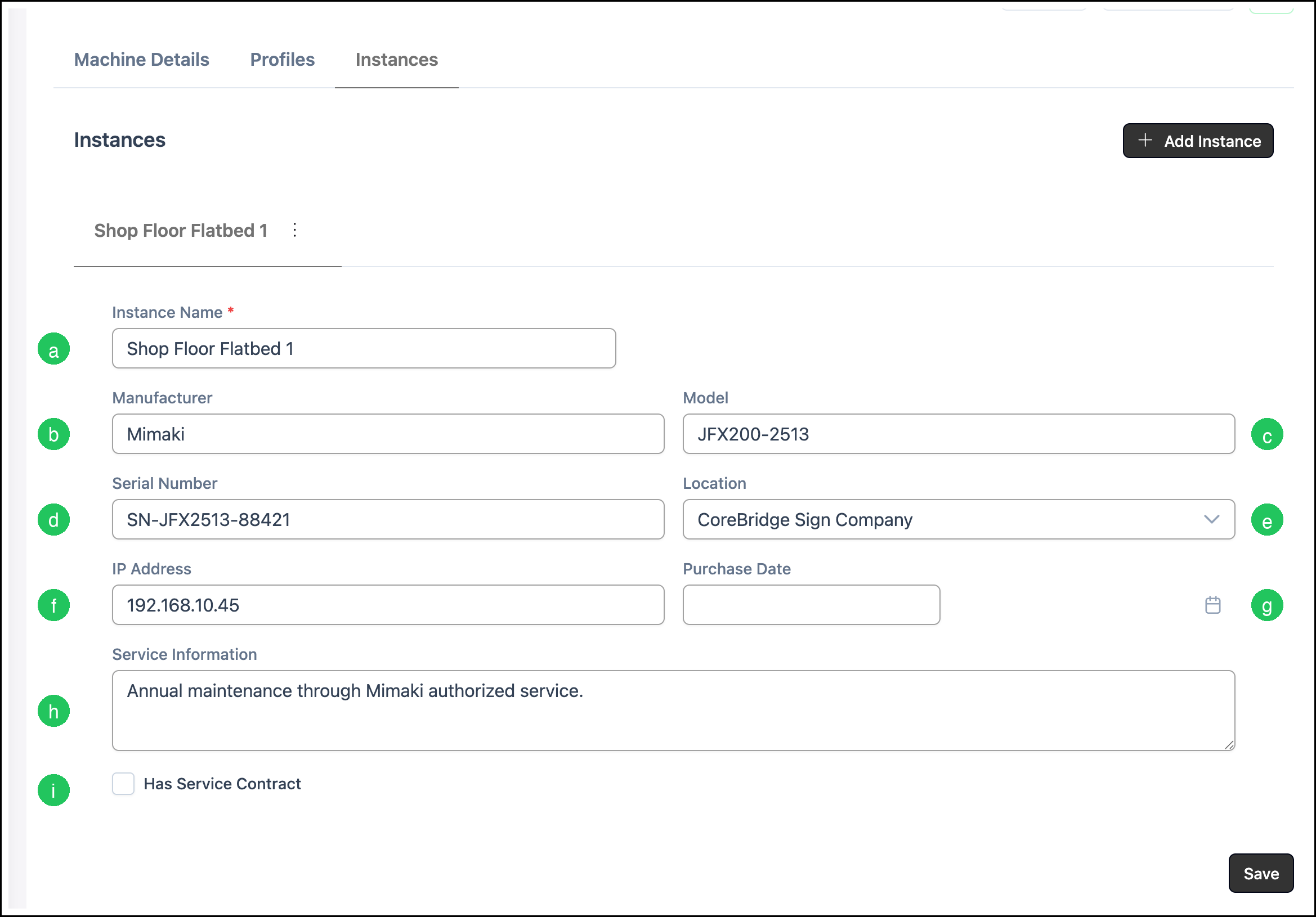
Instance fields store identifying and service details for the physical Machine. Fields marked with a red asterisk are required.
a. Instance Name - The name used to identify this physical unit.
b. Manufacturer - The manufacturer of the equipment.
c. Model - The model of the equipment.
d. Serial Number - The serial number for this unit.
e. Location - The Location where this unit is used.
f. IP Address - The network or IP address for this unit, when applicable.
g. Purchase Date - The date this unit was purchased.
h. Service Information - Notes about service, maintenance, or support for this unit.
i. Has Service Contract - Select this checkbox when the unit has a service contract.
Note: When selected, Contract Start Date and Contract End Date become available.
Adding an Instance
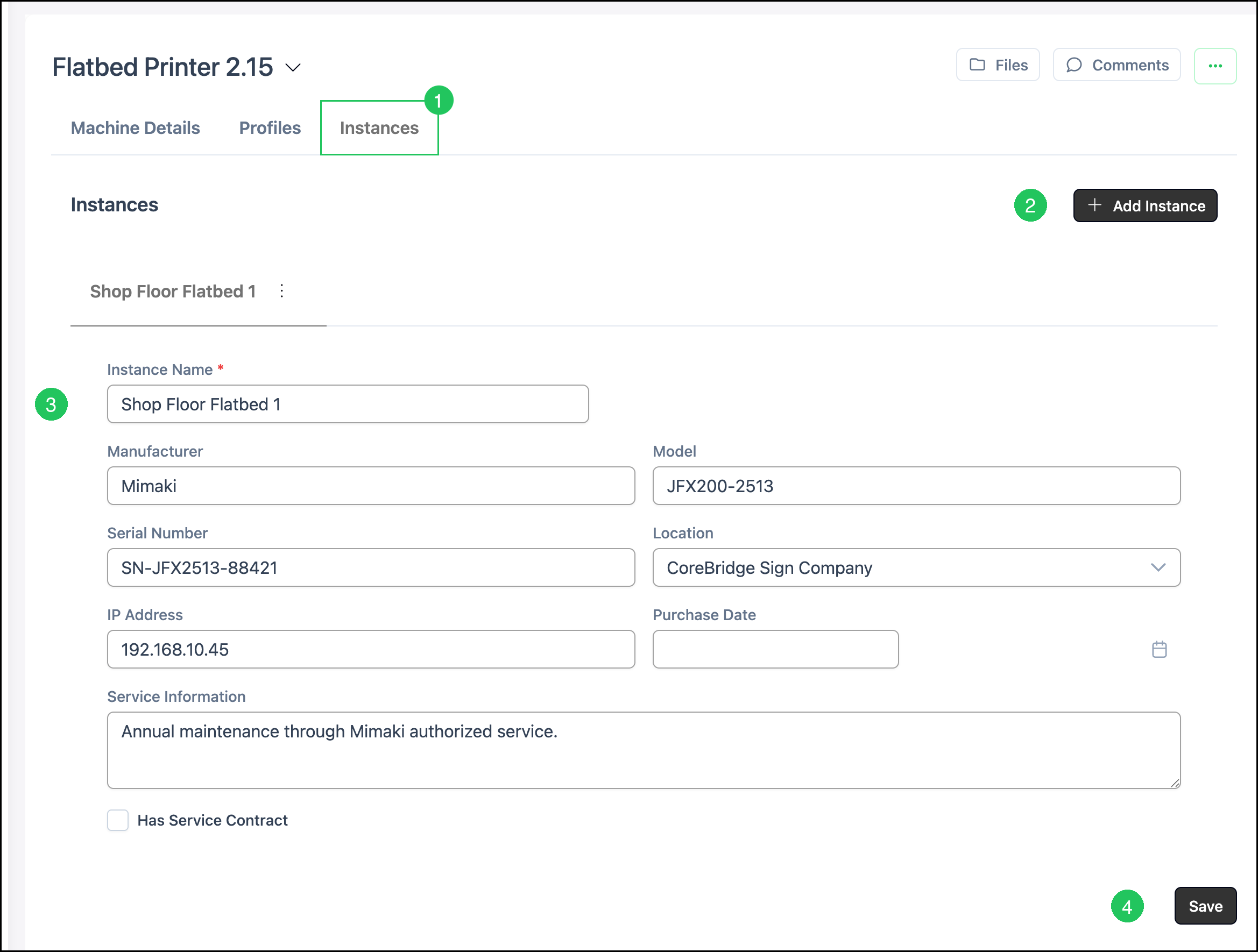
1. Select the Instances tab:
2. Click Add Instance.
3. Enter the Instance Name and complete any other Instance fields you want to record.
4. Click Save.
Note: Each Instance includes a More Actions menu. You can Clone an Instance. When more than one Instance is available, Set Inactive and Delete may also be available.
Frequently Asked Questions
1. What is the difference between a Profile and an Instance?
Answer: A Profile defines how a Machine runs a job, including Labor, timing, speed, and layout settings. An Instance stores details for a physical unit of that Machine, such as manufacturer, model, serial number, and location. See Machine Profiles for Profile setup.
2. Does every Machine need an Instance?
Answer: Yes. Every Machine needs at least one active Instance.
3. When should I add more than one Instance?
Answer: Add another Instance when you have more than one physical unit of the same Machine and you want to track details for each unit separately.
4. What happens when I select Has Service Contract?
Answer: Selecting Has Service Contract displays Contract Start Date and Contract End Date so you can record the contract period for that Instance.
5. Can I clone an Instance?
Answer: Yes. Open the Instance More Actions menu and select Clone, then update the copied details and click Save.
Related Articles
Adding Machines
Machine Cost Worksheet
Machine Profiles
Machines Overview