
The Billing Contact column on the Accounts Receivable Details report displays the Billing Contact assigned to the Company record. Because this information comes directly from the Company record, the Billing Contact shown on the report may differ from the contact associated with an Order or displayed on an Invoice.
Table of Contents
Why the Names Can Differ
An Invoice displays the contact associated with that specific Estimate or Order. The Accounts Receivable Details report instead displays the Billing Contact assigned to the Company record. Because these contacts are managed separately, the same Company may have one contact associated with an Order and a different Billing Contact shown on the report.
Confirming the Company Billing Contact
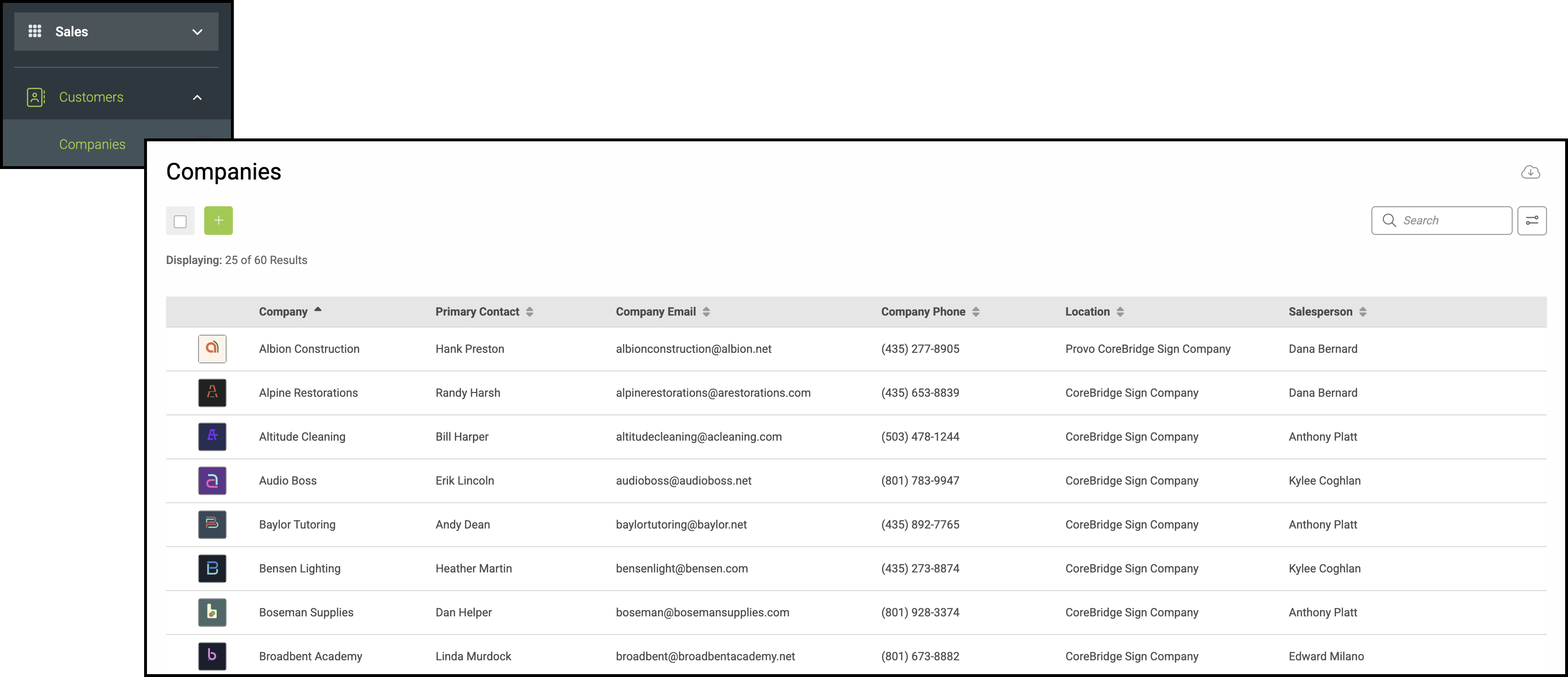
Navigate to Sales / Customers / Companies and open the appropriate Company.
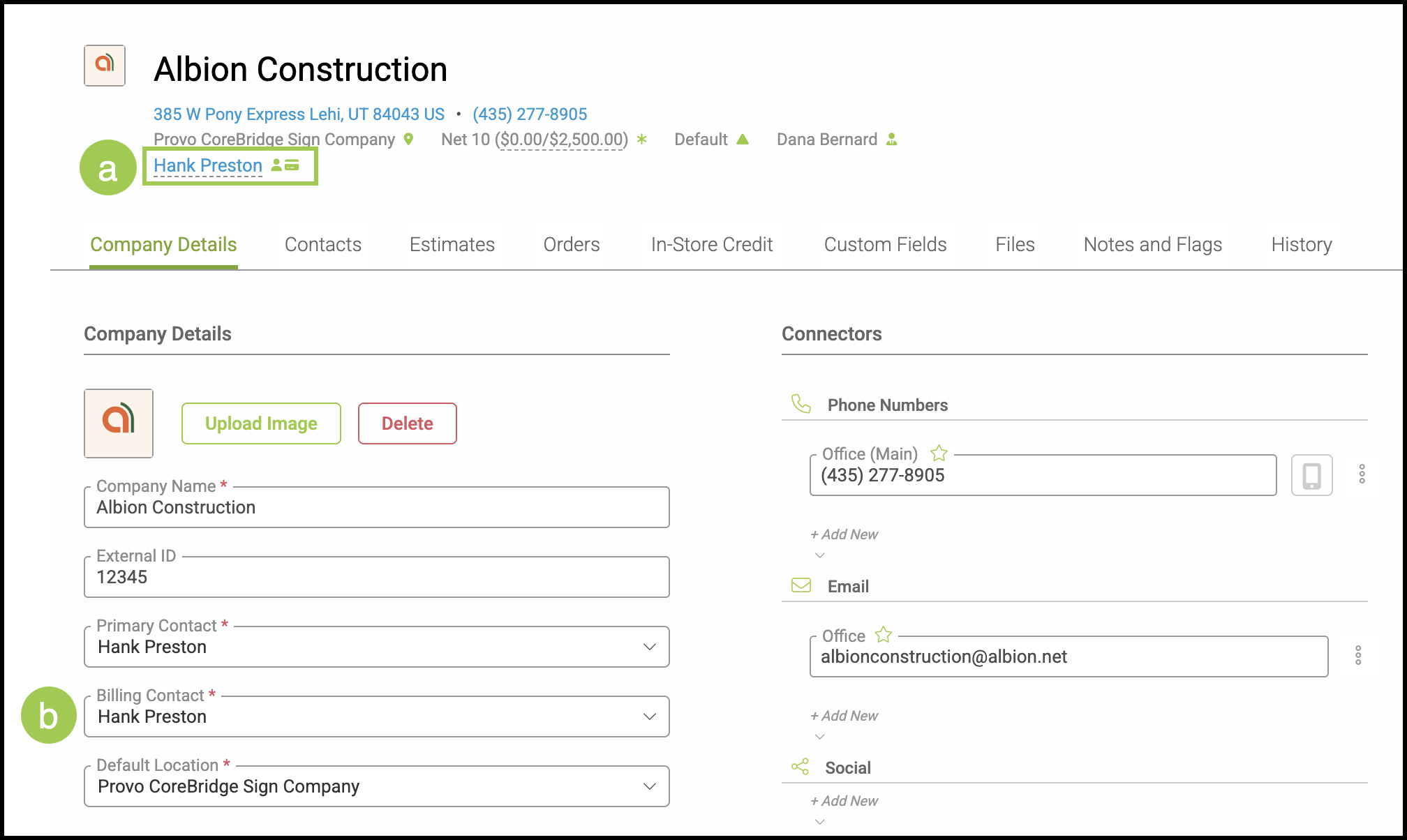
a. The Company heading lists the Contact for that Company. Icons next to the name mark the Primary Contact and the Billing Contact. Those two people can be the same person or different people.
b. If you want the report to list a different Billing Contact, assign that person as the Billing Contact on the Company.
Note:
Changing the Company billing contact updates the Billing Contact column on the Accounts Receivable Details report for that Company's open Invoices. It does not change the contact already printed on existing Invoice documents.
FAQ
1. Why does the Accounts Receivable Details report show a different person than the Invoice?
Answer: The report uses the billing contact on the Company. The Invoice uses the contact on that Order.
2. How do I change who appears in the Billing Contact column?
Answer: Set a different billing contact on the Company under Sales / Customers / Companies. See
and Additional Company Features.